How to Copy a Div With Mixed Content to the Clipboard as an Image
Render a mixed-content div to PNG, then copy it with the Clipboard API. Learn the workflow, browser constraints, troubleshooting, and a no-browser-setup alternative.
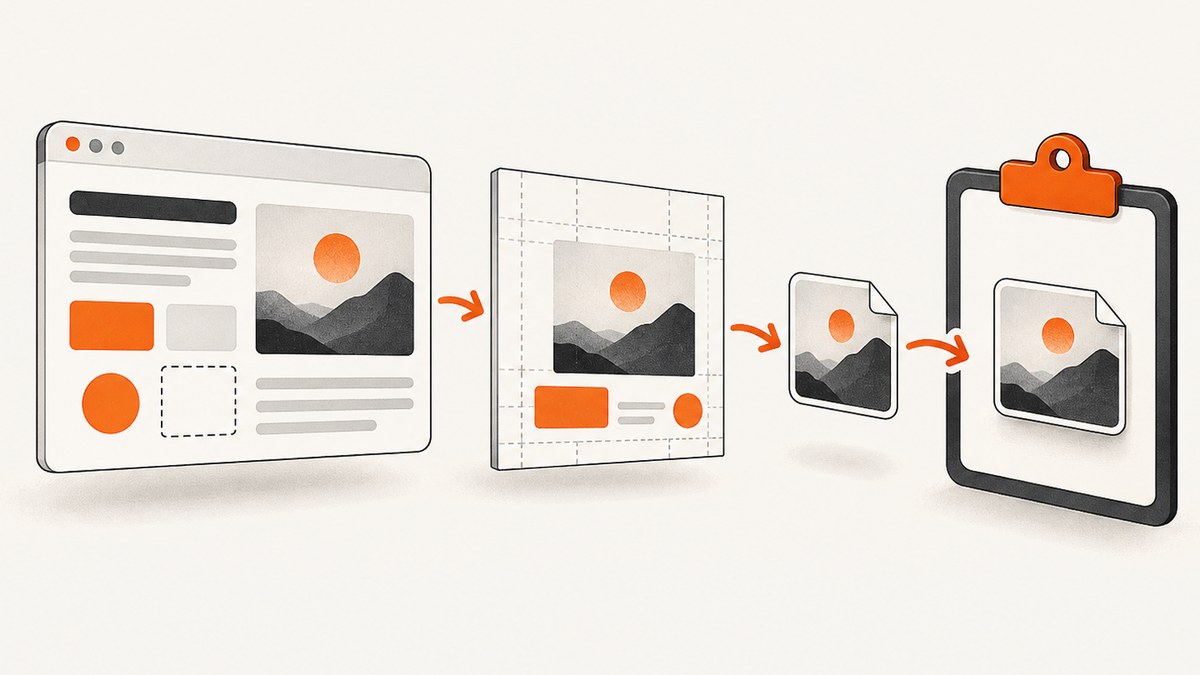
To copy a div with mixed content to the clipboard as an image, first render the element into a PNG, then write that PNG with the browser Clipboard API. The Clipboard API handles the clipboard step; it does not convert HTML and CSS into pixels for you. You also need a DOM-to-image rendering method and must check how it handles the content in your div.
The basic pipeline is select element → render to canvas → encode PNG → write PNG to clipboard. Run the write in response to a user action, such as clicking a button, and handle failure explicitly. Clipboard writes require a secure context, and browser permissions or transient user activation can affect them. [MDN: Clipboard.write(), MDN: ClipboardItem, MDN: Clipboard API security]
1. Understand the two separate jobs
A browser lays out a div as DOM elements, text, images, and CSS. To place it on the clipboard as an image, your app must first create pixel data. A renderer typically produces a canvas or PNG Blob. Then ClipboardItem packages that Blob under the image/png MIME type, and navigator.clipboard.write() submits it to the system clipboard.
- Choose the element. Select the specific container you want users to copy.
- Render it. Use a DOM rendering method compatible with the element’s real content. Rendering support depends on the chosen method; do not assume every renderer reproduces every image, font, CSS effect, or embedded frame.
- Encode PNG bytes. Canvas
toBlob()returns a Blob asynchronously. Reject a null result rather than treating it as a successful image. - Write the clipboard item. Provide the Blob as
image/pngand await the write. - Report the result. Tell the user whether the copy succeeded and give a useful next step on failure.
PNG is a practical default for copied UI or cards because it preserves sharp edges and transparency. MDN documents image/png as a mandated ClipboardItem type, but that does not promise that every destination app will paste or display the image identically. Test the browsers and paste targets that matter to your users. [MDN: ClipboardItem.supports()]
2. Build the copy flow
The code below keeps the renderer as an explicit dependency. Replace renderElementToCanvas with the rendering function supplied by the DOM-to-image approach you choose. This separation makes the clipboard logic reusable and prevents it from implying that one renderer handles every mixed-content case.
async function copyElementAsPng(element, renderElementToCanvas) {
  if (!element) {
    throw new Error("The element to copy was not found");
  }

  if (!window.isSecureContext) {
    throw new Error("Clipboard image copying requires a secure context");
  }

  if (!navigator.clipboard?.write || typeof ClipboardItem === "undefined") {
    throw new Error("This browser does not expose the required clipboard APIs");
  }

  const canvas = await renderElementToCanvas(element);
  const blob = await new Promise((resolve, reject) => {
    canvas.toBlob((result) => {
      if (result) resolve(result);
      else reject(new Error("Could not encode the element as PNG"));
    }, "image/png");
  });

  await navigator.clipboard.write([
    new ClipboardItem({ "image/png": blob }),
  ]);
}
Call it from a button handler and surface errors to the user:
const copyButton = document.querySelector("#copy-card");
const card = document.querySelector("#share-card");

copyButton.addEventListener("click", async () => {
  copyButton.disabled = true;
  try {
    await copyElementAsPng(card, renderElementToCanvas);
    copyButton.textContent = "Copied image";
  } catch (error) {
    console.error("Could not copy image", error);
    copyButton.textContent = "Copy failed — try again";
  } finally {
    copyButton.disabled = false;
  }
});
The handler above assumes your application supplies renderElementToCanvas. The researched browser documentation describes writing canvas image data to the clipboard, but it does not establish that a particular DOM renderer supports all mixed content. Select and verify the rendering layer separately.
3. Pick and validate a DOM rendering method
For the rendering step, assess the candidate against the content users actually see, rather than just a simple text-only sample. A “mixed-content div” might include paragraphs, web fonts, remote images, gradients, shadows, SVG, video frames, or nested components. Make a small fixture that exercises the types your app uses.
| Check | Why it matters | How to evaluate it |
|---|---|---|
| External images | The renderer may need to load or read image data before drawing it. | Try same-origin and remote images; inspect whether the output contains them and whether canvas encoding succeeds. |
| Fonts | A fallback font changes line breaks and card height. | Wait for the page’s fonts to load before capture, then compare the rendered text and wrapping. |
| CSS effects | Filters, shadows, gradients, transforms, and pseudo-elements can affect fidelity. | Compare a captured image with the on-screen div at the intended size. |
| Embedded content | Frames and live media have rendering and access constraints that vary by implementation. | Test each embedded type; provide a fallback if it cannot be represented. |
| Dimensions and scale | Large or high-density output can use more memory and take longer to encode. | Check the final pixel dimensions, text sharpness, and behavior on a representative device. |
| Maintenance and browser coverage | A renderer is part of your compatibility surface. | Test supported browsers and keep a regression sample for important content. |
Do not treat a successful clipboard write as proof that the image is visually correct: validate the PNG separately. Conversely, a correct PNG does not prove every target application will paste it in the same way.
4. Clipboard requirements and behavior
Secure context and user action
Clipboard methods are available only in secure contexts. Use HTTPS in production; localhost is commonly treated as a secure development context by browsers. A clipboard write may also require permission or transient user activation. Start the operation directly from the user’s click or keyboard action and await it. Avoid moving it into a delayed background callback that may no longer have the required activation. Catch rejected writes and offer a retry. [MDN: Clipboard API]
MIME type and ClipboardItem
Use a ClipboardItem mapping from image/png to the PNG Blob. ClipboardItem values can be Blobs, strings, or promises that resolve to supported data. A promise can be useful when image production is asynchronous, but keep the write tied to the initiating user action and test browser behavior. ClipboardItem.supports("image/png") can help check format support where available; feature detection for navigator.clipboard.write and ClipboardItem is still useful. Format support describes the API format, not the behavior of every paste destination. [MDN: ClipboardItem, MDN: ClipboardItem.supports()]
PNG encoding
canvas.toBlob() is asynchronous and can return null if encoding fails. Treat that as an error. If you already have PNG bytes as a Blob from your renderer, you can pass that Blob directly and skip the canvas conversion. Keep the MIME type consistent with the bytes you provide.
5. Common errors and fixes
| Symptom | Likely cause | Fix |
|---|---|---|
navigator.clipboard is missing |
The page is not in a secure context, or the browser does not expose the API. | Serve over HTTPS (or a supported local development origin), feature-detect the API, and provide a message or alternate download flow. |
| Clipboard write rejects with a permission or security error | The browser denied access or the write was outside transient user activation. | Invoke the operation directly in the click handler, request no assumption of automatic permission, and let the user retry. |
toBlob() returns null |
The canvas could not produce the requested PNG. | Reject the operation, inspect the renderer and canvas state, and test the element’s images and dimensions. |
| Image is missing or differs from the page | The DOM renderer did not reproduce a particular asset or CSS feature, or capture began before resources loaded. | Validate the renderer against the affected content, wait for required fonts and images, and provide a simpler export layout if needed. |
| Copied data pastes differently in another app | Paste destinations interpret or expose clipboard formats differently. | Test the target browser and destination applications; explain which paste targets your app supports. |
| Copy works on one browser but not another | Clipboard API availability, permission handling, or format support differs. | Feature-detect, test the supported browser set, and show an actionable fallback rather than reporting false success. |
6. Performance, reliability, and cost
Rendering a DOM subtree and encoding a bitmap takes time and memory in the user’s browser. Keep the copied region focused, avoid unnecessarily huge dimensions, and consider whether a high-density output is needed for the intended paste size. A large, long page can create a large canvas, slow down the interface, or fail during encoding. Disable repeated clicks while one capture is running, but always restore the control state in a finally block.
For reliability, wait only for resources the chosen renderer needs, show progress if capture takes perceptible time, and distinguish rendering failures from clipboard permission failures. Keep a representative fixture with remote images, fonts, and CSS effects. Recheck it when changing the renderer or browser support policy. There is no universal fidelity guarantee for every renderer and mixed-content combination, so measure against your own content.
The browser-native path does not require a screenshot API bill, but it does require implementation, compatibility checks, and maintenance. If you use a hosted screenshot service for server-side captures, evaluate the pricing and failure behavior of that service for your workload.
7. Or skip the browser setup
If your goal is to capture a web page rather than place a browser-rendered div directly on the local clipboard, ScreenshotNeo can return a screenshot from one GET request. For the complete parameter reference, see the ScreenshotNeo API documentation.
curl -G "https://api.screenshotneo.com/v1/shot" -d access_key=YOUR_API_KEY --data-urlencode url=https://stripe.com -o shot.webpimport requests
r = requests.get(
"https://api.screenshotneo.com/v1/shot",
params={"access_key": "YOUR_API_KEY", "url": "https://stripe.com"},
timeout=90,
)
r.raise_for_status()
open("shot.webp", "wb").write(r.content)const q = new URLSearchParams({ access_key: 'YOUR_API_KEY', url: 'https://stripe.com' });
const res = await fetch(`https://api.screenshotneo.com/v1/shot?${q}`);
if (!res.ok) throw new Error(`Screenshot request failed: ${res.status}`);
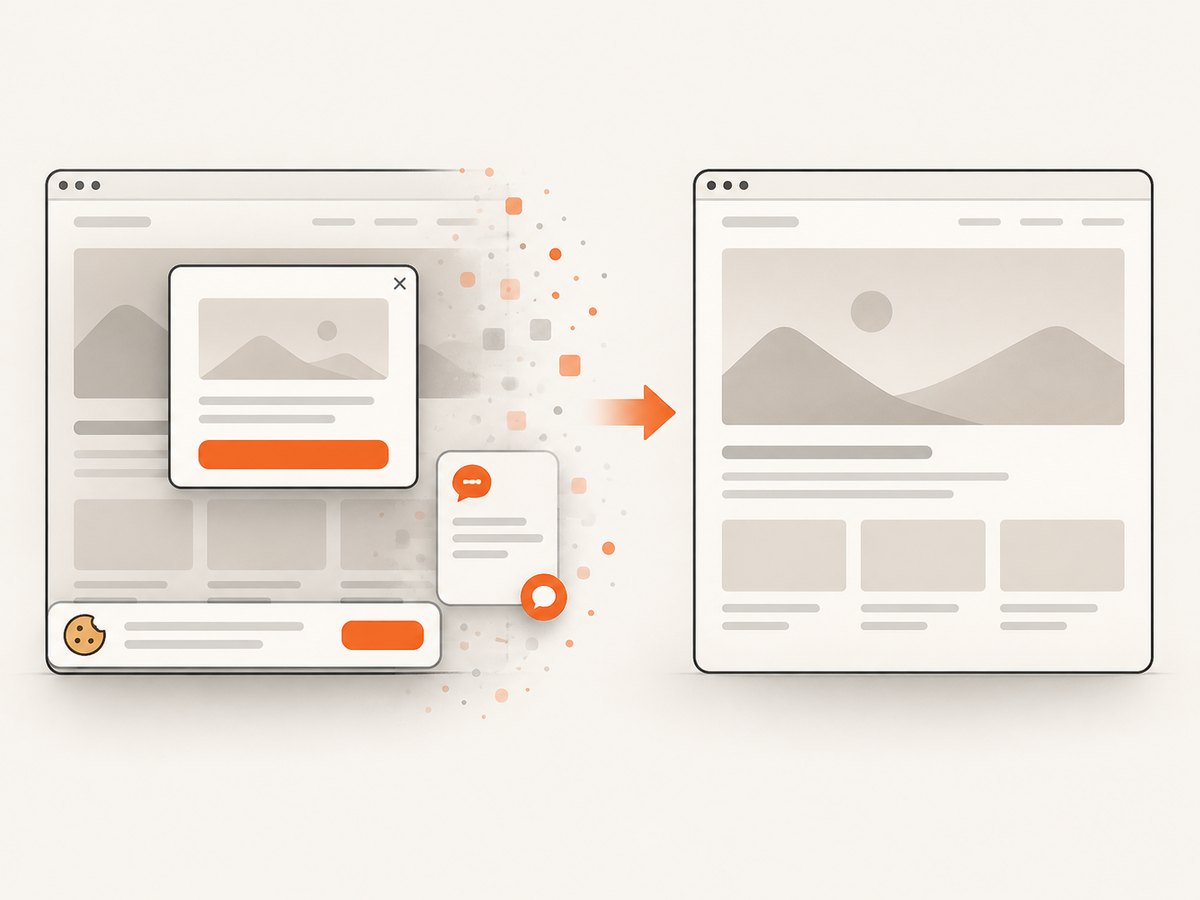
const bytes = await res.arrayBuffer();ScreenshotNeo removes cookie banners, newsletter popups, and chat widgets before the shot; bot checks, blank pages, and failed loads are never billed. An MCP server lets AI agents use screenshot tools. The free plan includes 1,000 screenshots a month with no card, and paid plans start at $5 for 3,000. To put an API result on a local clipboard, your application still needs to receive the image bytes and write them with the Clipboard API described above.
Create a free ScreenshotNeo account for 1,000 screenshots a month with no card.
8. FAQ
Can I copy the HTML itself as an image?
No. HTML is structure and style information; render it into pixels first, then write the resulting image data to the clipboard.
Does image/png support guarantee that every app will paste the image?
No. It is a mandated ClipboardItem format, but paste behavior and display depend on the browser and destination application. Test the complete path your users will use.
Can I also put text or HTML on the clipboard?
ClipboardItem supports data keyed by MIME type, and the API documentation covers text and HTML formats too. If you offer multiple representations, verify how the target browsers and paste destinations select among them.
Why can a PNG look different from the live div?
The DOM rendering stage may not reproduce a resource or CSS behavior exactly, or it may capture before a font or image is ready. Inspect the PNG before debugging the clipboard write.


