How to Show the Correct Screenshot for Retries in Mochawesome Reports
Map Cypress retry screenshots to the right Mochawesome attempt, keep every artifact, and fix reports that show stale or missing images.

Short answer: keep Cypress retry screenshots for each attempt, then let cypress-mochawesome-reporter associate each screenshot collection with the attempt that produced it. Leave saveAllAttempts at its default true when you need every failed and final screenshot. Set it to false only when the report should retain the final attempt’s screenshots.
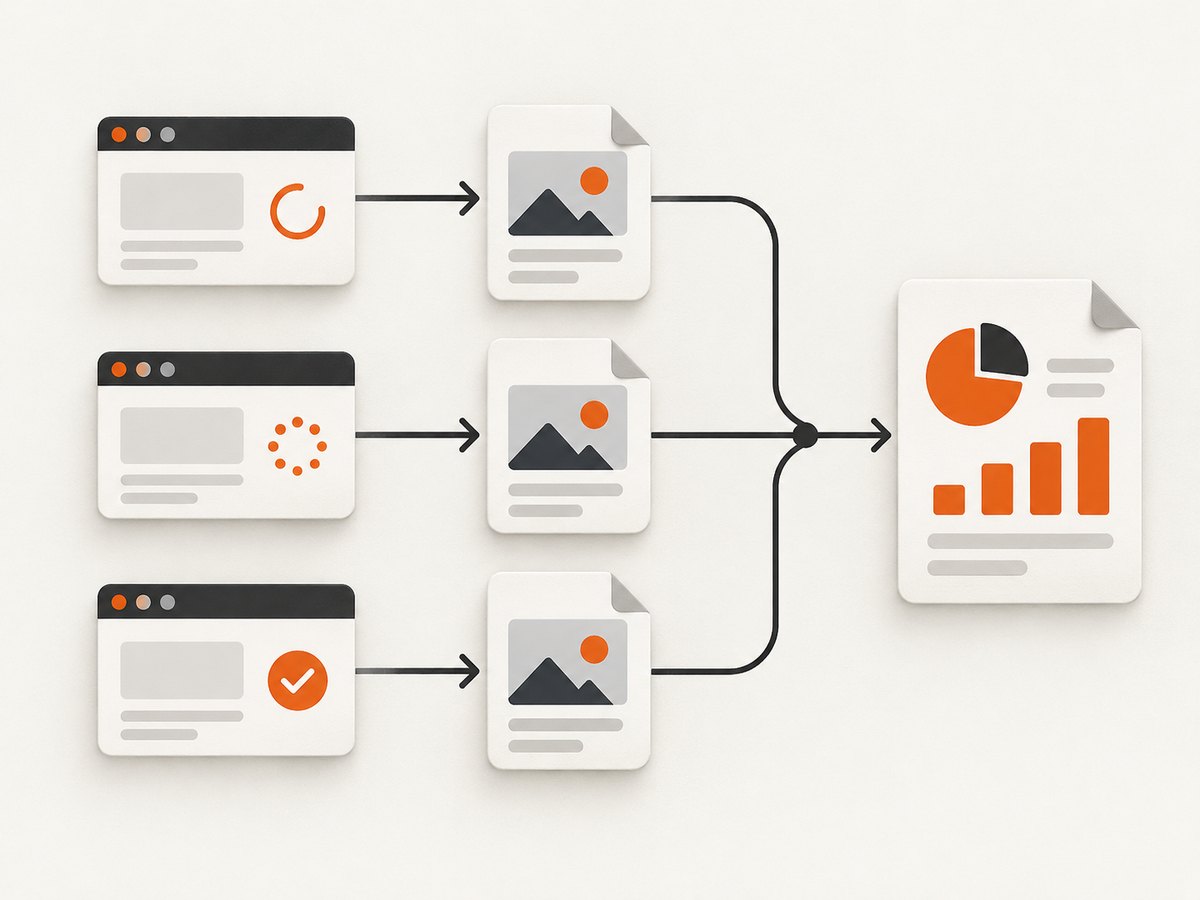
Cypress creates a new test attempt for every retry, reruns the beforeEach and afterEach hooks, and adds an (attempt n) suffix to retry screenshot filenames. The reporter records screenshot paths for the current attempt and then appends that collection to the test’s attempt history. [Read Cypress’s retry documentation](https://docs.cypress.io/app/guides/test-retries) and the [reporter implementation](https://app.unpkg.com/cypress-mochawesome-reporter%403.8.2/files/register.js) when diagnosing a version-specific mismatch.
1. Configure Cypress retries and screenshots
Start by making the retry count explicit. Cypress retry counts are additional attempts after the first run: retries: 2 can produce three total attempts.
// cypress.config.js
const { defineConfig } = require('cypress');

module.exports = defineConfig({
  e2e: {
    retries: {
      runMode: 2,
      openMode: 0
    },
    screenshotOnRunFailure: true,
    screenshotsFolder: 'cypress/screenshots',
    setupNodeEvents(on, config) {
      return config;
    }
  }
});
Automatic failure screenshots are taken during cypress run. They are not taken automatically in interactive cypress open. In either mode you can request an explicit image with cy.screenshot(). The default destination is cypress/screenshots; [Cypress documents the screenshot settings here](https://docs.cypress.io/app/guides/screenshots-and-videos).
2. Capture an image on every attempt
Use an explicit screenshot when you need a stable name or a capture at a particular point in the test. Cypress still adds the attempt suffix when the test retries.
// cypress/e2e/checkout.cy.js
describe('checkout', () => {
  it('shows the confirmation page', () => {
    cy.visit('/checkout');
    cy.get('[data-cy=pay]').click();
    cy.screenshot('checkout-after-pay');
    cy.get('[data-cy=confirmation]').should('be.visible');
  });
});
With two configured retries, inspect the output directory for names that identify the attempt, such as checkout-after-pay (failed).png and files carrying (attempt 2) or (attempt 3). The exact base name depends on whether the image came from cy.screenshot() or automatic failure capture, but the attempt suffix is the evidence that the file belongs to a retry.
3. Install and register cypress-mochawesome-reporter
Install the reporter version used by your project, then follow its supported Cypress integration. The reporter’s registration code must be loaded from your Cypress support setup so it can observe screenshot events and test completion.
npm install --save-dev cypress-mochawesome-reporter// cypress/support/e2e.js
import 'cypress-mochawesome-reporter/register';If your project uses CommonJS support files, use:
// cypress/support/e2e.js
require('cypress-mochawesome-reporter/register');
The reporter’s capture callback normalizes a screenshot path relative to Cypress’s screenshotsFolder, stores it in the current-attempt collection, and moves that collection into the attempt history after test:after:run. At finalization, that attempt data is attached to the report. This behavior is visible in version 3.8.2’s register.js; inspect the release installed in your project before applying assumptions.
4. Choose whether Mochawesome keeps all attempts
The reporter option that controls this behavior is saveAllAttempts. Its documented default is true.
// mochawesome reporter options
module.exports = {
  saveAllAttempts: true
};| Setting | Result | Use it when |
|---|---|---|
true |
Retains screenshots from every retry attempt. | You need failure evidence, flaky-test history, or a way to compare state changes between attempts. |
false |
Saves only the last attempt’s screenshots. | You want a smaller report and only care about the final result. |
Changing saveAllAttempts does not repair a stale path or a bad association. If the file on disk is correct but the HTML report displays another image, inspect the reporter version, registration order, and merged result files.
5. Run the test and verify the mapping
- Run in headless mode so Cypress can automatically capture failures:
npx cypress run --browser chrome. - Record how many attempts occurred. Two retries means up to three attempts.
- List the screenshot directory and sort by filename and modification time.
- Match each
(attempt n)suffix to the attempt number shown in the Cypress result. - Open the Mochawesome report and expand the test’s attempt details.
- Confirm that each attempt points to the image created during that attempt, and that the final attempt points to the final state.
find cypress/screenshots -type f -print | sort
npx cypress run --browser chrome
Do not assume an unsuffixed image is the final attempt. Compare the report’s stored path with the actual files. Cypress’s retry guide explicitly describes the (attempt n) naming convention: “When a test retries, Cypress will continue to take screenshots for each failed attempt or cy.screenshot() and suffix each new screenshot with (attempt n), corresponding to the current retry attempt number.”
6. Why the wrong screenshot appears
The test never retried
Check the effective retry configuration for the current mode. runMode and openMode can differ, and a passing first attempt produces no retry image.
You ran cypress open
Interactive mode does not automatically capture failure screenshots. Add cy.screenshot() or run the spec with cypress run.
saveAllAttempts is false
The report is intentionally keeping only the last attempt. Set it to true when diagnosing flaky behavior.
The screenshot folder differs from the reporter’s expectation
If you changed screenshotsFolder, verify that the reporter receives and stores paths relative to that same folder. Look for path differences caused by absolute paths, renamed folders, or post-run file moves.
Multiple reporters or a merge step rewrites results
Cypress supports custom reporters and Mochawesome setups that merge JSON files. A merge script can preserve an old attachment path or overwrite attempt data. [Review Cypress’s reporter guidance](https://docs.cypress.io/app/tooling/reporters), then inspect the raw JSON before and after merging.
The installed reporter release differs from the example
The source behavior described above is specific to the inspected 3.8.2 implementation. Check npm list cypress-mochawesome-reporter and read the matching package documentation before copying internals from another release.
A manual screenshot has a different name than the failure screenshot
That is expected: explicit cy.screenshot('name') and automatic failure capture use different base names. Use the attempt suffix and the report’s stored path, rather than the base name alone, to identify the image.
7. A deterministic debugging checklist
- Confirm the test failed and actually retried.
- Write down the total attempts: initial run plus configured retries.
- Confirm whether the run used
cypress runorcypress open. - Check
screenshotOnRunFailureand any explicitcy.screenshot()calls. - List files under the configured
screenshotsFolder. - Find the
(attempt n)suffix for each retry image. - Verify
saveAllAttemptsmatches the desired output. - Inspect raw Mochawesome JSON for the screenshot path attached to each attempt.
- Check reporter and Cypress versions.
- Only then investigate custom merging, cleanup, or path rewriting.
8. Performance, reliability, and storage considerations
Keeping all attempts increases the number of image files and the size of the generated report. That extra evidence is useful for flaky tests, but clean old run artifacts in CI according to your retention policy. If report size matters more than historical evidence, use saveAllAttempts: false and retain Cypress’s raw artifacts separately.

Retries rerun hooks as well as the test body. A stateful beforeEach or cleanup routine can therefore produce a genuinely different page on each attempt. When screenshots differ, compare the page state, network data, and hook side effects before treating the report as incorrect.
For reliable associations, keep screenshot generation and report finalization in the same Cypress run, avoid moving files before the reporter finishes, and preserve the relative folder structure expected by the reporter.
Or skip the browser setup
If your goal is simply to capture a dependable image for a report or CI artifact, ScreenshotNeo provides a single screenshot API request. It can remove cookie banners, newsletter popups, and chat widgets before capture; bot checks, blank pages, failed loads, timeouts, and cache hits are not billed; and its response identifies the result with X-Page-Verdict and X-Billed headers. It also provides an MCP server with take_screenshot, get_page_info, and capture_pdf tools for Claude, Cursor, and other MCP clients.
See the ScreenshotNeo API documentation for the available options and response details.
curl -G "https://api.screenshotneo.com/v1/shot" \
  -d access_key=YOUR_API_KEY \
  --data-urlencode url=https://example.com \
  -o shot.webp
import requests
r = requests.get(
"https://api.screenshotneo.com/v1/shot",
params={"access_key": "YOUR_API_KEY", "url": "https://example.com"},
timeout=90,
)
r.raise_for_status()
open("shot.webp", "wb").write(r.content)const q = new URLSearchParams({
access_key: 'YOUR_API_KEY',
url: 'https://example.com'
});
const res = await fetch(`https://api.screenshotneo.com/v1/shot?${q}`);
if (!res.ok) throw new Error(`Screenshot failed: ${res.status}`);
const fs = await import('node:fs/promises');
await fs.writeFile('shot.webp', Buffer.from(await res.arrayBuffer()));ScreenshotNeo supports full-page captures with lazy images loaded, element capture by CSS selector, dark mode, device presets and custom viewports, retina scale, custom CSS and JavaScript, waits, request blocking, headers, cookies, user agents, authorization, timezone, geolocation, transparent backgrounds, resizing, caching, signed links, asynchronous jobs, bulk capture, usage reporting, and PDF output. Choose only the options your report pipeline needs so capture time and artifacts stay predictable.
The Free plan includes 1,000 shots each month with no card. Paid plans start at $5 for 3,000 shots, and every feature is available on every plan. Create a free ScreenshotNeo account.
FAQ
Does Cypress retry the beforeEach hook?
Yes. Cypress reruns beforeEach and afterEach for each test retry, so hook side effects can change the screenshot.
Can I keep only the final screenshot?
Yes. Set the reporter’s saveAllAttempts option to false.
Why is there no automatic screenshot in my local run?
Automatic failure screenshots occur in cypress run, not cypress open. Use cy.screenshot() for an explicit capture.
Is an attempt suffix enough to prove the report is correct?
No. Use the suffix together with the path stored in the Mochawesome result and the attempt number shown by Cypress.
Should I change reporter internals to fix one bad attachment?
First verify versions, registration, folder paths, and merge steps. Internal behavior can differ between reporter releases.


