How to Count Pages in a PDF Generated with Puppeteer
Learn how to count pages in a Puppeteer PDF by parsing the finished bytes, with pdf-lib, PDF.js, print options, troubleshooting, and production tips.

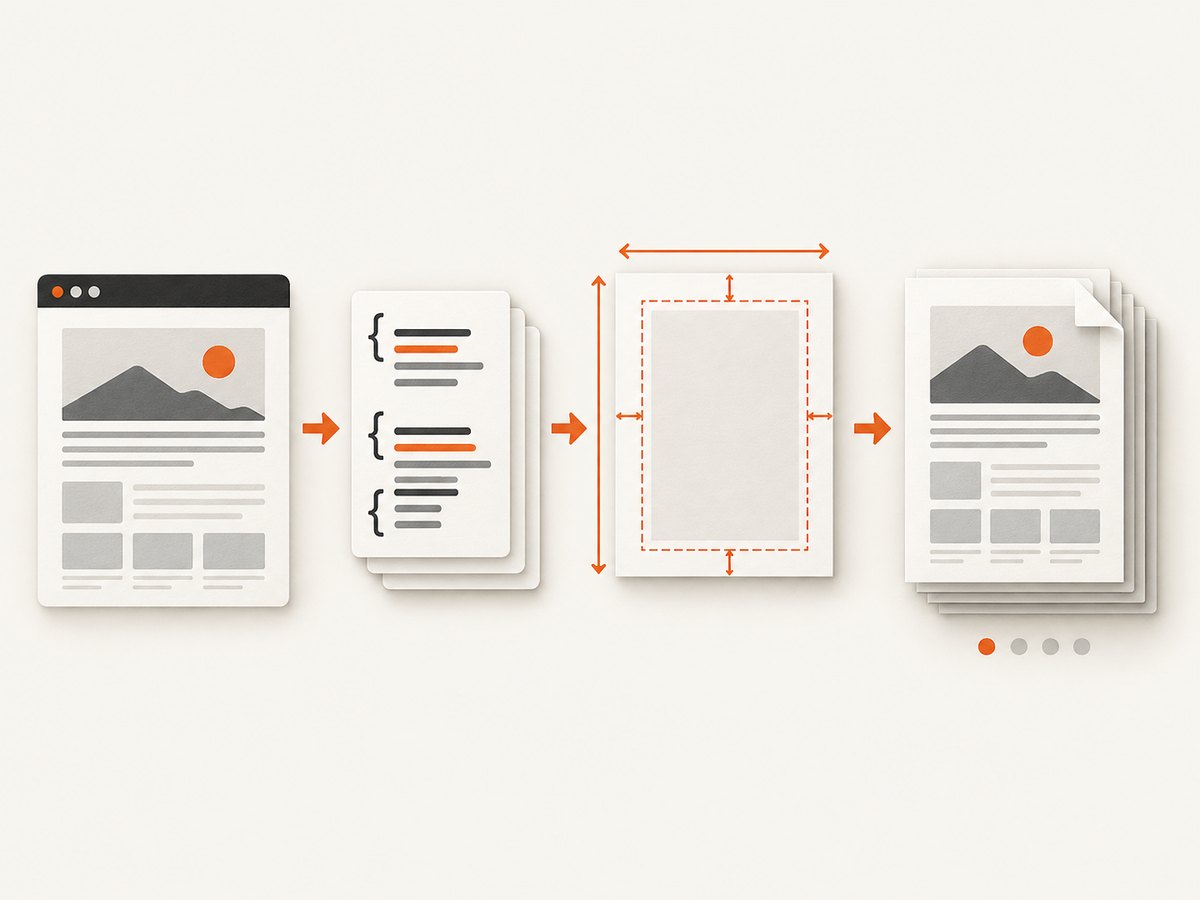
Short answer: page.pdf() creates PDF bytes; it does not return a page count. Generate the PDF, load the completed bytes with a PDF parser such as pdf-lib, and call getPageCount(). The count belongs to the final PDF artifact, so paper size, margins, print CSS, scale, fonts, and page ranges all affect it.
Puppeteer also provides a totalPages placeholder for PDF header and footer templates. That placeholder can print “Page 1 of 4” inside the document, but it is not a Node.js value returned by page.pdf().
What page.pdf() returns
The Puppeteer API returns Promise<Uint8Array>. Those bytes are the finished PDF. A PDF parser must read the document structure to determine how many page objects it contains. Counting DOM sections, estimating height, or dividing pixels by paper height is unreliable because print CSS and pagination rules can change the result.
Puppeteer prints with the print media type by default. Its PDF options include paper format, explicit width and height, landscape orientation, margins, scale, page ranges, and preferCSSPageSize. Fonts are awaited by default. If you need screen styles, call page.emulateMediaType('screen') before generating the PDF. See the Page.pdf() API and Puppeteer PDF guide.
Recommended method: parse the generated bytes with pdf-lib
Install Puppeteer and pdf-lib in a Node.js project:
npm install puppeteer pdf-libThis complete example navigates to a page, waits for network activity to settle, writes the PDF, parses the same bytes, and prints the count:
import puppeteer from 'puppeteer';
import { PDFDocument } from 'pdf-lib';

const browser = await puppeteer.launch();
try {
  const page = await browser.newPage();
  await page.goto('https://example.com', { waitUntil: 'networkidle2' });

  const pdfBytes = await page.pdf({
    path: 'output.pdf',
    format: 'A4',
    printBackground: true,
    margin: {
      top: '16mm',
      right: '16mm',
      bottom: '16mm',
      left: '16mm'
    }
  });

  const pdfDoc = await PDFDocument.load(pdfBytes);
  const pageCount = pdfDoc.getPageCount();

  console.log(`PDF has ${pageCount} pages`);
} finally {
  await browser.close();
}
PDFDocument.load() parses the finalized document, and getPageCount() returns the number of pages contained in it. The file written by Puppeteer and the bytes parsed by pdf-lib are the same output in this example.
If the PDF already exists on disk
Read the file as a byte buffer and pass it to pdf-lib:
import { readFile } from 'node:fs/promises';
import { PDFDocument } from 'pdf-lib';

const bytes = await readFile('output.pdf');
const pdfDoc = await PDFDocument.load(bytes);
console.log(pdfDoc.getPageCount());
Parsing the artifact matters. The HTML may contain one long article, but pagination can produce many pages; conversely, compact print CSS can fit more content than a screen-height estimate suggests.
Counting with PDF.js
PDF.js is another valid choice if your application already uses Mozilla’s PDF tooling. Load the document and read its numPages property:
import fs from 'node:fs';
import * as pdfjsLib from 'pdfjs-dist/legacy/build/pdf.mjs';

const data = new Uint8Array(fs.readFileSync('output.pdf'));
const document = await pdfjsLib.getDocument({ data }).promise;
console.log(`PDF has ${document.numPages} pages`);
The research-backed APIs are different but the principle is the same: count pages after PDF generation. Choose the library that fits the rest of your PDF workflow and verify compatibility with the PDF inputs your application receives. The PDF.js project documentation demonstrates reading numPages; pdf-lib documents getPageCount().
Printing “Page N of M” with Puppeteer
When you only need a total inside the document, use Puppeteer’s header or footer template. The special classes pageNumber and totalPages are substituted during PDF output:
const pdfBytes = await page.pdf({
  path: 'numbered.pdf',
  displayHeaderFooter: true,
  headerTemplate: '<span></span>',
  footerTemplate: `
    <div style="font-size: 9px; width: 100%; text-align: center;">
      Page <span class="pageNumber"></span>
      of <span class="totalPages"></span>
    </div>`,
  margin: { bottom: '24mm' }
});
This is useful for a human-readable footer, but it does not expose the total as a JavaScript number. If your program must branch on the count, parse the generated bytes.
Options that change the page count
| Option or input | Effect on pagination | What to check |
|---|---|---|
format |
Sets a preset paper size such as Letter or A4. | Use the same format in every environment. |
width and height |
Set custom paper dimensions. | Use CSS units consistently and avoid conflicting format values. |
landscape |
Swaps the orientation of the paper. | Tables and wide elements may reflow. |
margin |
Reduces printable content area. | Headers and footers need enough reserved space. |
scale |
Scales printed content before pagination. | Small changes can move a block to another page. |
pageRanges |
Outputs only selected pages. | The parsed count is the count of the selected output. |
preferCSSPageSize |
Lets CSS @page size take priority. |
Inspect print styles when counts differ. |
printBackground |
Includes background colors and images. | It usually changes appearance, but backgrounds can affect layout when CSS differs. |
emulateMediaType |
Chooses screen or print media rules. | Call page.emulateMediaType('screen') before page.pdf() for screen CSS. |
| Fonts and images | Late-loading assets can change line wrapping and height. | Wait for fonts and important images before printing. |
Wait for the content that determines layout
networkidle2 is a useful navigation milestone, but it is not a guarantee that application data, web fonts, or lazy images are ready. For a deterministic count, wait for a page-specific readiness signal:
await page.goto(url, { waitUntil: 'domcontentloaded' });
await page.waitForSelector('#report-ready');
await page.evaluate(() => document.fonts.ready);
await page.evaluate(() => Promise.all(
  [...document.images]
    .filter((img) => !img.complete)
    .map((img) => new Promise((resolve) => {
      img.addEventListener('load', resolve, { once: true });
      img.addEventListener('error', resolve, { once: true });
    }))
));
For infinite scroll pages, trigger the application’s own “load more” behavior and wait for its completion before generating the PDF. Otherwise, the count may describe only the initially rendered content.
Page ranges and the meaning of the count
With pageRanges, Puppeteer creates a PDF containing only the requested pages. For example, pageRanges: '1-3' produces a three-page artifact if those pages exist. A parser reports the pages in that artifact, not the number of pages the unfiltered document would have contained. Generate the full PDF and count it separately when you need both totals.
Troubleshooting
“page.pdf() returned no count”
Cause: The documented return value is bytes. Fix: Load those bytes with pdf-lib or PDF.js and read the parser’s page-count property.
The count is one page too high or too low
Cause: A print margin, font, image, or CSS breakpoint changed pagination. Fix: Compare the exact PDF options, call page.emulateMediaType() deliberately, await fonts and dynamic content, and inspect @page rules.
Content is missing from later pages
Cause: The page uses lazy loading or an application render that had not completed. Fix: Scroll or invoke the loading code, wait for a readiness selector, and then create the PDF.
Header or footer overlaps content
Cause: Header/footer display is enabled without enough top or bottom margin. Fix: Increase the corresponding margin and keep templates compact.
PDF.js fails to load in Node
Cause: PDF.js packaging and worker configuration vary by version. Fix: Use the Node-compatible build documented for your installed version, or use pdf-lib for a smaller counting-only integration.
PDFDocument.load() rejects the input
Cause: The bytes are incomplete, encrypted, or not actually a PDF. Fix: Check the HTTP response and file length, preserve the original binary bytes, and handle password-protected documents according to the parser’s supported options.
Performance and reliability
Browser startup and page rendering usually cost more time than the page-count call itself. Reuse a browser process for a batch of documents, create a fresh page per job, and always close pages and browsers in finally blocks. Keep navigation and PDF generation timeouts explicit so a stalled site cannot hold a worker forever.
For repeatable counts, pin your Puppeteer and parser versions, use a stable Chromium build, set a fixed viewport, and keep locale, timezone, and fonts consistent. Record the PDF options alongside the count so a later comparison explains why two artifacts differ. Do not infer performance or reliability from page count alone; the official APIs do not promise a universal rendering time.
Or skip the browser setup
If your goal is to obtain a clean PDF or screenshot rather than control Chromium directly, ScreenshotNeo provides a website capture API and MCP server. One request can return a PNG, JPEG, WebP, or PDF. Before capture it accepts cookie and consent banners and removes more than 60 known consent platforms, newsletter popups, and chat widgets. Bot checks, blank pages, timeouts, failed loads, and cache hits are not billed, and the response identifies the result with X-Page-Verdict and X-Billed headers.
See the ScreenshotNeo API documentation for all options. A direct request looks like this:
curl -G "https://api.screenshotneo.com/v1/shot" -d access_key=YOUR_API_KEY --data-urlencode url=https://stripe.com -o shot.webpimport requests
r = requests.get("https://api.screenshotneo.com/v1/shot", params={"access_key": "YOUR_API_KEY", "url": "https://stripe.com"}, timeout=90)
open("shot.webp", "wb").write(r.content)const q = new URLSearchParams({ access_key: 'YOUR_API_KEY', url: 'https://stripe.com' });
const res = await fetch(`https://api.screenshotneo.com/v1/shot?${q}`);For PDF output, pass the PDF options documented by ScreenshotNeo, including paper size, margins, landscape mode, and page ranges. The service also supports full-page capture with lazy images loaded, CSS-selector element capture, custom CSS and JavaScript, waits, request blocking, headers, cookies, user agents, authorization, timezone, geolocation, caching, signed links, asynchronous jobs, webhooks, bulk capture, and a usage API. Its MCP server exposes take_screenshot, get_page_info, and capture_pdf to Claude, Cursor, and other MCP clients.
The Free plan includes 1,000 screenshots per month with no card. Paid plans start at $5 for 3,000 shots; every feature is available on every plan. Create a free ScreenshotNeo account.
FAQ
Can I count pages before calling page.pdf()?
No. You can estimate from layout, but only parsing the generated PDF gives the authoritative count for that artifact.

Does totalPages work in normal page JavaScript?
No. It is a special header/footer template class substituted during PDF generation.
Does changing from Letter to A4 always change the count?
No. It changes the available geometry, but the count changes only when the resulting pagination crosses a page boundary.
Should I use pdf-lib or PDF.js?
Use the library already suited to your project. Both documented approaches read the completed PDF and expose a page count; neither is established by the supplied research as universally faster or more reliable.
What should I store with a page count?
Store the PDF or its hash, parser/library version, Puppeteer version, URL or document identifier, and the PDF options used to create it. That makes later discrepancies diagnosable.


