Creating Course Handouts and Certification PDFs from Web Content
Turn web research into clear, accessible course handouts and certification PDFs with a repeatable workflow for permissions, structure, export, testing, and distribution.

To turn web content into a course handout PDF, first record the source and check its reuse terms. Then build a learning document in Word or PowerPoint with real headings, descriptive links, image alternatives, and meaningful lists; export it as a tagged PDF; and check its reading order, links, and accessibility after export. A screenshot can preserve a visual reference to a page, but it is not a substitute for text learners can navigate or a properly structured PDF.
This guide covers the full path from selecting source material through rights review, instructional design, accessible authoring, export, quality checks, and distribution. It applies whether you are preparing a lesson handout or a PDF used to support a certification course.
1. Choose sources and record provenance
Start with material that supports the learning outcome, not simply material that is easy to copy. Prefer primary sources such as standards bodies, government guidance, and the organization responsible for a product or policy. A page may be accurate and publicly readable while still having reuse limits.
For every passage, diagram, table, or image you may reuse, record:
- Page title and publisher or author
- Canonical source URL
- Publication or last-updated date, if shown
- The exact passage, figure, or asset you intend to use
- The license or permission terms that apply, including the date you checked them
- How the content will appear in your handout: quotation, summary, link, or adaptation
Keep this record with the source document. It makes later certification updates easier: an editor can revisit the original, determine whether it changed, and check whether the permission still covers the planned use. Avoid copying an entire article by default. Explain the idea in your own teaching sequence, quote only what learners need, and link to the source for the complete context.
Check permissions before copying
Do not infer permission from the fact that a web page is freely accessible. Check the page’s terms and the license for the specific material. W3C says most WAI material may be used with attribution and without modification under the W3C Document License; material specifically marked for Creative Commons adaptation may be adapted under the terms of that license. Preserve the required attribution and source URL, and do not modify documents covered by the W3C Document License. See W3C’s guidance on using WAI material.
If there is no clear license, link to the original and write a summary in your own words, or seek permission before reproducing expressive content. This is a practical publishing workflow, not a legal determination; unusual or consequential reuse questions may need qualified legal advice.
2. Turn research into a learning sequence
A course handout is not a webpage printout. Give it a purpose and an order that helps learners understand and apply the material. Start with a short description of the audience and the task the learner should be able to perform at the end. Write two or three observable outcomes, such as “identify the applicable rule” or “apply the checklist to a sample case.”
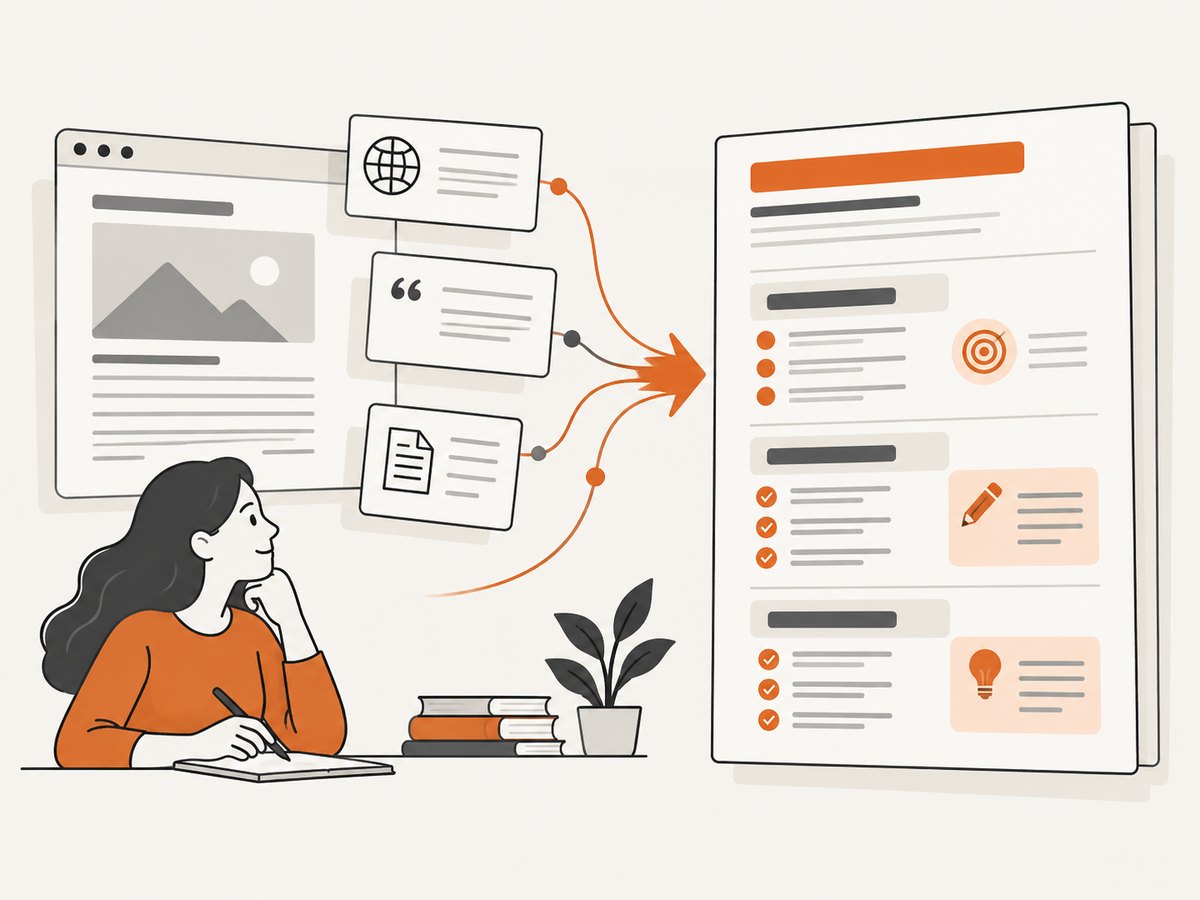
Then arrange the material so each section supports an outcome:
- Orient. State who the handout is for, what it covers, and any prerequisites.
- Explain. Define terms and present concepts in a sequence that does not assume missing steps.
- Show. Add a worked example, diagram, or short scenario when it clarifies application.
- Practice. Include a question, checklist, or task that lets the learner apply the idea.
- Verify. Provide answer guidance, a rubric, or a link to the authoritative reference where appropriate.
For certification materials, distinguish instructional content from assessment criteria. State what is being assessed, use consistent terminology, and make examples clearly examples rather than policy. Add supportive notes and distribute the handout before the session when possible, so learners can prepare and use it during instruction.
3. Author an accessible source document
Accessibility starts in the editable source. Microsoft’s Word and PowerPoint guidance both recommend preparing the source document accessibly before exporting to PDF. Export cannot reliably repair an outline that was created visually but has no underlying structure.
Use document structure, not visual imitation
In Word, apply built-in heading styles in a logical hierarchy: a single document title, then Heading 1 for major sections, Heading 2 for subsections, and so on. In PowerPoint, use meaningful slide titles and the intended reading order. Use actual numbered and bulleted lists, paragraphs, and table headers instead of manually typed symbols or spaces. A screen-reader user should be able to navigate the document by its structure.
Write link text that makes sense out of context. “W3C PDF guidance” is more useful than “click here.” For tables, use them for tabular relationships rather than page layout, identify header rows, and add a nearby explanation for a complex table or diagram. Do not rely on color alone to mark a correct answer, category, or warning; add labels, symbols, or text cues.
Add useful image alternatives and readable typography
Provide concise alt text for images that carry information. If an image is decorative, mark it decorative so assistive technology can skip it. For a complex diagram, describe the main takeaway in nearby text or provide a longer explanation; alt text should not be forced to carry a whole lesson. Use readable type, sufficient contrast, and consistent spacing. Avoid shrinking long source passages until they technically fit on one page.
For learners who print, check that important content remains understandable in grayscale and that footnotes, captions, and page numbers remain legible. Captions and notes should be associated with the figure or table they explain. Keep the editable source file: it is the maintainable place to correct content, structure, and metadata before making a new PDF.
4. Export a tagged PDF with structure preserved
Use the application’s PDF export workflow and select the accessibility or document-structure options available in the current version. Microsoft documents PDF/UA tags for both Word and PowerPoint export. In PowerPoint, options can also include bookmarks, document markup, and promoted hyperlinks. Use bookmarks when the deck’s section structure should be navigable in the PDF; preserve hyperlinks as active links when learners need to reach references.
Exact labels and locations vary across Office versions and platforms, so confirm the options in the installed version’s export dialog and current Microsoft instructions:
Give the PDF a meaningful document title and set language and other document properties in the source or PDF editor as appropriate. Include version and date information in a visible, consistent place. For a certification course, decide how revisions are identified and how learners will know they have the current edition.
5. Test the exported PDF and remediate defects
Export is a conversion step, not proof that the result is accessible. Run an accessibility checker, then inspect the document yourself. Automated checks can find some defects, but they do not determine whether every heading, reading sequence, alternative, or instruction makes sense to a learner.
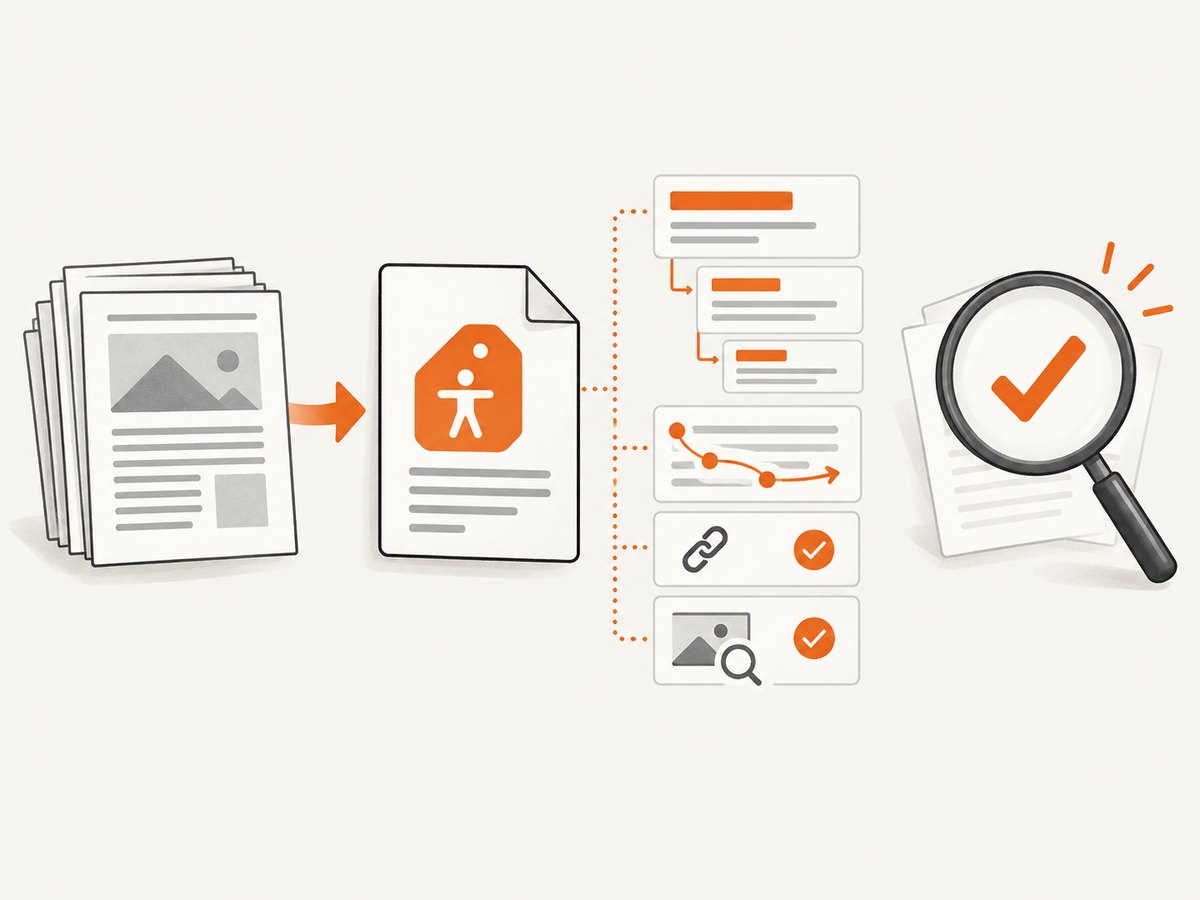
- Check document metadata. Confirm title, language, and version or date are present and sensible.
- Inspect tags. Review the tag tree for headings, paragraphs, lists, tables, links, and figures. Look for missing tags, incorrect types, or a hierarchy that skips around.
- Check reading order. Follow the content in sequence, including columns, sidebars, captions, headers, and footers. Confirm it communicates the intended lesson when read linearly.
- Test links and keyboard access. Tab through interactive elements, confirm focus is visible, and check that link names are understandable without surrounding text.
- Review alternatives. Confirm meaningful images have appropriate alternatives and decorative items are handled appropriately. Ensure color is not the only carrier of meaning.
- Open and print a sample. Check that fonts, page breaks, tables, and diagrams render as intended on screen and on paper.
- Fix in the best source. Correct authoring problems in Word or PowerPoint where possible, export again, and repeat the checks.
Section508.gov’s PDF authoring resources include checklists and training for testing and remediation, including Adobe Acrobat DC workflows. For broader context, W3C’s WCAG2ICT guidance explains how WCAG principles and success criteria can be applied to non-web documents and software; it is informative guidance.
6. Preserve page evidence with screenshots when useful
A screenshot can document how a source page looked at a particular point in time, help an instructor discuss a visual layout, or support an editorial review. It does not preserve the page’s semantic structure, permissions, or accessible text. Keep the source URL and provenance record, and do not distribute a screenshot of copyrighted material without checking its reuse terms.
For a manual reference image, open the page in a browser, capture the relevant region or page using the browser or operating system capture function, and save it with a descriptive filename such as source-publisher-topic-2026-09-29.png. Add a caption and alt text in the handout if the image conveys information. Treat it as supplementary evidence, not as the handout itself.
Or skip the browser setup
ScreenshotNeo is a website screenshot API and MCP server. One GET request can return a PNG, JPEG, WebP, or PDF capture. Its cookie/consent handling accepts banners and removes 60+ known consent platforms, newsletter popups, and chat widgets before capture; each step can be disabled. Bot checks and CAPTCHAs, blank pages, timeouts, failed loads, and cache hits cost nothing, and the response identifies page verdict and billing status. An MCP server lets Claude, Cursor, and other MCP clients call screenshot tools. The free plan includes 1,000 shots a month with no card; paid plans start at $5 for 3,000. A captured image remains a visual record, not an accessible replacement for your structured source document.
See the ScreenshotNeo API documentation for parameters and formats.
curl -G "https://api.screenshotneo.com/v1/shot" \
  -d access_key=YOUR_API_KEY \
  --data-urlencode url=https://www.w3.org/WAI/ \
  -o source-reference.webp
import requests
response = requests.get(
"https://api.screenshotneo.com/v1/shot",
params={
"access_key": "YOUR_API_KEY",
"url": "https://www.w3.org/WAI/",
},
timeout=90,
)
response.raise_for_status()
with open("source-reference.webp", "wb") as image_file:
image_file.write(response.content)const query = new URLSearchParams({
access_key: 'YOUR_API_KEY',
url: 'https://www.w3.org/WAI/',
});
const response = await fetch(`https://api.screenshotneo.com/v1/shot?${query}`);
if (!response.ok) throw new Error(`Screenshot request failed: ${response.status}`);
const image = Buffer.from(await response.arrayBuffer());
await import('node:fs/promises').then(fs => fs.writeFile('source-reference.webp', image));Store the API key in an environment variable or secrets manager in production; do not commit it to a course repository or put it in a public web page. Record the source URL and capture date alongside the image. Check the response headers and status before treating a capture as evidence.
Sign up for ScreenshotNeo’s free plan: 1,000 screenshots a month, no card required.
7. Distribute and maintain the handout
Publish the PDF with a descriptive filename and a meaningful visible title. Include version or revision date and a contact or correction route when appropriate. Provide it in advance of the course when possible, and retain the accessible Word or PowerPoint source so future updates do not require rebuilding from an unstructured PDF.
For repeat certification updates, keep a small release checklist with the source inventory, license notes, outcomes, export settings, QA findings, and version identifier. Recheck external sources when updating: a page may have moved, changed, or acquired different terms. After changing the source, export a fresh PDF and repeat the post-export checks rather than assuming a previously verified file remains valid.
Troubleshooting
| Problem | Likely cause | Fix |
|---|---|---|
| PDF has no useful headings or navigation | Text was made to look like headings with font size or bold alone, or export did not preserve structure. | Apply built-in heading styles or slide titles in the source, enable structure/tag export, then inspect bookmarks and tags. |
| Screen reader reads columns or callouts in the wrong order | Visual placement differs from the document reading order. | Inspect reading order and tags in a PDF editor; simplify layout or correct source order, re-export, and retest. |
| Images are announced as filenames or skipped | Alt text is missing, unhelpful, or the figure was tagged incorrectly. | Add concise alt text or mark decorative images appropriately in the source; add a nearby explanation for complex visuals. |
| Links are inaccessible or say “click here” | Link text does not describe its destination, or links were not preserved during export. | Rewrite link text descriptively and enable hyperlink preservation; test link names and keyboard focus in the PDF. |
| Copying source text creates a rights concern | Public access was mistaken for permission to reproduce. | Check the specific license, preserve required attribution, link and summarize instead, or obtain permission. |
| Screenshot is blank or shows a consent overlay | The page may have failed to load, required interaction, or presented content that obscured the reference. | Use the page’s canonical URL, inspect verdict and billing headers, and retry only after confirming the source page is available. For a visual reference, use capture options appropriate to the page; keep accessible text in the authored handout. |
Performance, reliability, and cost
The largest reliability improvement is a repeatable source-to-release process: dated provenance, editable source files, stable structure, and post-export checks. External pages change, so record the date accessed and recheck sources during revisions. Keep the PDF version clear enough that learners and instructors can identify which copy they are using.
For screenshots used as editorial references, a local browser capture has no API charge but requires manual steps and can vary with page state. ScreenshotNeo pricing is Free for 1,000 shots/month, Starter $5 for 3,000, Growth $15 for 15,000, Pro $39 for 60,000, Scale $99 for 250,000, and Business $249 for 1,000,000; annual billing gives two months free, and every feature is on every plan. Choose based on expected capture volume and use its billing headers to distinguish billable clean shots from non-billed results. Screenshot costs are separate from document authoring and PDF remediation.
FAQ
How do I turn web content into a course handout PDF?
Record and check the sources, create a learning sequence in an accessible Word or PowerPoint file, export a tagged PDF, and check the exported file’s structure and reading order.
How do I make a certification PDF accessible?
Build accessibility into the source, export with tags, then test navigation, tags, links, image alternatives, and reading order. Remediate defects and repeat checks after changes.
Can I reuse web pages in training materials?
Only when the applicable terms allow the particular reuse or you have permission. A public URL does not by itself grant copying rights. Attribute and link sources, and check whether adaptation is allowed.
Does a screenshot make the PDF accessible?
No. A screenshot is a visual image. Use structured text and accessible alternatives in the source document; add screenshots only when they serve a specific instructional or provenance purpose.
Should learners receive the source document too?
Keep the source for maintenance and provide an accessible alternative when learners need one or the PDF does not meet their access needs. The source is also important for future corrections and revisions.


