How to Create Animated Open Graph Images
Create an animated Open Graph image, add correct metadata, support static fallbacks, and verify how social platforms render the preview.
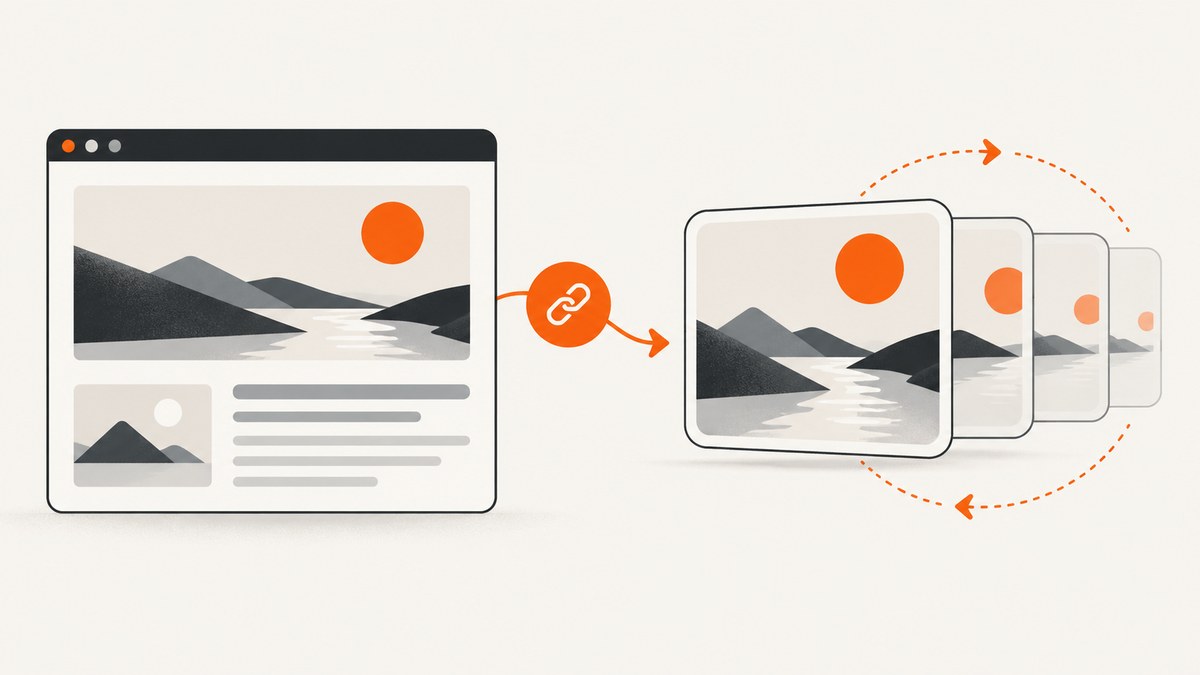
An animated Open Graph image is usually a GIF referenced by a page’s og:image metadata. Creating the file and adding the tags are straightforward; whether a social network or messaging app actually animates the preview depends on its renderer. Build the first frame as a complete static image, publish it at a stable absolute URL, and test the deployed page on the platforms that matter.
What an animated Open Graph image is
Open Graph metadata lives in the HTML document’s <head>. It tells a crawler which title, URL, and image represent a shared page. The four basic properties are og:title, og:type, og:image, and og:url. The protocol also defines structured image fields for MIME type, width, height, HTTPS URL, and alternative text.
An animated GIF supplied as og:image is different from uploading a GIF directly to a social post or ad. Those products have their own media rules. It is also different from a video preview: Open Graph defines video properties separately, and Google documents video thumbnails and previews as a separate search feature.
Use a static-first animation strategy
Do not assume that every consumer will play an animated GIF in a link preview. The Open Graph protocol identifies the image URL; it does not promise cross-platform animation. Some clients display only the first frame, and preview caches can preserve an older asset after you deploy a change.
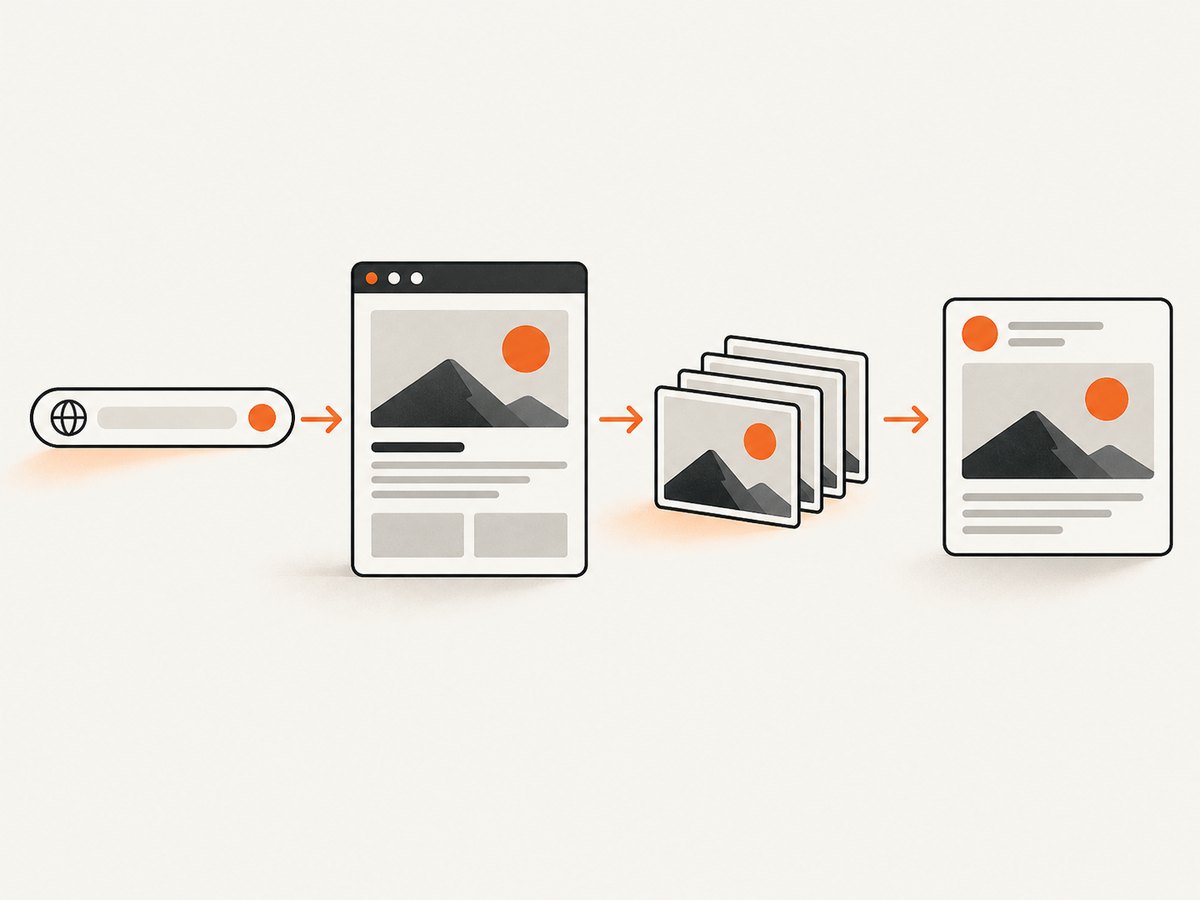
Design frame one so it communicates the page without motion:
- Show the headline, subject, and visual identity in the opening frame.
- Keep essential content away from the edges, where clients may crop.
- Use a short loop with a clear beginning and end.
- Avoid flashing or rapid changes that make a static capture confusing.
- Export a static PNG or JPEG fallback when broad compatibility matters more than animation.
A 1200 × 630 pixel canvas is a practical cross-platform recommendation from a current third-party guide, not an Open Graph requirement. Platform behavior and limits vary, so check the current guidance for the destinations you care about.
Create the animated GIF
Option 1: generate frames with Python and Pillow
The following script creates a 1200 × 630 GIF from generated frames. Install Pillow with python -m pip install pillow, save the script as make_og_gif.py, and run python make_og_gif.py. Replace the sample text and colors with your own design.
from PIL import Image, ImageDraw, ImageFont
from pathlib import Path

WIDTH, HEIGHT = 1200, 630
OUT = Path("public/images/article-preview.gif")
OUT.parent.mkdir(parents=True, exist_ok=True)

# Use a font installed on your system, or provide an absolute .ttf path.
FONT_PATH = "/usr/share/fonts/truetype/dejavu/DejaVuSans-Bold.ttf"
font = ImageFont.truetype(FONT_PATH, 72)
small = ImageFont.truetype(FONT_PATH, 32)

frames = []
for index in range(12):
    image = Image.new("RGB", (WIDTH, HEIGHT), (17, 24, 39))
    draw = ImageDraw.Draw(image)

    # A simple animated accent that does not hide the main message.
    x = 120 + index * 55
    draw.rounded_rectangle((x, 90, x + 180, 540), radius=28,
                           fill=(59, 130, 246))
    draw.rounded_rectangle((x + 35, 125, x + 145, 505), radius=18,
                           fill=(147, 197, 253))

    draw.text((80, 485), "How to Create Animated Open Graph Images",
              font=font, fill=(255, 255, 255))
    draw.text((82, 565), "A static-first social preview",
              font=small, fill=(203, 213, 225))
    frames.append(image)

# duration is milliseconds per frame; loop=0 means repeat forever.
frames[0].save(OUT, save_all=True, append_images=frames[1:],
               duration=120, loop=0, disposal=2, optimize=True)
print(f"Wrote {OUT}")
For production artwork, prepare the typography and illustrations in your design tool, export each frame at the same dimensions, then assemble them with Pillow or another image encoder. Check the resulting file size and playback before publishing.
Option 2: use a prepared GIF
A manually prepared GIF is appropriate for a small number of pages. It is easy to inspect and deploy, but every title or visual change requires replacing or regenerating the file. Keep the asset at a stable HTTPS URL and avoid URLs that require authentication, cookies, or JavaScript to return the image.
Add the Open Graph metadata
Put the tags in the HTML returned for the share URL. Use absolute URLs and make the declared type and dimensions match the actual file.
<head>
  <meta property="og:title" content="Article title">
  <meta property="og:type" content="article">
  <meta property="og:url" content="https://example.com/article">
  <meta property="og:image" content="https://example.com/images/article-preview.gif">
  <meta property="og:image:type" content="image/gif">
  <meta property="og:image:width" content="1200">
  <meta property="og:image:height" content="630">
  <meta property="og:image:alt" content="A concise description of the image">
</head>
og:image:alt should describe the visual briefly. It does not replace accessible text in the article. If you provide an alternate HTTPS image URL, use the structured image property defined by the protocol and ensure it resolves to the same intended asset.
Next.js implementation
Next.js supports a file named opengraph-image.gif in a route segment. The framework evaluates that convention and adds the corresponding metadata. It also supports code-generated images in JavaScript or TypeScript. Generated images are statically optimized at build time by default and cached, except when request-time APIs or uncached data require dynamic rendering.
app/articles/animated-og/opengraph-image.gif
app/articles/animated-og/page.tsx
For a route-specific generated image, use the framework’s documented image route APIs and return a supported raster format. Whichever approach you choose, inspect the final HTML and confirm that the public URL contains the expected og:image value.
Host and deploy the asset
- Place the GIF in a public, cacheable location such as your site’s static assets directory or an object store.
- Serve it over HTTPS with an image content type such as
image/gif. - Make sure a crawler can fetch it without a login, session cookie, or client-side interaction.
- Keep the URL stable when possible. If you replace the bytes at that URL, allow preview caches time to refresh.
- After deployment, fetch the page HTML and verify the metadata is present in the server response, not only after JavaScript runs.
curl -L https://example.com/article | grep -E 'og:(title|type|url|image)'The image URL itself should also be reachable:
curl -I https://example.com/images/article-preview.gifCheck the status code, content type, redirects, and cache headers. A redirect to a blocked or private URL can cause a preview service to discard the image.
Validate the real preview
Preview tools can reveal metadata errors, but the final result is determined by each consumer. Use the platform-specific inspection or share flow available to you, then verify the deployed URL in representative desktop and mobile clients. LinkedIn documents Open Graph fields for website sharing and warns that cached content can remain stale; changing an image URL does not guarantee that every cache is cleared immediately.
Test at least these cases:
- A new URL that has never been shared.
- The same URL after replacing the GIF.
- A client that displays only a static image.
- Mobile and desktop link previews.
- A page with a long title and a missing optional field.
Record whether the preview uses frame one, animates, crops the canvas, or falls back to another image. Treat animation as an enhancement, never as the only place where context appears.
Common errors and fixes
| Symptom | Likely cause | Fix |
|---|---|---|
| No image appears | og:image is missing, relative, blocked, or returns an error. |
Use an absolute HTTPS URL, fetch it with curl -I, and check crawler access. |
| The old image remains | The preview consumer cached the previous response. | Confirm the new HTML and asset are live, then use the platform’s refresh/debug flow and allow cache time. |
| Only a still image appears | The client does not animate link-preview GIFs. | Make frame one complete; provide a static fallback when necessary. |
| Image is cropped | The client uses a different aspect ratio or card layout. | Keep critical text inside a safe central area and test on mobile. |
| Image fails only on production | Production headers, redirects, robots rules, or authentication differ from local development. | Fetch the public page and image from outside your development environment and inspect every redirect. |
| GIF is too large or slow | Too many frames, high color count, or oversized dimensions. | Shorten the loop, reduce frame rate and palette size, and remove unnecessary visual detail. |
| Text is unreadable in frame one | The opening frame was designed as an animation frame instead of a complete card. | Move the headline and context into frame one and increase contrast. |
Performance, reliability, and cost
Social crawlers request the page and image independently, so optimize both responses. Keep the HTML head small, serve the GIF from a low-latency cache, and avoid generating a unique asset at request time unless you need it. For many pages, static generation makes the output predictable and reduces runtime dependencies.
Measure the encoded file size, not the size of source frames. A short 1200 × 630 animation with a limited palette is generally easier to transfer than a photographic sequence. If animation is not essential, a PNG or JPEG may be more broadly compatible and simpler to cache.
Reliability comes from stable URLs, deterministic generation, correct MIME types, and a complete static first frame. Keep the source frames and generation script under version control so a deployment can reproduce the asset. When a platform changes its renderer, your page should remain understandable even if motion disappears.
Or skip the browser setup
If you need screenshots of web pages to create source artwork, document previews, or fallback frames, ScreenshotNeo provides a website screenshot API and MCP server. It accepts one GET request and returns PNG, JPEG, WebP, or PDF. Before capture it can accept cookie and consent banners and remove more than 60 known consent platforms, newsletter popups, and chat widgets. Each step can be disabled.

Only clean shots are billed. Bot checks and CAPTCHAs, blank pages, timeouts, failed loads, and cache hits cost nothing, and the response identifies the result with X-Page-Verdict and X-Billed headers. The MCP server exposes take_screenshot, get_page_info, and capture_pdf for Claude, Cursor, and other MCP clients.
See the ScreenshotNeo documentation for all options. A basic capture looks like this:
curl -G "https://api.screenshotneo.com/v1/shot" -d access_key=YOUR_API_KEY --data-urlencode url=https://stripe.com -o shot.webpimport requests
r = requests.get("https://api.screenshotneo.com/v1/shot", params={"access_key": "YOUR_API_KEY", "url": "https://stripe.com"}, timeout=90)
open("shot.webp", "wb").write(r.content)const q = new URLSearchParams({ access_key: 'YOUR_API_KEY', url: 'https://stripe.com' });
const res = await fetch(`https://api.screenshotneo.com/v1/shot?${q}`);Relevant capture options include full-page screenshots with lazy images loaded, CSS element capture, dark mode, device presets, custom viewports, retina scale, custom CSS and JavaScript, clicks, selector waits, delays, network-idle waits, request blocking, headers, cookies, user agents, authorization, timezone, geolocation, transparent backgrounds, resizing, configurable cache TTLs, signed image links, asynchronous jobs with signed webhooks, bulk capture for up to 100 URLs per call, usage reporting, and an OpenAPI specification. Existing parameter names used by other screenshot APIs also work, which can simplify migration.
The Free plan includes 1,000 screenshots each month with no card. Paid plans start at $5 for 3,000 shots; yearly billing provides two months free, and every feature is available on every plan. Create a free ScreenshotNeo account to generate clean source images for your Open Graph workflow.
FAQ
Does Open Graph require an animated file?
No. The protocol requires an image URL, not animation. A static PNG or JPEG is valid and may be preferable when predictable rendering matters.
Can I put a GIF in og:video?
A GIF used as og:image is an image preview. Video metadata is a separate Open Graph area and should not be used as evidence that an image GIF will animate.
Should every frame contain the headline?
At minimum, frame one should contain the complete message. Repeating the headline in later frames can improve comprehension when a client starts playback at a later point, but it is not a substitute for a strong opening frame.
Why does changing the file not update a shared link?
Preview services cache page metadata and images. Verify the new response first, then use the destination’s refresh tools and wait for its cache to expire.
Is 1200 × 630 mandatory?
No. It is a practical recommendation for broad compatibility. The correct dimensions depend on the platforms and clients where your links will appear.


