How to Create and Automatically Post LinkedIn Carousels
Create a LinkedIn PDF carousel, schedule it on a profile or Page, and build a reliable publishing workflow with native and third-party options.

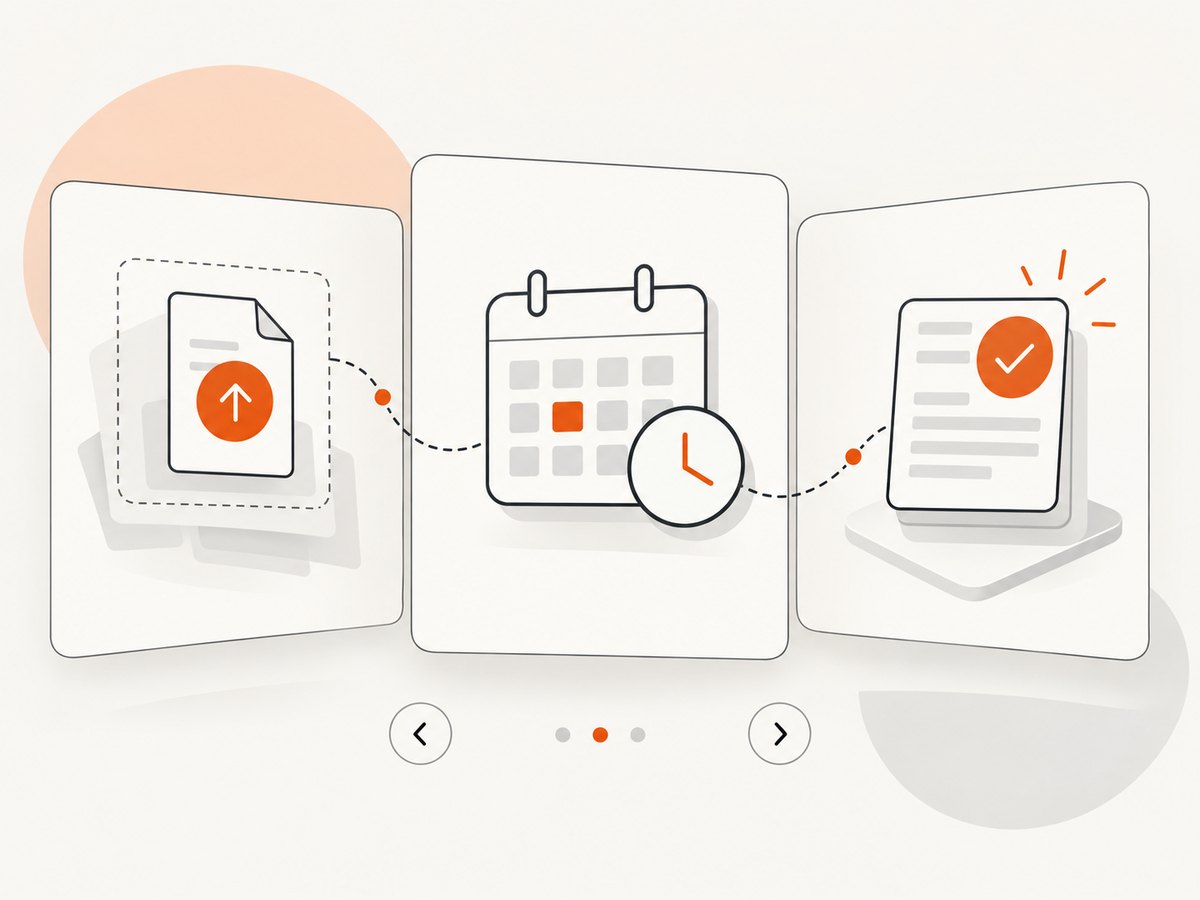
Direct answer: Create a multipage PDF, upload it to LinkedIn as a Document post, write the caption, preview the attachment, and either publish immediately or choose a scheduled time. For a personal profile, LinkedIn’s Help documentation gives a scheduling window from 10 minutes to three months ahead. For a Page, a super admin or content admin can schedule from one hour to three months ahead. A LinkedIn API route called Carousel is for sponsored carousel ads; an ordinary organic swipeable carousel follows the document-post workflow instead.
What LinkedIn calls a carousel
Creators commonly call a swipeable PDF a LinkedIn carousel. In the composer, however, the format is a document post. The file is a multipage PDF, and readers move through its pages in the feed. HubSpot’s documented workflow says the first page becomes the post’s displayed document image, and that image cannot be removed or replaced in the composer. Treat page one as both the cover and the thumbnail.
Do not confuse this organic document post with LinkedIn’s sponsored Carousel API. The official developer documentation says that route creates sponsored carousel posts only. Organic document publishing requires uploading a document asset and creating a post that references it; organic multi-image posts use a different MultiImage API. Check the current API version and permissions before building a direct integration because the documentation lists October 15, 2026 as the sunset date for Marketing Version 202510.
Step 1: Plan the carousel before designing it
- Choose one promise. A reader should know what they will learn or decide after swiping. Examples include a five-step process, a checklist, or a before-and-after explanation.
- Write the slide outline. Use a cover, a short setup, the useful steps or evidence, and a final action. The sources do not require a particular slide count or canvas size, so select dimensions that your design tool exports cleanly to PDF.
- Keep each page understandable alone. People can enter the carousel on a later page when it is reshared or viewed in an archive. Repeat the key noun or step name on each page instead of relying on a previous slide.
- Design for the first-page preview. Use a clear headline and enough contrast for a small feed thumbnail. Since LinkedIn uses page one as the document image, a decorative cover with no context wastes the most valuable surface.
- Export one multipage PDF. Confirm that every intended slide is a page in the same file, that links or fonts have not disappeared, and that the file opens in a normal PDF viewer.
Step 2: Publish an organic PDF carousel manually
- Open LinkedIn’s post composer for the profile or Page you manage.
- Select the Document post type and attach the multipage PDF.
- Enter a document title. This is separate from the caption and helps identify the attachment.
- Write a caption that states the payoff and gives a reason to swipe or save when that is appropriate.
- Preview the post. Check the first-page image, page order, document title, caption, and destination account.
- Publish now, or open the scheduling control and choose a future date and time.
HubSpot documents both immediate publishing and scheduling for LinkedIn document posts. If you use a third-party publisher, verify in its final preview that the attachment is still a LinkedIn Document post rather than a set of ordinary image files.
Step 3: Schedule on a personal profile
LinkedIn’s personal-profile Help page says scheduled posts must be between 10 minutes and three months from the current time. The composer uses the clock icon. LinkedIn standardizes the scheduled time in UTC using the device’s time-zone setting, so check the displayed local time before confirming.
- Open the composer and attach the PDF first.
- Choose the clock icon, select the date and time, and confirm the time-zone display.
- Open the scheduled-post view to inspect, edit, reschedule, or delete the post.
- Before leaving the composer, confirm that the PDF and document title remain attached. LinkedIn’s reviewed Help text describes scheduling generally and does not explicitly guarantee every document attachment case.
See LinkedIn’s official Help center for the current profile scheduling interface and account-specific limits.
Step 4: Schedule on a LinkedIn Page
A LinkedIn Page super admin or content admin can schedule a Page post from one hour to three months ahead. LinkedIn states that the post publishes automatically at the selected time. The Page scheduling instructions exclude events, multiple photos, reshares, polls, jobs, and service posts. A document post is a different format, but still verify the attachment in the final preview.
- Switch to the Page identity and open the post composer.
- Attach the PDF as a Document and add its title.
- Write and preview the caption.
- Choose a time at least one hour ahead and no more than three months ahead.
- Confirm the scheduled queue and the Page identity.
Use the LinkedIn Page Help instructions as the authority if the composer shows different limits for your account.
Step 5: Use a third-party scheduler
Third-party tools can provide queues, calendars, bulk planning, review steps, and publishing workflows. LinkedIn Marketing Solutions lists Buffer, Hootsuite, Sprout Social, Sprinklr, and Falcon.io as partner examples. Its directory says Buffer and Hootsuite support personal profiles and Pages, while Falcon.io integrates with Pages. Treat that page as a partner directory, not proof that every plan supports PDF auto-publishing today.
HubSpot’s current instructions describe a concrete flow: select a LinkedIn account, choose Document, add the PDF and document title, choose Schedule for later, then review and schedule. Sked also documents scheduling and reviewing LinkedIn PDF document posts. These are vendor statements, so confirm the following before committing to a recurring calendar:
| Check | Why it matters |
|---|---|
| Account type | Some tools support profiles, Pages, or both. |
| Document support | Image-post support does not prove PDF Document support. |
| Auto-publishing | A tool may require a manual notification instead of publishing directly. |
| Permissions | Page roles and profile authorization can differ. |
| Plan limits | Document publishing or approval workflows may be gated by plan. |
| Preview and editing | Confirm you can replace a PDF, edit a caption, or reschedule before publishing. |
API automation: what is and is not supported
LinkedIn’s Posts API documentation describes uploading a document asset for an organic post and points organic multiple-image publishing to the MultiImage API. Its Carousel API documentation says “Only create sponsored carousel post.” Therefore, do not promise that a normal organic PDF carousel can be created through the sponsored Carousel endpoint. Check current access, permissions, post-type support, and API version before writing production code.
A robust automation design separates four stages:
- Generate and validate the PDF.
- Upload the document asset and create the organic post through an approved route or supported publisher.
- Store the LinkedIn post identifier, scheduled time, account identity, and source PDF hash.
- Record success or failure and alert an operator when a post needs manual review.
Keep the original PDF and caption in durable storage. If an upload fails, retry the upload rather than generating a second, slightly different file. Add an idempotency key in your own job table so a retry cannot create duplicate posts.
Quality checklist before scheduling
- The file is one multipage PDF, not separate images.
- Page one works as a small thumbnail and states the topic.
- Text remains readable on a phone.
- Page order matches the caption’s promises.
- The PDF opens without a password and has no blank pages.
- The document title is descriptive and the correct account is selected.
- The scheduled date is inside the account’s allowed window.
- The final preview still shows a Document attachment.
- The caption has a useful next step and does not depend on unsupported claims about reach or engagement.
Common errors and fixes
The upload is treated as images
Cause: You selected an image or multi-image workflow. Fix: choose Document and attach the multipage PDF. A carousel-looking row of images is a different post format.
The schedule option is missing
Cause: The account, role, post type, or selected time is not eligible. Fix: confirm you are posting as the intended profile or Page, check the minimum lead time, and test with a plain document post.
The Page rejects the scheduled post
Cause: You may lack super-admin or content-admin rights, or the post is one of the excluded Page types. Fix: switch to an account with the required role and keep the post as a standard Document post.
The PDF preview has a wrong cover
Cause: LinkedIn uses the first page as the document image. Fix: reorder the PDF so the intended cover is page one, then upload it again.
A third-party tool publishes a notification instead
Cause: The vendor’s integration or plan does not support automatic publishing for that account. Fix: enable the required connection or use native LinkedIn scheduling; do not assume image-post support includes documents.
An API request returns an authorization or version error
Cause: Missing permissions, unsupported account access, or an API version sunset. Fix: verify current LinkedIn developer documentation, request the needed permissions, and migrate before the documented October 15, 2026 Marketing Version 202510 sunset.
Performance, reliability, and cost considerations
PDF generation is usually the cheapest part of this workflow. The operational risks are failed uploads, duplicate retries, expired authorizations, and a scheduled post attached to the wrong account. Generate once, validate once, and retain a content hash. Use a queue with exponential backoff for transient upload errors, but stop retrying on permission or file-format errors until a person fixes the cause.
Native scheduling has no separate scheduler subscription, but it offers fewer workflow controls than a publishing platform. A third-party service can centralize calendars and approvals, while adding a subscription and another authorization dependency. Compare the cost of that control with the number of accounts, reviewers, and posts you operate. The reviewed sources provide no reliable engagement benchmark or universal best posting time, so measure your own saves, comments, and qualified clicks instead of promising a lift.
Or skip the browser setup
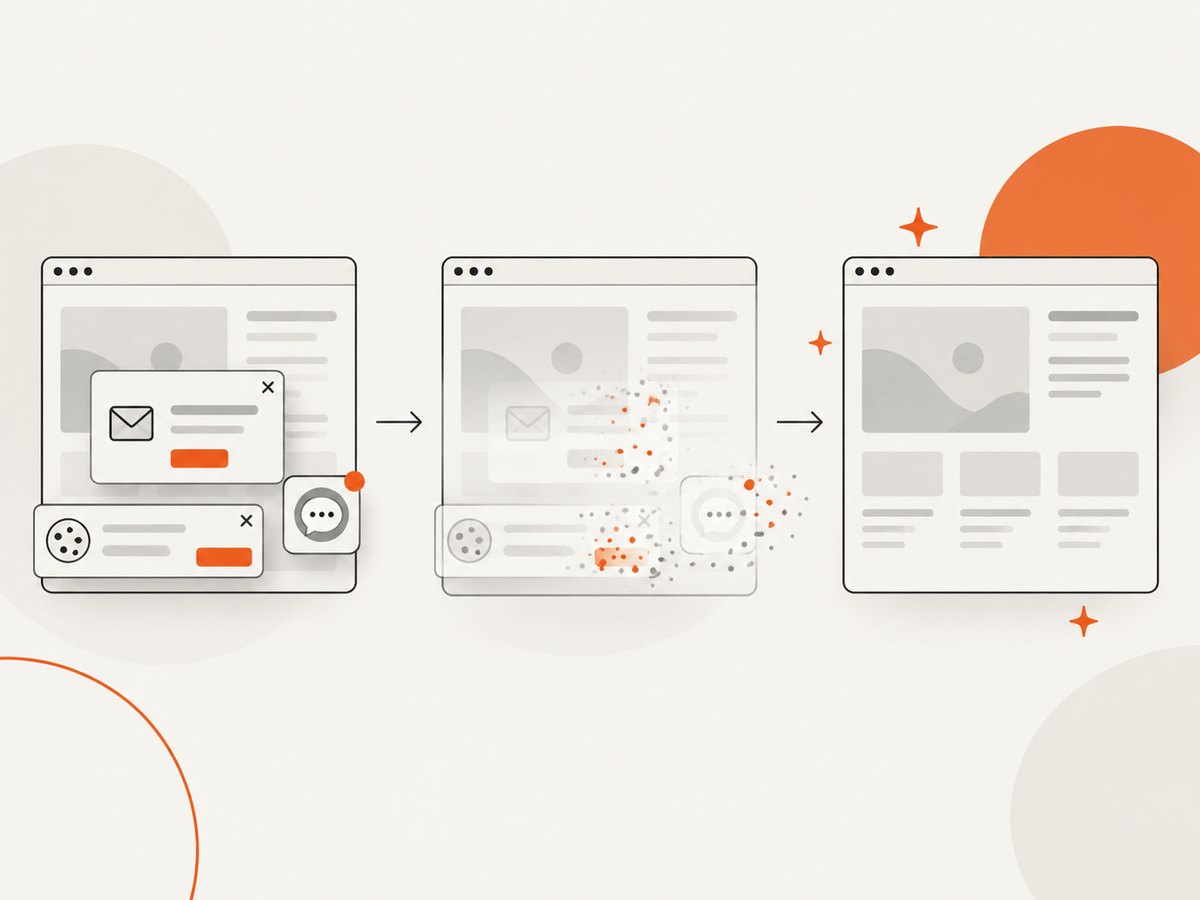
If your carousel workflow needs screenshots of web pages for slide backgrounds, product comparisons, or automated reports, ScreenshotNeo can return a clean image or PDF with one GET request. Its consent step accepts cookie banners before capture and removes more than 60 known consent platforms, newsletter popups, and chat widgets; each step can be turned off. Bot checks, blank pages, timeouts, failed loads, and cache hits are not billed, and the response identifies the result with X-Page-Verdict and X-Billed headers.
Read the ScreenshotNeo API documentation for all options. The following calls are runnable examples:
curl -G 'https://api.screenshotneo.com/v1/shot' -d access_key=YOUR_API_KEY --data-urlencode url=https://stripe.com -o shot.webpimport requests
r = requests.get('https://api.screenshotneo.com/v1/shot', params={'access_key': 'YOUR_API_KEY', 'url': 'https://stripe.com'}, timeout=90)
open('shot.webp', 'wb').write(r.content)const q = new URLSearchParams({ access_key: 'YOUR_API_KEY', url: 'https://stripe.com' });
const res = await fetch(`https://api.screenshotneo.com/v1/shot?${q}`);For carousel production, useful options include full-page capture with lazy images loaded, a CSS selector for one element, dark mode, device presets or a custom viewport, retina scale, custom CSS and JavaScript, click-before-capture, selector hiding, waits for a selector, delay, or network idle, request blocking, custom headers and cookies, timezone and geolocation, transparent backgrounds, resizing, chosen cache TTL, signed public image links, asynchronous jobs with signed webhooks, bulk capture for up to 100 URLs per call, and PDF paper, margin, landscape, and page-range controls. ScreenshotNeo also provides an MCP server with take_screenshot, get_page_info, and capture_pdf for Claude, Cursor, and other MCP clients.
There is a free plan with 1,000 screenshots per month and no card. Paid plans start at $5 for 3,000 shots; every feature is available on every plan, and yearly billing gives two months free. Create a free ScreenshotNeo account to start.
FAQ
Is a LinkedIn carousel an image post?
Usually, the organic swipeable format is a multipage PDF uploaded as a Document post. A multi-image post is a separate format.
Can I schedule a carousel three months ahead?
LinkedIn Help gives a maximum of three months for both personal profiles and Pages, with different minimum lead times.
Does the LinkedIn Carousel API publish organic PDFs?
The reviewed developer documentation says the Carousel API creates sponsored carousel posts only. Organic document posts use the document upload and Posts API workflow.
Should I use native scheduling or a third-party tool?
Use native scheduling for a simple profile or Page workflow. Choose a third-party tool when you need shared calendars, approvals, queues, or multiple accounts, and verify that it supports PDF Document auto-publishing on your plan.


