How to Create an Image Slider in HTML, CSS, and JavaScript
Build an accessible image slider with semantic HTML, CSS scroll snapping, and JavaScript controls, autoplay, keyboard support, and reduced motion.

Direct answer: create the slider as a semantic list of slides in HTML, lay the slides out horizontally with CSS, and add JavaScript only for behavior such as previous/next buttons, slide indicators, announcements, and optional autoplay. CSS scroll snapping gives touch and trackpad users a reliable way to settle on one slide. Make every control keyboard accessible, expose the current slide, stop movement when a user focuses or hovers the carousel, and honor prefers-reduced-motion.
This guide builds a complete, accessible slider from scratch. It includes a working HTML file, CSS, and JavaScript; touch and keyboard behavior; autoplay rules; lazy loading; troubleshooting; performance notes; and a production checklist. The implementation follows the W3C carousel guidance and the MDN scroll-snap and reduced-motion documentation.
1. Decide what the slider must do
An image slider (also called a carousel or slideshow) presents an ordered set of items, usually one at a time. Before writing code, decide whether users need:
- Simple horizontal scrolling with touch and mouse input.
- Previous and next buttons.
- Dot or thumbnail navigation.
- Automatic rotation.
- Captions, links, or other interactive content inside slides.
- One image per viewport or a multi-card layout.
For a basic gallery, native scrolling plus CSS snapping may be enough. Add JavaScript when the application must track an active index, update a live status message, control autoplay, or synchronize thumbnails.
2. Use semantic HTML for the slide structure
Give the carousel a heading and a labelled region. A list preserves the order of the images for browsers, search tools, and assistive technology. Each image needs useful alternative text; decorative images should use an empty alt value. Keep captions visible when they add information.
<section class='carousel' aria-labelledby='gallery-title'>
  <h2 id='gallery-title'>Coastal walks</h2>

  <div class='carousel__controls'>
    <button type='button' class='carousel__button' data-action='previous'
            aria-label='Previous slide'>Previous</button>
    <button type='button' class='carousel__button' data-action='next'
            aria-label='Next slide'>Next</button>
    <button type='button' class='carousel__button' data-action='toggle'
            aria-pressed='false'>Start rotation</button>
  </div>

  <p class='carousel__status' aria-live='polite'>
    Slide 1 of 3: Cliffs at sunrise
  </p>

  <ul class='carousel__scroller' data-carousel-scroller>
    <li class='carousel__slide' data-slide>
      <figure>
        <img src='images/cliffs.jpg' alt='Sunlit cliffs above a calm sea'
             width='1200' height='800' fetchpriority='high'>
        <figcaption>Cliffs at sunrise</figcaption>
      </figure>
    </li>
    <li class='carousel__slide' data-slide>
      <figure>
        <img src='images/harbor.jpg' alt='Small boats in a harbor at dusk'
             width='1200' height='800' loading='lazy'>
        <figcaption>Harbor at dusk</figcaption>
      </figure>
    </li>
    <li class='carousel__slide' data-slide>
      <figure>
        <img src='images/dunes.jpg' alt='Footpath crossing grassy dunes'
             width='1200' height='800' loading='lazy'>
        <figcaption>Path through the dunes</figcaption>
      </figure>
    </li>
  </ul>

  <div class='carousel__dots' aria-label='Choose a slide'>
    <button type='button' data-go-to='0' aria-label='Go to slide 1'
            aria-current='true'>1</button>
    <button type='button' data-go-to='1' aria-label='Go to slide 2'>2</button>
    <button type='button' data-go-to='2' aria-label='Go to slide 3'>3</button>
  </div>
</section>
The rotation control appears before the slides in the tab order. That lets a keyboard user stop movement before reading changing content, as recommended by the W3C WAI Carousels Tutorial and the WAI-ARIA Authoring Practices carousel pattern.
3. Lay out slides with CSS scroll snapping
Use a horizontal flex container with overflow. scroll-snap-type makes the scroller settle at a slide after a swipe or wheel gesture, while scroll-snap-align defines each slide’s stopping point. The technique is documented in MDN’s CSS scroll snap guide.

:root {
  color-scheme: light dark;
  --gap: 1rem;
  --surface: #f3f4f6;
  --text: #111827;
  --accent: #2563eb;
}

.carousel {
  max-width: 60rem;
  margin: 0 auto;
  color: var(--text);
}

.carousel__controls,
.carousel__dots {
  display: flex;
  flex-wrap: wrap;
  gap: .5rem;
  align-items: center;
  margin-block: .75rem;
}

.carousel__button,
.carousel__dots button {
  min-height: 2.75rem;
  padding: .5rem .8rem;
  border: 1px solid #9ca3af;
  border-radius: .4rem;
  background: white;
  color: #111827;
  cursor: pointer;
}

.carousel__button:focus-visible,
.carousel__dots button:focus-visible {
  outline: 3px solid var(--accent);
  outline-offset: 2px;
}

.carousel__dots button[aria-current='true'] {
  background: var(--accent);
  color: white;
}

.carousel__scroller {
  display: flex;
  gap: var(--gap);
  margin: 0;
  padding: 0 0 1rem;
  overflow-x: auto;
  list-style: none;
  scroll-snap-type: x mandatory;
  scroll-behavior: smooth;
  overscroll-behavior-x: contain;
}

.carousel__slide {
  flex: 0 0 100%;
  scroll-snap-align: center;
}

.carousel__slide figure {
  margin: 0;
  overflow: hidden;
  border-radius: .75rem;
  background: var(--surface);
}

.carousel__slide img {
  display: block;
  width: 100%;
  height: auto;
  aspect-ratio: 3 / 2;
  object-fit: cover;
}

.carousel__slide figcaption {
  padding: .75rem 1rem;
  font-weight: 600;
}

@media (prefers-reduced-motion: reduce) {
  .carousel__scroller {
    scroll-behavior: auto;
  }
}

@media (min-width: 48rem) {
  .carousel__slide {
    flex-basis: calc((100% - var(--gap)) / 2);
  }
}
The multi-card media query is optional. If each slide must always occupy the full viewport, keep flex-basis: 100%. Set explicit image dimensions to reduce layout shift, and lazy-load images after the first one.
4. Add controls and state with JavaScript
The script below finds the slide nearest the scroller’s center, updates the status and dots, scrolls to a requested slide, and handles previous/next actions. It also pauses rotation on focus, hover, page visibility changes, and reduced-motion preferences.
const carousel = document.querySelector('.carousel');
const scroller = carousel.querySelector('[data-carousel-scroller]');
const slides = [...carousel.querySelectorAll('[data-slide]')];
const status = carousel.querySelector('.carousel__status');
const dots = [...carousel.querySelectorAll('[data-go-to]')];
const toggle = carousel.querySelector('[data-action="toggle"]');
const previous = carousel.querySelector('[data-action="previous"]');
const next = carousel.querySelector('[data-action="next"]');
const reducedMotion = window.matchMedia('(prefers-reduced-motion: reduce)');

let activeIndex = 0;
let timer = null;
let userStartedRotation = false;

function render(index, announce = true) {
  activeIndex = Math.max(0, Math.min(index, slides.length - 1));
  const title = slides[activeIndex].querySelector('figcaption')?.textContent?.trim() || `Slide ${activeIndex + 1}`;
  status.textContent = `Slide ${activeIndex + 1} of ${slides.length}: ${title}`;
  dots.forEach((dot, i) => {
    dot.toggleAttribute('aria-current', i === activeIndex);
    if (i !== activeIndex) dot.removeAttribute('aria-current');
  });
  previous.disabled = activeIndex === 0;
  next.disabled = activeIndex === slides.length - 1;
  slides[activeIndex].scrollIntoView({ behavior: reducedMotion.matches ? 'auto' : 'smooth', block: 'nearest', inline: 'center' });
  if (announce) status.setAttribute('data-updated', 'true');
}

function nearestSlide() {
  const center = scroller.scrollLeft + scroller.clientWidth / 2;
  return slides.reduce((best, slide, i) => {
    const distance = Math.abs(slide.offsetLeft + slide.offsetWidth / 2 - center);
    return distance < best.distance ? { index: i, distance } : best;
  }, { index: 0, distance: Infinity }).index;
}

function stopRotation() {
  if (timer) window.clearInterval(timer);
  timer = null;
  toggle.textContent = 'Start rotation';
  toggle.setAttribute('aria-pressed', 'false');
}

function startRotation() {
  if (reducedMotion.matches) return;
  stopRotation();
  timer = window.setInterval(() => {
    render(activeIndex === slides.length - 1 ? 0 : activeIndex + 1);
  }, 5000);
  toggle.textContent = 'Stop rotation';
  toggle.setAttribute('aria-pressed', 'true');
}

previous.addEventListener('click', () => render(activeIndex - 1));
next.addEventListener('click', () => render(activeIndex + 1));
dots.forEach(dot => dot.addEventListener('click', () => render(Number(dot.dataset.goTo))));
toggle.addEventListener('click', () => {
  userStartedRotation = !userStartedRotation;
  userStartedRotation ? startRotation() : stopRotation();
});

let scrollFrame;
scroller.addEventListener('scroll', () => {
  cancelAnimationFrame(scrollFrame);
  scrollFrame = requestAnimationFrame(() => {
    const index = nearestSlide();
    if (index !== activeIndex) render(index, false);
  });
}, { passive: true });

carousel.addEventListener('focusin', stopRotation);
carousel.addEventListener('mouseenter', stopRotation);
document.addEventListener('visibilitychange', () => {
  if (document.hidden) stopRotation();
});
reducedMotion.addEventListener?.('change', event => {
  if (event.matches) stopRotation();
});

render(0, false);
Do not automatically restart after focus or hover ends. The WAI-ARIA pattern requires an explicit user action to resume rotation. If your carousel contains links or form controls, leave all slides in the document and avoid hiding offscreen content with display: none; incorrectly hidden slides can disorient screen-reader users.
5. Autoplay, motion, and accessibility decisions
Automatic rotation is optional and often makes content harder to discover. If you include it:
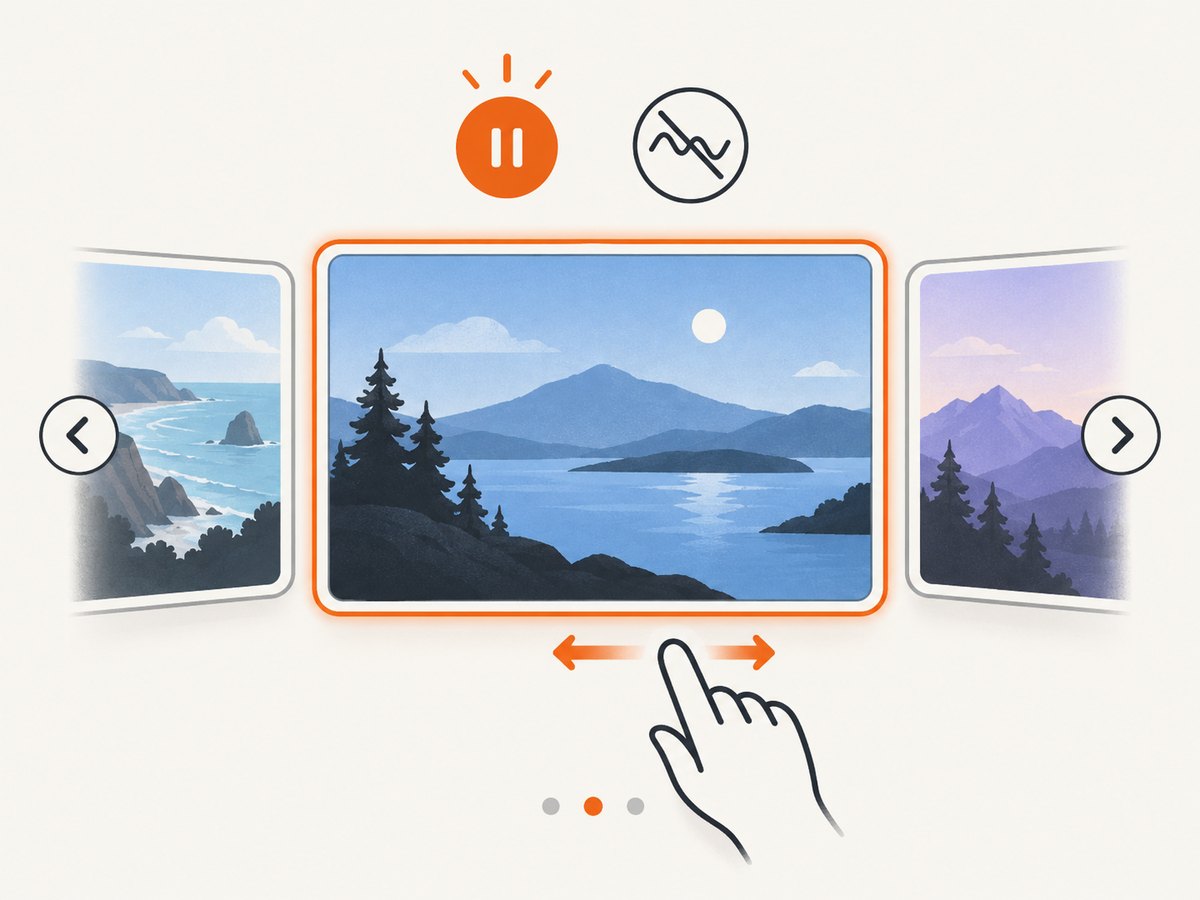
- Provide a clearly labelled start/stop button.
- Stop when keyboard focus enters the carousel.
- Stop while the pointer hovers over carousel content.
- Do not restart when focus or hover leaves; require the button.
- Pause when the document is hidden.
- Start paused when
prefers-reduced-motion: reduceis active.
The preference means users want non-essential movement reduced. MDN documents the media query at Using prefers-reduced-motion. Test with keyboard-only navigation, zoom, high contrast, touch, and the screen readers used by your audience. The WAI examples are patterns to adapt, not a guarantee of identical support across every browser and assistive-technology combination.
6. CSS-native carousel controls
Newer CSS features can create scroll buttons and markers with selectors such as ::scroll-button(), ::scroll-marker-group, and ::scroll-marker. MDN describes these in its CSS carousel guide. They can remove JavaScript for simple pagination, but support is evolving. Check the browsers your visitors use and keep a usable fallback based on ordinary scrolling and buttons.
7. Common errors and fixes
| Symptom | Cause | Fix |
|---|---|---|
| Slides stack vertically | The scroller is not a flex container or slides have no basis. | Set display: flex on the scroller and a horizontal flex-basis on slides. |
| Snapping feels inconsistent | Slide widths, gaps, or snap alignment differ. | Use a consistent basis, scroll-snap-type: x mandatory, and scroll-snap-align on every slide. |
| Buttons do nothing | Selectors run before the markup exists or data attributes do not match. | Load the script with defer, place it after the markup, and verify each data-action. |
| Screen reader never reports changes | The status is not live or its text never changes. | Keep a concise aria-live='polite' status and update it after navigation. |
| Autoplay restarts unexpectedly | A mouseleave or focusout handler starts the timer again. | Only start from the explicit toggle button; focus and hover handlers should stop. |
| Images cause layout jumps | Intrinsic dimensions are unknown until download. | Set width, height, or aspect-ratio before loading. |
| Swipe scrolls the whole page | Horizontal overscroll chains to the parent. | Use overscroll-behavior-x: contain and keep the scroller wide enough to discover. |
8. Performance and reliability checklist
- Resize source images for their displayed dimensions; use WebP or AVIF where your delivery pipeline supports them.
- Set
loading='lazy'on offscreen images and preload only the first, visible image. - Keep scroll handlers passive and throttle expensive work with
requestAnimationFrame. - Avoid decoding every large image on page load. Load slide data or image URLs on demand for very large galleries.
- Use stable dimensions so content below the carousel does not move.
- Do not rely on autoplay for essential information. Every slide should be reachable with buttons, keyboard, and touch.
- Test at narrow widths, with browser zoom, slow networks, and JavaScript disabled. The basic horizontal scroller should remain usable without the script.
9. Or skip the browser setup
If your goal is to capture a finished slider as an image or PDF rather than build the component, ScreenshotNeo provides a single HTTP request. It can wait for a selector or delay, run custom JavaScript, choose a viewport or device preset, capture a full page or one CSS element, and return PNG, JPEG, WebP, or PDF. Cookie and consent banners, newsletter popups, and chat widgets are removed before the shot. Bot checks, blank pages, timeouts, failed loads, and cache hits are not billed, and response headers identify the page verdict and billing result.
See the ScreenshotNeo API documentation for all options.
curl -G "https://api.screenshotneo.com/v1/shot" -d access_key=YOUR_API_KEY --data-urlencode url=https://stripe.com -o shot.webpimport requests
r = requests.get("https://api.screenshotneo.com/v1/shot", params={"access_key": "YOUR_API_KEY", "url": "https://stripe.com"}, timeout=90)
open("shot.webp", "wb").write(r.content)const q = new URLSearchParams({ access_key: 'YOUR_API_KEY', url: 'https://stripe.com' });
const res = await fetch(`https://api.screenshotneo.com/v1/shot?${q}`);ScreenshotNeo also supports dark mode, retina scale, custom CSS and JavaScript, clicks before capture, hidden selectors, blocked ads or resource types, custom headers and cookies, timezone and geolocation, transparent backgrounds, image resizing, selectable cache TTLs, signed image links, asynchronous jobs with signed webhooks, bulk capture for up to 100 URLs per call, a usage API, and an OpenAPI specification. Its MCP server exposes take_screenshot, get_page_info, and capture_pdf to Claude, Cursor, and other MCP clients.
The Free plan includes 1,000 screenshots each month with no card. Starter is $5 for 3,000 shots; Growth is $15 for 15,000; Pro is $39 for 60,000; Scale is $99 for 250,000; and Business is $249 for 1,000,000. Yearly billing gives two months free, and every feature is included on every plan. Create a free ScreenshotNeo account to get started.
10. Testing checklist before shipping
- Can a keyboard user reach the rotation control, previous/next buttons, dots, links, and captions?
- Does the current slide have a clear visual state and an announced status?
- Does focus remain visible at every viewport size?
- Does rotation stop on focus, hover, hidden tabs, and reduced-motion settings?
- Can a user swipe naturally without losing the page’s vertical scroll?
- Do images have meaningful alternative text and fixed dimensions?
- Does the component remain useful when JavaScript fails?
- Have you tested real browsers and the screen readers used by your audience?
FAQ
Should I use CSS or JavaScript for a slider?
Use CSS for layout, overflow, and snapping. Add JavaScript when you need explicit state, custom controls, announcements, thumbnails, or autoplay.
How many slides should be visible?
One slide is clearest for storytelling. Two or more cards can work for product lists; change the slide basis at a breakpoint and keep each card large enough to read and activate.
Is autoplay required?
No. Manual navigation is simpler and more predictable. If you add autoplay, include a start/stop control and pause it as described above.
Can I capture a slider as a single image?
Yes. Use a browser screenshot service such as ScreenshotNeo and target the carousel element with a CSS selector, or capture the full page after waiting for the slider’s images to load.


