How to Create Landscape PDFs From Web Pages
Save any web page as a landscape PDF with browser print settings, scaling, margins, troubleshooting, and an automated ScreenshotNeo option.
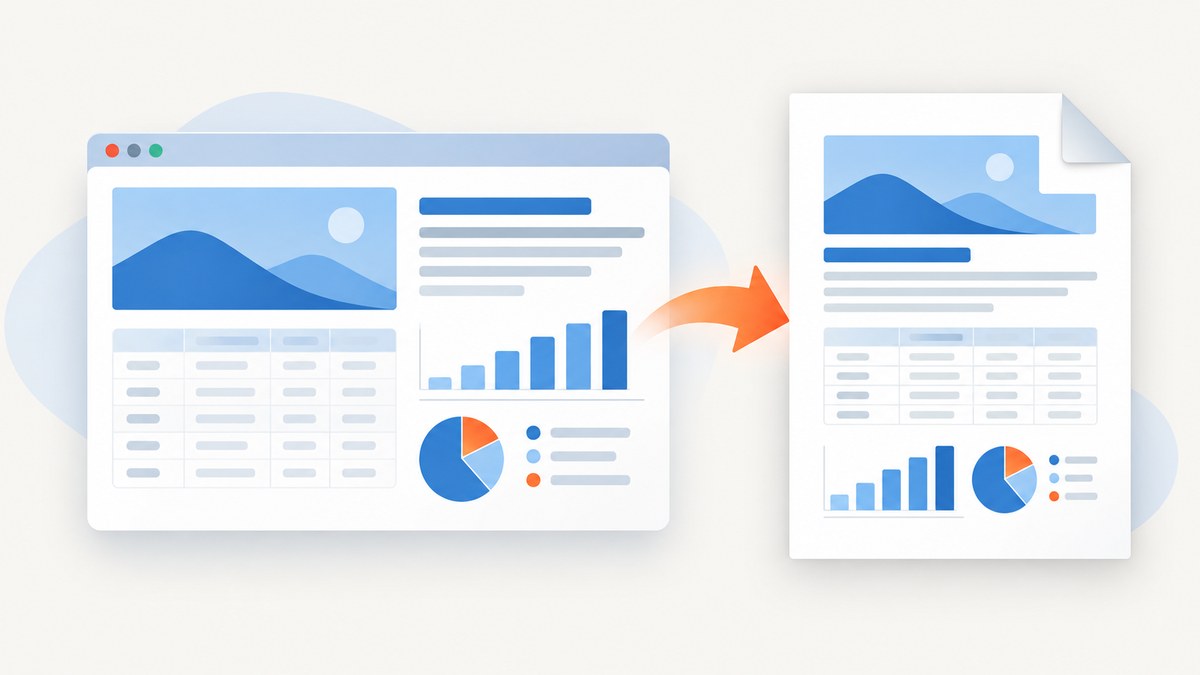
To create a landscape PDF from a web page, open the page, choose Print, select a PDF destination, change Orientation or Layout to Landscape, check the preview, then save. Landscape gives wide tables, charts, dashboards, and spreadsheets more horizontal room than portrait pages. The exact labels vary by browser and operating system, but the workflow is consistent.
If the preview cuts off columns, reduce the scale, change paper size, narrow the margins, or use a simplified print view. Always reopen the saved PDF and check the pages before sharing it.
1. The universal browser method
- Open the web page on a desktop browser.
- Open the print dialog. In Chrome on Windows or Linux, press Ctrl+P; on Mac, press Command+P. You can also use the browser’s File > Print command.
- Choose a PDF destination such as Save as PDF or Save to PDF. A physical printer is not required.
- Set Orientation or Layout to Landscape.
- Review every page in the preview. Look for clipped table columns, unexpected blank pages, tiny text, missing backgrounds, and headers or footers you do not want.
- Adjust paper size, scale, and margins until the content fits.
- Click Save or Print, choose a filename, and reopen the resulting PDF to verify its orientation and page breaks.
Web pages can deliberately use different styles for paper than for a screen. Mozilla Support cautions that pages can “appear different on paper to how they look on screen,” so the preview is part of the process, not an optional final check. Mozilla’s Firefox printing guide and Microsoft’s Edge printing documentation describe the relevant controls.
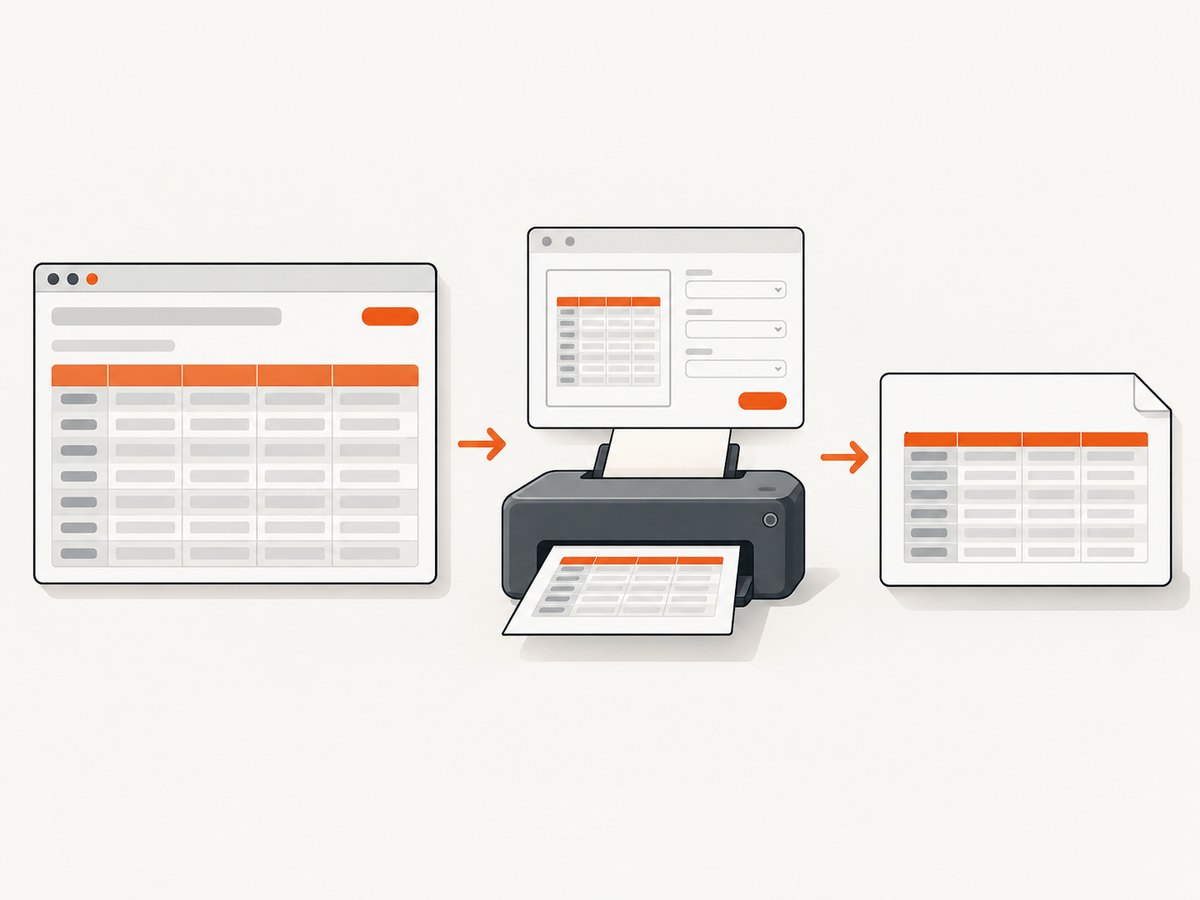
2. Firefox: Save to PDF in landscape
- Open the page and press Ctrl+P on Windows or Linux, or Command+P on macOS.
- In the destination dropdown, choose Save to PDF.
- Under the print settings, choose Landscape for Orientation.
- Set Paper size, Scale, Pages per sheet, and Margins. Start with the default scale, then lower it only if wide content is clipped.
- Decide whether to print headers and footers and whether to print backgrounds.
- If available, try Simplified format when navigation, advertisements, or sidebars overwhelm the page. Inspect the preview afterward because simplified output changes the page’s appearance. Firefox does not allow background printing with Simplified format.
- Click Save, select a location, and inspect the PDF.
3. Microsoft Edge: landscape, scaling, and clutter-free printing
- Open the web page and select Print from the browser menu, or use the keyboard shortcut.
- Choose a PDF destination.
- Set Layout to Landscape.
- Choose a paper size. Letter and A4 have different usable widths, so changing paper can alter page breaks.
- Use Scale to choose Fit to printable area, Actual size, or a custom percentage. Fit is a useful first attempt for wide tables; custom scaling gives you precise control.
- Check the preview for margins and clipped content. Microsoft recommends previewing or making a test print when scaling matters.
- Use Edge’s clutter-free print option when it is offered. It can remove surrounding material such as advertisements and site navigation, but it may also remove information you need.
- Save the PDF and reopen it.
4. Chrome desktop: open print preview and save a PDF
Chrome desktop opens print preview through File > Print or Ctrl+P on Windows and Linux, and Command+P on Mac. Select a destination and the print settings available on your system, then print or save. Chrome’s controls and destination names can differ between operating systems and managed work computers, so use the preview to confirm that the output is a PDF and that the page is landscape. See Google Chrome’s printing help for the current desktop workflow.
If you do not see a PDF destination, look for a system print dialog, a destination dropdown, or an option named Save as PDF. A browser can create the digital file without sending anything to a physical printer.
5. Fixing wide pages that are cut off
Landscape changes the page orientation, but it does not guarantee that every element will fit on one page. Use this checklist in order:
- Check the page width. A very wide table may still exceed the printable area in landscape.
- Reduce scale gradually. Try 95%, 90%, or a custom value. Smaller text is harder to read, so stop when the table fits without becoming impractical.
- Change paper size. A larger supported paper size provides more usable width, but recipients may need the same paper setting to print it accurately.
- Narrow margins. Default margins consume horizontal space. Use the smallest setting that keeps content readable and avoids printer clipping.
- Remove nonessential page furniture. Disable headers and footers, and use simplified or clutter-free output when appropriate.
- Print a dedicated view. Many sites have a print page, reader view, report view, or export command designed for pagination.
- Inspect page breaks. A table can fit horizontally but split rows or columns awkwardly across pages. If the browser offers page ranges, print a small range first and review it.
Do not assume that an on-screen CSS width maps directly to PDF width. Print styles can hide elements, change fonts, remove colors, or insert page breaks. The preview is the only reliable way to see what your browser will save.
6. Backgrounds, colors, and readability
Background printing is often disabled by default. Enable Print backgrounds when color coding, chart fills, or shaded table headers carry meaning. If you choose Firefox Simplified format, background printing is unavailable. If backgrounds are decorative, leaving them off can reduce ink and produce a cleaner document.
Check contrast after saving. A dark-mode web page may print with a dark background and light text, or it may switch to a light print stylesheet. If the PDF is for accessibility or photocopying, prefer a high-contrast, uncluttered layout and verify text selection in the saved file.
7. Automating landscape PDF capture
Browser printing is ideal for an occasional document. Automation is more useful when you need the same result for many URLs, a scheduled report, a CI job, or a service used by other people. A browser automation script must launch a compatible browser, load the page, wait for dynamic content, configure print-to-PDF settings, and manage failures. It also has to deal with cookie banners, newsletter popups, chat widgets, bot checks, and lazy-loaded images.
When building your own automation, make these decisions explicit:
| Decision | Why it matters |
|---|---|
| Wait condition | Fixed delays can be too short for slow pages and waste time on fast pages. A selector or network-idle condition is usually more meaningful. |
| Viewport and device scale | These affect responsive breakpoints, text size, and the width available before PDF pagination. |
| Paper and margins | They determine printable width and where page breaks occur. |
| Lazy content | Images and charts may not exist until they enter the viewport or receive a scroll event. |
| Authentication | Private pages may require cookies, custom headers, or an Authorization header. |
| Failure handling | Timeouts, blank pages, redirects, and challenge pages need a clear retry or reporting policy. |
For a small number of captures, a script can be simpler than a service. For production workloads, separate navigation failures from valid PDFs, record the URL and settings used, and retain enough metadata to reproduce a document.
8. Or skip the browser setup
ScreenshotNeo is a website screenshot API and MCP server. It can return a PDF and supports landscape output, paper size, margins, and page ranges. The request can also wait for a selector, a delay, or network idle; load lazy images; click an element; apply custom CSS or JavaScript; hide selectors; provide cookies, headers, a user agent, or Authorization; and set timezone or geolocation. See the ScreenshotNeo API documentation for the PDF options and parameter details.
The basic request forms are:
cURL
curl -G "https://api.screenshotneo.com/v1/shot" -d access_key=YOUR_API_KEY --data-urlencode url=https://stripe.com -o shot.webpPython
import requests

r = requests.get(
    "https://api.screenshotneo.com/v1/shot",
    params={"access_key": "YOUR_API_KEY", "url": "https://stripe.com"},
    timeout=90,
)
open("shot.webp", "wb").write(r.content)
Node.js
const q = new URLSearchParams({ access_key: 'YOUR_API_KEY', url: 'https://stripe.com' });
const res = await fetch(`https://api.screenshotneo.com/v1/shot?${q}`);
Configure the response as a landscape PDF using the PDF options in the documentation. The same service can capture one CSS-selected element or a full page, use any viewport or one of 12 device presets, apply retina scale, resize images, block ads, trackers, requests, or resource types, and cache a result for a TTL you choose. Signed links are available for public <img> tags, and asynchronous jobs can deliver signed webhooks. Bulk capture accepts up to 100 URLs per call, while the usage API and OpenAPI specification help with operations and integration.
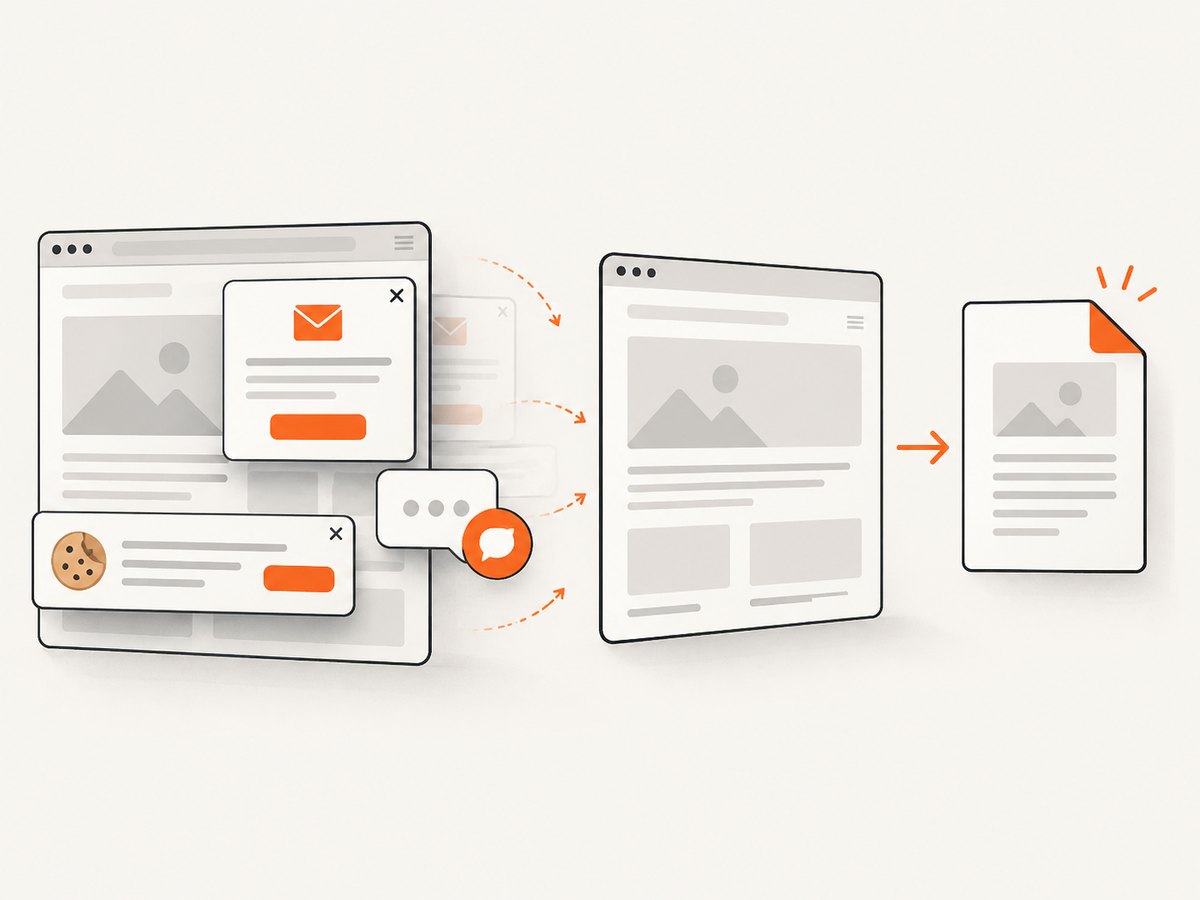
Clean output is handled before capture: ScreenshotNeo accepts cookie and consent banners and removes more than 60 known consent platforms, newsletter popups, and chat widgets. Each of those steps can be turned off. Bot checks or CAPTCHAs, blank pages, timeouts, failed loads, and cache hits cost nothing, and response headers identify the page verdict and whether the request was billed. An MCP server provides take_screenshot, get_page_info, and capture_pdf tools for Claude, Cursor, and other MCP clients.
The Free plan includes 1,000 shots per month without a card. Paid plans start at $5 for 3,000 shots; yearly billing gives two months free. Create a free ScreenshotNeo account and start with the no-card plan.
9. Troubleshooting
The PDF is portrait even though I selected landscape
Confirm that you changed Orientation in the print dialog rather than only rotating the browser window. Some sites open a second system dialog; check its layout setting too. Reopen the saved PDF and inspect its page properties.
Columns are missing or clipped
Lower the scale, choose a wider paper size, reduce margins, or use a print-specific table view. If only one table is too wide, export that table separately instead of shrinking the entire document.
The page is blank
The content may be client-rendered or blocked until scripts finish. Wait for a visible element, scroll to trigger lazy loading, disable an overly aggressive content blocker, or use a dedicated print view. In automation, capture diagnostics for redirects, timeouts, and challenge pages.
Images or chart colors are missing
Enable background printing when colors carry meaning. Check whether the images loaded before printing, and avoid Simplified format when it removes needed styling.
A popup or cookie banner covers the content
Dismiss it before opening print preview, use reader or clutter-free mode, or hide the element with a print stylesheet. For automated captures, use a tool that can accept consent and remove known overlays before rendering.
The PDF has too many pages
Review scale, paper size, margins, and page ranges. Removing headers, footers, navigation, and sidebars can reduce page count without making body text too small.
10. Performance, reliability, and cost
For manual work, preview time is usually dominated by the page itself. Heavy dashboards, third-party scripts, ads, and fonts can delay rendering. A fixed delay is simple but unreliable; a selector or network-idle condition better matches page readiness. Cache stable pages when the content does not change, and use a specific viewport so repeated PDFs remain comparable.
For a service, count successful, usable documents rather than raw requests. Retry transient network failures with a limit and backoff, but do not blindly retry bot challenges or deterministic 404 pages. Keep the source URL, PDF settings, timestamp, and verdict with each generated file. ScreenshotNeo exposes page-verdict and billing headers, so you can distinguish clean captures from failed or unbilled outcomes.
Cost depends on how often you generate documents and whether you can reuse cached results. ScreenshotNeo bills only clean shots; cache hits and failed loads are not billed. Its Free plan covers 1,000 shots monthly, with paid tiers from $5 for 3,000 shots to larger plans for higher volume.
11. FAQ
Can I make a landscape PDF without a printer?
Yes. Choose Save as PDF or Save to PDF as the destination in the browser print dialog. No physical printer is required.
Will landscape always keep a table on one page?
No. Landscape increases width, but the table may still exceed the printable area. Scale, paper size, margins, and the table’s own print styles determine the result.
Should I use landscape for every web page?
No. Use it when the important content is wider than it is tall. Portrait is usually easier to read for ordinary articles and narrow forms.
Why does the PDF differ from the screen?
Browsers apply print styles, and pages can hide or rearrange elements for paper. Preview the output and adjust the print settings before saving.
Can I generate landscape PDFs for many URLs?
Yes. Browser automation or a screenshot API can repeat the capture with fixed paper, margin, viewport, wait, and authentication settings. An API also avoids maintaining browser binaries and overlay-cleanup code.


