How to Create a LinkedIn Carousel PDF
Create a polished multi-page PDF for an organic LinkedIn document post, then upload and check it before publishing.
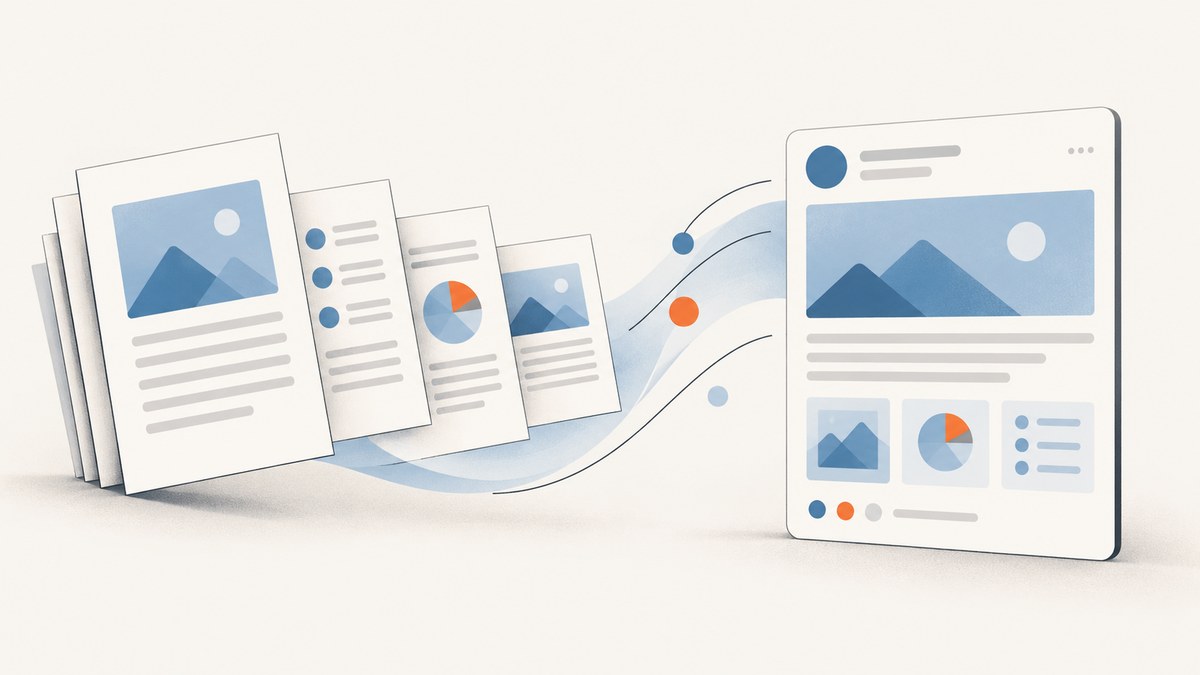
A LinkedIn “carousel” in an organic post is usually a multi-page document: create a PDF, upload it as one document, give the file a title, write a separate post description, and publish. LinkedIn recommends PDF where possible. The document can be up to 100 MB and 300 pages. The instructions below cover this organic document post, not the separate paid carousel image ad format. LinkedIn’s document upload instructions describe the current limits and workflow.
1. Plan the pages before designing
Choose one idea for the document and arrange it as a sequence. A useful page should make sense on its own while giving the reader a reason to continue. For example, a how-to might use a cover, a short explanation of the problem, one step per page, a worked example, a summary, and a final next step. This is editorial guidance, not a LinkedIn rule; LinkedIn does not require a particular number of pages or authoring app.
- Write a concise outline before opening a design tool.
- Give each page one main point. Split dense explanations across pages instead of shrinking the type.
- Use strong contrast and type large enough to read in a feed preview. Check the pages at the size people are likely to see them on a phone.
- Use a consistent grid, spacing, and visual style so the reader can follow the sequence.
- Make the cover explain what the reader will learn, rather than relying on a vague teaser.
Use any presentation or design application that can export a multi-page PDF. LinkedIn does not specify a required application. A portrait page layout is a common editorial choice for feed documents, but the cited LinkedIn upload instructions do not mandate a page orientation or aspect ratio.
2. Export and prepare the PDF
Export the pages together as one PDF, then open the exported file and inspect it. LinkedIn recommends converting documents to PDF where possible. Before uploading, check these points from LinkedIn’s preparation guidance:
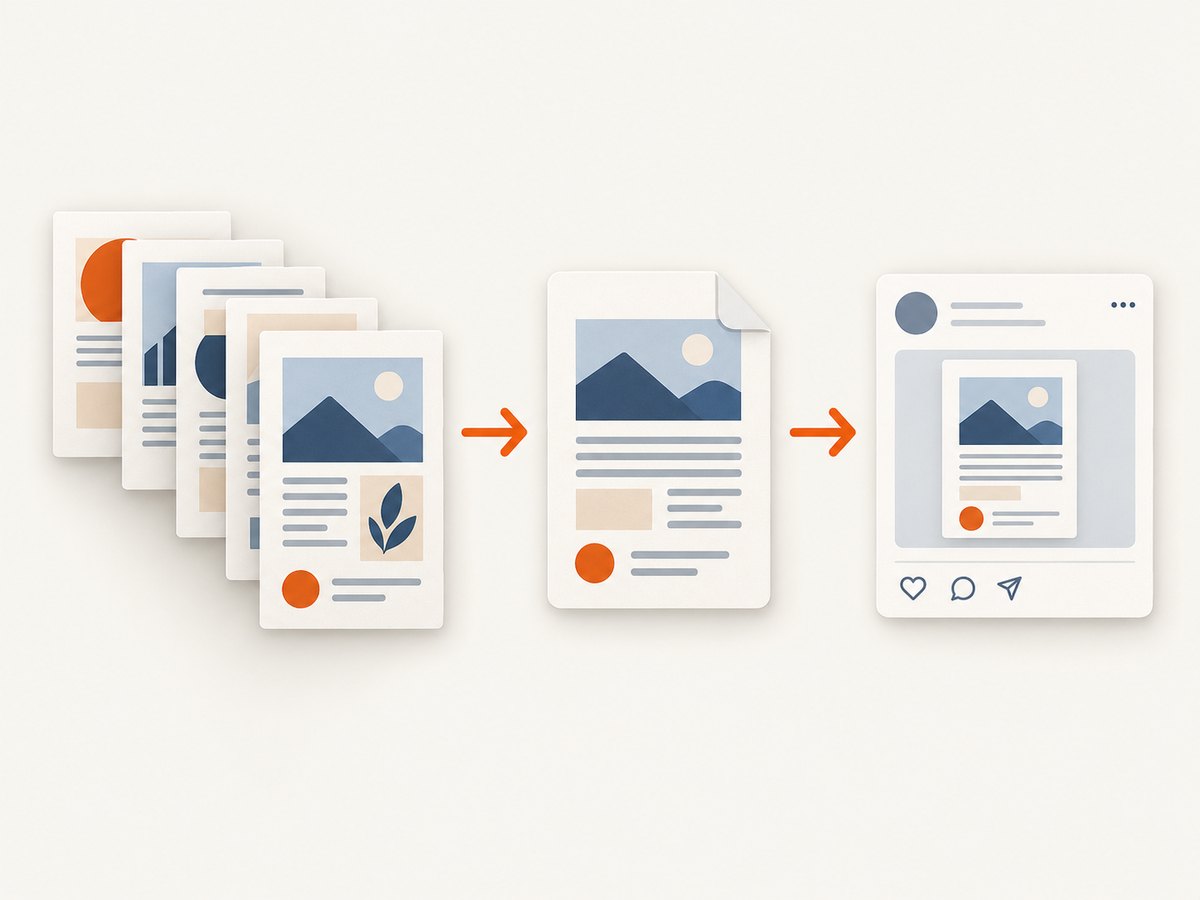
- Flatten or merge a PDF with multiple layers.
- Make pages the same size if the PDF mixes page dimensions.
- Check that hyperlinks are secure.
- Do not rely on video or animation: LinkedIn says these are unsupported in document uploads and appear as static images.
- Confirm the file is no larger than 100 MB and no longer than 300 pages.
Also proofread every page at normal viewing size. Check page order, alignment, spelling, link destinations, and whether charts or screenshots remain legible. Save a final copy of the exact PDF you intend to upload. The file in an existing post cannot be replaced by editing the post, so this review is useful before publishing.
3. Upload the document on LinkedIn
Desktop
- Start a post from the LinkedIn homepage.
- Select More, then choose Add a document.
- Choose the PDF file. LinkedIn’s instructions say a post accepts one document.
- Enter a document title. This labels the uploaded file; it is separate from the post description.
- Write the post description. Add context so readers know what the document covers. Hashtags or @mentions are optional.
- Review the uploaded preview page by page, then publish.
Mobile
- Tap Post, then choose More and Document.
- Select one document from your device.
- Add the document title and a separate post description.
- Review the preview and publish.
Menu names and availability can shift as LinkedIn updates its apps, so use the document option in the post composer if a label differs. LinkedIn lists PDF among supported formats on desktop, iOS, and Android in its media format support guidance. Its upload instructions also list PPT, PPTX, DOC, and DOCX, but PDF is the practical choice when preserving page layout matters.
4. Check what readers will see
After selecting the file, inspect the actual uploaded preview rather than trusting only the source design file. Look for missing fonts, clipped edges, image compression, unexpected blank pages, misplaced page breaks, and hyperlinks that do not work. Verify that the document title accurately labels the file and that the post description provides context instead of repeating the title.
Members who can view the post can download its document as a PDF, according to LinkedIn’s document upload help. A reader may encounter the pages in the feed or open the document, so make the opening page clear and keep the sequence understandable without relying on the post copy alone.
5. Know the correction rule before publishing
LinkedIn allows the post title and description to be edited, but the uploaded document itself cannot be edited inside the existing post. To correct or replace the file, remove the post and publish a new post with the updated document. This is why the pre-publish check should include the full PDF, its links, and the preview after upload. See LinkedIn’s upload instructions and document upload FAQ for the platform’s guidance.
Organic PDF document posts versus paid carousel ads
“LinkedIn carousel” can also mean a paid image-card ad. That is a different format, built in Campaign Manager from separate image cards. LinkedIn’s advertising documentation specifies two to ten cards and ad-specific image requirements and permissions. Those requirements do not describe the organic PDF document post.

| Organic document post | Paid carousel image ad | |
|---|---|---|
| Purpose | Share a document with an organic post. | Run Sponsored Content through Campaign Manager. |
| Construction | One multi-page document, commonly a PDF. | Two to ten separate image cards under the cited ad guidance. |
| Publishing route | Post composer, then Add a document. | Campaign Manager and applicable ad account/page permissions. |
| Relevant limits | 100 MB and 300 pages, per LinkedIn’s document-post instructions. | Ad card and campaign specifications; these are separate from document upload limits. |
If the goal is to share a tutorial, report, or visual explanation without setting up an ad campaign, use the organic document workflow above. For the paid format, consult LinkedIn’s carousel ad documentation and Campaign Manager ad specifications rather than applying the PDF limits to the cards.
Or skip the browser setup
If you need screenshots to build pages for a LinkedIn document, ScreenshotNeo can return a PNG, JPEG, WebP, or PDF from one GET request. Its options include full-page capture with lazy images loaded, CSS-selector element capture, device and viewport choices, retina scale, dark mode, custom CSS or JavaScript, waits, cookies, and headers. See the ScreenshotNeo API documentation for parameters.
curl -G "https://api.screenshotneo.com/v1/shot" -d access_key=YOUR_API_KEY --data-urlencode url=https://stripe.com -o shot.webpimport requests
r = requests.get("https://api.screenshotneo.com/v1/shot", params={"access_key": "YOUR_API_KEY", "url": "https://stripe.com"}, timeout=90)
open("shot.webp", "wb").write(r.content)const q = new URLSearchParams({ access_key: 'YOUR_API_KEY', url: 'https://stripe.com' });
const res = await fetch(`https://api.screenshotneo.com/v1/shot?${q}`);ScreenshotNeo accepts cookie and consent banners before capture and removes more than 60 known consent platforms, newsletter popups, and chat widgets; each step can be turned off. Bot checks, blank pages, failed loads, timeouts, and cache hits cost nothing, and response headers report the page verdict and billing status. Its MCP server offers screenshot tools for AI clients. The Free plan includes 1,000 shots per month with no card; paid plans start at $5 for 3,000 shots. Sign up for 1,000 free screenshots a month, with no card required.
Troubleshooting
| Problem | Likely cause | What to do |
|---|---|---|
| The document option or upload fails. | The app workflow differs, the file is unsupported, or it exceeds an upload limit. | Use the document option in the post composer; check the file is PDF, PPT, PPTX, DOC, or DOCX and within 100 MB and 300 pages. |
| Pages look inconsistent after upload. | Mixed page dimensions, layered PDF content, or a difference between the design export and preview. | Normalize page sizes, flatten or merge layers, export again, and inspect the new uploaded preview. |
| Text or images are hard to read. | Content was designed too small or too densely for feed viewing. | Increase type size and contrast, simplify the page, and inspect at phone-sized preview scale before uploading again. |
| A video or animation is not playing. | LinkedIn document uploads present video and other animations as static images. | Use a still frame or explain the motion in the document; do not make the instructions depend on playback. |
| A link does not work. | The PDF hyperlink may be malformed, insecure, or lost during export. | Check the source link, use a secure destination, export again, and test the hyperlink in the final PDF. |
| You found a mistake after publishing. | The document file cannot be edited in the existing post. | Correct the source and PDF, remove the post, then create a new post with the replacement document. |
| You expected swipeable images but see a document. | You uploaded an organic document, not a paid carousel ad. | Use Campaign Manager and its current ad specifications if you intended to create a paid image-card campaign. |
Performance, reliability, and cost considerations
LinkedIn’s cited upload guidance provides file and page ceilings, not a promise about feed reach, loading speed, or engagement. Do not treat the maximum size as a target: keep the PDF as compact as image quality permits, and remove redundant high-resolution assets. This can make the file easier to upload and download, while preserving readable type and imagery.
For reliability, retain the final exported file and its editable source, check the PDF locally, then review the LinkedIn preview before publishing. Remember that replacing an incorrect upload requires a new post. The document workflow itself does not require a particular paid design product according to the cited LinkedIn instructions; choose an authoring tool that exports the pages and links correctly. If using paid carousel ads instead, campaign costs and permissions belong to Campaign Manager and are outside the organic document upload procedure.
FAQ
Does LinkedIn require a specific design application?
No particular authoring application is required in the cited document instructions. Use one that exports a multi-page PDF.
Can I upload several files to one document post?
The workflow describes adding one document to a post. Combine the intended pages into one file before uploading.
Can I replace just one page after publishing?
No. The uploaded document cannot be edited in place. Replace it by removing the post and publishing again with the corrected document.
Is a PDF carousel the same thing as a LinkedIn carousel ad?
No. The organic format is one uploaded multi-page document; the paid ad format uses separate image cards in Campaign Manager.
Are the upload limits the same on every device?
LinkedIn’s document-post instructions state the 100 MB and 300-page ceilings. Its media support page lists PDF for desktop, iOS, and Android; consult the current help pages if the composer behaves differently.
Pre-publish checklist
- One clear idea or connected sequence, with a useful opening page.
- All pages proofread, in order, and readable at feed-preview size.
- One PDF under 100 MB and 300 pages.
- Multi-layer content flattened or merged; page dimensions consistent.
- Secure hyperlinks checked in the exported file.
- Document preview reviewed after upload; title and post description both supplied.
- Source and final PDF saved in case a correction requires a new post.


