How to Create Multipage PDFs from HTML
Create paginated PDFs from HTML with print CSS, explicit page breaks, and runnable Puppeteer, Playwright, and Python examples.
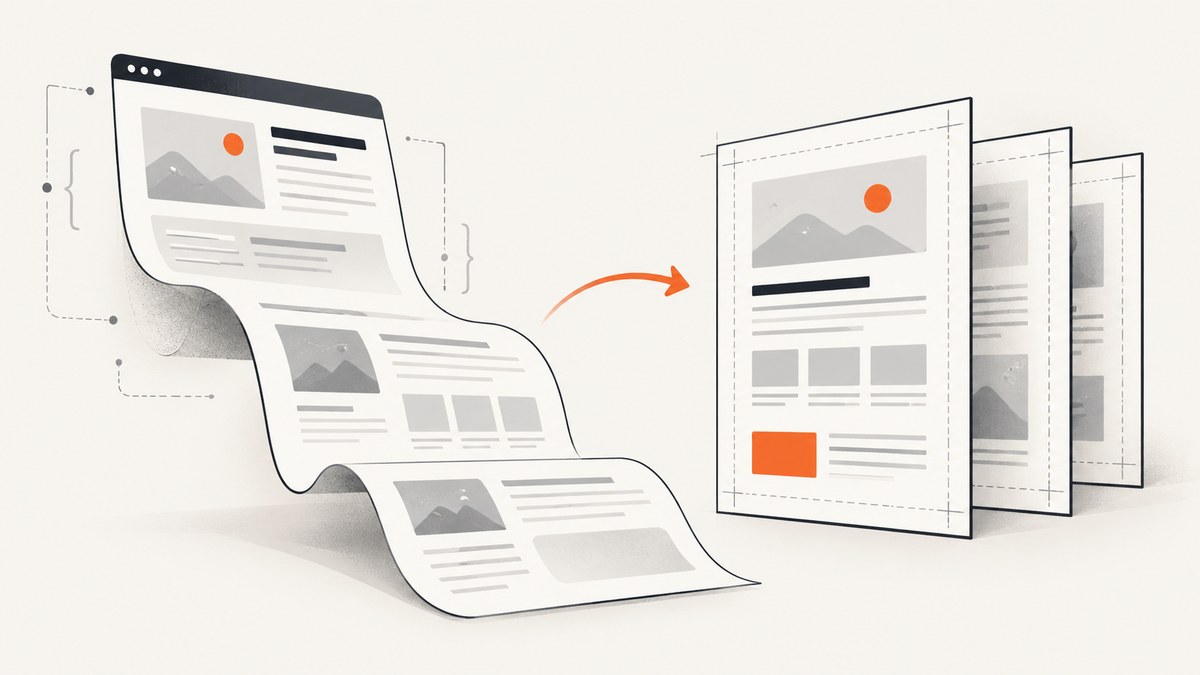
To create a multipage PDF from HTML, style the document for print, set the page dimensions and margins, then render it with a browser PDF API or an HTML-to-PDF library. For browser output, use @media print and @page, add deliberate page-break rules, and call Puppeteer’s or Playwright’s page.pdf(). For Python projects, WeasyPrint provides a direct HTML-to-PDF workflow.
This guide covers the CSS that controls pagination, complete runnable examples, renderer settings, common failure modes, and when a hosted API may fit better. The same HTML can paginate differently across renderers, so inspect the generated pages in the renderer you plan to use.
1. Prepare HTML and print CSS
Print output is its own layout target. Screen navigation, interactive controls, fixed headers, and responsive styles may be inappropriate on paper. Put print-only changes in @media print; use @page for paper size, orientation, and margins. MDN documents that print rules participate in normal CSS specificity and precedence, so make a print selector specific enough to override an existing screen rule when needed. MDN: Printing
/* styles.css */
@page {
  size: A4 portrait;
  margin: 18mm 16mm 20mm;
}

@media print {
  body {
    color: #111;
    background: white;
    font: 11pt/1.45 Georgia, serif;
  }

  nav, .toolbar, .screen-only {
    display: none !important;
  }

  a {
    color: inherit;
    text-decoration: none;
  }

  h1, h2, h3 {
    break-after: avoid;
  }

  figure, table, blockquote {
    break-inside: avoid;
  }

  .chapter {
    break-before: page;
  }
}
@page defines the page box, including size and margins. Common named sizes include A4 and Letter; orientation can be expressed as portrait or landscape. A renderer may also offer paper settings that interact with the CSS page size. Decide which layer is authoritative and configure it consistently. See MDN: @page.
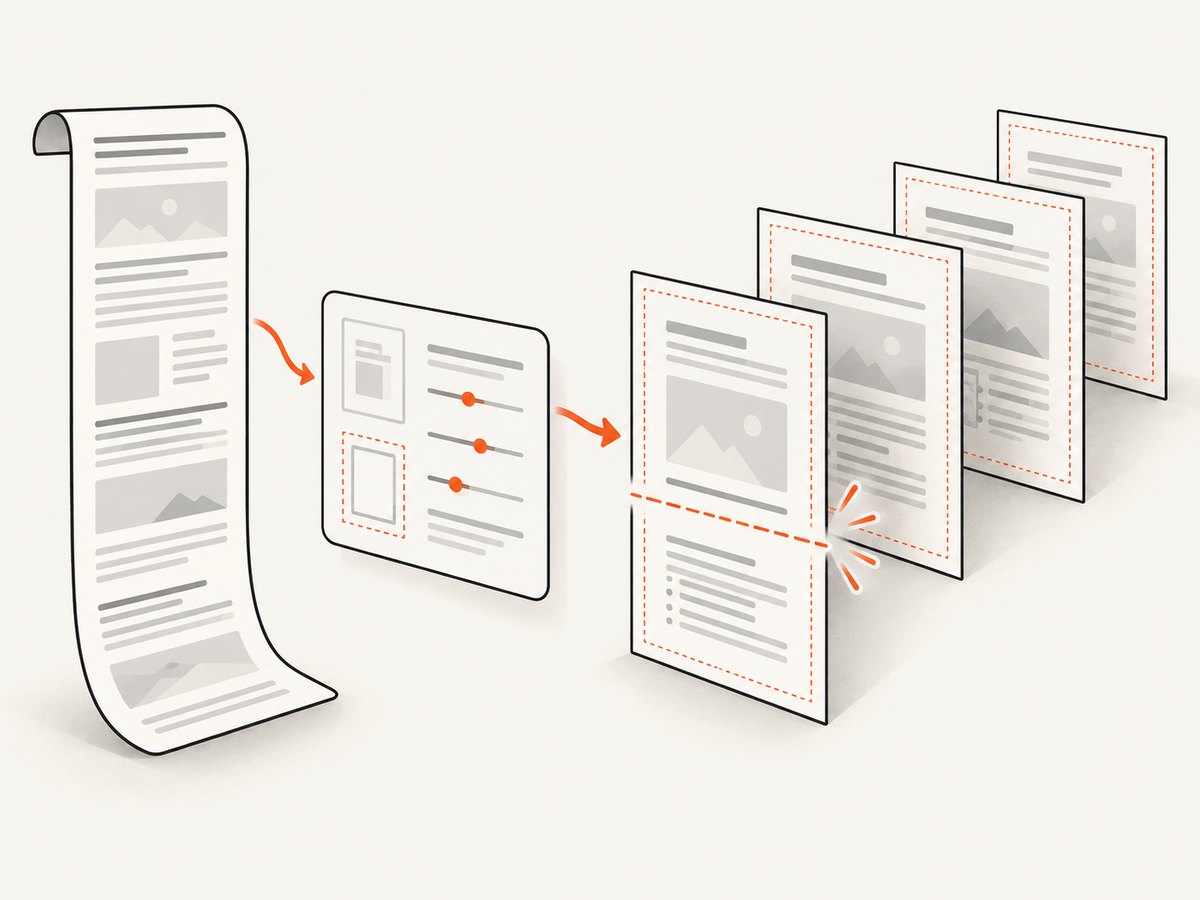
For pagination, modern properties are break-before, break-after, and break-inside. Use break-before: page on a chapter when it must begin on a fresh page. Use break-inside: avoid for a compact figure or table that should stay together if it fits. Avoid rules are preferences, not guarantees: if a block is taller than the available page area, the renderer still has to split or overflow it. The legacy page-break-before values are aliased for compatibility, but new styles should generally use the break properties. MDN: break-before
Plan page breaks around content
- Force a break before major sections that should always start on a new page.
- Keep headings with the first paragraph where possible using
break-after: avoid. - Keep short figures and table rows together, but do not expect a very long table or image to fit as one unit.
- Do not add a forced break after every block: variable content height can create nearly empty pages.
- Keep long URLs and code samples in mind; use wrapping styles or smaller type so they do not run past the printable area.
2. Generate a PDF with Puppeteer
Puppeteer uses print CSS media by default for page.pdf(). Its guide shows the navigation, PDF save, and browser-close flow; the API waits for fonts by default. Puppeteer PDF generation · Page.pdf() API
Install Puppeteer in a Node.js project with npm install puppeteer. Save this as make-pdf.mjs and run node make-pdf.mjs. It uses a local HTML file, so it does not depend on a public URL.
import puppeteer from 'puppeteer';
import { pathToFileURL } from 'node:url';
import { resolve } from 'node:path';

const input = resolve('report.html');
const output = resolve('report.pdf');
const browser = await puppeteer.launch({ headless: true });

try {
  const page = await browser.newPage();
  await page.goto(pathToFileURL(input).href, { waitUntil: 'networkidle0' });
  await page.pdf({
    path: output,
    format: 'A4',
    printBackground: true,
    preferCSSPageSize: true,
    margin: { top: '18mm', right: '16mm', bottom: '20mm', left: '16mm' }
  });
} finally {
  await browser.close();
}
For a URL, replace the file URL with https://example.com/report. If the page loads content after navigation, wait for the page’s application-specific ready signal before making the PDF. A fixed delay can help with a known animation, but it is less reliable than waiting for the actual content or a selector.
3. Generate a PDF with Playwright
Playwright’s page.pdf() also renders with print media by default. Its API documents paper format or explicit width and height, margins, page ranges, scale, preferCSSPageSize, and printBackground. Playwright Page.pdf API
Install the package and browser with npm install playwright and npx playwright install chromium. Save as make-pdf.mjs and run with Node:
import { chromium } from 'playwright';

const browser = await chromium.launch({ headless: true });
try {
  const page = await browser.newPage();
  await page.goto('https://example.com/report', { waitUntil: 'networkidle' });
  await page.pdf({
    path: 'report.pdf',
    format: 'A4',
    printBackground: true,
    preferCSSPageSize: true,
    margin: { top: '18mm', right: '16mm', bottom: '20mm', left: '16mm' },
    scale: 1,
    pageRanges: '1-'
  });
} finally {
  await browser.close();
}
Use either format for a named paper size or width and height for custom dimensions. With preferCSSPageSize: true, the CSS @page size takes precedence. If browser options and CSS both specify page size, understand which one your selected settings make authoritative. Set printBackground: true when colored backgrounds, charts, or other background graphics are part of the document. Use pageRanges when only selected pages are needed; leave it out to produce all pages. Scale changes how the content fits and can affect pagination, so validate the final output after adjusting it.
4. Generate a PDF with Python and WeasyPrint
WeasyPrint accepts HTML from a filename, URL, file object, or string and can write the resulting PDF. Its rendering API also exposes a document containing individual page objects, useful when downstream code needs to inspect page count or process pages. WeasyPrint: First steps
Install WeasyPrint following the official platform-specific instructions, then save as make_pdf.py. This example renders a local HTML file:
from weasyprint import HTML, CSS

html = HTML(filename="report.html", base_url=".")
print_css = CSS(string="""
  @page { size: A4 portrait; margin: 18mm 16mm 20mm; }
  @media print {
    .screen-only { display: none !important; }
    .chapter { break-before: page; }
  }
""")
html.write_pdf("report.pdf", stylesheets=[print_css])
The base_url helps resolve relative stylesheets, images, and other assets when HTML is passed as a string or its asset paths depend on a directory. If the styles are already linked in the HTML, you can omit the separate CSS object and call HTML(filename="report.html").write_pdf("report.pdf"). For page-level access, use document = html.render(stylesheets=[print_css]) and inspect document.pages before writing output.
5. Choose the rendering route
| Route | Good fit when | Plan for |
|---|---|---|
| Puppeteer or Playwright | The source depends on browser rendering, JavaScript, or browser-compatible page behavior. | Installing and running a browser; waiting for dynamic content; PDF options and print CSS. |
| WeasyPrint | You want a Python library workflow with HTML and CSS inputs. | Checking the output against your document’s CSS and layout needs in the chosen renderer. |
| Hosted HTML-to-PDF API | You prefer to submit HTML or a document URL to a managed conversion service. | Reviewing that provider’s API, security, pricing, and content handling for your requirements. |
DocRaptor documents an HTML-to-PDF API that uses Prince and accepts either HTML content or a document URL. That makes it one hosted conversion option; the available research does not establish a universal best renderer or neutral performance ranking. DocRaptor documentation
6. Debug pagination and missing content
| Symptom | Likely cause | Fix |
|---|---|---|
| Content is clipped at the page edge | Wide fixed-width elements, large padding, or a mismatch between CSS and renderer page settings. | Use responsive widths in print CSS, reduce margins only if appropriate, and choose one page-size source. Inspect wide tables and code blocks. |
| Background colors or images disappear | Background printing is disabled by the renderer or browser print settings. | Enable printBackground in Puppeteer or Playwright. Keep essential meaning in foreground content rather than relying only on decorative backgrounds. |
| Fonts differ or text reflows | The font is not available, has not loaded, or cannot be fetched from the render environment. | Ensure the font resource is reachable and wait for the document’s fonts before capture when needed. Check font loading and final pagination in the target runtime. |
| Images or charts are blank | They load after the PDF call, have inaccessible URLs, or depend on client-side rendering. | Wait for the image/chart-ready condition or a visible selector. Check relative paths and network access from the renderer. |
| Unexpected blank pages | Forced breaks combine with existing page breaks, or an element exceeds available page height. | Review every forced break, remove duplicate rules, and split oversized content into page-sized sections. |
| A heading is stranded at the bottom | The heading and following content are not constrained as a group. | Apply break-after: avoid to the heading and consider grouping it with the first paragraph. Confirm the group can fit on a page. |
| Navigation or buttons appear | Screen-only styles remain active or selectors do not match the actual elements. | Use @media print, verify selector specificity, and inspect the actual HTML classes. |
| Remote page never becomes ready | Long-running requests or analytics can prevent a network-idle condition. | Wait for a specific content selector or application-ready signal instead of depending only on network idle; use a bounded timeout and handle failure. |
7. Performance, reliability, and cost
There is no renderer speed winner established by the cited documentation. Measure with your own representative pages and runtime: JavaScript-heavy pages, large image sets, custom fonts, and long tables exercise different paths. Browser automation also requires a compatible browser installation; a library-based workflow has its own runtime and rendering requirements.
For reliability, treat PDF creation as a render job that can fail. Set a navigation or operation timeout, close browser resources in a finally block, and surface an error if the PDF was not created. Ensure remote assets are reachable from the machine doing the render. If you render user-supplied HTML, apply your own network and input controls; the renderer may request linked assets as part of normal document loading.
Cost depends on infrastructure and service choice. Self-hosted browser or library rendering avoids a per-document hosted conversion charge but still uses compute, memory, storage, and maintenance. A hosted API can reduce renderer operations but has provider pricing and data-handling implications to review. Compare using the same HTML, paper settings, asset set, and output requirements; do not infer a universal cost or performance result from feature lists.
8. Or skip the browser setup
If the goal is to capture a URL as a PDF, ScreenshotNeo is a website screenshot API with PDF output. Its API accepts a URL in one GET request. For PDF controls such as paper size, margins, orientation, and page ranges, see the ScreenshotNeo API documentation.
curl -G "https://api.screenshotneo.com/v1/shot" \
  -d access_key=YOUR_API_KEY \
  --data-urlencode url=https://example.com/report \
  -d format=pdf \
  -o report.pdf
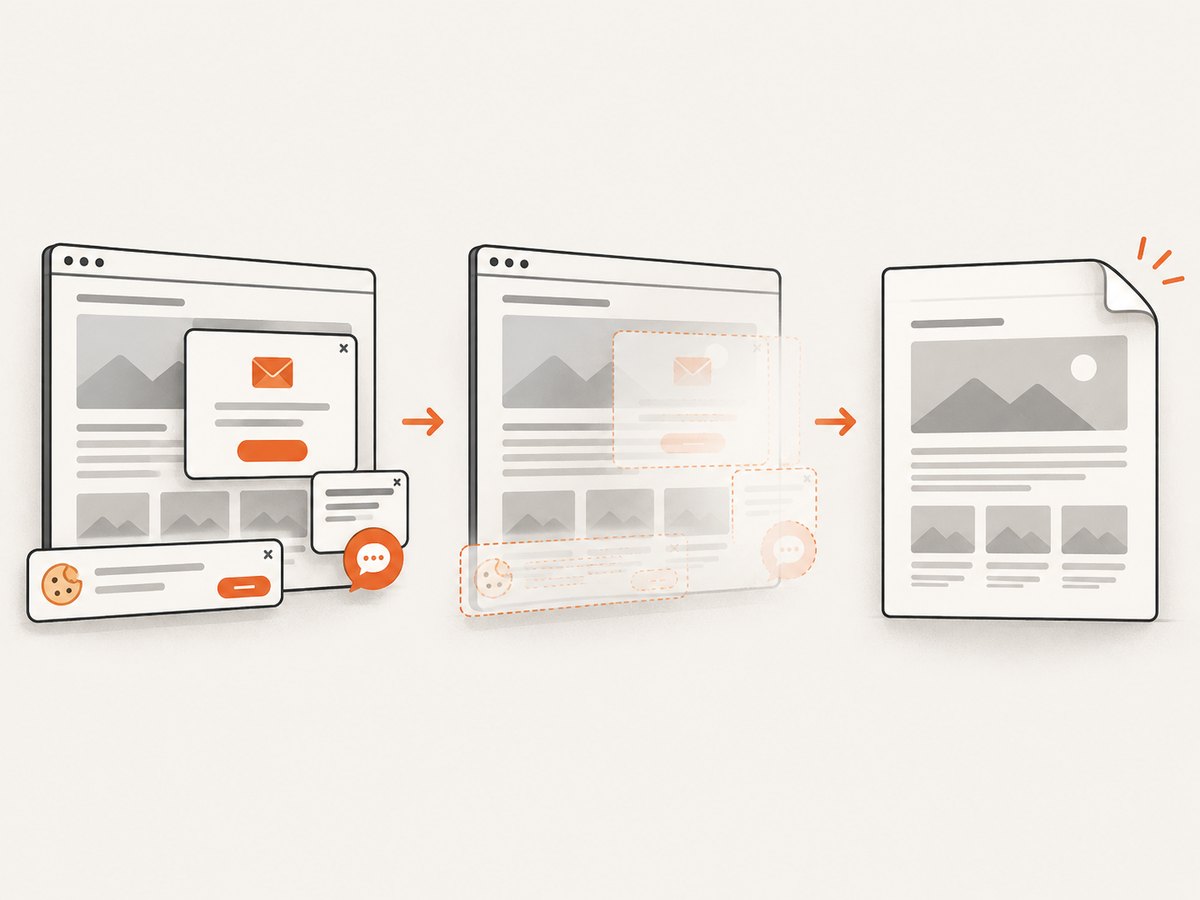
ScreenshotNeo removes cookie banners, newsletter popups, and chat widgets before capture. Bot checks, blank pages, and failed loads are never billed. Its MCP server lets AI agents use screenshot tools. The free plan includes 1,000 screenshots a month with no card; paid plans start at $5 for 3,000. Every feature is on every plan. This is a URL capture workflow; if you need to convert a local HTML string or file, use one of the local methods above.
Sign up free for 1,000 screenshots a month, no card required.
9. Final checklist
- Choose the renderer that matches your source HTML and runtime.
- Add print styles for layout, typography, and screen-only elements.
- Set page size and margins in CSS or renderer options, and resolve any conflict deliberately.
- Use forced breaks for real section boundaries and avoid rules only for content that can fit together.
- Wait for fonts, images, and dynamic content before generating the PDF.
- Open the output and inspect every page for clipping, blank pages, broken links, and awkward breaks.
- Repeat the inspection after changing fonts, page size, margins, scale, or source content.
FAQ
Does HTML itself define the PDF page breaks?
HTML supplies the content and structure; print CSS and the selected renderer determine pagination. Explicit break rules can guide where a new page starts.
Can a PDF contain selected pages only?
Playwright documents a pageRanges option for selecting page ranges. The Python example can also render a document object with individual page objects for page-level processing.
Why does my PDF differ from the browser view?
PDF APIs generally render for print media, which activates print styles and page layout. Check the print stylesheet and inspect output from the exact renderer used in production.
Can I convert a page that requires login?
The examples do not configure authentication. Your renderer must be able to access the page and its assets with whatever authentication approach your application supports; avoid putting credentials into public URLs or logs.


