How to Create an Open Graph Image in Canva
Design a Canva image, export it correctly, add og:image metadata, and troubleshoot link previews on LinkedIn and other platforms.
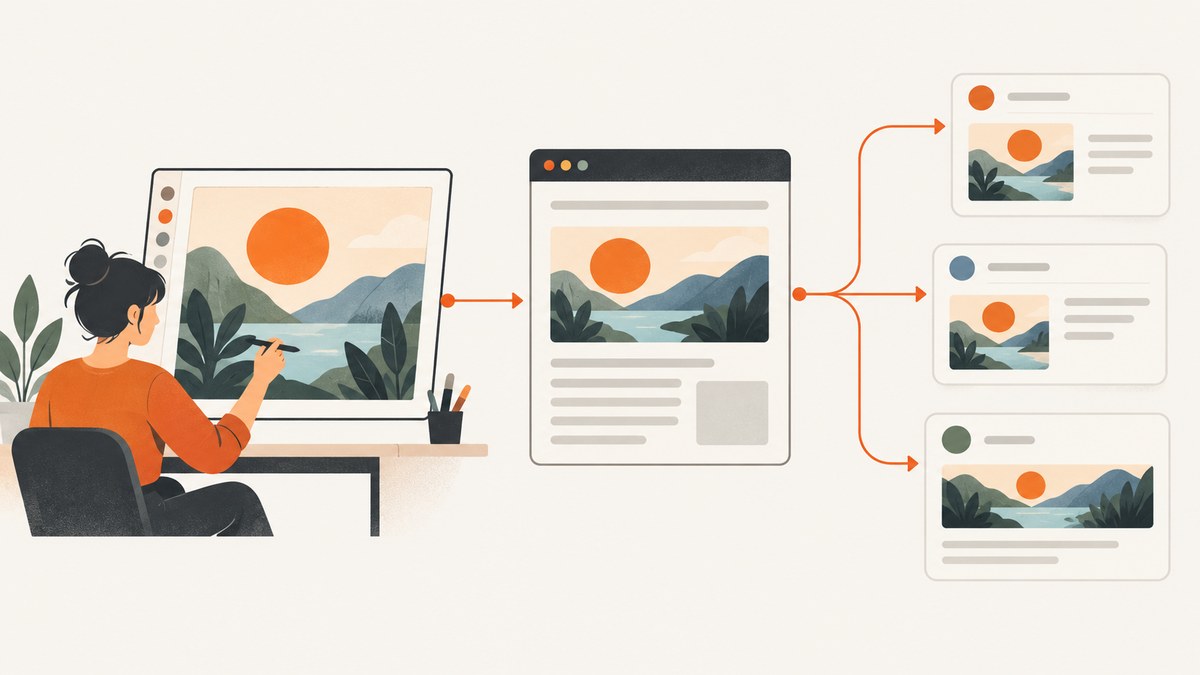
An Open Graph image is the image that appears when someone shares a webpage in a social feed or messaging app. Creating the artwork in Canva is only half the job: you must export the file to a publicly reachable URL and reference that URL in the page’s og:image metadata.
For a LinkedIn-friendly landscape image, create a 1200 × 627 pixel Canva design (a 1.91:1 ratio), export it as PNG when the design contains text, upload it to a public asset location, and add the resulting URL to your page’s <head>. LinkedIn lists 1200 × 627 pixels as its minimum, recommends a 1.91:1 ratio, and gives a 5 MB maximum. Treat those as LinkedIn specifications; other platforms can use different rules.
What an Open Graph image is
The Open Graph protocol describes a page with metadata. The image is not embedded merely because you downloaded a Canva file. A crawler must be able to fetch the image URL supplied in the page source.
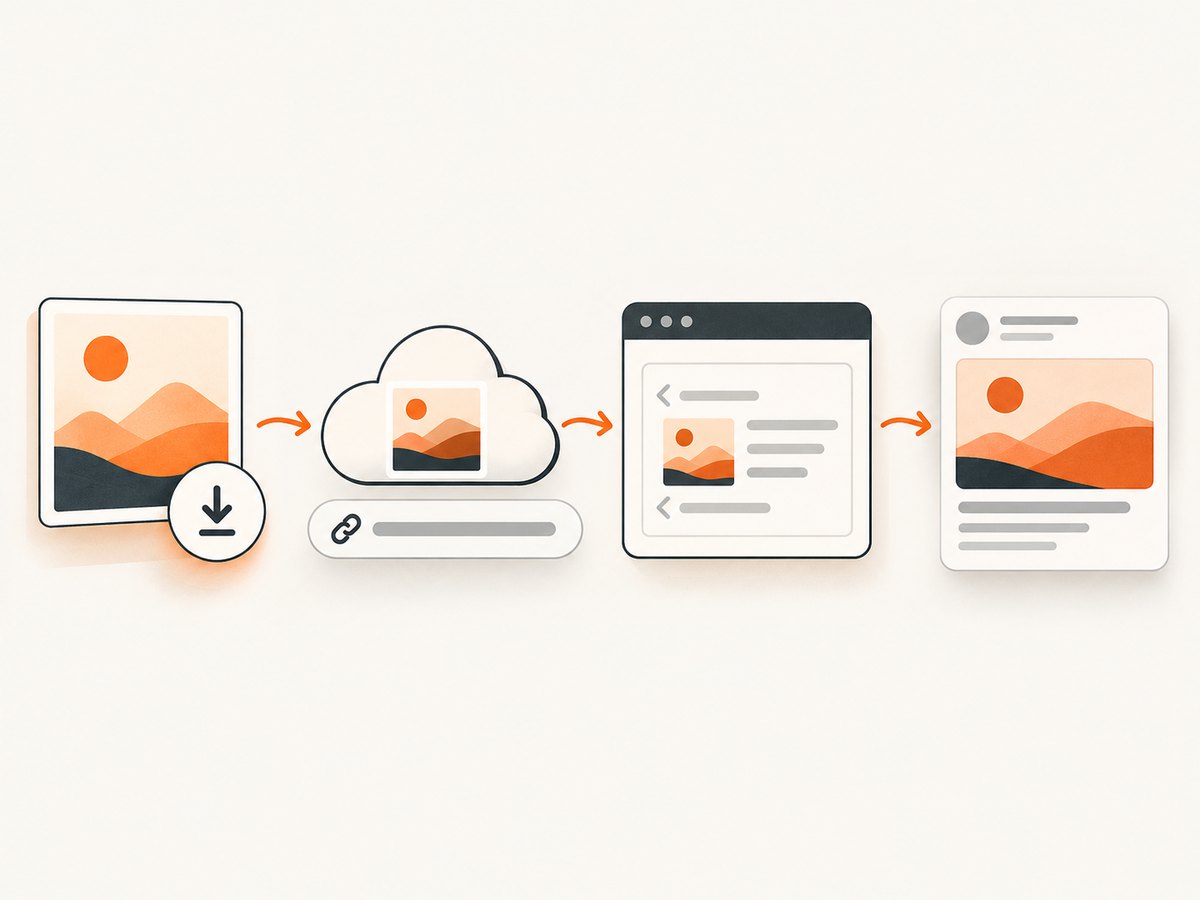
The four required basic properties are og:title, og:type, og:image, and og:url, as documented by the Open Graph protocol. The image itself should also have useful alternative text through og:image:alt. Width and height are optional but can help a consumer understand the asset before downloading it.
<head>
  <meta property="og:title" content="How to Create an Open Graph Image in Canva">
  <meta property="og:type" content="article">
  <meta property="og:url" content="https://example.com/blog/open-graph-image-canva">
  <meta property="og:image" content="https://cdn.example.com/images/open-graph-canva.png">
  <meta property="og:image:alt" content="A Canva-designed illustration for creating an Open Graph image">
  <meta property="og:image:width" content="1200">
  <meta property="og:image:height" content="627">
</head>
Replace every example URL with the final canonical page URL and the actual public image URL. The image URL should use HTTPS, return an image response, and work without a login, session cookie, or private-network access.
Choose the destination before opening Canva
Image requirements belong to the service where the link will be shared. Canva’s sharing guidance notes that third-party platforms manage their own publishing rules, and those rules can change. Decide whether you are designing primarily for LinkedIn, another social network, email previews, chat applications, or several destinations.
| Decision | What to check | Practical choice |
|---|---|---|
| Canvas dimensions | Minimum dimensions and preferred aspect ratio | Use 1200 × 627 px for a LinkedIn-oriented landscape image |
| File type | Accepted formats and file-size ceiling | PNG for text-heavy artwork; JPG when a smaller file is more useful |
| Cropping | How the destination displays landscape previews | Keep the subject and essential words away from the outer edges |
| One design or several | Whether each network uses a different crop | Make destination-specific variants when previews crop important content |
A correctly sized image can still fail if the platform cannot retrieve it. A public URL, correct response headers, and a file below the destination’s current limit matter as much as the Canva canvas size.
Step-by-step: create the image in Canva
1. Create a custom landscape canvas
- Open Canva and start a design with custom dimensions.
- Set the width to 1200 px and height to 627 px for a LinkedIn-friendly image.
- Use a landscape composition with one obvious focal point.
Do not assume that a template named for one social network is suitable for every link preview. Check the actual pixel dimensions and ratio before you begin.
2. Design for a small preview
Link previews are often reduced substantially on phones and in message lists. Use strong contrast, a short headline, and a clear visual hierarchy. Test the design at a small size before exporting. Keep important words, faces, and product details inside a generous safe area rather than touching the edges. This is practical layout guidance, not a universal platform rule.
Make the page topic obvious without requiring the viewer to read a paragraph. If the image includes a title, keep it brief enough to remain legible after the preview is scaled down.
3. Export from Canva
Canva recommends PNG for social graphics with text. PNG preserves sharp edges and letterforms, while JPG can produce a smaller web file. Choose based on the design and the receiving platform’s current restrictions.
- Select the download or export action in Canva.
- Choose PNG for text-heavy artwork, or JPG when file size is the priority.
- Confirm that the exported dimensions remain 1200 × 627 px.
- Check the resulting file size before uploading it.
Canva says images below 500 × 500 px are likely to look blurry when downloaded. That is general download guidance; it does not replace the larger dimensions needed for this use case.
4. Put the file at a public URL
Upload the export to your website’s media library, a public object store, or another host that serves the image without authentication. Copy the complete HTTPS URL, including the filename and extension.
Open that URL in a private browser window. If it redirects to a login page, requires a cookie, or returns an HTML error page, a social crawler may not be able to use it. Avoid temporary local-development URLs and URLs that expire before the page is shared.
5. Add metadata to the page
Place the tags in the document’s <head>, not in the visible article body. Set og:title and og:url to the page being shared. Use og:type="article" for a normal blog post. Set og:image to the public Canva export URL and add descriptive og:image:alt.
<meta property="og:title" content="Your page title">
<meta property="og:type" content="article">
<meta property="og:url" content="https://www.example.com/your-page">
<meta property="og:image" content="https://www.example.com/uploads/your-image.png">
<meta property="og:image:alt" content="Short description of the image">
<meta property="og:image:width" content="1200">
<meta property="og:image:height" content="627">
If your CMS has a dedicated social-sharing-image field, use it only if you can confirm that it writes equivalent metadata into the rendered HTML. View the page source after publishing and search for og:image.
6. Inspect the final preview
Share the published URL in the destination service or its preview/debugging tool. Check the title, image crop, image sharpness, and description. If you changed the image after a preview was already generated, the service may still show a cached copy; wait for its cache to refresh or use the service’s documented refresh mechanism.
Canva export choices: PNG versus JPG
| Format | Best fit | Tradeoff |
|---|---|---|
| PNG | Typography, logos, flat illustrations, sharp graphic shapes | Often larger than JPG |
| JPG | Photographic artwork or a page where a smaller file is important | Compression can soften text and introduce artifacts |
Canva’s guidance recommends PNG for social-media graphics with text and describes JPG as useful for smaller web image files. Platforms can recompress either format, so inspect the actual preview rather than judging only the source file.
Common failure modes and fixes
| Symptom | Likely cause | Fix |
|---|---|---|
| No image appears | The tag is missing, misspelled, or outside <head> |
View the published HTML and confirm an exact property="og:image" tag |
| Old image still appears | The sharing service cached the previous result | Use its preview refresh tool or wait for cache expiration; keep the same URL only when replacing the asset is supported |
| Image is cropped badly | Important content is near an edge or the platform uses another ratio | Move essential content inward or create a destination-specific variant |
| Image looks blurry | Small source dimensions or aggressive recompression | Use the 1200 × 627 canvas, export at the intended dimensions, and compare PNG with JPG |
| Crawler reports an error | Image URL is private, blocked, expired, or returns the wrong content type | Open it without cookies, check HTTPS and response headers, and remove access controls |
| Only the title appears | The page is reachable but the image request fails | Test the image URL independently and check firewall, hotlink, robots, or CDN rules |
| File is rejected | It exceeds the destination’s current size or format limit | Export JPG for a smaller file or reduce design complexity while preserving dimensions |
Or skip the browser setup
If you need screenshots of the finished page, a preview pipeline, or many URLs rather than a manually exported Canva file, ScreenshotNeo provides a website screenshot API and MCP server. You still create the Open Graph artwork in Canva and publish its URL, but ScreenshotNeo can capture the rendered result for QA, archives, or automated workflows.
One GET request returns a PNG, JPEG, WebP, or PDF. See the ScreenshotNeo API documentation for all options.
curl -G "https://api.screenshotneo.com/v1/shot" -d access_key=YOUR_API_KEY --data-urlencode url=https://stripe.com -o shot.webpimport requests
r = requests.get("https://api.screenshotneo.com/v1/shot", params={"access_key": "YOUR_API_KEY", "url": "https://stripe.com"}, timeout=90)
open("shot.webp", "wb").write(r.content)const q = new URLSearchParams({ access_key: 'YOUR_API_KEY', url: 'https://stripe.com' });
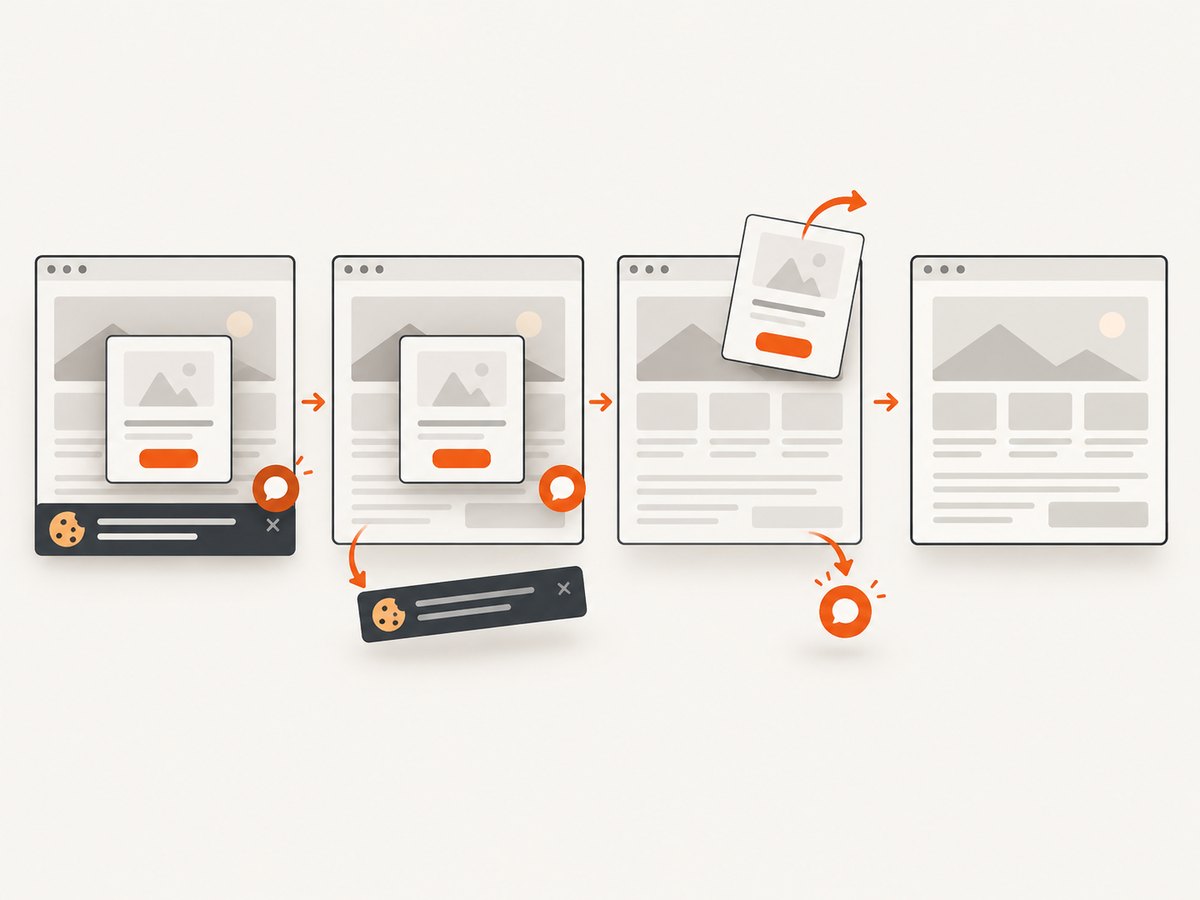
const res = await fetch(`https://api.screenshotneo.com/v1/shot?${q}`);- Cookie banners, newsletter popups, and chat widgets are removed before the shot.
- Bot checks, blank pages, failed loads, timeouts, and cache hits are not billed; response headers identify the page verdict and billing result.
- An MCP server lets Claude, Cursor, and other MCP clients call
take_screenshot,get_page_info, andcapture_pdf. - 1,000 screenshots per month are free with no card; paid plans start at $5 for 3,000 shots.
Create a free ScreenshotNeo account and use it to verify your published Open Graph page automatically.
Performance, reliability, and cost considerations
Keep preview assets fast
Serve the image from a stable HTTPS host with a cache-friendly URL. A smaller JPG may fetch faster, but a PNG can preserve text better. Measure the exported file size and avoid uploading unnecessarily large source files.
Separate design changes from metadata changes
Changing the image URL makes cache invalidation easier to reason about, while keeping a URL and replacing its contents may leave some services showing an older copy. Whichever policy you choose, verify the actual preview after publishing.
Automate repeated checks
For a site with many pages, generate a checklist or automated job that verifies every published page has one canonical og:image, a reachable HTTPS asset, correct dimensions, and an appropriate alternative description. ScreenshotNeo’s async jobs, signed webhooks, bulk capture, caching with a chosen TTL, usage API, and custom request controls can support larger screenshot workflows.
FAQ
Is exporting from Canva enough?
No. Exporting creates the file. The webpage must reference its public URL in og:image.
Can I use one image everywhere?
Yes, if the image remains legible and survives each destination’s crop, format, and size limits. Separate variants are safer when platforms use different ratios.
Should every Open Graph image be 1200 × 627?
No. That size is a LinkedIn-friendly specification. Check the current requirements for the destination where the link will be shared.
Does og:image:alt replace normal page accessibility text?
No. It describes the shared image for metadata consumers. The page itself still needs appropriate visible content and accessibility attributes.
Why does a private image URL fail?
Sharing crawlers generally need to fetch the asset without your browser session, login, or local network access. Publish the export at a publicly reachable HTTPS URL.
Can I automate screenshots of Open Graph pages?
Yes. A screenshot API such as ScreenshotNeo can capture rendered pages from code, while its MCP server can let AI agents request captures during content workflows.


