How to Create and Open a PDF in a New Browser Tab with jsPDF
Generate a PDF with jsPDF and preview it in a new tab using a Blob URL. Learn how to handle popup blocking, clean up URLs and offer accessible fallbacks.
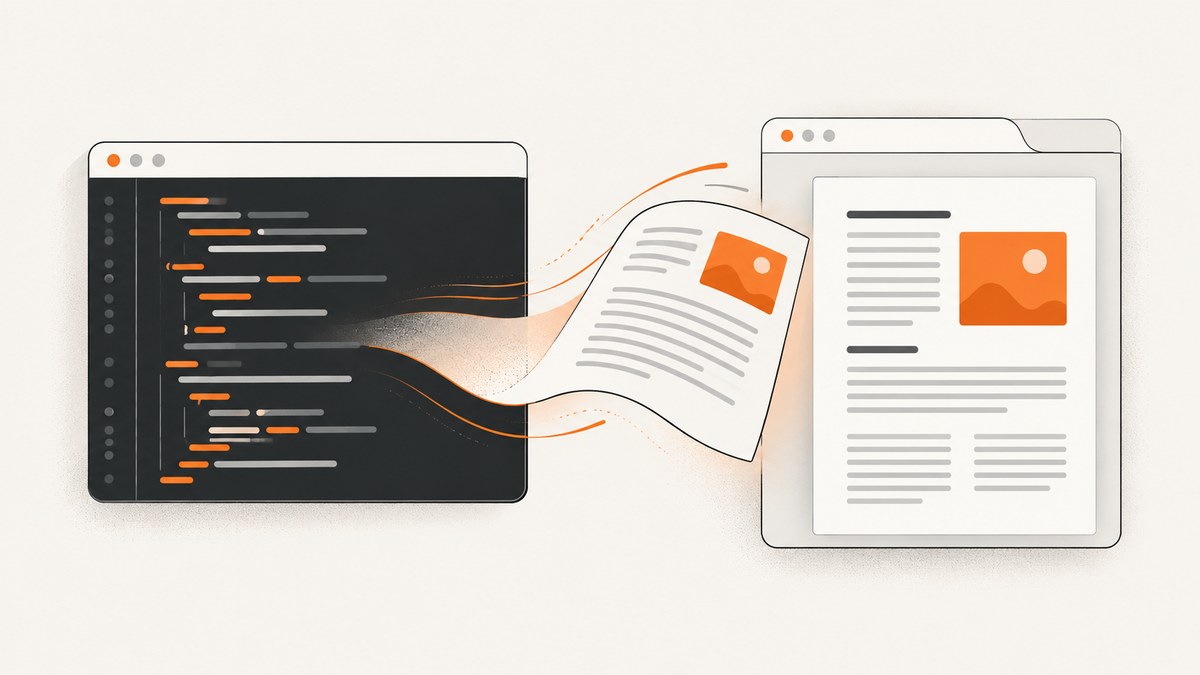
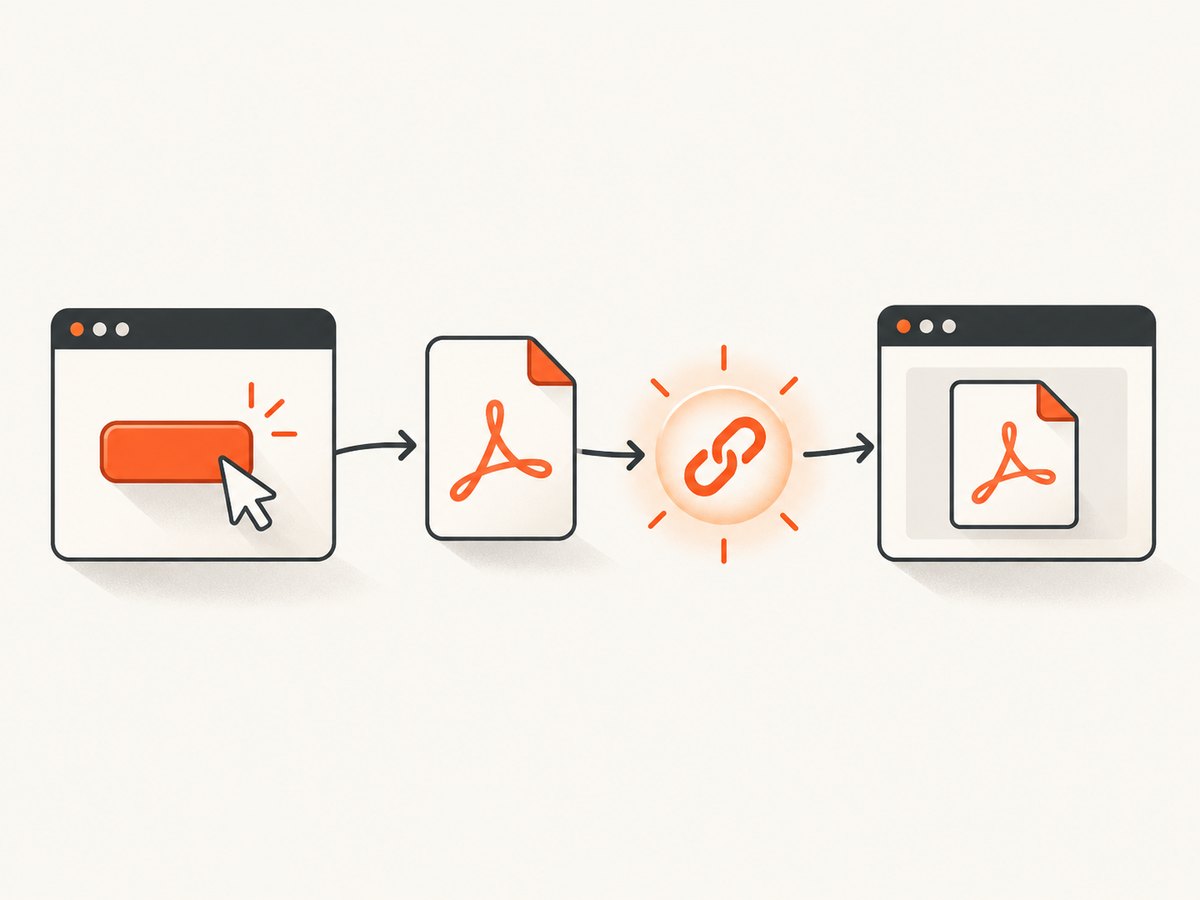
To preview a PDF made with jsPDF in another browser tab, generate the document, get a Blob URL with doc.output('bloburl'), and pass it to window.open() from a button click. Check whether window.open() returned a window; if a popup blocker rejects it, show a normal preview link or a download button.
import { jsPDF } from 'jspdf';

function openPdfPreview() {
  const doc = new jsPDF();
  doc.text('Hello world!', 10, 10);

  const blobUrl = doc.output('bloburl');
  const previewTab = window.open(blobUrl, '_blank');

  if (!previewTab) {
    console.warn('Allow popups or use the PDF download link.');
  }
}
Connect that function to a real user action, such as a button click. The browser may display the PDF in a tab or a separate window, depending on the user’s settings and extensions. This guide covers the browser-side preview workflow, popup behavior, Blob URL cleanup, alternatives for downloads, and an API option when you need a screenshot or PDF of a web page rather than a locally generated document.
1. Install jsPDF and create a document
For a bundled application, install jsPDF with your package manager and import its constructor. This example uses the project’s module entry point:
npm install jspdfimport { jsPDF } from 'jspdf';
const doc = new jsPDF();
doc.text('Invoice preview', 20, 25);
const blobUrl = doc.output('bloburl');
const opened = window.open(blobUrl, '_blank');
if (!opened) {
// Render a visible link or offer a download instead.
}See the jsPDF API reference for the options supported by the installed version. The default constructor creates a document; you can add text, graphics, and other content before calling output. The position in doc.text() uses the document’s coordinate system and units, so choose document settings and layout that fit your content.
A Blob URL is a temporary browser-managed address pointing to the generated PDF data. It is a good fit for previewing generated content because you can navigate the new context to it without first uploading the file to a server. It is not a permanent share link: it belongs to the page’s browser context and must eventually be released.
2. Open the preview from a user gesture
Browsers apply popup controls to window.open(). Call it directly in response to a user’s action, such as a click, and inspect the return value. If the browser blocks the new context, the return value is null. Modern browsers require popups to be opened directly from user input; each call generally needs its own gesture. See MDN’s Window.open() reference.
import { jsPDF } from 'jspdf';

const previewButton = document.querySelector('#preview-pdf');
const fallback = document.querySelector('#pdf-fallback');

previewButton.addEventListener('click', () => {
  const doc = new jsPDF();
  doc.text('Prepared when you pressed Preview', 20, 25);

  const blobUrl = doc.output('bloburl');
  const previewTab = window.open(blobUrl, '_blank');

  if (!previewTab) {
    fallback.href = blobUrl;
    fallback.hidden = false;
    fallback.textContent = 'Open PDF preview (same tab if needed)';
  }
});
<button id="preview-pdf" type="button">
Preview PDF (opens in a new tab)
</button>
<a id="pdf-fallback" hidden></a>Use a button for an action; an anchor with href="#" is not a reliable way to trigger a popup. Tell users that preview opens a new tab, as that context change can be unexpected. Keep a visible fallback in the page so the PDF remains reachable when a popup is blocked.
When generation is asynchronous, a practical pattern is to synchronously open a blank tab during the click and then navigate it after the work finishes. This follows from the browser’s user-gesture requirement, but behavior can vary, so verify this flow in the browsers you support:
async function previewAfterAsyncWork() {
  const previewTab = window.open('about:blank', '_blank');
  if (!previewTab) {
    showPopupBlockedMessage();
    return;
  }

  try {
    const doc = await buildPdfAsync();
    const blobUrl = doc.output('bloburl');
    previewTab.location.href = blobUrl;
  } catch (error) {
    previewTab.close();
    showPdfError(error);
  }
}
Call previewAfterAsyncWork() from the click handler. If the initial open is blocked, report that clearly and let the user retry or download. Avoid opening one tab after a long network request and assuming the original click still authorizes it.
3. Keep a usable fallback and clean up the Blob URL
jsPDF documents output('bloburl') and output('bloburi') as browser-oriented outputs that return a string URL backed by URL.createObjectURL when available. Its implementation puts URL cleanup on the caller. Retain the URL for as long as the preview or fallback link needs it, then revoke it with URL.revokeObjectURL().
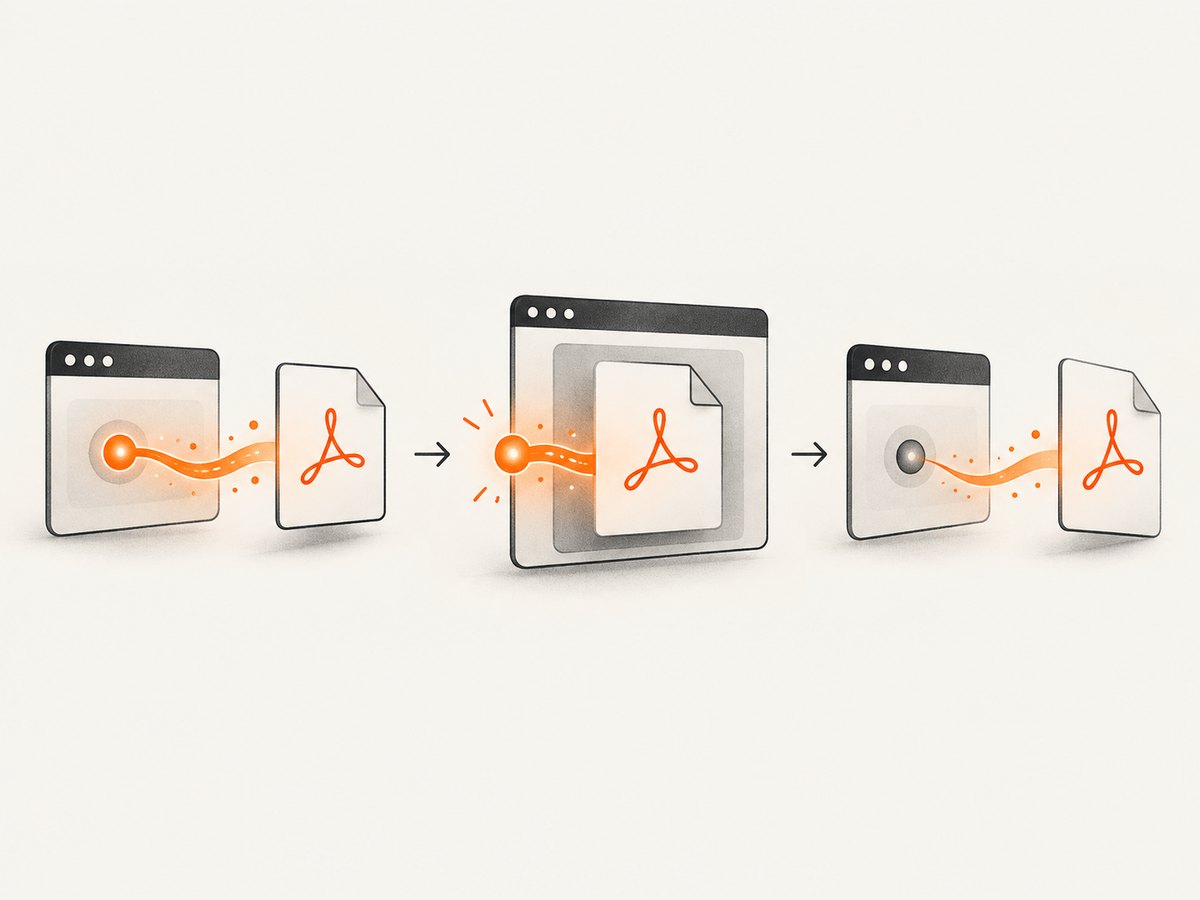
Do not revoke the URL immediately after opening the tab: the PDF viewer may not have finished loading it. There is no universal event in this workflow that tells the opener exactly when the user has finished viewing a PDF in the browser’s built-in viewer. Choose a cleanup point that fits your page lifecycle, such as when the user leaves the workflow or closes a preview UI you control. For a simple page, keeping a small number of URLs until page teardown can be a practical trade-off; avoid accumulating them indefinitely in a long-lived app.
let activePdfUrl;

function createPreviewLink(doc, link) {
  if (activePdfUrl) {
    URL.revokeObjectURL(activePdfUrl);
  }

  activePdfUrl = doc.output('bloburl');
  link.href = activePdfUrl;
  link.hidden = false;
}

window.addEventListener('pagehide', () => {
  if (activePdfUrl) {
    URL.revokeObjectURL(activePdfUrl);
    activePdfUrl = undefined;
  }
});
Keep the URL while a visible fallback link references it. A new Blob URL can replace an earlier one, but revoke the old URL only when no open preview or in-page link still relies on it. For more control, use doc.output('blob'), create the object URL yourself, and manage the lifecycle alongside your application’s preview state.
4. Choose preview, new-window output, or download
| Goal | jsPDF route | Trade-off |
|---|---|---|
| Preview a generated PDF with your own popup handling | doc.output('bloburl') + window.open() |
Control the click flow and fallback; manage the Blob URL lifecycle. |
| Let jsPDF open its data URL viewer flow | doc.output('dataurlnewwindow') |
Browser-only and still subject to popup blocking. |
| Download a file | doc.save('generated.pdf') |
Download intent, not a preview flow; documented as a save-output alias using FileSaver.js. |
| Manage the generated binary yourself | doc.output('blob') |
Build your own object URL and cleanup logic. |
| Use jsPDF’s PDF.js viewer route | doc.output('pdfjsnewwindow') |
Depends on a configured PDF.js viewer path; it is not a universally configured default. |
Use the first route when you want an explicit, user-initiated preview with a fallback. Use save() when the expected result is a downloaded file. These routes are not interchangeable: a browser can download or open a PDF according to its built-in handling and user preferences, and your code cannot guarantee identical inline display everywhere.
5. Handle content size, multiple previews, and browser differences
- Large documents: Generate only the content needed for the preview, and avoid creating several large documents and object URLs at once. A generated PDF consumes memory in the page, and its Blob URL remains live until released.
- Repeated clicks: Disable the preview button while a document is being built if duplicate tabs would be confusing. Re-enable it on success or failure, and report progress for slow generation.
- Multiple previews: Track each URL separately if users can keep multiple previews open. Revoke a URL only when your UI no longer needs it; revoking it too early can make a link unusable.
- Different PDF handlers: Built-in PDF viewers, extensions, browser versions, and preferences affect how a PDF URL appears. Test the browsers your application targets and preserve a download or same-page link.
- Blocked popups: A valid Blob URL does not override popup policies. Keep
window.open()in the direct click path and check its return value.
For accessibility, make the button’s action clear, for example “Preview PDF (opens in new tab).” Announce a blocked-popup or generation error through a visible status region. Do not rely on the new tab as the only way to reach the document.
6. Troubleshooting
| Symptom | Likely cause | Fix |
|---|---|---|
| No tab opens | The call occurred after an async delay, outside the click handler, or the browser blocked the popup. | Call window.open() during the click, check for null, and show a link or download fallback. |
| The tab opens but the PDF is blank or unavailable | The document may not have been populated before output, or the Blob URL may have been revoked too early. | Add content before calling output(); keep the URL alive while the viewer loads and while a fallback link uses it. |
| Preview works once, then a link fails | The app revoked a URL still referenced by a link or preview. | Track URL ownership and revoke only after that preview workflow is done. |
| The browser downloads instead of displaying inline | PDF handling depends on browser settings, built-in viewer behavior, and extensions. | Offer both preview and download actions; do not promise identical display behavior. |
doc.output('pdfjsnewwindow') does not show a viewer |
The PDF.js viewer path may not be configured. | Configure the viewer path for that route or use the Blob URL flow. |
| Import or constructor errors | The app’s package installation or module setup does not match the import example. | Install jspdf, use the module import supported by your bundler, and consult the API docs for your installed release. |
| Several tabs open from one action | Repeated handlers or multiple window.open() calls may be running. |
Ensure one handler is registered and open only the intended context; browsers generally require a distinct user gesture for each popup. |
7. Performance, reliability, and cost
With client-side jsPDF generation, the browser builds the document and holds the resulting data locally. That avoids a server round trip for the generation step, but document creation still takes time and memory, especially for large or image-heavy PDFs. Keep the interaction responsive, avoid redundant generation, and provide progress or a retry path when a large document takes time.
Reliability depends on the whole flow: successful document generation, popup permission, a live Blob URL, and the browser’s PDF handler. Make each stage observable to the user with an error message or fallback. The research sources do not establish universal browser compatibility rates or timings, so validate the target browsers and devices for your application.
jsPDF is a JavaScript library; this browser preview flow does not require a ScreenshotNeo request. If the need is different—capturing an existing web page as a PDF or image—the page must be rendered by a browser capture service or your own browser automation setup.
8. Or skip the browser setup
If your actual task is to capture a web page as a PDF rather than construct a custom document with jsPDF, ScreenshotNeo is a website screenshot API and MCP server for developers. Its one-call API can return a screenshot or PDF; see the API documentation for parameters and output options.
curl -G "https://api.screenshotneo.com/v1/shot" -d access_key=YOUR_API_KEY --data-urlencode url=https://stripe.com -o shot.webpimport requests
r = requests.get(
"https://api.screenshotneo.com/v1/shot",
params={"access_key": "YOUR_API_KEY", "url": "https://stripe.com"},
timeout=90,
)
open("shot.webp", "wb").write(r.content)const q = new URLSearchParams({ access_key: 'YOUR_API_KEY', url: 'https://stripe.com' });
const res = await fetch(`https://api.screenshotneo.com/v1/shot?${q}`);ScreenshotNeo accepts cookie and consent banners like a visitor and removes more than 60 known consent platforms, newsletter popups, and chat widgets before capture; each step can be turned off. Bot checks, blank pages, timeouts, failed loads, and cache hits are not billed, and response headers identify the page verdict and billing status. Its MCP server offers take_screenshot, get_page_info, and capture_pdf for AI agents. The free plan includes 1,000 shots a month with no card; paid plans start at $5 for 3,000 shots. Sign up for 1,000 free screenshots a month with no card.
9. FAQ
Can I guarantee the PDF opens in a tab instead of downloading?
No. The URL can be opened in a new browsing context, but browser settings and extensions influence whether the PDF is displayed inline, downloaded, or handled another way.
Is a Blob URL a public link I can share?
No. It is a temporary browser-managed reference to data created by the page. Use a server-hosted file or another sharing mechanism if someone else must access the PDF.
Should I use jsPDF preview for a web page screenshot?
jsPDF creates PDF documents from content you build in JavaScript. Capturing an existing web page requires a browser rendering workflow; a screenshot API can handle that capture task.
Can I open several previews from a single click?
Browser popup rules generally require a separate user gesture for each opened context. Prefer one preview per click and let the user request additional previews explicitly.


