How to Create a PDF from HTML Code
Create reliable PDFs from HTML with Puppeteer, Playwright, or WeasyPrint, including print CSS, page breaks, security, and production fixes.
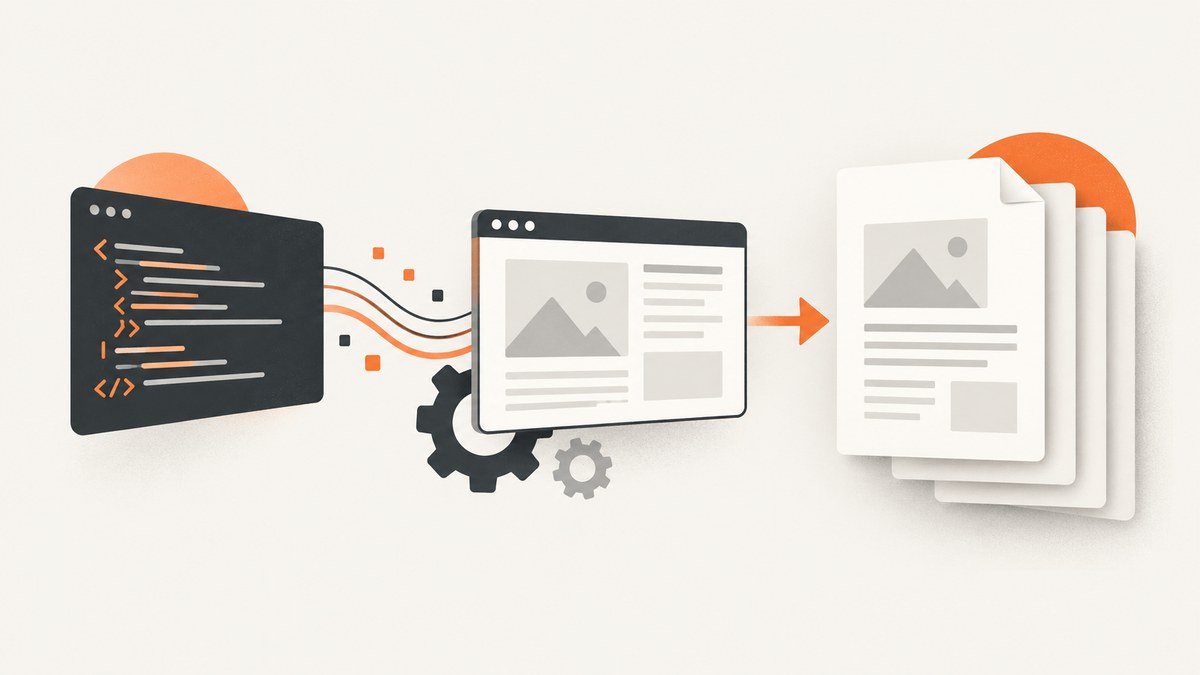
Direct answer: use a browser renderer such as Puppeteer or Playwright when your HTML depends on JavaScript or Chromium CSS. Use WeasyPrint when your Python service needs predictable paged-media rendering without running client-side JavaScript. In every approach, control output with print CSS, @page, explicit wait conditions, page-break rules, and carefully chosen PDF options.
This guide shows complete implementations for live URLs and HTML strings, explains the options that affect pagination and fidelity, and covers security, reliability, performance, cost, and common failures.
Choose the right HTML-to-PDF approach
| Approach | Best fit | JavaScript | CSS model | Runtime |
|---|---|---|---|---|
| Puppeteer | Live Chromium pages and browser-compatible CSS | Yes | Chromium print CSS | Node.js |
| Playwright | Projects already using Playwright automation or tests | Yes | Chromium print CSS | Node.js |
| WeasyPrint | Python services and paged documents with trusted HTML | No client-side JavaScript | HTML/CSS paged media | Python |
Choose Puppeteer for a live Chromium page, JavaScript-heavy applications, or close browser-CSS compatibility. Choose Playwright when it is already part of your stack. Choose WeasyPrint when you control the HTML and need Python-native paged-media features. These are capability-based choices; the available documentation does not provide a universal speed ranking.
Print CSS shared by all approaches
The print media type applies when a page is printed or saved as a PDF, while @page controls paper dimensions, orientation, and margins. Start with a dedicated print stylesheet:
@media print {
  nav, .screen-only, button { display: none !important; }
  a { color: #000; text-decoration: none; }
}

@page {
  size: A4 portrait;
  margin: 16mm 14mm 18mm;
}

h1, h2, h3 { break-after: avoid; }
table, figure { break-inside: avoid; }
See MDN’s printing guide for the print media model and @page behavior.
Make layout decisions explicit
- Set a paper size and margins instead of relying on browser defaults.
- Decide whether background colors and images belong in the PDF.
- Keep headings with the following content using
break-after: avoid. - Prevent rows, figures, and cards from splitting where possible with
break-inside: avoid. - Use representative long content when checking page breaks.
Create a PDF with Puppeteer
Puppeteer’s PDF API is page.pdf(). It generates using the print CSS media type by default. If your design relies on screen styles, call page.emulateMediaType('screen') before creating the PDF. Puppeteer also waits for fonts by default.
Install
npm install puppeteerRender a URL to a file
import puppeteer from 'puppeteer';

const browser = await puppeteer.launch();
try {
  const page = await browser.newPage();
  await page.goto('https://example.com', { waitUntil: 'networkidle2' });
  await page.pdf({
    path: 'output.pdf',
    format: 'A4',
    printBackground: true,
    margin: { top: '16mm', right: '14mm', bottom: '18mm', left: '14mm' }
  });
} finally {
  await browser.close();
}
Puppeteer’s Page.pdf() API also supports explicit width and height, page ranges, CSS page-size preference, headers, footers, backgrounds, and returning an in-memory PDF buffer.
Render HTML held in memory
import puppeteer from 'puppeteer';
const html = `
Invoice
Generated from an HTML string.
`;
const browser = await puppeteer.launch();
try {
const page = await browser.newPage();
await page.setContent(html, { waitUntil: 'networkidle0' });
const pdf = await page.pdf({ format: 'A4', printBackground: true });
await Bun.write('output.pdf', pdf); // or write the Buffer with fs/promises in Node
} finally {
await browser.close();
}Wait for application readiness
networkidle2 only describes network activity. For dashboards and reports, also wait for an application-specific signal:
await page.goto('https://example.com/report', { waitUntil: 'networkidle2' });
await page.waitForSelector('[data-report-ready="true"]');
await page.evaluate(() => document.fonts.ready);
await page.pdf({ path: 'report.pdf', printBackground: true });
Use screen styles or exact colors
await page.emulateMediaType('screen');
await page.addStyleTag({
  content: '* { -webkit-print-color-adjust: exact !important; print-color-adjust: exact !important; }'
});
Use screen emulation only when that is the intended design. Otherwise retain print media, which is the default.
Create a PDF with Playwright
Playwright’s Chromium page.pdf() returns a PDF buffer and can save it with path. It uses print CSS by default; page.emulateMedia({ media: 'screen' }) switches to screen styling.
Install and render
npm install playwrightimport { chromium } from 'playwright';
const browser = await chromium.launch();
try {
const page = await browser.newPage();
await page.goto('https://example.com', { waitUntil: 'networkidle' });
await page.pdf({
path: 'output.pdf',
format: 'A4',
printBackground: true,
preferCSSPageSize: true,
margin: { top: '16mm', right: '14mm', bottom: '18mm', left: '14mm' }
});
} finally {
await browser.close();
}Options include format, explicit width and height, margin, landscape, pageRanges, printBackground, preferCSSPageSize, and header/footer templates. PDF export is documented as a Chromium capability in Playwright’s page PDF API.
Create a PDF with WeasyPrint in Python
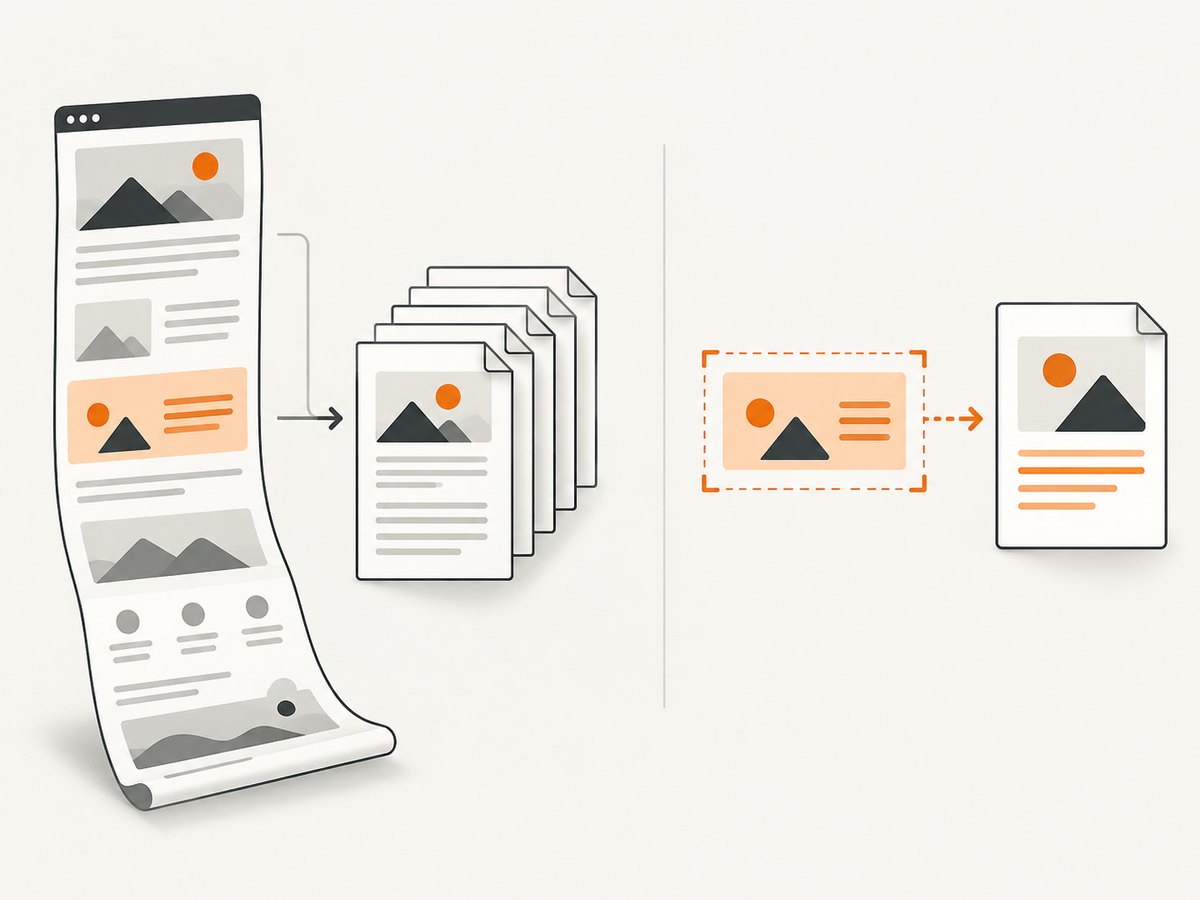
WeasyPrint accepts a URL, filename, readable file object, or HTML string. It writes a file when given a destination, or returns PDF bytes when no destination is supplied.
Install
pip install weasyprintRender an HTML string
from weasyprint import HTML, CSS

html = HTML(string='''
  <html>
    <body>
      <h1>Invoice</h1>
      <p>Hello PDF</p>
    </body>
  </html>
''')
css = CSS(string='''
  @page { size: A4; margin: 18mm; }
  body { font-family: sans-serif; }
''')
html.write_pdf('output.pdf', stylesheets=[css])
Render a URL or return bytes
from weasyprint import HTML

HTML('https://example.com').write_pdf('output.pdf')
pdf_bytes = HTML(string='<h1>In memory</h1>').write_pdf()
WeasyPrint’s paged-media model supports page size, orientation, margins, page selectors, links, bookmarks, attachments, forms, and documented PDF/UA and PDF/A variants, subject to its feature limits. See the official WeasyPrint documentation.
PDF options that affect output
| Requirement | Controls | Practical guidance |
|---|---|---|
| Paper | format, width, height, @page size |
Use one explicit source of truth; test custom sizes. |
| Margins | API margin object or @page margin |
Leave room for headers, footers, and printer-safe areas. |
| Orientation | landscape or @page |
Use landscape for wide tables. |
| Backgrounds | printBackground: true |
Enable it when cards, charts, or brand colors require backgrounds. |
| Pages | pageRanges |
Use ranges for extracts such as 1-3. |
| CSS page size | preferCSSPageSize |
Enable when @page size must win over the API format. |
| Headers and footers | Browser header/footer templates | Reserve margin space and verify template rendering. |
Security when HTML is untrusted
Server-side HTML rendering is an input boundary. WeasyPrint’s API documentation warns that untrusted HTML or CSS can create security problems. A malicious document can abuse external resource fetching, excessive layout work, or unexpected content.
- Sanitize or restrict user HTML and CSS.
- Control which external URLs, fonts, images, and stylesheets can be fetched.
- Apply network egress rules and request timeouts.
- Run rendering in an isolated process or container when input is user supplied.
- Do not assume an arbitrary URL is harmless merely because it is being converted to a PDF.
Reliability and production checklist
- Set a navigation timeout and a PDF generation timeout.
- Wait for a readiness selector in addition to network-idle events.
- Wait for fonts and images before printing.
- Use a fixed viewport and explicit paper dimensions.
- Test long tables, long words, images, empty sections, and missing assets.
- Close browser pages and processes in a
finallyblock. - Record the source URL or document identifier with each generated PDF.
- Validate the resulting PDF opens and has the expected page count.
Performance and cost considerations
Browser approaches carry the cost of launching and operating Chromium. Reuse a browser process carefully, create isolated pages per job, and avoid launching a new browser for every request. WeasyPrint can be a smaller fit for documents that do not need JavaScript, but external assets and complex layouts still affect rendering time. The supplied sources contain no authoritative comparative benchmark, so measure your own representative documents before selecting capacity.
Control cost by caching identical inputs, limiting asset sizes, setting timeouts, and rejecting documents that exceed your allowed page or resource limits. A PDF service should expose queue length, render duration, failures, and output size so operators can identify slow documents.
Troubleshooting common failures
| Symptom | Likely cause | Fix |
|---|---|---|
| Colors or backgrounds are missing | Print backgrounds are disabled. | Set printBackground: true and use print color adjustment when exact colors matter. |
| Screen layout differs from the PDF | PDF generation uses print media. | Fix the print stylesheet or explicitly emulate screen media. |
| Charts or data are absent | Printing started before the application finished. | Wait for a readiness selector, fonts, and required network requests. |
| Fonts look wrong | Font files failed to load or were not available in the runtime. | Bundle or allow the required fonts and await document.fonts.ready. |
| Content is clipped | Fixed dimensions, overflow, or an unsuitable paper size. | Inspect computed print styles, use responsive widths, and set explicit page dimensions. |
| Headings are stranded at page bottoms | No break rule. | Use break-after: avoid and test representative content. |
| Tables split badly | Rows or figures are allowed to break. | Apply break-inside: avoid where practical and redesign oversized rows. |
| Navigation hangs | A request never completes or the page continually polls. | Use a timeout and an application readiness condition rather than waiting forever for idle. |
| WeasyPrint cannot fetch assets | Relative URLs, permissions, or resource-fetch policy. | Use correct base URLs and an explicit, restricted resource loader. |
| Node process runs out of memory | Too many concurrent Chromium pages or very large documents. | Limit concurrency, close pages, and cap document and asset sizes. |
Or skip the browser setup
ScreenshotNeo provides a website capture API that can return PNG, JPEG, WebP, or PDF from one GET request. It accepts the cookie or consent banner like a visitor and removes more than 60 known consent platforms, newsletter popups, and chat widgets before capture. Bot checks, blank pages, timeouts, failed loads, and cache hits are not billed; response headers report the page verdict and whether the request was billed. Its MCP server lets Claude, Cursor, and other MCP clients use take_screenshot, get_page_info, and capture_pdf.

See the ScreenshotNeo API documentation for PDF options such as paper size, margins, landscape mode, and page ranges.
curl -G "https://api.screenshotneo.com/v1/shot" -d access_key=YOUR_API_KEY --data-urlencode url=https://stripe.com -o shot.webpimport requests; r = requests.get("https://api.screenshotneo.com/v1/shot", params={"access_key": "YOUR_API_KEY", "url": "https://stripe.com"}, timeout=90); open("shot.webp", "wb").write(r.content)const q = new URLSearchParams({ access_key: 'YOUR_API_KEY', url: 'https://stripe.com' }); const res = await fetch(`https://api.screenshotneo.com/v1/shot?${q}`);There are 1,000 free shots each month with no card. Paid plans start at $5 for 3,000 shots. Create a free ScreenshotNeo account.
FAQ
Can HTML-to-PDF run JavaScript?
Yes with Puppeteer or Playwright. WeasyPrint is intended for HTML/CSS paged rendering and does not execute browser client-side JavaScript.
Which CSS media type is used?
Puppeteer and Playwright use print media by default. Explicitly emulate screen media only when that matches your intended output.
Can I generate only selected pages?
Browser APIs provide page-range options. Confirm the range syntax and test it with the exact document structure.
Is arbitrary HTML safe to render?
No. Treat untrusted HTML, CSS, external resources, and URLs as potentially dangerous input and isolate or restrict the renderer.
How do I choose between Puppeteer and Playwright?
Use Puppeteer for a focused Chromium PDF service; use Playwright when your application already relies on Playwright automation and its browser lifecycle.


