How to Create a PDF from HTML for Free
Convert HTML to PDF for free with browser Print, Puppeteer, WeasyPrint, wkhtmltopdf, and a hosted API, plus fixes for common rendering failures.
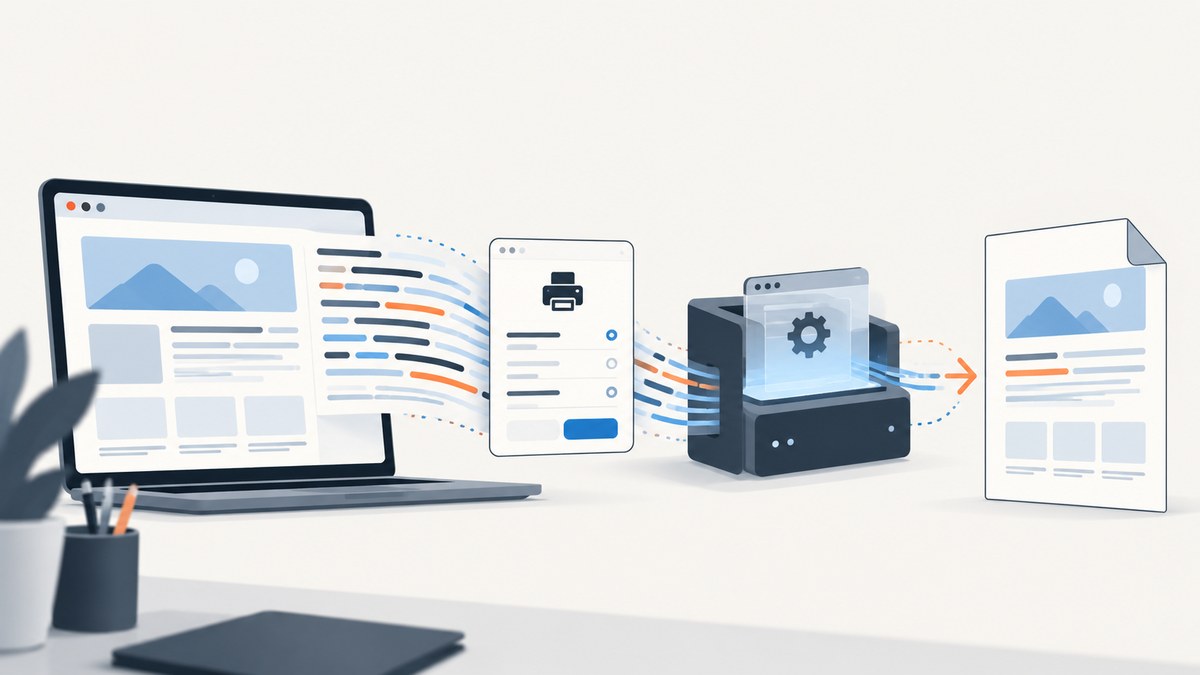
For a one-off conversion, open the HTML in a modern browser, choose Print, and select Save as PDF. For repeatable jobs, use a renderer that matches your page: Puppeteer for JavaScript-heavy sites, WeasyPrint for document-style HTML/CSS in Python, or wkhtmltopdf for a compact command-line workflow. This guide shows each path, the print CSS that controls output, and the fixes for the failures developers see most often.
1. Choose the right free method
| Method | Best for | JavaScript | Setup |
|---|---|---|---|
| Browser Print | One-off manual save | Runs in your browser | None |
| Puppeteer | Apps that render data in a real browser | Strong | Node.js and Chromium |
| WeasyPrint | Reports and invoices with HTML/CSS in Python | Limited; no full browser runtime | Python package and native libraries |
| wkhtmltopdf | Simple scripted CLI conversion | Older WebKit behavior | One executable |
Use print CSS in every method. Define page size, margins, colors, links, and break behavior instead of relying on defaults. If the page is populated after load, wait for its data and fonts before creating the PDF.
2. Browser Print to PDF (no installation)
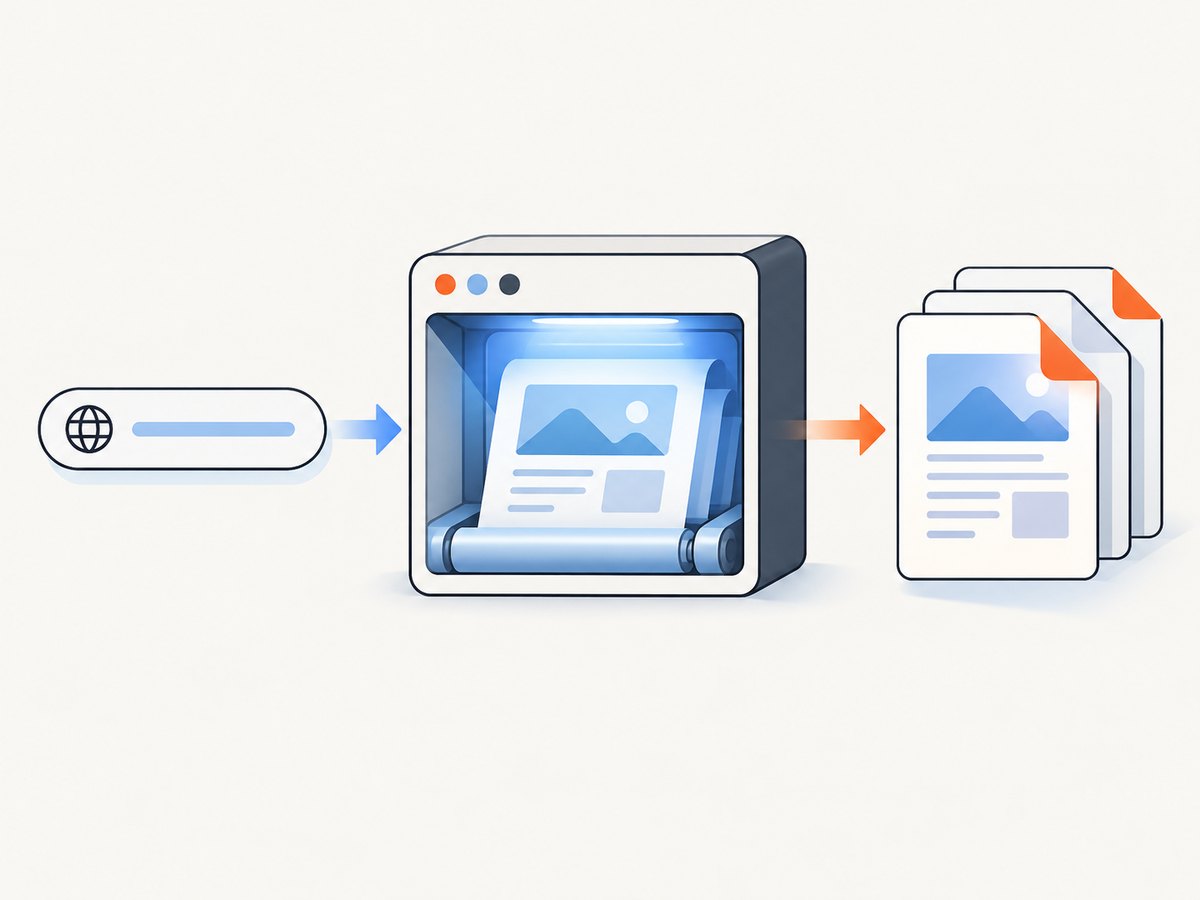
- Open the local file or URL in Chrome, Edge, or another modern browser.
- Press Ctrl+P (Windows/Linux) or Cmd+P (macOS).
- Set Destination to Save as PDF.
- Choose paper size, portrait or landscape orientation, margins, background graphics, and page range.
- Save and inspect the result in your target PDF viewer.
The preview is a useful diagnostic: missing background colors usually mean background graphics is disabled; clipped content usually means the page size or margins are wrong; unexpected sections often come from print-specific CSS.
Print CSS starter
@page {
  size: A4;
  margin: 18mm 14mm;
}

@media print {
  .no-print, nav, .chat-widget { display: none !important; }
  a { color: #000; text-decoration: none; }
  h1, h2, h3 { break-after: avoid; }
  table, figure, img { break-inside: avoid; }
  .page-break { break-before: page; }
  * { -webkit-print-color-adjust: exact; print-color-adjust: exact; }
}
Use break-before, break-after, and break-inside rather than legacy page-break properties when your renderer supports them. Keep images at a sensible width and provide absolute or reachable URLs for remote assets.
3. Generate a PDF with Puppeteer (Node.js)
Puppeteer drives Chromium, so it is the safest default when client-side JavaScript, web fonts, or browser layout are important. The official guide uses page.pdf() for printing PDFs. By default it applies the print media type; call page.emulateMediaType('screen') when you deliberately need screen styles. See the Puppeteer PDF guide and Page.pdf API reference.
Install and run
mkdir html-to-pdf && cd html-to-pdf
npm init -y
npm install puppeteer
node make-pdf.mjs
import puppeteer from 'puppeteer';
const browser = await puppeteer.launch();
try {
const page = await browser.newPage();
await page.setViewport({ width: 1280, height: 900, deviceScaleFactor: 1 });
await page.goto('file:///absolute/path/input.html', {
waitUntil: 'networkidle2'
});
await page.evaluate(() => document.fonts.ready);
await page.pdf({
path: 'output.pdf',
format: 'A4',
printBackground: true,
margin: { top: '18mm', right: '14mm', bottom: '18mm', left: '14mm' },
preferCSSPageSize: true,
displayHeaderFooter: false
});
} finally {
await browser.close();
}For a remote page, replace the file:// URL with HTTPS. For authenticated pages, set cookies or headers before goto. For data that appears after network idle, wait for a meaningful selector:
await page.goto('https://example.com/report', { waitUntil: 'domcontentloaded' });
await page.waitForSelector('[data-report-ready]', { timeout: 30000 });
await page.evaluate(() => document.fonts.ready);
await page.pdf({ path: 'report.pdf', printBackground: true });
networkidle2 means there are at most two active connections; analytics and streaming endpoints can keep a page busy, so a selector or application-level readiness flag is often more reliable. Set printBackground: true when colored panels matter. Use preferCSSPageSize: true when your @page rule defines the paper size. If output should look exactly like the screen, call await page.emulateMediaType('screen') before printing.
4. Generate a PDF with WeasyPrint (Python or CLI)
WeasyPrint is designed for HTML/CSS documents and integrates directly with Python. Its quick start accepts a filename, URL, readable file object, or HTML string; the official first-steps guide shows both CLI and Python forms.
pip install weasyprint
weasyprint input.html output.pdf
from weasyprint import HTML
HTML(filename='input.html').write_pdf('output.pdf')You can pass a base URL when rendering an HTML string so relative images and stylesheets resolve:
from weasyprint import HTML

html = '''<html><body><h1>Invoice</h1></body></html>'''
HTML(string=html, base_url='/absolute/path/to/assets').write_pdf('invoice.pdf')
WeasyPrint is a good fit for server-side reports where JavaScript is unnecessary. Treat untrusted HTML and CSS as hostile input: the documentation warns about security problems, including resource access. Isolate the process, restrict network and file access, validate URLs, and never allow arbitrary user CSS to read local files.
5. Convert with wkhtmltopdf (command line)
wkhtmltopdf is an open-source command-line tool that uses a Qt WebKit engine. The basic forms are documented by the project at wkhtmltopdf usage:
wkhtmltopdf https://example.com output.pdf
wkhtmltopdf /absolute/path/input.html output.pdf
It is convenient for batch scripts, but its browser engine is older than current Chromium. Test modern CSS, web fonts, JavaScript timing, image loading, and page breaks with your actual documents. If content is loaded asynchronously, increase the JavaScript delay or make the page expose a fully rendered static route.
6. Make layout, fonts, images, and links reliable
Page geometry
Use @page for paper size and margins. Keep critical content inside those margins and avoid fixed-height containers that can clip when text wraps. For invoices, reserve space for headers and footers rather than placing them with absolute coordinates.
Fonts and assets
Conversion runs in a different process, container, or machine. Verify every stylesheet, font, image, and SVG URL is reachable there. Wait for document.fonts.ready in Puppeteer. Self-host licensed fonts when reproducibility matters, and include fallback stacks.
Links and selectable text
Browser-based renderers and WeasyPrint normally preserve text as text, so it remains selectable and searchable. Inspect several links in the generated file; JavaScript-added links or canvas-only text may not be accessible. Add visible URLs for critical references when the PDF will be printed.
Long tables and page breaks
Repeat table headers with <thead>. Avoid splitting a row by applying break-inside: avoid to rows or cards, while accepting that very large rows must split. Insert an explicit break class between report chapters when deterministic pagination matters.
7. Automation patterns and cost considerations
- Batch local jobs: keep one Puppeteer browser process alive and create a new page per document; close pages after each job.
- Concurrency: limit parallel pages to the CPU and memory available. Excess Chromium workers cause timeouts and swap.
- Determinism: pin browser and package versions, freeze remote data, and use fixed time zones for dates.
- Retries: retry navigation failures with backoff, but do not blindly duplicate side-effecting page actions.
- Artifacts: write to a temporary file, validate that it starts with the PDF signature, then atomically move it into place.
Free software has no per-document API charge, but you still pay in build time, browser memory, bandwidth, and maintenance. A hosted capture API can be cheaper when you need queueing, isolation, retries, or many URLs and do not want to operate browsers.
8. Or skip the browser setup
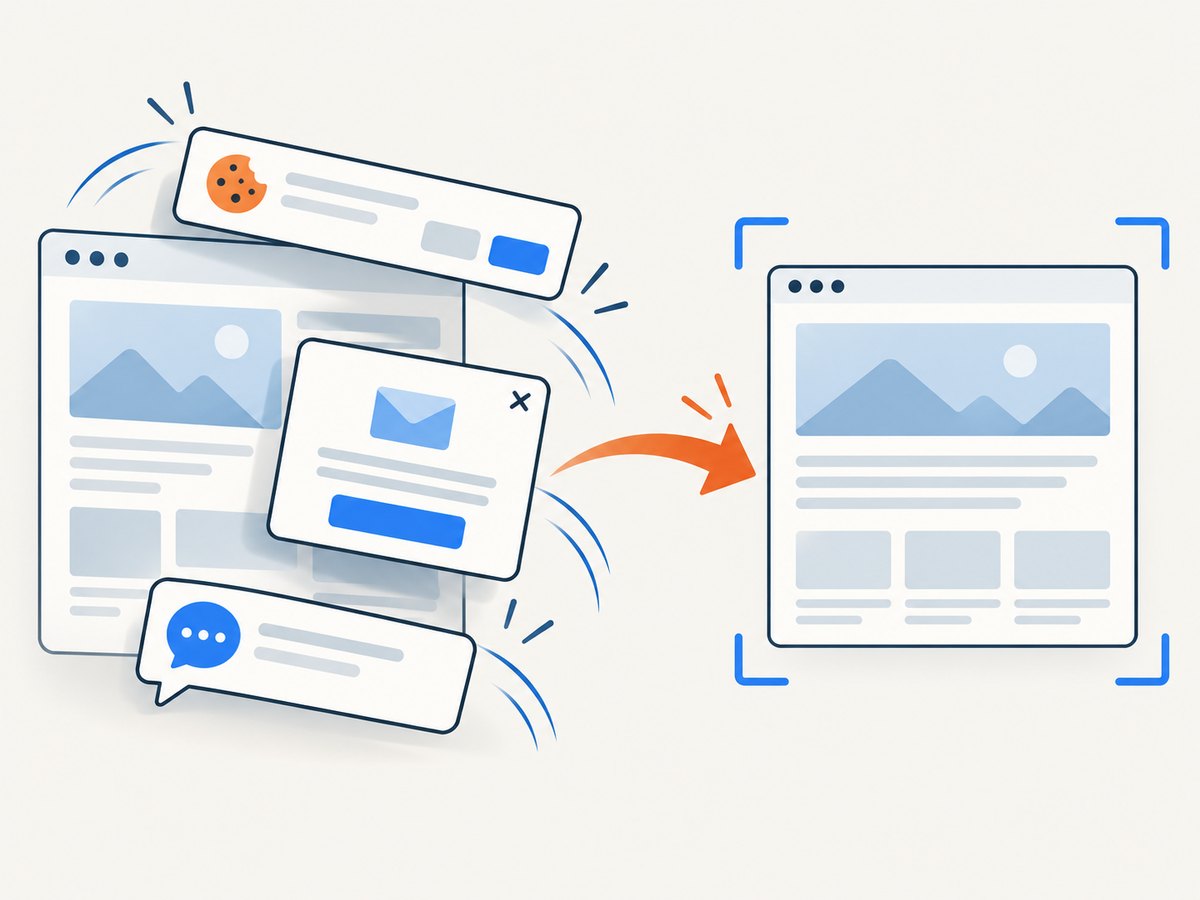
ScreenshotNeo is a website capture API that returns a clean screenshot or PDF from one GET request. It accepts cookie and consent banners like a visitor, then removes more than 60 known consent platforms plus newsletter popups and chat widgets; each step can be disabled. Bot checks, blank pages, timeouts, failed loads, and cache hits are not billed, and response headers identify the page verdict and billing result.
For a request, follow the ScreenshotNeo API documentation and use your access key:
curl -G "https://api.screenshotneo.com/v1/shot" \
  -d access_key=YOUR_API_KEY \
  --data-urlencode url=https://stripe.com \
  -o shot.webp
import requests
r = requests.get(
'https://api.screenshotneo.com/v1/shot',
params={'access_key': 'YOUR_API_KEY', 'url': 'https://stripe.com'},
timeout=90,
)
r.raise_for_status()
open('shot.webp', 'wb').write(r.content)const q = new URLSearchParams({ access_key: 'YOUR_API_KEY', url: 'https://stripe.com' });
const res = await fetch(`https://api.screenshotneo.com/v1/shot?${q}`);
if (!res.ok) throw new Error(`HTTP ${res.status}`);
const bytes = Buffer.from(await res.arrayBuffer());
await import('node:fs/promises').then(fs => fs.writeFile('shot.webp', bytes));The API also supports PDF output, full-page capture with lazy images loaded, element selectors, print settings, custom CSS and JavaScript, waits, blocked resources, headers, cookies, user agents, time zones, geolocation, caching, signed links, asynchronous jobs, webhooks, bulk capture, usage reporting, and an OpenAPI specification. An MCP server exposes take_screenshot, get_page_info, and capture_pdf to Claude, Cursor, and other MCP clients.
Cookie banners, popups, and chat widgets are removed before the shot; bot checks, blank pages, and failed loads are never billed; AI agents can take screenshots through MCP; 1,000 screenshots each month are free with no card, and paid plans start at $5 for 3,000. Create a free ScreenshotNeo account.
9. Troubleshooting checklist
| Symptom | Likely cause | Fix |
|---|---|---|
| Blank or half-rendered PDF | Conversion started before app data arrived | Wait for a readiness selector, explicit delay, or network idle; capture console errors. |
| Fonts fall back | Font URL blocked or not finished loading | Check response status, self-host fonts, and await document.fonts.ready. |
| Backgrounds missing | Print backgrounds disabled | Enable browser background graphics or Puppeteer printBackground; keep print color adjustment CSS. |
| Content clipped | Fixed heights, oversized margins, or wrong paper size | Remove fixed heights, inspect @page, and compare portrait versus landscape. |
| Images absent | Relative URL, authentication, or lazy loading | Use absolute URLs, set cookies/headers, scroll or wait for images, and verify the asset host. |
| WeasyPrint security error | Untrusted HTML/CSS or restricted resource | Sanitize input, sandbox the process, and provide an allowlisted base URL. |
| wkhtmltopdf differs from browser | Older WebKit CSS/JS behavior | Simplify unsupported CSS, add a static render path, or switch to Chromium. |
| Timeouts under load | Too many concurrent browsers or slow third-party requests | Cap concurrency, block nonessential resources, set a timeout, and retry transient failures. |
10. Verify every generated PDF
- Open it in the viewer your users rely on, not only a development preview.
- Check page count, paper size, margins, headers, footers, and deliberate breaks.
- Select text and search for a known phrase.
- Open representative links and confirm images and fonts.
- Compare a long document, a page with a table, and a page with a chart.
- Record renderer, browser/package version, URL, and generation time with the artifact.
FAQ
Can I convert HTML to PDF entirely offline?
Yes. Browser Print, Puppeteer with a locally available Chromium binary, WeasyPrint with local assets, and wkhtmltopdf can all render local files. Remote fonts, images, and scripts must be downloaded or removed.
Which option handles JavaScript best?
Puppeteer, because it runs Chromium. WeasyPrint is intended for HTML/CSS documents and does not replace a full browser runtime; wkhtmltopdf uses an older WebKit engine.
How do I force screen colors?
In Puppeteer, emulate the screen media type and enable background printing. In all methods, use print color adjustment CSS and verify the viewer and printer profile.
Is a hosted API useful for private pages?
It can be, when the service supports the headers, cookies, authorization, and network controls your page needs. Review its data handling and authentication requirements before sending sensitive content.
What should I do when a PDF must look identical every time?
Pin renderer versions, self-host assets, freeze data and time zones, define print CSS, and run visual regression checks on representative pages.


