How to Create PDF Headers and Footers in C#
Add reliable PDF headers, footers, page numbers, and first-page layouts in C# with QuestPDF or IronPDF.

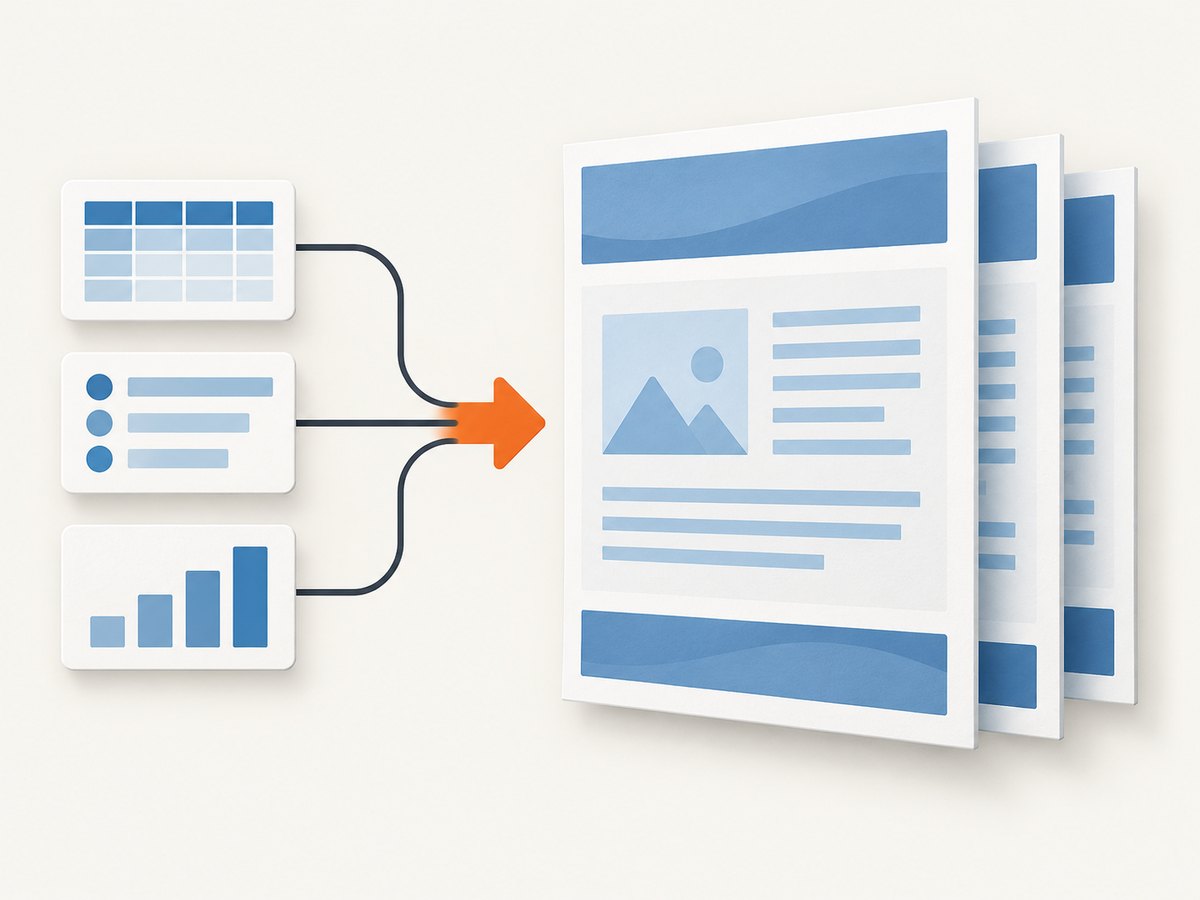
There are two different jobs commonly described as “adding a PDF header or footer in C#”:
- Generate a new PDF with a layout that reserves header, content, and footer areas. QuestPDF’s page layout API is designed for this workflow.
- Stamp an existing PDF after it has been rendered. IronPDF documents text and HTML header/footer APIs for this workflow.
Choose the first approach when your application owns the document structure. Choose the second when a PDF already exists and you need to overlay recurring information such as a page number, date, or report title.
Generate a new PDF with QuestPDF
QuestPDF separates each page into header, content, and footer regions. The content area is automatically laid out between the other two regions, so the header and footer do not need to be manually repeated on every page.
1. Create a project and install QuestPDF
dotnet new console -n PdfHeadersDemo
cd PdfHeadersDemo
dotnet add package QuestPDF
Check the current NuGet listing and target-framework support before pinning a version. The research snapshot listed QuestPDF 2026.9.1, but package versions change.
2. Add a complete document
using QuestPDF.Fluent;
using QuestPDF.Helpers;
using QuestPDF.Infrastructure;

QuestPDF.Settings.License = LicenseType.Community;

var document = Document.Create(container =>
{
    container.Page(page =>
    {
        page.Size(PageSizes.A4);
        page.Margin(36);

        page.Header()
            .Text("Monthly usage report")
            .SemiBold()
            .FontSize(16)
            .FontColor(Colors.Blue.Medium);

        page.Content()
            .PaddingVertical(12)
            .Column(column =>
            {
                column.Spacing(8);
                column.Item().Text("Summary").FontSize(14).Bold();
                column.Item().Text("This content flows through as many pages as required.");

                foreach (var index in Enumerable.Range(1, 80))
                {
                    column.Item().Text($"Detail row {index}: application data goes here.");
                }
            });

        page.Footer()
            .AlignCenter()
            .Text(text =>
            {
                text.Span("Page ");
                text.CurrentPageNumber();
                text.Span(" of ");
                text.TotalPages();
            });
    });
});

document.GeneratePdf("report.pdf");
The footer’s CurrentPageNumber() and TotalPages() fields produce a current/total page count. Keep enough page margin for the header and footer, and avoid placing content outside the content container.
Header and footer layout options
| Need | Typical QuestPDF layout |
|---|---|
| Left-aligned title | page.Header().AlignLeft().Text(...) |
| Centered page number | page.Footer().AlignCenter().Text(...) |
| Different left and right values | Use a Row inside the header or footer and place each value in its own item. |
| Separator line | Compose a column with a thin line and a text row. |
| Structured metadata | Use nested rows, columns, padding, borders, and text styles in the header/footer container. |
page.Header().Column(header =>
{
    header.Item().Row(row =>
    {
        row.RelativeItem().Text("Acme Analytics").Bold();
        row.ConstantItem(160).AlignRight().Text("Confidential");
    });

    header.Item()
        .PaddingTop(6)
        .LineHorizontal(1)
        .LineColor(Colors.Grey.Medium);
});

page.Footer().Row(row =>
{
    row.RelativeItem().Text("Generated 2026-10-01");
    row.RelativeItem().AlignRight().Text(text =>
    {
        text.Span("Page ");
        text.CurrentPageNumber();
        text.Span(" / ");
        text.TotalPages();
    });
});
Use a different header on the first page
QuestPDF documents ShowOnce() and SkipOnce() for first-page variation. A common pattern is to show a large title block once, then use a compact running header on later pages.
page.Header().Column(header =>
{
    header.Item().ShowOnce().Column(first =>
    {
        first.Item().Text("Annual report").FontSize(28).Bold();
        first.Item().Text("Prepared for the finance team");
        first.Item().PaddingBottom(12).LineHorizontal(1);
    });

    header.Item().SkipOnce().Row(later =>
    {
        later.RelativeItem().Text("Annual report").Bold();
        later.RelativeItem().AlignRight().Text("Finance");
    });
});
Use the same footer page-number fields for both the first page and subsequent pages. Keep the first-page header compact enough that it does not consume the usable content area unexpectedly.
Stamp headers or footers onto an existing PDF with IronPDF
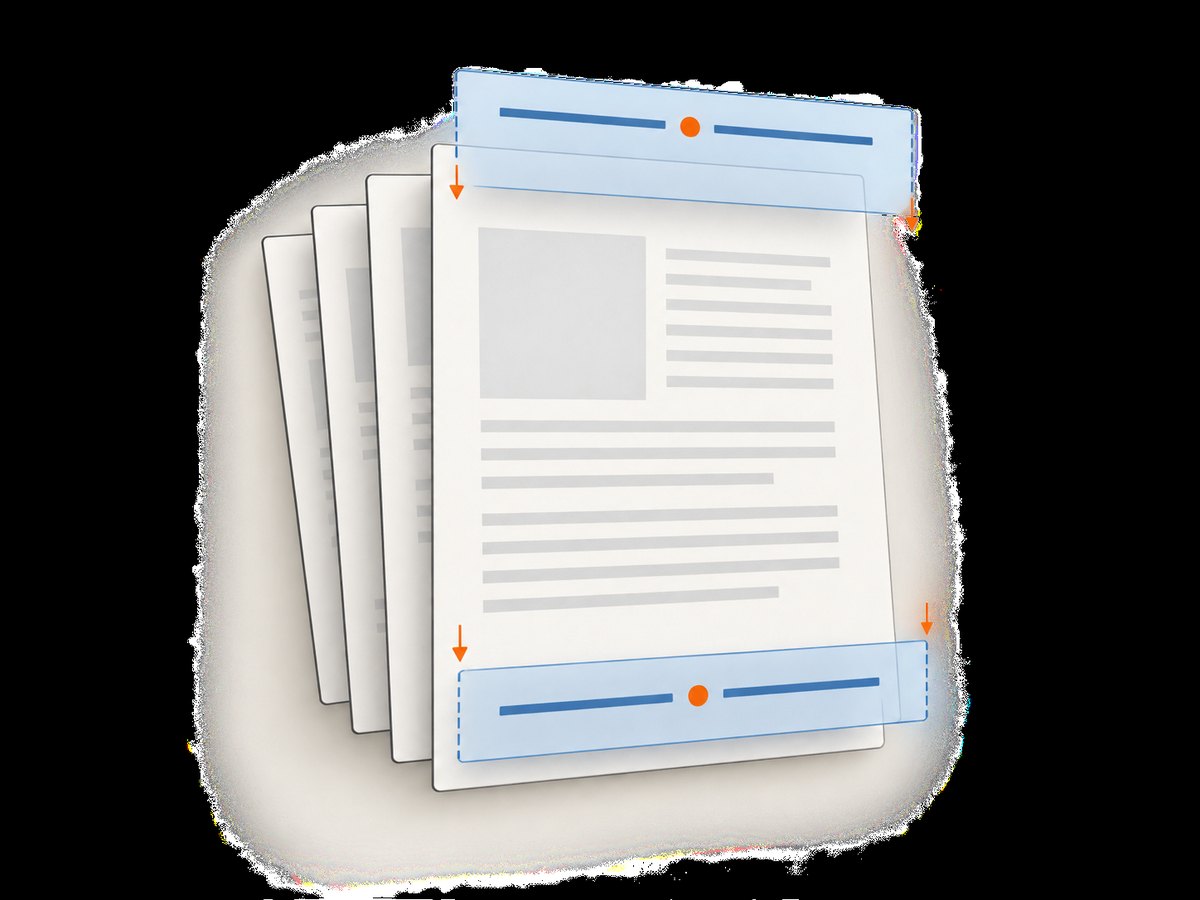
If another component already creates the PDF, load that file and add an overlay afterward. IronPDF documents AddTextHeaders, AddTextFooters, AddHtmlHeaders, and AddHtmlFooters, including page selection and first-page number offsets.
using IronPdf;

var pdf = PdfDocument.FromFile("input.pdf");

pdf.AddTextHeaders(new TextHeaderFooter
{
    CenterText = "Quarterly report",
    FontSize = 10,
    DrawDividerLine = true
});

pdf.AddTextFooters(new TextHeaderFooter
{
    LeftText = "Internal use",
    RightText = "Page {page} of {total-pages}",
    FontSize = 9
});

pdf.SaveAs("stamped.pdf");
For styled layouts, use the HTML APIs. IronPDF documents placeholders including {page}, {total-pages}, {date}, and {time}. Confirm the current package API and licensing terms for your target runtime before shipping.
Choose the right workflow
| Question | Generate with QuestPDF | Stamp with IronPDF |
|---|---|---|
| Do you own the source layout? | Yes; build the document and recurring regions together. | Usually no; the PDF already exists. |
| Need first-page branding? | ShowOnce()/SkipOnce(). |
Target or exclude pages with the documented options. |
| Need HTML/CSS overlays? | Compose the header/footer in the page layout. | Use the HTML header/footer methods. |
| Need current and total page numbers? | CurrentPageNumber() and TotalPages(). |
Use the documented {page} and {total-pages} tokens. |
Implementation checklist
- Decide whether the PDF is new or already rendered.
- Reserve page margins before designing the header and footer.
- Keep header/footer content inside their own containers.
- Use current and total page fields only where the library supports them.
- Render both a one-page and a multi-page document.
- Check long titles, long URLs, missing data, and pages with tables or images.
- Verify the output on the PDF viewers your users actually use.
- Review target-framework compatibility, package versions, and current license terms.
Common problems and fixes
| Symptom | Likely cause | Fix |
|---|---|---|
| Body text overlaps the header | Margins are too small or the header is taller than expected. | Increase the page margin and keep the header content in page.Header(). |
| Footer is missing on later pages | The footer was added inside a content loop or only to the first page. | Define it on the page container so it repeats for every page. |
| “Page 1 of 1” appears everywhere | Page numbers were rendered as ordinary text, or the wrong API was used. | Use QuestPDF’s page-number fields or IronPDF’s documented placeholders. |
| First-page layout repeats | The first-page block was not marked as one-time content. | Use ShowOnce() for the first-page block and SkipOnce() for the running header. |
| Header text is clipped | Fixed-height containers or long values do not have enough room. | Prefer flowing rows/columns, allow wrapping, and test the longest real value. |
| Stamped text covers body content | An overlay was placed over existing content. | Move the overlay into a clear margin, reduce its size, or target only pages with safe space. |
| Build fails after a package update | Package APIs and supported frameworks can change. | Check the current vendor documentation and NuGet package metadata, then pin a known-compatible version. |
| Commercial deployment raises licensing questions | Eligibility depends on your organization and current vendor terms. | Review the current QuestPDF license and IronPDF commercial terms before release. |
Performance, reliability, and cost considerations
- Performance: Header and footer composition is repeated across pages, so keep it small. Large images, complex HTML, and excessive nested layout increase rendering work.
- Reliability: Test short and long documents, empty collections, missing metadata, long titles, and page breaks near the footer. Treat PDF rendering as an output step and retain the source data needed to regenerate it.
- Pagination: Page totals are only known after layout. Avoid hard-coding the total and let the library calculate it.
- Memory: Large reports and embedded assets can require more memory than a small sample. Process large batches deliberately and save output to a controlled destination.
- Cost: QuestPDF’s quick-start page summarizes free eligibility for an individual or business below USD 1 million annual gross revenue, nonprofits, and FOSS projects, plus an evaluation license. Verify the full, current terms. IronPDF licensing is likewise a deployment decision; check its current terms.
Or skip the browser setup
If your next step is capturing a web page or PDF preview as an image, ScreenshotNeo provides a single screenshot request instead of maintaining browser automation. It does not edit PDF headers or footers; use QuestPDF or IronPDF for that job, then use ScreenshotNeo when you need a clean rendered capture.
curl -G "https://api.screenshotneo.com/v1/shot" -d access_key=YOUR_API_KEY --data-urlencode url=https://stripe.com -o shot.webpimport requests
r = requests.get("https://api.screenshotneo.com/v1/shot", params={"access_key": "YOUR_API_KEY", "url": "https://stripe.com"}, timeout=90)
open("shot.webp", "wb").write(r.content)const q = new URLSearchParams({ access_key: 'YOUR_API_KEY', url: 'https://stripe.com' });
const res = await fetch(`https://api.screenshotneo.com/v1/shot?${q}`);See the ScreenshotNeo API documentation for request options. Cookie and consent banners, newsletter popups, and chat widgets are removed before the shot. Bot checks, blank pages, failed loads, timeouts, and cache hits are not billed, and the response identifies the result with X-Page-Verdict and X-Billed headers. An MCP server lets AI agents take screenshots, and the free plan includes 1,000 screenshots per month without a card; paid plans start at $5 for 3,000 shots. Create a free ScreenshotNeo account.
FAQ
Should I put page numbers in the header or footer?
Put them wherever readers expect navigation information. Footers are common for page numbers; headers often carry the report title or section name.
Can I use both libraries in one application?
Yes, when the workflow requires it, but keep responsibilities clear: one library can generate the document and another can stamp or post-process it. Confirm compatibility and licensing before combining them.
How do I make the first page different?
With QuestPDF, use ShowOnce() and SkipOnce(). With a post-render library, use its page-selection and first-page controls.
Where should I verify licensing?
Use the current official license pages for the library and your exact organization, revenue, deployment, and distribution model. Terms can change.


