How to Create PDF Reports and Invoices Programmatically
Choose a PDF approach that fits your language and layout, then generate reports and invoices from structured data with runnable Python and JavaScript examples.

To create PDF reports or invoices programmatically, keep the underlying facts in structured application data and choose a renderer that matches how your team builds documents. Use ReportLab when Python code should draw and lay out PDF elements directly; use WeasyPrint when your team already works with HTML and CSS templates; use PDFKit when your application is built around JavaScript or Node.js. None is the universal best choice: the right fit depends on your language, layout, pagination, and output requirements.
This guide walks through all three approaches, with runnable examples. It also covers pagination, fonts, output destinations, invoice data, troubleshooting, and operational tradeoffs. The examples show PDF generation; they do not establish tax or legal compliance for any particular jurisdiction.
1. Choose an approach
| Approach | Best fit | What you control |
|---|---|---|
| ReportLab (Python) | Python applications that need direct drawing or document layout APIs | Canvas commands, tables, charts, and higher-level layout |
| WeasyPrint (Python) | Teams that author documents as HTML and CSS templates | Markup and print-oriented stylesheets, rendered through a Python API |
| PDFKit (JavaScript) | Node.js or browser JavaScript applications | PDF content through a JavaScript API, with streams in Node |
ReportLab documents use cases such as dynamic web PDFs, corporate reports, database publishing, and reports with charts, tables, and text. Its lower-level canvas is a sequence of drawing commands; its higher-level features suit flowing and tabular content. WeasyPrint accepts HTML and writes PDF, which can fit existing template workflows. PDFKit provides a JavaScript API, and Node output can be streamed to a file or HTTP response. See the official documentation for ReportLab, WeasyPrint, and PDFKit.
2. Prepare invoice and report data
Keep business rules outside the rendering code. Calculate quantities, discounts, taxes, balances, and report metrics in the application layer; pass the resulting values to the PDF renderer. This makes the figures easier to validate and prevents layout changes from changing business calculations.
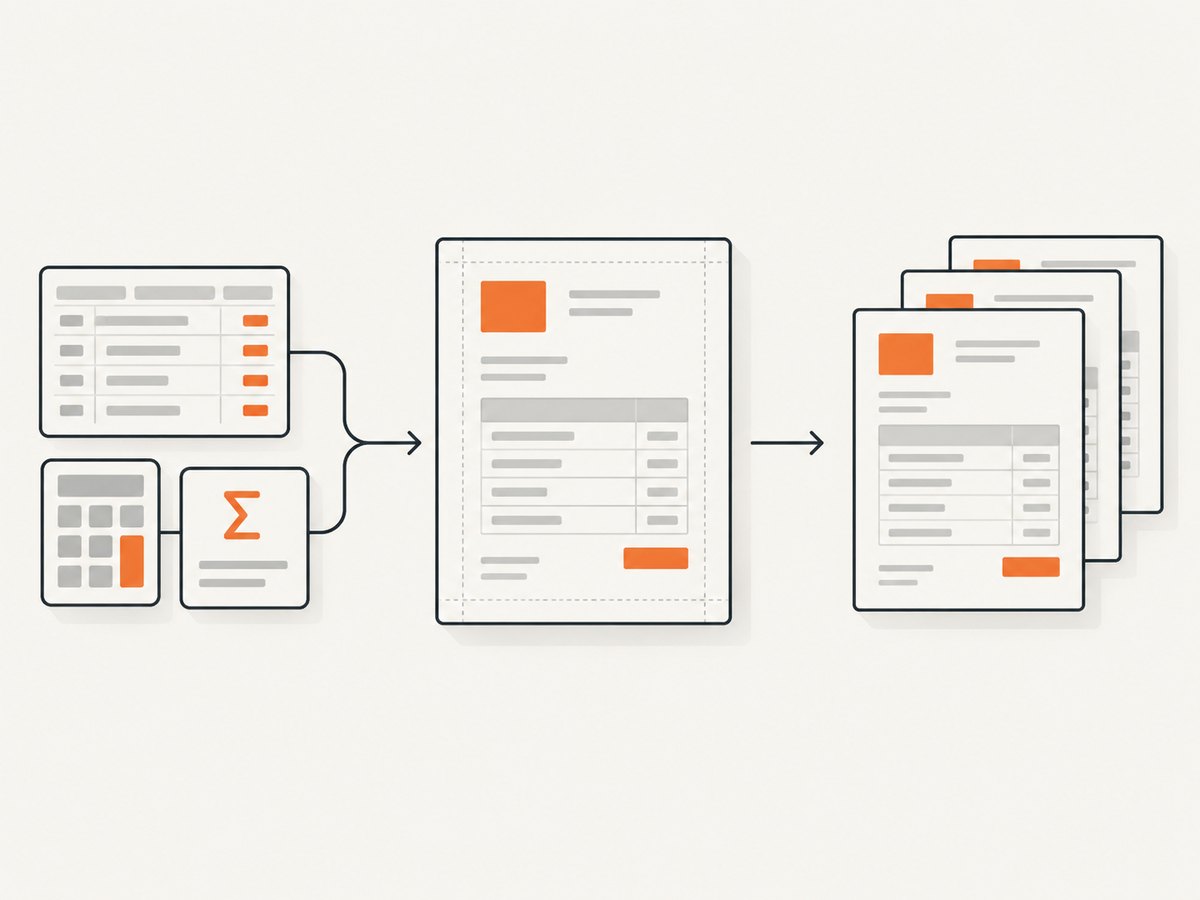
A useful invoice input might include:
- Issuer and customer names and addresses
- Invoice identifier, issue date, and due date
- Line items with descriptions, quantities, unit prices, and calculated amounts
- Subtotal, tax components, discounts, total, amount paid, and balance due
- Payment instructions and any required notes
Represent money with decimal arithmetic in the application rather than binary floating-point calculations. Decide the rounding policy and currency formatting before rendering. For reports, similarly calculate aggregates and chart values before passing them to the layout layer. ReportLab’s demos include JSON-to-PDF invoice and report examples; WeasyPrint’s invoice-oriented example also says its sample data must be adapted to real invoices.
Before deploying an invoice generator, verify required fields, tax treatment, invoice numbering, and retention rules for the relevant jurisdiction and business context. The rendering documentation describes PDF production, not legal requirements.
3. Generate a PDF with ReportLab in Python
Install the open-source package with pip install reportlab. The official installation guide notes that ReportLab has been pure Python since version 4.0 and that optional extras are available for acceleration and graphics functions; confirm the installation requirements for the version and environment you choose.
This small example writes an invoice with a heading, customer details, line items, and totals. It uses the canvas API, whose default coordinate origin is at the lower-left. Coordinates are in points; 72 points equal one inch. The example uses US Letter explicitly. Choose A4 or another page size if that matches your needs.
from reportlab.lib.pagesizes import letter
from reportlab.pdfgen import canvas
from decimal import Decimal

invoice = {
    "number": "INV-2026-0042",
    "customer": "Example Customer",
    "currency": "$",
    "items": [
        {"description": "Design work", "quantity": 4, "unit_price": Decimal("125.00")},
        {"description": "Hosting", "quantity": 1, "unit_price": Decimal("30.00")},
    ],
    "tax": Decimal("0.00"),
}

rows = []
subtotal = Decimal("0.00")
for item in invoice["items"]:
    amount = item["unit_price"] * item["quantity"]
    subtotal += amount
    rows.append((item["description"], item["quantity"], item["unit_price"], amount))
total = subtotal + invoice["tax"]

pdf = canvas.Canvas("invoice.pdf", pagesize=letter)
page_width, page_height = letter
left = 54

def draw_header(page_number):
    pdf.setFont("Helvetica-Bold", 18)
    pdf.drawString(left, page_height - 54, "Invoice")
    pdf.setFont("Helvetica", 10)
    pdf.drawString(left, page_height - 76, f"Invoice: {invoice['number']}")
    pdf.drawString(left, page_height - 92, f"Bill to: {invoice['customer']}")
    pdf.setFont("Helvetica-Bold", 9)
    pdf.drawString(left, page_height - 130, "Description")
    pdf.drawRightString(page_width - 230, page_height - 130, "Qty")
    pdf.drawRightString(page_width - 130, page_height - 130, "Unit price")
    pdf.drawRightString(page_width - left, page_height - 130, "Amount")
    pdf.setFont("Helvetica", 9)

page_number = 1
draw_header(page_number)
y = page_height - 150
for description, quantity, unit_price, amount in rows:
    if y < 100:
        pdf.drawRightString(page_width - left, 35, f"Page {page_number}")
        pdf.showPage()
        page_number += 1
        draw_header(page_number)
        y = page_height - 150
    pdf.drawString(left, y, description[:55])
    pdf.drawRightString(page_width - 230, y, str(quantity))
    pdf.drawRightString(page_width - 130, y, f"{invoice['currency']}{unit_price:.2f}")
    pdf.drawRightString(page_width - left, y, f"{invoice['currency']}{amount:.2f}")
    y -= 18

if y < 100:
    pdf.drawRightString(page_width - left, 35, f"Page {page_number}")
    pdf.showPage()
    page_number += 1
    draw_header(page_number)
    y = page_height - 150
pdf.setFont("Helvetica-Bold", 10)
pdf.drawRightString(page_width - left, y - 12, f"Subtotal: {invoice['currency']}{subtotal:.2f}")
pdf.drawRightString(page_width - left, y - 29, f"Tax: {invoice['currency']}{invoice['tax']:.2f}")
pdf.drawRightString(page_width - left, y - 46, f"Total: {invoice['currency']}{total:.2f}")
pdf.drawRightString(page_width - left, 35, f"Page {page_number}")
pdf.save()
Run it with python invoice.py; it writes invoice.pdf in the current directory. This example is deliberately small. The fixed coordinates make the drawing process easy to follow, but you must manage page breaks, text wrapping, and table continuation yourself. If content is variable or lengthy, use ReportLab’s higher-level layout features such as tables and flowables rather than placing every element by hand. See the graphics and text guide and official demos.
4. Use HTML and CSS with WeasyPrint
When a team already maintains HTML templates, WeasyPrint can turn rendered markup into a PDF from Python. Install it according to the official first steps for your platform. The Python API accepts an HTML string and can write the result to a file. Here is a complete small example:
from html import escape
from weasyprint import HTML

customer = "Example Customer"
invoice_number = "INV-2026-0042"
rows = [
    ("Design work", 4, "125.00", "500.00"),
    ("Hosting", 1, "30.00", "30.00"),
]
row_html = "".join(
    "<tr><td>{}</td><td>{}</td><td>${}</td><td>${}</td></tr>".format(
        escape(description), quantity, unit_price, amount
    )
    for description, quantity, unit_price, amount in rows
)
html = f"""\
<!doctype html>
<html>
<head>
  <meta charset="utf-8">
  <style>
    @page {{ size: A4; margin: 18mm; }}
    body {{ font: 10pt sans-serif; color: #222; }}
    h1 {{ font-size: 22pt; }}
    table {{ width: 100%; border-collapse: collapse; margin-top: 24px; }}
    th, td {{ border-bottom: 1px solid #ccc; padding: 8px; text-align: left; }}
    td:nth-child(n+2), th:nth-child(n+2) {{ text-align: right; }}
    thead {{ display: table-header-group; }}
    tr {{ page-break-inside: avoid; }}
    .total {{ text-align: right; margin-top: 18px; font-weight: bold; }}
  </style>
</head>
<body>
  <h1>Invoice</h1>
  <p>{escape(invoice_number)}<br>Bill to: {escape(customer)}</p>
  <table><thead><tr><th>Description</th><th>Qty</th><th>Unit price</th><th>Amount</th></tr></thead>
  <tbody>{row_html}</tbody></table>
  <p class="total">Total: $530.00</p>
</body>
</html>"""
HTML(string=html).write_pdf("invoice.html.pdf")
HTML and CSS make it natural to reuse template skills and style rules, but do not assume every browser feature is supported: the cited documentation does not describe WeasyPrint as a full browser engine or say that JavaScript runs. Unsupported CSS properties can produce warnings. Test print styles and page breaks against your actual documents. Escape or safely template data, and never treat untrusted HTML or CSS as harmless; WeasyPrint’s documentation warns that untrusted content can create security problems.
For repeated generation, the docs suggest using a long-lived Python process to avoid repeated startup costs. The API can return bytes or write to a file or writable object, which is useful when the application needs to store the output or send it onward.
5. Generate a PDF with PDFKit in Node.js
PDFKit supports JavaScript in Node and browser environments. In Node, a PDFDocument is a readable stream. Pipe it to a file or HTTP response and call end() once the document content is complete. This runnable example creates a simple invoice file:
// Save as invoice.js; install PDFKit with: npm install pdfkit
const PDFDocument = require('pdfkit');
const fs = require('node:fs');

const invoice = {
  number: 'INV-2026-0042',
  customer: 'Example Customer',
  items: [
    { description: 'Design work', quantity: 4, unitPrice: 125 },
    { description: 'Hosting', quantity: 1, unitPrice: 30 },
  ],
};
const subtotal = invoice.items.reduce(
  (sum, item) => sum + item.quantity * item.unitPrice, 0
);
const doc = new PDFDocument({ size: 'A4', margin: 54 });
doc.pipe(fs.createWriteStream('invoice.pdf'));
doc.fontSize(20).text('Invoice');
doc.moveDown(0.5).fontSize(10).text(`Invoice: ${invoice.number}`);
doc.text(`Bill to: ${invoice.customer}`);
doc.moveDown();
doc.font('Helvetica-Bold');
doc.text('Description', 54, doc.y, { continued: true, width: 240 });
doc.text('Qty', { continued: true, width: 55, align: 'right' });
doc.text('Unit price', { continued: true, width: 90, align: 'right' });
doc.text('Amount', { align: 'right' });
doc.font('Helvetica');
for (const item of invoice.items) {
  const amount = item.quantity * item.unitPrice;
  doc.text(item.description, 54, doc.y, { continued: true, width: 240 });
  doc.text(String(item.quantity), { continued: true, width: 55, align: 'right' });
  doc.text(`$${item.unitPrice.toFixed(2)}`, { continued: true, width: 90, align: 'right' });
  doc.text(`$${amount.toFixed(2)}`, { align: 'right' });
}
doc.moveDown();
doc.font('Helvetica-Bold').text(`Total: $${subtotal.toFixed(2)}`, { align: 'right' });
doc.end();
Run node invoice.js. For production, handle stream errors and completion in the surrounding application so failed writes are reported rather than treated as successful output. PDFKit creates the first page automatically unless configured otherwise; add later pages explicitly when needed. Browser setup differs: the browser build cannot read files directly from the filesystem, and fonts need to be registered from bytes in memory. Follow the PDFKit getting started guide for those environment-specific details.
6. Send generated output or render a webpage
Generation and delivery are separate concerns. A renderer may write a file, return bytes, or expose a stream. Choose based on your application: files suit scheduled batch jobs, while memory buffers or streams can fit web endpoints. Avoid holding many large documents in memory at once; stream or process them in bounded batches when the chosen library and application architecture permit it.
If your report already exists as a web page and you need a visual capture of that page, ScreenshotNeo is a separate option. It is a website screenshot API and MCP server from ScreenshotNeo; it does not replace the PDF-generation examples above. Its API can return an image or PDF, while the following one-call example saves a webpage screenshot as WebP. See the ScreenshotNeo API documentation for its options.
7. Or skip the browser setup
For a screenshot of a rendered report page, make one request:
curl -G "https://api.screenshotneo.com/v1/shot" -d access_key=YOUR_API_KEY --data-urlencode url=https://stripe.com -o shot.webpOr use Python:
import requests
r = requests.get("https://api.screenshotneo.com/v1/shot", params={"access_key": "YOUR_API_KEY", "url": "https://stripe.com"}, timeout=90)
open("shot.webp", "wb").write(r.content)
Or Node.js:
const q = new URLSearchParams({ access_key: 'YOUR_API_KEY', url: 'https://stripe.com' });
const res = await fetch(`https://api.screenshotneo.com/v1/shot?${q}`);- Cookie banners, popups, and chat widgets are removed before the shot; each cleanup step can be turned off.
- Bot checks, blank pages, timeouts, failed loads, and cache hits cost nothing. Response headers report the page verdict and billing status.
- An MCP server lets AI agents use screenshot, page information, and PDF capture tools.
- 1,000 screenshots per month are free with no card; paid plans start at $5 for 3,000. Every feature is on every plan.
Sign up for 1,000 free screenshots a month, no card required.
8. Pagination, fonts, and document edge cases
Fixed-position layouts are simple for short documents, but become fragile when descriptions wrap or line-item counts grow. For every renderer, exercise the actual data shapes your application can produce:
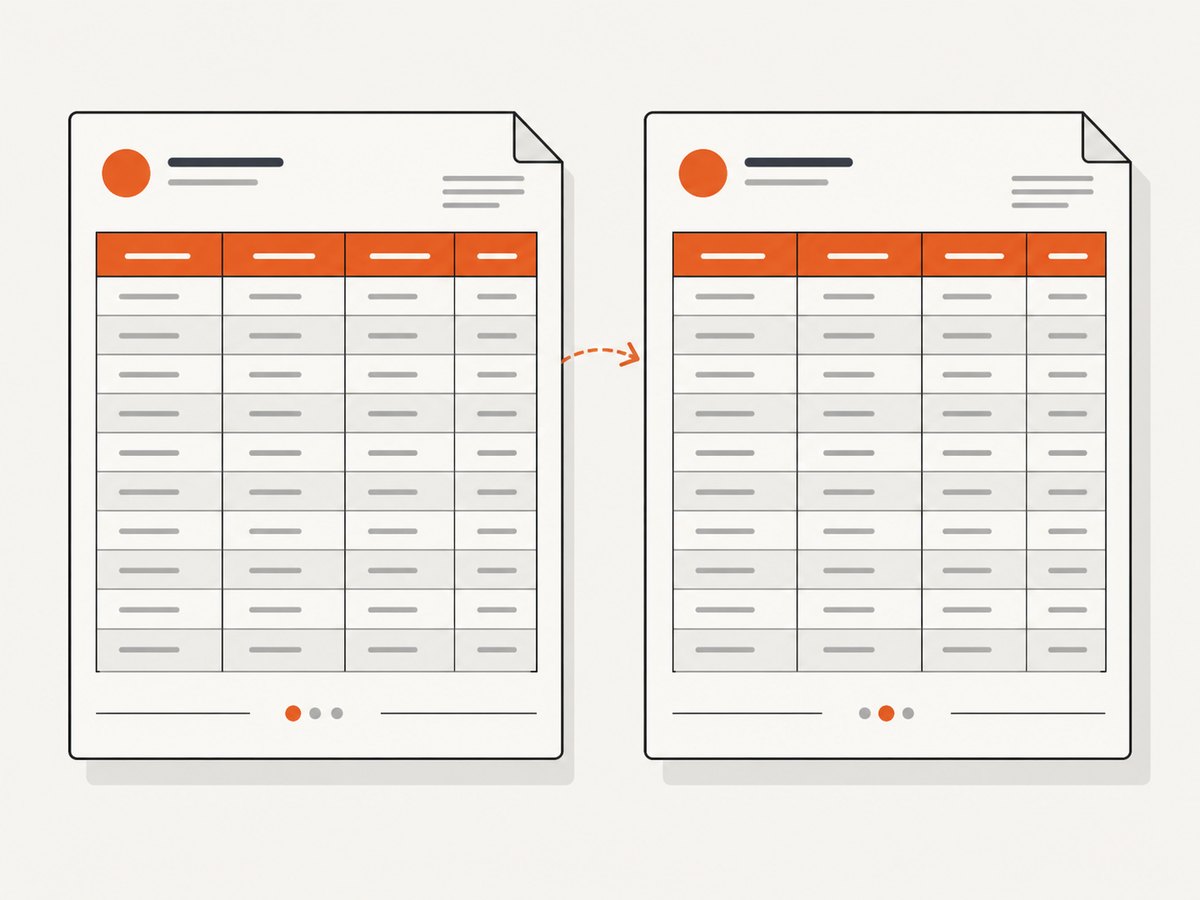
- Long descriptions, unusually large quantities, and enough rows to span several pages
- Missing optional fields, empty tables, zero totals, credits, and negative adjustments
- Non-ASCII names and text, including characters unsupported by a default font
- Different paper sizes, margins, landscape pages, and page-number placement
- Images or charts at expected and worst-case sizes
ReportLab’s canvas uses a lower-left origin, so convert top-down design measurements carefully. Select page dimensions explicitly: A4 and US Letter differ. For flowing content and repeated tables, prefer its higher-level layout features where appropriate. In HTML/CSS, specify print page size and margins and test repeated table headers and row breaks. In PDFKit, check content positions before drawing and add pages when content exceeds available space.
Use fonts that contain the glyphs your data needs and follow the renderer’s font-loading rules. Browser PDFKit requires font registration from in-memory bytes; its Node and browser setups are not interchangeable. Also decide whether the document needs metadata or attachments. WeasyPrint documents an example involving Factur-X XML, XMP metadata, and a PDF/A-3 variant; the sample is a technical rendering example, not proof of legal invoice compliance.
9. Troubleshooting
| Symptom | Likely cause | What to change |
|---|---|---|
| Text or totals overlap | Fixed coordinates or widths do not account for long values | Wrap text, reserve columns for variable amounts, and test long descriptions and large totals. |
| Rows are cut off at a page boundary | Page breaks are not coordinated with row height | Check remaining space before drawing a row; use flowing tables or explicit page-break rules. |
| Characters appear as boxes or disappear | The selected font lacks the glyphs or was not loaded correctly | Choose and register a font with the required character coverage; check browser PDFKit’s in-memory font setup. |
| WeasyPrint reports CSS warnings | A property is unsupported or malformed | Review the warning and simplify or replace the property with supported print CSS. |
| WeasyPrint output differs from a browser preview | The renderer does not promise full browser behavior | Use print-oriented CSS and validate the generated PDF itself; do not depend on JavaScript or unsupported browser features. |
| PDFKit output file is missing or incomplete | The stream has not finished or encountered a write error | Wait for stream completion, handle errors, and ensure doc.end() is called. |
| Install fails in a deployment environment | Runtime or optional dependency requirements differ by version and platform | Check the current official installation guide for the selected version and environment. |
| Invoice totals disagree with the source system | Rounding, tax, or discount calculations were mixed into presentation code | Calculate and validate values in application logic, then render those final values. |
10. Performance, reliability, and cost
The official sources reviewed do not provide controlled benchmarks comparing ReportLab, WeasyPrint, and PDFKit, so choose based on fit and measure with your own representative documents. Include large reports, embedded assets, long text, and concurrent jobs in those measurements. WeasyPrint’s documentation suggests a long-lived process for many documents to avoid repeated startup costs. That is a specific operational note, not a cross-library speed ranking.
For reliability, treat rendering as a fallible operation: validate input before layout, record failures, and confirm output completion before marking a job successful. For batch workloads, bound concurrency and retain enough context to retry a failed document without recalculating different business values. Keep the structured input or a stable reference to it so regenerated documents can be explained and audited.
Budget costs around your runtime and deployment: package installation, memory and CPU for rendering, fonts and other assets, storage, and any queue or worker capacity your application needs. The cited documentation does not establish a universal resource requirement or price comparison. Measure in the environment where documents will run. Separately, ScreenshotNeo’s published plan facts are 1,000 free shots per month without a card, then $5 for 3,000, $15 for 15,000, $39 for 60,000, $99 for 250,000, or $249 for 1,000,000; yearly billing gives two months free. Those plans apply to its screenshot service, not to the PDF libraries.
11. Implementation checklist
- Keep source facts and monetary calculations in application data and business logic.
- Choose ReportLab for Python drawing/layout, WeasyPrint for HTML/CSS in Python, or PDFKit for JavaScript.
- Set page size, margins, font strategy, output destination, and metadata needs deliberately.
- Plan how tables, headings, footers, page numbers, and page breaks behave on every page.
- Render representative and edge-case data, then inspect the resulting PDFs.
- Verify invoice rules separately for the applicable jurisdiction and business.
12. FAQ
Can I generate PDFs without opening a browser?
Yes. ReportLab, WeasyPrint, and PDFKit generate PDFs through their APIs. WeasyPrint uses HTML/CSS input, but the documented API renders from Python rather than requiring you to automate a browser.
Which option is best for a multi-page invoice?
Choose based on your authoring workflow. Use layout features that support flowing tables or deliberate page breaks, and test long invoices with the real data. The documentation does not establish a universally best renderer.
Does a generated invoice automatically meet tax rules?
No. PDF output is a rendering result. Confirm invoice fields, taxes, numbering, and retention requirements for the relevant jurisdiction and business.
Can I make a PDF from a web page with ScreenshotNeo?
ScreenshotNeo offers PDF capture as well as image output. It is useful for capturing a rendered webpage; use a PDF-generation library when your application needs to compose a report directly from structured data.


