How to Create Polished Website Screenshots
Learn how to capture clean, readable website screenshots with Chrome, Playwright, and ScreenshotNeo, including full-page, responsive, and automated workflows.
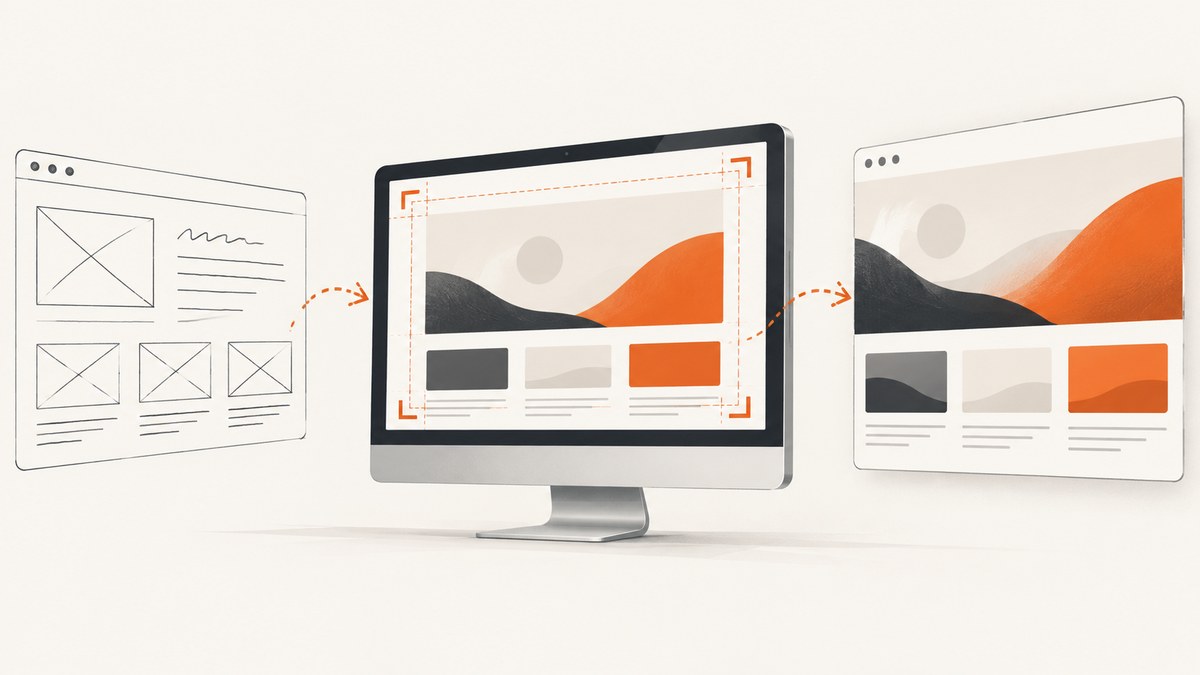
A polished website screenshot starts with the right capture scope, a predictable page state, and an output size that keeps important content readable. Use a viewport screenshot when you need the visible screen, a full-page screenshot when the entire scrollable document matters, and an element screenshot when one component is the subject. For repeatable work, automate the process with Playwright or a screenshot API.
This guide covers manual browser captures, a complete Playwright workflow, responsive and full-page options, common failure modes, and production considerations. It ends with ScreenshotNeo, a hosted option that removes browser setup while preserving the controls developers usually need.
1. Choose the screenshot scope before you capture
Decide what the image must communicate. A screenshot can represent three different scopes:
| Scope | Use it when | What it includes |
|---|---|---|
| Viewport | You are showing the visible screen at a specific device size | Only the currently visible area |
| Full page | Below-the-fold content, documentation, or a landing page matters | The full scrollable document |
| Element | One card, chart, form, or component is the subject | A selected DOM element and its rendered contents |
Chrome DevTools device mode provides viewport and full-size capture commands. Its documentation describes full-size capture as including content that is not currently visible in the viewport (Chrome DevTools device mode). Playwright uses the same distinction: a full-page screenshot captures the full scrollable page “as if you had a very tall screen” (Playwright screenshots).
2. Make the page state predictable
Polish comes from consistency more than from a particular editor. Before capturing:
- Open the exact URL and wait for the page to finish its important work.
- Set the viewport width, height, device scale, color scheme, and locale you intend to show.
- Dismiss consent dialogs and close overlays that obscure the page.
- Scroll or interact until lazy-loaded content is present.
- Hide animation, blinking cursors, timestamps, ads, chat bubbles, and other elements that make repeat captures change.
- Capture at a resolution that keeps the smallest important text readable in its final placement.
Do not hide an element merely because it is inconvenient. Record the selectors you change so the process remains reviewable, and keep a version that shows the real page when legal, accessibility, or product documentation requires it.
3. Capture a polished screenshot manually in Chrome
- Open Chrome DevTools with
Ctrl+Shift+I(Windows/Linux) orCmd+Option+I(macOS). - Toggle Device Toolbar, choose a device preset or enter a custom width and height.
- Set the device pixel ratio if the target image needs retina density.
- Refresh the page, then wait for fonts, images, and dynamic content to settle.
- Open the Device Toolbar menu and choose Capture screenshot for the viewport or Capture full size screenshot for the complete page.
For a component, inspect it in the Elements panel, right-click the node, and use the available capture command when your Chrome version exposes it. Otherwise, use the automated element method in the next section.
4. Automate repeatable captures with Playwright
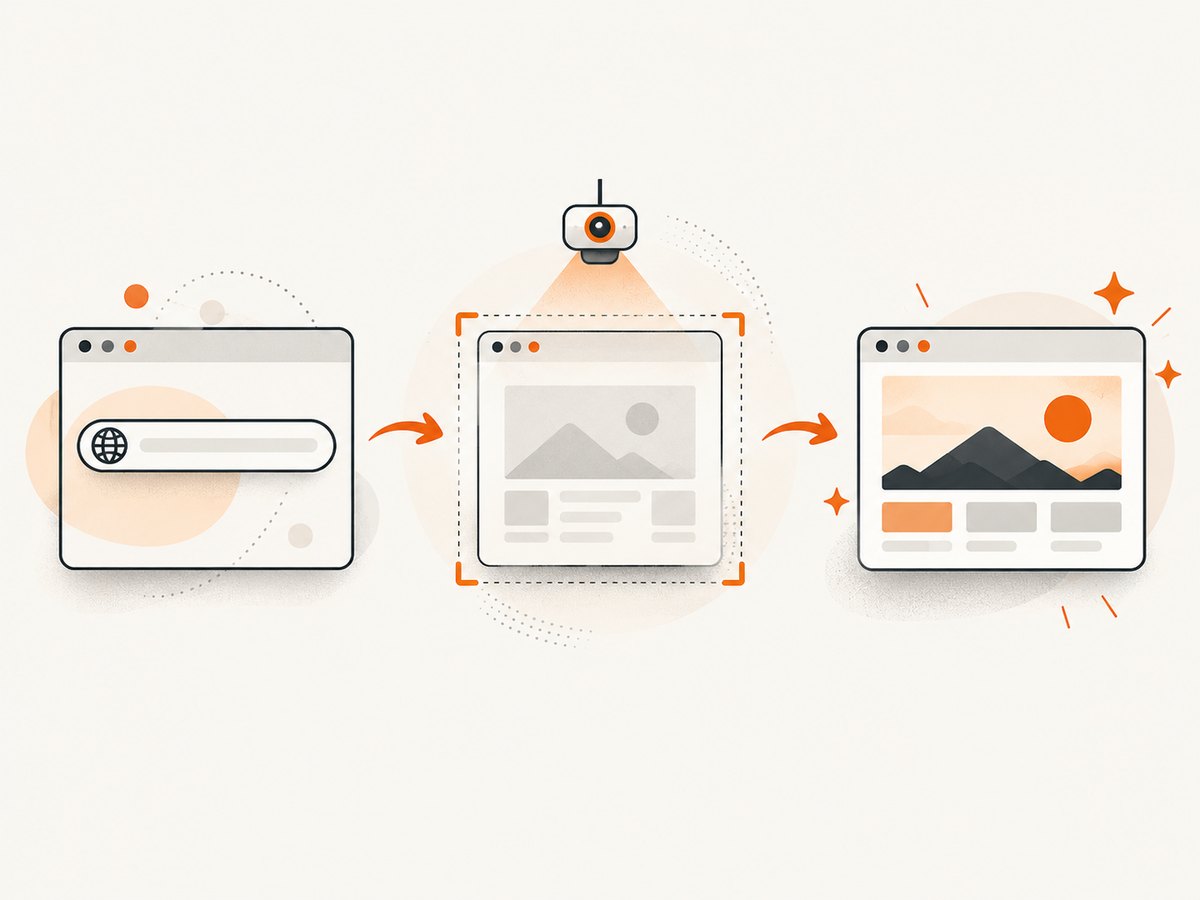
Playwright is a good fit when screenshots are generated in CI, on a schedule, or for many routes. Install it in a new project:
npm init -y
npm install playwright
npx playwright install chromium
Create screenshot.mjs. This runnable script captures a responsive, full-page WebP and also demonstrates a selected element:
import { chromium } from 'playwright';

const browser = await chromium.launch();
const context = await browser.newContext({
  viewport: { width: 1440, height: 900 },
  deviceScaleFactor: 2,
  colorScheme: 'light',
  locale: 'en-US',
  timezoneId: 'UTC'
});
const page = await context.newPage();

await page.goto('https://stripe.com', { waitUntil: 'networkidle' });
await page.addStyleTag({ content: `
  *, *::before, *::after { animation: none !important; transition: none !important; }
  [data-cookie-banner], .chat-widget, .newsletter-modal { display: none !important; }
` });
await page.waitForTimeout(300);

await page.screenshot({
  path: 'stripe-full.webp',
  fullPage: true,
  type: 'webp',
  quality: 90,
  animations: 'disabled'
});

const hero = page.locator('main').first();
if (await hero.count()) {
  await hero.screenshot({ path: 'stripe-main.png', type: 'png' });
}

await browser.close();
Run it with node screenshot.mjs. Playwright documents viewport, full-page, and element screenshots, plus options for masking or modifying page state (screenshots, page.screenshot API).
Useful Playwright options
| Option | Why it matters |
|---|---|
fullPage: true |
Captures the complete scrollable document. |
clip |
Captures a precise rectangle when neither the whole viewport nor one element is correct. |
type, quality |
Choose PNG for lossless UI text, JPEG for smaller photographic images, or WebP for a compact general-purpose file. |
animations: 'disabled' |
Reduces inconsistent frames caused by CSS animations and transitions. |
mask, maskColor |
Obscures dynamic or private regions while retaining layout. |
omitBackground: true |
Produces transparency where the page supports it. |
scale: 'css' or 'device' |
Controls whether output dimensions follow CSS pixels or device pixels. |
5. Capture responsive variants
One screenshot cannot prove that a page works at every size. Capture a small, intentional matrix such as 375×812 for a phone, 768×1024 for a tablet, and 1440×900 for a desktop. Keep the URL, viewport, device scale, and color scheme in the filename or metadata.
const sizes = [
  { name: 'phone', width: 375, height: 812 },
  { name: 'tablet', width: 768, height: 1024 },
  { name: 'desktop', width: 1440, height: 900 }
];

for (const size of sizes) {
  await page.setViewportSize({ width: size.width, height: size.height });
  await page.goto('https://stripe.com', { waitUntil: 'networkidle' });
  await page.screenshot({ path: `stripe-${size.name}.png`, fullPage: false });
}
Use full-page mode separately for long documents. A tall image can become unreadable when embedded in a card or social post; in those cases, create a viewport hero image and link to the full capture.
6. Handle lazy loading, consent banners, and dynamic content
Long pages often load images only after they approach the viewport. Scroll through the page before capture, or use a controlled script:
await page.evaluate(async () => {
  await new Promise(resolve => {
    let y = 0;
    const step = 600;
    const timer = setInterval(() => {
      window.scrollBy(0, step);
      y += step;
      if (y >= document.body.scrollHeight) {
        clearInterval(timer);
        window.scrollTo(0, 0);
        resolve();
      }
    }, 80);
  });
});
Consent banners, newsletter prompts, and chat widgets can cover the exact content you want to show. Prefer a real click on the consent action when you need the site to establish its normal state. For a documentation or marketing image, hide known overlays with a narrowly scoped selector after checking that the selector does not remove meaningful content.
Network idle is not a universal guarantee: analytics, long polls, and advertisements can keep requests open. Combine a bounded wait, a selector that proves the main content exists, and a maximum timeout.
7. Use cURL, Python, or Node.js with ScreenshotNeo
Or skip the browser setup: ScreenshotNeo is a website screenshot API and MCP server. One GET request returns PNG, JPEG, WebP, or a PDF. Its capture can load lazy images, accept consent banners, and remove more than 60 known consent platforms, newsletter popups, and chat widgets before the shot. Each step can be turned off.
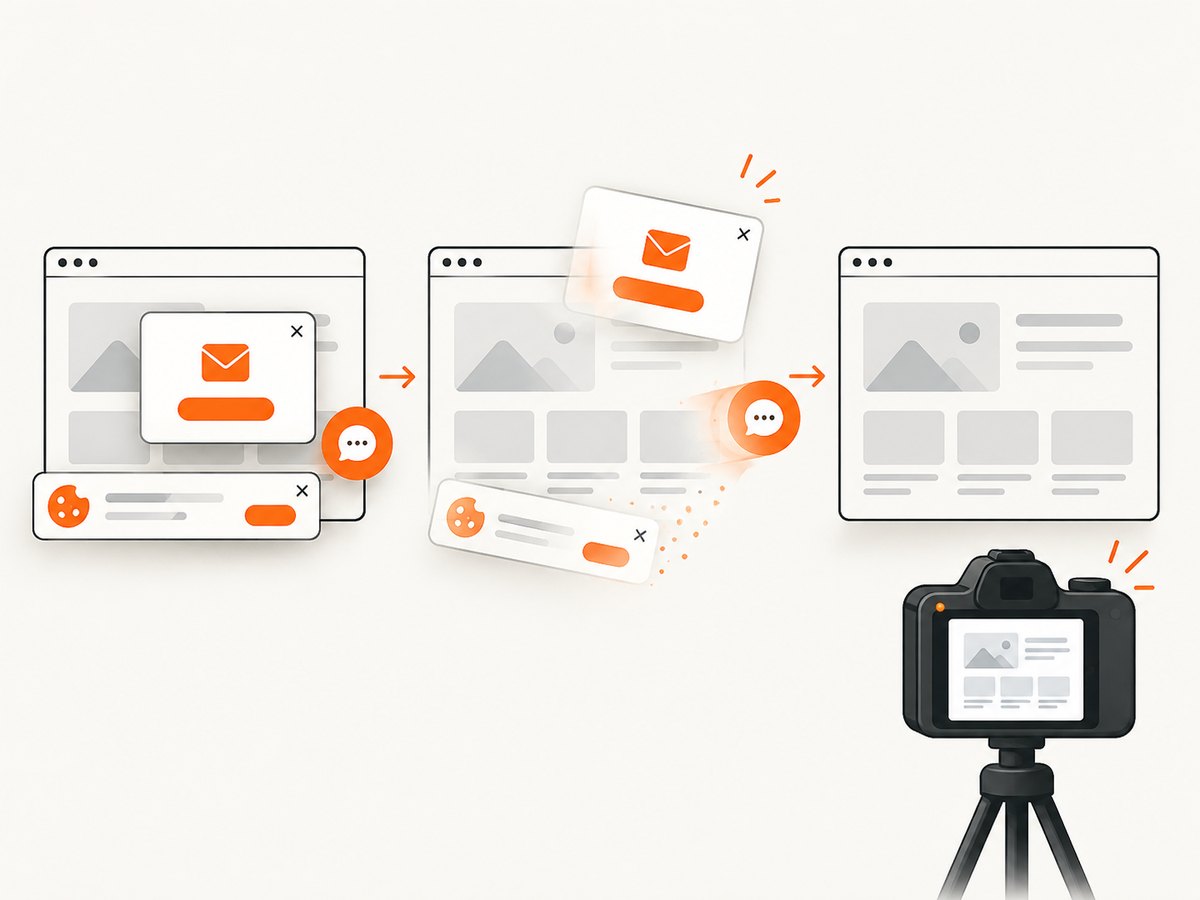
Read the complete parameter reference in the ScreenshotNeo documentation. The shortest working calls are:
curl -G "https://api.screenshotneo.com/v1/shot" \
  -d access_key=YOUR_API_KEY \
  --data-urlencode url=https://stripe.com \
  -o shot.webp
import requests
r = requests.get(
"https://api.screenshotneo.com/v1/shot",
params={"access_key": "YOUR_API_KEY", "url": "https://stripe.com"},
timeout=90,
)
r.raise_for_status()
open("shot.webp", "wb").write(r.content)const q = new URLSearchParams({ access_key: 'YOUR_API_KEY', url: 'https://stripe.com' });
const res = await fetch(`https://api.screenshotneo.com/v1/shot?${q}`);
if (!res.ok) throw new Error(`Screenshot failed: ${res.status}`);
const fs = await import('node:fs/promises');
await fs.writeFile('shot.webp', Buffer.from(await res.arrayBuffer()));Relevant controls include full-page capture, a CSS-selector element capture, dark mode, 12 device presets or any viewport, retina scale, PDF paper size and margins, custom CSS and JavaScript, clicking before capture, hiding selectors, waiting for a selector, delay, or network idle, blocking ads, trackers, requests, or resource types, custom headers, cookies, user agent, Authorization, timezone, geolocation, transparent backgrounds, image resizing, a chosen cache TTL, signed public image links, asynchronous jobs with signed webhooks, bulk capture of up to 100 URLs per call, a usage API, and an OpenAPI specification. Parameter names used by other screenshot APIs also work, which helps when switching.
ScreenshotNeo bills only clean shots. Bot checks or CAPTCHAs, blank pages, timeouts, failed loads, and cache hits cost nothing, and response headers identify the page verdict and whether it was billed with X-Page-Verdict and X-Billed. Its MCP server exposes take_screenshot, get_page_info, and capture_pdf for Claude, Cursor, and other MCP clients.
8. Troubleshooting checklist
| Symptom | Likely cause | Fix |
|---|---|---|
| Blank or partly blank image | The page failed, timed out, or depends on blocked scripts | Check the URL directly, increase the bounded timeout, wait for a content selector, and inspect console or network errors. |
| Cookie dialog covers the page | Consent state was never established | Click the appropriate consent control, persist cookies in a browser context, or use a capture service that handles known consent platforms. |
| Images are missing | Lazy loading or blocked image requests | Scroll to load content, wait for image completion, and verify that resource blocking rules do not include images. |
| Text looks blurry | Low device scale or an overly compressed format | Use a higher device scale, PNG or high-quality WebP, and an output size matched to final display dimensions. |
| Different runs do not match | Animation, rotating content, ads, dates, or geolocation differences | Freeze animations, mask dynamic regions, set timezone and locale, and capture from a stable test environment. |
| Full-page layout has seams | Sticky elements or viewport-dependent scripts change while scrolling | Disable sticky overlays where appropriate, use a full-page API implementation, or capture sections and compose them only when necessary. |
| HTTP 401 or 403 | The target requires authentication or rejects the user agent | Supply permitted headers, cookies, or Authorization, and confirm that automated access is allowed. |
9. Performance, reliability, and cost
Performance
Viewport captures are normally faster and smaller than full-page captures. Reduce unnecessary assets only when they do not change the image. Reuse a browser context for a batch, wait for one meaningful readiness condition, and avoid unbounded network-idle waits on pages with analytics or streaming requests.
Reliability
Make captures reproducible: pin viewport and locale, use deterministic test data, disable animations, log the URL and options, and save the response status and verdict. Retry transient navigation failures with a limit and backoff; do not blindly retry authentication failures or bot challenges.
Cost
Self-hosted Playwright costs browser CPU, memory, storage, and maintenance. A hosted API trades that setup for per-capture pricing and operational limits. ScreenshotNeo includes 1,000 shots per month on its Free plan with no card. Paid plans are Starter $5 for 3,000, Growth $15 for 15,000, Pro $39 for 60,000, Scale $99 for 250,000, and Business $249 for 1,000,000; yearly billing gives two months free, and every feature is on every plan.
10. FAQ
Should I use PNG, JPEG, or WebP?
Use PNG for crisp interface text and transparency, JPEG for photographic pages where small files matter, and WebP when you want a strong size-quality balance.
When is an element screenshot better than a crop?
Use an element screenshot when the DOM component has its own layout and you need its exact rendered bounds. A crop is useful when the desired framing crosses multiple elements.
How do I capture a page behind a login?
In Playwright, create an authenticated context with the permitted cookies or storage state. With ScreenshotNeo, provide the allowed custom headers, cookies, user agent, or Authorization values.
Can a screenshot include a PDF?
Yes. ScreenshotNeo can return a PDF with paper size, margins, landscape mode, and page ranges. Use an image capture when the destination expects PNG, JPEG, or WebP.
What should I log for a failed automated capture?
Log the URL, viewport, browser or API options, elapsed time, HTTP status, final URL, and a screenshot or HTML diagnostic when policy permits. For ScreenshotNeo, also record X-Page-Verdict and X-Billed.
11. Start with a clean capture
For a one-off image, Chrome DevTools is enough. For a repeatable workflow, Playwright gives you code-level control over page state and output. If you want those controls without installing and maintaining browsers, try ScreenshotNeo first: cookie banners, popups, and chat widgets are removed before the shot; bot checks, blank pages, and failed loads are never billed; an MCP server lets AI agents take screenshots; and 1,000 screenshots a month are free with no card, with paid plans starting at $5 for 3,000. Create a free ScreenshotNeo account.


