How to Create Screenshots in Cypress
Use cy.screenshot() for viewport, full-page, element, and failure screenshots in Cypress, with naming, masking, CI tips, and a ScreenshotNeo option.
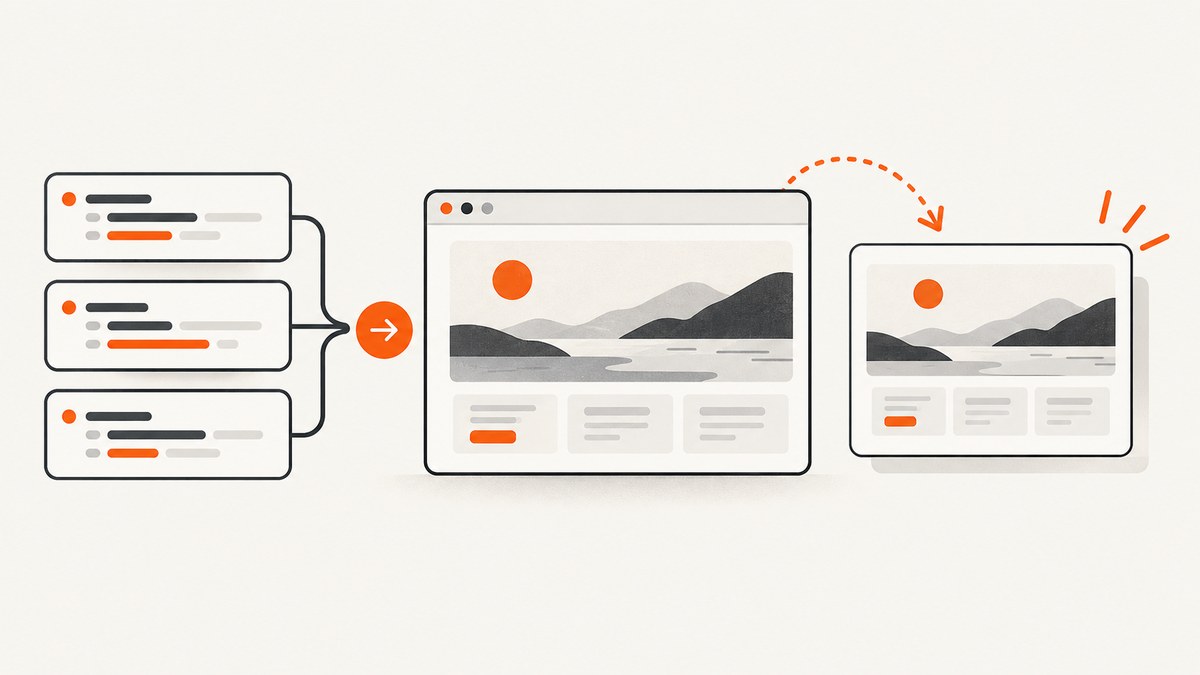
Use cy.screenshot() at the point in your Cypress test where you want to preserve the UI state. You can capture the current viewport, the entire page, a single element, or the Cypress runner. Cypress also takes screenshots automatically for failed tests during cypress run.
This guide shows the complete workflow: writing screenshots, selecting a capture mode, controlling filenames and folders, stabilizing dynamic pages, protecting sensitive content, finding CI artifacts, and diagnosing common failures. It also explains when an external screenshot API is a better fit than launching a browser in your test environment.
1. Capture a screenshot at a specific point
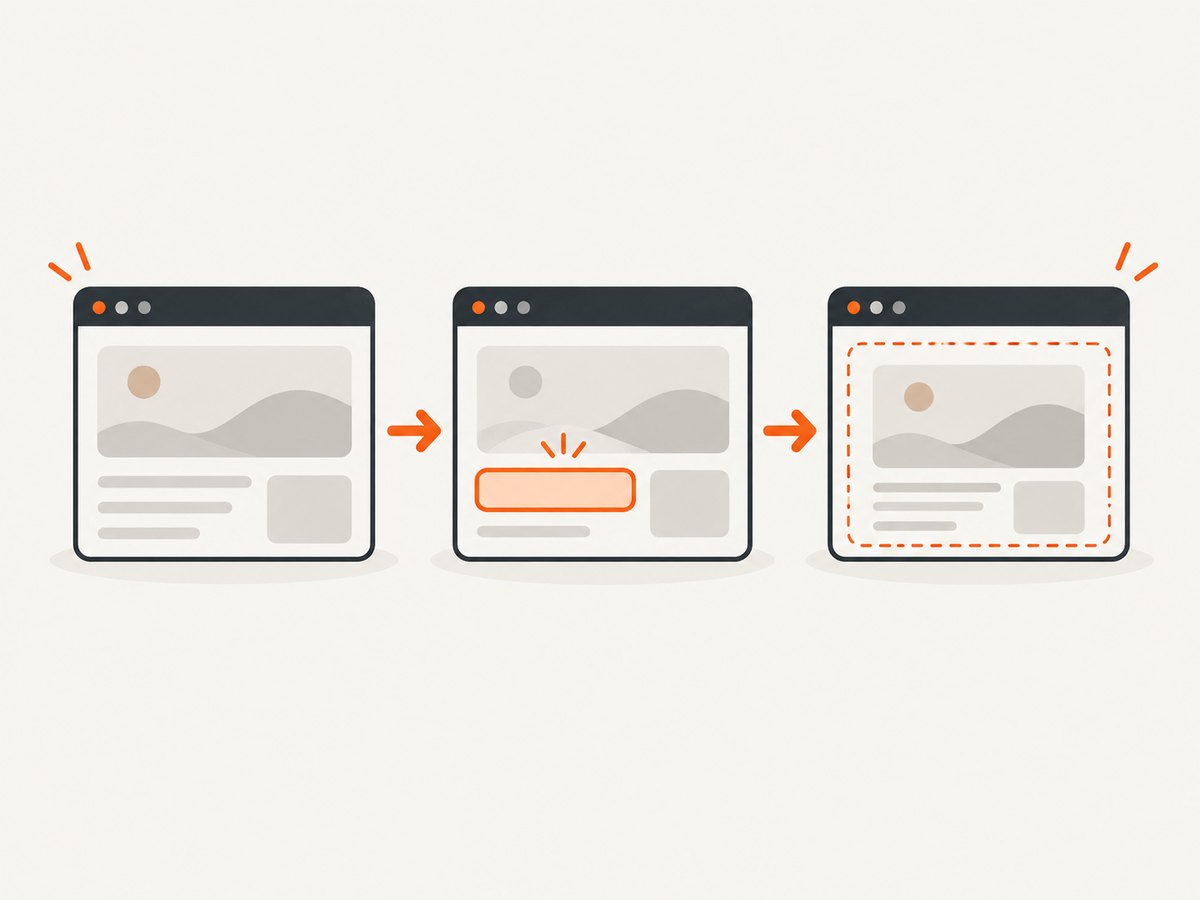
Call cy.screenshot() after the page has reached the state you want to document. Cypress waits for preceding commands, so assertions are useful for making the capture meaningful.
describe('Account page', () => {
  it('shows the account heading', () => {
    cy.visit('/account')
    cy.get('[data-cy=account-title]')
      .should('be.visible')
      .and('contain', 'Account')

    cy.screenshot('account-page')
  })
})
The name is optional. Without one, Cypress derives a name from the spec, suite, and test. A slash in the name creates a directory below the screenshots folder:
cy.screenshot('account/regression/desktop')The screenshot command is asynchronous and takes about 100 ms according to the Cypress API documentation. The application can therefore change between the command being issued and the image being written. A capture is evidence of the rendered state around that point, not a frame-perfect replay of the command invocation. The Command Log might also still be rendering when the image is captured.
2. Capture one element instead of the whole viewport
Chain screenshot() from a command that yields a DOM element. This is useful for a card, invoice, chart, or component whose pixels matter more than the surrounding page.
it('captures the first blog post card', () => {
  cy.visit('/blog')
  cy.get('.post-card').first().should('be.visible').screenshot('first-post-card')
})
Element captures can include extra space with padding. You can also crop with clip, which accepts pixel coordinates and dimensions:
cy.get('[data-cy=invoice]').screenshot('invoice', {
  padding: 16,
  clip: { x: 0, y: 0, width: 900, height: 650 }
})
Use element captures when the selector is stable. Prefer dedicated attributes such as data-cy over classes that are likely to change during a redesign.
3. Choose viewport, full-page, runner, or element capture
The capture option controls what Cypress puts in the image.
| Mode | What it contains | Typical use |
|---|---|---|
viewport |
The currently visible application viewport | Assertions, responsive layouts, modal states |
fullPage |
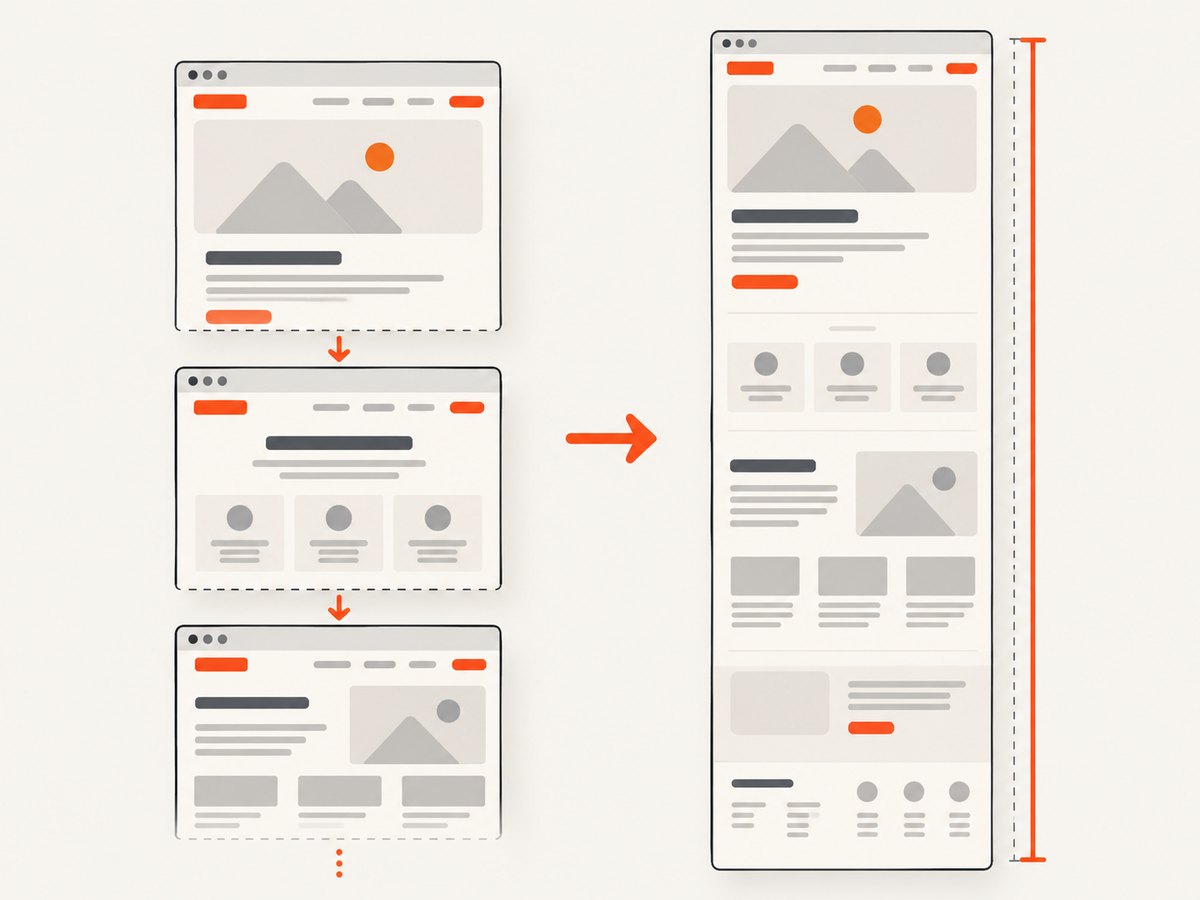
The application from top to bottom; Cypress scrolls and stitches captures | Long pages, reports, landing pages |
runner |
The browser viewport plus the Cypress Command Log | Debugging a failure with test-runner context |
| Element | The element yielded by a Cypress command | Components, cards, tables, invoices |
cy.screenshot('visible-dashboard', { capture: 'viewport' })
cy.screenshot('complete-dashboard', { capture: 'fullPage' })
cy.screenshot('debug-context', { capture: 'runner' })
Automatic failure screenshots are coerced to runner, so they include Cypress context even when your manual captures use another mode.
4. Control viewport and responsive screenshots
Set a fixed viewport before visiting the page when screenshots will be compared across runs or used as visual evidence. A stable browser size reduces differences caused by responsive breakpoints.
it('captures the mobile navigation', () => {
  cy.viewport(390, 844)
  cy.visit('/')
  cy.get('[data-cy=menu-button]').click()
  cy.get('[data-cy=mobile-nav]').should('be.visible')
  cy.screenshot('navigation/mobile')
})

it('captures the desktop navigation', () => {
  cy.viewport(1440, 900)
  cy.visit('/')
  cy.screenshot('navigation/desktop')
})
For repeatable visual work, keep the browser, operating system, fonts, viewport, locale, timezone, test data, and network responses consistent. Cypress captures images but does not compare them. Add a separate visual-testing workflow when you need pixel or perceptual comparisons.
5. Stabilize the page before capture
A screenshot is only useful if the page has finished rendering the state you intend to inspect. Wait for a meaningful selector rather than relying on an arbitrary delay.
cy.visit('/reports')
cy.get('[data-cy=report-table]', { timeout: 20000 }).should('be.visible')
cy.get('[data-cy=loading-spinner]').should('not.exist')
cy.screenshot('reports/ready')
When an animation or timer changes pixels during capture, Cypress can disable timers and CSS animations through the screenshot options. You can also run a callback immediately before capture to adjust the DOM synchronously.
cy.screenshot('checkout/settled', {
  disableTimersAndAnimations: true,
  onBeforeScreenshot: ($el) => {
    $el.find('[data-cy=live-clock]').text('12:00:00')
  },
  onAfterScreenshot: ($el) => {
    $el.find('[data-cy=live-clock]').text('')
  }
})
Use a fixed test fixture for timestamps, random IDs, rotating promotions, and network data. If a third-party widget still changes, hide it or stub the request before taking the image.
6. Hide sensitive data and crop noisy content
The blackout option paints matching elements black in non-runner captures. It is intended for secrets and personal information, such as email addresses, account numbers, or user avatars.
cy.screenshot('profile/redacted', {
  blackout: [
    '[data-sensitive=email]',
    '[data-sensitive=account-number]'
  ]
})
Blackout selectors do not apply to runner captures. If the runner image can contain sensitive values, capture the application viewport separately or remove the values from the fixture before the test runs. Treat masking as a safeguard and review the resulting files before publishing them.
Use scale when you need a smaller or larger output image, and overwrite: true when a stable filename should be replaced. By default, duplicate names receive a number suffix so earlier artifacts are preserved.
cy.screenshot('summary/latest', {
  scale: true,
  overwrite: true
})
7. Name, locate, and retain screenshot files
Cypress writes screenshots to cypress/screenshots by default. A named screenshot uses that name; an unnamed screenshot uses the spec and test titles. Nested names create nested paths below the screenshots directory.
During cypress run, Cypress clears screenshots, videos, and downloads before the run by default because trashAssetsBeforeRuns is true. Set it to false when a pipeline must retain assets from earlier runs.
// cypress.config.js
const { defineConfig } = require('cypress')

module.exports = defineConfig({
  e2e: {
    trashAssetsBeforeRuns: false
  }
})
Generated assets are commonly excluded from source control:
cypress/screenshots/
cypress/videos/
cypress/downloads/
If your team intentionally stores visual baselines, keep that policy separate from transient failure artifacts and document how files are reviewed and updated.
8. Automatic screenshots for failed tests
When you run Cypress with cypress run, it automatically captures a screenshot after a test fails. The screenshotOnRunFailure setting defaults to true. Failure filenames append (failed) to the test-based name. Cypress does not automatically take failure screenshots in cypress open.
Keep the default for CI diagnostics, or disable it when screenshots contain data you cannot retain:
// cypress.config.js
const { defineConfig } = require('cypress')

module.exports = defineConfig({
  screenshotOnRunFailure: false
})
The same setting can be changed through the Screenshot API:
Cypress.Screenshot.defaults({ screenshotOnRunFailure: false })In CI, upload the screenshots directory as a job artifact after the test command, even when the test exits nonzero. Most CI systems require an “always run” or equivalent artifact step so a failed test’s evidence is not discarded.
9. Screenshots and video answer different questions
A screenshot records one rendered state. Cypress video records a sequence of events and is disabled by default. Enable video for cypress run when temporal context is more useful than a single image:
// cypress.config.js
const { defineConfig } = require('cypress')

module.exports = defineConfig({
  video: true
})
Video is a separate artifact from cy.screenshot(); enabling it does not change how manual screenshots are named or captured.
10. A complete Cypress example
describe('Billing report', () => {
  beforeEach(() => {
    cy.viewport(1440, 1000)
    cy.intercept('GET', '/api/billing', { fixture: 'billing.json' }).as('billing')
    cy.visit('/billing')
    cy.wait('@billing')
  })

  it('captures the full report', () => {
    cy.get('[data-cy=billing-report]').should('be.visible')
    cy.screenshot('billing/full-report', {
      capture: 'fullPage',
      disableTimersAndAnimations: true,
      blackout: ['[data-sensitive=customer-email]']
    })
  })

  it('captures only the totals card', () => {
    cy.get('[data-cy=totals-card]').should('be.visible').screenshot('billing/totals', {
      padding: 12
    })
  })
})
11. Troubleshooting common screenshot problems
The image shows a loading spinner
Cause: The screenshot command ran before the application finished loading. Fix: Wait for the API alias, assert the final selector is visible, and assert the loading indicator no longer exists.
The full-page image has duplicated or missing sections
Cause: Lazy content, sticky elements, or layout changes while Cypress scrolls and stitches the page. Fix: wait for all important content, disable animations, and test the page at a fixed viewport. Make sticky headers visually stable during capture.
Every run creates a new numbered file
Cause: Cypress protects existing files when names collide. Fix: use a unique name, or set overwrite: true when replacement is intentional.
The screenshot cannot be found in CI
Cause: The job did not upload cypress/screenshots, or a cleanup step removed it. Fix: configure CI artifact collection to run after failures and check trashAssetsBeforeRuns.
Blackout did not hide a value
Cause: The selector did not match, or the capture was a runner image. Fix: verify the selector with cy.get(), use an application capture, and inspect the resulting artifact.
The screenshot differs between local and CI
Cause: Different fonts, viewport dimensions, browser versions, locale, timezone, data, or animation timing. Fix: pin the environment, set the viewport explicitly, freeze data, and disable timers and animations.
I expected screenshot comparison, but nothing was compared
Cause: cy.screenshot() only captures an image. Fix: add a visual-testing or image-comparison tool and keep capture and comparison as separate steps.
12. Or skip the browser setup
If you need a screenshot of a URL from a build job, content pipeline, monitoring task, or AI workflow, ScreenshotNeo provides a website screenshot API and MCP server. It accepts one GET request and returns PNG, JPEG, WebP, or PDF. The API also supports full-page capture, CSS-selector elements, device presets, custom viewports, retina scale, dark mode, custom CSS and JavaScript, clicks, selector or network-idle waits, request blocking, headers, cookies, user agents, authorization, timezone, geolocation, transparent backgrounds, resizing, caching, signed links, asynchronous jobs, bulk capture of up to 100 URLs, usage reporting, and an OpenAPI specification. Parameter names used by other screenshot APIs also work, which can simplify migration. See the ScreenshotNeo documentation for the complete option list.
curl -G "https://api.screenshotneo.com/v1/shot" -d access_key=YOUR_API_KEY --data-urlencode url=https://stripe.com -o shot.webpimport requests
r = requests.get(
"https://api.screenshotneo.com/v1/shot",
params={"access_key": "YOUR_API_KEY", "url": "https://stripe.com"},
timeout=90,
)
r.raise_for_status()
open("shot.webp", "wb").write(r.content)const q = new URLSearchParams({ access_key: 'YOUR_API_KEY', url: 'https://stripe.com' });
const res = await fetch(`https://api.screenshotneo.com/v1/shot?${q}`);
if (!res.ok) throw new Error(`Screenshot failed: ${res.status}`);
const buffer = Buffer.from(await res.arrayBuffer());
await fs.promises.writeFile('shot.webp', buffer);Cookie and consent banners, newsletter popups, and chat widgets are removed before the shot. Bot checks and CAPTCHAs, blank pages, timeouts, failed loads, and cache hits are not billed; response headers identify the page verdict and whether the request was billed with X-Page-Verdict and X-Billed. The MCP server exposes take_screenshot, get_page_info, and capture_pdf for Claude, Cursor, and other MCP clients. The free plan includes 1,000 screenshots each month with no card; paid plans start at $5 for 3,000 screenshots. Create a free ScreenshotNeo account.
13. Performance, reliability, and cost considerations
- Keep captures purposeful: Full-page stitching and large retina images create bigger files than viewport or element captures.
- Reduce nondeterminism: Fixture API data, fixed viewports, stable fonts, and disabled animations make retries more useful.
- Separate evidence from baselines: Failure artifacts can be retained briefly while approved visual baselines live in a controlled review process.
- Use retries carefully: A retry can show whether a page is flaky, but it does not repair unstable test data or animation timing.
- Control CI storage: Upload only the screenshots needed for diagnosis, and apply retention rules to large full-page images and videos.
- Know what Cypress does not provide: Screenshot capture itself performs no visual comparison, and Cypress does not turn a screenshot into a PDF or remote URL capture service.
14. FAQ
What is the shortest Cypress screenshot command?
cy.screenshot(). Add a name or options when you need predictable output.
Can Cypress capture a single DOM element?
Yes. Chain .screenshot() from a command that yields the element, such as cy.get('.card').screenshot().
Does Cypress take screenshots when I use cypress open?
Automatic failure screenshots apply to cypress run. In open mode, call cy.screenshot() yourself.
Where are screenshots saved?
The default directory is cypress/screenshots, unless your project configuration changes it.
Can a screenshot prove that two pages are identical?
No. Cypress captures the images; a separate visual-comparison workflow is required to evaluate differences.
When should I use an API instead of Cypress?
Use Cypress when the screenshot belongs to an end-to-end test and depends on actions in your application. Use an API such as ScreenshotNeo when you need repeatable URL capture from a service, content pipeline, scheduled job, or MCP-enabled AI agent.
For the Cypress API details and current configuration names, consult the cy.screenshot() reference, Cypress screenshots and videos documentation, and the Screenshot API reference.


