How to Create Website Share Thumbnails With Open Graph Images
Add Open Graph tags, generate a reliable share image, meet LinkedIn requirements, and fix missing thumbnails with this complete developer guide.
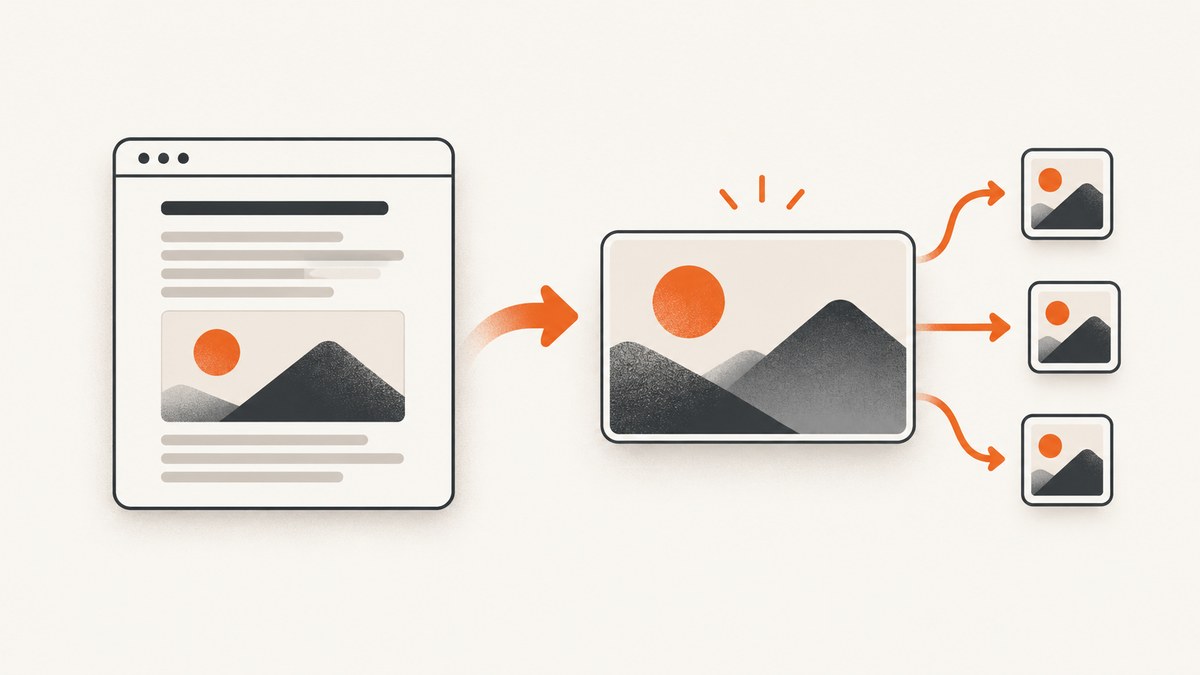
A website share thumbnail comes from metadata in your page’s HTML <head>. Add the Open Graph properties og:title, og:type, og:image, and og:url, then host a stable image that the target platform’s crawler can fetch. Add og:description and og:image:alt for a more complete implementation.
The smallest useful implementation looks like this:
<head>
  <title>Example article</title>
  <meta property="og:title" content="Example article">
  <meta property="og:type" content="website">
  <meta property="og:url" content="https://example.com/article">
  <meta property="og:image" content="https://example.com/images/article-share.jpg">
  <meta property="og:description" content="A short description of the page.">
  <meta property="og:image:alt" content="A concise description of the share image">
</head>
This guide explains how to create the image, add metadata in plain HTML and common frameworks, satisfy LinkedIn’s published limits, automate screenshots when appropriate, and diagnose previews that do not appear.
1. Understand what Open Graph controls
Open Graph is a metadata protocol. It does not create an image for you; it tells a sharing service which title, URL, description, and image represent a page. The protocol defines four required properties: og:title, og:type, og:image, and og:url. The canonical URL in og:url acts as the page’s permanent graph identifier. The protocol also recommends an image alternative text value when og:image is present. See the Open Graph protocol.
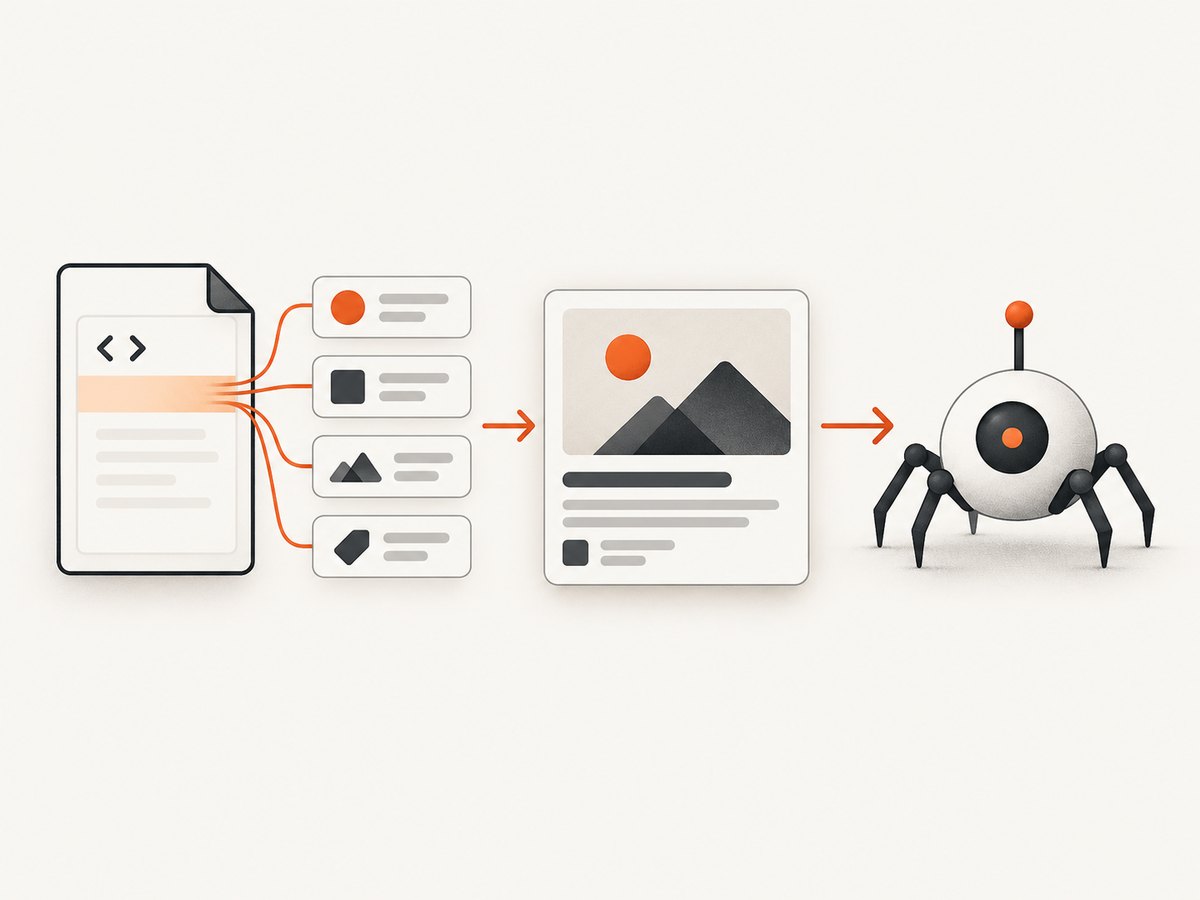
Use an absolute HTTPS URL for both the page and image. A relative value such as /images/share.jpg can fail because crawlers resolve metadata differently or cannot resolve it outside your site context. Keep the image URL stable: changing the file path after a post is shared can leave older crawlers with a broken asset.
Required and recommended properties
| Property | Purpose | Example |
|---|---|---|
og:title |
Headline shown in a preview | How to Create Share Thumbnails |
og:type |
Object type, usually website or article |
article |
og:url |
Canonical page URL | https://example.com/guide |
og:image |
Absolute URL of the preview image | https://example.com/images/guide.jpg |
og:description |
Short summary used by consumers that display one | A practical implementation guide. |
og:image:alt |
Accessible description of the image | Browser page becoming a share card |
2. Design and generate the share image
Make the image communicate the page topic at small sizes. Use a clear subject, strong contrast, and enough empty space for platform cropping. Do not place essential text close to the edges: different services may crop the same source into different card shapes.
LinkedIn’s sharing guidance specifies a maximum file size of 5 MB, minimum dimensions of 1200 × 627 pixels, and a recommended 1.91:1 aspect ratio. Images narrower than 401 pixels are displayed as a thumbnail. These numbers apply to LinkedIn’s sharing module, not universally to every social network. Check each target platform’s current documentation before standardizing one asset. LinkedIn also warns that a compliant image may not appear when a crawler is blocked or the file is in a protected directory. See LinkedIn’s website sharing guidance.
Export checklist
- Export at least 1200 × 627 pixels for LinkedIn.
- Keep the encoded file below 5 MB for LinkedIn.
- Use a publicly reachable HTTPS URL with an image MIME type such as
image/jpeg,image/png, orimage/webp. - Prefer a predictable filename and long cache lifetime for a finalized asset.
- Write useful
og:image:alttext that describes the visual, not a marketing caption.
3. Add tags to a static HTML page
Place the tags inside <head>, before the document body. The following file can be saved as index.html and opened from a deployed HTTPS site:
<!doctype html>
<html lang="en">
<head>
  <meta charset="utf-8">
  <meta name="viewport" content="width=device-width, initial-scale=1">
  <title>How to Create Share Thumbnails</title>
  <meta property="og:title" content="How to Create Share Thumbnails">
  <meta property="og:type" content="article">
  <meta property="og:url" content="https://example.com/guides/share-thumbnails">
  <meta property="og:image" content="https://example.com/images/share-thumbnails.jpg">
  <meta property="og:image:alt" content="A web page turning into a social share thumbnail">
  <meta property="og:description" content="Add Open Graph metadata and create reliable website previews.">
  <meta property="og:image:type" content="image/jpeg">
  <meta property="og:image:width" content="1200">
  <meta property="og:image:height" content="627">
  <meta property="og:image:secure_url" content="https://example.com/images/share-thumbnails.jpg">
</head>
<body>...</body>
</html>og:image:type, og:image:width, og:image:height, and og:image:secure_url are optional structured properties. Keep each structured property immediately after the og:image it describes.
Multiple images
You may provide more than one og:image. Consumers prefer the first value from top to bottom when values conflict. Put the complete structured metadata for image one directly after its root tag, then start image two with another og:image tag:
<meta property="og:image" content="https://example.com/images/primary.jpg">
<meta property="og:image:alt" content="Primary article illustration">
<meta property="og:image:width" content="1200">
<meta property="og:image:height" content="627">
<meta property="og:image" content="https://example.com/images/fallback.jpg">
<meta property="og:image:alt" content="Fallback article illustration">
4. Implement Open Graph in application frameworks
Next.js App Router
import type { Metadata } from 'next';

export const metadata: Metadata = {
  title: 'How to Create Share Thumbnails',
  openGraph: {
    title: 'How to Create Share Thumbnails',
    type: 'article',
    url: 'https://example.com/guides/share-thumbnails',
    description: 'Add Open Graph metadata and create reliable previews.',
    images: [{
      url: 'https://example.com/images/share-thumbnails.jpg',
      width: 1200,
      height: 627,
      alt: 'A web page turning into a social share thumbnail'
    }]
  }
};
React or another client-rendered app
Make sure tags are present in the server-rendered HTML returned for the URL. Adding them only after JavaScript runs can fail when a crawler does not execute that JavaScript. Use your framework’s server metadata facility, document template, or an edge-rendered response.
Express server template
app.get('/guides/share-thumbnails', (req, res) => {
  res.render('article', {
    title: 'How to Create Share Thumbnails',
    canonical: 'https://example.com/guides/share-thumbnails',
    shareImage: 'https://example.com/images/share-thumbnails.jpg',
    description: 'Add Open Graph metadata and create reliable previews.'
  });
});
In the template, escape values before inserting them into attributes. A title containing a quote must not break the HTML.
5. Verify the rendered response
- Request the public URL with a normal HTTP client and inspect the returned HTML.
- Confirm every Open Graph tag is inside
<head>, not only in a client-side DOM after hydration. - Open the image URL directly. Confirm it returns the intended bytes, a successful status, and a correct content type without authentication.
- Check dimensions, aspect ratio, and file size against the target platform’s rules.
- If there are multiple images, verify the intended image is first and its structured properties follow it.
- Share the URL again after deployment. A platform may retain an older preview, so allow for its cache to expire or use its documented refresh workflow.
curl -I https://example.com/images/share-thumbnails.jpg
curl -sL https://example.com/guides/share-thumbnails | grep -i 'og:'
6. Automate a page screenshot as the Open Graph image
A screenshot works when the share card should reflect the rendered page or a specific component. Browser automation gives control over viewport, fonts, lazy loading, authentication, and timing, but it also adds a browser runtime to your build or request path.
Playwright example
import { chromium } from 'playwright';

const browser = await chromium.launch();
const page = await browser.newPage({
  viewport: { width: 1200, height: 627 },
  deviceScaleFactor: 1
});
await page.goto('https://example.com/guides/share-thumbnails', {
  waitUntil: 'networkidle'
});
await page.screenshot({
  path: 'public/images/share-thumbnails.jpg',
  type: 'jpeg',
  quality: 85,
  fullPage: false
});
await browser.close();
Use a fixed viewport for repeatable composition. Wait for a selector when the hero is rendered asynchronously, and load web fonts before capture. For a full page image, use fullPage: true, then create a separate 1.91:1 crop if the destination expects a landscape card. Avoid capturing transient cookie banners, newsletter popups, or chat widgets in a public preview.
7. Or skip the browser setup
ScreenshotNeo is a website screenshot API and MCP server. It can capture PNG, JPEG, WebP, or PDF with one request, including full-page shots, an element selected by CSS, dark mode, device presets, custom viewports, retina scale, custom CSS and JavaScript, waits, blocked resources, headers, cookies, user agents, timezone, geolocation, resizing, caching, signed links, asynchronous jobs, bulk capture, and usage reporting. Its consent step accepts cookie banners and removes more than 60 known consent platforms, newsletter popups, and chat widgets before capture; each step can be disabled.

Read the ScreenshotNeo API documentation for all options. The following calls return the image bytes directly:
cURL
curl -G "https://api.screenshotneo.com/v1/shot" -d access_key=YOUR_API_KEY --data-urlencode url=https://example.com/guides/share-thumbnails -o share.webpPython
import requests
r = requests.get("https://api.screenshotneo.com/v1/shot", params={"access_key": "YOUR_API_KEY", "url": "https://example.com/guides/share-thumbnails"}, timeout=90)
r.raise_for_status()
open("share.webp", "wb").write(r.content)
Node.js
const q = new URLSearchParams({ access_key: 'YOUR_API_KEY', url: 'https://example.com/guides/share-thumbnails' });
const res = await fetch(`https://api.screenshotneo.com/v1/shot?${q}`);
if (!res.ok) throw new Error(`Screenshot failed: ${res.status}`);
const fs = await import('node:fs/promises');
await fs.writeFile('share.webp', Buffer.from(await res.arrayBuffer()));
Only clean shots are billed. Bot checks or CAPTCHAs, blank pages, timeouts, failed loads, and cache hits cost nothing, and every response reports the result in X-Page-Verdict and X-Billed headers. An MCP server exposes take_screenshot, get_page_info, and capture_pdf to Claude, Cursor, and other MCP clients. Free usage includes 1,000 shots per month without a card; paid plans start at $5 for 3,000 shots. Create a free ScreenshotNeo account.
8. Troubleshooting missing or incorrect thumbnails
| Symptom | Likely cause | Fix |
|---|---|---|
| No image appears | Crawler cannot fetch the image or it is protected | Serve it publicly over HTTPS, remove authentication and hotlink blocks, and test the direct URL. |
| Wrong image appears | Another og:image is earlier in the document |
Move the intended image first and keep its structured properties adjacent. |
| Old preview persists | Platform cache | Redeploy the metadata, then use the platform’s refresh or debugger workflow when available. |
| Tags are absent in source | Tags are injected only after client hydration | Render metadata on the server or in the initial HTML template. |
| Image is cropped badly | Aspect ratio differs from the destination card | Design a landscape source near the platform’s recommendation and keep important content centered. |
| LinkedIn rejects the image | It is under 1200 × 627, over 5 MB, or below 401 pixels wide | Resize and recompress, then verify the public response and dimensions. |
| Preview shows a consent banner | Screenshot captured before consent handling | Accept or remove the banner before capture, or use ScreenshotNeo’s consent cleanup. |
9. Performance, reliability, and cost considerations
Store finalized images on a CDN and cache them aggressively. Generate dynamic screenshots during a build or background job instead of every request to your page. If the page changes frequently, use a versioned filename or query string so you can invalidate the old asset deliberately.
Browser captures can fail because of slow third-party scripts, bot checks, lazy images, fonts, or network-idle never being reached. Set explicit timeouts, wait for a meaningful selector, and retain a known-good fallback image. For high volume, queue jobs, limit concurrency, and record the returned verdict and billing headers. A screenshot API can reduce browser maintenance, but account for API calls, image storage, and platform cache behavior in your design.
10. Open Graph implementation checklist
- Required properties are present in the initial
<head>. og:urlmatches the canonical URL exactly.og:imageis absolute, stable, public, and HTTPS.og:image:altdescribes the visual.- Image dimensions and size meet the destination’s requirements.
- The first image tag is the preferred image.
- Direct image requests return successful status and the correct MIME type.
- A fallback image exists for screenshot or rendering failures.
- Preview is checked after deployment.
FAQ
Does Open Graph replace the HTML title tag?
No. Keep a normal <title> for browsers and search results, and use og:title for social consumers.
Can I use one image for every platform?
You can, but requirements and cropping differ. LinkedIn’s published values are 1200 × 627 minimum, 1.91:1 recommended, and 5 MB maximum; other platforms may use different rules.
Should og:type be website or article?
Use the type that describes the object. A general landing page commonly uses website; an editorial post commonly uses article.
Why is og:image:alt useful?
It supplies a concise text alternative for the image and is recommended by the Open Graph protocol whenever an image is specified.
Can a PDF be the Open Graph image?
No. og:image should point to an image resource. Link to the PDF separately and provide a raster preview image for sharing.


