How to Create a Shareable Screenshot Link Online
Capture, redact, upload, and verify a screenshot link with ShareX, Dropbox, custom hosting, or ScreenshotNeo.
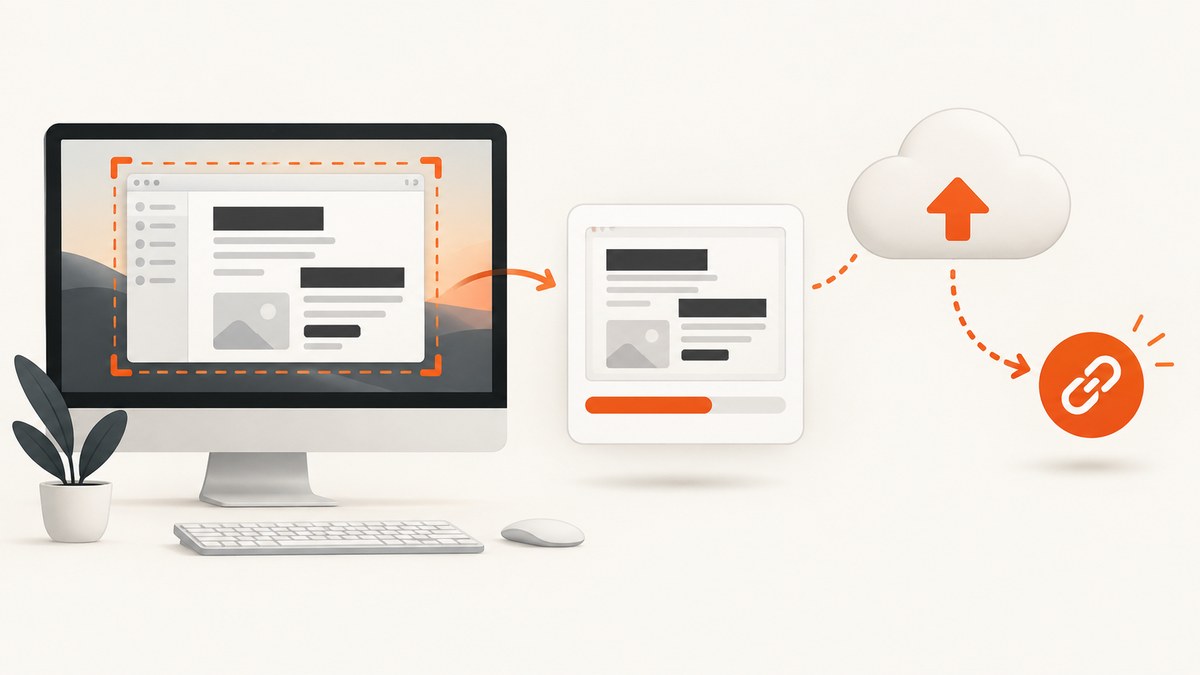
A shareable screenshot link needs two parts: an image and an online destination that serves it. Capture the screen, remove secrets and personal data, upload the image, copy the generated URL, then test that URL in a signed-out or private browser window before sending it.
1. The reliable workflow
- Capture only what the recipient needs. Select a region or window instead of the entire desktop when possible.
- Redact sensitive details. Remove API keys, passwords, session cookies, email addresses, private messages, account IDs, customer data, and internal URLs. Inspect the edited image at full size before uploading.
- Choose a destination. Use an automatic screenshot uploader, managed cloud storage, or a host you control.
- Upload and copy the URL. The uploader or storage service should provide a link after the upload completes.
- Verify access. Open the link while signed out, in a private window, or as the intended recipient. Check whether the link is public, view-only, password protected, or restricted to named accounts.
- Record removal controls. Know how to delete the image or disable the link before sharing it in a ticket, chat, or document.
A capture application alone does not define who can access an image or how long its URL works. Those rules come from the upload destination.
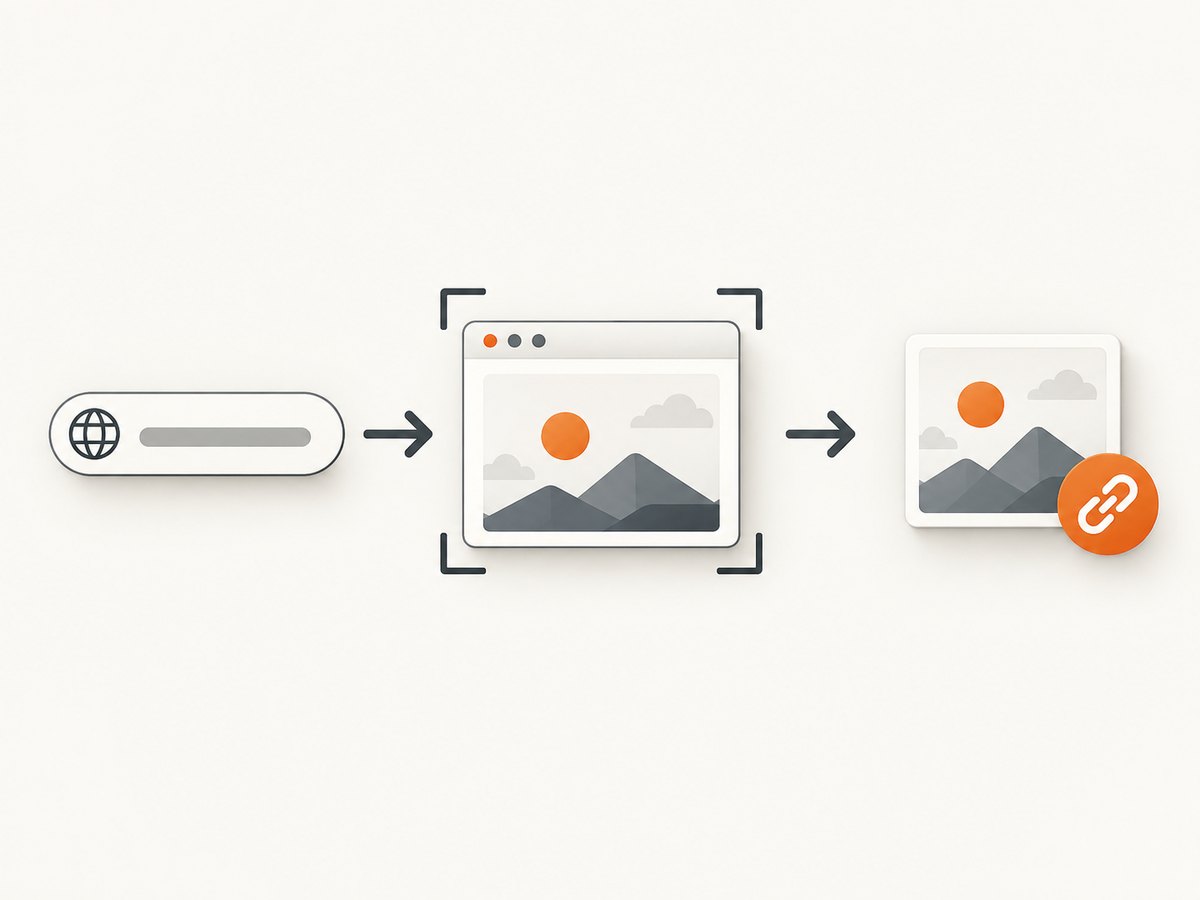
2. Fastest desktop method with ShareX
ShareX is a free, open-source Windows utility that can capture, edit, redact, upload, and copy the resulting URL. Its automatic workflow requires a configured image destination.
Configure automatic upload
- Install and open ShareX.
- Open Destinations and configure the image host you intend to use.
- In After capture tasks, enable Upload image to host.
- In After upload tasks, enable Copy URL to clipboard.
- Capture a non-sensitive test image and open the copied URL.
ShareX documents this sequence as: “Configure an image destination, enable Upload image to host under After capture tasks, then enable Copy URL to clipboard under After upload tasks.” See the official ShareX upload guide for destination and deletion considerations.
Use the editor before upload
Open the capture in ShareX’s editor and blur, pixelate, cover, or crop private information. The ShareX image editor documentation recommends checking the redacted area before uploading. Zoom in and verify that text cannot be recovered from the edges of a blur or crop.
When ShareX is the right choice
- You work on Windows and want a keyboard-driven workflow.
- You already have an image host configured.
- You want capture, annotation, upload, and clipboard copying in one desktop tool.
ShareX does not automatically make every destination public or permanent. The configured host determines account requirements, retention, privacy, and deletion.
3. Create a managed link with Dropbox
Dropbox can create view-only links that recipients can open without a Dropbox account. Dropbox’s documented password and expiration controls are available on Professional, Essentials, Standard, Advanced, Business, Business Plus, and Enterprise plans; availability depends on the account and plan.
- Upload the screenshot to Dropbox.
- Select the file and choose Share or Copy link.
- Set the link to view-only when editing is unnecessary.
- If your plan supports them, configure a password and expiration date.
- Copy the link and test it in a private window.
Link settings apply to people using that link. Someone who already has separate access can retain permissions even when link settings change. Review the current Dropbox link-sharing documentation before distributing sensitive material.
4. Use a self-hosted or custom destination
A custom uploader is useful when your team controls storage, retention, authentication, or the domain used in links. ShareX supports custom uploader configurations for services you operate or configure yourself; it is a setup path rather than a one-click generic host.
Minimum design for a custom screenshot link service
- Accept an authenticated upload over HTTPS.
- Generate an unpredictable object name rather than exposing a local filename.
- Store the original image outside the web root or behind an access layer.
- Return a URL only after the object is durably written.
- Define retention and deletion behavior.
- Record access logs without putting secrets in query strings.
- Use signed, expiring URLs when the image should not be public.
Do not call a link private merely because its URL is hard to guess. Anyone who receives a bearer URL may be able to open or forward it.
5. Privacy and access checklist
| Question | What to verify |
|---|---|
| Does it contain a secret? | Remove keys, tokens, passwords, recovery codes, and authenticated URLs. |
| Does it contain personal data? | Redact names, email addresses, faces, messages, customer records, and account identifiers. |
| Who can open the link? | Check public, organization-only, named-user, or password-protected access. |
| Can the link expire? | Confirm that expiration is supported on your destination and plan. |
| Can you revoke it? | Find the delete-file or disable-link control before sharing. |
| Will the recipient need an account? | Test in a signed-out browser session. |
6. Or skip the browser setup
ScreenshotNeo captures a URL through one API request, so you can automate the capture step and then place the returned image in the storage or ticket workflow your team already uses. The ScreenshotNeo API documentation lists the options and response headers.
curl -G "https://api.screenshotneo.com/v1/shot" -d access_key=YOUR_API_KEY --data-urlencode url=https://stripe.com -o shot.webpimport requests
r = requests.get("https://api.screenshotneo.com/v1/shot", params={"access_key": "YOUR_API_KEY", "url": "https://stripe.com"}, timeout=90)
r.raise_for_status()
open("shot.webp", "wb").write(r.content)const q = new URLSearchParams({ access_key: 'YOUR_API_KEY', url: 'https://stripe.com' });
const res = await fetch(`https://api.screenshotneo.com/v1/shot?${q}`);
if (!res.ok) throw new Error(`Screenshot failed: ${res.status}`);
const image = Buffer.from(await res.arrayBuffer());
await fs.promises.writeFile('shot.webp', image);After saving the image, upload shot.webp to your approved storage and share that storage URL. ScreenshotNeo can also create signed links for public <img> tags when that is the embedding workflow you need.
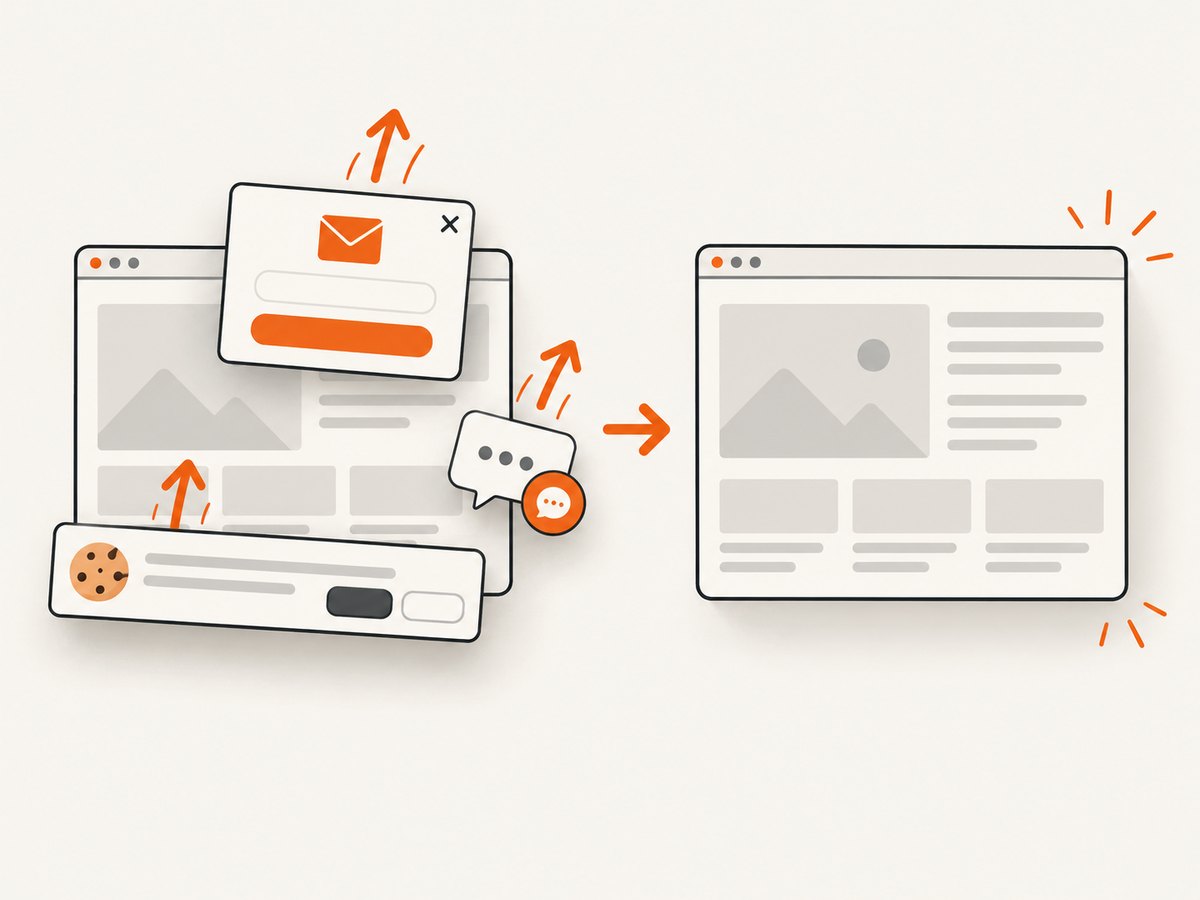
Cookie banners, newsletter popups, and chat widgets are removed before the shot. Bot checks, blank pages, failed loads, timeouts, and cache hits are not billed, and response headers identify the page verdict and billing state. An MCP server provides take_screenshot, get_page_info, and capture_pdf tools for Claude, Cursor, and other MCP clients. The Free plan includes 1,000 screenshots per month with no card; paid plans start at $5 for 3,000 screenshots.
Create a free ScreenshotNeo account and use the returned image in the sharing destination that matches your access and retention requirements.
7. Options for automated and repeatable links
Capture settings
- Full page: capture the complete document and load lazy images before capture.
- Element: capture one CSS-selected element when a full page would expose unrelated data.
- Viewport: choose a device preset or any width and height.
- Rendering: use dark mode, retina scale, transparent backgrounds, image resizing, custom CSS, or JavaScript as needed.
- Timing: wait for a selector, a fixed delay, or network idle.
- Interaction: click an element before capture and hide selectors that should not appear.
- Network: block ads, trackers, requests, or resource types; provide headers, cookies, a user agent, or an Authorization header where permitted.
- Location: set timezone and geolocation for region-dependent pages.
PDF and batch workflows
For documents, ScreenshotNeo supports PDF paper size, margins, landscape mode, and page ranges. For recurring reports, asynchronous jobs with signed webhooks avoid holding a request open. Bulk capture supports up to 100 URLs per call, and a usage API helps reconcile consumption.
8. Troubleshooting
| Symptom | Likely cause | Fix |
|---|---|---|
| The clipboard has no URL | ShareX’s copy-after-upload task is disabled or the upload failed. | Enable Copy URL to clipboard, inspect the upload log, and test the destination with a safe image. |
| The recipient gets a sign-in screen | The destination requires an account or organization membership. | Change the sharing setting, add the recipient, or choose a destination that supports anonymous view-only access. |
| The link shows a 404 | The file was deleted, expired, moved, or never finished uploading. | Check retention and expiration settings, confirm the upload completed, and generate a new link. |
| Private data remains visible | The wrong layer was redacted, or the image was uploaded before editing. | Open the local edited file at full size, cover the data completely, and upload the edited copy. |
| The automated page is blank | The page needs more time, JavaScript, authentication, or a different viewport. | Wait for a selector or network idle, provide required headers or cookies, or capture the relevant element. |
| A bot-check page was captured | The target challenged automated browsing. | Do not distribute it as the requested page. Review access requirements and use a permitted authenticated workflow. |
| The screenshot is too large | Full-page or retina capture produced more pixels than necessary. | Capture an element, reduce viewport or scale, resize the output, or use WebP. |
| A page varies between captures | Ads, trackers, animations, geolocation, or time-dependent content changed. | Block unnecessary resources, set timezone and geolocation, wait for a stable selector, and hide animated areas. |
9. Performance, reliability, and cost
- Reduce work: Capture the smallest required region, block ads and trackers, and avoid loading unnecessary resource types.
- Make timing explicit: A selector wait is usually more repeatable than an arbitrary short delay; network idle can be slower on pages with persistent connections.
- Control cache behavior: A suitable cache TTL can reduce repeated rendering. Confirm whether a cached result is acceptable for your use case.
- Use asynchronous jobs: Signed webhooks are better for slow pages, PDFs, and large batches than long synchronous requests.
- Retry carefully: Retry transient network failures with backoff, but inspect the response and page verdict before retrying a bot check or a deterministic page error.
- Track billing: ScreenshotNeo responses include
X-Page-VerdictandX-Billedheaders. Cache hits and failed or unusable captures are not billed under the product’s clean-shot billing rules. - Choose storage separately: API capture cost and image-hosting retention are different concerns. Check your destination’s storage, bandwidth, password, expiration, and deletion policies.
10. FAQ
Can I make a screenshot link without installing software?
Yes. Use a cloud storage service’s upload and sharing controls, or automate capture with a screenshot API and upload the returned image.
Does a shareable link mean the image is public?
Not necessarily. A link may require an account, password, organization membership, or a signed token. Verify the destination’s effective permissions.
How long will a screenshot link work?
It depends on the destination’s retention and expiration settings. Do not promise permanence until you have checked those settings.
What is the safest way to share a screenshot?
Redact before upload, use the narrowest audience available, set an expiration when supported, and test the link as the recipient.
Can ScreenshotNeo host my permanent public image?
ScreenshotNeo returns the capture; store that image in the destination whose public, private, retention, and deletion controls fit your needs. It also supports signed links for public image tags.


