How to Create a URL Link for a JPG Image
Learn how to turn a JPG into a share link or direct image URL using Google Drive, Imgur, or cloud storage, then test access safely.
To create a URL for a JPG, upload the image to a service that hosts files, set the required access level, copy its link, and test that link where you plan to use it. A sharing link may open a file-view page, while a direct image URL loads the JPG itself. Choose the method based on which kind of link your destination accepts.
Choose the right kind of JPG link
| Goal | Best fit | What the recipient gets |
|---|---|---|
| Send someone a file to view or download | Google Drive sharing link | A hosted file page or download flow |
| Embed the image in HTML, Markdown, or an app | A host that provides a direct image address, such as Imgur | The JPG resource itself |
| Serve a recurring website asset | Google Cloud Storage or another object store | A predictable object URL, if public access is configured |
| Give temporary private access | A presigned object-storage URL | A URL that expires after a defined period |
Changing a JPG on your computer does not publish it. The file must be uploaded or shared by a service first.
Method 1: Create a share link with Google Drive
- Open Google Drive and upload the JPG.
- Select the file and choose Share.
- Under General access, select Anyone with the link if everyone who receives the URL should be able to open it.
- Leave the role as Viewer for ordinary sharing.
- Choose Copy link.
- Open the copied URL in a private or signed-out browser window to confirm the intended access.
Google’s sharing instructions explain that an “Anyone with the link” file can be opened by people who have the URL. The owner’s name and email can be visible on a shared file, and work or school administrators may restrict external sharing (Google Drive sharing guidance).
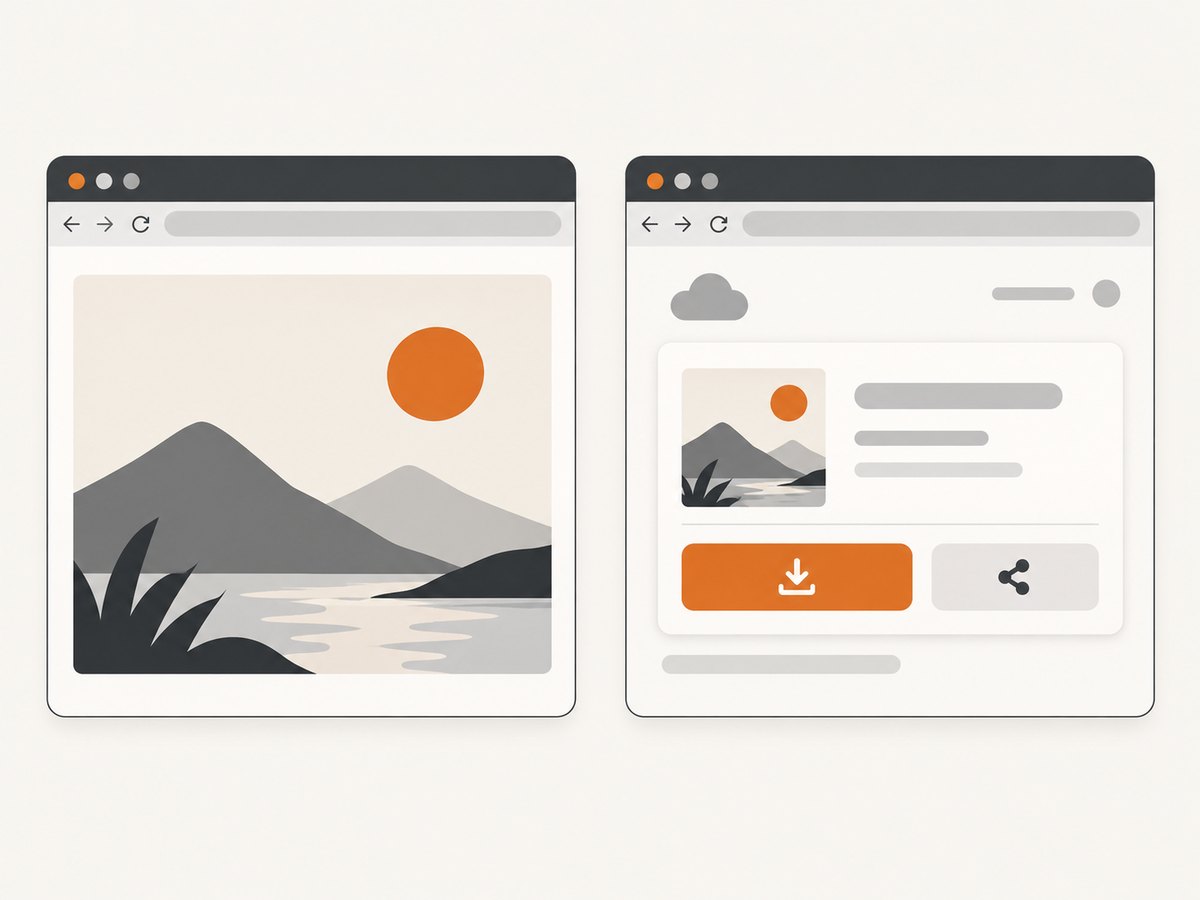
This is a file-sharing link. It is not guaranteed to be a direct JPG URL for an <img> element or an API that expects image bytes.
Google Drive API upload (developers)
For an API upload, provide an image filename with its extension, such as cat.jpg. Google’s Drive API upload documentation uses this filename pattern (Drive API upload guide). You still need to configure permissions before another person or application can access the file.
Method 2: Get a direct image URL from Imgur
- Upload the JPG to Imgur.
- Open the uploaded image page on desktop.
- Right-click the image and choose your browser’s option to copy the image address. The wording differs by browser.
- Paste that address into a new tab. The JPG itself should load without requiring the Imgur page.
- Use that tested address in your HTML, Markdown, or application.
Imgur documents that uploaded content has a direct URL (Imgur direct image links). Copying the page URL instead of the image address can produce a viewer page rather than the image resource.
HTML example
<img src="https://your-direct-image-url.example/photo.jpg" alt="Description of the image">Markdown example
Method 3: Publish a JPG with Google Cloud Storage
Cloud Storage is useful when your application already uses object storage or you need a stable object name. This method makes the object publicly readable, so do not use it for private images.
- Create or select a Google Cloud Storage bucket.
- Upload the JPG as an object, keeping a filename such as
photos/cat.jpg. - Grant the
allUsersprincipal the Storage Object Viewer role, following Google’s public-data instructions. - Use Copy URL in the console, or construct the documented form:
https://storage.googleapis.com/BUCKET_NAME/object-name.jpgGoogle’s guide describes granting allUsers the Storage Object Viewer role and copying the resulting URL (Make data public). A public object can be read by anyone who obtains the address. Google also notes that cached copies can remain accessible for a period after public access is removed.
Private and temporary links with Amazon S3
If the JPG must remain private, use an S3 presigned URL or the equivalent feature in your object store. AWS describes presigned URLs as permission-scoped links with an expiration time (AWS presigned URLs). They are temporary access URLs, not permanent public image addresses.
Test the URL before you publish it
- Open the link in a signed-out or private browser window.
- Check whether you see the JPG itself or a service viewer page.
- Confirm the response is allowed from the location where it will be used.
- Try the exact destination: an
<img>tag, Markdown renderer, CMS field, mobile app, or API. - Check that the filename and extension are correct and that the image has not been deleted or moved.
No hosting provider guarantees that every copied link works in every destination. The destination may block hotlinking, require authentication, or accept only direct image responses.
Common errors and fixes
| Error | Likely cause | Fix |
|---|---|---|
| “Access denied” or a sign-in page | The file is restricted, or an organization policy blocks external sharing. | Change access to the intended audience, ask an administrator, or use a host designed for public delivery. |
| A webpage opens instead of the JPG | You copied a share-page URL. | Use the provider’s “copy image address” action or its object URL. |
| The image works in a browser but not in an embed | The destination requires a direct resource, or hotlinking is blocked. | Test the direct image address and use a host that permits the required embedding. |
| The URL stops working | The file was deleted, moved, made private, or the presigned URL expired. | Restore access, issue a new URL, or use a permanent public object only when appropriate. |
| Old content still appears after replacement | A browser, CDN, or provider cache still holds the previous JPG. | Use a new object name or cache-busting query string where supported; allow caches to expire. |
| Cloud Storage URL is public unexpectedly | allUsers access was granted. |
Remove public access and use authenticated requests or expiring URLs for private files. |
Performance, reliability, and cost considerations
- Small, occasional shares: Use the service you already have. It requires the least setup.
- Website assets: Use object storage with deliberate cache headers and stable object names.
- Private files: Prefer authenticated access or expiring presigned URLs.
- Large images: Resize and compress the JPG before uploading to reduce transfer time and bandwidth.
- Reliability: Keep a source copy and document the hosting location, object name, and permission setting.
- Privacy: Treat public and “anyone with the link” URLs as shareable beyond the original recipient.
Or skip the browser setup
If you need a URL for a fresh screenshot rather than an existing JPG, ScreenshotNeo returns a PNG, JPEG, WebP, or PDF from one GET request. Its capture can accept cookie banners and remove more than 60 known consent platforms, newsletter popups, and chat widgets before the shot. Bot checks, blank pages, timeouts, failed loads, and cache hits are not billed, and the response identifies the result with X-Page-Verdict and X-Billed headers. An MCP server lets Claude, Cursor, and other MCP clients take screenshots.
See the ScreenshotNeo API documentation for all options.
curl -G "https://api.screenshotneo.com/v1/shot" -d access_key=YOUR_API_KEY --data-urlencode url=https://stripe.com -o shot.webpimport requests
r = requests.get("https://api.screenshotneo.com/v1/shot", params={"access_key": "YOUR_API_KEY", "url": "https://stripe.com"}, timeout=90)
open("shot.webp", "wb").write(r.content)const q = new URLSearchParams({ access_key: 'YOUR_API_KEY', url: 'https://stripe.com' });
const res = await fetch(`https://api.screenshotneo.com/v1/shot?${q}`);The free plan includes 1,000 screenshots a month with no card; paid plans start at $5 for 3,000. Create a free ScreenshotNeo account.
FAQ
Can I turn a local JPG path into a public URL?
No. A path such as C:\photos\cat.jpg or /home/me/cat.jpg works only on your device. Upload the file to a host first.
Is a Google Drive link a direct image URL?
Usually it is a sharing link to a file page. Test it in the destination; use a host that supplies a direct image address when an embed requires the JPG resource.
Should I make a private image public?
No. Use restricted permissions or an expiring presigned URL when access should be limited.
What happens if I replace a public JPG?
Caches may continue serving the previous bytes for a while. A new object name is the safest way to publish a clearly new resource.


