How to Create a Webpage Screenshot
Learn browser, Playwright, Puppeteer, and API methods for viewport, full-page, element, and automated webpage screenshots.
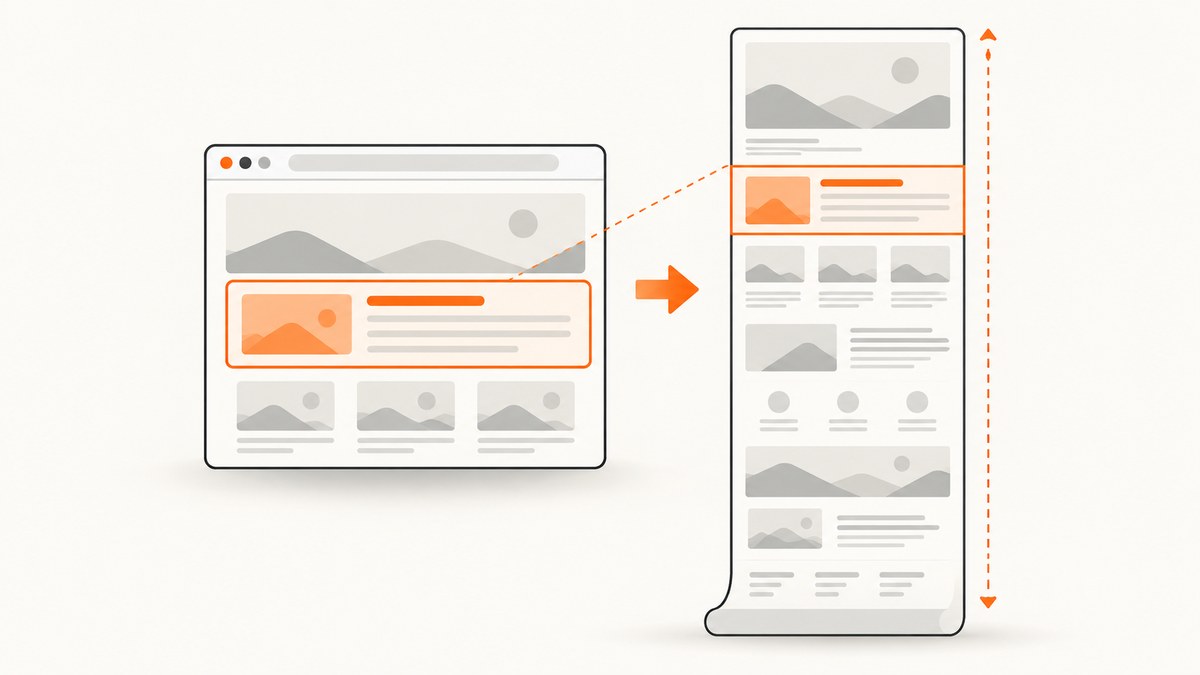
Short answer: For a one-off screenshot, use your browser’s developer tools. For repeatable captures, automate Chromium with Playwright or Puppeteer. Choose a viewport screenshot for what is currently visible, full-page capture for the entire scrollable document, or an element screenshot for one component. If you need hosted capture without maintaining a browser, use ScreenshotNeo’s screenshot API.
Choose the right screenshot method
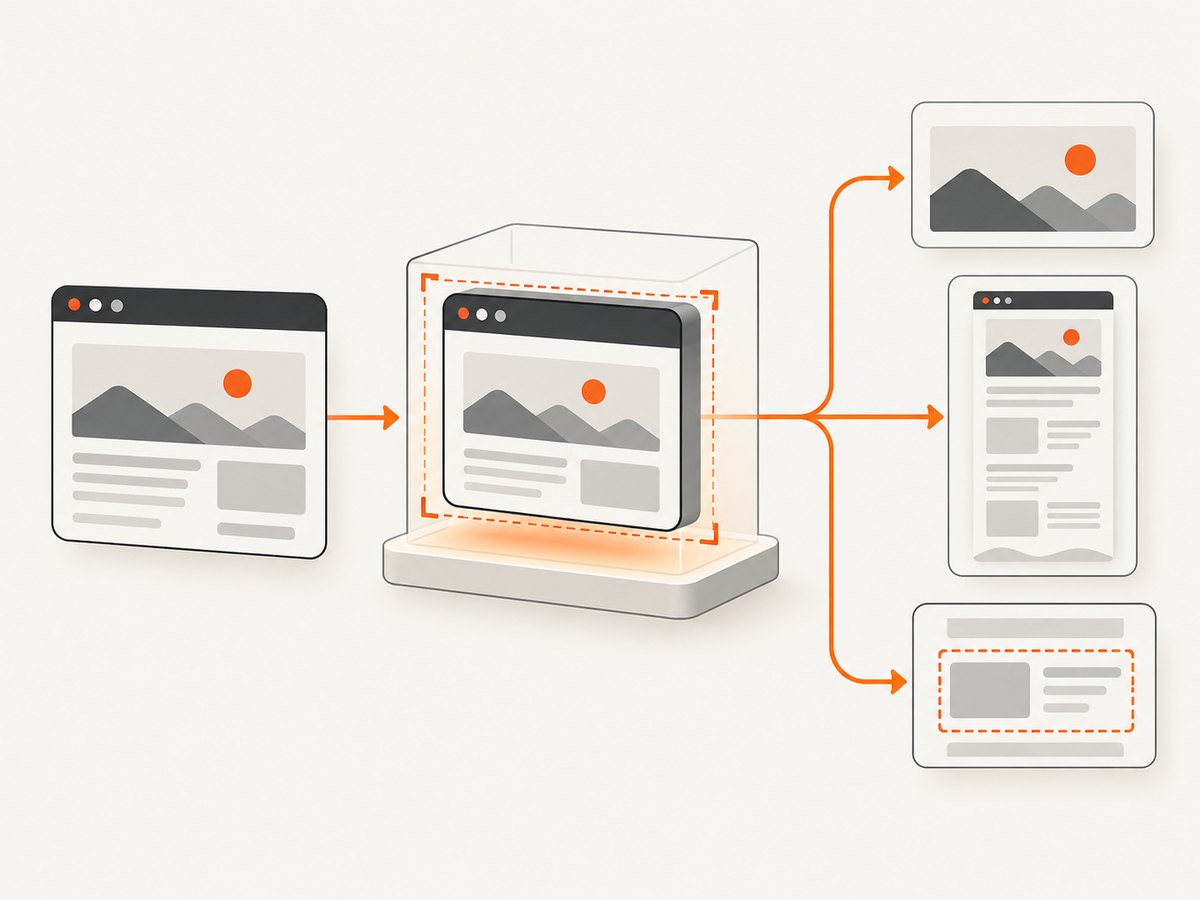
“Webpage screenshot” can mean several different outputs. Decide what you need before choosing a tool:
| Need | Best starting point | Why |
|---|---|---|
| One manual full-page image | Firefox Developer Tools | Firefox documents a built-in full-page screenshot workflow. |
| One selected element | Firefox Inspector | The Inspector can capture the selected DOM node. |
| Scheduled or repeatable captures | Playwright or Puppeteer | Both expose programmable screenshot APIs. |
| Specific viewport, clip, format, or quality | Playwright or Puppeteer | Both support screenshot options such as full-page and clipping. |
| Hosted, batch, or agent-driven capture | ScreenshotNeo | It removes common overlays before capture, bills only clean shots, and offers an API and MCP server. |
A viewport screenshot contains only the pixels currently inside the browser window. A full-page screenshot stitches the complete scrollable page into one tall image. An element screenshot isolates a selector such as a chart, product card, or header.
Method 1: Capture a webpage with Firefox Developer Tools
Firefox is the quickest no-code option for a one-off image. Mozilla’s documentation covers both the entire page and a single element (Firefox screenshot documentation).
Full-page screenshot
- Open the page in Firefox.
- Open Developer Tools with
F12orCtrl+Shift+I(Windows/Linux), orCmd+Option+I(macOS). - Open DevTools settings and find Available Toolbox Buttons.
- Enable Take a screenshot of the entire page if the camera button is not visible.
- Click the screenshot button. Firefox saves the image to your Downloads directory.
The resulting image includes content below the fold. Wait until important lazy-loaded images have appeared before capturing; otherwise the saved page can contain blank image areas.
Capture one element
- Open the Inspector tab.
- Select the element in the HTML tree or use the element picker.
- Right-click the node and choose Screenshot Node.
This is useful for a component that is difficult to crop accurately after the fact. The element must have a rendered box; hidden elements and zero-size nodes cannot produce useful pixels.
Method 2: Create screenshots with Playwright
Playwright is a practical choice when screenshots are part of a test, documentation build, visual regression job, or scheduled script. Its official guide documents page.screenshot and fullPage: true (Playwright screenshot guide).
Install and run
mkdir webpage-shot
cd webpage-shot
npm init -y
npm install playwright
npx playwright install chromium
Complete JavaScript example
const { chromium } = require('playwright');

(async () => {
  const browser = await chromium.launch();
  const page = await browser.newPage({
    viewport: { width: 1440, height: 900 },
    deviceScaleFactor: 1
  });

  await page.goto('https://example.com', {
    waitUntil: 'networkidle',
    timeout: 60_000
  });

  // Viewport screenshot
  await page.screenshot({ path: 'viewport.png', type: 'png' });

  // Entire scrollable document
  await page.screenshot({
    path: 'full-page.webp',
    fullPage: true,
    type: 'webp',
    quality: 85
  });

  // A single element
  const card = page.locator('.pricing-card').first();
  await card.screenshot({ path: 'pricing-card.png' });

  await browser.close();
})();
Replace https://example.com and .pricing-card with your target URL and selector. The script writes files relative to the directory where you run it.
Useful Playwright options
fullPage: truecaptures the full scrollable page.clip: { x, y, width, height }captures a rectangle in page coordinates.type: 'png' | 'jpeg' | 'webp'selects the output format where supported.qualitycontrols JPEG/WebP compression; it does not apply to PNG.omitBackground: truecan preserve transparency when the page background is transparent.animations: 'disabled'(in current Playwright versions) helps make repeated captures stable.
Make the page deterministic
Screenshot differences often come from timing rather than layout. Wait for a meaningful selector instead of relying only on a fixed delay:
await page.goto('https://example.com/dashboard', { waitUntil: 'domcontentloaded' });
await page.locator('[data-ready="true"]').waitFor({ state: 'visible', timeout: 30_000 });
await page.evaluate(() => document.fonts.ready);
await page.screenshot({ path: 'dashboard.png', fullPage: true });
For pages that lazy-load images as you scroll, scroll in increments before the final capture:
await page.evaluate(async () => {
  await new Promise(resolve => {
    let y = 0;
    const step = 600;
    const timer = setInterval(() => {
      window.scrollBy(0, step);
      y += step;
      if (y >= document.body.scrollHeight) {
        clearInterval(timer);
        window.scrollTo(0, 0);
        resolve();
      }
    }, 100);
  });
});
Method 3: Create screenshots with Puppeteer
Puppeteer is a JavaScript browser-automation library maintained for Chrome and Chromium workflows. Its documentation covers page screenshots, element screenshots, full-page capture, and clipping (Puppeteer screenshots guide, ScreenshotOptions reference).
Install and run
mkdir puppeteer-shot
cd puppeteer-shot
npm init -y
npm install puppeteer
const puppeteer = require('puppeteer');
(async () => {
const browser = await puppeteer.launch({ headless: true });
const page = await browser.newPage();
await page.setViewport({ width: 1440, height: 900, deviceScaleFactor: 1 });
await page.goto('https://example.com', {
waitUntil: 'networkidle2',
timeout: 60_000
});
await page.screenshot({ path: 'viewport.png', type: 'png' });
await page.screenshot({ path: 'full.png', fullPage: true });
const element = await page.$('.pricing-card');
if (!element) throw new Error('Could not find .pricing-card');
await element.screenshot({ path: 'element.png' });
await page.screenshot({
path: 'clip.png',
clip: { x: 0, y: 0, width: 800, height: 500 }
});
await browser.close();
})();Puppeteer’s fullPage option captures the document rather than only the viewport. Use clip for a fixed rectangle and ElementHandle.screenshot() when the target is a DOM element.
Viewport, full-page, and element capture details
Viewport screenshots
Set the viewport explicitly so the output is reproducible. Record width, height, device scale factor, browser version, and color scheme with the image metadata or build logs. A responsive page may render a different navigation menu at 375 pixels than at 1440 pixels.
Full-page screenshots
Full-page capture can expose sticky headers repeatedly, extremely tall canvases, or content that only appears after scrolling. Test very long pages for memory use. If the page has a fixed cookie banner, dismiss it before capture or mask it.
Element screenshots
Prefer stable selectors such as data-testid or semantic attributes. Class names generated by a CSS build can change between releases. If an element is inside an iframe, switch to the iframe’s frame before locating it.
PDF versus image
A screenshot preserves rendered pixels. A PDF is better when readers need selectable text, pagination, or printing. Browser PDF output follows print CSS and page breaks, so it is not interchangeable with a tall PNG.
Or skip the browser setup
ScreenshotNeo provides a hosted website screenshot API. The basic request is one GET call; see the ScreenshotNeo documentation for the complete parameter list.
cURL
curl -G "https://api.screenshotneo.com/v1/shot" \
  -d access_key=YOUR_API_KEY \
  --data-urlencode url=https://stripe.com \
  -o shot.webp
Python
import requests

r = requests.get(
    "https://api.screenshotneo.com/v1/shot",
    params={"access_key": "YOUR_API_KEY", "url": "https://stripe.com"},
    timeout=90,
)
r.raise_for_status()
open("shot.webp", "wb").write(r.content)
Node.js
const q = new URLSearchParams({ access_key: 'YOUR_API_KEY', url: 'https://stripe.com' });
const res = await fetch(`https://api.screenshotneo.com/v1/shot?${q}`);
if (!res.ok) throw new Error(`HTTP ${res.status}`);
const fs = require('node:fs');
fs.writeFileSync('shot.webp', Buffer.from(await res.arrayBuffer()));
ScreenshotNeo supports full-page capture with lazy images loaded, CSS element selection, dark mode, device presets or custom viewports, retina scale, PDF output, custom CSS and JavaScript, clicks, selector or network-idle waits, request blocking, headers, cookies, user agents, authorization, timezone, geolocation, transparent backgrounds, resizing, caching, signed links, asynchronous jobs, webhooks, bulk capture, usage data, and an OpenAPI specification. Parameters commonly used by other screenshot APIs also work to make migration easier.
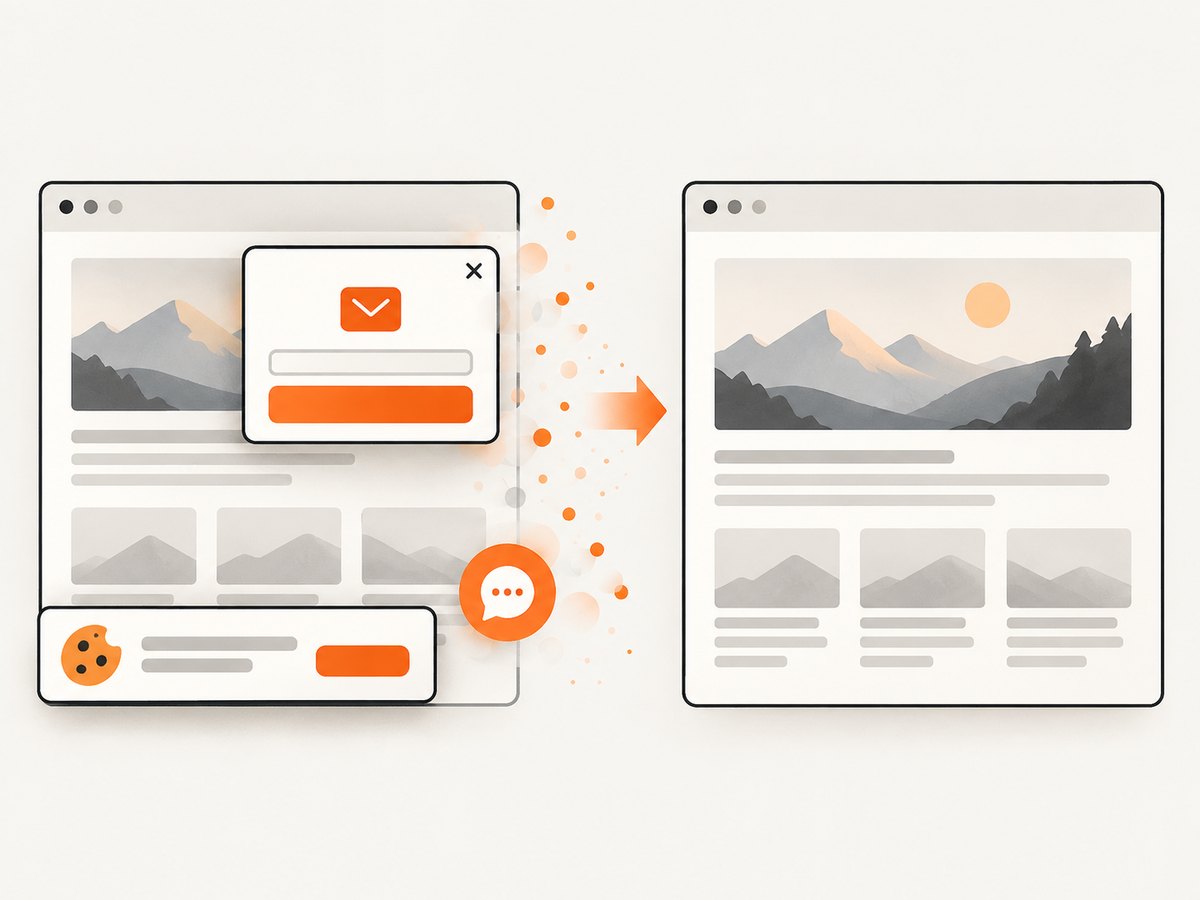
Cookie banners, newsletter popups, and chat widgets are accepted or removed before capture. Bot checks, blank pages, timeouts, failed loads, and cache hits cost nothing; response headers identify the page verdict and whether the request was billed. ScreenshotNeo also provides an MCP server with take_screenshot, get_page_info, and capture_pdf for Claude, Cursor, and other MCP clients. The free plan includes 1,000 shots per month without a card; paid plans start at $5 for 3,000 shots. Create a free ScreenshotNeo account.
Configuration checklist for reliable captures
- URL: Use an absolute HTTPS URL and confirm it is reachable from the capture environment.
- Viewport: Fix width, height, and device scale factor for repeatability.
- Wait condition: Prefer a ready selector, network idle, or a deliberate delay based on the page.
- Fonts: Wait for
document.fonts.readyto prevent fallback-font layout shifts. - Animations: Disable or pause transitions when comparing images.
- Overlays: Dismiss consent dialogs, popups, and chat launchers before the final shot.
- Lazy content: Scroll to trigger images and infinite lists, then return to the top if needed.
- Authentication: Supply cookies or headers securely; never hard-code production secrets in a repository.
- Output: Pick PNG for lossless UI text, JPEG for smaller photographic images, and WebP for a compact modern format.
Troubleshooting common screenshot problems
| Symptom | Likely cause | Fix |
|---|---|---|
| Only the visible area is saved | Full-page mode is disabled | Use Playwright fullPage: true, Puppeteer fullPage: true, or Firefox’s entire-page button. |
| Images are blank | Lazy loading has not run | Wait for image selectors, scroll through the page, or wait for network idle after scrolling. |
| Text changes between runs | Fonts or web animations are still loading | Wait for document.fonts.ready and disable animations. |
| Element selector fails | The element is inside an iframe, shadow root, or has not rendered | Use the correct frame or locator, wait for visibility, and verify the selector in DevTools. |
| Navigation timeout | The page keeps long-lived requests open or is unreachable | Use domcontentloaded, add a readiness selector, increase timeout, and inspect DNS, TLS, and access controls. |
| Cookie dialog covers content | Consent UI appears after navigation | Click its accept button, hide the selector, or use ScreenshotNeo’s consent handling. |
| Screenshot is unexpectedly huge | Very long page or unbounded element | Capture a clip, target an element, paginate, or resize the output. |
| HTTP 401 or 403 | Authentication or bot protection blocks the browser | Provide valid cookies/headers where permitted; do not attempt to bypass access controls. |
Performance, reliability, and cost considerations
Launching a browser for every URL is slower and uses more memory than reusing one browser process with isolated pages. In a worker, launch Chromium once, create a fresh context per job, and close the page in a finally block. Limit concurrency so CPU, RAM, and outbound bandwidth remain predictable.
Use caching when the page does not change for every request. For visual regression, store a deterministic browser version and viewport. Retry transient navigation failures with backoff, but avoid retrying invalid URLs or consistent authorization errors. Keep capture timeouts bounded so one page cannot block a queue indefinitely.
Image format affects storage and transfer cost: PNG preserves sharp text, while WebP or JPEG is smaller. Full-page captures consume more memory than viewport images. Hosted APIs can remove browser maintenance and support batch jobs, but review each response’s status headers and retain the returned image only after a successful verdict. ScreenshotNeo’s billing model charges only clean shots; bot checks, blank pages, timeouts, failed loads, and cache hits are not billed.
FAQ
What is the difference between a screenshot and a screen recording?
A screenshot is one rendered frame saved as an image. A recording stores a sequence of frames over time and is better for interactions or animation.
Can I screenshot a page that requires login?
Yes, when you are authorized to access it. Supply a valid browser session, cookies, or headers and keep those credentials out of logs and source control.
Which format should I choose?
Use PNG for crisp interface text, JPEG for photographs, and WebP when you want smaller files with good visual quality.
Why does a full-page image look different from what I see while scrolling?
Full-page capture may trigger lazy loading, change sticky positioning, or evaluate responsive layout at one fixed viewport. Make the wait and viewport settings explicit.
Can an AI agent create screenshots?
Yes. ScreenshotNeo includes an MCP server with screenshot, page-info, and PDF tools that MCP-compatible clients can call.


