How to Create a Website Subpage
Create and publish a website subpage in WordPress, Wix, or Squarespace, then verify its menu, URL, access, and indexing settings.
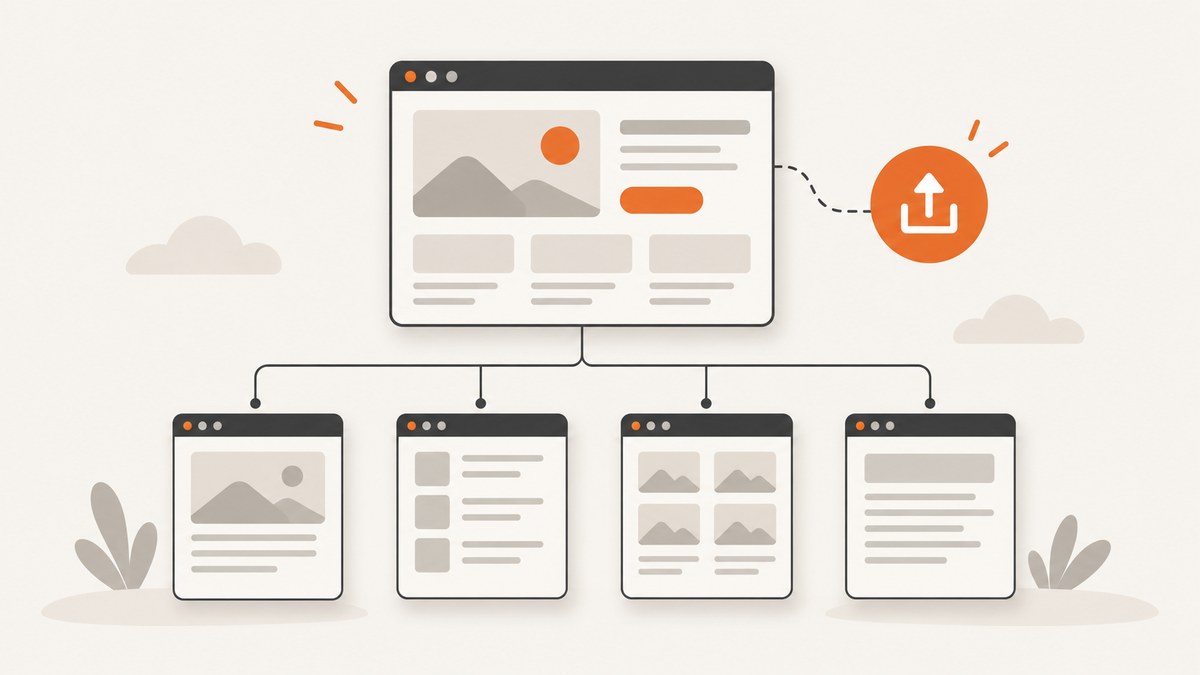
Direct answer: Create a new page, assign it beneath the intended parent page or dropdown menu, add the content, publish it, then open the live URL to verify the menu placement, URL path, access settings, and search indexing. A subpage can describe a parent-child page relationship, a nested navigation item, or both. Your platform may treat the hierarchy and the menu as separate settings.
What a subpage means
A subpage is a page arranged below another page in a site hierarchy. For example, “Team” might be a child of “About.” A navigation dropdown exposes that relationship to visitors, but menu nesting does not universally create a parent segment in the URL. Depending on the platform, a child page may use a path such as /about/team/, while the menu and URL remain independently configurable.
Before you start, decide:
- Which existing page is the parent?
- Should the page appear in the primary navigation, a dropdown, or a secondary menu?
- What URL slug should visitors use?
- Should search engines index the page?
- Is the page public, password protected, or limited to members?
General workflow
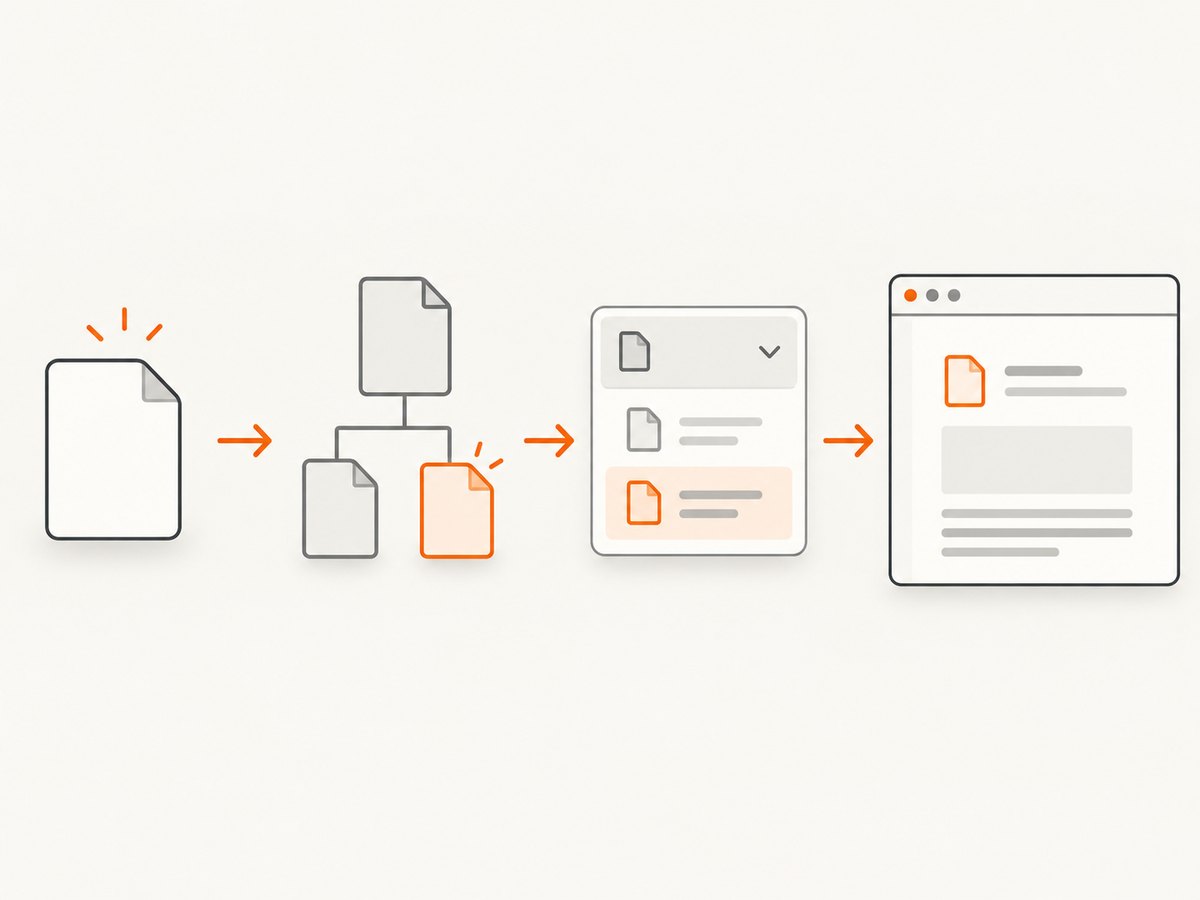
- Create the page and enter its title and content.
- Assign the intended parent page or place the page under the intended navigation dropdown.
- Set the slug, access rules, SEO title, description, and indexing preference where your platform provides those controls.
- Publish the page.
- Open the live page in a private browser window and check its URL, menu location, links, layout, and access behavior.
Do not assume that a page is in the menu because it exists, or that a nested menu item has a nested URL. Check both.
WordPress: create a child page
These steps apply to WordPress Pages, which are intended for non-chronological content.
- Sign in to the WordPress admin area.
- Go to Pages > Add New.
- Enter the page title and body content.
- In the page sidebar, open Page Attributes.
- Choose the desired Parent Page. Set the order if your theme uses page order for navigation.
- Review the permalink and adjust the slug if needed.
- Click Publish.
- Open your navigation editor and add the page to the appropriate menu or submenu if your theme does not add it automatically.
WordPress documents that child pages appear nested under their parent in the page list and that permalinks can reflect the hierarchy, such as /about/board-of-directors/. A child relationship alone does not guarantee that every theme displays the page in navigation. See WordPress’s Create pages documentation.
Wix Editor: add a subpage to a dropdown
Wix labels menu nesting and site hierarchy separately, so verify both after publishing.
- Open the site in the Wix Editor.
- Open the page management controls and create or select the page.
- Open the page’s More Actions menu.
- Choose Subpage, then select the parent page.
- Add the page title and content.
- Open the page’s settings to review its URL slug, SEO basics, access permissions, social sharing data, and indexing setting.
- Publish the site.
- Visit the live site and open the parent item’s dropdown to confirm that the subpage appears.
Wix also provides a site-hierarchy setting for parent-child URL paths. A page can be hidden from a menu while remaining published, and removing a parent can flatten a child URL. Redirect behavior can depend on whether the site uses a custom domain. Read Wix’s page-management guidance and its documentation for site hierarchy for SEO.
Wix Studio URL and SEO controls
In Wix Studio, URL slug, title tag, meta description, and indexing controls are separate SEO settings. Changing a slug creates a 301 redirect according to Wix’s Studio documentation, unless a manually configured redirect creates a conflict. These labels and controls are for Studio Editor; do not assume they match every Wix product or app.
Squarespace 7.1: place a page under a dropdown
These steps are for Squarespace 7.1 on desktop. Squarespace says the process differs across versions and between desktop and the app.
- Open the Squarespace dashboard and select Pages.
- To create a top-level page, select the + beside Main Navigation.
- To create a subpage, select + or Add page under the intended dropdown.
- Choose a blank page or a page/layout type.
- Enter the page title and add the content.
- Review the page’s URL and visibility settings.
- Save or publish, then open the live site and test the dropdown.
If your Squarespace interface differs, use the navigation instructions for your version and device before publishing.
URL structure, menu nesting, and indexing
| Check | What it controls | Why it matters |
|---|---|---|
| Parent or dropdown assignment | Where visitors find the page in navigation | A page can exist without appearing in the primary menu. |
| URL slug or hierarchy | The address visitors and crawlers request | A nested menu does not always add a parent segment. |
| Access setting | Who can open the page | Private or member-only pages may not be publicly crawlable. |
| Indexing setting | Whether search engines may index the page | Published does not automatically mean indexable. |
| Layout | Whether the header, footer, and site menu appear | A layout without a header and footer may remove navigation. |
Changing a parent can change a child URL. If you move or remove a parent after publishing, update internal links and confirm redirects before sharing the old address.
Verification checklist after publishing
- Open the live URL in an incognito or private window.
- Confirm the page title, content, images, and links.
- Open the parent menu item and verify the subpage appears at the expected level.
- Copy the URL and check whether it includes the parent path you intended.
- Test the page while logged out and with a non-authorized account if access is restricted.
- Check the page’s indexing setting and canonical URL.
- Test mobile navigation separately; desktop dropdowns may become accordions or separate menu screens.
- Check for broken links after changing a parent, slug, or redirect.
Troubleshooting
The page is published but missing from the menu
Cause: The page hierarchy and navigation menu are separate, or the page is hidden from navigation.
Fix: Add the page to the correct menu or dropdown, save the menu, publish changes, and check that the page is not configured as hidden.
The page is nested in the menu but the URL is flat
Cause: Your platform does not couple menu nesting to URL hierarchy, or site-hierarchy URLs are disabled.
Fix: Review the platform’s URL or hierarchy setting. If the URL matters for existing links, plan redirects before changing it.
The child URL changed after moving the parent
Cause: The URL path reflects the current hierarchy.
Fix: Restore the original parent or configure and test a redirect. Update canonical tags, sitemap entries, and internal links.
Visitors see a 404 after a slug change
Cause: The old URL was shared or indexed and no working redirect exists.
Fix: Add a redirect from the old path, confirm that the destination is published, and test both URLs in a private window.
The page opens for administrators but not visitors
Cause: Access controls, membership rules, password protection, or a preview-only state.
Fix: Review page access settings, publish again, and test while logged out.
The menu disappears on the new page
Cause: The page uses a layout without the site header and footer.
Fix: Switch to a layout that includes navigation or add an intentional link back to the homepage and key sections.
Search engines do not show the page
Cause: Indexing is disabled, access is restricted, the page is too new, or the URL is not discoverable.
Fix: Check indexing and access settings, link to the page from an appropriate public page, and submit the updated sitemap through your search platform when appropriate. Creating a subpage alone does not guarantee higher rankings.
Performance, reliability, and maintenance
- Keep the hierarchy shallow enough that visitors can understand it on mobile.
- Use stable, descriptive slugs; changing them creates redirect and link-maintenance work.
- Keep parent pages available when child URLs depend on them.
- After navigation edits, test cached and uncached views if your platform or CDN caches menus.
- Review access and indexing settings during every publishing cycle.
- Maintain a redirect list when moving pages between parents or changing slugs.
Or skip the browser setup
If you need screenshots of the published subpage for documentation, QA, or a content workflow, ScreenshotNeo captures a URL with one request. See the ScreenshotNeo API documentation for all options.

curl -G "https://api.screenshotneo.com/v1/shot" -d access_key=YOUR_API_KEY --data-urlencode url=https://example.com/about/team -o subpage.webpimport requests
r = requests.get("https://api.screenshotneo.com/v1/shot", params={"access_key": "YOUR_API_KEY", "url": "https://example.com/about/team"}, timeout=90)
open("subpage.webp", "wb").write(r.content)const q = new URLSearchParams({ access_key: 'YOUR_API_KEY', url: 'https://example.com/about/team' });
const res = await fetch(`https://api.screenshotneo.com/v1/shot?${q}`);Cookie banners, newsletter popups, and chat widgets are removed before the shot. Bot checks, blank pages, failed loads, timeouts, and cache hits are not billed, and response headers identify the page verdict and billing result. ScreenshotNeo also provides an MCP server so Claude, Cursor, and other MCP clients can take screenshots, inspect pages, and capture PDFs. The Free plan includes 1,000 screenshots each month with no card; paid plans start at $5 for 3,000 shots. Create a free ScreenshotNeo account.
FAQ
Is a subpage the same as a dropdown menu item?
No. A subpage is a hierarchy relationship. A dropdown is a navigation presentation. Some platforms connect them; others require separate configuration.
Can I publish a subpage without putting it in the main menu?
Yes. Keep it hidden from navigation and link to it from another page, a footer, or a campaign URL.
Does a subpage automatically improve SEO?
No guaranteed ranking benefit follows from creating a subpage. Make the hierarchy useful, keep the page accessible when appropriate, and configure indexing deliberately.
Should every child page use a parent URL segment?
No. Choose a URL structure that matches your information architecture and redirect requirements; verify what your platform supports before changing live paths.


