How to Create Website Thumbnail Link Previews
Add Open Graph metadata, prepare a crawler-friendly image, and validate the thumbnail that appears when your URL is shared.
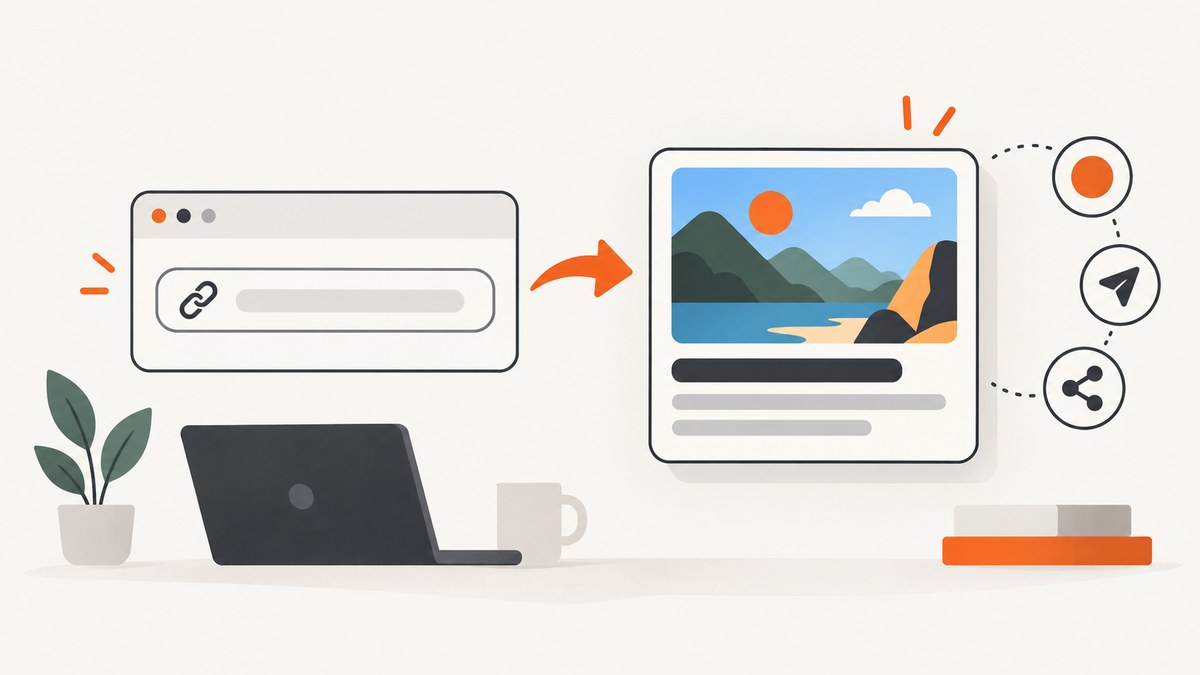
Put the preview image in your page metadata, not just in the page design. Add Open Graph tags to the initial HTML <head>, publish a stable public image URL, make sure social crawlers can fetch both resources, and inspect the exact URL with each platform’s validator. The browser favicon or an image somewhere in the article does not reliably control a shared thumbnail.
This guide shows the complete workflow: choosing an image, adding metadata, handling server-rendered and client-rendered sites, checking crawler access, validating the result, and fixing stale or incorrect previews. It also explains platform-specific constraints and how to generate a reliable share image with ScreenshotNeo.
1. How link preview thumbnails work
When someone shares a URL, a social network or messaging service fetches that URL with a crawler. It reads metadata in the returned HTML, then fetches the image named by og:image. The service decides how to crop, resize, cache, and display the result.

The Open Graph Protocol defines four required properties for every page: og:title, og:type, og:image, and og:url. Add a description and image alt text so the preview has useful context and remains accessible.
A typical request sequence looks like this:
- The crawler requests the shared page URL.
- Your server returns HTML containing Open Graph metadata.
- The crawler requests the absolute
og:imageURL. - The platform stores or refreshes the metadata and image according to its own cache rules.
- The platform applies its own crop and display layout.
2. Choose and prepare the share image
Create a distinct image for sharing rather than relying on a random article image. Keep the subject and any important visual details near the center because a platform may crop the sides or top and bottom. Use a stable URL that will continue to serve the intended image after publication.
Dimensions, ratio, and file size
There is no single size guaranteed to display identically everywhere. Compare the requirements of each destination you care about:
| Destination or source | Guidance | How to use it |
|---|---|---|
| LinkedIn sharing module | Minimum 1200 × 627 pixels, recommended 1.91:1 ratio, maximum 5 MB. Images under 401 pixels wide display as thumbnails. | Use a landscape image at least 1200 pixels wide and keep the main subject inside a central safe area. LinkedIn says square and vertical images can be cropped when shared organically. See LinkedIn’s sharing guidance. |
| Facebook, X, and LinkedIn recommendations in HubSpot | HubSpot lists 1.91:1 for Facebook, 1.91:1 for X link images, and 1.91:1 for LinkedIn landscape. Its publishing limits are 8 MB for Facebook, 5 MB for X (15 MB for GIFs), and 10 MB for LinkedIn. | Treat these as HubSpot’s documented recommendations and posting limits, not universal crawler specifications. Check the current HubSpot table. |
JPEG is a practical choice for photographs and gradients; PNG works well for sharp graphics and transparency; WebP can reduce bytes when the destination accepts it. Keep the file small enough for your target networks, and check that your server sends the correct Content-Type.
Design a safe crop
- Put the main subject and essential branding in the middle 70–80% of the canvas.
- Leave breathing room around the edges for square, portrait, and landscape crops.
- Use strong contrast so the image remains legible after platform compression.
- Do not put critical information only in tiny text; many previews are displayed at a small size.
- Export with an ordinary RGB color profile and inspect the encoded file before publishing.
3. Add Open Graph metadata to the initial HTML
Place one accurate set of tags in the document <head>. Use the canonical URL as og:url, and use an absolute HTTPS URL for the image.
<!doctype html>
<html lang="en">
<head>
  <meta charset="utf-8">
  <title>How to Create Website Thumbnail Link Previews</title>
  <link rel="canonical" href="https://example.com/guides/link-previews">

  <meta property="og:type" content="website">
  <meta property="og:url" content="https://example.com/guides/link-previews">
  <meta property="og:title" content="How to Create Website Thumbnail Link Previews">
  <meta property="og:description" content="Add metadata and a crawler-friendly image for reliable link previews.">
  <meta property="og:image" content="https://example.com/images/link-previews.jpg">
  <meta property="og:image:alt" content="A webpage becoming a social link preview">
  <meta property="og:image:type" content="image/jpeg">
  <meta property="og:image:width" content="1200">
  <meta property="og:image:height" content="627">

  <meta name="twitter:card" content="summary_large_image">
</head>
<body>...</body>
</html>
The four required Open Graph properties are defined by the Open Graph Protocol. The twitter:card tag is a platform-specific addition commonly used for a large image card; do not assume that one image specification produces identical results on every service.
Use page-specific values
Every indexable page should have a matching title, description, canonical URL, and image. A site-wide image can be a fallback, but a page-specific image usually explains the shared page better. Ensure that template code does not emit duplicate og:title or og:image tags from both a layout and a page component.
4. Make the page and image fetchable
A perfect tag is useless if a crawler receives a login page, a redirect loop, a denial response, or HTML without the metadata. Test the public URL from outside your logged-in browser.
Check these access conditions
- HTTP status: return a successful response for the page and image. Avoid redirect chains and links that end at a different resource.
- HTTPS and absolute URLs: serve
og:imageover HTTPS with a fully qualified URL. - robots.txt: review rules that might block social crawlers or the image directory.
- Authentication: remove login requirements from public share pages and images.
- Hotlink controls: make sure firewall or CDN rules do not reject crawler user agents or requests without a browser referrer.
- Content type: send
image/jpeg,image/png, or the correct type for the actual bytes. - Initial HTML: server-render the tags or include them in the HTML sent to bots. Metadata added only after client-side JavaScript runs may be absent when a crawler reads the response.
HubSpot’s guidance explains that social networks inspect page metadata and robots.txt, and includes examples of crawler user agents. For LinkedIn, use Post Inspector to check crawl access. Read the crawler and metadata troubleshooting guidance.
5. Publish, then validate the exact URL
- Deploy the page and image to their final public URLs.
- Open the page source or fetch the raw response and confirm the tags are in
<head>. - Open the image URL in a private window and confirm it returns the intended file without a session.
- Submit the exact shared URL to the destination’s debugger or inspector.
- Review the parsed title, description, image, dimensions, and any crawler errors.
- Share a fresh post after the validator reports the updated values.
The Open Graph site identifies Facebook Object Debugger as its official parser/debugger. HubSpot also documents Facebook’s debugger, X card validation, and LinkedIn Post Inspector. The validator shows what was fetched, but the final display remains controlled by the destination platform.
6. Generate or inspect a share image with ScreenshotNeo
If the page already renders the visual you want, a screenshot API can produce a stable image for og:image. ScreenshotNeo captures a URL as PNG, JPEG, WebP, or PDF. It can capture a full page, one CSS-selected element, a chosen viewport or device preset, dark mode, retina scale, custom CSS and JavaScript, hidden selectors, delayed or network-idle states, and lazy-loaded images.

For a quick image capture, use the API documented at ScreenshotNeo’s API documentation:
curl -G "https://api.screenshotneo.com/v1/shot" \
  -d access_key=YOUR_API_KEY \
  --data-urlencode url=https://example.com/guides/link-previews \
  -o share.webp
import requests
r = requests.get(
"https://api.screenshotneo.com/v1/shot",
params={
"access_key": "YOUR_API_KEY",
"url": "https://example.com/guides/link-previews"
},
timeout=90,
)
r.raise_for_status()
open("share.webp", "wb").write(r.content)const q = new URLSearchParams({
access_key: 'YOUR_API_KEY',
url: 'https://example.com/guides/link-previews'
});
const res = await fetch(`https://api.screenshotneo.com/v1/shot?${q}`);
if (!res.ok) throw new Error(`Screenshot failed: ${res.status}`);
const bytes = Buffer.from(await res.arrayBuffer());
require('fs').writeFileSync('share.webp', bytes);For a social image, set a controlled viewport or capture a specific hero element so the composition does not depend on a user’s screen. Relevant options include custom CSS to hide navigation, a CSS selector for the element, a delay or selector wait for late content, a transparent background when your design needs it, and image resizing after capture. Store the resulting file at a stable public URL and reference that URL in og:image.
Or skip the browser setup
ScreenshotNeo handles the capture in one request:
curl -G "https://api.screenshotneo.com/v1/shot" -d access_key=YOUR_API_KEY --data-urlencode url=https://stripe.com -o shot.webpCookie and consent banners are accepted before capture, and more than 60 known consent platforms, newsletter popups, and chat widgets are removed. Bot checks and CAPTCHAs, blank pages, timeouts, failed loads, and cache hits are not billed; response headers identify the page verdict and whether it was billed. An MCP server exposes take_screenshot, get_page_info, and capture_pdf to Claude, Cursor, and other MCP clients. The Free plan includes 1,000 screenshots each month with no card; paid plans start at $5 for 3,000. Create a free ScreenshotNeo account.
7. Handle dynamic sites and frameworks
In a server-rendered application, generate the metadata from the page record before sending HTML. In a client-rendered single-page app, make sure your hosting layer or framework produces crawlers’ metadata in the initial response. A browser screenshot can wait for JavaScript, but a social crawler may parse the first response without executing your application.
For routes with query parameters, decide whether each variant deserves its own preview. If not, emit one canonical URL and one matching image. Escape quotes and special characters in generated attributes, and keep descriptions concise enough to avoid awkward truncation.
8. Troubleshooting common preview failures
| Symptom | Likely cause | Fix |
|---|---|---|
| No image appears | Missing tag, relative URL, blocked image, or an error response. | Confirm one absolute og:image URL in the served HTML, then fetch the image without cookies and inspect its status and content type. |
| Wrong page title or image | Duplicate tags, a template fallback, or cached metadata. | Remove duplicates, verify the exact URL in raw source, and run the destination debugger again. |
| Preview shows a login screen | The crawler cannot access a protected route or image. | Make the share route and image public, or provide a public rendering endpoint. |
| Image is cropped badly | Aspect ratio differs from the destination layout or important content touches an edge. | Use a landscape source, move key content into the safe area, and test the actual shared URL. |
| Old thumbnail persists | Platform-side caching. | Use the platform’s inspection or refresh function where available. There is no universal cache lifetime, so do not promise a fixed update time. |
| Metadata is absent in a JavaScript app | Tags are injected after the crawler reads initial HTML. | Server-render tags, configure framework metadata generation, or add an edge-rendered response. |
| Colors or sharpness change | Embedded color profiles and platform compression. | Inspect an RGB export, reduce unnecessary file size, and compare the validator image with the original. |
| Validator reports a blocked crawl | robots.txt, WAF, CDN, hotlink rule, or rate limit. |
Review crawler rules and server logs, allow the page and image paths, and remove referrer or user-agent assumptions. |
9. Performance, reliability, and cost considerations
- Keep metadata close to the first response: server-rendering avoids dependence on crawler JavaScript execution.
- Use a stable image URL: changing filenames makes updates explicit; overwriting the same URL can leave older versions in platform caches.
- Optimize bytes: choose JPEG, PNG, or WebP based on destination support and visual content. Large files take longer to fetch and may exceed limits.
- Cache generated screenshots: if the page has not changed, reuse the same image instead of capturing on every share.
- Wait only as long as needed: dynamic pages may need a selector wait, delay, or network-idle condition, but unnecessary waits increase capture time.
- Separate capture from publishing: generate and inspect the image before updating metadata so a failed capture never becomes the public preview.
- Monitor response headers: ScreenshotNeo returns verdict and billing information, which helps distinguish a clean billed capture from a failed or non-billable result.
ScreenshotNeo supports caching with a TTL you choose, bulk capture of up to 100 URLs per call, asynchronous jobs with signed webhooks, signed links for public image tags, custom headers and cookies, authorization, timezone and geolocation, request blocking, and a usage API. Those controls are useful when previews must be generated repeatedly or for pages that vary by locale or authentication context.
10. Launch checklist
- Distinct share image created and composed for safe cropping.
og:title,og:type,og:image, andog:urlpresent once in the initial HTML.og:descriptionandog:image:altaccurately describe the page and image.- Image URL is absolute, public, stable, and returns the correct MIME type.
- Page and image are not blocked by authentication,
robots.txt, WAF, CDN, or hotlink rules. - Dimensions, ratio, format, and file size checked against each target network.
- Exact URL tested in the relevant debugger or inspector after deployment.
- Mobile, square, and landscape crops reviewed for important content.
FAQ
Does the favicon determine the thumbnail?
No. The preview is chiefly controlled by page metadata, especially og:image. A favicon may appear elsewhere in a platform’s interface but is not a substitute for an Open Graph image.
Can I use one image for every page?
Yes, as a fallback, but page-specific images give people clearer context and make shared links easier to distinguish.
Should the image URL be the same as the page URL?
No. og:url identifies the canonical page; og:image points to a separate publicly fetchable image file.
Why does the validator look correct while a post still looks old?
The platform may have cached an earlier fetch. Re-run its inspection tool and publish again when the refreshed values are shown. Cache behavior differs by service.
Can a screenshot API replace Open Graph tags?
No. The API can create the image, but your page still needs Open Graph metadata that points crawlers to that image.


