How to Create a YouTube Thumbnail from a Video
Turn a clear video frame into a custom YouTube thumbnail, export it to the right size, and upload it in YouTube Studio. Includes guidance for Shorts and vertical videos.
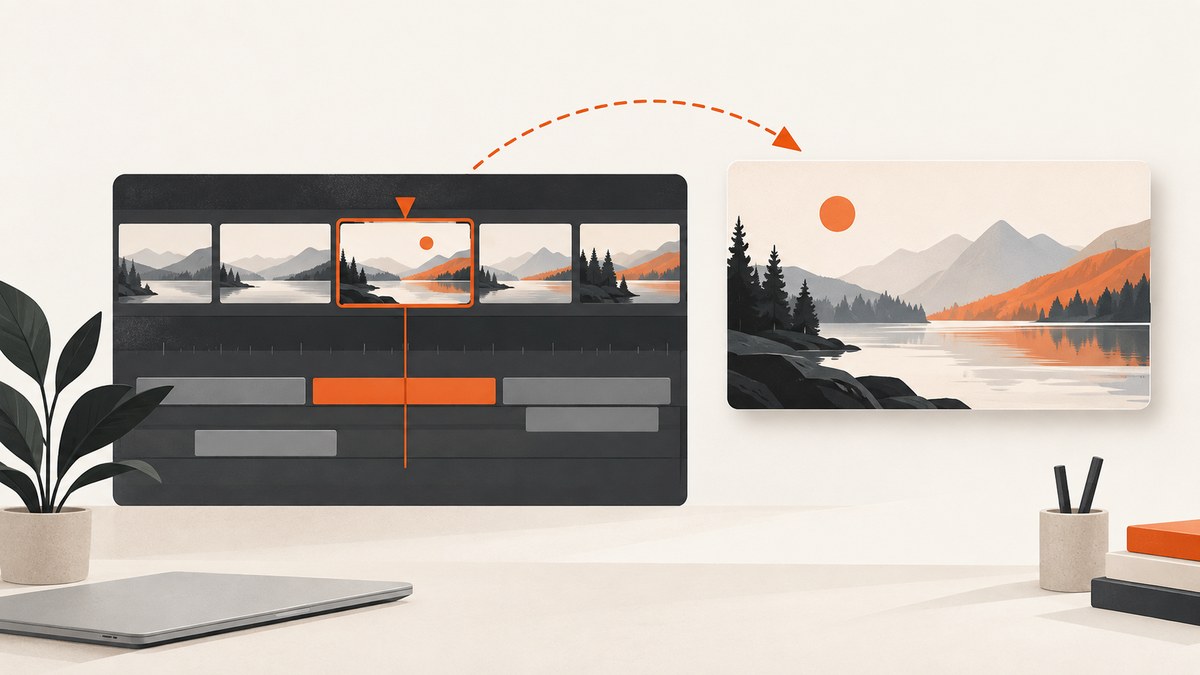
To create a YouTube thumbnail from a video, choose a clear frame, export or capture it as an image, prepare the image to YouTube’s recommended dimensions, then upload it in YouTube Studio. For a standard video, aim for a 16:9 JPG or PNG; YouTube recommends 3840 × 2160 pixels, a minimum width of 640 pixels, and a file under 50 MB for desktop upload or 2 MB for mobile upload. Your account must be verified to upload a custom thumbnail. [YouTube Help: Add custom thumbnails]
The frame itself is only a starting point. You can crop, adjust, or combine it with other visual elements in an image editor, as long as the result accurately represents the video and follows YouTube’s policies.
1. Choose a frame that represents the video
Scrub through the video in your editor or player and pause on a frame that gives viewers a truthful, easy-to-understand preview. Look for a moment with a clear subject and enough visual detail to make sense when shown small. YouTube does not require the thumbnail to be a frame from the video; its upload instructions ask for an image file, so you can also use the frame as source material for a designed image.
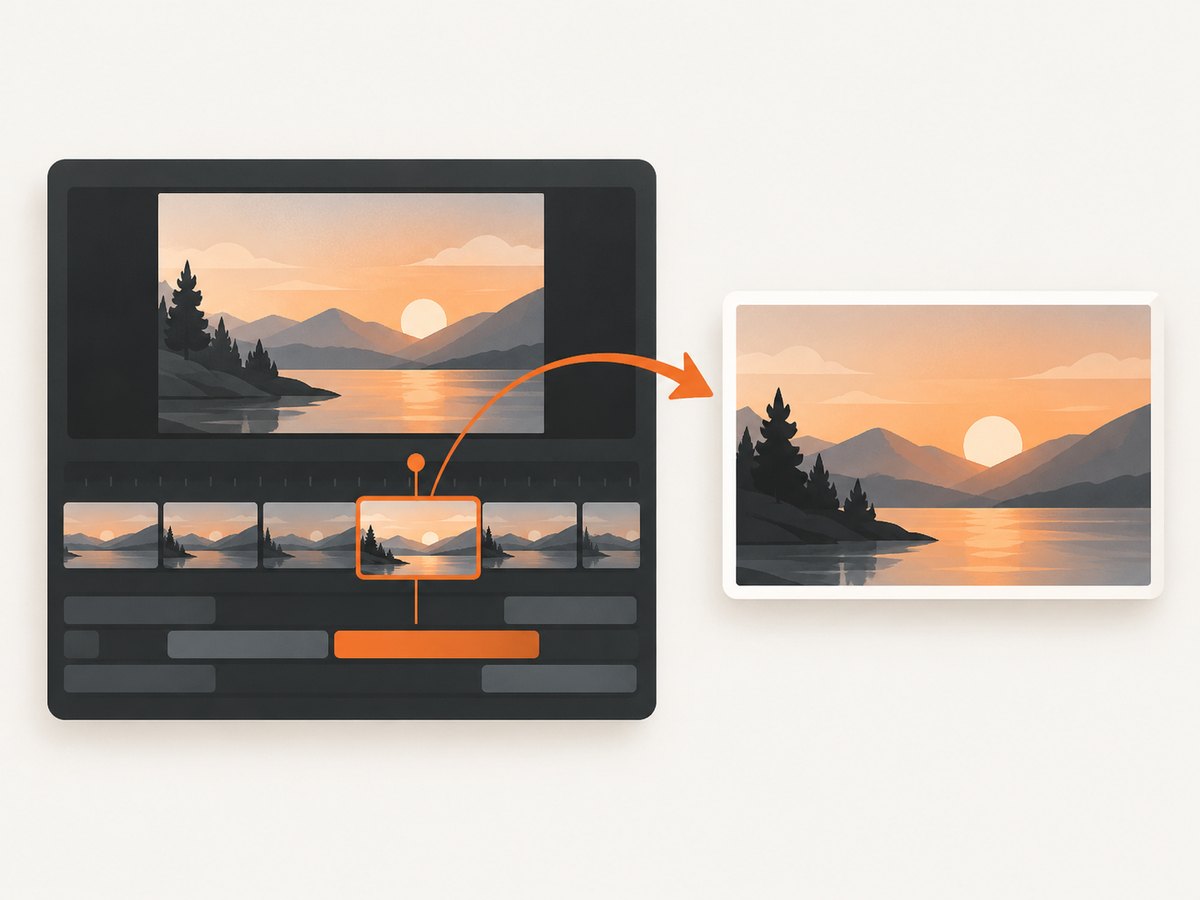
- Open the source video in a player or editor.
- Move through the timeline to a moment that reflects the main subject or action.
- Pause and inspect the frame at full size. Avoid motion blur, awkward expressions, obstructed subjects, or an unclear composition.
- Capture or export the frame using the player or editor’s still-image function. If it has no export option, use an operating-system screenshot and crop away player controls.
A captured frame may be lower resolution than the video itself, depending on the player, display, and capture method. If the image looks soft when enlarged, choose another frame or use the frame as a reference while composing a new image in an editor. Enlarging a small capture does not restore missing detail.
2. Prepare the image for a standard YouTube video
For a regular landscape video, use a 16:9 canvas. YouTube recommends 3840 × 2160 pixels and lists 640 pixels as the minimum width. JPG and PNG are accepted formats. The file must be under 50 MB when uploaded on desktop or under 2 MB when uploaded on mobile. These are YouTube’s recommendations and limits; you do not need to export at exactly 3840 × 2160 if your source or design calls for a smaller image. [YouTube Help]
| Use | Aspect ratio | Recommended dimensions | Minimum dimension | Format and upload limit |
|---|---|---|---|---|
| Standard video | 16:9 | 3840 × 2160 px | 640 px wide | JPG or PNG; under 50 MB desktop, under 2 MB mobile |
| Shorts | 9:16 | 2160 × 3840 px | 640 px high | JPG or PNG; under 50 MB desktop, under 2 MB mobile |
Compose for accuracy and small displays
Keep the main subject prominent and avoid placing essential detail close to the edges, where cropping or display differences may hide it. Check the image at a small preview size: if its subject is hard to identify, simplify the composition. Text or decorative elements are optional; make sure they do not imply something the video does not contain. These are practical design checks, not guarantees of more clicks or views.
Export and check the file
- Set the canvas ratio and dimensions in an image editor.
- Crop and adjust the frame, or add other imagery if useful.
- Export as JPG or PNG.
- Check the exported pixel dimensions and file size.
- Open the exported file once to confirm that it is not blank, corrupted, or an unintended crop.
If you are using a phone to upload, the 2 MB limit is much lower than the desktop limit. Re-export at a smaller size or use JPG compression if the file is too large; inspect the result to ensure the image remains clear.
3. Upload a custom thumbnail in YouTube Studio
On a computer
- Sign in to YouTube Studio.
- Open Content and select the video.
- In the video details, find Thumbnail.
- Select Upload file and choose the prepared image.
- Save the video details.
You can instead choose one of YouTube’s autogenerated suggestions. A custom upload gives you control over the image; autogenerated suggestions reduce editing and file-preparation work. Custom uploads require a verified account. YouTube describes the thumbnail as the image viewers see before choosing a video. [Custom thumbnail instructions] [Upload YouTube videos]
On Android for a standard video
In the YouTube Studio app, open Content, select the video, tap Edit, then Edit thumbnail. Choose an autogenerated option or select a custom image from your device, confirm the choice, and save. YouTube notes that an update may take time to appear. [YouTube Help: Android instructions]
4. Use the right workflow for vertical videos and Shorts
A standard 16:9 thumbnail does not appear in every placement for a vertical video. YouTube says that on mobile Home, Explore, and Subscriptions it replaces a custom 16:9 image with an autogenerated 4:5 image. The custom thumbnail remains on the watch feed, watch history, and non-mobile platforms. If those mobile surfaces matter to your video, check how the autogenerated crop represents the content.
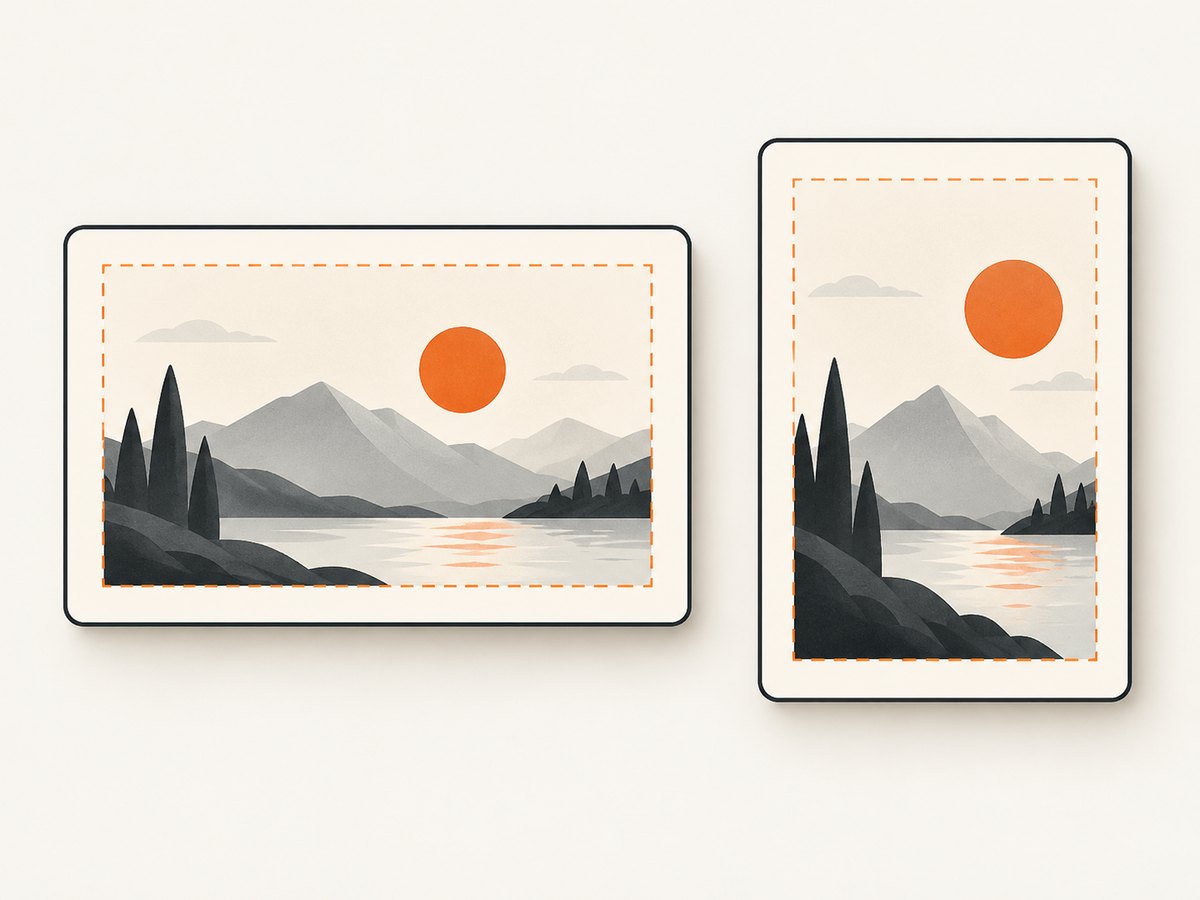
For Shorts, YouTube recommends a 9:16 image at 2160 × 3840 pixels, with a minimum height of 640 pixels. Its current help instructions say custom Shorts thumbnails can be added in YouTube Studio on a computer. The Shorts interface and supported options can change, so check the current Studio controls when publishing. [YouTube Help]
5. Follow thumbnail policy
A custom thumbnail must comply with YouTube’s Community Guidelines and must not mislead viewers about the video. YouTube lists nudity or sexually provocative content, hate speech, violence, and harmful or dangerous content as examples that may cause rejection and a strike. Its thumbnail policy also addresses deceptive impersonation and trademark-holder rights. Review both the image and any text or implied scene in it before uploading. [Custom thumbnail guidance] [YouTube thumbnails policy]
6. Troubleshoot common problems
| Problem | Likely cause | What to do |
|---|---|---|
| There is no custom upload option | The account may not be verified, or you may be in a workflow that does not support custom upload. | Check account verification. For a Short, use YouTube Studio on a computer according to the current help instructions. |
| Studio rejects the file | Unsupported format, excessive file size, or an image that does not meet current requirements. | Export as JPG or PNG, check the pixel dimensions, and keep below the limit for the device used to upload. |
| The image looks blurry | The chosen frame is blurred, the capture is small, or the editor enlarged a low-resolution image. | Choose a sharper frame or use a higher-quality source. Avoid enlarging a small screenshot as a substitute for detail. |
| The thumbnail has the wrong crop | The canvas ratio does not match the intended placement, or the image is shown in a placement with a different crop. | Use 16:9 for standard landscape videos and 9:16 for Shorts. For vertical videos, account for YouTube’s mobile 4:5 autogenerated substitution in the listed surfaces. |
| The saved image has not appeared yet | YouTube may take time to reflect a thumbnail change. | Confirm that you saved the video details, then check Studio again later. |
| The thumbnail is removed or restricted | It may violate Community Guidelines or mislead viewers. | Review YouTube’s thumbnail policy, replace the image with an accurate compliant one, and follow any notice shown in Studio. |
7. Keep the workflow reliable
- Save an editable original. Keep the project file or full-resolution source so you can adjust the crop or export again.
- Use a clear filename. For example, name the image after the video rather than leaving it as a generic screenshot filename.
- Check the final export. Verify its dimensions, format, file size, and appearance before uploading.
- Preview the image small. This catches details that disappear in a compact thumbnail.
- Recheck platform instructions. Upload limits, interface labels, and Shorts support are platform details that can change.
There is no special cost to extracting a frame with a player or editor already available to you; any optional image editor or video editor you choose may have its own price and terms. YouTube’s official instructions do not require a particular editing program. Avoid assuming that a specific color, font, or face will improve performance: the cited official sources provide image requirements and policy, not thumbnail-performance guarantees.
Or skip the browser setup
If you need a screenshot of a webpage shown inside or alongside a video, ScreenshotNeo can return a screenshot image or PDF from one GET request. See the API documentation for options.
curl -G "https://api.screenshotneo.com/v1/shot" -d access_key=YOUR_API_KEY --data-urlencode url=https://stripe.com -o shot.webpimport requests
r = requests.get("https://api.screenshotneo.com/v1/shot", params={"access_key": "YOUR_API_KEY", "url": "https://stripe.com"}, timeout=90)
open("shot.webp", "wb").write(r.content)const q = new URLSearchParams({ access_key: 'YOUR_API_KEY', url: 'https://stripe.com' });
const res = await fetch(`https://api.screenshotneo.com/v1/shot?${q}`);ScreenshotNeo removes cookie banners, newsletter popups, and chat widgets before the shot. Bot checks, blank pages, and failed loads are never billed. Its MCP server lets AI agents take screenshots. The Free plan includes 1,000 screenshots a month with no card; paid plans start at $5 for 3,000. ScreenshotNeo captures webpages, so use it for a webpage image that belongs in your thumbnail workflow, not to extract a frame from a local video file.
Sign up for ScreenshotNeo and get 1,000 free screenshots a month, no card required.
Frequently asked questions
Can I use any frame from my video?
You can use a frame as source material, but choose one that is clear and accurately represents the video. YouTube’s upload process accepts an image; it does not require that image to be a frame from the footage.
Do I have to make the thumbnail in YouTube Studio?
No. Prepare the image in a player, video editor, or image editor, then upload it in Studio. YouTube also offers autogenerated suggestions.
Can I change a thumbnail after publishing?
You can return to the video’s thumbnail controls in Studio, upload a replacement, and save. The updated image may take time to appear.
Can a thumbnail promise something that happens only briefly?
It should still represent the video accurately. YouTube’s policy prohibits misleading thumbnails; assess the overall impression, not only whether a depicted object appears somewhere in the video.
Does a thumbnail need text?
No. Text is an optional design choice. The technical requirements are about the image file and dimensions, and the image must follow YouTube policy.


