Creative Automation with Make (Integromat): A Practical Guide
Learn how to connect creative tools in Make, choose templates, estimate credits, debug scenarios, and automate briefs, assets, approvals, and reporting.
Direct answer: Make (formerly Integromat) helps you automate the handoffs around creative work. You build a scenario from modules: one module receives a trigger, later modules transform or map data, and other modules send actions to connected apps. For example, a new brief record can trigger a scenario that copies the brief’s title, owner, deadline, and asset link into a project tracker, then alerts a review channel. Make coordinates those steps; it does not demonstrate automatic creative judgment or replace a designer’s decisions.
This guide shows how to design a reliable creative scenario, start from a template, connect apps, handle files and approvals, estimate credits, and troubleshoot failures. It also shows how ScreenshotNeo can supply clean website screenshots when a creative workflow needs a visual reference.
What is Make?
Make describes itself as a no-code integration platform. Apps expose modules, and scenarios arrange those modules into an automated workflow. Make’s pricing FAQ defines a scenario as “an automated workflow that you build using Make” and explains that scenarios generally receive a trigger, transform information, and send it to another app (Make pricing FAQ).
A scenario can run on a schedule or in response to an event, depending on the trigger module and the connected app. Common creative operations include:
- Copying a new brief from a form, spreadsheet, or database into a project-management tool.
- Creating review tasks when a file appears in a storage folder.
- Sending selected metadata, rather than an entire record, to a reporting sheet.
- Routing urgent work to one approval path and normal work to another.
- Collecting status updates and producing a weekly production summary.
Availability of modules, authentication methods, and actions differs by app. Make’s app documentation notes that some connections use a normal sign-in while others require credentials such as API keys or client IDs (Introduction to Make apps).
How a creative scenario is structured
Think of a scenario as a small data pipeline:

- Trigger: an event such as a new row, uploaded file, form response, or scheduled time.
- Retrieve: fetch the fields or file metadata required by later steps.
- Transform: clean names, format dates, select fields, or calculate a value.
- Route: use filters or routers when different conditions require different actions.
- Act: create a task, update a record, notify a channel, or call an API.
- Observe: inspect execution history, handle errors, and schedule the scenario.
Map only the data each destination needs. A brief-to-task flow may need a title, URL, owner, due date, priority, and preview image; copying every source column makes later changes harder to understand.
How do I automate a creative workflow with Make?
1. Define one handoff
Write the workflow as a sentence: “When a new approved brief arrives in the brief database, create a production task and notify the assigned reviewer.” Name the source, the destination, required fields, and the expected run frequency. Start with one handoff before adding reporting, branching, or enrichment.
2. Prepare the connected apps
Create the required accounts and decide which account should own each connection. Confirm that the source can expose the event you need. If an app is not available in Make, its HTTP app can call a service with a public API, but you must understand that service’s authentication, request format, rate limits, and response errors (Make app documentation).
3. Add the trigger and connection
In a new scenario, add the source app and choose a trigger such as “watch records,” “watch files,” or a webhook. Create the connection when prompted. Use a dedicated integration account where possible, and grant only the permissions needed for the workflow.
4. Add modules and map fields
Add the destination module, then map source fields into its inputs. Keep the original source ID in the destination record; it gives you a stable key for updates and deduplication. Normalize dates and statuses before they reach the destination so every downstream tool receives the same values.
5. Test with safe sample data
Run the scenario once with a disposable brief or test file. Inspect each module’s input and output. Verify that links are accessible to the intended people, that attachments are not accidentally public, and that a retry will not create duplicate tasks.
6. Add filters, routers, or aggregators only when needed
A filter can stop low-priority records or incomplete briefs. A router can send urgent work to a fast approval channel and ordinary work to a normal queue. An aggregator can combine several records into one digest. Each extra module increases maintenance and credit usage, so add it to solve a specific requirement.
7. Schedule and document the scenario
Choose an interval that matches the business need. A daily digest does not need minute-level polling. Add a scenario description containing the owner, source, destination, expected fields, and recovery procedure. Keep a small test record available for future changes.
Illustrative workflow: brief to production task
Suppose a new row in a spreadsheet represents an approved brief and an Airtable base tracks production. The flow below is illustrative; the exact modules and field names depend on your connected apps.
- Use a spreadsheet “watch new rows” trigger.
- Filter for
Status = Approvedand a non-empty asset link. - Map
Title,Owner,Due date, andAsset URLinto an Airtable “create record” action. - Send a notification containing the created record ID.
- Store the source row ID in Airtable so a rerun can update the existing record instead of creating a second one.
Make’s pricing page uses a new spreadsheet row and Airtable as an example of a trigger and destination; treat that as an example of the concept, not a guarantee that every account has identical modules (Make pricing).
Starting with a Make template
Templates are ready-to-use scenarios that you can use as-is, edit, expand, share, and reuse. Make says its public library covers more than 7,500 use cases, and templates are available on all plans (Scenario templates). The published count is Make’s figure and may change.
- Search by the app you already use or by the action you want, such as “create task from form.”
- Open the template and inspect its trigger, modules, filters, and mapped fields.
- Replace example connections with your own accounts.
- Remove modules you do not need and add required validation.
- Run it with safe sample data before enabling a schedule.
A template is a starting point, not proof that the workflow matches your permissions, naming conventions, file sizes, or approval policy. Review every module before enabling it.
Calling an API from Make’s HTTP module
When a required service is absent, use Make’s HTTP module if that service exposes a public API. Configure the method, URL, query parameters or body, authentication, and expected response. Keep secrets in Make’s connection or credential fields rather than hard-coding them in a text module. Check the API’s documentation for pagination, rate limits, and retry behavior.
A generic JSON request body might look like this:
{
  "title": "{{1.Title}}",
  "owner": "{{1.Owner}}",
  "due_date": "{{1.Due date}}",
  "asset_url": "{{1.Asset URL}}"
}
The double-brace expressions represent mapped values from an earlier module; select fields through Make’s mapping interface rather than assuming these exact tokens will exist in your scenario.
Or skip the browser setup
If your workflow needs a website reference image, you can run a browser yourself or call ScreenshotNeo. It provides a GET endpoint that returns PNG, JPEG, WebP, or PDF output. The request below can be placed in Make’s HTTP module or run from a shell.

curl -G "https://api.screenshotneo.com/v1/shot" -d access_key=YOUR_API_KEY --data-urlencode url=https://stripe.com -o shot.webpPython:
import requests
r = requests.get("https://api.screenshotneo.com/v1/shot", params={"access_key": "YOUR_API_KEY", "url": "https://stripe.com"}, timeout=90)
open("shot.webp", "wb").write(r.content)
Node.js:
const q = new URLSearchParams({ access_key: 'YOUR_API_KEY', url: 'https://stripe.com' });
const res = await fetch(`https://api.screenshotneo.com/v1/shot?${q}`);
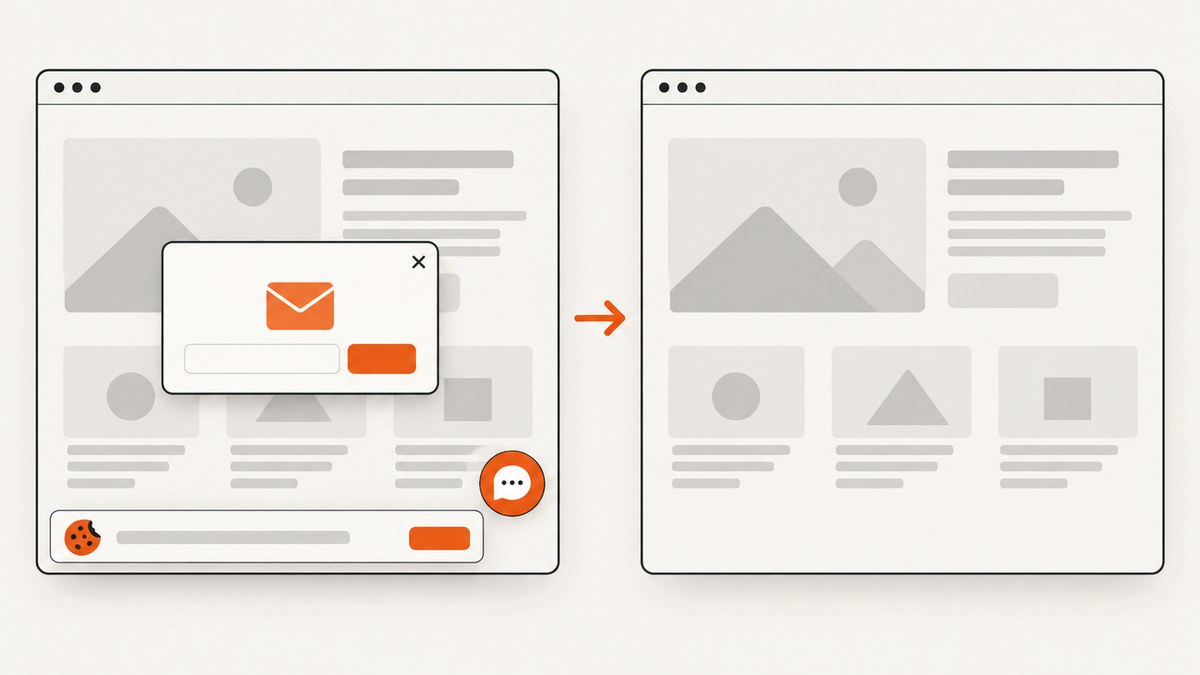
See the ScreenshotNeo API documentation for request options. Before capture, it accepts cookie or consent banners and removes more than 60 known consent platforms, newsletter popups, and chat widgets; each cleanup step can be switched off. Bot checks or CAPTCHAs, blank pages, timeouts, failed loads, and cache hits are not billed, and response headers identify the page verdict and whether the request was billed. An MCP server provides take_screenshot, get_page_info, and capture_pdf tools for Claude, Cursor, and other MCP clients. The Free plan includes 1,000 shots per month with no card; paid plans start at $5 for 3,000 shots. Create a free ScreenshotNeo account.
Useful options for creative capture workflows
| Need | Make design | Screenshot or API design |
|---|---|---|
| Different output per condition | Router with filters | Choose image or PDF parameters per route |
| Prevent duplicate tasks | Store source ID and search before create | Use a stable URL and chosen cache TTL |
| Wait for a page state | Delay or polling module | Wait for a selector, delay, or network idle |
| Brand-specific rendering | Map campaign or brand fields | Custom CSS, JavaScript, headers, cookies, user agent, timezone, or geolocation |
| Large batches | Iterator or aggregator | Bulk capture supports up to 100 URLs per call |
ScreenshotNeo also supports full-page capture with lazy images loaded, CSS-selector element capture, dark mode, 12 device presets or any viewport, retina scale, PDF paper size, margins, landscape and page ranges, HTML/CSS to image, click and hide selectors, blocking ads, trackers, requests, or resource types, transparent backgrounds, resizing, signed links, asynchronous jobs with signed webhooks, usage reporting, and an OpenAPI specification. Parameter names used by other screenshot APIs also work, which can reduce migration changes.
Credits, plans, and total cost
Make charges credits for module actions; some advanced AI-provider features can consume more. Estimate usage with this simple model:
monthly credits ≈ runs per month × modules executed per runInclude retries, scheduled polling, router branches, aggregators, and high-volume periods in the estimate. A scenario that runs every five minutes can consume far more credits than the same scenario running once per hour.
Make’s pricing page currently displays Free, Core, Pro, Teams, and Enterprise. At the page’s selected 10,000-credit comparison, it lists Free at $0, Core at $12/month, Pro at $21/month, Teams at $38/month, and Enterprise with custom pricing. The Free label also says up to 1,000 credits per month, so do not confuse that allowance with the selected paid-plan comparison. Verify the current selector, monthly versus annual billing, and included credits before purchase (current Make pricing).
- Free: useful for a small scenario and low run frequency.
- Core: the displayed page adds unlimited active scenarios, minute-level scheduling, increased data transfer, and API access.
- Pro: adds priority execution, custom variables, and full-text execution-log search.
- Teams: adds team roles and team templates.
- Enterprise: custom pricing and organization-oriented controls.
Make is only one part of total cost. Connected providers may charge separately for accounts, subscriptions, API access, storage, or usage. Add those fees, plus any screenshot, AI, email, or data-transfer charges, to your workflow budget.
Reliability and performance checklist
- Use event triggers or the least frequent polling interval that meets the deadline.
- Filter early to avoid running expensive downstream modules on irrelevant records.
- Keep payloads small; pass IDs and links when the destination can retrieve the full object.
- Make actions idempotent by searching for an existing source ID before creating a record.
- Design for retries: distinguish a temporary timeout from a permanent validation error.
- Capture execution logs and alert an owner when a scenario fails repeatedly.
- Use aggregators for digests instead of sending one notification per item.
- For screenshots, select an appropriate viewport, wait condition, cache TTL, and output format.
Troubleshooting common errors
The trigger finds nothing
Cause: the connection lacks permission, the record does not meet the trigger condition, or the schedule has not run. Fix: reconnect the app, test with a newly created sample record, inspect the trigger’s raw output, and confirm the schedule.
Required field or mapping error
Cause: a source value is empty, has the wrong type, or no longer exists. Fix: add a filter for required fields, normalize dates and numbers, and remap fields after changing the source schema.
Duplicate tasks or records
Cause: a retry or repeated trigger ran the create action twice. Fix: persist the source ID, search before create, and update an existing destination record when the ID is present.
HTTP 401 or 403
Cause: an expired token, missing API key, or insufficient scope. Fix: recreate the connection, check the authorization header, and request the minimum permission required by the service.
HTTP 429 or intermittent timeouts
Cause: rate limits or a slow upstream service. Fix: reduce polling, batch work, honor retry-after guidance, and separate temporary failures from permanent errors.
Screenshot is blank or contains a popup
Cause: the page needs more time, blocks automation, or renders a consent layer. Fix: wait for a selector, delay, or network idle; inspect the page verdict; and use ScreenshotNeo’s consent, popup, resource-blocking, custom CSS, or JavaScript options.
FAQ
Does Make create the creative itself?
Make automates data movement and actions between apps. The reviewed documentation does not establish that it generates original creative work or evaluates quality.
Can I use a template on the Free plan?
Make says templates are available on all plans. You still need to connect your own apps, review permissions, adapt mappings, and stay within the plan’s credit allowance.
What if my app is missing?
Use the HTTP app with the service’s public API when available. This requires technical knowledge of authentication, request bodies, responses, and limits.
How often should a scenario run?
Match the schedule to the handoff’s urgency. Use event triggers when available; otherwise choose the slowest interval that still meets your deadline and budget.
Can a scenario call ScreenshotNeo?
Yes. Add Make’s HTTP module and send the ScreenshotNeo GET request with your access key and target URL, then pass the returned image or PDF to the next module.
Start with a small, observable workflow
The fastest path to useful creative automation is one trigger, one destination, a clearly mapped payload, and a test record. Add branching and enrichment only after the basic handoff is dependable. Estimate credits from real run frequency and module count, include the costs of connected services, and document who owns failures. When a workflow needs clean website visuals, ScreenshotNeo can remove common consent layers and failed-page noise before returning an asset your Make scenario can route onward.


