How to Crop html2canvas Captures With Top, Left, Bottom, and Right Bounds
Convert top, left, bottom, and right edges into html2canvas crop options with runnable code, scaling guidance, CORS fixes, and troubleshooting.
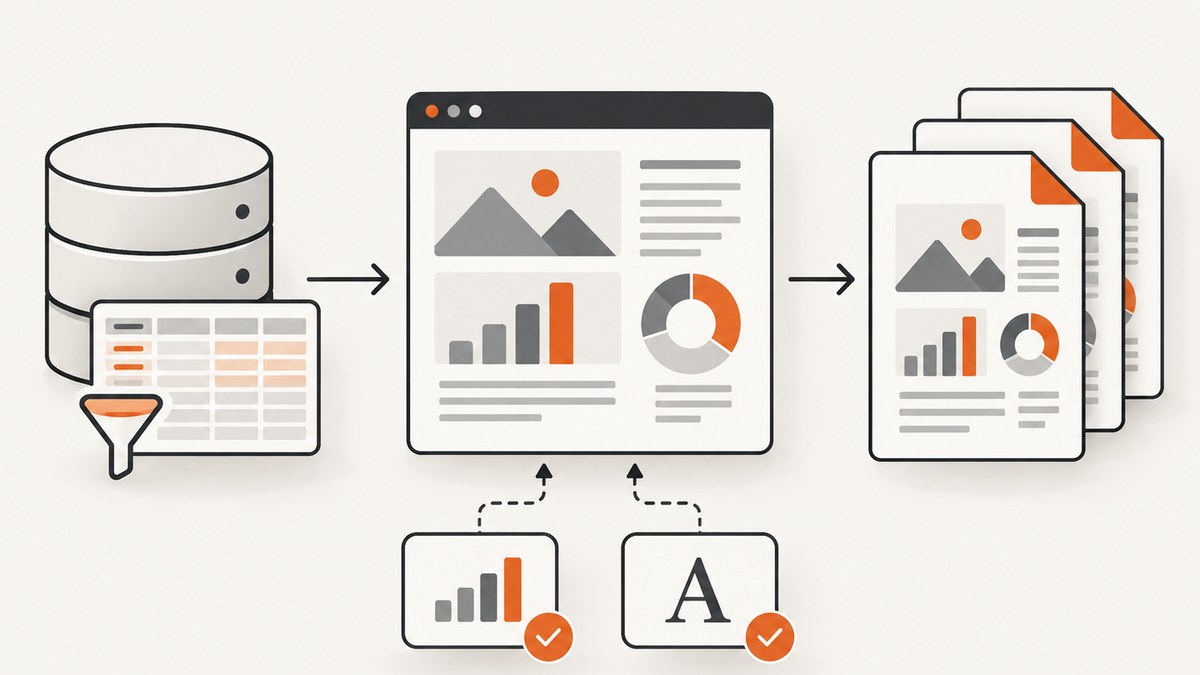
To crop an html2canvas capture with top, left, bottom, and right bounds, convert the four edges into a top-left rectangle:
x = left
y = top
width = right - left
height = bottom - top
Then pass those four values to html2canvas. The crop edges are measured in the coordinate space used for the element and render. Always validate that right is greater than left and bottom is greater than top.
const bounds = {
  top: 100,
  left: 50,
  bottom: 500,
  right: 650,
};

if (bounds.right <= bounds.left || bounds.bottom <= bounds.top) {
  throw new Error('right must exceed left and bottom must exceed top');
}

html2canvas(element, {
  x: bounds.left,
  y: bounds.top,
  width: bounds.right - bounds.left,
  height: bounds.bottom - bounds.top,
}).then((canvas) => {
  document.body.appendChild(canvas);
  const png = canvas.toDataURL('image/png');
});
The official html2canvas configuration documents x and y as the crop origin and width and height as the output dimensions. Its crop example describes passing those four options to crop the output. See the configuration reference and official examples.
1. Convert four edges into a rectangle
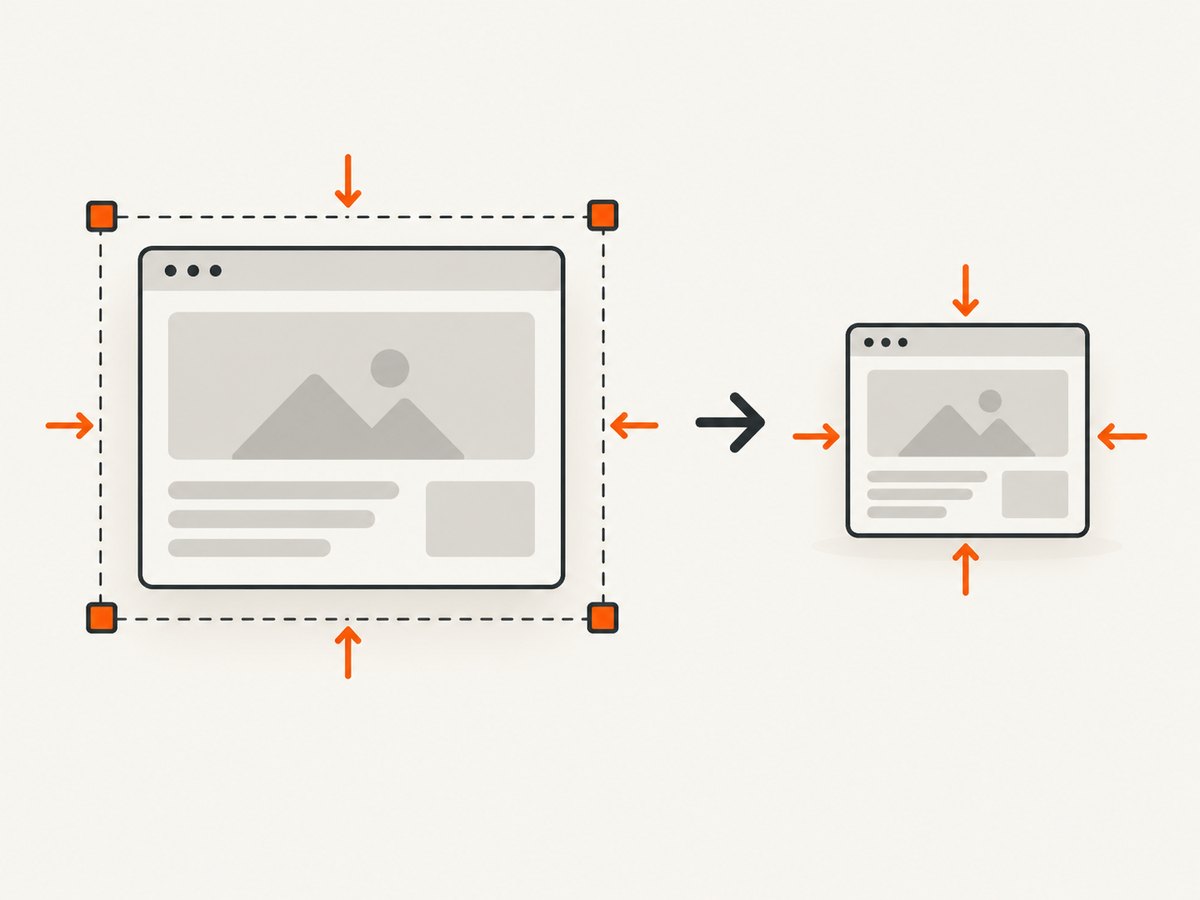
Bounds are commonly recorded as four edges because they are convenient when a user selects an area or when a layout calculation returns a box:
| Input edge | html2canvas option | Meaning |
|---|---|---|
left |
x |
Horizontal coordinate of the crop’s top-left corner |
top |
y |
Vertical coordinate of the crop’s top-left corner |
right |
width |
Right edge minus left edge |
bottom |
height |
Bottom edge minus top edge |
For example, {left: 50, top: 100, right: 650, bottom: 500} becomes {x: 50, y: 100, width: 600, height: 400}. The right and bottom values are edges, not dimensions. Passing right directly as width would make the crop too large whenever left is nonzero.
Validate and normalize input
Reject inverted or non-finite values before invoking the renderer. A reusable helper can also normalize numeric strings and provide a clear error:
function boundsToCrop(bounds) {
  const values = ['top', 'left', 'bottom', 'right'].map((key) => Number(bounds[key]));
  if (values.some((value) => !Number.isFinite(value))) {
    throw new TypeError('All bounds must be finite numbers');
  }

  const { top, left, bottom, right } = bounds;
  if (right <= left) throw new RangeError('right must exceed left');
  if (bottom <= top) throw new RangeError('bottom must exceed top');

  return {
    x: left,
    y: top,
    width: right - left,
    height: bottom - top,
  };
}

const crop = boundsToCrop({ top: 100, left: 50, bottom: 500, right: 650 });
const canvas = await html2canvas(element, crop);
2. A complete browser example
This example captures a selected element and downloads only the rectangle defined by four inputs. It assumes html2canvas is loaded on the page.
<button id="capture">Capture region</button>
<script src="https://cdn.jsdelivr.net/npm/html2canvas@1.4.1/dist/html2canvas.min.js"></script>
<script>
const element = document.querySelector('#invoice');

document.querySelector('#capture').addEventListener('click', async () => {
  const bounds = { top: 80, left: 24, bottom: 680, right: 824 };
  const crop = {
    x: bounds.left,
    y: bounds.top,
    width: bounds.right - bounds.left,
    height: bounds.bottom - bounds.top,
    backgroundColor: '#ffffff',
    scale: window.devicePixelRatio,
  };

  if (crop.width <= 0 || crop.height <= 0) {
    throw new Error('The crop rectangle must have positive dimensions');
  }

  const canvas = await html2canvas(element, crop);
  const link = document.createElement('a');
  link.download = 'invoice-crop.png';
  link.href = canvas.toDataURL('image/png');
  link.click();
});
</script>
If your bounds are relative to the entire document but element starts lower on the page, subtract the element’s document position first. If they are already relative to the element’s own top-left corner, use them directly.
Capture a rectangle selected with the mouse
A drag-selection usually supplies viewport coordinates. Convert them to document or element coordinates before calling html2canvas. Account for scrolling:
function selectionToElementBounds(selection, element) {
  const rect = element.getBoundingClientRect();
  const scrollX = window.scrollX;
  const scrollY = window.scrollY;

  const left = selection.left + scrollX - (rect.left + scrollX);
  const top = selection.top + scrollY - (rect.top + scrollY);
  const right = selection.right + scrollX - (rect.left + scrollX);
  const bottom = selection.bottom + scrollY - (rect.top + scrollY);

  return { left, top, right, bottom };
}

const crop = boundsToCrop(selectionToElementBounds(selection, element));
const canvas = await html2canvas(element, crop);
Keep all four values in the same coordinate system. Mixing viewport coordinates with document coordinates is a common cause of an offset crop.
3. Coordinate systems, scrolling, and scale
html2canvas renders a DOM representation into a canvas. The crop coordinates describe the rendered element, while the output bitmap dimensions are affected by scale. By default, scale is the browser’s window.devicePixelRatio, so a 600 CSS-pixel crop can produce a backing canvas wider than 600 physical pixels on a high-density display.
Choose a predictable scale
const canvas = await html2canvas(element, {
  ...boundsToCrop(bounds),
  scale: 1,
});
Use scale: 1 when you need output dimensions to match CSS pixels exactly. Keep the default device-pixel ratio for sharper images, or choose a fixed value such as 2 for consistent exports across machines. A larger scale increases memory use and encoding time.
Scroll position and fixed elements
Document coordinates include scroll offsets; viewport coordinates do not. If the page contains fixed headers, decide whether the header belongs in the crop and calculate against the same origin. You can temporarily set a known scroll position before capture, or use windowWidth and windowHeight when reproducing a large layout.
4. Large pages and canvas limits
Very large canvases can exceed browser bitmap or memory limits. Symptoms include a blank canvas, a truncated image, an exception during rendering, or a tab becoming unresponsive. The html2canvas FAQ recommends matching windowWidth and windowHeight to an element’s scroll dimensions when appropriate; see the FAQ.
For a large target:
- Measure
element.scrollWidthandelement.scrollHeight. - Set
windowWidthandwindowHeightto values that reproduce the intended layout. - Prefer several smaller crops over one enormous bitmap.
- Lower
scaleif memory pressure persists. - Encode as JPEG when you do not need transparency.
const canvas = await html2canvas(element, {
  ...boundsToCrop(bounds),
  windowWidth: element.scrollWidth,
  windowHeight: element.scrollHeight,
  scale: 1,
});
5. Cross-origin images and CORS
Images loaded from another origin can be blocked or can taint the canvas. When the image server sends a suitable Access-Control-Allow-Origin header, try useCORS: true:
const canvas = await html2canvas(element, {
  ...boundsToCrop(bounds),
  useCORS: true,
});
This option cannot grant permission that the image server does not provide. If the remote server lacks the required header, use a same-origin proxy that fetches the image and serves it from your domain, or remove the image from the capture. The html2canvas FAQ documents both the CORS requirement and proxy approach.
6. Direct crop versus capturing then post-cropping
| Approach | Advantages | Trade-offs |
|---|---|---|
Pass x, y, width, height |
Less memory, fewer pixels to render, simple edge mapping | Coordinates must be correct before rendering |
| Capture a larger canvas, then crop | Useful when you need to inspect or adjust the result interactively | More memory and rendering time; scaling must be handled explicitly |
Direct cropping is usually the efficient choice when the bounds are known. Post-cropping can help when a browser layout changes during rendering and you need to examine the full result first.
const full = await html2canvas(element, { scale: 1 });
const crop = document.createElement('canvas');
const { x, y, width, height } = boundsToCrop(bounds);
crop.width = width;
crop.height = height;
crop.getContext('2d').drawImage(full, x, y, width, height, 0, 0, width, height);
If you use a scale greater than one, multiply source coordinates by that scale when drawing from the larger canvas, or keep both captures at the same scale.
7. Troubleshooting common failures
The crop is shifted
Cause: viewport, document, and element coordinates were mixed. Fix: choose one origin, subtract getBoundingClientRect() when converting to element coordinates, and account for window.scrollX and window.scrollY.
The right or bottom edge is cut off
Cause: right or bottom was passed as a dimension. Fix: use right - left and bottom - top.
Nothing is captured
Cause: zero or negative dimensions, an element with no layout box, or a canvas limit. Fix: log the computed rectangle, verify positive dimensions, wait for the element to render, and reduce the area or scale.
Remote images disappear
Cause: missing CORS headers or a tainted canvas. Fix: enable useCORS only when the server permits it, otherwise use a same-origin proxy.
The output is blurry
Cause: scale: 1 on a high-density display or a later resize that discards pixels. Fix: use the device-pixel-ratio default or a fixed higher scale, then resize once at the end.
Fonts or lazy content are missing
Cause: capture starts before fonts, images, or asynchronous content finish. Fix: await document.fonts.ready, wait for important images, and trigger lazy loading before capture.
await document.fonts.ready;
await Promise.all([...element.querySelectorAll('img')].map((img) =>
  img.complete ? Promise.resolve() : new Promise(resolve => {
    img.addEventListener('load', resolve, { once: true });
    img.addEventListener('error', resolve, { once: true });
  })
));
const canvas = await html2canvas(element, boundsToCrop(bounds));
8. Performance, reliability, and output formats
Rendering cost grows with the number of pixels, DOM complexity, shadows, filters, images, and scale. Keep the crop as small as the use case allows, avoid repeatedly rendering the same page, and release temporary canvases after encoding. PNG preserves transparency and sharp text; JPEG is smaller for photographic content but has no alpha channel.
For repeatable results, freeze animations, use deterministic data, wait for fonts and images, and capture at a known viewport and scale. Treat a browser-side capture as dependent on the current page state: consent dialogs, chat widgets, ads, bot checks, and network failures can change the result.
9. Or skip the browser setup
If you need a server-side screenshot or PDF instead of maintaining browser capture code, ScreenshotNeo accepts one GET request and returns a PNG, JPEG, WebP, or PDF. Its API can capture a full page or one element by CSS selector, apply custom CSS and JavaScript, wait for a selector, delay, or network idle, set a viewport or device preset, and use cookies, headers, authorization, timezone, and geolocation. See the ScreenshotNeo documentation.
Example request:
curl -G "https://api.screenshotneo.com/v1/shot" -d access_key=YOUR_API_KEY --data-urlencode url=https://stripe.com -o shot.webpimport requests
r = requests.get("https://api.screenshotneo.com/v1/shot", params={"access_key": "YOUR_API_KEY", "url": "https://stripe.com"}, timeout=90)
r.raise_for_status()
open("shot.webp", "wb").write(r.content)const q = new URLSearchParams({ access_key: 'YOUR_API_KEY', url: 'https://stripe.com' });
const res = await fetch(`https://api.screenshotneo.com/v1/shot?${q}`);
if (!res.ok) throw new Error(`Screenshot failed: ${res.status}`);
const bytes = new Uint8Array(await res.arrayBuffer());
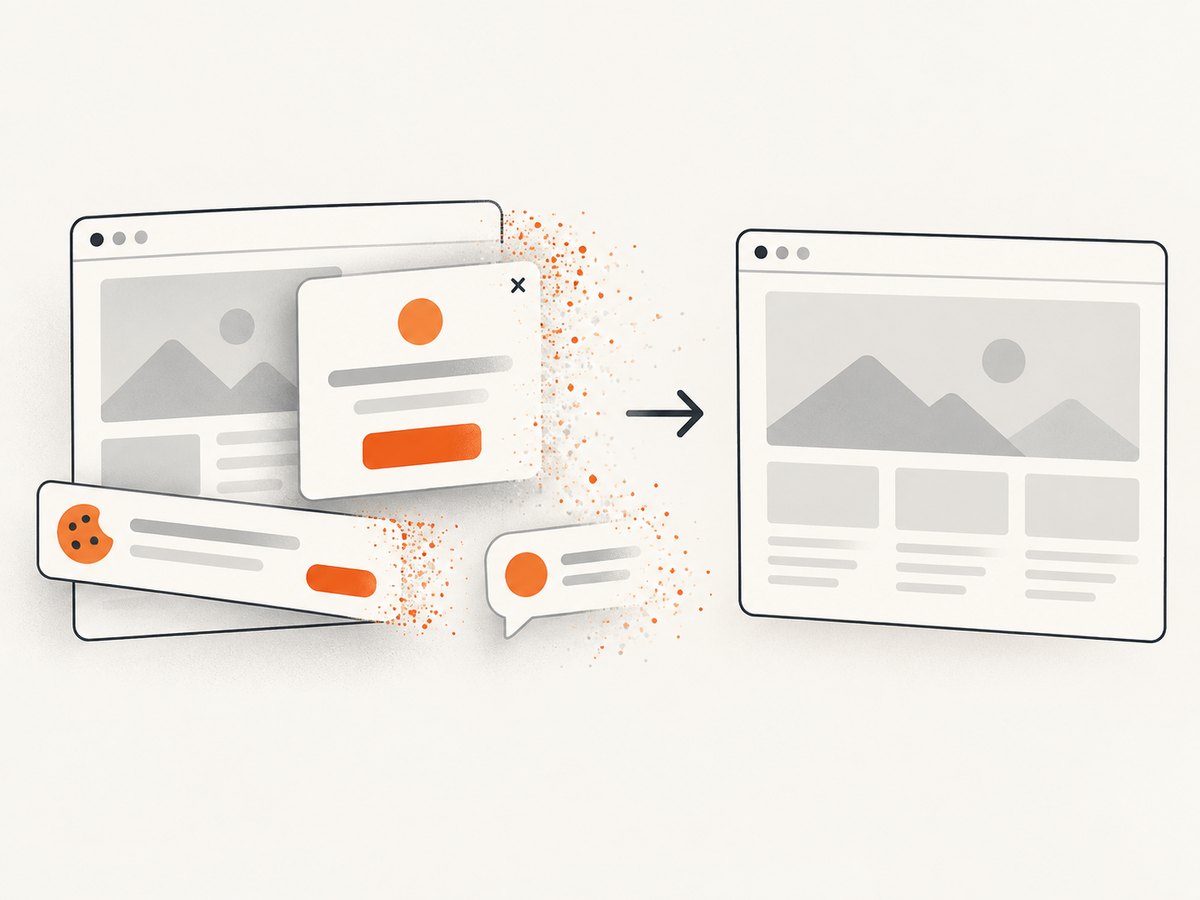
await Bun.write('shot.webp', bytes);ScreenshotNeo accepts cookie and consent banners before capture and removes more than 60 known consent platforms, newsletter popups, and chat widgets; each step can be turned off. Bot checks, blank pages, timeouts, failed loads, and cache hits cost nothing, and response headers identify the page verdict and billing status. An MCP server provides take_screenshot, get_page_info, and capture_pdf tools for Claude, Cursor, and other MCP clients. The Free plan includes 1,000 screenshots each month with no card; paid plans start at $5 for 3,000. Create a free ScreenshotNeo account.
10. FAQ
Can html2canvas crop only a rectangle?
Yes. Pass x, y, width, and height to render that region.
Are bounds inclusive?
Use the normal rectangle convention: the origin is at x,y, and the dimensions extend rightward and downward. Treat edges as numeric coordinates and validate the resulting dimensions.
Should I use CSS pixels or physical pixels?
Start with CSS-coordinate bounds. The scale option controls the backing bitmap resolution.
Why does a high-DPI screenshot have unexpected dimensions?
The default scale is window.devicePixelRatio. Set a fixed scale when exact output dimensions matter.
Can html2canvas bypass a CAPTCHA?
No. It renders the page available to the browser and does not provide a CAPTCHA bypass. For automated captures, handle access requirements lawfully and explicitly.


