How to Crop Images Programmatically
Learn reliable image cropping with Pillow and ImageMagick, including coordinates, aspect ratios, alpha, validation, automation, and API options.
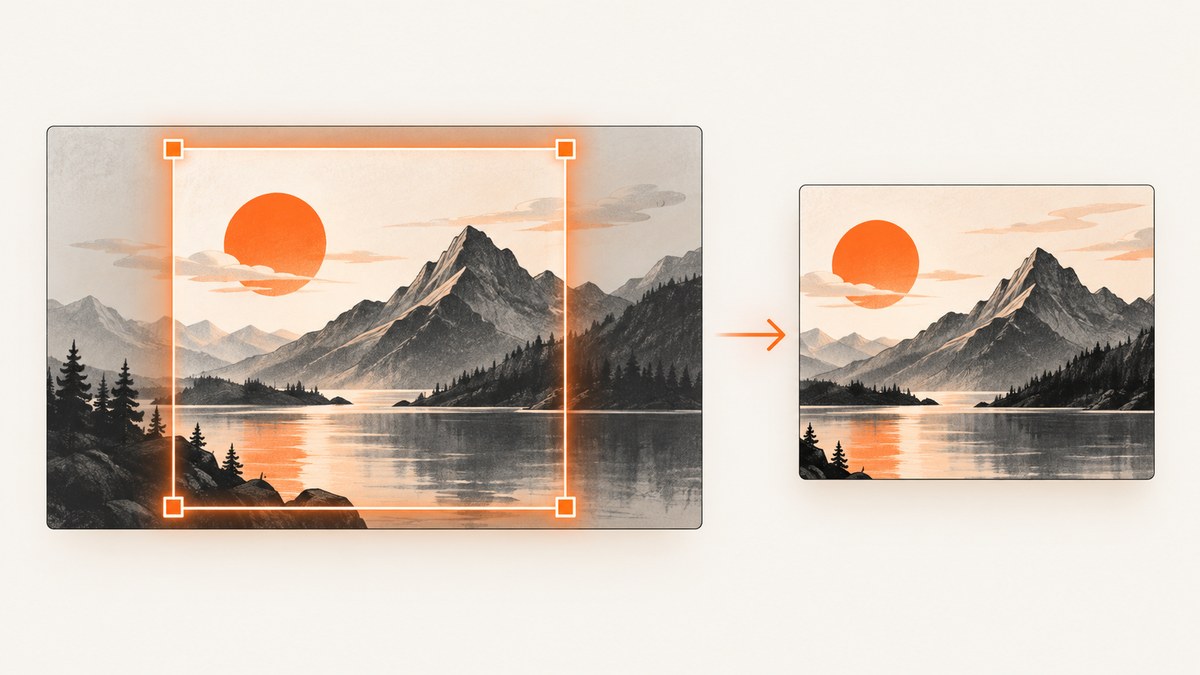
Direct answer: cropping extracts a rectangular region from an image using pixel coordinates. In Python, Pillow uses Image.crop((left, upper, right, lower)). In ImageMagick, use -crop widthxheight+x+y. Validate the rectangle, decide how to handle out-of-bounds coordinates, and choose whether the result should preserve the source aspect ratio or fill a target box.
This guide covers single-rectangle crops, border removal, center crops, exact aspect ratios, transparency, animated images, command-line batch jobs, validation, performance, and production troubleshooting.
1. Crop an image with Python and Pillow
Install Pillow in the environment where your script runs:
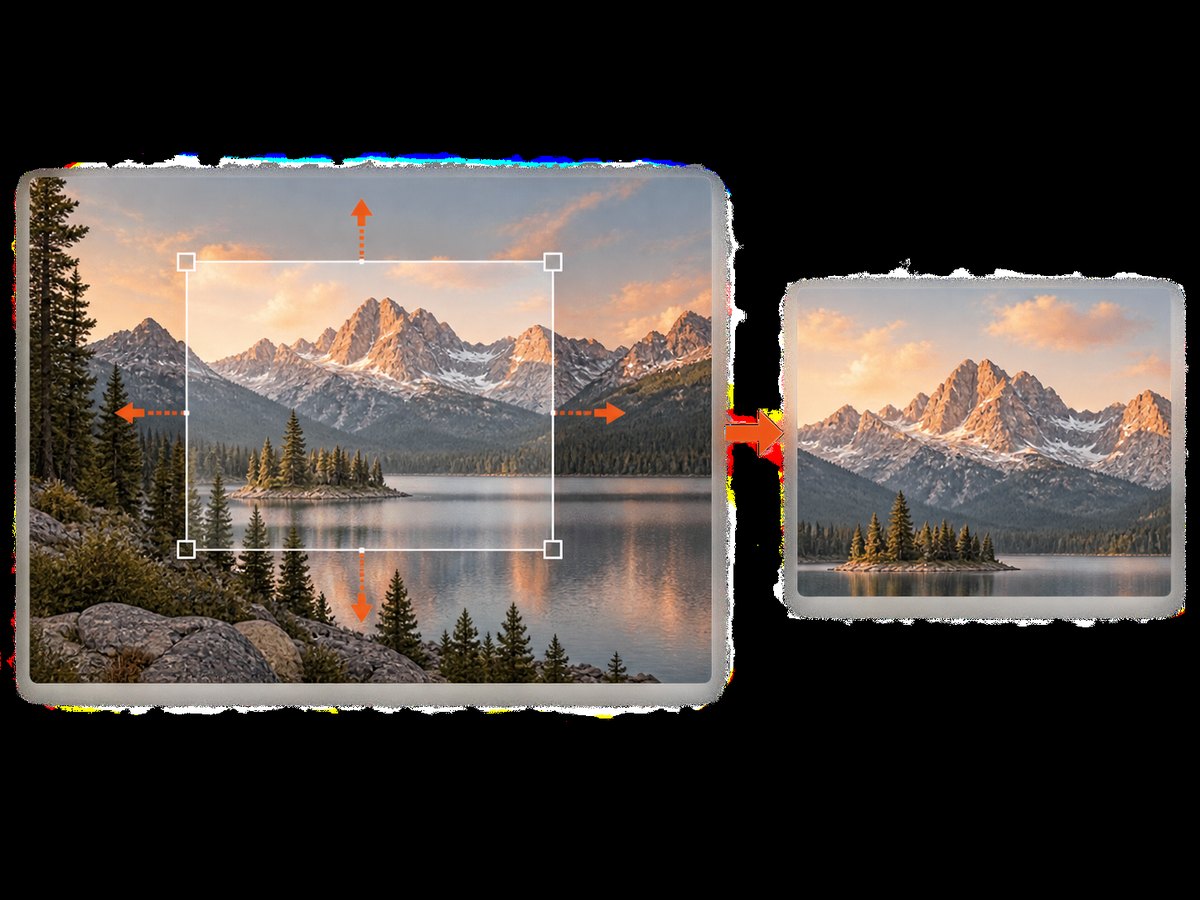
python -m pip install PillowThe four values are ordered (left, upper, right, lower)(0, 0) is the top-left corner. The right and lower values describe the edge of the crop box, so a box of (20, 20, 100, 100) produces an 80 by 80 region. See the Pillow Image API reference (c001).
from PIL import Image

with Image.open("input.jpg") as image:
    cropped = image.crop((20, 20, 100, 100))
    cropped.save("crop.jpg", quality=92)
Use with so the source file is closed even when saving fails. Pillow returns a new image object; the source image is not modified.
Crop from a width, height, and origin
Many APIs provide x, y, width, and height instead of two corners. Convert them explicitly:
from PIL import Image

x, y, width, height = 120, 80, 640, 480
if width <= 0 or height <= 0:
    raise ValueError("width and height must be positive")

box = (x, y, x + width, y + height)
with Image.open("input.jpg") as image:
    if x < 0 or y < 0 or x + width > image.width or y + height > image.height:
        raise ValueError("crop rectangle is outside the image")
    image.crop(box).save("region.png")
Remove a border
ImageOps.crop removes borders without requiring you to calculate the bottom-right coordinates. An integer applies to all four sides; a two-item tuple applies to horizontal and vertical borders; a four-item tuple is (left, top, right, bottom). The behavior is documented in the Pillow ImageOps reference (c002).
from PIL import Image, ImageOps

with Image.open("scanned-page.png") as image:
    result = ImageOps.crop(image, border=(20, 10, 20, 10))
    result.save("trimmed-page.png")
2. Center crops and exact aspect ratios
A raw rectangle is best when you know the subject coordinates. For thumbnails, avatars, and cards, you usually know the required output size instead. Pillow’s ImageOps.fit resizes and crops to an exact size while preserving the image’s proportions. centering=(0.5, 0.5) creates a centered crop; values near (0, 0) bias toward the top-left and (1, 0) toward the bottom-left (c003).
from PIL import Image, ImageOps

with Image.open("portrait.jpg") as image:
    square = ImageOps.fit(
        image,
        (800, 800),
        method=Image.Resampling.LANCZOS,
        centering=(0.5, 0.5),
    )
    square.save("portrait-square.jpg", quality=90, optimize=True)
For a 16:9 thumbnail, pass a size such as (1280, 720). If the important subject is toward the top, use a vertical bias such as centering=(0.5, 0.35). This changes which pixels are removed; it does not distort the image.
Contain versus cover
| Goal | Pillow operation | Result |
|---|---|---|
| Show the complete image inside a box | ImageOps.contain |
Preserves aspect ratio and may add unused space around the image |
| Fill a box completely | ImageOps.cover or ImageOps.fit |
Preserves aspect ratio and crops excess pixels |
| Use exact source coordinates | Image.crop |
Returns the requested rectangle |
from PIL import Image, ImageOps

with Image.open("product.jpg") as image:
    contained = ImageOps.contain(image, (800, 600))
    covered = ImageOps.cover(image, (800, 600))
    contained.save("product-contained.png")
    covered.save("product-covered.png")
Use contain for product images where every edge matters. Use cover or fit for layouts that cannot have letterboxing.
3. Crop with ImageMagick
ImageMagick uses the geometry form widthxheight+x+y. Width and height are the retained dimensions; x and y identify the crop region’s upper-left corner (c004).
magick input.jpg -crop 800x600+100+50 +repage output.jpg+repage removes virtual-canvas page metadata. This matters when downstream tools use the image’s page offset or when a previous operation left a nonzero canvas origin. ImageMagick documents crop geometry and virtual-canvas behavior in its crop reference (c004, c006, c008).
Install and inspect dimensions
# Debian or Ubuntu
sudo apt-get install imagemagick

magick identify -format '%w %h\n' input.jpg
For a crop that starts 100 pixels from the left and 50 pixels from the top, retaining 800 by 600 pixels:
magick input.jpg -crop 800x600+100+50 +repage output.jpgIf offsets are omitted, ImageMagick can generate tiles across the source image (c005):
magick large.png -crop 512x512 +repage tile-%02d.pngFor animated images, decide whether you want every frame cropped or only the first frame. ImageMagick may preserve page offsets from animated or layered sources; use +repage when the output should have a fresh canvas.
4. A reusable, validated Pillow crop function
Production code should reject malformed geometry before opening or writing large files. The function below accepts either strict in-bounds coordinates or an explicit clipping mode.
from pathlib import Path
from PIL import Image


def crop_file(source: str, destination: str, box, *, clip=False, format=None):
    if len(box) != 4:
        raise ValueError("box must contain left, upper, right, lower")
    left, upper, right, lower = (int(value) for value in box)
    if right <= left or lower <= upper:
        raise ValueError("crop width and height must be positive")

    with Image.open(source) as image:
        if clip:
            left = max(0, left)
            upper = max(0, upper)
            right = min(image.width, right)
            lower = min(image.height, lower)
        elif left < 0 or upper < 0 or right > image.width or lower > image.height:
            raise ValueError(
                f"box {box} exceeds image bounds {image.width}x{image.height}"
            )

        if right <= left or lower <= upper:
            raise ValueError("clipping removed the entire crop")
        result = image.crop((left, upper, right, lower))
        save_kwargs = {}
        if format:
            save_kwargs["format"] = format
        result.save(destination, **save_kwargs)


crop_file("input.jpg", "output.jpg", (20, 20, 100, 100))
Clipping is useful for user interfaces where a selection can extend beyond an edge. Rejecting is safer for strict document processing because it exposes coordinate mistakes immediately. Do not silently pad unless padding is part of the product requirement; padding changes the image dimensions and background pixels.
5. Transparency, color modes, and output formats
- Preserve alpha deliberately. Cropping an RGBA PNG keeps transparency. Saving that image as JPEG discards alpha and may fail or create an unexpected background. Convert explicitly if JPEG is required.
- Choose a color mode. Palette, grayscale, RGB, and CMYK inputs can produce different output behavior. Convert with
image.convert("RGB")before JPEG output when needed. - Set format-specific options. JPEG quality controls compression; PNG is lossless but may be larger; WebP can be lossy or lossless depending on encoder settings.
- Keep metadata policy explicit. A crop can retain or omit EXIF and ICC profile data depending on how it is opened and saved. If color fidelity matters, test the target viewer and preserve the profile intentionally.
from PIL import Image

with Image.open("transparent.png") as image:
    image.crop((0, 0, 500, 500)).save("cropped.webp", format="WEBP", lossless=True)

with Image.open("photo.png") as image:
    image.convert("RGB").crop((0, 0, 500, 500)).save(
        "cropped.jpg", format="JPEG", quality=90
    )
6. Coordinate systems and edge cases
- Pixel origin: both Pillow and ImageMagick use the top-left as the origin. Keep coordinate order documented as x then y, or left then top.
- Exclusive edges: Pillow’s right and lower box edges describe the boundary, which is why
(0, 0, 100, 100)is 100 by 100 pixels. - Out-of-bounds boxes: decide whether to reject, clip, or pad. Make that decision part of your API contract.
- Very large images: limit dimensions and pixel counts before processing to reduce memory pressure and decompression-bomb risk. Pillow can raise warnings or errors for suspiciously large images; configure limits according to your deployment.
- Animated sources: a single-frame crop may not meet expectations. Iterate frames when the output must remain animated, and preserve frame duration and disposal settings.
- EXIF orientation: camera images may display rotated because of metadata. Apply orientation before calculating visual coordinates:
from PIL import Image, ImageOps

with Image.open("camera.jpg") as image:
    oriented = ImageOps.exif_transpose(image)
    crop = oriented.crop((100, 100, 900, 700))
    crop.save("camera-crop.jpg", quality=92)
7. Batch cropping and performance
For a batch job, avoid loading the same source repeatedly and write outputs to a separate directory. Cropping itself is usually cheaper than resizing because it copies only the selected pixels, but decoding a compressed source still requires reading and expanding the image. Measure memory using the decoded dimensions, not the compressed file size.
from pathlib import Path
from PIL import Image

source_dir = Path("incoming")
output_dir = Path("cropped")
output_dir.mkdir(exist_ok=True)
box = (40, 40, 1040, 640)

for source in source_dir.glob("*.jpg"):
    destination = output_dir / source.name
    with Image.open(source) as image:
        if box[2] > image.width or box[3] > image.height:
            print(f"skip {source}: too small")
            continue
        image.crop(box).save(destination, quality=88, optimize=True)
For ImageMagick pipelines, use shell globbing carefully and write unique output names. Parallel workers can improve throughput on independent files, but each worker consumes memory for decoded images. Start with a small worker count and monitor resident memory, temporary storage, and file-descriptor limits.
8. Troubleshooting
| Symptom | Likely cause | Fix |
|---|---|---|
ValueError: Coordinate 'right' is less than 'left' |
Reversed or zero-width coordinates | Validate right > left and lower > upper. |
| Output is smaller than expected | The source is smaller, or the box was clipped | Log source dimensions and the final box before saving. |
| JPEG save fails for a PNG with transparency | JPEG has no alpha channel | Convert to RGB and choose a background color if transparency must be represented. |
| ImageMagick output appears offset | Virtual-canvas page metadata remains | Add +repage after -crop. |
| Crop looks rotated compared with the preview | EXIF orientation was not applied | Use ImageOps.exif_transpose before selecting coordinates. |
| Transparent or empty ImageMagick result | The crop missed the actual image canvas | Check width, height, offsets, and page geometry; use viewport cropping or corrected coordinates. |
| Process is killed on large uploads | Decoded pixel memory exceeds the worker limit | Reject oversized dimensions, process in bounded workers, and avoid retaining source and result copies unnecessarily. |
| Only the first animation frame is present | The library call opened one frame | Iterate frames and save with animation options when animated output is required. |
9. Or skip the browser setup
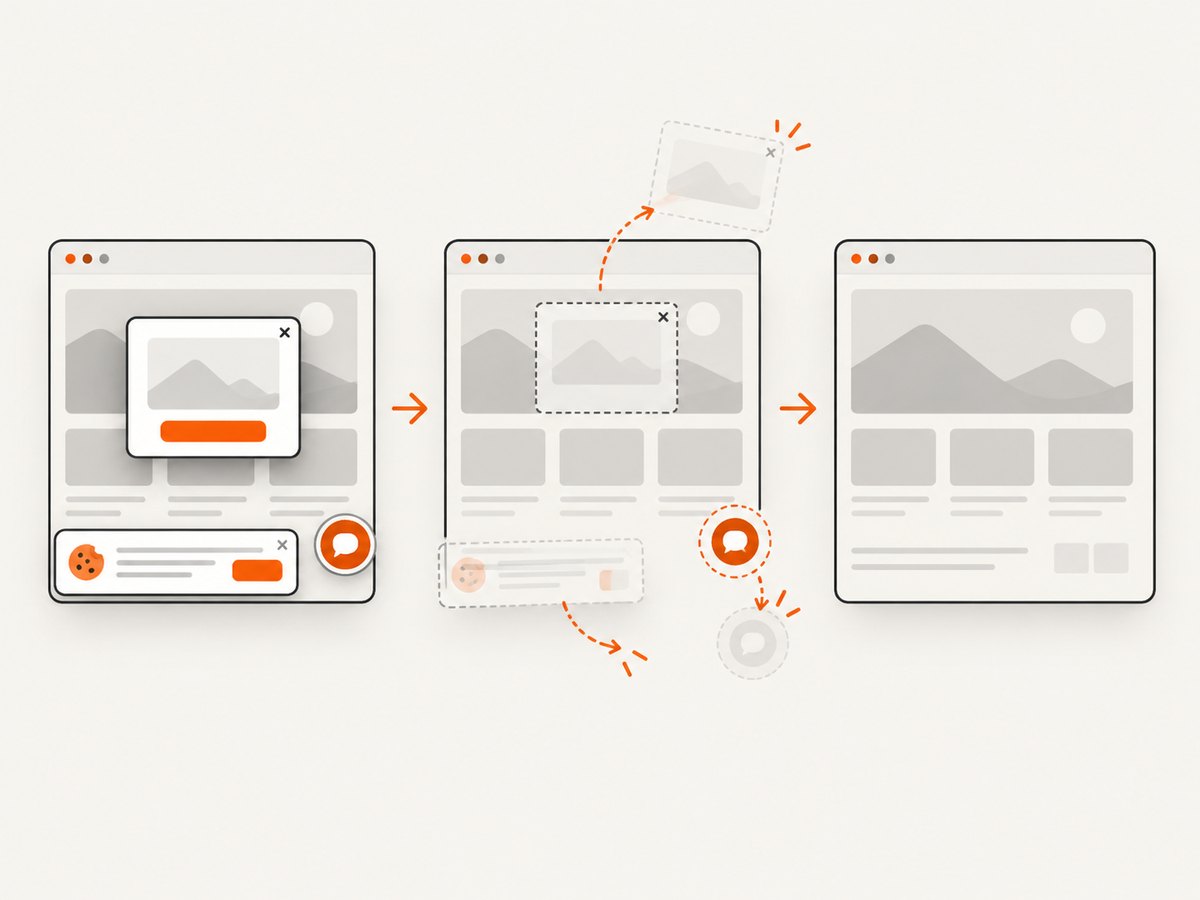
If the image you need is a webpage capture, you can crop after downloading a screenshot, but browser automation adds viewport, loading, cookie, popup, and bot-check problems. ScreenshotNeo provides a website screenshot API and MCP server. One GET request returns PNG, JPEG, WebP, or PDF. See the ScreenshotNeo API documentation for the complete option list.
curl -G "https://api.screenshotneo.com/v1/shot" -d access_key=YOUR_API_KEY --data-urlencode url=https://stripe.com -o shot.webpimport requests
r = requests.get(
"https://api.screenshotneo.com/v1/shot",
params={"access_key": "YOUR_API_KEY", "url": "https://stripe.com"},
timeout=90,
)
r.raise_for_status()
open("shot.webp", "wb").write(r.content)const q = new URLSearchParams({ access_key: 'YOUR_API_KEY', url: 'https://stripe.com' });
const res = await fetch(`https://api.screenshotneo.com/v1/shot?${q}`);
if (!res.ok) throw new Error(`HTTP ${res.status}`);
const buffer = Buffer.from(await res.arrayBuffer());
await import('node:fs/promises').then(fs => fs.writeFile('shot.webp', buffer));ScreenshotNeo removes cookie and consent banners, newsletter popups, and chat widgets before capture; each step can be turned off. Bot checks, blank pages, timeouts, failed loads, and cache hits are not billed, and the response identifies the result with X-Page-Verdict and X-Billed headers. Its MCP server provides take_screenshot, get_page_info, and capture_pdf tools for Claude, Cursor, and other MCP clients.
For crops of webpage elements, request a CSS selector or capture a full page and crop locally with Pillow. ScreenshotNeo also supports custom CSS and JavaScript, click actions, waits, blocked resources, headers, cookies, user agents, authorization, timezone, geolocation, transparent backgrounds, resizing, caching with a chosen TTL, signed links, asynchronous jobs, webhooks, bulk capture of up to 100 URLs per call, and a usage API. Every feature is available on every plan. The Free plan includes 1,000 shots per month without a card; paid plans start at $5 for 3,000 shots.
Create a free ScreenshotNeo account and start with 1,000 screenshots each month at no cost.
10. Cost, reliability, and security notes
- Local processing: Pillow and ImageMagick have no per-image API charge, but you pay for compute, storage, and operations work.
- Remote capture: an API avoids browser installation and maintenance. Check verdict and billing headers so failed captures can be handled separately from successful images.
- Retries: retry transient network failures with bounded exponential backoff. Do not blindly retry malformed URLs or authentication errors.
- Caching: cache deterministic crops using a key containing the source identity, crop box, output format, and quality settings. For remote page captures, choose a TTL that matches how often the page changes.
- Untrusted input: constrain maximum width, height, pixel count, and output size. Never pass unsanitized user strings directly into a shell command; use an argument array or a safe subprocess API.
11. FAQ
Does cropping reduce image quality?
Cropping alone does not resample the retained pixels. Saving to a lossy format such as JPEG can introduce compression artifacts, so choose quality and format deliberately.
How do I crop around a detected face or object?
Use the detector’s bounding box, expand it by a configurable margin, clamp it to image bounds, and then pass the resulting rectangle to Image.crop or ImageMagick.
Should I crop before or after resizing?
Crop first when you need exact source coordinates or want to discard irrelevant pixels before expensive resizing. Use ImageOps.fit when the final box and aspect ratio are the primary requirements.
Can I crop a PDF page with these commands?
These examples operate on raster images. Render the PDF page to an image first, or use a PDF-specific crop-box tool when the output must remain a vector PDF.
Why is my center crop cutting off the subject?
A geometric center is not always the visual subject’s center. Adjust centering, supply a subject-aware bounding box, or reserve a safe area around the detected subject before applying fit.


