How to Choose a Cross-Platform HTML-to-PDF NuGet Package for ASP.NET Core
Compare IronPDF, SelectPdf, Playwright, and PuppeteerSharp for ASP.NET Core. Choose by rendering needs, deployment dependencies, operations, and licensing.
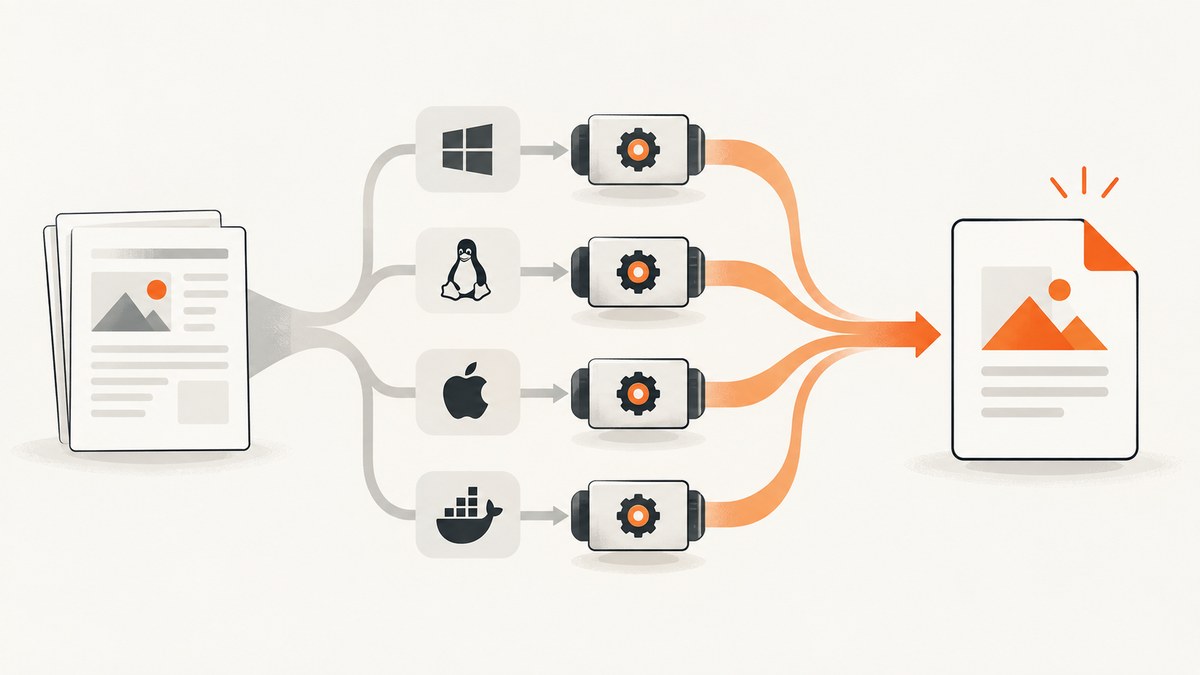
Short answer: There is no universal best cross-platform HTML-to-PDF NuGet package for ASP.NET Core. Choose based on the rendering engine and the dependencies you can reliably deploy. For browser-level fidelity across operating systems, consider Microsoft.Playwright or PuppeteerSharp and plan to install and maintain Chromium or other browser binaries. For a more packaged SDK experience, evaluate a commercial renderer such as IronPDF. Treat SelectPdf’s package and engine choice carefully: the Windows x64 Chromium package is Windows-only, and companion packages may be required for other engines.
ASP.NET Core itself runs on macOS, Linux, and Windows, but that does not guarantee every PDF renderer or native dependency does. Microsoft describes ASP.NET Core as running on those three operating systems in its documentation. Validate the exact NuGet package, runtime identifier, .NET target, and production image you intend to ship.
1. Start with the deployment matrix
Before comparing method names, write down where the application must run. “Cross-platform” can mean that a library targets .NET Standard or supports multiple OSes, but its rendering engine may still need a particular native binary, browser, system package, or architecture.
| Deployment question | Why it matters |
|---|---|
| Which OS and distribution? | Windows Server, Ubuntu, Debian, Alpine, and macOS have different native-library and browser requirements. |
| Which CPU architecture? | x64 support does not establish Arm64 support. Confirm both package assets and browser availability. |
| Which .NET target? | Check the package’s current target frameworks against your application’s .NET version. |
| Which container base image? | A package that works on a developer workstation may fail in a minimal production image lacking libraries, fonts, or browser dependencies. |
| What runtime policy? | Determine whether the app can download browsers at build/deploy time, launch subprocesses, write to disk, or use a browser sandbox. |
Make the package decision against the full matrix, not only the operating system used during development. Record the exact package ID and version, runtime identifier, native assets, and installation steps in the deployment runbook.
2. Compare the rendering and dependency models
IronPDF: a commercial SDK to evaluate for packaged workflows
IronPDF’s NuGet listing describes support for modern .NET and application models including ASP.NET, MVC, Blazor, MAUI, Razor Pages, and Web Forms, with targets including Windows, macOS, Linux, Docker, Azure, and AWS. Its documentation shows ChromePdfRenderer and RenderHtmlAsPdf for HTML conversion. A managed SDK can reduce the amount of browser lifecycle code your team owns, but verify the native assets and deployment limits for your exact target.
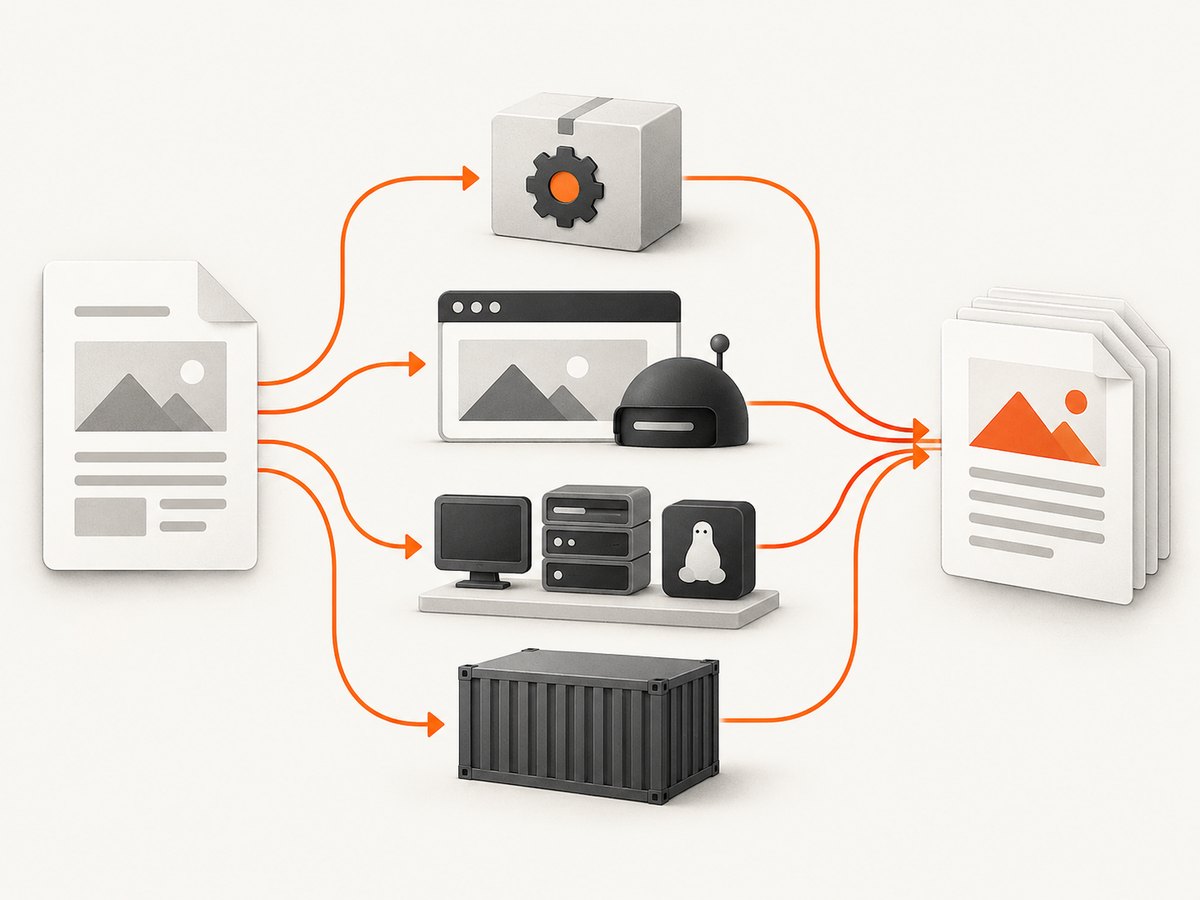
IronPDF is commercially licensed and offers a trial key. Before selecting it, check current licensing, production and server deployment terms, redistribution rights, trial output limits or watermark behavior, support, and security update policy. Those terms can change and should be confirmed with the vendor before procurement.
SelectPdf: inspect the specific engine package
SelectPdf documents HTML5/CSS3 conversion and additional PDF capabilities such as security, forms, merging, splitting, signatures, headers, footers, and page numbering. Its package ecosystem is split by engine and platform. The Windows x64 Chromium package metadata explicitly says SelectPdf only works on Windows; other Blink or Chromium conversions may require a matching companion NuGet package.
Do not choose based on the broad SelectPdf product name alone. Identify the precise package ID and rendering engine, then confirm whether your target OS, architecture, container, and .NET version are supported together. Vendor material says trial output is watermarked and engine packages differ, so include trial behavior in your evaluation.
Microsoft.Playwright: control a real browser
Microsoft describes Playwright for .NET as its official .NET port for automating Chromium, WebKit, and Firefox through one API. It is a strong candidate when output should closely follow modern browser rendering, including JavaScript and print CSS. The tradeoff is operational ownership: browser installation, OS libraries, sandboxing, browser updates, process management, and concurrency limits become part of your service.
Playwright is an automation library, not a turnkey PDF licensing product. Review browser installation and deployment guidance for the precise version and OS you will run. Its official .NET repository is the primary reference.
PuppeteerSharp: Chromium control from C#
PuppeteerSharp is a .NET port of Puppeteer that controls headless Chrome or Chromium through the DevTools Protocol and can generate PDFs. Its package guidance describes support for .NET Core 2.0 or greater, but that baseline alone does not establish compatibility with every current browser or deployment image. Browser download/setup and Linux prerequisites, including X-server configuration in some setups, are part of the decision.
Choose it when your team wants Chromium-level control in C# and accepts browser lifecycle work. Check the PuppeteerSharp NuGet documentation and project guidance for current setup instructions.
3. Choose by workload, not package popularity
| Your requirement | Starting point | Validate closely |
|---|---|---|
| Browser parity for modern CSS and JavaScript | Playwright or PuppeteerSharp | Browser version, fonts, print media, page breaks, runtime libraries, sandbox, and concurrency. |
| Less browser lifecycle code in the application | Evaluate IronPDF | Native assets in the real container, license limits, trial behavior, and update policy. |
| Windows-only deployment plus SelectPdf features | Evaluate the exact SelectPdf Windows package | Package ID, engine version, commercial terms, and output fidelity. |
| Multiple OSes or container deployment | Shortlist only packages whose exact engine supports every target | Linux distribution, architecture, system libraries, browser availability, and filesystem permissions. |
| Authenticated, dynamic pages | Browser automation or a renderer with documented session controls | Cookies, authorization headers, redirects, JavaScript readiness, and access to internal services. |
Rendering fidelity is more than whether a page opens. Compare CSS support, JavaScript execution, web fonts, SVG, print styles, pagination, headers and footers, and page-break behavior. Also check whether the API accepts raw HTML, a URL, or both, and how it handles cookies, headers, waits, streaming, and asynchronous jobs.
4. Build a representative test fixture
Use one fixture to compare the candidate packages. Include the features that actually affect your documents rather than relying on a vendor demo page.
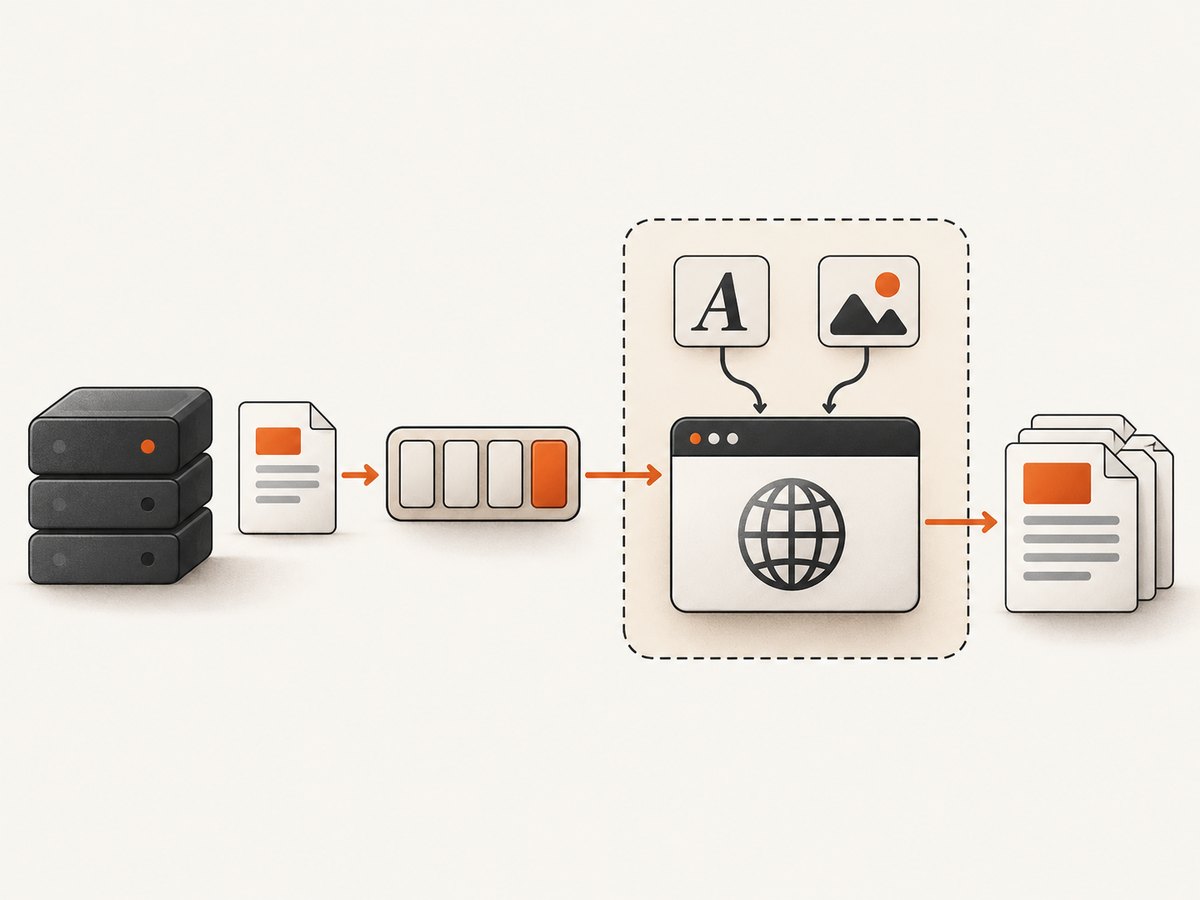
- Create a representative HTML document with your real CSS, a web font, SVG, images, a long table, and explicit page-break rules.
- Add JavaScript-rendered content and a page using print media styles. Include headers and footers if your output needs them.
- Include an authenticated page or realistic private data path if the production renderer must access protected content.
- Run the same fixture on each required OS, architecture, and production-like container image.
- Compare page count, text wrapping, image loading, font substitution, clipping, blank pages, and print CSS behavior. Keep expected output samples for future package upgrades.
- Measure conversion latency, peak memory, concurrency, startup cost, and recovery after browser or renderer failure on your own infrastructure.
No authoritative cross-package benchmark establishes a universal speed or fidelity winner. Treat measurements as workload-specific. Keep the fixture and compare output again when changing package, browser, OS image, fonts, or .NET runtime.
5. Minimal ASP.NET Core example with Playwright
The following illustrates the flow for generating a PDF from HTML using Playwright for .NET. Add the Microsoft.Playwright NuGet package to your ASP.NET Core project, install the browser binaries as part of your deployment process using the documented Playwright command, and install required OS dependencies for the target image. Exact installation commands can vary by Playwright version and Linux distribution, so use the official setup guide for your pinned version.
using Microsoft.Playwright;

var builder = WebApplication.CreateBuilder(args);
var app = builder.Build();

app.MapPost("/pdf", async (HttpRequest request) =>
{
    using var reader = new StreamReader(request.Body);
    var html = await reader.ReadToEndAsync();
    if (string.IsNullOrWhiteSpace(html))
        return Results.BadRequest("Send HTML in the request body.");

    using var playwright = await Playwright.CreateAsync();
    await using var browser = await playwright.Chromium.LaunchAsync(
        new BrowserTypeLaunchOptions { Headless = true });
    var page = await browser.NewPageAsync();
    await page.SetContentAsync(html, new PageSetContentOptions
    {
        WaitUntil = WaitUntilState.NetworkIdle
    });
    var pdf = await page.PdfAsync(new PagePdfOptions
    {
        Format = "A4",
        PrintBackground = true,
        PreferCSSPageSize = true
    });
    return Results.File(pdf, "application/pdf", "document.pdf");
});

app.Run();
This sample is deliberately small. For production, do not accept arbitrary HTML from untrusted callers without controls: HTML can reference remote resources and consume substantial CPU or memory. Apply request size limits, authentication, timeouts, and an allowlist or network policy suitable for your application. Consider reusing a managed browser process rather than launching one for every request, while creating isolated contexts/pages per job. Ensure cleanup still occurs if a request is cancelled or rendering throws.
For a URL instead of request-body HTML, navigate with page.GotoAsync(url) and choose a wait condition that matches the page. For private pages, set cookies or headers in the browser context before navigation. Do not place credentials in a public URL or log them. The exact APIs and options should be checked against the Playwright version pinned by your project.
6. cURL, Python, and Node.js when the renderer is an HTTP service
If your application delegates conversion to a service that exposes an HTTP endpoint, these client patterns send HTML and save the returned PDF. Replace the endpoint and field names with that service’s documented contract; the package options above do not imply a shared API schema.
cURL
curl --fail --silent --show-error \
  -X POST "https://renderer.example/convert" \
  -H "Content-Type: text/html; charset=utf-8" \
  --data-binary @document.html \
  -o document.pdf
Python
from pathlib import Path
import requests

html = Path("document.html").read_text(encoding="utf-8")
response = requests.post(
    "https://renderer.example/convert",
    data=html.encode("utf-8"),
    headers={"Content-Type": "text/html; charset=utf-8"},
    timeout=(5, 90),
)
response.raise_for_status()
Path("document.pdf").write_bytes(response.content)
Node.js
import { readFile, writeFile } from "node:fs/promises";

const html = await readFile("document.html", "utf8");
const response = await fetch("https://renderer.example/convert", {
  method: "POST",
  headers: { "content-type": "text/html; charset=utf-8" },
  body: html,
  signal: AbortSignal.timeout(90000),
});
if (!response.ok) {
  throw new Error(`PDF renderer returned ${response.status}`);
}
await writeFile("document.pdf", new Uint8Array(await response.arrayBuffer()));
These are generic HTTP client examples, not APIs for IronPDF, SelectPdf, Playwright, or PuppeteerSharp. Those libraries are ordinarily invoked within the .NET application; use the vendor’s documented API for the selected product.
7. Operations, performance, reliability, and cost
Performance and capacity
Rendering may be CPU-intensive and can use significant memory, especially for large images, long documents, complex scripts, or concurrent browser pages. Benchmark with realistic data and your intended container limits. Track queue depth, render duration, memory, process restarts, and error rate. Limit concurrent jobs based on measured capacity, and queue work if request spikes could overwhelm the service.
Browser startup can add latency. Keeping a browser process warm may reduce repeated startup overhead, but it adds lifecycle and isolation decisions. Recycle unhealthy processes, set per-job timeouts, and ensure one failed page does not take down unrelated requests. For high-volume workloads, consider separating rendering workers from the web request process so the API can apply backpressure and recover workers independently.
Reliability and security
- Pin package and browser versions together and roll updates through the fixture before production.
- Install browser binaries and OS dependencies during image build or a controlled deployment stage, not unpredictably during a customer request.
- Run with the least privileges that the renderer supports; make sandbox policy an explicit security decision.
- Restrict outbound network access if HTML can specify remote URLs. This helps prevent the renderer from reaching internal services.
- Set timeouts for navigation, script execution, and the overall job. Return a useful failure state and retain a correlation ID for diagnosis.
- Control temporary files and cleanup, and verify the runtime user can access needed fonts, browser caches, and writable directories.
Licensing and total cost
Compare more than the NuGet price. Include commercial server or developer licenses, redistribution, trial watermarking or page limits, support, browser and OS patching, engineering time, and infrastructure used by rendering workers. A commercial SDK may reduce browser operations work; browser automation may fit better when direct engine control and browser parity matter. Confirm current vendor terms because licensing and package terms can change.
8. Troubleshooting common failures
| Symptom | Likely cause | What to check |
|---|---|---|
| Browser executable not found | Browser binaries were not installed for the pinned automation package or deployment user. | Install the matching browser during image build; confirm the runtime user’s browser path and cache location. |
| Missing shared library on Linux | The container lacks an OS dependency required by the browser or renderer. | Use the package’s documented dependency installation for the exact distribution and architecture; avoid assuming Alpine and Debian are interchangeable. |
| Launch fails in a container | Sandbox restrictions, permissions, or missing runtime components prevent process startup. | Inspect launch logs, user permissions, sandbox policy, and installed libraries. Apply only the vendor-documented configuration appropriate to your threat model. |
| Fonts or layout differ from local output | Production image lacks fonts, uses a different browser build, or loads web fonts too late. | Install required fonts, pin browser versions, wait for fonts and images, and compare output in the production image. |
| PDF is blank or content is missing | Navigation returned early, JavaScript did not finish, or remote resources failed. | Inspect navigation status and console/network errors; wait for an application-specific ready selector or condition rather than relying on a short fixed delay. |
| Unexpected pagination or clipped content | Print CSS, page size, margins, or break rules differ from screen rendering. | Set page size and margins intentionally; test print media, @page, long tables, and break rules in the fixture. |
| Intermittent timeouts under load | Too many simultaneous pages, resource exhaustion, or a slow external dependency. | Measure peak memory and queue depth, cap concurrency, isolate workers, and set bounded retries only for transient failures. |
| SelectPdf works on Windows but not Linux | The selected package is the Windows-only Chromium variant or companion engine assets are missing. | Recheck the exact package ID and platform support; select a documented cross-platform engine package if available for the target. |
9. Or skip the browser setup
If your immediate need is a screenshot of a rendered page rather than a PDF, ScreenshotNeo provides a website screenshot API and MCP server. It does not replace a PDF renderer when you need multipage PDF output. One GET request returns an image or PDF, and the documented API includes options for full-page capture, CSS selectors, waits, custom headers and cookies, and PDF settings. See the ScreenshotNeo API documentation.
curl -G "https://api.screenshotneo.com/v1/shot" \
  -d access_key=YOUR_API_KEY \
  --data-urlencode url=https://stripe.com \
  -o shot.webp
ScreenshotNeo removes cookie banners, newsletter popups, and chat widgets before capture. Bot checks, blank pages, and failed loads are never billed. Its MCP server lets AI agents take screenshots. The free plan includes 1,000 screenshots a month with no card; paid plans start at $5 for 3,000.
Sign up for ScreenshotNeo and get 1,000 free screenshots a month with no card.
10. Short FAQ
Does ASP.NET Core itself provide HTML-to-PDF conversion?
The research identifies ASP.NET Core as the cross-platform web framework; PDF rendering is provided by a separate library or service.
Can I use Playwright to make a PDF that includes JavaScript-rendered content?
Playwright controls a browser, so it can render pages after JavaScript runs. You still need to wait for the page’s actual readiness condition and verify output using your fixture.
Which option is cheapest?
The research does not establish comparable current prices across these choices. Compare licenses and operational costs against your deployment matrix and expected volume.
Can I safely convert arbitrary user-submitted HTML?
Only with controls appropriate to your threat model. Limit input size and runtime, authenticate access, and restrict the renderer’s network reach when submitted markup can request external resources.


