How to Capture Full-Page Website Screenshots With C# and WebKit.NET
Learn why WebKit.NET captures stop at the viewport and how to capture the whole scrollable page with C#, Playwright, or ScreenshotNeo.
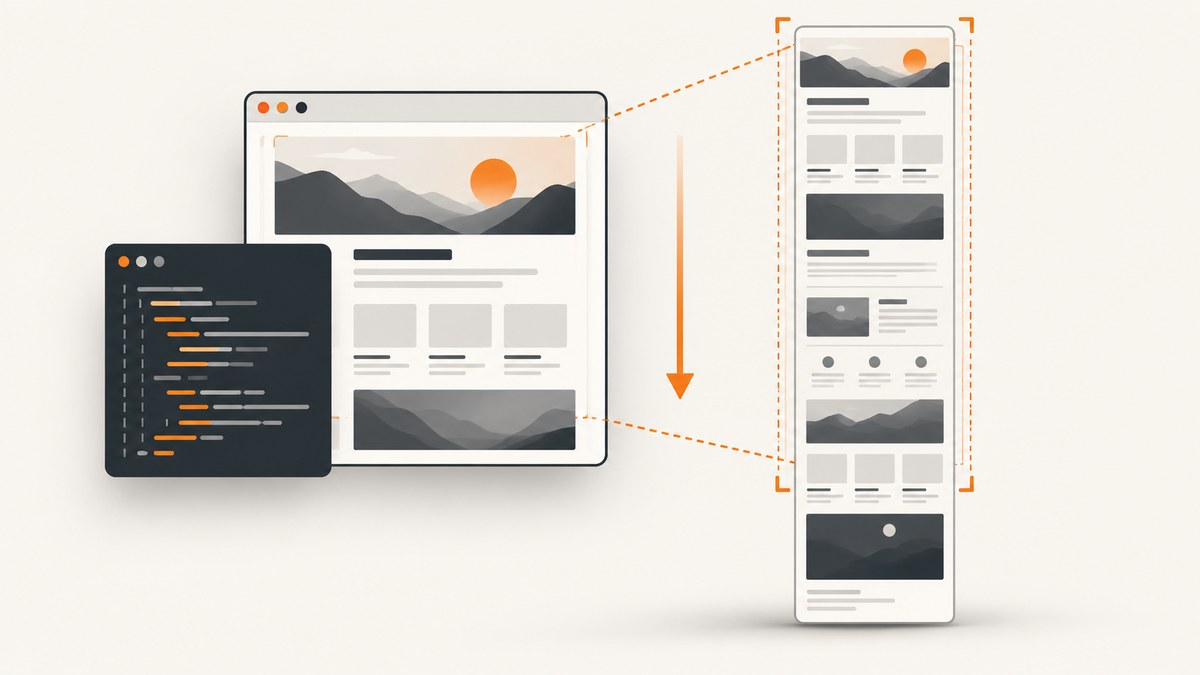
Short answer: WebKit.NET does not provide a maintained, documented full-document screenshot method. A viewport snapshot captures only what is visible. For a modern C# full-page website screenshot, use browser automation with an explicit full-page option, such as Playwright’s FullPage = true, or use a hosted rendering API. Microsoft’s WKWebView.TakeSnapshotAsync binding also describes a current-viewport snapshot, not a whole-document capture (Microsoft Learn).
What “full page” means
A viewport screenshot has the dimensions of the browser window. A full-page screenshot measures the document’s rendered height and captures content below the fold, including sections reached by scrolling. The browser still renders one page; the capture mechanism stitches or rasterizes the complete document.
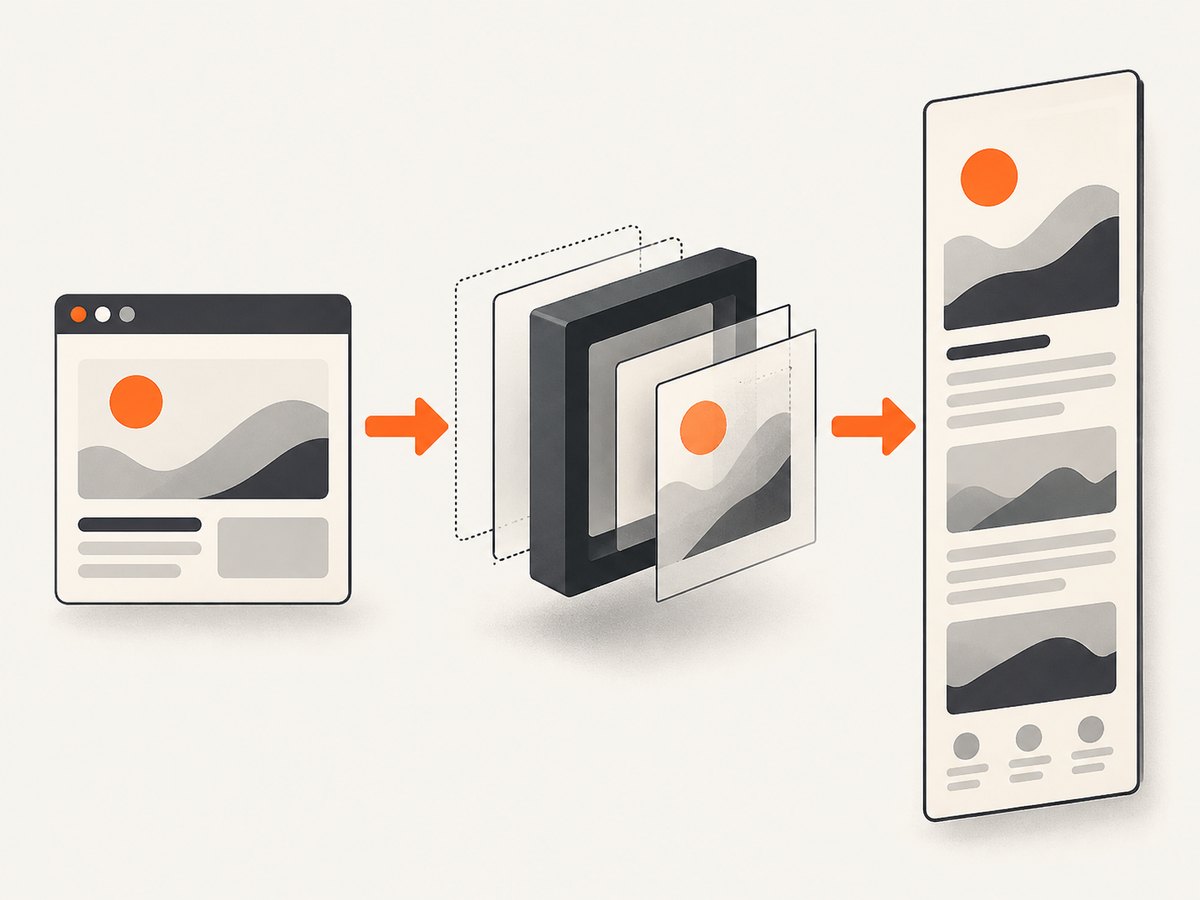
| Approach | Capture scope | Where it runs | Best use |
|---|---|---|---|
WebKit.NET or WKWebView.TakeSnapshotAsync |
Current viewport | Application process | Native viewport snapshots |
WinForms WebBrowser.DrawToBitmap |
Chosen control dimensions | Application process | Legacy desktop capture; not WebKit.NET |
| Playwright for .NET | Explicit full document with FullPage = true |
Managed browser automation | Local, repeatable C# capture |
| Hosted rendering API | Provider-defined full-page render | Remote browser | Production jobs without browser deployment |
Why the historical WebKit.NET recipe is unclear
The original WebKit.NET question is historical. Its highest-voted answer discusses a possible NativeMethods.SendMessage direction and warns that it can interfere with the message queue, then points to other tools instead of presenting a maintained full-page implementation. Another answer uses the WinForms WebBrowser control: it changes the control size and calls DrawToBitmap. That is not WebKit.NET code, and the resulting image is limited by the dimensions selected for the control.
Do not treat either snippet as a reliable WebKit.NET whole-document API. If you must keep the old control, expect layout, script, scrolling, and image-loading limitations. For new C# code, choose an API whose documentation explicitly exposes full-page capture.
Recommended local solution: Playwright for .NET
Playwright documents a C# screenshot call with FullPage = true (Playwright screenshot documentation). The example below creates a console project, installs the package and browser, waits for the page to become usable, and writes a complete PNG.
1. Create the project
dotnet new console -n FullPageCapture
cd FullPageCapture
dotnet add package Microsoft.Playwright
dotnet build
# Install the browser binaries generated by the package
dotnet tool install --global Microsoft.Playwright.CLI
playwright install chromium
2. Capture the complete document
using Microsoft.Playwright;

var targetUrl = args.Length > 0 ? args[0] : "https://example.com";

using var playwright = await Playwright.CreateAsync();
await using var browser = await playwright.Chromium.LaunchAsync(new BrowserTypeLaunchOptions
{
    Headless = true
});

var page = await browser.NewPageAsync(new BrowserNewPageOptions
{
    ViewportSize = new ViewportSize { Width = 1440, Height = 900 },
    DeviceScaleFactor = 1
});

await page.GotoAsync(targetUrl, new PageGotoOptions
{
    WaitUntil = WaitUntilState.NetworkIdle,
    Timeout = 90_000
});

// Optional: wait for an application-specific marker.
// await page.Locator("main").WaitForAsync(new LocatorWaitForOptions { Timeout = 30_000 });

await page.ScreenshotAsync(new PageScreenshotOptions
{
    Path = "page-full.png",
    FullPage = true,
    Type = ScreenshotType.Png
});

Console.WriteLine("Saved page-full.png");
Run it with dotnet run -- https://your-site.example/docs. The URL is passed as an argument so the same executable can process many pages.
Useful Playwright options
FullPage = truecaptures the document rather than only the viewport.Type = ScreenshotType.Pngpreserves lossless text and UI edges; useJpegwithQuality = 80for smaller files.ViewportSizecontrols responsive breakpoints. Set it before navigation.DeviceScaleFactorcontrols pixel density. A value of 2 produces a sharper, larger image and uses more memory.Animations = ScreenshotAnimations.Disabledcan reduce motion differences when your installed Playwright version supports it.OmitBackground = truecan produce transparency where the browser supports it; confirm that the page itself does not paint an opaque background.
Handling lazy-loaded content
Some pages load images only after they approach the viewport. Scroll through the document before taking the screenshot, then wait for images to finish.
await page.EvaluateAsync("""async () => {
  await new Promise(resolve => {
    let y = 0;
    const step = 700;
    const timer = setInterval(() => {
      window.scrollBy(0, step);
      y += step;
      if (y >= document.body.scrollHeight) {
        clearInterval(timer);
        window.scrollTo(0, 0);
        resolve();
      }
    }, 50);
  });
}""");

await page.WaitForFunctionAsync("""() => Array.from(document.images)
  .every(img => img.complete)""");
await page.ScreenshotAsync(new PageScreenshotOptions { Path = "lazy-full.png", FullPage = true });
This is page-specific JavaScript: a site may use an intersection observer, an infinite list, or a different loading trigger. For infinite scrolling, define a stopping rule such as a maximum number of scrolls or a known footer selector.
Waiting for a stable visual state
await page.GotoAsync(targetUrl, new PageGotoOptions { WaitUntil = WaitUntilState.DOMContentLoaded });
await page.Locator("[data-page-ready]").WaitForAsync();
await page.WaitForTimeoutAsync(500); // only when the site has a known short settle period
await page.ScreenshotAsync(new PageScreenshotOptions { Path = "stable.png", FullPage = true });
Prefer a meaningful selector or a network-idle condition over an arbitrary long delay. Network idle can be unsuitable for pages with analytics or long polling; in that case wait for a page-specific readiness marker.
Viewport-only WebKit snapshots
WKWebView.TakeSnapshotAsync is asynchronous and returns an image for the current viewport or configured portion of the view. It is documented for Apple platforms through .NET bindings and should not be presented as a full-document capture API. If you use it, you must implement your own scrolling and stitching pipeline, or switch to a browser automation API with a full-page option.
A stitching pipeline needs to: determine document height, scroll by non-overlapping viewport regions, wait for layout and images at each position, capture each tile, and merge tiles while correcting fixed headers and subpixel rounding. Sticky elements can appear repeatedly; dynamic content can shift between tiles. These edge cases are why a native viewport snapshot is a poor foundation for reliable full-page output.
Hosted alternative: a .NET rendering service
A hosted renderer moves browser installation, isolation, and rendering capacity out of your application. Urlbox’s .NET SDK documents a FullPage() option and a C# render workflow (Urlbox .NET SDK). Compare services by the exact options they expose: full-page behavior, waits, authentication, file format, asynchronous jobs, limits, and billing rules.
Or skip the browser setup
ScreenshotNeo is a website screenshot API with a single GET request for PNG, JPEG, WebP, or PDF output. It supports full-page capture, lazy-image loading, CSS selectors, custom JavaScript and CSS, device presets, dark mode, headers, cookies, user agents, geolocation, blocking rules, caching, signed links, asynchronous jobs, bulk capture, and an MCP server for AI agents. See the ScreenshotNeo API documentation for the options and response headers.
curl -G "https://api.screenshotneo.com/v1/shot" \
  -d access_key=YOUR_API_KEY \
  --data-urlencode url=https://stripe.com \
  -o shot.webp
import requests
r = requests.get(
"https://api.screenshotneo.com/v1/shot",
params={"access_key": "YOUR_API_KEY", "url": "https://stripe.com"},
timeout=90,
)
r.raise_for_status()
open("shot.webp", "wb").write(r.content)const q = new URLSearchParams({ access_key: 'YOUR_API_KEY', url: 'https://stripe.com' });
const res = await fetch(`https://api.screenshotneo.com/v1/shot?${q}`);
if (!res.ok) throw new Error(`HTTP ${res.status}`);
const bytes = Buffer.from(await res.arrayBuffer());
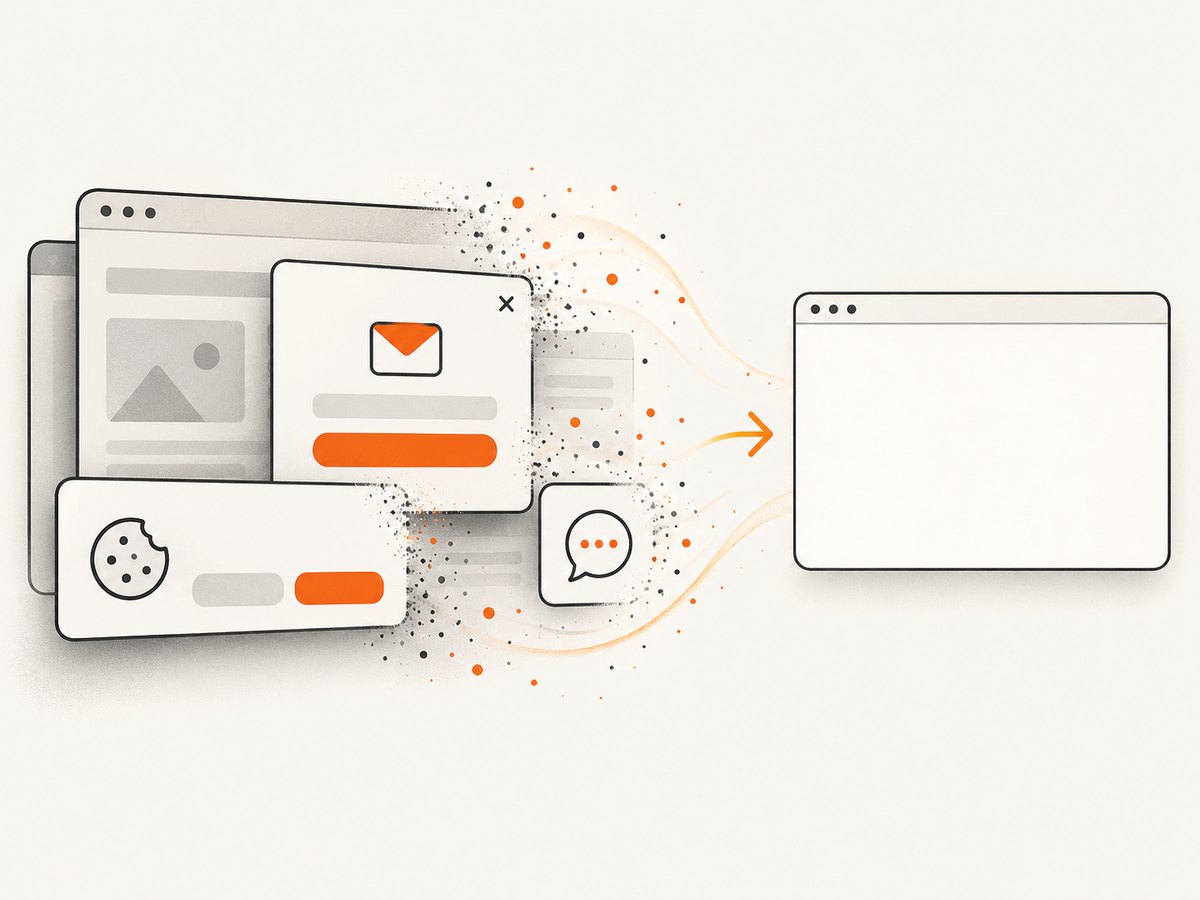
await fs.promises.writeFile('shot.webp', bytes);Cookie banners, newsletter popups and chat widgets are removed before the shot. Bot checks, blank pages, failed loads and cache hits are never billed, and the response identifies the page verdict and billing result with X-Page-Verdict and X-Billed headers. An MCP server lets Claude, Cursor and other MCP clients call screenshot tools. The Free plan includes 1,000 screenshots a month with no card; paid plans start at $5 for 3,000 shots. Create a free ScreenshotNeo account.
Full-page capture checklist
- Set the viewport before navigation so responsive CSS is deterministic.
- Use an explicit full-page option; do not assume a viewport snapshot grows automatically.
- Wait for a reliable readiness selector or a documented loading condition.
- Trigger lazy content and wait for images when the page requires scrolling.
- Decide how to handle cookie banners, chat launchers, sticky headers and ads.
- Choose PNG for fidelity or JPEG/WebP when transfer size matters.
- Bound infinite-scroll pages to avoid unbounded height and memory use.
- Record the URL, viewport, browser version, options and timestamp with each artifact.
Troubleshooting
The image stops at the browser window
Cause: a viewport screenshot API was used. Fix: use Playwright with FullPage = true, a renderer with a documented full-page option, or an API such as ScreenshotNeo with full-page capture enabled.
Content is missing near the bottom
Cause: lazy loading or an intersection observer has not been triggered. Fix: scroll in steps, wait for images or a page-ready selector, then capture.
The screenshot contains a cookie dialog or chat bubble
Cause: the page rendered those overlays normally. Fix: dismiss them with page-specific automation, hide known selectors, or use ScreenshotNeo, which accepts consent banners and removes more than 60 known consent platforms, newsletter popups and chat widgets before capture.
Navigation times out
Cause: slow resources, a blocked domain, authentication, or perpetual network activity. Fix: verify the URL from the capture environment, raise the timeout within a bounded limit, wait for DOMContentLoaded plus a readiness selector, and inspect failed requests.
A fixed header repeats on every stitched tile
Cause: manual viewport stitching captured a fixed element repeatedly. Fix: hide or temporarily change the element during each tile, or use a renderer that implements document capture directly.
The process runs out of memory
Cause: a very tall page, high device scale factor, or several concurrent browser pages. Fix: lower the scale factor, limit concurrency, capture sections, use JPEG/WebP, and impose a maximum document height.
Text differs between runs
Cause: animations, changing data, fonts, time zones, or responsive breakpoints. Fix: freeze animation where possible, wait for web fonts and data, set viewport and locale-related settings, and use the same browser version.
Performance, reliability and cost
Local Playwright avoids a per-shot rendering service fee but requires browser binaries, CPU, memory, patching, queueing and isolation. Reuse a browser process while creating a fresh context per job, cap concurrency, and recycle workers after repeated failures. Full-page PNGs can be large; dimensions and device scale factor directly affect memory and output size.
A hosted API reduces deployment work and makes burst capacity easier, but adds network latency and provider limits. Cache identical captures when the page is unchanged. For production, record response status and verdict, retry transient transport errors with backoff, and avoid retrying deterministic failures such as an invalid URL or authorization error.
ScreenshotNeo bills only clean shots. Bot checks, CAPTCHAs, blank pages, timeouts, failed loads and cache hits cost nothing, and X-Page-Verdict plus X-Billed make the result visible to your job pipeline. Its plans are Free (1,000 shots/month), Starter ($5/3,000), Growth ($15/15,000), Pro ($39/60,000), Scale ($99/250,000) and Business ($249/1,000,000); yearly billing gives two months free.
FAQ
Can WebKit.NET capture the whole scrollable page directly?
There is no maintained, documented full-page WebKit.NET recipe established by the historical discussion. Use Playwright, a documented hosted renderer, or build and maintain a careful scrolling stitcher.
Does increasing the WebKit window size solve it?
It captures a larger chosen viewport. It does not guarantee that the complete document, including content loaded only after scrolling, is rendered.
Should I use PNG or JPEG?
Use PNG for text and exact UI edges. Use JPEG when a smaller file is more important and some compression is acceptable; WebP is another compact option when your consumers support it.
How do I capture one component instead of the page?
With Playwright, locate the element and call its screenshot method. A service such as ScreenshotNeo can capture one element by CSS selector while retaining the same request-based workflow.


