How to Add Borders to Every Printed PDF Page with CSS
Add a border to every page in a browser-generated PDF with print CSS. Compare page-sized wrappers with @page rules, then troubleshoot clipping and browser differences.
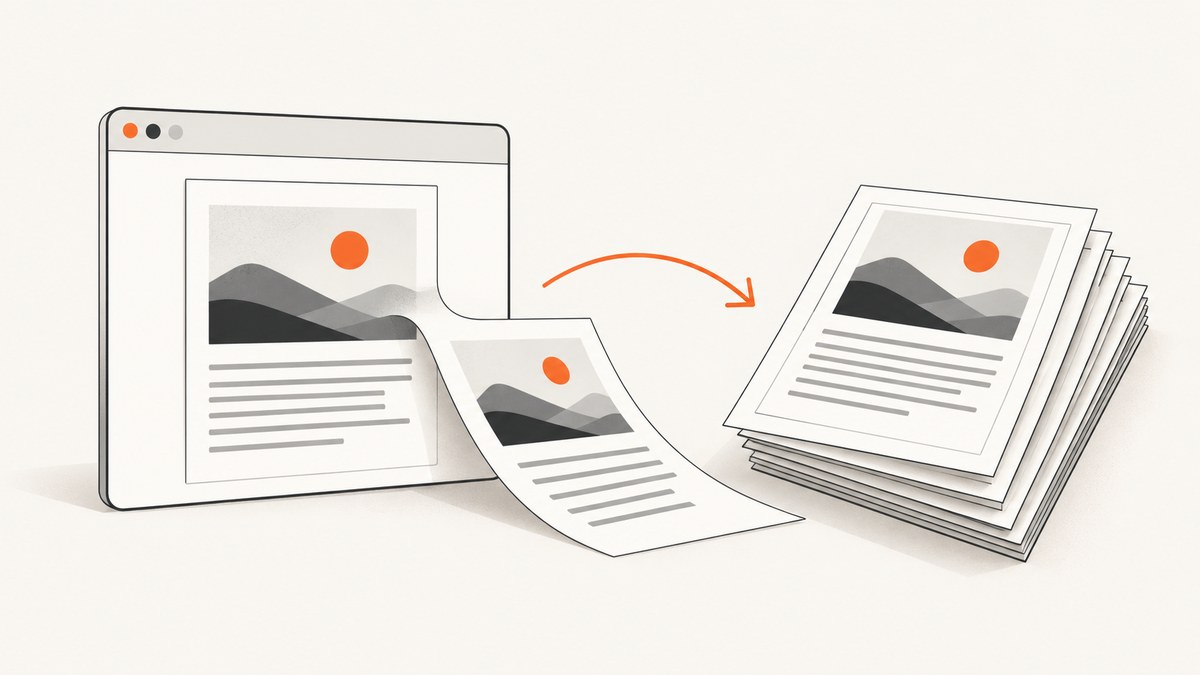
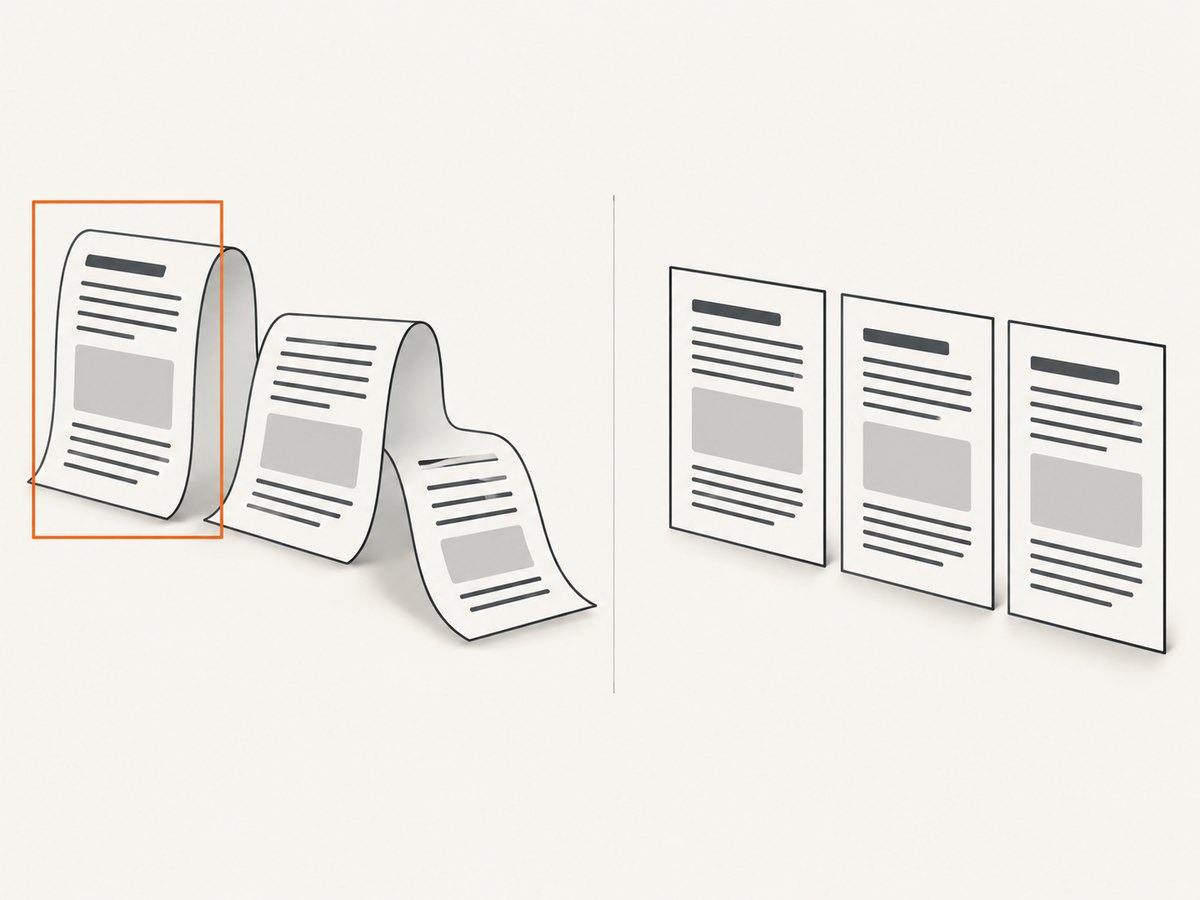
To add a border to every page in a browser-generated PDF, use @media print for print-only styles and @page for the paper size and margins. The most dependable general-purpose CSS pattern is to divide the printable content into page-sized wrapper elements and put an ordinary CSS border on each wrapper. A border around one long flowing element usually does not repeat at every page break.
Use the wrapper approach when your application can organize content into page-sized sections. Use paged-media rules when your target browser or PDF renderer supports the page-border behavior you need. Browser printing and PDF engines differ, so generate sample PDFs in each environment you support.
1. Add a border with repeated page wrappers
This example assumes A4 paper and 12 mm top and bottom margins. A4 is 297 mm high, so the available page area is approximately 273 mm high. The wrapper’s minimum height is a starting point: its padding, content, browser layout, and page-break behavior all affect the final result.
<!doctype html>
<html lang="en">
<head>
  <meta charset="utf-8">
  <title>Printable report</title>
  <style>
    @page {
      size: A4;
      margin: 12mm;
    }

    @media print {
      .screen-only {
        display: none !important;
      }

      .print-page {
        min-height: 273mm;
        box-sizing: border-box;
        border: 1px solid #222;
        padding: 8mm;
        break-after: page;
        page-break-after: always;
        print-color-adjust: exact;
        -webkit-print-color-adjust: exact;
      }

      .print-page:last-child {
        break-after: auto;
        page-break-after: auto;
      }
    }
  </style>
</head>
<body>
  <button class="screen-only" onclick="window.print()">Print report</button>

  <main>
    <section class="print-page">
      <h1>Quarterly report</h1>
      <p>Content for the first page goes here.</p>
    </section>
    <section class="print-page">
      <h2>Results</h2>
      <p>Content for the next page goes here.</p>
    </section>
  </main>
</body>
</html>
Save the markup as an HTML file, open it in a browser, and choose Print or Save as PDF. The print button is optional; it simply calls the browser’s print dialog. The screen-only class hides it in print output.
Understand the dimensions
@page sets the sheet size and printable page margins. With A4 and 12 mm on each vertical side, the page area is 273 mm tall. The wrapper uses box-sizing: border-box so its border and padding are included in its declared minimum height. The content still has to fit: min-height does not force overflowing content onto one physical page.
If content is taller than the available page area, the browser may fragment it across pages, and the wrapper border may no longer frame each fragment as intended. Split the content into more wrappers, reduce padding or content, or allow a deliberate multi-page section and use a different rendering strategy. Do not assume a CSS wrapper will automatically shrink to fit arbitrary content.
2. Choose the right page size and margins
Use the size descriptor for a named paper size or dimensions, and set margins with one or more values. For a portrait A4 page with equal 12 mm margins:
@page {
  size: A4 portrait;
  margin: 12mm;
}
For landscape output, adjust both the page declaration and the wrapper’s usable dimensions:
@page {
  size: A4 landscape;
  margin: 12mm;
}
Landscape A4 has a different page area, so do not keep a portrait-derived wrapper height without checking the PDF. A more general approach is to test the actual output and tune dimensions for the target paper size and renderer. The CSS page model and browser print dialog both influence the final result.
| Setting | What it controls | What to check |
|---|---|---|
@page size |
Paper dimensions and orientation | The generated PDF page dimensions |
@page margin |
Space between the page edge and page area | Room for content, border, and browser-added headers or footers |
.print-page height |
The wrapper’s minimum layout height | Whether its content fits on one page |
padding |
Space between the border and page content | Text and other content do not crowd the border |
3. Keep the border inside the printable page area
Place the border within the page area instead of positioning it against the physical sheet edge. Content outside the page box can be cut by the browser, printer, or paper cutter. Printers may also have non-printable areas, and PDF output can differ depending on the print engine.
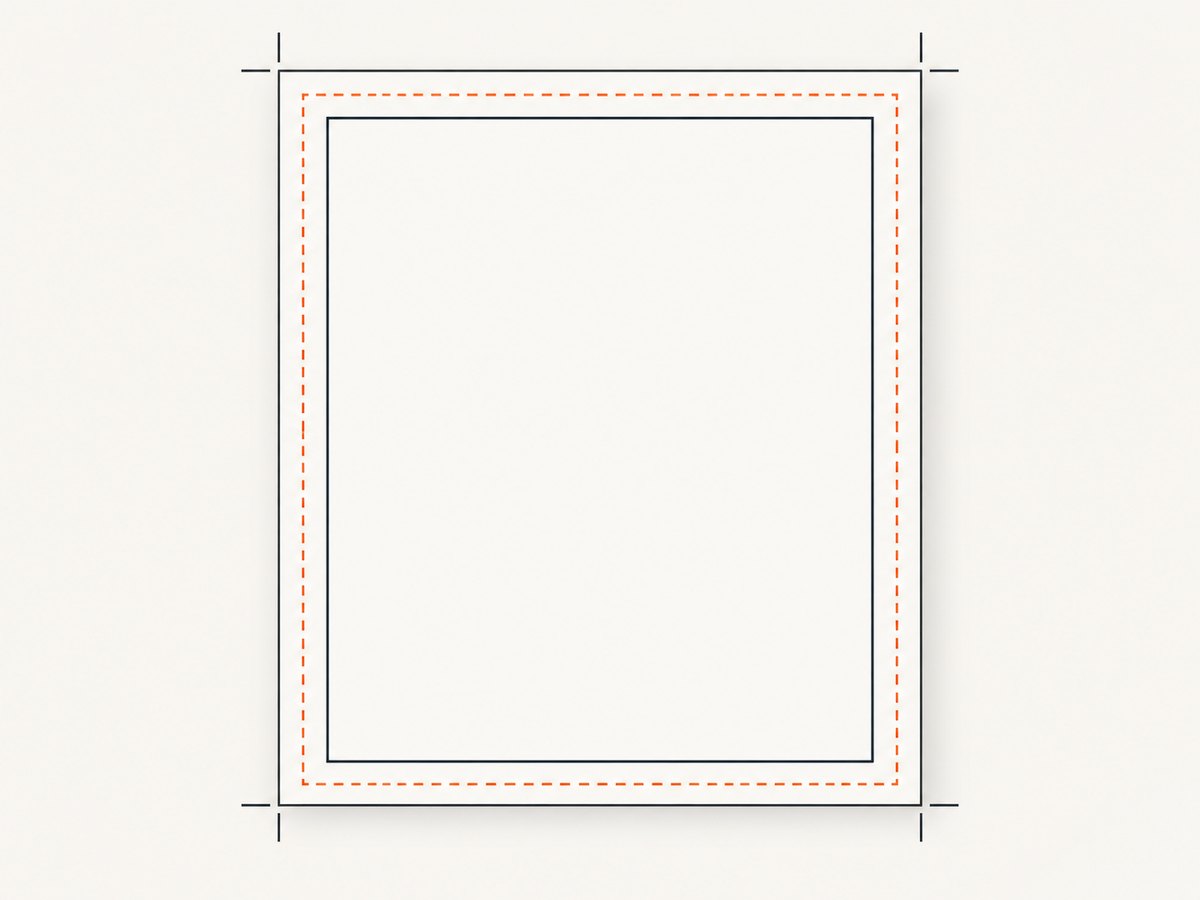
Start with a visible inset, such as the example’s 12 mm page margin, then adjust the page and wrapper dimensions together. If the frame is clipped, increase the margins or reduce the wrapper dimensions. Avoid fixing clipping by moving the border farther outward.
Hide browser-added headers and footers
Print dialogs may add a date, title, URL, or page number when there is room. Turn off the browser’s headers and footers in the print dialog if those items overlap the page design. Very small margins may leave no room for them, but reducing margins can make the border or content more likely to clip.
4. Decide whether to use page rules or wrappers
CSS paged media describes pages directly. The @page rule can target all pages or subsets such as :first, :left, and :right, and it is the natural place to define paper size and margins. Individual page properties are not implemented uniformly in every browser, however. Check the specific page-border behavior you need in your supported browser or PDF engine.
Chrome’s print documentation describes the page box, page margin, page border, page padding, and page area. Chrome 131 added generated content in page-margin boxes, which can help with headers or footers. That feature does not eliminate the need to verify the border behavior in the exact output workflow you use. See Chrome’s guide to print margins and MDN’s @page reference.
| Approach | Use it when | Trade-off |
|---|---|---|
| Repeated page wrappers | You can divide content into page-sized sections and want an ordinary element border | You need to manage page-sized content and explicit breaks |
@page rules |
Your browser or renderer supports the page border or margin features you need | Support for individual paged-media features varies |
| Dedicated PDF renderer | You control PDF generation and need repeatable output across machines | CSS support and behavior depend on the chosen engine and version |
MDN notes that @page targets printed pages and can control size, orientation, and margins, while warning that not every page property is supported in every browser. The MDN printing guide explains how print media styles work for paper and PDF. The CSS 2.1 paged media specification also describes the page model and the risk of content being cut outside the page box.
5. Preserve printed colors when needed
Browsers may adjust colors for print output. Add both the standard property and the WebKit-prefixed declaration when the authored colors matter:
@media print {
  .print-page {
    print-color-adjust: exact;
    -webkit-print-color-adjust: exact;
  }
}
print-color-adjust: exact asks the user agent to preserve the authored appearance, but support depends on the browser. A print dialog may also have a background or graphics option; enable it if the browser omits background colors. The border itself is a line, but this setting can matter when the page design also uses colored backgrounds.
See MDN’s print-color-adjust reference for behavior and support details.
6. Generate and inspect the PDF
- Set the paper size and margins. Define
@pageand calculate the available page area for the wrapper. - Separate printable pages. Put page-sized content in repeated wrapper elements if you need a predictable element border around each page.
- Open print preview. Confirm page count, orientation, breaks, and whether any wrapper content spills onto another sheet.
- Save as PDF. Use the target browser or renderer and inspect the resulting PDF, not just the on-screen page.
- Repeat on supported engines. Check each browser or headless renderer used in production; page features can vary.
For automated PDF generation, make the renderer and its version part of the deployment configuration. If output is important to a workflow, keep representative documents and compare generated PDFs after changing CSS or renderer versions. This catches layout changes such as a font or content update pushing a wrapper over its intended page height.
7. Troubleshooting
| Symptom | Likely cause | Fix |
|---|---|---|
| The border appears only once | The border is on one long flowing element, not on repeated page wrappers; or the page-border feature is unsupported by the renderer | Use a wrapper for each intended page, or verify the renderer’s @page support |
| The border is clipped | The border or wrapper extends beyond the page area, or margins are too small for the printer | Increase @page margins, reduce wrapper dimensions, and keep the line inset |
| Content creates an unexpected extra page | The content, border, and padding exceed the available page area | Shorten or split the content, reduce padding, and inspect print preview for the actual break |
| The last page is blank | A forced page break after the final wrapper creates an extra sheet | Remove the break on the last wrapper, as in the :last-child rule |
| The line or background color changes or disappears | The browser optimizes print colors or excludes backgrounds | Set print-color-adjust: exact, include the WebKit-prefixed property, and enable background/graphics printing when available |
| A date, URL, or title overlaps the border | Browser headers and footers are enabled | Disable headers and footers in the print dialog and leave sufficient margins |
| PDF output differs across machines | Different browsers, PDF engines, versions, fonts, or print settings affect pagination | Use a controlled renderer and version, then inspect output for representative content |
8. Performance, reliability, and cost
CSS borders have negligible rendering complexity compared with loading the document’s content, fonts, images, and scripts. The practical performance cost is usually PDF generation and page layout, not drawing a thin line. Large documents take longer to paginate, and content near a page boundary can make pagination sensitive to font loading or small layout changes.
For reliability, control the browser or PDF engine when the same document must render consistently on different machines. Use explicit paper dimensions, margins, fonts, and page breaks, and inspect generated PDFs after content or engine changes. A browser’s print dialog also exposes user-controlled settings, so an application that needs repeatable files should own the rendering process.
Cost depends on how PDF generation is hosted: browser-based manual printing uses the user’s device, while an automated renderer uses your own infrastructure or a rendering service. Evaluate the actual rendering workload and deployment requirements; the CSS border itself does not require a paid feature.
Or skip the browser setup
ScreenshotNeo is a website screenshot API and MCP server. Its API can return a screenshot or PDF from one GET request. For a PDF capture, use the documented PDF options at ScreenshotNeo’s API documentation; this basic request shows the one-call pattern:
curl -G "https://api.screenshotneo.com/v1/shot" \
  -d access_key=YOUR_API_KEY \
  --data-urlencode url=https://stripe.com \
  -o shot.webp
ScreenshotNeo accepts cookie and consent banners before capture and removes more than 60 known consent platforms, newsletter popups, and chat widgets; each step can be turned off. Bot checks, blank pages, timeouts, failed loads, and cache hits cost nothing, and response headers report the page verdict and billing status. Its MCP server gives AI agents tools for screenshots, page information, and PDF capture. The free plan includes 1,000 screenshots a month with no card; paid plans start at $5 for 3,000 shots.
Sign up for ScreenshotNeo’s free plan to get 1,000 screenshots a month with no card.
FAQ
Can a border follow the physical edge of the paper?
It can be risky: content outside the page box may be cut by the browser, printer, or paper cutter. Keep the border inset and test the actual PDF or print output.
Can one wrapper contain several pages?
It can, but an element border does not reliably redraw itself around each fragment created when a long element breaks across pages. Use a wrapper per intended page when you need a border around every page.
Does this CSS work in every browser?
The basic print media and element-border pattern is broadly understandable, but page-specific features and color adjustment vary. Validate in each browser or PDF engine you support.
Can I use this with server-generated PDFs?
Yes, if the renderer honors the relevant print CSS. Its pagination and paged-media support are engine-specific, so test with the exact renderer and version used to produce files.


