CSS Paged Media: The Complete Guide to Print and PDF Styling
Learn how @media print, @page, page breaks, browser engines and Paged.js work together to create reliable printed pages and PDFs.
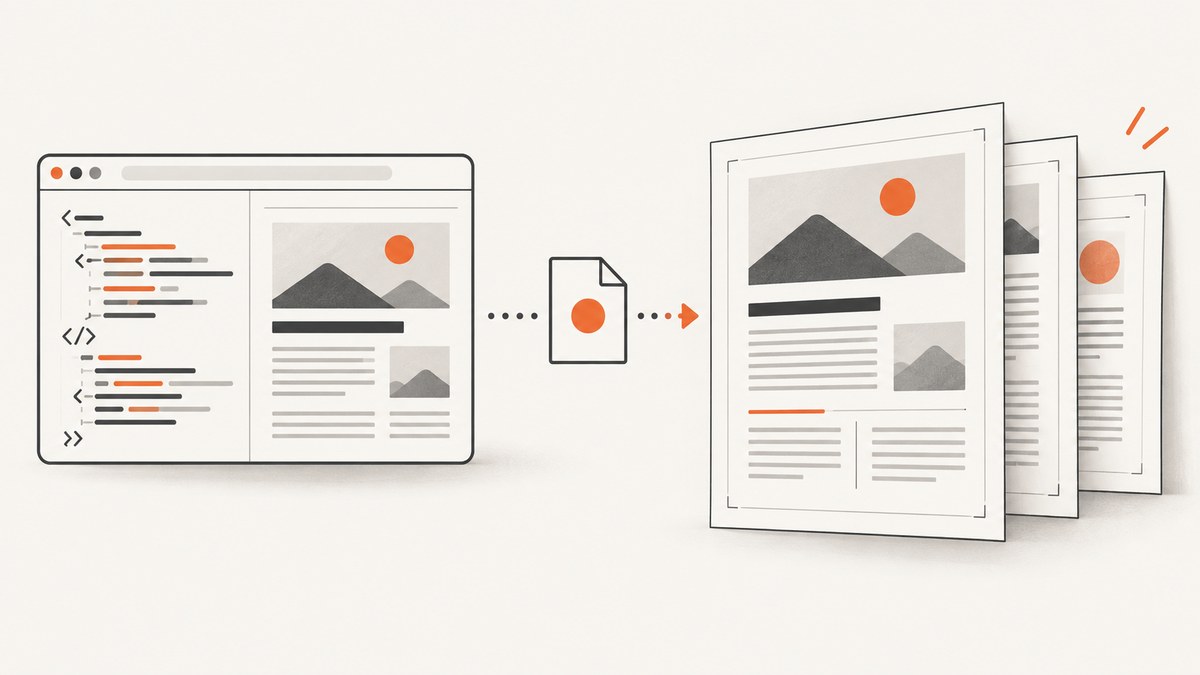
CSS Paged Media is the set of rules browsers and document engines use to divide HTML into discrete pages for printing or PDF output. The practical distinction is simple: @media print changes how your document is presented when printing, while @page controls the page box itself, including paper size and margins.
A reliable workflow is:
- Write a semantic document and define its print presentation with
@media print. - Set paper dimensions and page margins with
@page. - Control major page breaks with
break-before,break-afterandbreak-inside. - Generate output in the browser or renderer that will actually be used.
- Inspect every page, then move to pagination software when native printing cannot provide the required controls.
The standards describe a useful model, but support is partial and differs by browser and renderer. Treat the target output engine as part of your application.
1. The CSS paged-media page model
CSS 2.2 describes paged media as content split into discrete pages. Each page has a page box, a page area where content is laid out, and a surrounding margin area. The specification also covers page selectors, page margins, page breaks, and widow and orphan controls. See the CSS 2.2 paged-media section for the formal model.
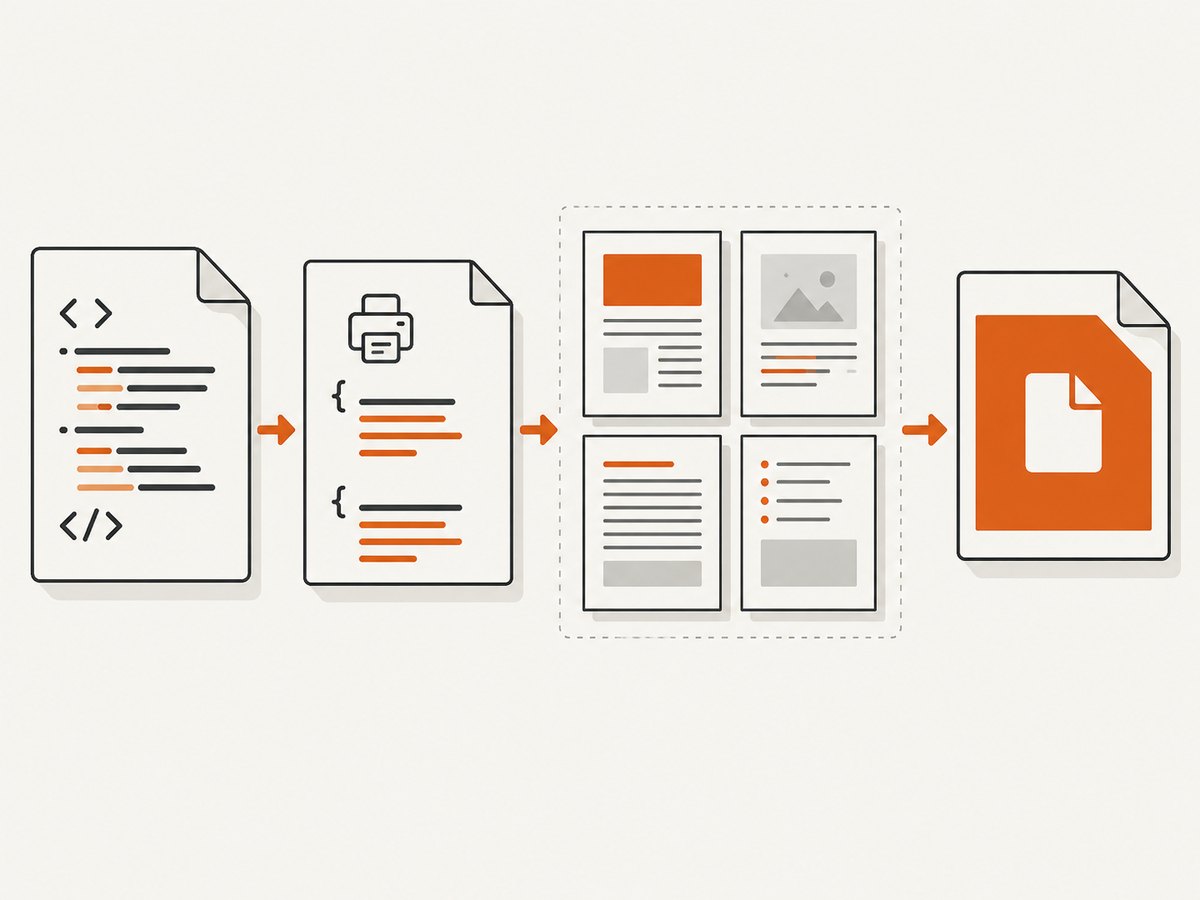
CSS Paged Media Level 3 expands this model with page and margin contexts. The cited W3C document is a Working Draft, so its features should be treated as design guidance until your chosen engine documents implementation. A standards term does not guarantee that Chrome, Firefox, a headless browser, or a dedicated formatter will implement it in the same way.
What @media print controls
A print media query contains ordinary CSS declarations that apply when the browser prints or saves to PDF. Use it to hide navigation, change colors, simplify interactive controls, remove shadows, and adjust typography.
@media print {
  nav,
  .screen-only,
  .cookie-banner,
  button {
    display: none !important;
  }

  body {
    color: #000;
    background: #fff;
    font: 11pt/1.45 Georgia, serif;
  }

  a {
    color: inherit;
    text-decoration: none;
  }

  a[href^="http"]::after {
    content: " (" attr(href) ")";
    font-size: 0.85em;
  }
}
What @page controls
@page sets page-level properties rather than styling an element in the document. The most widely useful declarations are size and margin.
@page {
  size: A4 portrait;
  margin: 20mm;
}

@page :first {
  margin-top: 28mm;
}

@page :left {
  margin-left: 25mm;
  margin-right: 18mm;
}

@page :right {
  margin-left: 18mm;
  margin-right: 25mm;
}
Named pages can associate a section with a page definition:
@page chapter {
  size: A4;
  margin: 22mm 18mm 25mm;
}

.chapter {
  page: chapter;
}
Verify named-page behavior in the engine you use. Browser support is not uniform.
2. A complete print stylesheet
Start with a document that has stable structure. Keep headings with the content they introduce, avoid splitting cards and figures, and mark sections that should begin on a new page.
<article class="report">
  <header class="report-cover">
    <h1>Quarterly report</h1>
    <p>September 2026</p>
  </header>

  <section class="chapter">
    <h2>Executive summary</h2>
    <p>...</p>
  </section>

  <figure class="chart">...</figure>
</article>
:root {
--ink: #1c1c1c;
--muted: #555;
}
body {
margin: 0;
color: var(--ink);
background: #f4f4f4;
font-family: system-ui, sans-serif;
}
.report {
max-width: 70rem;
margin: 2rem auto;
background: white;
}
.chapter {
break-before: page;
}
h1, h2, h3 {
break-after: avoid;
}
figure,
.table,
.callout {
break-inside: avoid;
}
@media print {
body {
background: #fff;
}
.report {
max-width: none;
margin: 0;
}
.report-cover {
break-after: page;
}
.chapter:first-of-type {
break-before: auto;
}
p, li {
orphans: 3;
widows: 3;
}
}
@page {
size: A4;
margin: 18mm 20mm 22mm;
}The legacy page-break-before, page-break-after and page-break-inside properties still appear in older code. Prefer the newer break-* properties, and include legacy declarations only when a known target requires them.
3. Controlling page breaks
Start and end pages deliberately
.chapter {
  break-before: page;
}

.appendix {
  break-before: right;
}

.chapter:last-child {
  break-after: auto;
}
page starts on the next page. left and right request a page with the corresponding parity, which is useful for facing-page books. Engines may insert an additional blank page to satisfy the request.
Keep related content together
.card,
figure,
table,
blockquote {
  break-inside: avoid;
}

h2, h3 {
  break-after: avoid;
}

table thead {
  display: table-header-group;
}

tfoot {
  display: table-footer-group;
}
Avoiding a break is a preference, not an absolute command. If an element is taller than the page area, the engine must split it or overflow it. Very large tables and long code blocks need explicit testing.
Prevent orphaned headings and lines
orphans requests a minimum number of lines at the bottom of a page, while widows requests a minimum at the top of the next page. These controls are useful for prose but are not equally implemented everywhere.
4. Headers, footers and page numbers
Running headers, footers and counters are among the areas where engines differ most. Chrome for Developers documents that Chrome 131 added generated content in page-margin boxes by targeting margin at-rules. That milestone does not mean every paged-media feature is available in every browser.
@page {
  @top-center {
    content: "Quarterly report";
    font-size: 9pt;
    color: #666;
  }

  @bottom-right {
    content: counter(page);
    font-size: 9pt;
    color: #666;
  }
}
Check the Chrome for Developers paged-media guidance for the documented Chrome behavior. If the target browser ignores these rules, put a visible header or footer element in the document, or use a renderer that explicitly supports page-margin regions.
5. Choosing a PDF workflow
Native browser printing
Use the browser print dialog when you need straightforward print styles, paper size, margins, and manageable page breaks. It is convenient for user-driven exports, but dialog settings such as background graphics, scale, headers and footers can change the result. Automated browser printing still depends on the browser version, fonts, viewport, loaded assets and print options.
Paged.js
Paged.js is a JavaScript polyfill that paginates content in the browser. Its documentation covers print styles, page setup, browser previews and a CLI workflow that uses a headless browser to produce PDFs. It is useful when you want a paginated preview plus a repeatable script. The project notes that browser handling of @page { size } can remain a limitation. Paged.js is documented as open source under the MIT license.
npm install -g pagedjs-cli
pagedjs-cli https://example.com/report.html -o report.pdf
Run the command in the same environment used for production, load the same fonts and assets, and inspect the resulting PDF rather than assuming browser preview and CLI output are identical.
Dedicated renderers
Prince documents page rules and page-margin regions for headers, footers and other page content. It is a candidate for workflows that need print-oriented controls beyond ordinary browser printing. Antenna House Formatter publishes a CSS paged-media guide and describes its formatter as the software used to produce that guide’s PDF. Confirm current versions, licensing and supported features directly with each vendor before selecting one.
| Requirement | Good starting point | Validate |
|---|---|---|
| User clicks “Print” | Native browser printing | Browser version, dialog settings, fonts |
| Paginated browser preview and CLI PDF | Paged.js | Headless browser behavior and page size |
| Complex margin regions and print publishing | Dedicated renderer such as Prince or Antenna House Formatter | Feature support, workflow and current terms |
6. A repeatable validation checklist
- Set the exact paper size, margins and orientation.
- Use the production browser or PDF engine and its exact version.
- Load the production fonts; missing fonts change line wrapping and page count.
- Test long headings, long URLs, tables, images, code blocks and translated text.
- Check that images are loaded before printing and that their dimensions are stable.
- Inspect first, left and right pages, chapter starts, blank pages and the final page.
- Compare output with print backgrounds enabled and disabled.
- Record the engine, version, CSS revision and print settings with the generated artifact.
7. Troubleshooting common failures
My margins or paper size are ignored
Confirm that the rule is top-level @page, not nested inside an unsupported selector. Check the print dialog’s scale and paper settings. Some engines override CSS size with the selected printer paper.
A heading is stranded at the bottom of a page
Add break-after: avoid to the heading and ensure the following block is not separated by an unexpected wrapper. If the following content is taller than the remaining page area, a break is still required.
A card or image is split
Apply break-inside: avoid to the smallest useful container. Remove fixed heights and check that the element can fit on one page. An oversized element cannot be kept intact.
Background colors disappear
Browsers often expose a “background graphics” print setting. Tell users to enable it when color is essential, or design the printed version so information remains readable without backgrounds.
Page numbers or running headers do nothing
The engine may not implement page-margin boxes or generated content in those contexts. Check the target engine’s documentation, then use ordinary in-flow elements or a dedicated renderer.
The PDF differs between machines
Font substitution, browser version, device scale, locale, timezone, network timing and image loading can all change layout. Pin the rendering environment and bundle or reliably serve fonts and assets.
Content is blank or truncated in automation
Wait for fonts, images and client-side data before invoking print. Use a deterministic “ready” signal rather than a short arbitrary delay, and capture console and network errors from the automation process.
8. Performance, reliability and cost
Pagination cost grows with document length, image resolution, font loading and JavaScript work. Reduce image dimensions, use appropriate formats, avoid layout-heavy scripts during print, and wait only for resources required by the document. Reusing a warmed browser can reduce startup time in a service, while isolated jobs improve reproducibility.
For reliable automation, pin browser and renderer versions, set explicit timeouts, retry transient network failures, and store the HTML, CSS and asset versions used for each PDF. Compare page count and selected visual regions in regression checks. Native printing has no separate renderer license, but it requires you to operate the browser workflow. Paged.js adds a scriptable layer while retaining browser behavior. Dedicated renderers may provide stronger pagination controls, with licensing and deployment decisions that must be checked directly.
9. Or skip the browser setup
If your application only needs a clean screenshot or PDF of a URL, ScreenshotNeo provides a GET request to its capture API. The request can return PNG, JPEG, WebP or PDF, and the service supports full-page capture, paper size, margins, landscape mode and page ranges for PDF output.
Start with the ScreenshotNeo API documentation and make a one-call capture:
curl -G "https://api.screenshotneo.com/v1/shot" -d access_key=YOUR_API_KEY --data-urlencode url=https://stripe.com -o shot.webpimport requests
r = requests.get(
"https://api.screenshotneo.com/v1/shot",
params={"access_key": "YOUR_API_KEY", "url": "https://stripe.com"},
timeout=90,
)
r.raise_for_status()
open("shot.webp", "wb").write(r.content)const q = new URLSearchParams({ access_key: 'YOUR_API_KEY', url: 'https://stripe.com' });
const res = await fetch(`https://api.screenshotneo.com/v1/shot?${q}`);
if (!res.ok) throw new Error(`HTTP ${res.status}`);
const bytes = new Uint8Array(await res.arrayBuffer());
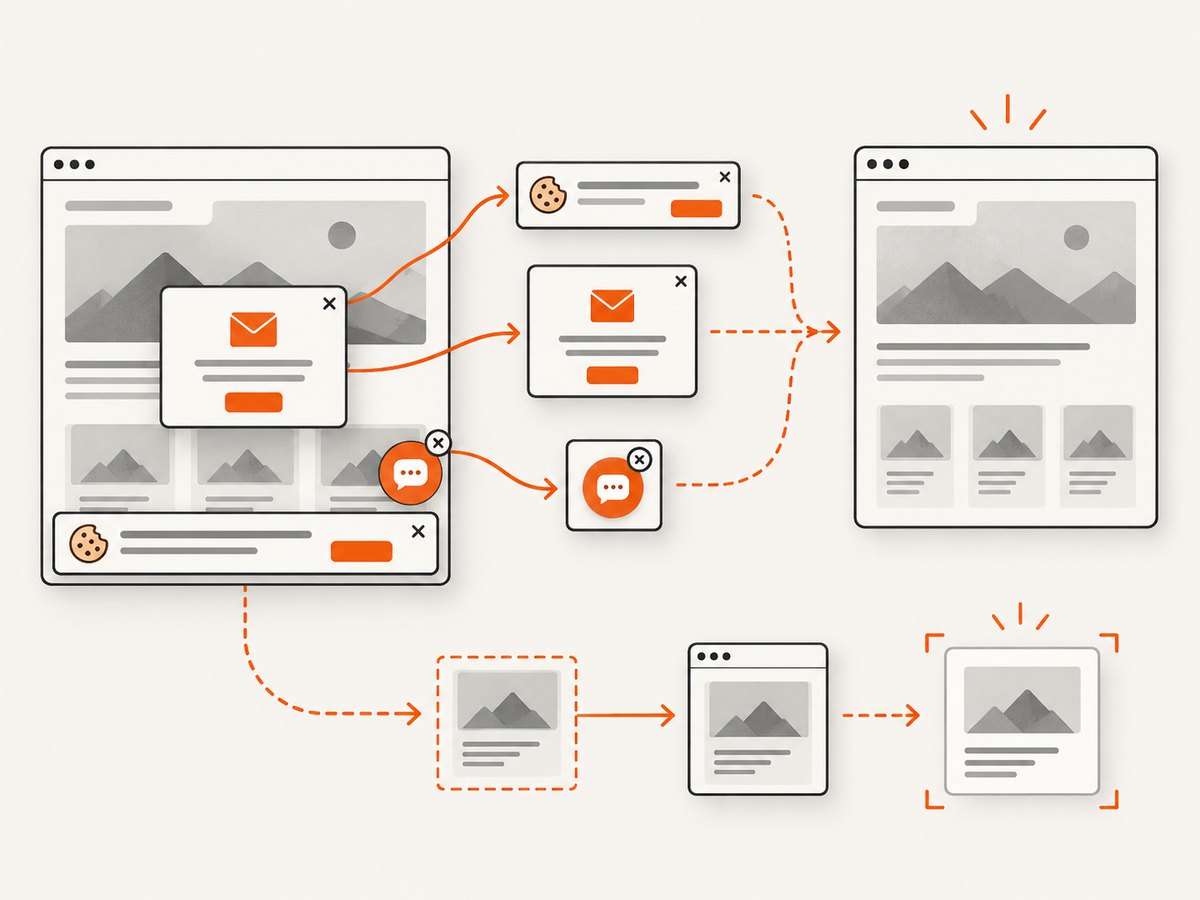
await Bun.write('shot.webp', bytes);ScreenshotNeo accepts consent banners like a visitor and removes more than 60 known consent platforms, newsletter popups and chat widgets before capture. Bot checks or CAPTCHAs, blank pages, timeouts, failed loads and cache hits are not billed; response headers identify the page verdict and whether the request was billed. Its MCP server lets Claude, Cursor and other MCP clients use take_screenshot, get_page_info and capture_pdf. The free plan includes 1,000 screenshots per month with no card; paid plans start at $5 for 3,000.
Create a free ScreenshotNeo account to try the API with 1,000 screenshots a month and no card.
10. FAQ
What does @page do in a print stylesheet?
It defines page-level properties such as paper size, orientation and margins. Use @media print for document and element presentation.
How do I control page breaks when printing a webpage?
Use break-before, break-after and break-inside, then verify the result in the target engine. These declarations are preferences when content cannot fit.
How do I add page numbers or headers and footers to a PDF with CSS?
Try page-margin at-rules and counters where your engine supports them. Otherwise use in-flow elements or a renderer that documents running page content.
Does my browser support CSS page-margin boxes?
Support is feature and version dependent. Chrome for Developers documents generated page-margin content beginning in Chrome 131; test your exact browser and workflow.
When should I use pagination software?
Use it when you need repeatable automation, paginated previews, complex running content, footnotes, facing-page rules or renderer-specific controls that native printing cannot provide.


