How to Read a CSV and Take a Puppeteer Screenshot for Each Row
Parse CSV rows safely, open each URL with Puppeteer, wait for the right state, and save reliable screenshots with recovery and scaling.
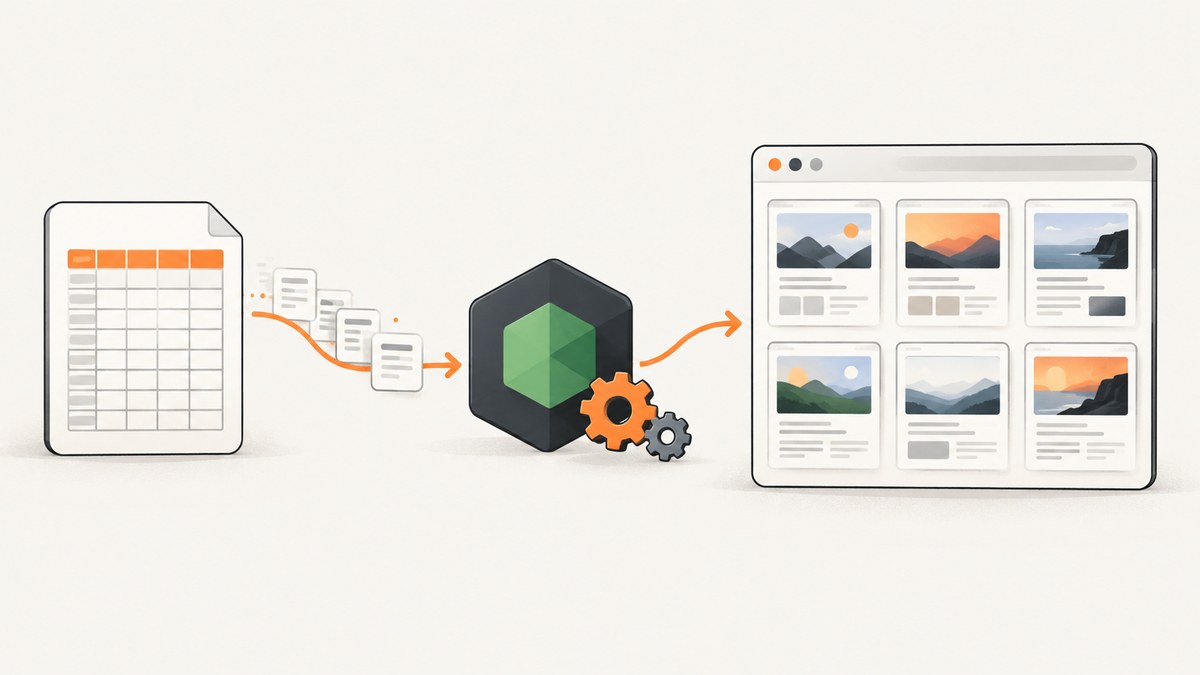
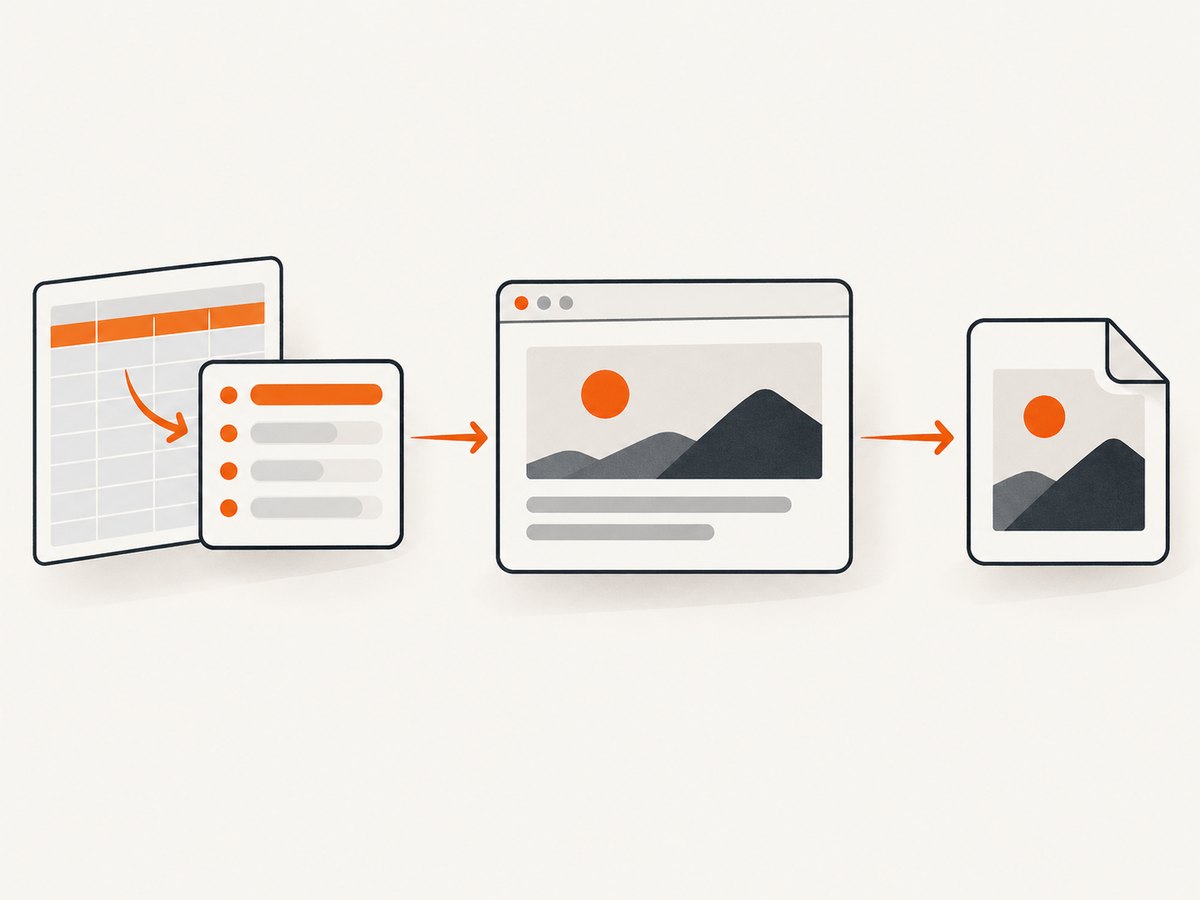
Direct answer: parse the CSV with a parser that understands quoted fields, validate each row, open the row URL in Puppeteer, wait for the page state your image needs, save a screenshot with a deterministic filename, and catch errors per row so one bad record does not stop the batch. For small files, synchronous parsing is compact. For large files, use streaming or async iteration so the whole dataset does not need to stay in memory.
The workflow is:
- Read and parse records with a real CSV parser.
- Check required fields such as
urland an output identifier. - Reuse one browser and, where safe, one page.
- Navigate with
page.goto(). - Wait for navigation, a selector, an image, or application-specific readiness.
- Call
page.screenshot()or an element handle’s screenshot method. - Write a row-level success or error record.
1. Choose a CSV parsing mode
Do not split lines with line.split(','). Commas can occur inside quoted values, fields can contain newlines, and escaped quotes are valid CSV. The CSV Parse project supports delimiters, quotes, escape characters, comments, and multiple APIs.
| Mode | Use it when | Trade-off |
|---|---|---|
| Sync | The file is small and you want simple control flow. | All records are held in memory. |
| Stream | The file may be large or continuously produced. | More setup; process records incrementally. |
| Async iterator | You want readable for await...of code and bounded work. |
You must coordinate parser and browser errors carefully. |
| Callback | An existing callback-based application already uses it. | Less convenient for sequential async browser work. |
Validate columns before launching Chromium. If your CSV has headers, use columns: true; otherwise map arrays to a known schema. Decide whether blank lines, comments, duplicate identifiers, and extra columns are acceptable, and make those decisions explicit in parser options.
2. Install the Node.js dependencies
mkdir csv-shots
cd csv-shots
npm init -y
npm install puppeteer csv-parse
Puppeteer downloads a compatible browser during installation in its normal setup. In a restricted build environment, configure the executable path according to your deployment instead of assuming a system Chrome is present.
3. Prepare the CSV
For URL screenshots, a useful file might be:
id,url,waitFor,fullPage
stripe,https://stripe.com,,true
example,https://example.com,,false
app,https://app.example.test,.dashboard,true
Keep URLs fully qualified. Treat waitFor as optional: an empty value can mean “use the navigation readiness rule.” A fullPage value should be parsed as a boolean, not treated as a truthy string where "false" accidentally enables full-page capture.
4. Complete sequential script for a small CSV
This runnable script uses synchronous parsing for a small file, validates each row, reuses a browser, waits for either a row-specific selector or navigation readiness, and continues after row-level failures.
const fs = require('node:fs');
const path = require('node:path');
const puppeteer = require('puppeteer');
const { parse } = require('csv-parse/sync');

const inputPath = process.argv[2] || 'pages.csv';
const outputDir = process.argv[3] || 'screenshots';

function asBoolean(value, fallback = false) {
  if (value === undefined || value === null || value === '') return fallback;
  return ['1', 'true', 'yes', 'y'].includes(String(value).toLowerCase());
}

function safeName(value, index) {
  const cleaned = String(value || `row-${index + 1}`)
    .trim()
    .replace(/[^a-zA-Z0-9._-]+/g, '-')
    .replace(/^-+|-+$/g, '');
  return cleaned || `row-${index + 1}`;
}

function isHttpUrl(value) {
  try {
    const url = new URL(value);
    return url.protocol === 'http:' || url.protocol === 'https:';
  } catch {
    return false;
  }
}

async function main() {
  fs.mkdirSync(outputDir, { recursive: true });
  const csvText = fs.readFileSync(inputPath, 'utf8');
  const rows = parse(csvText, {
    columns: true,
    skip_empty_lines: true,
    bom: true,
    trim: true,
    relax_column_count: false
  });

  const browser = await puppeteer.launch({ headless: true });
  const page = await browser.newPage();
  await page.setViewport({ width: 1440, height: 900, deviceScaleFactor: 1 });
  const results = [];

  try {
    for (const [index, row] of rows.entries()) {
      const label = row.id || row.url || `row-${index + 1}`;
      if (!isHttpUrl(row.url)) {
        results.push({ row: index + 1, label, status: 'error', error: 'Invalid HTTP(S) URL' });
        continue;
      }

      const outputPath = path.join(outputDir, `${safeName(row.id, index)}.png`);
      try {
        await page.goto(row.url, {
          waitUntil: 'networkidle2',
          timeout: 45000
        });

        if (row.waitFor && row.waitFor.trim()) {
          await page.waitForSelector(row.waitFor.trim(), { visible: true, timeout: 15000 });
        }

        await page.screenshot({
          path: outputPath,
          fullPage: asBoolean(row.fullPage, false),
          type: 'png'
        });
        results.push({ row: index + 1, label, status: 'ok', file: outputPath });
      } catch (error) {
        results.push({ row: index + 1, label, status: 'error', error: error.message });
      }
    }
  } finally {
    await browser.close();
  }

  fs.writeFileSync('screenshot-results.json', JSON.stringify(results, null, 2));
  const failed = results.filter(result => result.status === 'error').length;
  console.log(`Finished ${results.length} rows; ${failed} failed.`);
}

main().catch(error => {
  console.error(error);
  process.exitCode = 1;
});
Run it with:
node capture-csv.js pages.csv screenshotsThe official Puppeteer guide states: “For capturing screenshots use Page.screenshot().” Its examples also show navigation followed by a screenshot and demonstrate networkidle2 as one possible navigation wait condition. See the Puppeteer Screenshots guide and the Page API.
5. Make readiness match the page
networkidle2 means Puppeteer observed a low number of active network connections; it does not prove that a chart, image, animation, or client-rendered component is ready. Use the narrowest reliable condition:
- Navigation:
waitUntil: 'domcontentloaded'is quick;'load'waits for the load event;'networkidle2'is useful for many but not all applications. - Selector:
await page.waitForSelector('.report', { visible: true })waits for the component you need. - Image: wait for a selector and then check its
completeandnaturalWidthproperties. - Application state: wait for a known text change, data attribute, or framework-specific marker.
- Fixed delay:
page.waitForTimeout()can cover an unavoidable animation, but it adds latency and is less reliable than an observable condition.
For a single component, use an element screenshot:
const card = await page.waitForSelector('.invoice-card', { visible: true });
await card.screenshot({ path: 'invoice-card.png' });
Use fullPage: true for the complete scrollable document. A viewport screenshot is usually smaller and faster. Very tall pages can create large files and expose lazy-loading behavior; scroll or use the site’s own “load more” mechanism when necessary.
6. Stream large CSV files
For large inputs, avoid creating an array containing every record. CSV Parse documents stream and async-iterator APIs in its API overview. The pattern below processes records as they arrive. It still uses one page sequentially, which limits browser memory and makes logs easy to associate with rows.
const fs = require('node:fs');
const { parse } = require('csv-parse');
const puppeteer = require('puppeteer');

async function run(input) {
  const parser = fs.createReadStream(input).pipe(parse({
    columns: true,
    skip_empty_lines: true,
    bom: true,
    trim: true
  }));
  const browser = await puppeteer.launch({ headless: true });
  const page = await browser.newPage();
  try {
    let index = 0;
    for await (const row of parser) {
      index += 1;
      if (!row.url) {
        console.error(`row ${index}: missing url`);
        continue;
      }
      try {
        await page.goto(row.url, { waitUntil: 'domcontentloaded', timeout: 45000 });
        if (row.waitFor) await page.waitForSelector(row.waitFor, { visible: true, timeout: 15000 });
        await page.screenshot({ path: `screenshots/row-${index}.png`, fullPage: row.fullPage === 'true' });
      } catch (error) {
        console.error(`row ${index} (${row.url}): ${error.message}`);
      }
    }
  } finally {
    await browser.close();
  }
}
run(process.argv[2] || 'pages.csv').catch(console.error);
7. Concurrency, performance, and reliability
Sequential work is the safest starting point. A single browser and page avoid launching Chromium for every record and reduce simultaneous traffic to target sites. If throughput matters, use bounded concurrency: create a small pool of pages or browser contexts and cap active rows. Do not create an unbounded promise for every CSV record. More pages consume CPU and memory, and target servers may throttle or block bursts.
Useful controls include:
- Set explicit navigation and selector timeouts so a hung page cannot stall the batch forever.
- Reuse a browser, but create a fresh page or context when cookies, local storage, or authentication must not leak between rows.
- Use deterministic names based on a sanitized ID plus the row number to avoid collisions.
- Write a result manifest containing URL, output path, duration, and error text so failed rows can be retried.
- Close the browser in
finally, including when parsing or capture throws. - Retry transient navigation failures with a small bounded retry count; do not blindly retry invalid URLs or selector timeouts.
- Keep viewport, device scale factor, timezone, and locale fixed when pixel consistency matters.
There is no universal concurrency value. Measure your machine, page complexity, and target-site behavior, then increase the limit gradually.
8. Common errors and fixes
| Error | Likely cause | Fix |
|---|---|---|
| CSV columns shift | Naive comma splitting or malformed quoting. | Use CSV Parse; inspect quotes, delimiters, and column counts. |
net::ERR_NAME_NOT_RESOLVED |
DNS failure or an invalid hostname. | Validate the URL, DNS, proxy, and network access; record the row as failed. |
| Navigation timeout | The page keeps connections open or is slow. | Choose a suitable waitUntil, raise the timeout carefully, and add a page-specific readiness selector. |
| Selector timeout | The selector is wrong, hidden, or rendered only after an interaction. | Verify it in the page, wait for the correct state, or perform the required click first. |
| Blank or incomplete image | Capture happened before client rendering, fonts, or lazy images finished. | Wait for the relevant selector or image state; scroll to trigger lazy loading; use a stable viewport. |
| Browser does not launch | Missing browser binary or sandbox restrictions. | Install Puppeteer’s browser, configure an executable path, and follow your container’s browser permissions. |
| Files overwrite each other | IDs are duplicated or filenames contain unsafe characters. | Include the row index and sanitize every filename. |
| One failure stops everything | The try/catch surrounds the entire loop. | Catch errors inside each row and retain a manifest for retries. |
9. Or skip the browser setup
If you need screenshots for CSV URLs but do not want to operate Chromium, ScreenshotNeo provides a GET endpoint that returns PNG, JPEG, WebP, or PDF. You can call it once per row from your script. The API accepts the URL and access key as query parameters; see the ScreenshotNeo documentation for options.

curl -G "https://api.screenshotneo.com/v1/shot" -d access_key=YOUR_API_KEY --data-urlencode url=https://stripe.com -o shot.webpimport requests
r = requests.get("https://api.screenshotneo.com/v1/shot", params={"access_key": "YOUR_API_KEY", "url": "https://stripe.com"}, timeout=90)
open("shot.webp", "wb").write(r.content)const q = new URLSearchParams({ access_key: 'YOUR_API_KEY', url: 'https://stripe.com' });
const res = await fetch(`https://api.screenshotneo.com/v1/shot?${q}`);For a CSV batch, replace the example URL with row.url, save each response under your sanitized row ID, and inspect the response headers. Cookie banners, newsletter popups, and chat widgets are removed before the shot. Bot checks, blank pages, failed loads, timeouts, and cache hits are not billed as clean shots, and the response identifies the result with X-Page-Verdict and X-Billed headers. ScreenshotNeo also offers an MCP server with take_screenshot, get_page_info, and capture_pdf tools for AI agents. The Free plan includes 1,000 screenshots per month with no card; paid plans start at $5 for 3,000 shots. Create a free ScreenshotNeo account.
10. Options for production batches
ScreenshotNeo includes full-page capture with lazy images loaded, CSS-selector element capture, dark mode, device presets, arbitrary viewports, retina scale, custom CSS and JavaScript, clicks, hide selectors, selector or network-idle waits, request and resource blocking, custom headers and cookies, user-agent and authorization values, timezone and geolocation, transparent backgrounds, resizing, configurable caching TTL, signed image links, asynchronous jobs with signed webhooks, bulk capture of up to 100 URLs per call, a usage API, and an OpenAPI specification. Parameter names used by other screenshot APIs also work, which can simplify migration.
For cost control, cache stable URLs with a TTL, use bulk calls where appropriate, and capture only the viewport or element you need. For reliability, keep row-level manifests and retry only rows whose verdict or error indicates a transient issue.
11. FAQ
Can I use a CSV without a header row?
Yes. Parse it without columns: true, then map each array to fields such as ID, URL, and selector. Validate the expected column count.
Should every row use a new browser?
No. Reuse a browser for efficiency. Use separate pages or contexts when state isolation is required.
Is networkidle2 always the best wait?
No. It is one signal. A page-specific selector or application state is often more accurate for dynamic content.
How do I resume after a machine failure?
Write a manifest after each row and skip IDs already marked successful on the next run. Keep failed rows and their error messages for targeted retries.
Can a screenshot be a PDF?
With Puppeteer, use the page PDF API for print output. ScreenshotNeo’s endpoint can return a PDF and supports paper size, margins, landscape mode, and page ranges.


