How to Capture Screenshots in Cucumber Using Tags
Capture Cucumber screenshots only where you need them, attach failures to reports, and scope hooks with tags in Java, Kotlin, JavaScript, and Ruby.
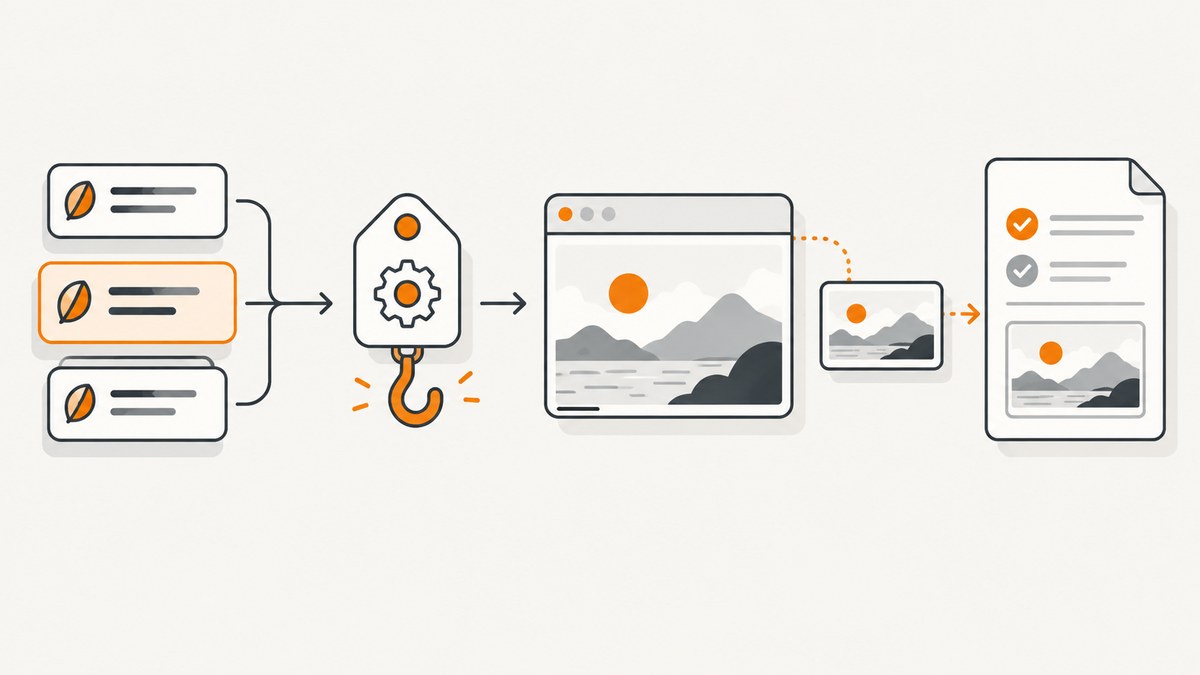
Use a tag-conditioned After hook, then check the scenario result before capturing. The tag selects which scenarios run the hook; the status check decides whether to capture only failures. Take the image from the live browser driver and attach it with the binding’s supported attachment API.
This pattern works across Cucumber’s Java, Kotlin, JavaScript, and Ruby bindings. The exact method names depend on your Cucumber version and browser integration, so verify them against the current Cucumber API reference and browser automation guide.
1. The pattern: tag the scenarios and capture in an After hook
Add a tag to the scenarios that need artifacts:
@capture_screenshot
Scenario: A tagged browser scenario
  Given the application is open
  When I perform an action
  Then the expected result appears
Then implement an After hook that:
- Runs only when the tag expression matches.
- Checks whether the scenario failed, if you want failure-only screenshots.
- Captures bytes or a file path from the browser driver.
- Attaches the image with
image/pngbefore the browser is closed.
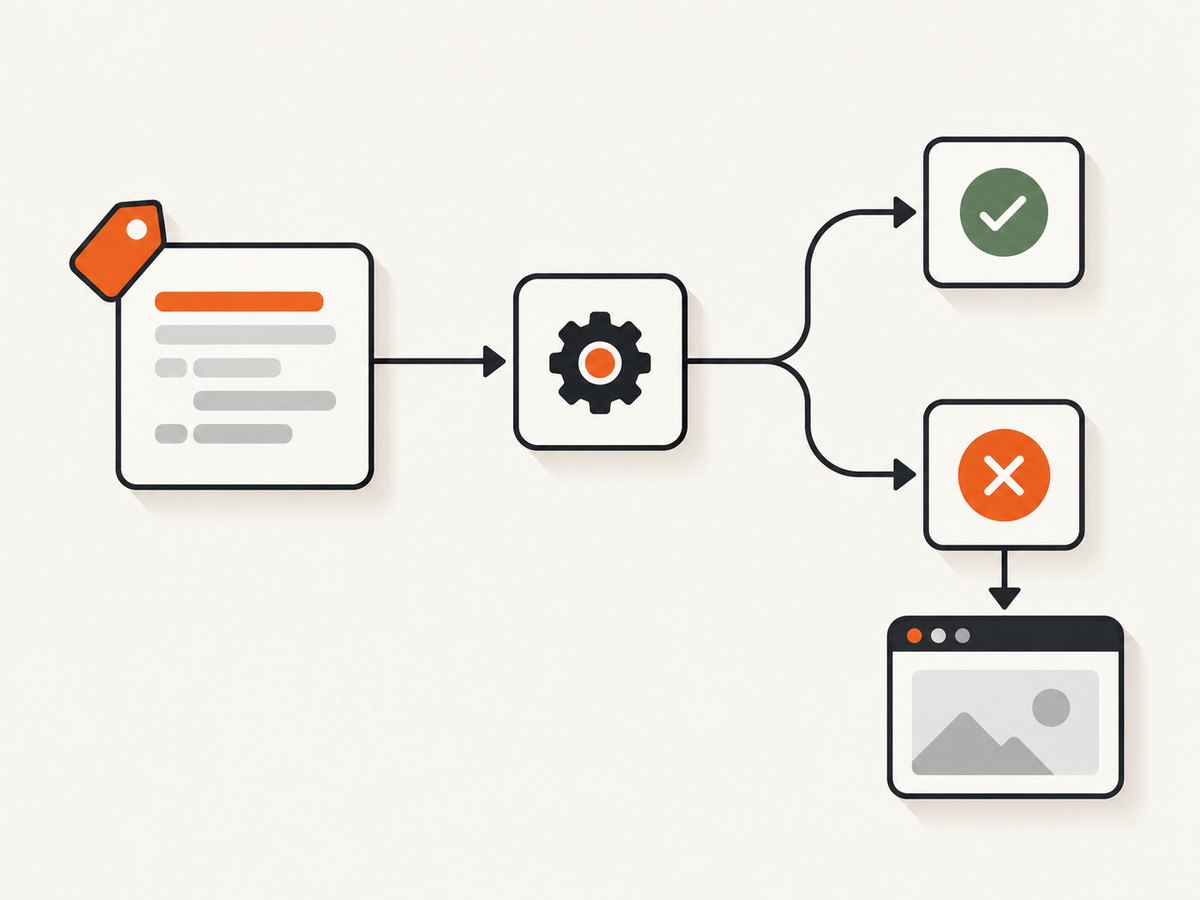
These are two separate filters. A tagged scenario can pass and still run the hook; the failure check controls whether a screenshot is actually taken. Remove that check when every tagged scenario should produce an image.
2. Java: Selenium screenshot attached to the Cucumber result
import io.cucumber.java.After;
import io.cucumber.java.Scenario;
import org.openqa.selenium.OutputType;
import org.openqa.selenium.TakesScreenshot;
import org.openqa.selenium.WebDriver;

public class ScreenshotHooks {
    private final WebDriver driver;

    public ScreenshotHooks(WebDriver driver) {
        this.driver = driver;
    }

    @After("@capture_screenshot")
    public void attachScreenshotOnFailure(Scenario scenario) {
        if (!scenario.isFailed()) {
            return;
        }

        byte[] screenshot = ((TakesScreenshot) driver)
                .getScreenshotAs(OutputType.BYTES);
        scenario.attach(screenshot, "image/png", "failure-screenshot");
    }
}
@After("@capture_screenshot") is the tag-conditioned hook. scenario.isFailed() makes the capture failure-only. Selenium’s TakesScreenshot interface returns the image bytes, and scenario.attach puts those bytes into the Cucumber result stream.
Java details to check
- Inject or otherwise obtain the same live
WebDriverinstance used by the scenario. - Keep this hook ahead of driver teardown. If another
Afterhook quits the driver first, capture will fail. - Use the MIME type that matches the bytes. The example returns PNG bytes, so it attaches
image/png. - If your project uses a different Cucumber package version, confirm the
After,Scenario, and attachment signatures in that version.
3. Kotlin: the same failure hook with WebDriver bytes
import io.cucumber.java.After
import io.cucumber.java.Scenario
import org.openqa.selenium.OutputType
import org.openqa.selenium.TakesScreenshot
import org.openqa.selenium.WebDriver

class ScreenshotHooks(private val driver: WebDriver) {
    @After("@capture_screenshot")
    fun attachScreenshotOnFailure(scenario: Scenario) {
        if (!scenario.isFailed) return

        val screenshot = (driver as TakesScreenshot)
            .getScreenshotAs(OutputType.BYTES)
        scenario.attach(screenshot, "image/png", "failure-screenshot")
    }
}
The control flow is identical to Java: the tag expression scopes the hook, isFailed scopes the artifact, and the driver supplies PNG bytes. Adapt the constructor or dependency injection to your test setup.
4. JavaScript: Cucumber-JS and WebDriver
const { After, Status } = require('@cucumber/cucumber');

After({ tags: '@capture_screenshot' }, async function (scenario) {
  if (scenario.result?.status !== Status.FAILED) {
    return;
  }

  const image = await this.driver.takeScreenshot();
  await this.attach(image, 'image/png');
});
Cucumber-JS commonly represents a WebDriver screenshot as a base64 string. Its attachment API accepts image data and a media type; use the form required by your installed Cucumber-JS version. The official Cucumber-JS attachments documentation covers buffers, base64 data, and attachment encoding.
JavaScript status and driver variations
- Some versions expose the result status as
scenario.result.status; compare it with the binding’sStatus.FAILEDconstant. - WebdriverIO, Playwright integrations, and raw Selenium clients expose different screenshot methods. Replace
takeScreenshot()with the method provided by your driver. - If your driver returns a
Buffer, pass that buffer toattachwithimage/png. If it returns base64, pass the base64 value in the format documented for your version.
5. Ruby: Capybara screenshot attachment
After('@capture_screenshot') do |scenario|
  next unless scenario.failed?

  path = page.save_screenshot
  attach(path, 'image/png')
end
The Capybara example saves the current browser image, then attaches the path to the scenario result. Keep the save and attach operations before any teardown that resets or closes the session. Depending on your Cucumber and formatter versions, save_screenshot may accept a path; consult the browser integration used by your project.
6. Where to put the tag
Cucumber tags can appear above a Feature, Rule, Scenario, Scenario Outline, or Examples element. Tags on a parent are inherited by descendant scenarios. A tag cannot go above a Background or an individual step. See the Cucumber tag and hook reference for the current grammar.
| Location | Scope | Use it when |
|---|---|---|
| Scenario | One scenario | Only one flow needs a screenshot |
| Scenario Outline | Every generated example | Each example should be eligible for capture |
| Examples | One examples table | Only a subset of outline data needs artifacts |
| Rule | All scenarios under the rule | A business capability shares the same browser diagnostic |
| Feature | All descendant scenarios | The entire feature is browser-facing and should be covered |
Put the marker at the narrowest level that matches the intended scope. A feature-level tag is convenient but can create many images and larger reports.
Compound tag expressions
@browser and not @headless
@capture_screenshot and @checkout
Tag expressions are boolean expressions. Use them to exclude unsuitable runs or combine a screenshot marker with another category. The expression syntax and supported operators are documented by Cucumber.
7. Capture every tagged run or failures only?
| Requirement | Hook logic | Trade-off |
|---|---|---|
| Failures only | Return unless the scenario failed | Small reports and focused diagnostics |
| Every tagged run | Capture without a status guard | Useful for visual audit trails; produces more artifacts |
| Failures plus selected passes | Use separate tags or a second hook | Explicit control over artifact volume |
Do not infer failure from the tag. A tag only selects the hook. The scenario result is the source of truth for pass or fail status.
8. Attachments, formatters, and report retention
An attachment enters Cucumber’s result stream, but its final display and retention depend on the formatter and runner. A console formatter may show only that an attachment exists; an HTML, JSON, or external reporting pipeline may embed or store the binary. Confirm your formatter’s behavior in CI.
- Use
image/pngfor PNG bytes or paths. - Give attachments descriptive names where the binding supports names.
- Check that CI preserves the formatter output directory and any referenced image files.
- For JSON or message-based output, verify that binary data is encoded and not stripped by a post-processing step.
- Keep screenshots before driver shutdown and before temporary files are deleted.
9. Troubleshooting common failures
| Symptom | Likely cause | Fix |
|---|---|---|
| Hook never runs | Tag does not match or is placed on an unsupported element | Put the tag above Feature, Rule, Scenario, Scenario Outline, or Examples; check spelling and the hook expression. |
| Hook runs for unexpected scenarios | Parent tag inheritance | Move the tag down to the scenario or examples table, or narrow the expression. |
| Passing scenarios create images | No failure-status guard | Add scenario.isFailed(), scenario.failed?, or the binding’s failed-status check. |
| Failed scenarios have no image | Driver was closed before the hook, or screenshot call threw | Order teardown after capture, ensure the hook shares the live driver, and log the driver exception. |
| Attachment appears as a broken file | Wrong MIME type or encoding | Match image/png to PNG data and follow the binding’s buffer/base64 attachment API. |
| Image exists locally but not in CI | Formatter output or temporary files are not retained | Configure CI artifacts and use a formatter that preserves attachments. |
| JavaScript status check is false | Status comparison does not match the installed Cucumber-JS API | Use the binding’s Status.FAILED constant and inspect the actual scenario result object. |
| Screenshot is blank | Capture occurred before navigation or rendering completed | Wait for the page condition your test requires before the step that can fail, then capture in After. |
10. Performance and reliability considerations
- Capture condition: Failure-only hooks reduce screenshot work and report size. Tag broader scopes only when the diagnostic value justifies it.
- Hook ordering: Make capture run before quit, reset, context disposal, or temporary-directory cleanup.
- Parallel runs: Use unique attachment names or per-scenario directories if your runner writes files. Shared filenames can overwrite artifacts.
- Retries: Decide whether each retry should produce an image. A retry can have a different result and browser state, so retain the attempt identifier when your formatter supports it.
- Browser readiness: A screenshot records the current viewport. Wait for the application state that matters rather than adding an arbitrary long delay.
- Report size: Full screenshots for every scenario can make CI artifacts slow to upload and inspect. Prefer tagged failures or smaller viewport settings where your driver allows them.
- Cleanup: If you save files before attaching them, clean them after the formatter has consumed them, not immediately after the screenshot call.
11. A repeatable implementation checklist
- Choose the smallest scenario, examples, rule, or feature scope.
- Add
@capture_screenshot(or your project tag) at that level. - Register a tag-conditioned
Afterhook. - Check the scenario’s failed status when captures should be failure-only.
- Capture through the active browser driver.
- Attach bytes or a path with the correct image MIME type.
- Run capture before browser teardown.
- Verify the formatter and CI retain attachments.
- Exercise one passing and one failing tagged scenario, plus an untagged scenario.
12. Or skip the browser setup
If you need a URL image rather than a Cucumber driver’s in-process artifact, ScreenshotNeo provides a single GET request for PNG, JPEG, WebP, or PDF output. Its cleanup steps accept consent banners and remove more than 60 known consent platforms, newsletter popups, and chat widgets before capture. Bot checks, blank pages, failed loads, timeouts, and cache hits are not billed, and the response identifies the page verdict and billing status in headers. An MCP server also lets Claude, Cursor, and other MCP clients call screenshot, page-info, and PDF tools.
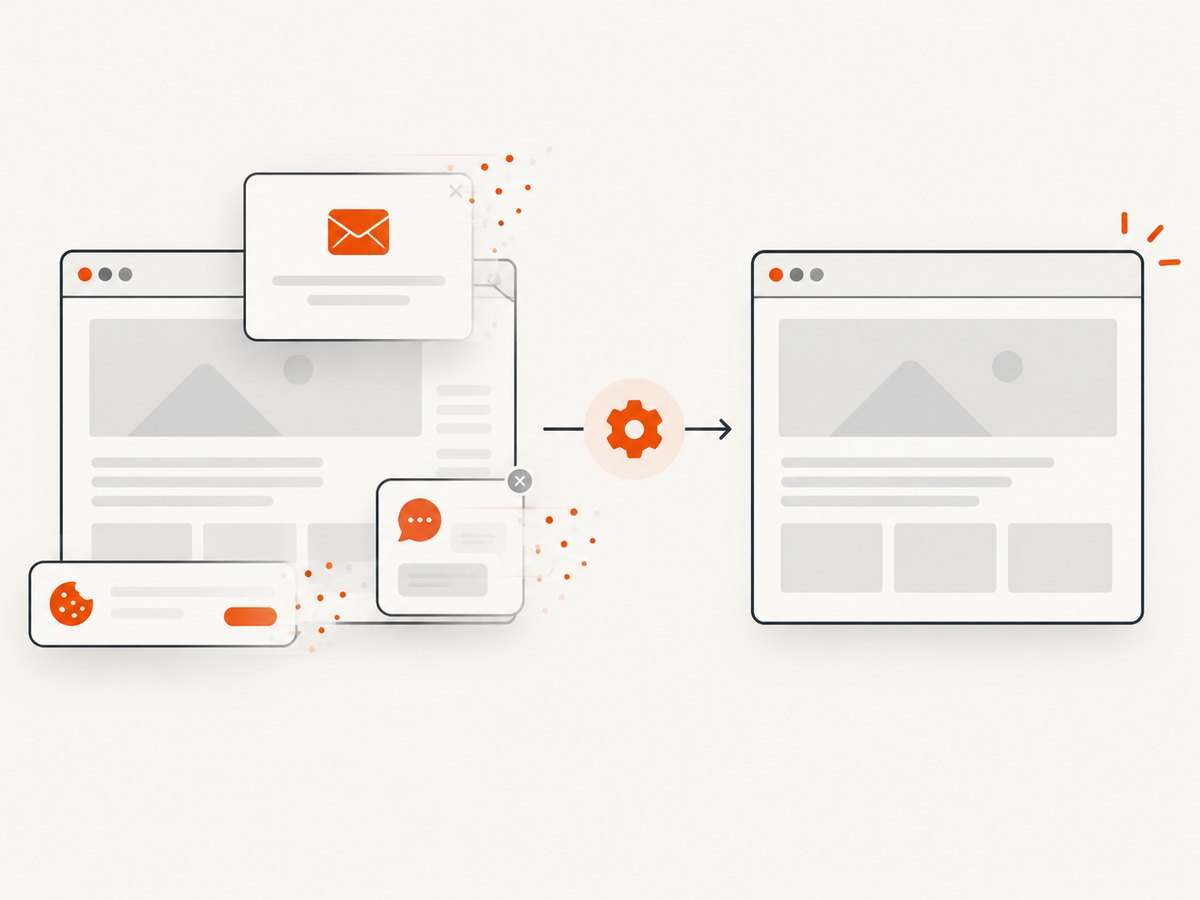
See the ScreenshotNeo API documentation for authentication and options. A minimal call is:
curl -G "https://api.screenshotneo.com/v1/shot" -d access_key=YOUR_API_KEY --data-urlencode url=https://stripe.com -o shot.webpimport requests
r = requests.get("https://api.screenshotneo.com/v1/shot", params={"access_key": "YOUR_API_KEY", "url": "https://stripe.com"}, timeout=90)
open("shot.webp", "wb").write(r.content)const q = new URLSearchParams({ access_key: 'YOUR_API_KEY', url: 'https://stripe.com' });
const res = await fetch(`https://api.screenshotneo.com/v1/shot?${q}`);For test pipelines, you can call the endpoint from a hook or a separate artifact step and keep the returned image alongside the Cucumber report. The service supports full-page capture, CSS element capture, custom CSS and JavaScript, waits, headers, cookies, user agents, blocking rules, caching, signed links, asynchronous jobs, webhooks, bulk capture, PDF settings, and more. The Free plan includes 1,000 screenshots a month with no card; paid plans start at $5 for 3,000.
Create a free ScreenshotNeo account to get 1,000 screenshots each month without a card.
13. FAQ
Can I tag a Background?
No. Put the tag on the Feature, Rule, Scenario, Scenario Outline, or Examples element whose scenarios should inherit it.
Does a tagged hook automatically mean failure-only capture?
No. The tag selects the hook. Add a failed-status check for failure-only behavior.
Can I attach JPEG instead of PNG?
Yes, if your driver returns JPEG data and your binding accepts it; set the MIME type to image/jpeg. Keep the data and MIME type consistent.
Why is the screenshot missing from an HTML report?
The attachment may be present in the result stream while the selected formatter does not render or retain it. Check formatter documentation and CI artifact retention.
Should I use a separate file or an in-memory attachment?
Use the binding’s supported attachment mechanism. In-memory bytes avoid temporary-file cleanup; a path can be useful when your formatter expects files.
Can ScreenshotNeo replace the browser screenshot in an After hook?
It can provide a separate URL capture, but it does not automatically know the in-process browser state at the moment a Cucumber step fails. Use the driver hook for that exact state and ScreenshotNeo when a clean URL capture or API workflow fits your pipeline.


