cURL Website Examples for Fetching and Capturing Pages
Copyable cURL commands to fetch pages, save HTML, inspect headers, follow redirects, reuse cookies, and handle common errors.
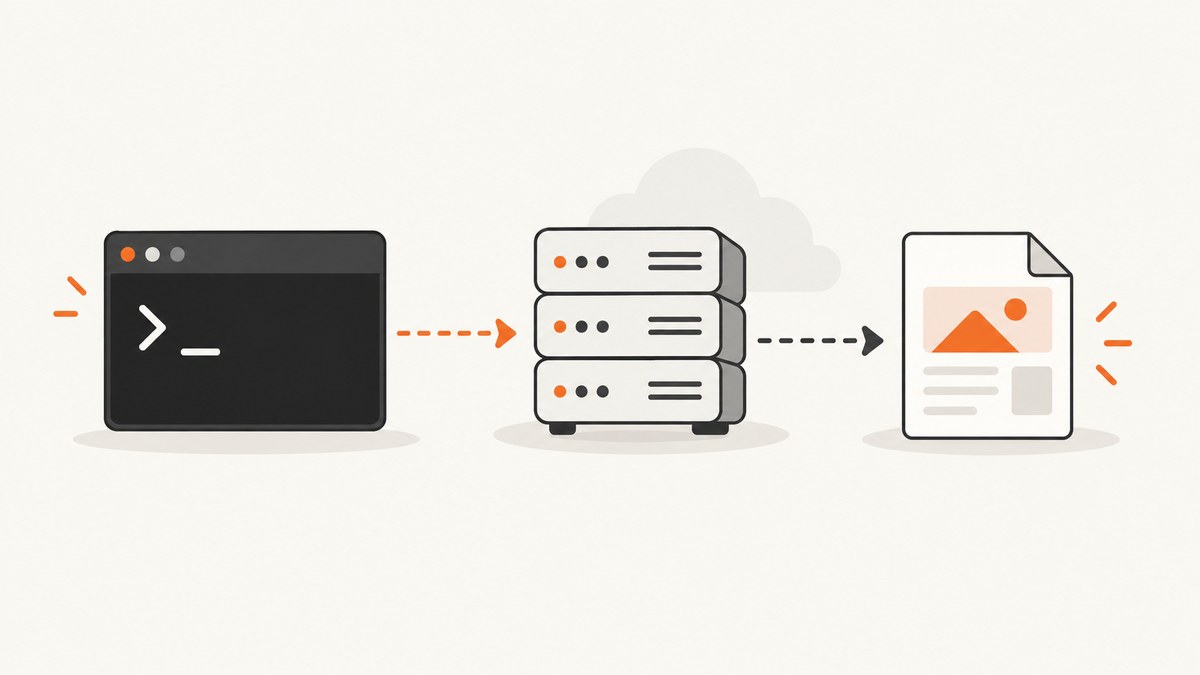
Use curl URL to fetch a website response. Use -o filename to save the body, -D headers.txt to save response headers, and -L to follow redirects. cURL downloads the HTTP response; it does not render a browser page or run client-side JavaScript.
The examples below cover the common ways developers fetch pages from a terminal: saving HTML, inspecting headers, checking redirects, sending cookies and headers, setting time limits, and diagnosing failures.
1. Fetch a website page
A basic GET writes the response body to standard output:
curl https://example.com/For an HTML page, the body is usually HTML. For another resource it might be JSON, an image, a PDF, or a different media type. cURL does not interpret the content.
Save the body to a predictable local file with --output (short form -o):
curl --output page.html https://example.com/Use --remote-name (short form -O) when you want cURL to use the filename from the URL path:
curl --remote-name https://example.com/archive.zipAn explicit filename is safer for scripts because the output location is unambiguous.
Fetch only the first response
cURL does not follow redirects unless you ask it to. Without -L, a redirect response is returned as-is.
curl --output response.html https://example.com/old-pageFollow redirects with --location (short form -L):
curl --location --output final.html https://example.com/old-page2. Capture response headers and the body
Headers and the body are separate parts of an HTTP response. Choose the command according to where you want each part.
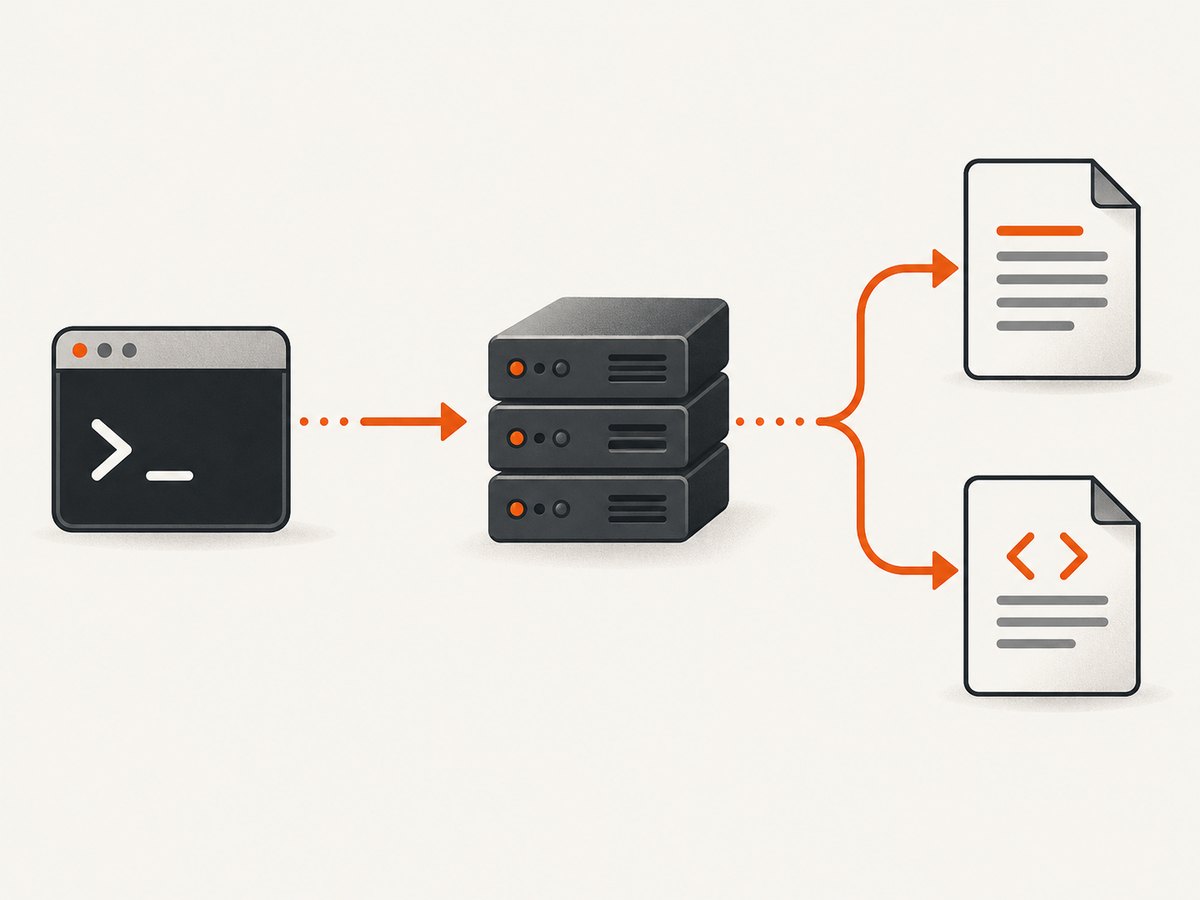
| Goal | Command | Result |
|---|---|---|
| Body in terminal | curl URL |
Writes the body to standard output |
| Body in one file | curl -o page.html URL |
Saves only the body |
| Headers and body together | curl -i URL |
Prints headers, then body |
| Headers in a separate file | curl -D headers.txt -o page.html URL |
Separates metadata from content |
| Headers only | curl -I URL |
Sends a HEAD request and prints headers |
Save headers and HTML separately
curl --dump-header headers.txt \
     --output page.html \
     https://example.com/
headers.txt can contain one or more header blocks when redirects occur. Add --location to follow redirects:
curl --location \
     --dump-header headers.txt \
     --output page.html \
     https://example.com/
Show headers before the body
curl --include https://example.com/This is convenient for interactive inspection, but use --dump-header in scripts so headers do not get mixed into the saved page.
Request headers only with HEAD
curl --head https://example.com/HEAD is useful for checking metadata such as status, content type, and length without downloading the body. Some servers reject HEAD even though GET works. If that happens, issue a GET and save the headers:
curl --dump-header headers.txt --output /dev/null https://example.com/3. Follow redirects safely
Redirects use a Location response header. Follow them with -L:
curl --location \
     --dump-header headers.txt \
     --output page.html \
     https://example.com/redirect
When a request includes cookies, authorization, or other sensitive headers, inspect where the redirect leads. cURL normally avoids passing authorization and cookie headers to a different origin. Do not add --location-trusted unless you have reviewed that security consequence.
4. Add request headers and a user agent
Public pages usually need no custom headers. Add one only when the server or API requires it.
curl --header 'Accept: text/html' \
     --output page.html \
     https://example.com/
Set a user-agent string when a service distinguishes clients:
curl --user-agent 'ExampleResearchBot/1.0' \
     --output page.html \
     https://example.com/
Headers can contain credentials or personal data. Keep them out of shared scripts and logs.
5. Send and reuse cookies
Use a cookie jar to save cookies received from a response:
curl --cookie-jar cookies.txt \
     --output page.html \
     https://example.com/
Reuse that jar on a later request and update it with any new cookies:
curl --cookie cookies.txt \
     --cookie-jar cookies.txt \
     --output next.html \
     https://example.com/next
Cookie files carry session state. Protect them like credentials and remove them when the workflow is complete.
6. Handle authentication and secrets
For HTTP Basic authentication, pass credentials with --user:
curl --user "$CURL_USER:$CURL_PASSWORD" \
     --output private.html \
     https://example.com/private
Prefer HTTPS and environment variables or a secret manager. Avoid putting passwords directly in a command that will remain in shell history. Do not print authorization headers in verbose output that you plan to share.
7. Bound connection and transfer time
Automation should have limits so a stalled connection cannot run forever:
curl --connect-timeout 10 \
     --max-time 90 \
     --output page.html \
     https://example.com/
--connect-timeout limits connection setup. --max-time limits the total operation. Choose values for the site and workload; there is no universal timeout.
8. Treat HTTP errors deliberately
By default, cURL can save an error response body even when the server returns a 4xx or 5xx status. Add --fail when your script should treat HTTP error statuses as failures:
curl --fail \
     --location \
     --output page.html \
     https://example.com/
Keep HTTP status handling distinct from transport failures such as DNS or TLS errors. Check your installed cURL manual for the exact behavior of --fail in your version.
9. Complete cURL recipes
Download HTML, follow redirects, and keep headers
curl --location \
     --connect-timeout 10 \
     --max-time 90 \
     --dump-header headers.txt \
     --output page.html \
     https://example.com/
Inspect a page without saving it
curl --location --include https://example.com/Check metadata, then fall back to GET if HEAD fails
curl --head https://example.com/

curl --dump-header headers.txt \
     --output /dev/null \
     https://example.com/
10. Equivalent examples in Python and Node.js
These snippets perform the same basic GET and save the response body. They fetch the server response; they do not render JavaScript like a browser.
Python
import requests

url = "https://example.com/"
r = requests.get(url, timeout=90)
r.raise_for_status()
with open("page.html", "wb") as f:
    f.write(r.content)
Node.js
const fs = require('node:fs/promises');

const res = await fetch('https://example.com/');
if (!res.ok) throw new Error(`HTTP ${res.status}`);
await fs.writeFile('page.html', Buffer.from(await res.arrayBuffer()));
11. cURL versus a browser capture
cURL is the right tool when you need the raw HTTP representation, reproducible command-line automation, or response headers. It does not execute page JavaScript, wait for lazy-loaded images, click controls, dismiss consent banners, or produce a browser-rendered screenshot.
If you need a rendered image or PDF, use a browser automation tool or a screenshot API. For a hosted option, ScreenshotNeo accepts one GET request and returns PNG, JPEG, WebP, or PDF. It can load lazy images, capture a CSS-selected element, set a viewport or device preset, run custom CSS and JavaScript, click an element, wait for a selector, delay, or network idle, block resources, and set headers, cookies, user agent, timezone, or geolocation.
12. Or skip the browser setup
Use the ScreenshotNeo API when the output must be a rendered screenshot rather than raw HTML. See the ScreenshotNeo API documentation for all options.

cURL
curl -G "https://api.screenshotneo.com/v1/shot" \
  -d access_key=YOUR_API_KEY \
  --data-urlencode url=https://stripe.com \
  -o shot.webp
Python
import requests

r = requests.get(
    "https://api.screenshotneo.com/v1/shot",
    params={"access_key": "YOUR_API_KEY", "url": "https://stripe.com"},
    timeout=90,
)
r.raise_for_status()
open("shot.webp", "wb").write(r.content)
Node.js
const q = new URLSearchParams({ access_key: 'YOUR_API_KEY', url: 'https://stripe.com' });
const res = await fetch(`https://api.screenshotneo.com/v1/shot?${q}`);
Cookie banners, newsletter popups, and chat widgets are removed before the shot. Bot checks, blank pages, timeouts, failed loads, and cache hits are not billed; response headers include X-Page-Verdict and X-Billed. ScreenshotNeo also provides an MCP server with take_screenshot, get_page_info, and capture_pdf tools for Claude, Cursor, and other MCP clients. The free plan includes 1,000 screenshots per month with no card; paid plans start at $5 for 3,000 screenshots. Create a free ScreenshotNeo account.
13. Troubleshooting
| Symptom | Likely cause | Fix |
|---|---|---|
| HTML appears in the terminal instead of a file | No output option was supplied | Add --output page.html |
| Headers are mixed into the saved HTML | --include was used with the same output stream |
Use --dump-header headers.txt --output page.html |
| You receive a redirect page | Redirect following is disabled | Add --location |
| HEAD returns 405 or 403 | The server does not support HEAD | Use GET with --dump-header and --output /dev/null |
| The page differs from a browser | cURL does not run JavaScript or render a browser view | Use browser automation or a screenshot API |
| Authentication disappears after redirect | cURL protects credentials across origins | Inspect the redirect target; do not use --location-trusted casually |
| Request hangs | Slow connection or server | Set --connect-timeout and --max-time |
| Option is unknown | Build or version differences | Run curl --version and check curl --help or the installed man page |
| Verbose logs expose secrets | Trace output includes headers and request details | Redact logs and avoid sharing raw traces |
14. Performance, reliability, and cost notes
- Save directly with
-oinstead of piping large responses through terminal output. - Use explicit timeouts in scheduled jobs and record the HTTP status and final URL.
- Redirects add requests; follow them only when the final resource is needed.
- Cookies and authentication make requests stateful. Keep jars private and avoid sharing them between unrelated jobs.
- cURL itself is free software, but the network, destination service, and any hosted rendering service can have separate limits or charges.
- For rendered screenshots, caching can reduce repeated work. ScreenshotNeo exposes a cache with a TTL you choose and bills only clean shots; cache hits are not billed.
15. FAQ
Does cURL download the same page I see in Chrome?
Not necessarily. cURL receives the HTTP response and does not execute browser JavaScript or display the rendered DOM.
What is the difference between -o and -O?
-o takes the exact local filename you provide. -O derives the filename from the URL path.
Why does cURL not follow redirects automatically?
Redirect following is opt-in. Add -L or --location.
Can I inspect headers without downloading the body?
Try -I for HEAD. If the server rejects HEAD, use GET with -D headers.txt -o /dev/null.
When should I use ScreenshotNeo instead of cURL?
Use ScreenshotNeo when you need a browser-rendered PNG, JPEG, WebP, or PDF, especially for pages with JavaScript, lazy images, consent banners, popups, or chat widgets.
For option semantics and version-specific behavior, consult the cURL man page and the Everything curl guide.