How to Create DOCX and PDF Documents with Custom Page Sizes
Set custom page sizes in DOCX and PDF files with Python, control orientation and margins, and avoid layout and conversion problems.
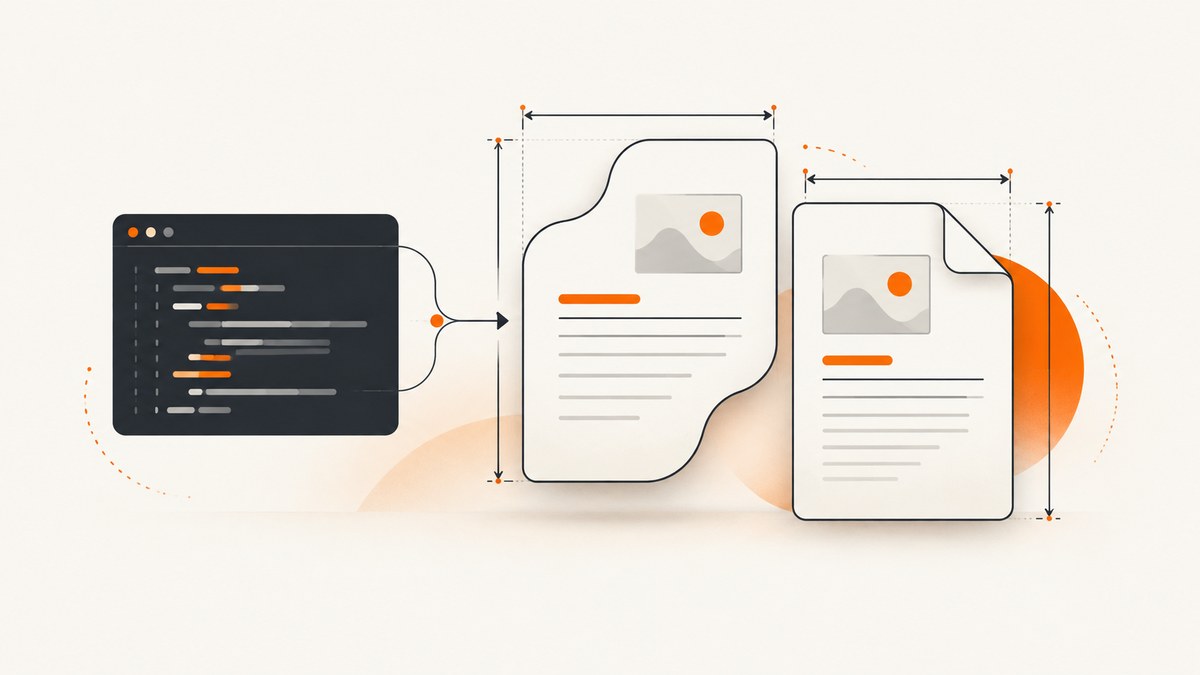
Custom page sizes are controlled differently in DOCX and PDF files. In a DOCX file, page dimensions belong to a section. In a PDF, the page box is set in points when the page is created. Set width, height, orientation, and margins together, then keep all content inside the usable area.
Use python-docx when the recipient needs an editable Word document. Use ReportLab when the final result must be a PDF with deterministic geometry. If you need both, generate both outputs deliberately and inspect the converted file because pagination can change between conversion engines.
Choose DOCX or PDF first
| Requirement | Best starting point | Reason |
|---|---|---|
| Users must edit in Microsoft Word | DOCX with python-docx | DOCX is an editable Word 2007+ format with styles, sections, and paragraphs. |
| Exact page geometry is the final requirement | PDF with ReportLab | PDF pages use an explicit width and height in points. |
| Both editable source and fixed output are required | Generate both | Keep the DOCX and PDF as separate outputs and validate each one. |
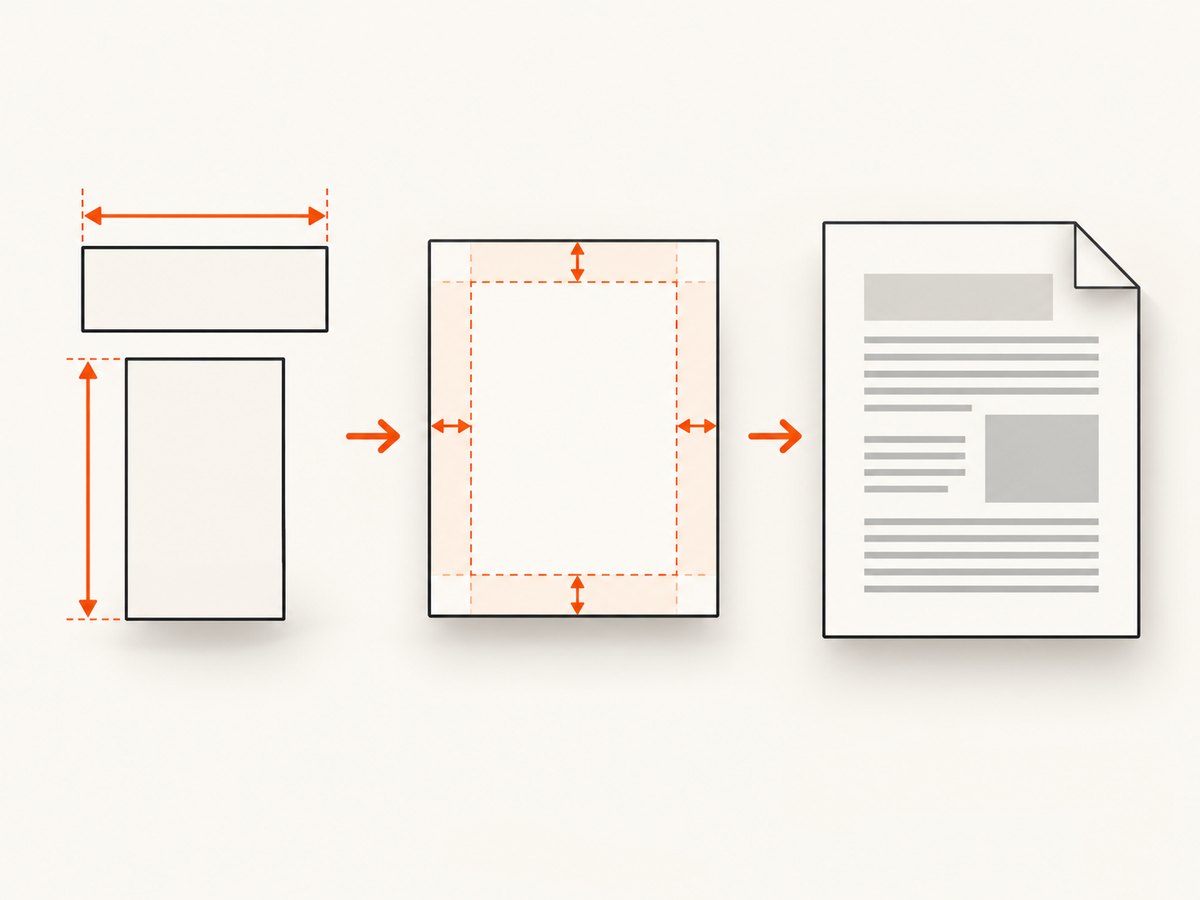
A custom page size does not automatically resize paragraphs, tables, or images. You must calculate the usable width and height after margins and make every layout decision against those values.
Set a custom page size in DOCX with python-docx
Install the library:
python -m pip install python-docxThe page properties are attached to a section. Assign dimensions with a unit helper such as Inches or Mm, set the orientation, then set margins.
from docx import Document
from docx.shared import Inches
from docx.enum.section import WD_ORIENT

# A 6 x 9 inch portrait page
page_width = Inches(6)
page_height = Inches(9)

doc = Document()
section = doc.sections[0]
section.page_width = page_width
section.page_height = page_height
section.orientation = WD_ORIENT.PORTRAIT
section.top_margin = Inches(0.6)
section.bottom_margin = Inches(0.6)
section.left_margin = Inches(0.7)
section.right_margin = Inches(0.7)

doc.add_heading('Custom-size DOCX', level=1)
doc.add_paragraph('This document uses a six by nine inch page with explicit margins.')
doc.save('custom.docx')
See the python-docx section API for the section properties used here. Width and height are independent values. Do not assume that setting landscape will swap them for you.
Landscape pages
For a 9 x 6 inch landscape page, keep one source of truth and assign the intended geometry consistently:
from docx import Document
from docx.shared import Inches
from docx.enum.section import WD_ORIENT

doc = Document()
section = doc.sections[0]
section.orientation = WD_ORIENT.LANDSCAPE
section.page_width = Inches(9)
section.page_height = Inches(6)
section.left_margin = Inches(0.5)
section.right_margin = Inches(0.5)
section.top_margin = Inches(0.5)
section.bottom_margin = Inches(0.5)

doc.add_paragraph('Landscape content')
doc.save('landscape.docx')
The official pattern commonly swaps width and height when changing orientation. The important part is that orientation and dimensions describe the same physical page.
Use millimetres or points
Convert units before assignment. For example:
from docx.shared import Mm, Pt

section.page_width = Mm(148)
section.page_height = Mm(210)
section.top_margin = Mm(12)
section.left_margin = Mm(15)
Do not mix a value intended as millimetres with a value interpreted as inches. Label variables with their units when a document has several page formats.
Mixed page sizes in one DOCX
Page size is section-scoped. Add a new section before changing geometry:
from docx import Document
from docx.shared import Inches
from docx.enum.section import WD_SECTION, WD_ORIENT

doc = Document()
first = doc.sections[0]
first.page_width = Inches(8.5)
first.page_height = Inches(11)
first.orientation = WD_ORIENT.PORTRAIT
doc.add_paragraph('Letter-size page')

second = doc.add_section(WD_SECTION.NEW_PAGE)
second.page_width = Inches(11)
second.page_height = Inches(8.5)
second.orientation = WD_ORIENT.LANDSCAPE
doc.add_paragraph('Landscape page in a new section')

doc.save('mixed-pages.docx')
Configure every new section independently. Headers, footers, margins, and section breaks can also affect the visible result.
Calculate the usable DOCX area
For a page width W and height H, with left and right margins L and R, the usable content width is W - L - R. The usable height is H - T - B. Tables wider than that content width may wrap, overflow, or force an unexpected layout.
- Set the page dimensions before adding content.
- Set all four margins explicitly.
- Keep image and table widths within the usable width.
- Use section breaks for mixed sizes.
- Open the DOCX in the target Word-compatible viewer and inspect every section.
Create a custom-size PDF directly with ReportLab
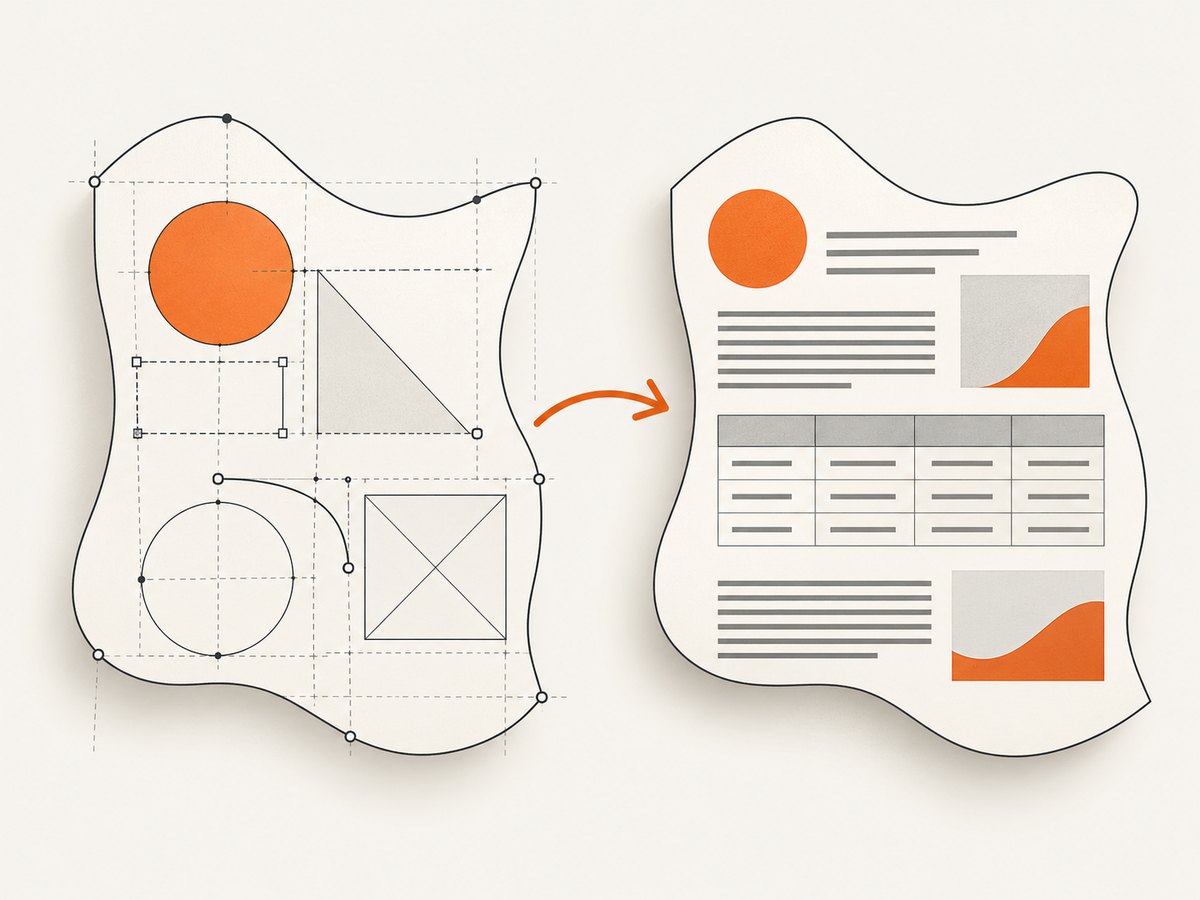
ReportLab’s canvas accepts pagesize=(width, height) in points. One point is 1/72 inch. The page size controls the page box; drawing outside it is clipped or invisible.
python -m pip install reportlabfrom reportlab.pdfgen import canvas
from reportlab.lib.units import inch
width = 6 * inch
height = 9 * inch
pdf = canvas.Canvas('custom.pdf', pagesize=(width, height))
pdf.drawString(0.5 * inch, height - 0.75 * inch, 'Custom-size PDF')
pdf.showPage()
pdf.save()The ReportLab guide defines pagesize as a two-number tuple in points. Use standard constants such as letter or A4 when appropriate, or pass your own dimensions.
Convert inches and millimetres to points
from reportlab.lib.units import inch, mm

six_by_nine = (6 * inch, 9 * inch)
custom_mm = (120 * mm, 180 * mm)
Keep dimensions in named variables and pass them to both the canvas and your layout calculations.
Landscape PDF
from reportlab.pdfgen import canvas
from reportlab.lib.units import inch

width, height = 9 * inch, 6 * inch
pdf = canvas.Canvas('landscape.pdf', pagesize=(width, height))
pdf.drawString(0.5 * inch, height - 0.5 * inch, 'Landscape PDF')
pdf.showPage()
pdf.save()
Use Platypus for flowing, multi-page PDFs
Canvas is useful for precise drawing. For paragraphs, tables, page breaks, and repeated headers, ReportLab Platypus provides higher-level flowables and page templates.
from reportlab.lib.pagesizes import portrait
from reportlab.lib.units import inch
from reportlab.lib.styles import getSampleStyleSheet
from reportlab.platypus import SimpleDocTemplate, Paragraph, Spacer, Table, TableStyle
from reportlab.lib import colors

page_size = (6 * inch, 9 * inch)
doc = SimpleDocTemplate(
    'flowing.pdf',
    pagesize=page_size,
    leftMargin=0.6 * inch,
    rightMargin=0.6 * inch,
    topMargin=0.6 * inch,
    bottomMargin=0.6 * inch,
)
styles = getSampleStyleSheet()
story = [
    Paragraph('Custom flowing PDF', styles['Title']),
    Spacer(1, 12),
    Paragraph('Platypus wraps paragraphs and moves flowables across pages.', styles['BodyText']),
    Spacer(1, 12),
]
data = [['Name', 'Value'], ['Width', '6 in'], ['Height', '9 in']]
table = Table(data, colWidths=[2.0 * inch, 2.0 * inch])
table.setStyle(TableStyle([
    ('GRID', (0, 0), (-1, -1), 0.5, colors.black),
    ('BACKGROUND', (0, 0), (-1, 0), colors.lightgrey),
]))
story.append(table)
doc.build(story)
The page size defines the sheet. Margins and frames define the usable region. A table or paragraph still needs a width that fits inside that region.
Headers, footers, and exact placement
Use canvas callbacks with Platypus when a header or footer must be positioned at fixed coordinates:
from reportlab.lib.units import inch

def draw_footer(canvas, document):
    canvas.saveState()
    canvas.setFont('Helvetica', 8)
    canvas.drawString(0.6 * inch, 0.35 * inch, f'Page {document.page}')
    canvas.restoreState()

doc.build(story, onFirstPage=draw_footer, onLaterPages=draw_footer)
Reserve enough bottom margin for the footer. Otherwise the footer can overlap body content even though the page size itself is correct.
DOCX-to-PDF conversion decisions
Generate DOCX first when editing, Word styles, comments, or an editable source are requirements. Generate PDF directly when page geometry, print output, or stable rendering is the requirement. If both are required, treat them as separate deliverables.
After conversion, check page boxes, orientation, margins, fonts, line wrapping, table breaks, images, and page count. The libraries document how to create their respective formats; they do not promise identical pagination across conversion engines.
Validation checklist
- Confirm width and height order and the unit used by the library.
- Confirm orientation and dimensions describe the same physical page.
- Subtract margins before calculating text, table, or image widths.
- Check that long paragraphs wrap inside the usable width.
- Inspect tables for row splitting and overflow.
- Open every page in the target viewer.
- Print or export a sample if the document is going to a physical printer.
- For PDFs, verify the page box rather than relying only on visual scaling in a viewer.
Common errors and fixes
Landscape content is rotated or clipped
Cause: orientation was changed without assigning matching width and height. Fix: set both properties explicitly and keep the wider dimension as the width for landscape.
The first page is correct but later pages are not
Cause: a later DOCX section retained its default dimensions. Fix: configure every section after creating the section break.
Text or tables run off the page
Cause: content width exceeds page width minus margins. Fix: calculate usable width, reduce table columns or font size, and keep images within that width.
PDF content disappears at the edge
Cause: canvas coordinates fall outside the page box. Fix: keep coordinates between zero and the page width or height, accounting for margins.
PDF pagination changes after conversion
Cause: font availability, line metrics, or conversion-engine layout differences. Fix: embed or install the intended fonts where supported, then inspect the converted output page by page.
Units produce a page that is ten times too large or small
Cause: millimetres, inches, and points were mixed. Fix: convert once at the boundary and name variables such as width_mm or width_points.
Performance, reliability, and cost notes
For DOCX and PDF generation, the main performance costs are font loading, image processing, large tables, and repeated conversion. Reuse styles and cached assets, avoid unnecessarily high-resolution images, and stream or write output files rather than keeping many large documents in memory. For reliable jobs, record the input dimensions, unit, margins, library version, and output path so a layout can be reproduced.
When generating many PDFs, isolate failures per document and keep the source data that produced each file. A malformed paragraph or image should be reported with the document identifier instead of stopping an entire batch.
Or skip the browser setup
If your workflow also needs screenshots of generated documents or web pages, ScreenshotNeo provides a one-call website screenshot API. It accepts a URL and returns PNG, JPEG, WebP, or PDF. Cookie and consent banners, newsletter popups, and chat widgets are removed before capture. Bot checks, blank pages, timeouts, failed loads, and cache hits are not billed, and response headers identify the page verdict and billing status.
See the ScreenshotNeo API documentation for all options.
cURL
curl -G "https://api.screenshotneo.com/v1/shot" -d access_key=YOUR_API_KEY --data-urlencode url=https://stripe.com -o shot.webpPython
import requests
r = requests.get("https://api.screenshotneo.com/v1/shot", params={"access_key": "YOUR_API_KEY", "url": "https://stripe.com"}, timeout=90)
open("shot.webp", "wb").write(r.content)
Node.js
const q = new URLSearchParams({ access_key: 'YOUR_API_KEY', url: 'https://stripe.com' });
const res = await fetch(`https://api.screenshotneo.com/v1/shot?${q}`);
ScreenshotNeo also offers an MCP server with take_screenshot, get_page_info, and capture_pdf tools for Claude, Cursor, and other MCP clients. It includes 1,000 screenshots per month free with no card; paid plans start at $5 for 3,000 shots. Create a free ScreenshotNeo account.
FAQ
Can a DOCX contain different page sizes?
Yes. Add section breaks and set dimensions on each section independently.
What unit does ReportLab use?
Canvas page dimensions are points, where 72 points equal one inch.
Should I use canvas or Platypus?
Use canvas for low-level, coordinate-based drawing. Use Platypus for flowing paragraphs, tables, and multi-page layouts.
Does a custom page size resize content automatically?
No. You must fit content inside the usable area after margins.
How do I create both editable and fixed documents?
Generate a DOCX for editing and a PDF for final distribution, then validate each output independently.


