How to Load Custom Fonts in Handlebars Templates for Puppeteer PDFs
Render Handlebars HTML with custom fonts in Puppeteer PDFs. Learn @font-face, font loading, print CSS, and how to fix missing fonts.

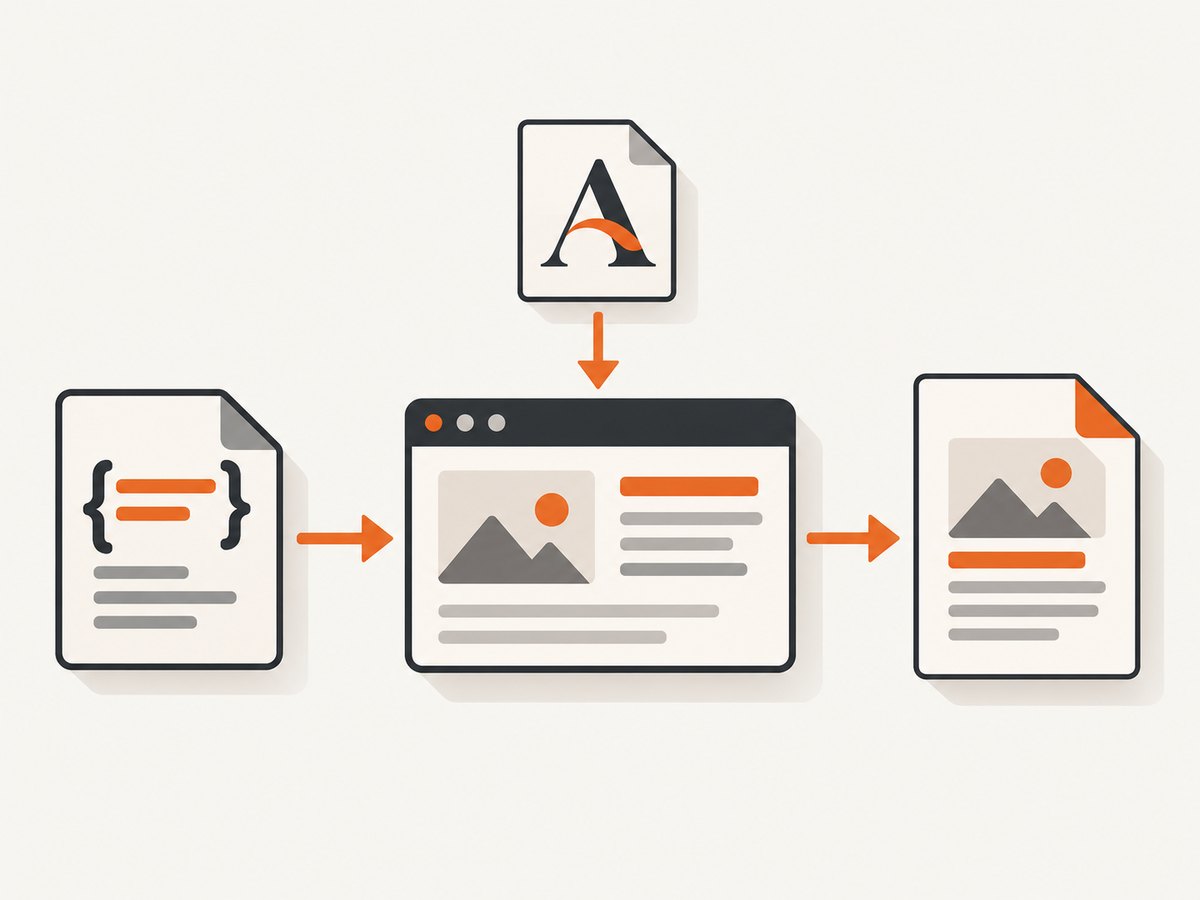
To load a custom font in a PDF generated from a Handlebars template, compile the template into a complete HTML document, declare the font with CSS @font-face, make the font file reachable by the Chromium browser running Puppeteer, apply that family to the document, and call page.pdf() after the styles and content exist. Puppeteer’s current PDF options wait for document.fonts.ready by default (waitForFonts: true), so an extra wait is usually unnecessary.
Handlebars creates HTML; it does not load fonts. Font resolution happens in the browser page. The key practical question is whether that browser can retrieve the font bytes from the URL or data URL in your CSS. For an API-rendered screenshot or PDF alternative, see ScreenshotNeo; its PDF capture options are documented at the API documentation.
1. Compile the template and declare the font
Use a full HTML document, including the CSS that declares and applies the font. This example assumes Node.js, Handlebars, Puppeteer, and a publicly reachable WOFF2 asset. Replace the example font URL with a real URL accessible from the machine or container running Chromium.
const handlebars = require('handlebars');
const puppeteer = require('puppeteer');

const template = `<!doctype html>
<html>
<head>
  <meta charset="utf-8">
  <title>{{title}}</title>
  <style>
    @font-face {
      font-family: 'ReportSans';
      src: url('https://assets.example.com/fonts/report-sans.woff2') format('woff2');
      font-weight: 400;
      font-style: normal;
      font-display: swap;
    }
    @font-face {
      font-family: 'ReportSans';
      src: url('https://assets.example.com/fonts/report-sans-bold.woff2') format('woff2');
      font-weight: 700;
      font-style: normal;
    }
    body {
      font-family: 'ReportSans', Arial, sans-serif;
      font-size: 11pt;
      line-height: 1.5;
    }
    h1 { font-weight: 700; }
    @media print {
      body { color: #111; }
    }
  </style>
</head>
<body>
  <h1>{{title}}</h1>
  <main>{{{bodyHtml}}}</main>
</body>
</html>`;

async function renderPdf(report) {
  const html = handlebars.compile(template)({
    title: report.title,
    bodyHtml: report.bodyHtml,
  });

  const browser = await puppeteer.launch({ headless: true });
  try {
    const page = await browser.newPage();
    await page.setContent(html, { waitUntil: 'load' });
    await page.pdf({
      path: 'report.pdf',
      format: 'A4',
      printBackground: true,
      waitForFonts: true,
    });
  } finally {
    await browser.close();
  }
}

renderPdf({ title: 'Quarterly report', bodyHtml: '<p>Report content</p>' });
The template’s triple-brace Handlebars expression emits unescaped HTML. Use it only for trusted or safely sanitized markup; ordinary double braces escape HTML and are safer for plain text. This distinction is separate from font loading, but it matters when templates contain API-provided data.
The code is an implementation pattern, not a tested project-specific example. The asset host, credentials, package versions, and launch settings depend on your deployment. Puppeteer’s PDF guide and PDFOptions reference document PDF generation and font waiting behavior.
2. Make the font file available to Chromium
The browser process must be able to fetch the font. A filesystem path on the Node.js server is not automatically a browser URL. Choose one of these approaches:
| Approach | Use it when | Things to check |
|---|---|---|
Absolute URL in @font-face |
The font is hosted on a web server, CDN, or object store reachable from the renderer. | Confirm the URL works from the render environment, returns the font bytes, and does not require browser-inaccessible authentication. Check redirects, TLS, and any cross-origin restrictions in your deployment. |
| Base64 data URL | The HTML should be self-contained or network access is restricted. | Embedding increases HTML size. Ensure the font’s license permits the intended embedding and distribution. |
page.addStyleTag() |
You need to add font CSS after creating a page, or your HTML source is assembled separately. | Inject it before PDF capture, and verify it targets the page whose content is being printed. |
| Installed font | Your rendering image is controlled and includes the font installed for Chromium to use. | Installation and font discovery vary by operating system and container image. Verify the actual deployed image; this is not a substitute for checking CSS family names and weights. |
A relative source such as url('./fonts/report.woff2') needs a meaningful base URL and a server that can serve that path. When using page.setContent(), do not assume the page has the same URL context as a normally navigated website. Prefer an absolute font URL or data URL, or establish an appropriate document base and confirm that it resolves as intended.
Use a Base64 font URL
When you already have permitted font bytes available to your Node process, encode them and put them in the CSS source. The MIME type and font format label should match the file you have. The placeholder below expects a WOFF2 data string:
@font-face {
  font-family: 'ReportSans';
  src: url('data:font/woff2;base64,BASE64_FONT_BYTES') format('woff2');
  font-weight: 400;
  font-style: normal;
}
Replace BASE64_FONT_BYTES with the actual encoded file contents; it is not a literal working font. A data URL removes the browser’s need to request a separate font URL, but can make the generated HTML and memory footprint substantially larger for large files or multiple faces.
Inject font CSS with Puppeteer
await page.setContent('<!doctype html><html><body><p class="report">PDF text</p></body></html>');
await page.addStyleTag({ content: `
  @font-face {
    font-family: 'ReportSans';
    src: url('https://assets.example.com/fonts/report-sans.woff2') format('woff2');
    font-weight: 400;
    font-style: normal;
  }
  .report { font-family: 'ReportSans', sans-serif; }
` });
await page.pdf({ path: 'report.pdf', format: 'A4', waitForFonts: true });
Cloudflare’s Browser Run guide shows Puppeteer-compatible addStyleTag() and Base64 approaches. Treat its deployment-specific guidance as an example, and validate access and loading in your own browser environment.
3. Match the family, weight, and style
The string used by font-family must match the family declared in @font-face. Each face also needs accurate font-weight and font-style descriptors. If the page asks for bold but only a regular face is declared, the browser may synthesize a weight or fall back. Declare separate faces when your font files represent separate weights or styles.
@font-face {
  font-family: 'ReportSans';
  src: url('https://assets.example.com/fonts/report-regular.woff2') format('woff2');
  font-weight: 400;
  font-style: normal;
}
@font-face {
  font-family: 'ReportSans';
  src: url('https://assets.example.com/fonts/report-bold.woff2') format('woff2');
  font-weight: 700;
  font-style: normal;
}
@font-face {
  font-family: 'ReportSans';
  src: url('https://assets.example.com/fonts/report-italic.woff2') format('woff2');
  font-weight: 400;
  font-style: italic;
}
.report { font-family: 'ReportSans', sans-serif; }
strong { font-weight: 700; }
em { font-style: italic; }
Keep a generic fallback at the end of the family list, such as sans-serif or serif. That preserves readable output if the custom font cannot be loaded. A fallback can conceal a failed font request, though, so inspect the computed family and network request when the PDF appearance matters.
4. Wait for fonts and generate the PDF
Page.pdf() uses print CSS media. Current Puppeteer documentation says PDF generation waits for fonts by default, through waitForFonts: true. Set the option explicitly if you want the intent visible in the code. If the page is in the background, Puppeteer’s option documentation notes that bringing it to the foreground with page.bringToFront() may be needed for the wait.

await page.setContent(html, { waitUntil: 'load' });
// Useful for an explicit synchronization point while diagnosing timing issues.
await page.evaluate(() => document.fonts.ready);
await page.pdf({
  path: 'report.pdf',
  format: 'A4',
  printBackground: true,
  waitForFonts: true,
});
The explicit document.fonts.ready wait is a debugging aid or useful synchronization point when your own render sequence adds styles or content asynchronously. It is not a universal fix: it cannot make an unreachable URL succeed, repair invalid font bytes, or correct a mismatched CSS family name.
Because PDF output is rendered with print media, inspect relevant @media print rules. A screen preview is not conclusive if print styles change font family, size, weight, visibility, or layout. Puppeteer’s PDF generation guide explains the print behavior and default font wait.
5. Diagnose the actual rendered page
When the PDF shows a fallback font, debug in order from template output through the browser resource request. This keeps the problem attached to the stage where it occurs:
- Inspect the compiled HTML. Check that Handlebars emitted the style or stylesheet link, that data interpolation did not alter it, and that the intended elements have the expected class and content.
- Check the CSS declaration. Verify the family spelling, source URL, format, weight, and style. Look for later selectors or print rules overriding
font-family. - Check font reachability from Chromium. A Node-side file existing on disk does not prove Chromium can read it. Try an absolute reachable URL or a suitable embedded data URL.
- Wait after the final changes. If your application injects CSS or content after initial page setup, wait after those operations, then generate the PDF.
- Inspect print output. Compare the PDF route and print CSS with the screen rendering. Font rules may differ under
@media print. - Test header and footer separately. Puppeteer exposes
headerTemplateandfooterTemplateas separate PDF options. Do not assume body font behavior automatically applies to these templates; verify with the Puppeteer and Chromium versions you deploy.
For a focused check, evaluate the page’s font state after the styles are attached:
const fontCheck = await page.evaluate(async () => {
  await document.fonts.ready;
  return {
    status: document.fonts.status,
    reportSansAvailable: document.fonts.check('12px ReportSans'),
    bodyFamily: getComputedStyle(document.body).fontFamily,
  };
});
console.log(fontCheck);
This reports the browser’s font set status and whether a matching face is available for that sample. Also inspect Chromium console and request failures: a CSS family can appear in computed styles while the underlying font resource failed and the browser used a fallback.
6. Common errors and fixes
| Symptom | Likely cause | Fix |
|---|---|---|
| PDF uses a system font instead of the custom face | Font URL is unreachable, malformed, or points to a path meaningful only to Node. | Use a browser-reachable absolute URL or permitted data URL; confirm the browser receives the font bytes. |
| Regular text works but bold or italic does not | The requested face is not declared, or its descriptors do not match the file. | Declare each needed weight/style with accurate font-weight and font-style; verify the element’s computed styles. |
| Font appears in browser preview but not in PDF | Print media rules override the family or related typography. | Inspect @media print and the PDF output itself; PDF generation uses print CSS media. |
| Some runs or symbols fall back | The custom font may not contain the needed glyphs, or another font face is required. | Check the font’s glyph coverage and choose an appropriate fallback or a font with the required characters. |
| PDF intermittently captures fallback typography | Application-specific async content or style injection completes after the capture sequence reaches PDF generation. | Await those operations; then await document.fonts.ready as a synchronization check and keep waitForFonts enabled. |
| Styles or text are missing after template rendering | Template data or escaping changed the emitted HTML, or CSS selectors no longer match. | Inspect the compiled HTML. Use escaped interpolation for plain text; sanitize any trusted HTML emitted through triple braces. |
| Body uses the font but header/footer do not | PDF header/footer templates are separate options and may have different styling behavior. | Test those templates independently on the deployed versions, and provide the needed styles directly where appropriate. |
7. Performance, reliability, and cost considerations
Every distinct font face may require a resource fetch unless it is cached or embedded. Reuse a small set of font files and avoid loading weights and styles that the document never uses. Remote hosting keeps HTML smaller, but introduces a network dependency; data URLs make the document self-contained but increase payload size. Which is faster depends on the asset size, network, caching, and render environment, so measure in the deployment that matters rather than assuming one approach is always quicker.
For reliable output, pin the font asset to a stable URL or package it with a controlled renderer, keep a readable fallback, and log page errors and failed requests during diagnosis. Do not treat a completed PDF operation as proof the intended face loaded: verify the browser font state or inspect representative generated PDFs. Retain only the font files and weights permitted by the applicable license.
Rendering cost depends on your hosting model, browser lifecycle, document size, and concurrency; the research sources provide no benchmark or universal cost figure. Reusing browser processes can reduce repeated startup work, but requires careful page cleanup and isolation appropriate to your application. Bound concurrent jobs and resource use for large or image-heavy documents, and ensure browser closure is handled on errors as in the example.
8. Or skip the browser setup
If your task is to capture a website as an image or PDF rather than generate a custom Handlebars document, ScreenshotNeo provides a screenshot API and MCP server. A GET request takes a URL; see the API docs for configuration and output options.
curl -G "https://api.screenshotneo.com/v1/shot" \
  -d access_key=YOUR_API_KEY \
  --data-urlencode url=https://stripe.com \
  -o shot.webp
import requests
r = requests.get(
"https://api.screenshotneo.com/v1/shot",
params={"access_key": "YOUR_API_KEY", "url": "https://stripe.com"},
timeout=90,
)
open("shot.webp", "wb").write(r.content)const q = new URLSearchParams({ access_key: 'YOUR_API_KEY', url: 'https://stripe.com' });
const res = await fetch(`https://api.screenshotneo.com/v1/shot?${q}`);- Cookie banners, popups, and chat widgets are removed before the shot.
- Bot checks, blank pages, and failed loads are never billed; response headers report the page verdict and billing status.
- An MCP server lets AI agents use
take_screenshot,get_page_info, andcapture_pdf. - 1,000 screenshots a month are free with no card; paid plans start at $5 for 3,000.
Sign up for ScreenshotNeo’s free plan and get 1,000 screenshots a month with no card.
9. Frequently asked questions
Does Handlebars need a font helper?
No. Handlebars emits the HTML and CSS you give it. The browser running Puppeteer resolves the CSS family and loads the font resource.
Can I use a local font file with page.setContent()?
Only if the browser can resolve and access it through the page’s URL context or another mechanism. A server filesystem path by itself is not necessarily a browser-readable URL; use an absolute served URL or embed suitable font bytes.
Does page.pdf() wait for web fonts?
Current Puppeteer PDF options set waitForFonts to true by default and describe it as waiting for document.fonts.ready. Keep it enabled unless you have a specific reason to change that behavior.
Why does my web preview differ from the PDF?
The PDF path renders using print CSS media. Check print-specific rules and inspect the generated PDF rather than relying only on the screen view.
Will a custom font work in PDF headers and footers?
Header and footer templates are separate PDF options. Test them independently on your Puppeteer and Chromium versions instead of assuming the body’s font setup carries over.


