How to Use Custom JavaScript for Website Captures
Inject JavaScript before or after page load, control the browser, and capture reliable screenshots with Playwright, CDP, extensions, or ScreenshotNeo.
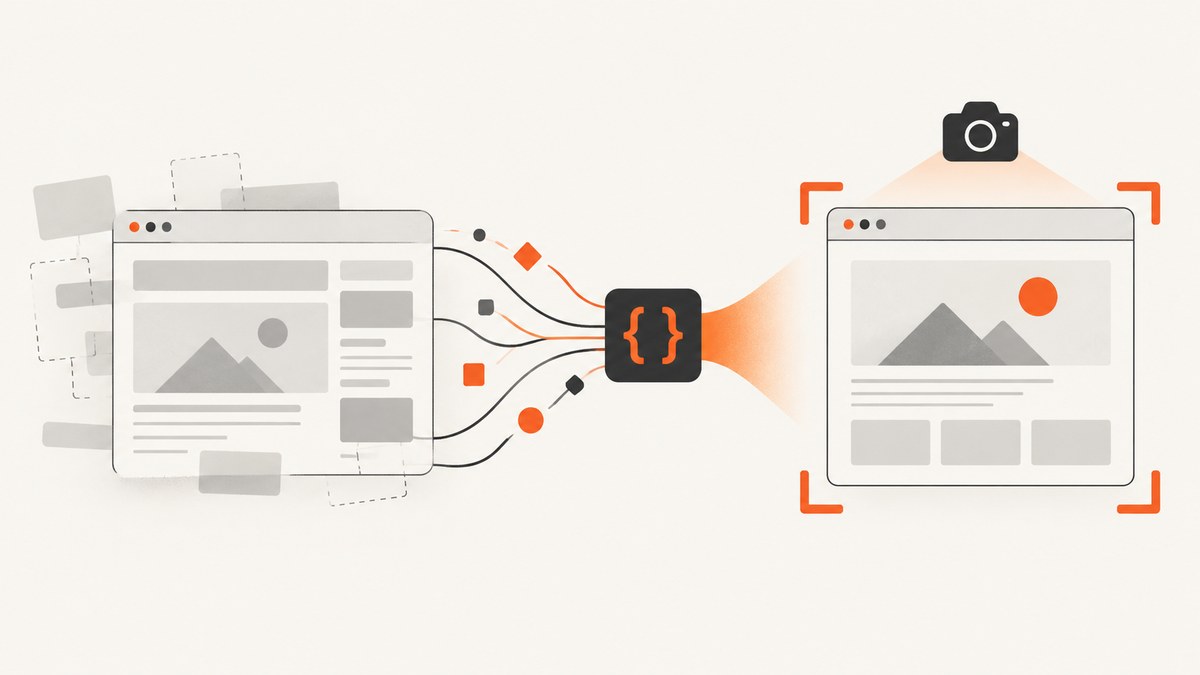
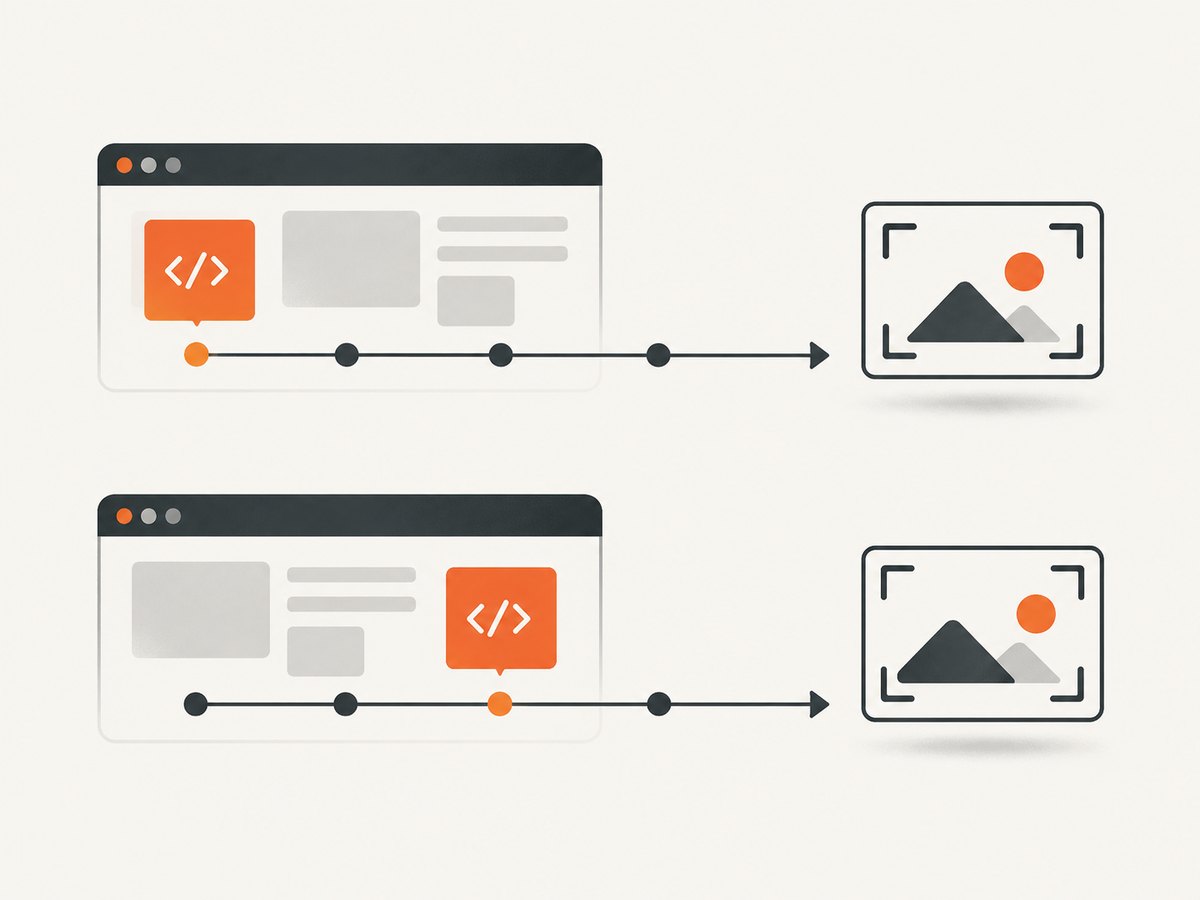
Custom JavaScript lets you change a page immediately before taking a screenshot. You can hide a banner, expand a collapsed section, set a feature flag, remove an animation, populate a demo state, or add a marker that proves your script ran. The key decision is when to inject the code:
- Use Playwright
page.addInitScript()when code must run after the document is created but before the site’s own scripts. - Use
page.addScriptTag()when the page is already loaded and you want to run code in the current page context. - Use a Chrome extension’s
scriptingAPI when injection belongs to an installed extension. - Use Chrome DevTools Protocol (CDP) when you need lower-level browser commands.
After the script has produced the state you need, call page.screenshot(). The complete Playwright workflow below shows both injection timings, waits for the resulting state, and captures a full page.
1. Install Playwright and create a capture script
Create a new project and install Playwright:
mkdir custom-capture
cd custom-capture
npm init -y
npm install playwright
npx playwright install chromium
Save this as capture.js:
const { chromium } = require('playwright');

(async () => {
  const browser = await chromium.launch();
  const context = await browser.newContext({
    viewport: { width: 1440, height: 900 },
    deviceScaleFactor: 1
  });

  // Runs after document creation and before the page's scripts.
  await context.addInitScript(() => {
    window.__captureMode = true;
    document.documentElement.classList.add('capture-mode');
  });

  const page = await context.newPage();
  await page.goto('https://example.com', { waitUntil: 'domcontentloaded' });

  // Runs in the already loaded page.
  await page.addScriptTag({
    content: `
      document.documentElement.dataset.captureReady = 'true';
      document.querySelectorAll('.newsletter, .chat-widget').forEach((el) => el.remove());
    `
  });

  await page.screenshot({
    path: 'capture.png',
    fullPage: true,
    animations: 'disabled',
    type: 'png'
  });

  await browser.close();
})();
Run it with node capture.js. Replace the URL and selectors with those for your page. The Playwright Page API documents addScriptTag(), addInitScript(), and the screenshot options used here: Playwright Page API.
2. Choose the correct injection timing
addInitScript(): before application code
An init script is evaluated after the document is created and before the page’s scripts run. It is useful for setting values that application code reads during startup, replacing selected browser APIs, or installing a flag before a framework renders. A context-level init script also applies to newly attached or navigated child frames.
await context.addInitScript(({ locale }) => {
  Object.defineProperty(navigator, 'language', { get: () => locale });
  window.__visualRegression = true;
}, { locale: 'en-US' });
Keep init scripts small and deterministic. Code that assumes a particular DOM element exists belongs after navigation, because the element may not have been created yet.
addScriptTag(): after navigation
addScriptTag() adds a script element to the current page. Supply inline content, a local path, or a remote url where appropriate. Inline content is convenient for one-off captures:
await page.goto('https://example.com', { waitUntil: 'networkidle' });
await page.addScriptTag({ content: `
  const heading = document.querySelector('h1');
  if (heading) heading.textContent = 'Capture preview';
` });
await page.screenshot({ path: 'after-script.webp', type: 'webp', quality: 85 });
A script tag can be affected by the target page’s content security policy, network failures, or JavaScript errors. Check the returned result and listen for page errors when diagnosing a failed injection.
3. Wait for the state your script creates
Navigation completion does not guarantee that your custom state is ready. Wait for a selector, a function, a known response, or a short delay only when the page has no better readiness signal.
await page.addScriptTag({ content: `
  document.body.dataset.readyForCapture = 'yes';
` });
await page.waitForSelector('body[data-ready-for-capture="yes"]');
await page.screenshot({ path: 'ready.png', fullPage: true });
For an application that renders asynchronously, wait for its visible result rather than an arbitrary timeout:
await page.waitForFunction(() => {
  const chart = document.querySelector('[data-chart-status]');
  return chart && chart.getAttribute('data-chart-status') === 'complete';
});
Use waitUntil: 'domcontentloaded' for a fast first render, load when images and subresources must have loaded, and networkidle only when the site has a stable network pattern. Analytics polling and long-lived connections can prevent network idle indefinitely.
4. Make screenshots predictable
Playwright’s screenshot method supports full-page output, masks, temporary stylesheets, output formats, quality, and scale choices. Set these deliberately so captures are comparable across runs.
await page.screenshot({
  path: 'controlled.webp',
  fullPage: true,
  type: 'webp',
  quality: 82,
  scale: 'css',
  animations: 'disabled',
  caret: 'hide',
  style: `
    *, *::before, *::after {
      animation: none !important;
      transition: none !important;
      caret-color: transparent !important;
    }
  `,
  mask: [page.locator('.personal-data')],
  maskColor: '#777'
});
fullPage: true captures the full scrollable page; omit it for the viewport only. PNG is lossless and suited to pixel comparisons. JPEG and WebP are usually smaller; JPEG quality is configurable. The scale option controls CSS-pixel versus device-pixel output, while deviceScaleFactor belongs on the browser context. A retina-style capture can use a factor of 2, but it produces a larger file.
Capture one element
const card = page.locator('[data-testid="pricing-card"]').first();
await card.waitFor();
await card.screenshot({ path: 'pricing-card.png', type: 'png' });
Element screenshots avoid unrelated page changes and are often faster. Make sure the element is visible, has a stable size, and is not inside a horizontally or vertically clipped container unless that clipping is intentional.
Hide or restyle content
await page.addStyleTag({ content: `
  .cookie-banner, .newsletter-modal, .support-chat { display: none !important; }
  html { scroll-behavior: auto !important; }
` });
For sensitive data, prefer masking with Playwright’s screenshot option. Hiding an element changes layout; masking preserves its space. Do not assume that client-side removal deletes data from network responses or page source.
5. Pass data into your injected JavaScript
Keep values outside the script string and pass validated data into a function. This avoids brittle quoting and makes repeated captures safer.
const state = { plan: 'pro', showDetails: true };
await page.addScriptTag({
  content: `
    (() => {
      const state = ${JSON.stringify(state)};
      document.body.dataset.plan = state.plan;
      if (state.showDetails) {
        document.querySelectorAll('details').forEach((el) => { el.open = true; });
      }
    })();
  `
});
Never interpolate untrusted values into executable JavaScript. Serialize data with JSON.stringify, validate allowed values, and avoid putting API keys or passwords in page scripts. A script injected into the page can read the page’s DOM and, depending on the browser context, may expose information you did not intend to capture.
6. Frames, authentication, and cross-origin limits
An init script is evaluated for child frames created after it is installed. For an existing frame, enumerate frames and target the relevant one:
for (const frame of page.frames()) {
  if (frame.url().includes('/checkout')) {
    await frame.evaluate(() => {
      document.body.dataset.captureTarget = 'true';
    });
  }
}
Same-origin policy still applies. You cannot freely inspect a cross-origin iframe’s DOM from the parent page. If the frame is controlled by another origin, inject through a browser context that can navigate that origin, use cooperation from the framed application, or capture the frame as a separate page where possible.
For authenticated captures, create a browser context with the required cookies or storage state. Keep credentials out of source control and remove them from logs. A login flow may trigger MFA, bot checks, or other behavior that makes automation unreliable; custom JavaScript cannot bypass every site security policy.
7. A reusable capture function
const { chromium } = require('playwright');

async function capture({ url, output, script, fullPage = true }) {
  const browser = await chromium.launch();
  try {
    const context = await browser.newContext({ viewport: { width: 1365, height: 768 } });
    const page = await context.newPage();
    page.on('pageerror', (error) => console.error('page error:', error.message));
    page.on('console', (message) => console.log(`[browser:${message.type()}]`, message.text()));

    await page.goto(url, { waitUntil: 'domcontentloaded', timeout: 60000 });
    await page.addScriptTag({ content: script });
    await page.waitForTimeout(250);
    await page.screenshot({ path: output, fullPage, type: 'png', animations: 'disabled' });
  } finally {
    await browser.close();
  }
}

capture({
  url: 'https://example.com',
  output: 'example.png',
  script: `document.body.dataset.customScript = 'applied';`
}).catch((error) => {
  console.error(error);
  process.exitCode = 1;
});
8. Other integration options
Puppeteer
Puppeteer is a high-level JavaScript library for automating Chrome and Firefox through Chrome DevTools Protocol and WebDriver BiDi. It supports navigation, screenshots, PDFs, and complex browser workflows. The same timing distinction applies: install early page behavior before navigation when the API permits, and evaluate page changes after the document exists. See the Puppeteer overview for its supported automation model.
Chrome DevTools Protocol
CDP exposes lower-level commands. Page.addScriptToEvaluateOnNewDocument installs code for new documents and frames, while Page.captureScreenshot captures the page. This route gives precise protocol control but requires more lifecycle and error handling than Playwright. Consult the CDP Page domain.
Chrome extensions
An extension can inject JavaScript or CSS with Chrome’s scripting API. Its default timing is document_idle, or it runs immediately when the page has already loaded. Request only the host permissions needed by your extension and use the API’s frame and timing options for your workflow. See the Chrome scripting API.
9. Troubleshooting checklist
| Symptom | Likely cause | Fix |
|---|---|---|
| Nothing changes | The script ran before the target DOM existed, or a selector matched nothing. | Use addScriptTag after navigation, check the selector count, and wait for the resulting state. |
| Script injection rejects | Content security policy, an invalid URL, or a syntax error. | Use inline content for a controlled test, inspect the error, and validate the script independently. |
| Capture is cut off | The viewport was captured instead of the full page, or an element has overflow clipping. | Use fullPage: true or capture the intended element after checking its bounding box. |
| Fonts or images are missing | Capture began before resources finished loading. | Wait for document.fonts.ready, image selectors, or a page-specific ready signal. |
| Page never becomes idle | Analytics, WebSockets, or polling keep requests open. | Use domcontentloaded plus explicit readiness checks instead of network idle. |
| Different output on each run | Animations, rotating content, time zones, or responsive layout are changing. | Disable animations, set a fixed viewport and timezone, freeze test data where possible, and use masks. |
| Iframe content is unchanged | The frame is cross-origin or the script targeted the parent document. | Inspect page.frames() and inject in the frame’s own context when permitted. |
| Navigation times out | The site is slow, blocked, or waiting on a resource. | Set a justified timeout, capture diagnostics, and verify the URL manually. Do not treat a timeout as a successful image. |
10. Performance, reliability, and cost
Launching a browser for every URL is expensive compared with reusing a browser process. For batches, launch one browser, create isolated contexts per job, and close each context after its capture. Keep scripts short, avoid repeated DOM-wide queries, and capture an element instead of a full page when that meets the requirement. Full-page screenshots can require substantial memory on very long documents.

Reliability comes from explicit readiness checks and repeatable settings: fixed viewport, device scale, locale, timezone, color scheme, reduced motion, and a known authentication state. Record the URL, navigation status, script version, and capture options alongside the output. Retry only transient failures and use a limit so a permanently broken page does not create an endless queue.
Self-hosted Playwright costs include compute, browser storage, maintenance, proxy or egress charges, and engineering time. A managed API can be simpler when you need many URLs, consistent browser infrastructure, or a service that reports whether a response was a clean capture or a failed load.
Or skip the browser setup
ScreenshotNeo provides a website screenshot API and MCP server. You can still use custom CSS and JavaScript options, wait for selectors or network idle, click elements, set cookies and headers, choose a device or viewport, capture one CSS-selected element, or produce a PDF. Before capture, it accepts cookie and consent banners and removes more than 60 known consent platforms, newsletter popups, and chat widgets; each cleanup step can be turned off.
One GET request returns a PNG, JPEG, WebP, or PDF. Read the full parameter list in the ScreenshotNeo documentation.
cURL
curl -G "https://api.screenshotneo.com/v1/shot" -d access_key=YOUR_API_KEY --data-urlencode url=https://stripe.com -o shot.webpPython
import requests
r = requests.get("https://api.screenshotneo.com/v1/shot", params={"access_key": "YOUR_API_KEY", "url": "https://stripe.com"}, timeout=90)
open("shot.webp", "wb").write(r.content)
Node.js
const q = new URLSearchParams({ access_key: 'YOUR_API_KEY', url: 'https://stripe.com' });
const res = await fetch(`https://api.screenshotneo.com/v1/shot?${q}`);
ScreenshotNeo bills only clean shots. Bot checks or CAPTCHAs, blank pages, timeouts, failed loads, and cache hits cost nothing, and the response identifies the result with X-Page-Verdict and X-Billed headers. Its MCP server supplies take_screenshot, get_page_info, and capture_pdf tools for Claude, Cursor, and other MCP clients.
The Free plan includes 1,000 shots per month with no card. Paid plans start at $5 for 3,000 shots; every feature is available on every plan. Create a free ScreenshotNeo account and start with the included monthly shots.
11. Frequently asked questions
Can injected JavaScript edit a page permanently?
No. It changes the current browser document. Reloading or opening the URL elsewhere runs the site’s normal code again unless you install the behavior in an extension or change the application itself.
Should I inject before or after navigation?
Use an init script before navigation for startup conditions. Use a script tag or page evaluation after navigation for DOM changes that require rendered elements.
Can I capture a page that requires login?
Yes, when your browser context has a valid session and the site permits automation. Supply storage state or cookies securely and expect MFA, bot checks, and session expiry to require separate handling.
Which format should I choose?
Use PNG for lossless visual comparison, JPEG for photographic pages and smaller files, and WebP when you want a modern compressed image. Use PDF when the deliverable is a document rather than a raster image.
How do I know the script ran?
Set a temporary data attribute, wait for it with waitForSelector, and listen for browser console and page error events. Remove diagnostic markers from production captures if they affect layout.


