How to Make a Custom Open Graph Image Using Puppeteer
Render a deterministic HTML social card with Puppeteer, publish it, and wire it into og:image with reliable metadata and troubleshooting steps.

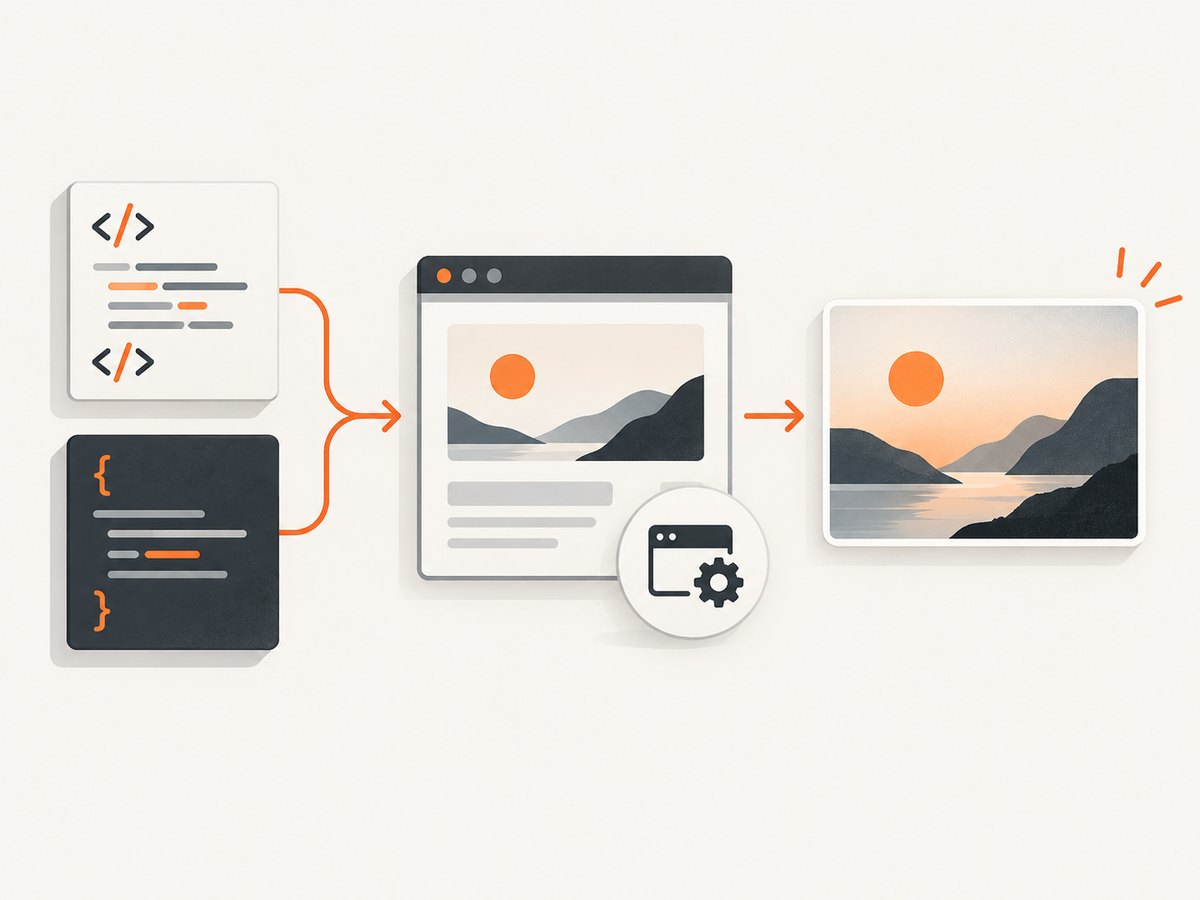
Direct answer: Build the social card as deterministic HTML and CSS, open it in Puppeteer at a fixed viewport, wait until the fonts and images are ready, capture the page or a specific element, publish the resulting PNG, JPEG, or WebP at a stable public URL, and reference that URL from og:image. Add og:image:alt and the other Open Graph properties in your page head.
This approach gives you repeatable layouts, normal web fonts and CSS, and a build step you can run whenever the title, author, or branding changes. Puppeteer supports page screenshots, element screenshots, full-page captures, clipping, PNG/JPEG/WebP output, JPEG quality, and transparent backgrounds. The Open Graph protocol defines og:image as the image URL representing a page and supports optional type, dimensions, secure URL, and alternative text.
1. Decide what the card should contain
Start with a fixed design rather than trying to screenshot an arbitrary article page. A useful card usually has a short title, a supporting label, an author or site name, and a visual treatment that remains legible when the preview is reduced.
- Use a fixed canvas size through the browser viewport or a screenshot clip.
- Keep text lengths bounded or apply deliberate wrapping rules.
- Use local or versioned fonts and images when possible so the same input produces the same pixels.
- Give every important image an explicit width, height, and fit mode to avoid layout shifts.
- Choose a background color in CSS; use
omitBackgroundonly when transparency is intentional.
The Open Graph protocol does not establish one universal image dimension or file-size limit for every social consumer. Pick a canvas that suits your design, then verify it with the current requirements and preview tools for each platform you support.
2. Create deterministic card HTML
Keep the card route or template independent from the rest of your application. Pass data through a trusted template or encode it safely before inserting it into HTML. Avoid relying on animations, random values, current time, or content that arrives after the screenshot readiness check.
<!doctype html>
<html lang="en">
<head>
  <meta charset="utf-8">
  <style>
    @font-face {
      font-family: "CardSans";
      src: url("file:///absolute/path/to/CardSans-Regular.woff2") format("woff2");
      font-display: block;
    }
    * { box-sizing: border-box; }
    html, body { margin: 0; width: 1200px; height: 630px; }
    body {
      font-family: "CardSans", Arial, sans-serif;
      background: #101827;
      color: #f8fafc;
    }
    .card {
      width: 1200px;
      height: 630px;
      padding: 72px;
      display: flex;
      flex-direction: column;
      justify-content: space-between;
      background: linear-gradient(135deg, #172554, #0f766e);
    }
    .eyebrow { font-size: 24px; letter-spacing: .08em; text-transform: uppercase; }
    h1 { max-width: 1000px; margin: 28px 0 0; font-size:  seventypx; line-height: 1.05; }
    .footer { font-size: 26px; opacity: .85; }
  </style>
</head>
<body>
  <main class="card">
    <div>
      <div class="eyebrow">Engineering guide</div>
      <h1>How to Make a Custom Open Graph Image Using Puppeteer</h1>
    </div>
    <div class="footer">example.com</div>
  </main>
</body>
</html>
Replace the illustrative values with your own template data. In production CSS, use a numeric font size such as 70px; the sample above intentionally shows the structure, but an invalid declaration such as seventypx will be ignored by the browser.
3. Capture the card with Puppeteer
Install Puppeteer in the project that owns the generation script:
npm install puppeteerThe following script writes a fixed 1200×630 PNG. It waits for navigation, waits for fonts, captures the card element, and closes the browser even when rendering fails. Puppeteer’s official screenshot guide covers browser launch, navigation, screenshot output, and cleanup: Puppeteer screenshots.
import puppeteer from 'puppeteer';
import { mkdir } from 'node:fs/promises';

const browser = await puppeteer.launch();
try {
  const page = await browser.newPage();
  await page.setViewport({ width: 1200, height: 630, deviceScaleFactor: 1 });
  await page.goto('http://localhost:3000/og-card?slug=puppeteer', {
    waitUntil: 'networkidle0'
  });

  await page.evaluate(async () => {
    if (document.fonts) await document.fonts.ready;
  });

  const card = await page.$('.card');
  if (!card) throw new Error('The .card element was not found');

  await mkdir('public/og', { recursive: true });
  await card.screenshot({
    path: 'public/og/puppeteer.png',
    type: 'png'
  });
} finally {
  await browser.close();
}
Page.screenshot captures the page. ElementHandle.screenshot captures one DOM element and may scroll it into view first. Use the element form when the page contains navigation, margins, or other content that must not appear in the social image.
4. Choose page, element, clip, or full-page capture
| Requirement | Puppeteer choice | Notes |
|---|---|---|
| Dedicated card route | page.screenshot() |
The viewport defines the canvas. |
| Card inside a larger page | element.screenshot() |
Captures only the rendered component. |
| Exact rectangular region | clip |
Set x, y, width, and height. |
| Entire document | fullPage: true |
Useful for long pages, but usually wrong for a fixed social card. |
await page.screenshot({
  path: 'public/og/clip.webp',
  type: 'webp',
  quality: 86,
  clip: { x: 0, y: 0, width: 1200, height: 630 }
});
The ScreenshotOptions reference documents path, fullPage, clip, type, quality, and omitBackground. PNG is lossless and does not use the quality setting. JPEG quality applies to JPEG output. WebP is also supported. Use PNG for crisp text or transparency workflows, JPEG when a smaller opaque file is preferable, and WebP when your consumers accept it. Inspect the produced file instead of assuming one format is always best.
5. Wait for the content that actually matters
networkidle0 is a useful starting point, but it is not a universal definition of visual readiness. A page with analytics, long polling, or a third-party widget may never become idle. A page with cached resources may become idle before a late image is decoded.
- Wait for a selector that marks the completed card, such as
.card[data-ready="true"]. - Wait for
document.fonts.readywhen custom fonts affect wrapping. - Wait for each critical image’s
decode()promise. - Disable transitions and animations in a capture-only stylesheet.
- Use a short, explicit delay only for a known rendering dependency; avoid arbitrary long sleeps.
await page.waitForSelector('.card[data-ready="true"]', { timeout: 15000 });
await page.evaluate(async () => {
  const images = [...document.images];
  await Promise.all(images.map(img => img.decode?.().catch(() => {})));
});
6. Publish the image and add Open Graph metadata
The screenshot file must be available at a stable, absolute URL that the preview consumer can retrieve. Upload it to your public web host, object storage, or CDN, then reference that URL in the page head. The Open Graph protocol defines four basic properties: og:title, og:type, og:image, and og:url. It recommends meaningful alternative text when an image is specified. See the Open Graph protocol.
<meta property="og:title" content="How to Make a Custom Open Graph Image Using Puppeteer">
<meta property="og:type" content="article">
<meta property="og:url" content="https://example.com/guides/puppeteer-og-image">
<meta property="og:image" content="https://cdn.example.com/og/puppeteer.png">
<meta property="og:image:alt" content="A rendered engineering guide card about creating Open Graph images with Puppeteer">
<meta property="og:image:type" content="image/png">
<meta property="og:image:width" content="1200">
<meta property="og:image:height" content="630">
<meta property="og:image:secure_url" content="https://cdn.example.com/og/puppeteer.png">
Use HTTPS for both the page and image, return the correct Content-Type, and avoid URLs that require a session cookie. Confirm the final HTML source contains the intended metadata and that the image URL returns the newly published bytes.
7. Make generation reliable in a build or service
Reuse the browser process
Launching Chromium for every image adds startup overhead. For a batch job, launch one browser, create a fresh page per card, and close each page after capture. Limit concurrency so memory use remains predictable.
Keep inputs deterministic
Pin font files and image versions, normalize time zones, and pass all dynamic values explicitly. If a card includes a date, format it in the intended locale instead of using the machine’s default. Do not use a random gradient or an external asset whose contents can change without a version update.
Handle failures and retries
Set navigation and selector timeouts. Record the URL, template version, viewport, browser version, and error message. Retry transient navigation failures with a small bounded retry count, but do not retry malformed HTML or a missing required selector indefinitely. Always close the page and browser in cleanup code.
Control output size
Large PNGs can slow crawlers and deployments. Compare PNG, JPEG, and WebP for your actual design. JPEG quality is configurable; PNG quality is not. If transparency is required, keep an alpha-capable format and use omitBackground: true where appropriate.
8. Common errors and fixes
| Symptom | Likely cause | Fix |
|---|---|---|
| Text wraps differently between runs | Font was not loaded or viewport differs. | Set an explicit viewport, wait for document.fonts.ready, and serve a pinned font. |
| Logo or image is missing | Capture happened before the asset decoded, or the URL is inaccessible to Chromium. | Use an absolute reachable URL, wait for decode(), and inspect browser console/network errors. |
| Navigation timeout | Third-party requests or long polling prevent the selected wait condition. | Use a more suitable waitUntil, wait for a project-specific selector, and disable nonessential requests. |
| Screenshot is cropped | The element has overflow, or the clip is smaller than the design. | Check element bounding boxes, remove unintended overflow, and match clip dimensions to the intended canvas. |
| Transparent output appears white | The page or screenshot has an opaque background. | Remove the CSS background and set omitBackground: true. |
| Social preview shows an old image | The consumer cached the URL or the URL did not change. | Publish a versioned image URL, confirm response headers and bytes, then use the platform’s current preview refresh tool. |
| Browser processes accumulate | An exception bypassed cleanup. | Put capture logic in try/finally and close pages and the browser. |
9. Performance, reliability, and cost considerations
Puppeteer gives you control, but you operate the browser runtime, fonts, dependencies, sandbox settings, storage, and retries. A serverless environment may need a Chromium-compatible package and enough memory for concurrent pages. A long-lived worker can amortize browser startup but needs health checks and recycling policies.
Generate cards when content changes rather than on every page request. Cache by a hash of the template version and input data. Store immutable files under versioned paths so an already published article does not unexpectedly change. If you regenerate in place, confirm that your CDN and the target preview consumer both fetch the new object.
Measure the parts that matter to your workload: browser launch time, navigation time, font and image readiness, screenshot time, output bytes, and failure rate. The research sources establish Puppeteer’s API behavior, but they do not provide universal platform limits, benchmark results, or crawler timing guarantees.
Or skip the browser setup
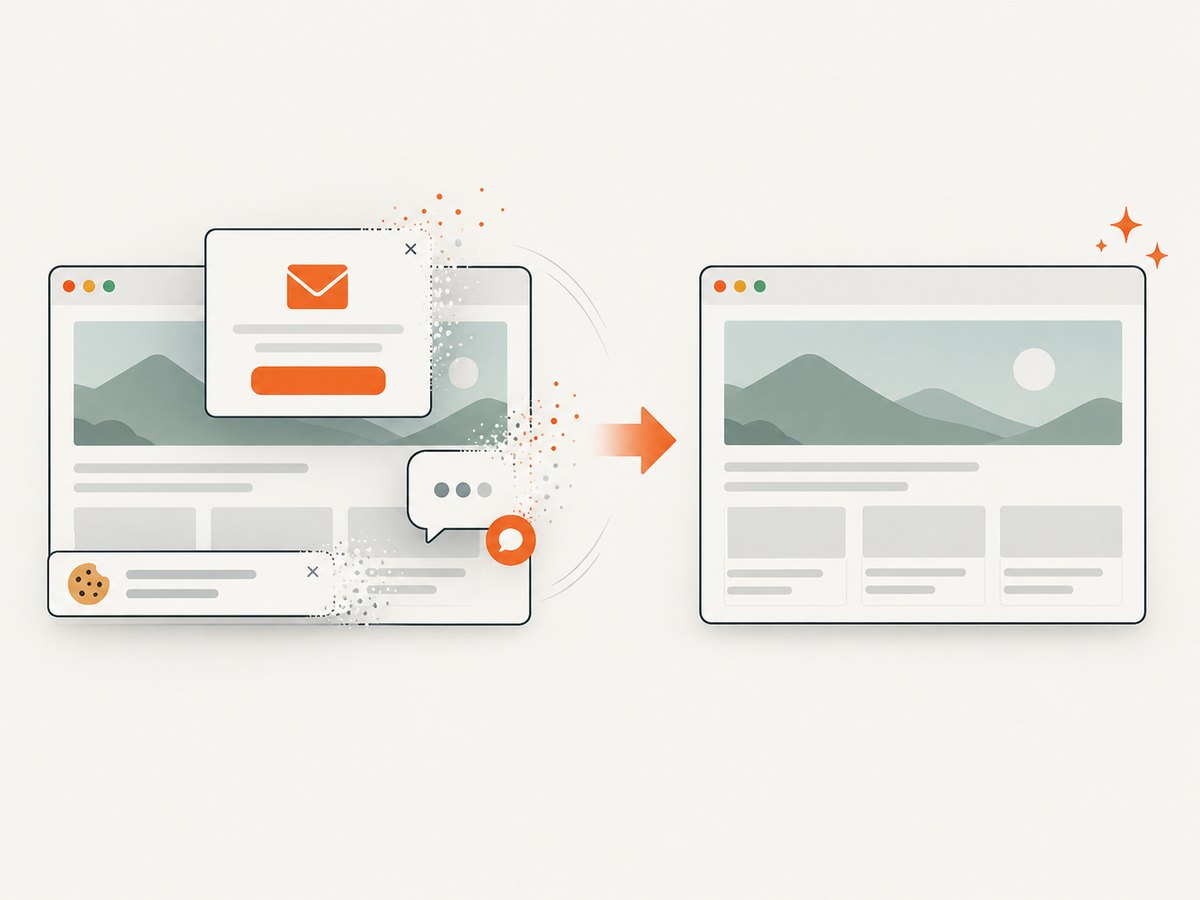
ScreenshotNeo provides a website screenshot API and MCP server. One GET request returns a PNG, JPEG, WebP, or PDF. Its capture pipeline accepts cookie and consent banners like a visitor, then removes more than 60 known consent platforms, newsletter popups, and chat widgets before the shot. Bot checks, blank pages, timeouts, failed loads, and cache hits are not billed, and the response identifies the result with X-Page-Verdict and X-Billed headers.
For a rendered public card or page, the API call is:
curl -G "https://api.screenshotneo.com/v1/shot" -d access_key=YOUR_API_KEY --data-urlencode url=https://stripe.com -o shot.webpimport requests
r = requests.get("https://api.screenshotneo.com/v1/shot", params={"access_key": "YOUR_API_KEY", "url": "https://stripe.com"}, timeout=90)
open("shot.webp", "wb").write(r.content)const q = new URLSearchParams({ access_key: 'YOUR_API_KEY', url: 'https://stripe.com' });
const res = await fetch(`https://api.screenshotneo.com/v1/shot?${q}`);See the ScreenshotNeo documentation for request parameters. Relevant options include full-page capture with lazy images loaded, CSS element capture, dark mode, device presets or custom viewports, retina scale, custom CSS and JavaScript, clicks, selector or delay waits, network-idle waits, blocked requests and resource types, custom headers, cookies, user agents and Authorization, timezone and geolocation, transparent backgrounds, resizing, cache TTLs, signed image links, asynchronous jobs with signed webhooks, bulk capture for up to 100 URLs per call, a usage API, and an OpenAPI specification. An MCP server exposes take_screenshot, get_page_info, and capture_pdf to Claude, Cursor, and other MCP clients.
Free accounts include 1,000 screenshots per month with no card. Paid plans start at $5 for 3,000 shots, and every feature is available on every plan. Create a free ScreenshotNeo account.
FAQ
Should I capture the whole page or only the card element?
Capture the element when the card is part of a larger route. Capture the page when the route itself is dedicated to the exact social canvas.
Is 1200×630 mandatory?
No. It is a common design canvas, but the Open Graph protocol does not set one universal dimension. Check the current requirements of the consumers you target.
Can I use a transparent Open Graph image?
Yes, if the consuming platform and your design support it. Remove the CSS background and use omitBackground; validate the resulting file and preview.
Why is og:image:alt useful?
It supplies a text description for the image and is recommended by the Open Graph protocol when og:image is present.
How do I update an image after publishing?
Generate a new file, preferably at a versioned URL, update the metadata, and verify the final page source and image response before checking the target platform’s current preview tooling.


