How to Set a Custom Page Size in Wicked PDF
Set standard or custom PDF dimensions in Wicked PDF with explicit units, separate margin controls, and practical fixes for ignored settings.

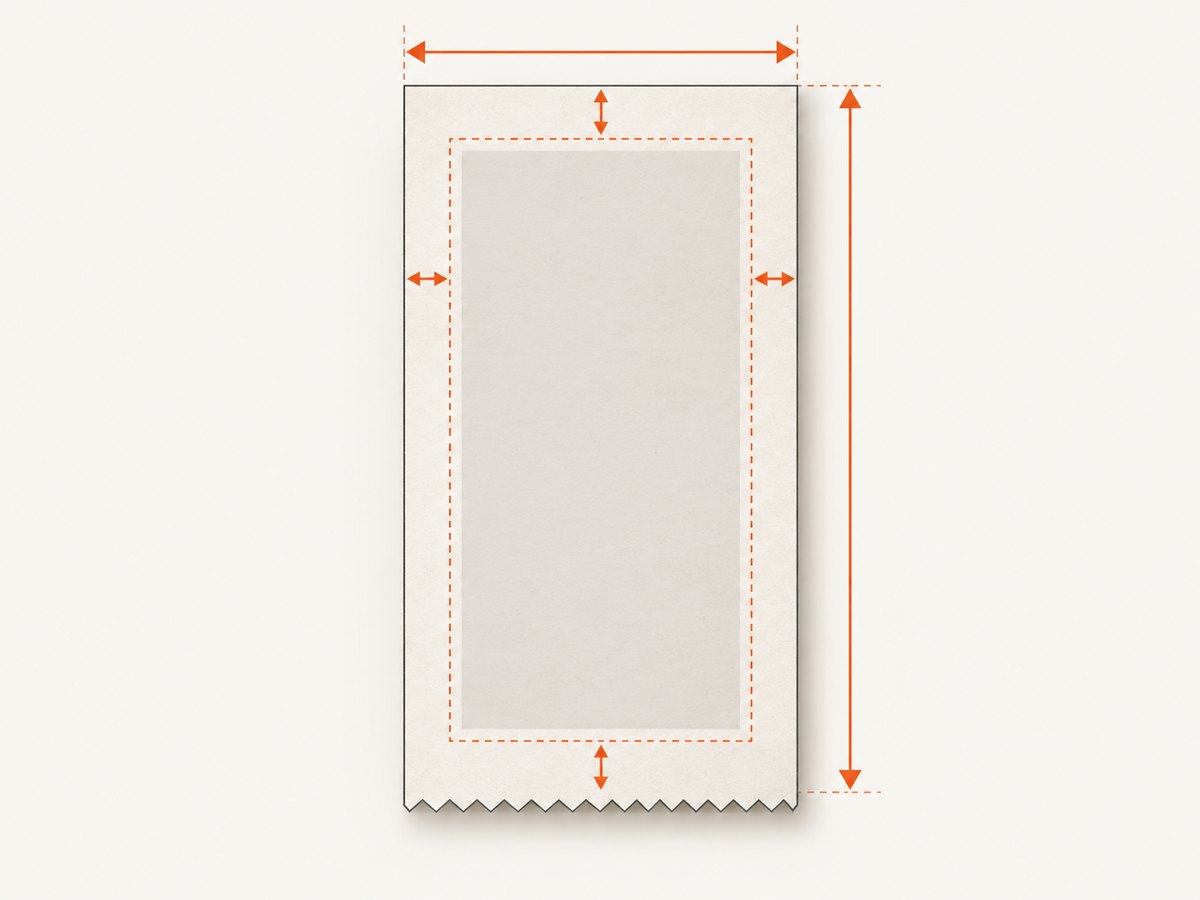
To set a named paper format in Wicked PDF, pass page_size to Rails’ render call. To set an arbitrary format, pass both page_width and page_height as strings with explicit units, such as 80mm and 200mm. Set the margins independently with margin_top, margin_bottom, margin_left, and margin_right.
render pdf: "receipt",
       page_width: "80mm",
       page_height: "200mm",
       margin_top: "5mm",
       margin_bottom: "5mm",
       margin_left: "5mm",
       margin_right: "5mm"
Wicked PDF passes PDF generation work to the external wkhtmltopdf executable. The custom-size options correspond to its --page-width and --page-height flags, so both the Rails options and the installed binary matter. For setup and supported options, consult the Wicked PDF README and the wkhtmltopdf manual.
1. Choose a named size or arbitrary dimensions
First decide whether the document fits a standard paper format. Use page_size for a format such as A4, A3, Letter, or Legal. The wkhtmltopdf manual identifies A4 as the default rendered page size. When you need a receipt roll, ticket, label, or other nonstandard shape, specify a width and height instead.
| Need | Wicked PDF option | Example |
|---|---|---|
| Standard named format | page_size |
page_size: "Letter" |
| Custom width and height | page_width, page_height |
page_width: "80mm", page_height: "200mm" |
| Wide orientation on a named format | page_size plus orientation |
page_size: "A4", orientation: "Landscape" |
| Printable area | Margin options | margin_left: "5mm" |
Do not treat orientation and dimensions as interchangeable. Orientation changes the direction of a named page; width and height describe the custom page boundary. For a custom landscape sheet, give the longer value as the width and shorter as the height. Use one approach deliberately and verify the resulting page.
2. Add the PDF render call in Rails
A typical controller action renders a view to PDF. Keep the PDF filename separate from the view template name: pdf: "receipt" requests the PDF output name and Wicked PDF conventionally uses a matching PDF view template when configured. Add sizing options directly to the render call.
class ReceiptsController < ApplicationController
  def show
    @receipt = Receipt.find(params[:id])

    render pdf: "receipt-#{@receipt.id}",
           template: "receipts/show",
           page_width: "80mm",
           page_height: "200mm",
           margin_top: "5mm",
           margin_bottom: "5mm",
           margin_left: "5mm",
           margin_right: "5mm"
  end
end
This is ordinary Ruby/Rails controller code; it assumes the application has Wicked PDF configured and a view at the template path. If the project’s setup uses a different render pattern, retain the same option names while adapting the template and filename to that application. The options are passed through to wkhtmltopdf rather than interpreted as CSS page dimensions.
Use explicit unit-bearing strings
Pass dimensions as strings that include a unit. Examples documented by the library include 4cm and 12in. Millimetres, centimetres, and inches are useful choices; use a consistent unit system within a document so values are easy to review. Avoid bare numbers such as 80: without a unit, the intended physical size is unclear and may not be passed as expected.
For a compact receipt, 80mm wide by 200mm high describes the page boundary. It does not guarantee every printer can feed that width, nor does it set the receipt content width in CSS. Confirm the target printer or downstream PDF consumer accepts the chosen page dimensions.
3. Set margins as a separate decision
Page dimensions define the page boundary; margins reserve space inside it. A page can have correct dimensions while content appears clipped because the usable content area is narrower or shorter than expected. Set each margin explicitly when predictable output matters. The wkhtmltopdf manual documents margin flags separately from page-size flags and lists a default left and right margin of 10 mm.
render pdf: "label",
       page_width: "100mm",
       page_height: "150mm",
       margin_top: "3mm",
       margin_bottom: "3mm",
       margin_left: "4mm",
       margin_right: "4mm"
For narrow formats, even a default margin can consume a meaningful share of the width. A 10 mm margin on each side of an 80 mm page leaves only 60 mm before considering the view’s own layout. Choose margins with the printer’s unprintable area and the design’s padding in mind. Do not compensate for clipped content by changing paper size until you have checked margins and CSS layout.
4. Keep CSS layout in sync with the PDF page
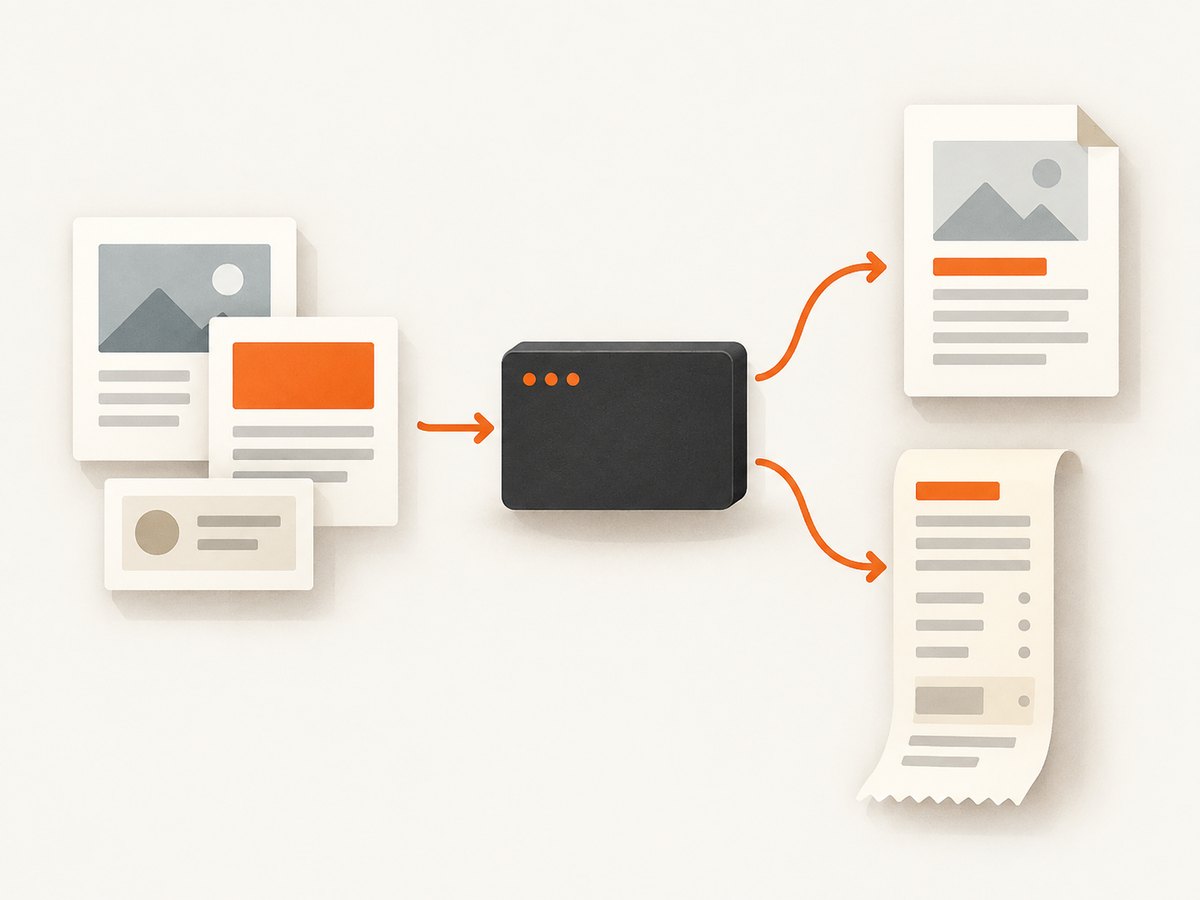
Wicked PDF captures rendered HTML through wkhtmltopdf. The page-size options set the PDF page geometry, while your HTML and CSS determine how content fits within it. For a narrow receipt, avoid fixed-width containers wider than the printable region, account for padding and borders, and inspect long words, tables, and images that may overflow.
For browser print styles, you may also have CSS such as @page rules. Treat those as another layer to inspect if output differs from expectation; the supported behavior can depend on the installed wkhtmltopdf version and options. Start with the documented Wicked PDF options, then test the actual generated PDF in the target environment rather than assuming browser preview and PDF renderer behave identically.
5. Install and identify wkhtmltopdf
Wicked PDF is a Rails integration, not the PDF rendering engine itself. Its README explains that it invokes the wkhtmltopdf shell utility, which must be installed and reachable by the application. The README lists the wkhtmltopdf-binary gem as one installation route. Follow the README’s setup guidance for your deployment environment and verify the executable is available to the same process that runs Rails.
Option availability can vary with the installed binary and version. The project README explicitly warns that some options depend on the wkhtmltopdf version. If an option appears ignored, check the executable and its supported flags before changing application code. A local development machine and a production container may run different binaries.
6. Verify the produced dimensions
- Generate a representative PDF using the same Rails environment and binary as the application.
- Inspect the PDF’s page dimensions or media box with a PDF inspection tool available in your environment.
- Check all pages if content spans multiple pages; the first page alone may not reveal overflow or pagination behavior.
- Compare the physical dimensions with the values passed to Wicked PDF, accounting for unit conversion and orientation.
- Review the content area separately: a correct page boundary does not prove margins or CSS fit.
The research for this guide establishes the documented options, but does not report a tested binary or generated PDF. Verification in the deployment environment is therefore part of implementation, especially when the document is sent to printing or another system that enforces page geometry.
7. Common problems and fixes
| Symptom | Likely cause | What to check |
|---|---|---|
| Custom dimensions seem ignored | The render call uses the wrong option spelling, only one dimension is supplied, or the running executable differs from expectations. | Use page_width and page_height together; confirm the binary path and version; inspect generated page dimensions. |
| Page has an unexpected physical size | A unit is missing or dimensions were confused with a named paper size. | Pass unit-bearing strings such as 80mm; use page_size for a named format. |
| Content is cut off at an edge | Margins, CSS width, padding, or a wide element exceed the printable area. | Set margins explicitly; inspect container widths, tables, and image dimensions. |
| Option works locally but not in production | Different wkhtmltopdf executable or version, or binary not installed/reachable in the app environment. | Check the production installation and supported flags; compare configuration between environments. |
| Landscape output is still portrait-like | Orientation and custom width/height were combined inconsistently. | For a named size, set orientation: "Landscape"; for custom geometry, set width greater than height where appropriate. |
When diagnosing, change one variable at a time. First establish which renderer is invoked, then verify the dimensions, then tune margins and CSS. This keeps a page geometry issue from being confused with HTML overflow or deployment configuration.
8. Performance, reliability, and cost considerations
Custom dimensions do not by themselves determine rendering time. The HTML, linked assets, network access, and renderer environment influence whether output is produced successfully. For reliable jobs, make assets available to the rendering process and keep the deployment’s executable consistent. A request that renders a complex view or waits on unavailable resources may take longer than a simple static page; avoid treating a page-size change as a fix for slow asset loading.
Wicked PDF runs a local command-line rendering process from the application’s perspective, so plan for that executable as a deployment dependency. Confirm that the process user can invoke it and access required files. For high-volume generation, monitor application resource use and rendering failures in the environment; no universal throughput figure follows from the page-size documentation.
Cost depends on how the binary is installed and where Rails runs. The dossier does not provide hosting prices or rendering benchmarks, so estimate from your own deployment and document volume. The dimensions themselves add no separate feature fee in the cited material. Avoid publishing assumed per-page cost or speed claims without measurements from the actual service and workload.
9. When the document does not need to come from your Rails app
If you are generating a PDF from an existing public web page rather than rendering your Rails view, the task may be better handled by a screenshot or page-capture service. ScreenshotNeo is a website screenshot API and MCP server; its API can return a PDF as well as PNG, JPEG, or WebP. It is not a replacement for Wicked PDF when you need Rails data, templates, or control over a server-rendered invoice.
Or skip the browser setup
For a URL-based capture, one GET request to ScreenshotNeo’s API can return a PDF. Read the API documentation for request options and response details.
curl -G "https://api.screenshotneo.com/v1/shot" \
  -d access_key=YOUR_API_KEY \
  --data-urlencode url=https://stripe.com \
  -d format=pdf \
  -o page.pdf
ScreenshotNeo removes cookie banners, newsletter popups, and chat widgets before the shot. Bot checks, blank pages, and failed loads are never billed. Its MCP server lets AI agents take screenshots. The free plan includes 1,000 screenshots a month with no card; paid plans start at $5 for 3,000. Sign up free for ScreenshotNeo.
FAQ
Can I set only the width and let the height grow automatically?
The documented custom page controls are page_width and page_height. This guide recommends supplying both for a defined page format. If you need content-dependent length, verify the behavior supported by your installed wkhtmltopdf version and inspect the resulting PDF.
Should I use inches or millimetres?
Either can express dimensions; the library examples show both centimetres and inches. Choose the unit your printer or design specification uses and include it in each value.
Does changing page_size change my HTML layout?
It sets the PDF page format. Your view’s CSS still controls how content is arranged and whether it fits within the printable area.
How can I tell whether wkhtmltopdf received the setting?
Confirm the installed executable and inspect the generated PDF’s page dimensions. The option names map to wkhtmltopdf’s page width and page height flags.


