How to Customize DOCX Output with JavaScript
Create or modify DOCX files with JavaScript using templates, the docx library, or Word add-ins. Includes code, options, troubleshooting, and selection advice.

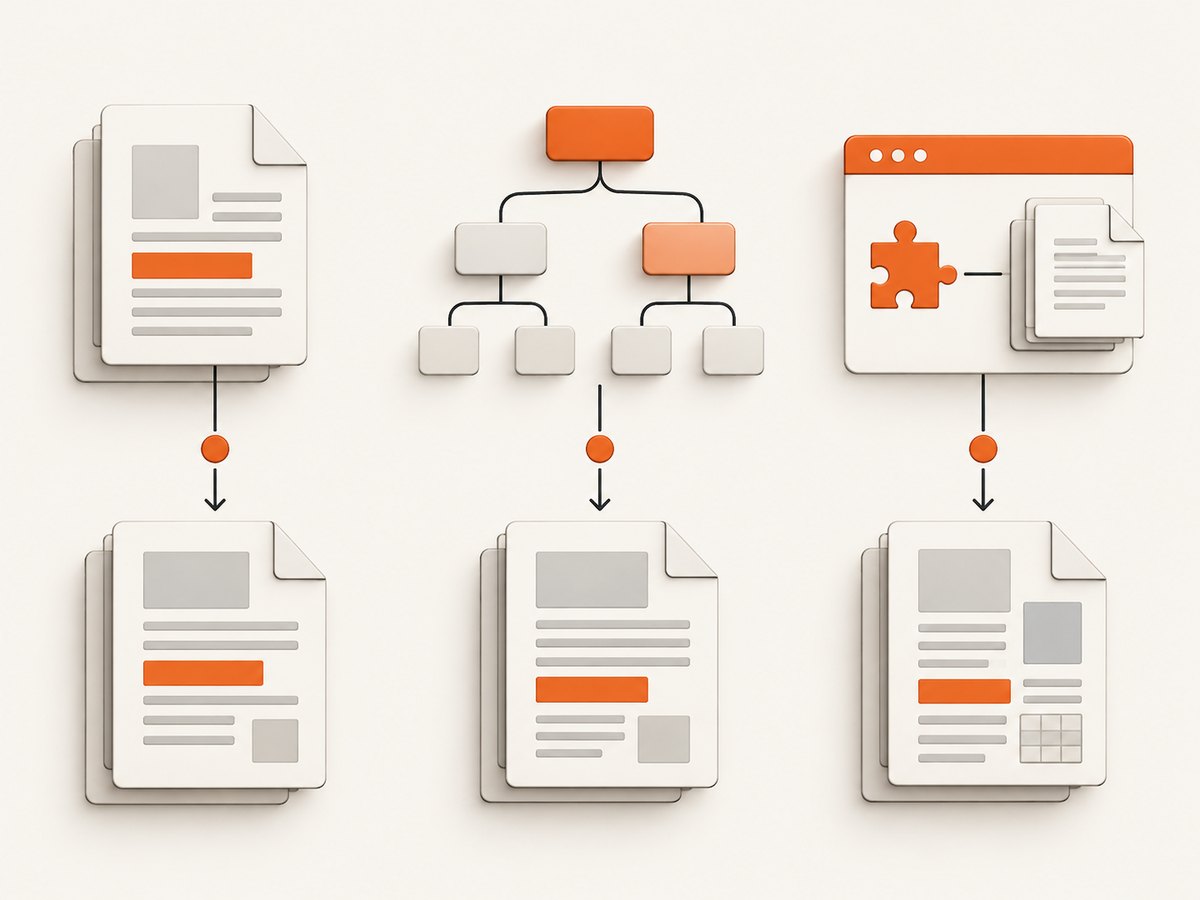
There are three practical ways to customize a DOCX file with JavaScript:
- Render a DOCX template with Docxtemplater when non-developers should control the document layout.
- Build or patch the document in code with the
docxlibrary when JavaScript should own the structure. - Run inside Microsoft Word with Office.js and OOXML when the workflow must use Word’s host and native document features.
For most server-side forms and reports, start with a template. For fully generated documents, use docx. For a Word add-in, use the supported Word JavaScript APIs first and insert OOXML when the API cannot express the required content.
Choose the right approach
| Requirement | Best fit | Why |
|---|---|---|
| Business users edit layout in Word | Docxtemplater | Placeholders, loops, and conditions keep layout in a DOCX template. |
| Code owns every paragraph and table | docx |
Construct the document tree and export it from Node.js or a browser. |
| Feature must run in Word | Office.js | Use Word’s JavaScript object model and the document context. |
| Exact native formatting or unsupported content | Office.js plus OOXML | DOCX is an OOXML package, and OOXML can represent rich content such as images, formatted tables, charts, and formatted text. |
Option 1: Render a DOCX template with Docxtemplater
Docxtemplater reads a DOCX package, replaces placeholders with data, evaluates loops and conditions, and writes a new DOCX. Install the Node.js packages:
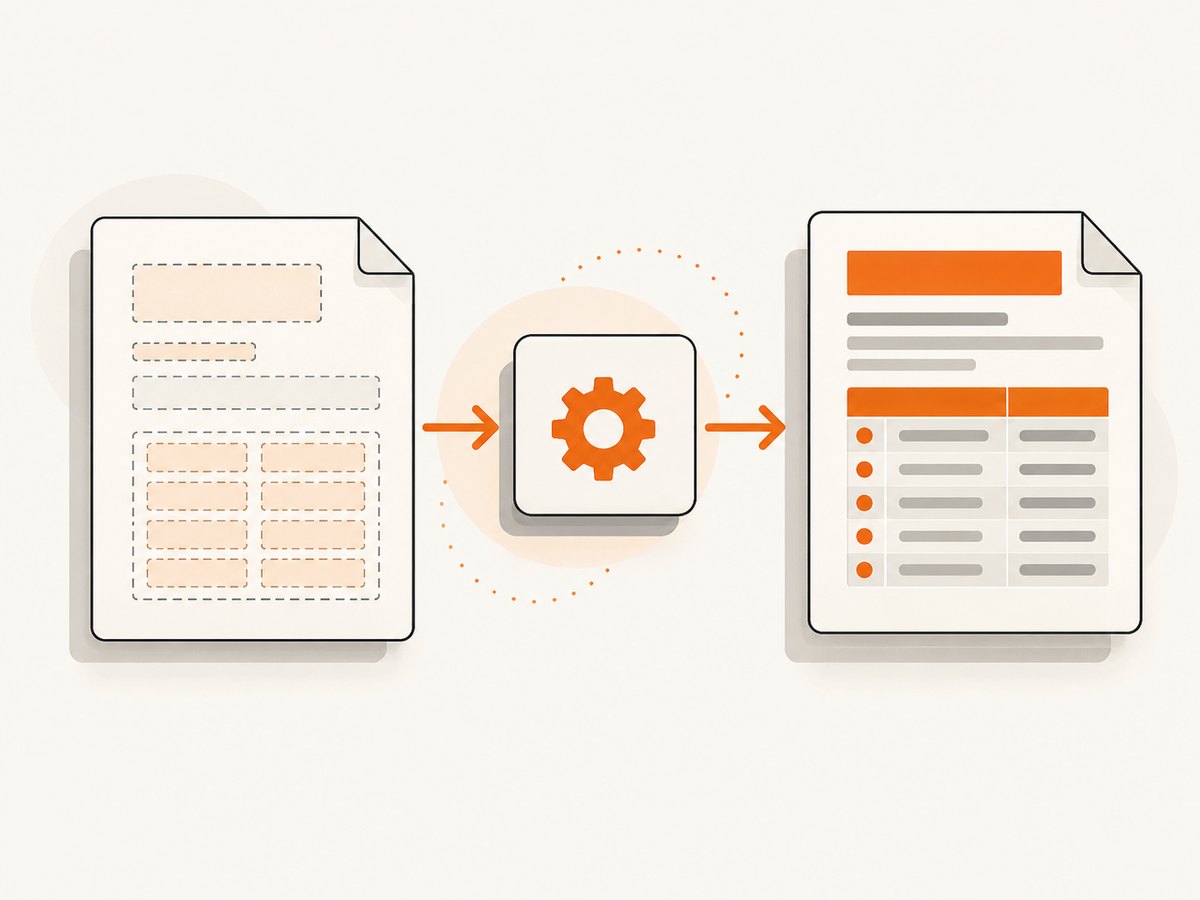
npm install docxtemplater pizzipCreate templates/invoice.docx in Word. Add placeholders such as {customerName}, and put a loop around repeated rows with {#items} and {/items}.
const fs = require('node:fs');
const PizZip = require('pizzip');
const Docxtemplater = require('docxtemplater');

const content = fs.readFileSync('templates/invoice.docx', 'binary');
const zip = new PizZip(content);
const doc = new Docxtemplater(zip, {
  paragraphLoop: true,
  linebreaks: true
});

doc.render({
  customerName: 'Ada Lovelace',
  invoiceNumber: 'INV-1007',
  items: [
    { description: 'Consulting', quantity: 4, price: '$250.00' },
    { description: 'Support', quantity: 2, price: '$80.00' }
  ],
  notes: 'Thank you for your business.\nPayment is due within 30 days.'
});

const output = doc.getZip().generate({ type: 'nodebuffer' });
fs.writeFileSync('out/invoice.docx', output);
See the Docxtemplater Node.js guide for the binary read, ZIP parsing, rendering, and buffer export flow. The package documentation covers placeholders, loops, conditions, custom XML, and optional modules.
Template rules that prevent surprises
- Keep a placeholder’s text inside one Word run when possible. Word can split text into multiple runs after formatting edits.
- Use
paragraphLoop: truefor loops that represent complete paragraphs or table rows. - Use
linebreaks: truewhen a string should become multiple lines. - Keep loop start and end tags correctly paired. A missing closing tag causes a render error.
- Use a table row for repeated records when the output is tabular; do not rely on spaces for alignment.
Images, HTML, charts, and other modules
Docxtemplater documents optional modules for images, HTML, XLSX, charts, QR codes, tables, metadata, styling, footnotes, and paragraph placeholders. Module availability and pricing can change, so verify the current package documentation before choosing one. A module is useful when a plain text placeholder cannot preserve the required formatting or content type.
Option 2: Build a DOCX programmatically with the docx library
Use the docx project when your application should define the document structure directly. The API supports Node.js and browsers and exports through Packer.
const fs = require('node:fs');
const {
  Document,
  Packer,
  Paragraph,
  TextRun,
  Table,
  TableRow,
  TableCell,
  HeadingLevel
} = require('docx');

const table = new Table({
  rows: [
    new TableRow({
      children: [
        new TableCell({ children: [new Paragraph('Item')] }),
        new TableCell({ children: [new Paragraph('Amount')] })
      ]
    }),
    new TableRow({
      children: [
        new TableCell({ children: [new Paragraph('Consulting')] }),
        new TableCell({ children: [new Paragraph('$1,000')] })
      ]
    })
  ]
});

const document = new Document({
  sections: [{
    children: [
      new Paragraph({
        text: 'Project Report',
        heading: HeadingLevel.TITLE
      }),
      new Paragraph({
        children: [
          new TextRun({ text: 'Prepared for Ada Lovelace', bold: true })
        ]
      }),
      table
    ]
  }]
});

Packer.toBuffer(document).then(buffer => {
  fs.writeFileSync('out/report.docx', buffer);
});
Use the library’s documented classes for paragraphs, text runs, sections, tables, images, headers, footers, and numbering. The API reference is available from the project’s documentation site.
Patching an existing document
For a small number of changes, load the existing document through the library’s supported import or patching facilities, locate the content you own, and export it again. If the document contains advanced Word features that the library does not model, preserve those parts in a template or edit the underlying OOXML package carefully. Always open the output in Word and inspect tables, fields, headers, and section breaks.
Option 3: Customize a document from a Word add-in
Office.js runs in Word and provides the supported JavaScript object model. A minimal add-in operation looks like this:
await Word.run(async (context) => {
  const selection = context.document.getSelection();
  selection.insertText('Generated by the add-in', Word.InsertLocation.replace);
  await context.sync();
});
Use the Word API for supported operations, then use OOXML when you need a content type or formatting option that the standard API cannot express. Microsoft describes OOXML as the language used to write DOCX files and identifies images, formatted tables, charts, and formatted text as cases where OOXML is appropriate. See Microsoft’s Word JavaScript API guidance.
For workflows that open files, Microsoft documents Word.Application.openDocument. Word for the web requires remote locations, while desktop clients can work with local or remote files. Desktop export to PDF/XPS uses exportAsFixedFormat where that API is supported.
Formatting text, tables, and images
Formatted text
In a template, keep formatting in the DOCX and replace values at runtime. In programmatic generation, use separate text runs when one sentence needs mixed bold, italic, color, or links. Avoid putting all formatting into a single unstructured string.
Tables
Use real table rows and cells. Define header rows, widths, and borders explicitly when the document will be printed or converted to PDF. For template rendering, put the loop around the table row and test the result with zero, one, and many records.
Images
Use an image module with Docxtemplater or the image APIs provided by docx. Validate the image bytes and dimensions before insertion. Large source images increase memory use and can make Word slow to open; resize them before packaging when the document does not need original resolution.
Data, escaping, and security
- Validate required fields before rendering.
- Escape or sanitize user-provided HTML before passing it to an HTML-capable module.
- Do not place secrets, access tokens, or untrusted XML into a template.
- Keep templates versioned and review changes as code.
- Use deterministic locale, timezone, and number formatting so generated files are reproducible.
Performance and reliability
DOCX files are ZIP packages, so generation is usually CPU and memory work rather than network work. Reuse a validated template, avoid loading unnecessarily large images, and generate documents in a worker when requests can burst. Set request timeouts around your own generation endpoint and return a job ID for long reports.
For reliability, validate the output as a ZIP package, retain the input data and template version used for each job, and open representative files in Word during release checks. Test empty arrays, long strings, missing optional values, Unicode text, page breaks, and documents with multiple sections.
Troubleshooting
| Symptom | Likely cause | Fix |
|---|---|---|
| Placeholder remains unchanged | The tag does not match the data key or is split across runs. | Check spelling and recreate the placeholder as one text run. |
| Loop throws a render error | Tags are unpaired or placed in incompatible paragraphs. | Pair the tags and put the loop around a complete paragraph or table row. |
| Newlines display as spaces | Line-break handling is disabled. | Enable linebreaks: true or create separate paragraphs. |
| Output cannot be opened | The template was read as UTF-8 text or the ZIP was corrupted. | Read the file as binary and export a Node buffer. |
| Images are missing | Image bytes, module configuration, or content type is invalid. | Verify the bytes and dimensions and follow the selected library’s image module/API format. |
| Word layout changes unexpectedly | Automatic table sizing, section breaks, or inherited styles changed the layout. | Set widths and styles explicitly and test the document in Word. |
| Office.js changes are not visible | The queued proxy objects were not synchronized. | Call await context.sync() after queued operations. |
| OOXML insertion fails | The XML is not valid for the target Word object. | Start from a known-good OOXML fragment and validate namespaces and escaping. |
Testing checklist
- Render with every required field and with optional fields omitted.
- Render zero, one, and many loop items.
- Use long names, accented characters, emoji, and right-to-left text if relevant.
- Check page breaks, headers, footers, numbering, tables, and images.
- Open the result in Word and inspect the ZIP package when diagnosing corruption.
- Compare output against a known-good fixture in CI.
Or skip the browser setup
If your workflow also needs website screenshots for reports, previews, or document attachments, ScreenshotNeo provides a website screenshot API. One GET request returns PNG, JPEG, WebP, or PDF, and the API accepts custom CSS and JavaScript when the page needs preparation.
See the ScreenshotNeo documentation for the full parameter list.
curl -G "https://api.screenshotneo.com/v1/shot" \
  -d access_key=YOUR_API_KEY \
  --data-urlencode url=https://stripe.com \
  -o shot.webp
import requests
r = requests.get(
"https://api.screenshotneo.com/v1/shot",
params={"access_key": "YOUR_API_KEY", "url": "https://stripe.com"},
timeout=90,
)
r.raise_for_status()
open("shot.webp", "wb").write(r.content)const q = new URLSearchParams({ access_key: 'YOUR_API_KEY', url: 'https://stripe.com' });
const res = await fetch(`https://api.screenshotneo.com/v1/shot?${q}`);
if (!res.ok) throw new Error(`Screenshot failed: ${res.status}`);
const buffer = Buffer.from(await res.arrayBuffer());
require('node:fs').writeFileSync('shot.webp', buffer);Cookie banners, newsletter popups, and chat widgets are removed before the shot. Bot checks, blank pages, failed loads, timeouts, and cache hits are not billed, and response headers identify the page verdict and billing result. ScreenshotNeo also provides an MCP server so Claude, Cursor, and other MCP clients can take screenshots, inspect pages, and capture PDFs. The Free plan includes 1,000 screenshots per month with no card; paid plans start at $5 for 3,000 shots.
Create your free ScreenshotNeo account.
FAQ
Can JavaScript edit a DOCX without Microsoft Word installed?
Yes. Docxtemplater and docx generate DOCX packages in Node.js or a browser. Office.js requires a Word host.
Should I choose a template or generate everything in code?
Choose a template when layout changes should be easy to make in Word. Generate in code when the document structure is data-driven and maintained by developers.
When do I need OOXML?
Use OOXML when the supported Word JavaScript API does not expose the content type or formatting you need, especially for rich native Word features.
Can I convert the generated DOCX to PDF with JavaScript?
The generation libraries create DOCX files. PDF conversion depends on the runtime and conversion service you deploy; test the chosen converter with your fonts, tables, and page breaks.


