How to Customize Header Cells in jsPDF-AutoTable
Learn how to style every jsPDF-AutoTable header, target individual cells, manage precedence, hooks, spans, pagination, and PDF rendering issues.
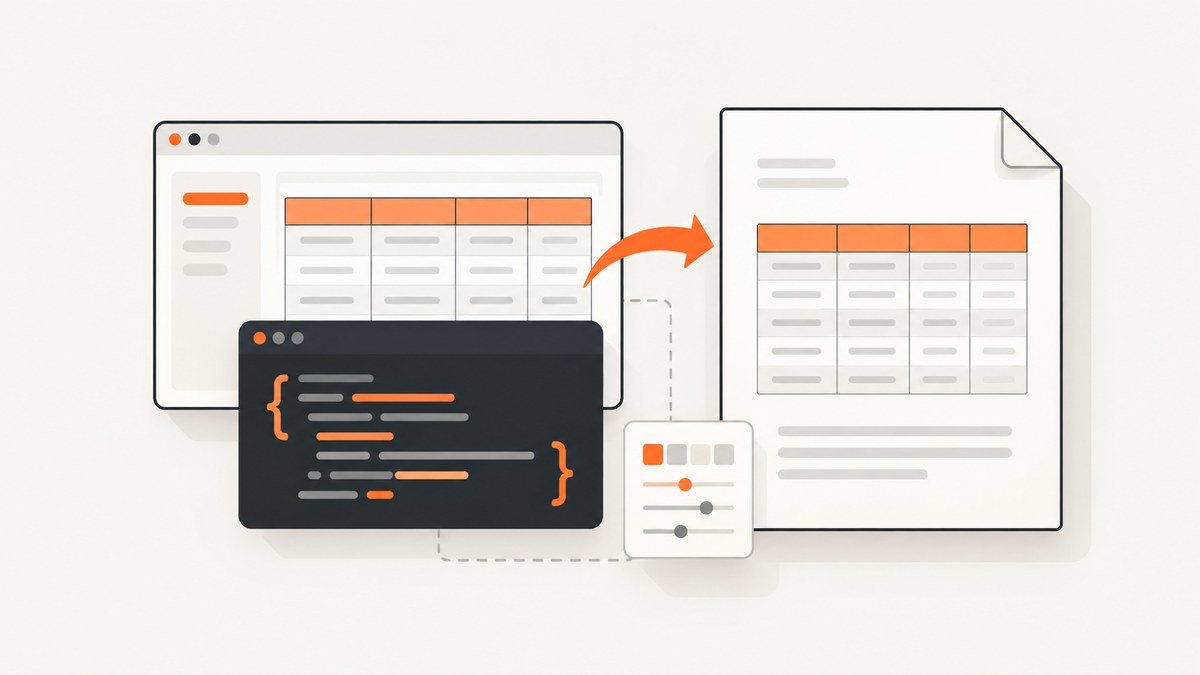
jsPDF-AutoTable gives you several ways to customize header cells. Use headStyles when every header should share one design, an object cell definition when one header needs a local override, columnStyles when formatting follows a column, and hooks when the rule depends on data or must run at a specific rendering stage.
The smallest complete example is:
import { jsPDF } from 'jspdf';
import autoTable from 'jspdf-autotable';

const doc = new jsPDF();

autoTable(doc, {
  head: [['Name', 'Email', 'Country']],
  body: [
    ['David', 'david@example.com', 'Sweden'],
    ['Ari', 'ari@example.com', 'Canada']
  ],
  headStyles: {
    fillColor: [32, 80, 140],
    textColor: 255,
    fontStyle: 'bold',
    halign: 'center'
  }
});

doc.save('contacts.pdf');
headStyles applies to all cells in the head section. The official jsPDF-AutoTable README and options reference documents the available style fields and hook lifecycle.
1. Install and create a table
Install both packages in an npm project:
npm install jspdf jspdf-autotableIn a browser build, import the plugin as shown above. If your project uses the CommonJS form, use:
const { jsPDF } = require('jspdf');
const autoTable = require('jspdf-autotable').default;

const doc = new jsPDF();
autoTable(doc, {
  head: [['Product', 'Quantity', 'Price']],
  body: [['Keyboard', 2, '$80']]
});
doc.save('orders.pdf');
Headers can be supplied with head, or generated from columns. The columns form is useful when your body rows are objects and you want stable data keys:
autoTable(doc, {
  columns: [
    { header: 'Product', dataKey: 'product' },
    { header: 'Quantity', dataKey: 'quantity' },
    { header: 'Price', dataKey: 'price' }
  ],
  body: [
    { product: 'Keyboard', quantity: 2, price: '$80' },
    { product: 'Mouse', quantity: 4, price: '$25' }
  ]
});
2. Style every header with headStyles
Use headStyles for a consistent header row. Common options include:
| Option | Purpose | Typical values |
|---|---|---|
fillColor |
Cell background | Gray number, hex string, RGB array, or false |
textColor |
Header text color | Gray number, hex string, RGB array |
fontStyle |
Weight or emphasis | normal, bold, italic, bolditalic |
halign |
Horizontal alignment | left, center, right |
valign |
Vertical alignment | top, middle, bottom |
fontSize |
Header font size | Number |
cellPadding |
Space inside cells | Number or padding object |
lineColor, lineWidth |
Cell borders | Color and numeric width |
cellWidth |
Header width | auto, wrap, or number |
autoTable(doc, {
  head: [['Order', 'Customer', 'Status', 'Total']],
  body: [
    ['A-100', 'Mina', 'Paid', '$120'],
    ['A-101', 'Jon', 'Pending', '$85']
  ],
  headStyles: {
    fillColor: '#20364f',
    textColor: '#ffffff',
    fontStyle: 'bold',
    fontSize: 10,
    cellPadding: 5,
    halign: 'left',
    valign: 'middle',
    lineColor: [255, 255, 255],
    lineWidth: 0.2
  }
});
Color values can be a gray value, a hex string, an RGB array, or false for transparency. If a dark fill makes text unreadable, set textColor explicitly instead of relying on a default.
3. Change one header cell
Inline cell styles
An object in the head array can define content, optional spans, and a local styles object:
autoTable(doc, {
  head: [[
    { content: 'Priority', styles: { fillColor: [180, 40, 40], textColor: 255 } },
    { content: 'Owner', styles: { fillColor: [40, 120, 80], textColor: 255 } },
    'Due date'
  ]],
  body: [
    ['High', 'Ari', '2026-10-01'],
    ['Low', 'Mina', '2026-10-03']
  ],
  headStyles: {
    fillColor: [32, 80, 140],
    textColor: 255,
    fontStyle: 'bold'
  }
});
The inline styles are the clearest choice when the special cells are known while you build the table.
Conditional styling with didParseCell
Use a hook when the target depends on the column, content, or another value. Always check data.section === 'head' so the condition does not recolor body cells with the same column index:
autoTable(doc, {
  head: [['Name', 'Risk', 'Owner']],
  body: [
    ['Import job', 'High', 'Ari'],
    ['Backup job', 'Low', 'Mina']
  ],
  didParseCell(data) {
    if (data.section === 'head' && data.column.index === 1) {
      data.cell.styles.fillColor = [180, 40, 40];
      data.cell.styles.textColor = 255;
    }
  }
});
didParseCell runs before layout and drawing, so it is appropriate for changing parsed content or styles. The hook receives the cell, row, column, and section. A rule based on data.column.dataKey is preferable when you defined named columns.
4. Style a complete column
columnStyles applies to cells in a column. With array headers, numeric indexes are used by default:
autoTable(doc, {
  head: [['Name', 'Email', 'Country']],
  body: [
    ['David', 'david@example.com', 'Sweden'],
    ['Ari', 'ari@example.com', 'Canada']
  ],
  headStyles: { fillColor: [32, 80, 140], textColor: 255 },
  columnStyles: {
    0: { halign: 'left', cellWidth: 42 },
    1: { halign: 'left', cellWidth: 70 },
    2: { halign: 'center', fillColor: [235, 242, 250] }
  }
});
When using columns with dataKey, use those keys:
autoTable(doc, {
  columns: [
    { header: 'Name', dataKey: 'name' },
    { header: 'Email', dataKey: 'email' }
  ],
  body: [
    { name: 'David', email: 'david@example.com' }
  ],
  columnStyles: {
    name: { fontStyle: 'bold' },
    email: { cellWidth: 80 }
  }
});
Because column styles are later in the documented cascade, a columnStyles value can override a broad headStyles value. If only the header should change, prefer an inline header style or a section-checked hook.
5. Understand style precedence
When a style appears to be ignored, inspect the cascade from broad to specific. The documented order is:
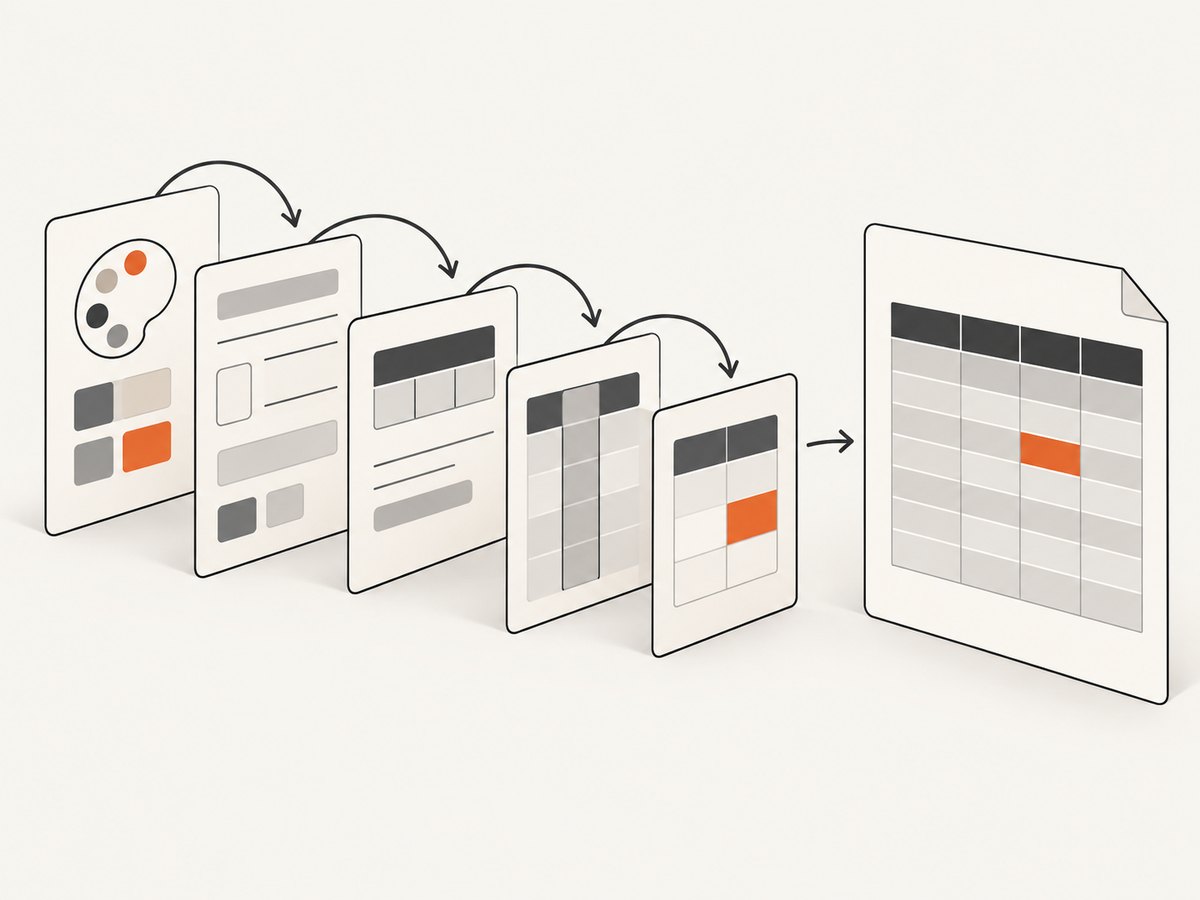
- Theme styles
stylesheadStyles,bodyStyles, andfootStylesalternateRowStylescolumnStyles
Cell definitions and hook changes can apply an even more specific value. For example, this column rule wins over the global header fill:
autoTable(doc, {
  head: [['A', 'B']],
  body: [['1', '2']],
  headStyles: { fillColor: [20, 80, 150] },
  columnStyles: { 1: { fillColor: [180, 40, 40] } }
});
To debug, temporarily remove theme, styles, and columnStyles, then add them back one at a time. Also verify that your hook checks the intended section and that you are changing data.cell.styles, not an unrelated object.
6. Use the right hook timing
didParseCell: change parsed content or styles before layout and drawing.willDrawCell: run immediately before a cell is drawn; useful for native jsPDF drawing state.didDrawCell: add graphics or content after the cell has been drawn.
autoTable(doc, {
  head: [['Label', 'Value']],
  body: [['Build', 'Successful']],
  willDrawCell(data) {
    if (data.section === 'head') {
      doc.setDrawColor(255, 255, 255);
    }
  },
  didDrawCell(data) {
    if (data.section === 'head' && data.column.index === 0) {
      doc.setLineWidth(0.8);
      doc.line(data.cell.x, data.cell.y + data.cell.height,
               data.cell.x + data.cell.width, data.cell.y + data.cell.height);
    }
  }
});
Use didParseCell for ordinary header customization. Reserve draw hooks for effects that depend on the cell’s final coordinates or for adding custom graphics.
7. Multilevel headers, spans, and pagination
Object-form cells support colSpan and rowSpan, which lets you build grouped headers:
autoTable(doc, {
  head: [
    [
      { content: 'Account information', colSpan: 2, styles: { halign: 'center', fillColor: [32, 80, 140], textColor: 255 } },
      { content: 'Metrics', colSpan: 2, styles: { halign: 'center', fillColor: [70, 120, 90], textColor: 255 } }
    ],
    ['Name', 'Email', 'Orders', 'Revenue']
  ],
  body: [
    ['David', 'david@example.com', 12, '$1,240'],
    ['Ari', 'ari@example.com', 8, '$860']
  ]
});
For long tables, showHead controls repeated headers. Its documented values are everyPage, firstPage, and never; the default is everyPage:
autoTable(doc, {
  head: [['Invoice', 'Date', 'Amount']],
  body: rows,
  showHead: 'everyPage'
});
Header style settings remain separate from pagination. A header can repeat on every page while retaining its fill, borders, alignment, and typography.
8. Troubleshooting checklist
| Symptom | Likely cause | Fix |
|---|---|---|
| Header color does not change | A later columnStyles or cell style overrides it. |
Inspect the precedence order and remove the later rule or override it specifically. |
| Body cells also turn red | The hook does not check the section. | Require data.section === 'head'. |
| Only one column is styled | A numeric index or data key is wrong. | Use indexes for array data and exact dataKey values for named columns. |
| Text is unreadable | Dark fill with a dark default text color. | Set textColor: 255 or a contrasting RGB/hex value. |
| Header wraps unexpectedly | Cell width, page width, or long content forces wrapping. | Set cellWidth, shorten the label, adjust font size, or use landscape orientation. |
| Custom line is missing | Drawing occurs at the wrong lifecycle stage. | Use willDrawCell or didDrawCell and draw with the cell coordinates. |
| Grouped header alignment is wrong | Span cells lack explicit alignment or the span count is incorrect. | Check colSpan/rowSpan and set halign and valign. |
| Repeated pages have no header | showHead is set to never or firstPage. |
Use showHead: 'everyPage'. |
9. Performance, reliability, and maintainability
For large tables, keep style objects reusable instead of allocating complex objects repeatedly inside hooks. Apply static formatting with headStyles and columnStyles; use hooks only for conditions that cannot be expressed declaratively. This keeps layout work predictable and makes later changes easier to audit.
Long labels, many columns, and high font sizes increase wrapping and pagination work. Decide the page orientation and margins before tuning widths. Test the longest realistic header text, not only short sample labels. For stable output, pin compatible package versions and keep your header data shape consistent.
PDF rendering is sensitive to fonts, color contrast, and page size. If a downstream system extracts text, keep the visible header text in the cell content rather than drawing it only in a post-render hook. If a header must be visible to screen readers or other accessibility tooling, verify the resulting PDF with the tools used by your delivery pipeline.
10. Or skip the browser setup
If your workflow needs screenshots or PDFs of web pages rather than tables generated in JavaScript, ScreenshotNeo provides a single HTTP request. It accepts cookie and consent banners like a visitor, removes more than 60 known consent platforms plus newsletter popups and chat widgets before capture, and lets you turn each step off. Only clean shots are billed: bot checks and CAPTCHAs, blank pages, timeouts, failed loads, and cache hits cost nothing. The response identifies the result with X-Page-Verdict and X-Billed headers.

See the ScreenshotNeo API documentation for all options. A basic WebP capture with cURL is:
curl -G "https://api.screenshotneo.com/v1/shot" \
  -d access_key=YOUR_API_KEY \
  --data-urlencode url=https://stripe.com \
  -o shot.webp
Python:
import requests

r = requests.get(
    "https://api.screenshotneo.com/v1/shot",
    params={"access_key": "YOUR_API_KEY", "url": "https://stripe.com"},
    timeout=90,
)
r.raise_for_status()
open("shot.webp", "wb").write(r.content)
Node.js:
const q = new URLSearchParams({ access_key: 'YOUR_API_KEY', url: 'https://stripe.com' });
const res = await fetch(`https://api.screenshotneo.com/v1/shot?${q}`);
if (!res.ok) throw new Error(`HTTP ${res.status}`);
const buffer = Buffer.from(await res.arrayBuffer());
await import('node:fs/promises').then(fs => fs.writeFile('shot.webp', buffer));
ScreenshotNeo also supports full-page capture with lazy images loaded, CSS-selector element capture, dark mode, 12 device presets and custom viewports, retina scale, PDF paper sizes and page ranges, HTML/CSS to image, custom CSS and JavaScript, clicks, selector or network-idle waits, request and resource blocking, headers, cookies, user agents, authorization, timezone, geolocation, transparent backgrounds, resizing, configurable caching TTL, signed image links, asynchronous jobs with signed webhooks, bulk capture for 100 URLs per call, a usage API, and an OpenAPI specification. Its MCP server exposes take_screenshot, get_page_info, and capture_pdf for Claude, Cursor, and other MCP clients.
The Free plan includes 1,000 screenshots per month with no card. Paid plans start at $5 for 3,000 shots; every feature is available on every plan. Create a free ScreenshotNeo account.
11. FAQ
Can I style only the header text?
Yes. Set text-related fields such as textColor, fontStyle, and fontSize in headStyles, an inline cell style, or a head-only hook.
Should I use headStyles or columnStyles?
Use headStyles for all headers. Use columnStyles when the same column rule should affect body cells too. Combine them when a column needs a deliberate override.
How do I target a header by name?
Define columns with a stable dataKey, then use that key in columnStyles or inspect data.column.dataKey in a hook.
Can headers repeat on every PDF page?
Yes. Set showHead: 'everyPage', which is also the documented default.
When should I use didDrawCell?
Use it for graphics or text that must be added after the cell has been drawn. For ordinary colors, alignment, padding, and fonts, use declarative styles or didParseCell.


