How to Customize a Local Browser with Cookies, Viewport, and More
Configure a repeatable Playwright browser session with cookies, viewport, locale, timezone, device emulation, and reliable troubleshooting.

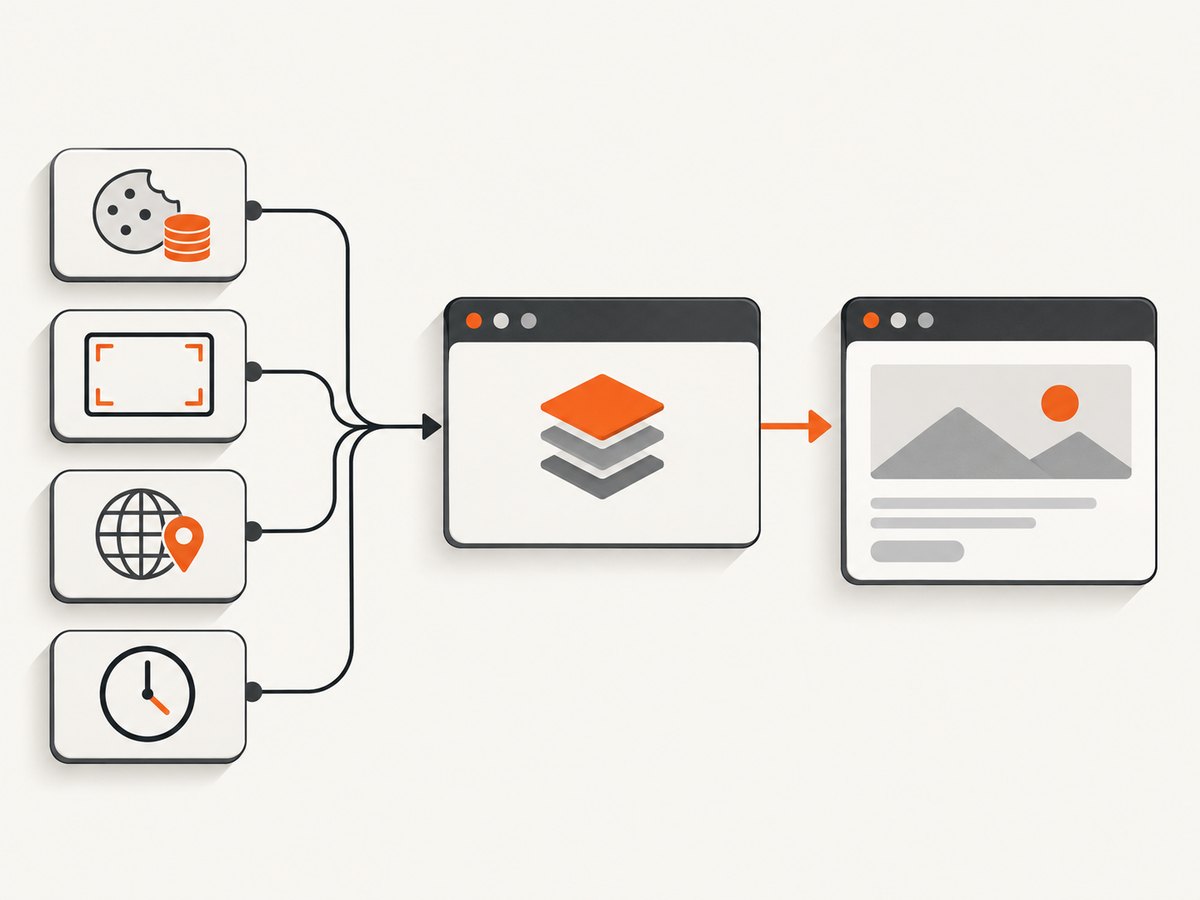
To customize a local browser reliably, create a Playwright browser context with the state and emulation options your test needs. Seed cookies or local storage with storageState, set a predictable viewport at context creation, and add locale, timezone, geolocation, permissions, color scheme, user agent, touch, and reduced-motion settings only when the scenario requires them. Use page.setViewportSize() when one page needs a different size.
A context is an isolated browser session. It gives you repeatable configuration without changing your everyday browser profile. The settings below are emulation controls: they help reproduce a browser state for development and testing, but they do not make a desktop machine identical to a particular phone or operating system.
1. Create a repeatable local browser context
Install Playwright and its browsers:
npm init -y
npm install -D playwright
npx playwright install
This complete Node.js example opens Chromium with a known viewport, locale, timezone, color scheme, reduced-motion preference, and cookies. It then saves a screenshot and the resulting storage state.
const { chromium } = require('playwright');

(async () => {
  const browser = await chromium.launch({ headless: true });
  const context = await browser.newContext({
    viewport: { width: 1440, height: 900 },
    screen: { width: 1440, height: 900 },
    deviceScaleFactor: 1,
    locale: 'en-US',
    timezoneId: 'America/New_York',
    colorScheme: 'light',
    reducedMotion: 'reduce',
    userAgent: 'local-browser-test/1.0',
    extraHTTPHeaders: { 'X-Test-Run': 'local' },
    permissions: ['geolocation']
  });

  await context.addCookies([
    {
      name: 'feature_preview',
      value: 'enabled',
      domain: 'example.com',
      path: '/',
      secure: true,
      httpOnly: false,
      sameSite: 'Lax'
    }
  ]);

  const page = await context.newPage();
  await page.goto('https://example.com', { waitUntil: 'domcontentloaded' });
  await page.screenshot({ path: 'local-browser.png', fullPage: true });
  await context.storageState({ path: 'state.json' });

  await browser.close();
})();
Playwright documents browser contexts, context options, and device emulation in its browser context guide, emulation guide, and browser API. The documented default viewport is 1280×720. Setting your own dimensions avoids tests that change when run on a different host.
2. Cookies, local storage, and authentication state
Add individual cookies
Cookies are matched by domain and path. A cookie for app.example.com is different from one for example.com. A leading dot in a domain allows the cookie to apply to subdomains. Security fields such as secure, httpOnly, sameSite, and expires affect when the browser sends or exposes the cookie.
await context.addCookies([
  {
    name: 'session_mode',
    value: 'qa',
    domain: '.example.com',
    path: '/',
    expires: Math.floor(Date.now() / 1000) + 3600,
    httpOnly: true,
    secure: true,
    sameSite: 'Strict'
  }
]);
For a host-only cookie, use a URL instead of a domain:
await context.addCookies([
  {
    name: 'experiment',
    value: 'new-checkout',
    url: 'https://shop.example.com/checkout',
    path: '/'
  }
]);
Reuse storage state
storageState can initialize a context with cookies and local storage. This is useful when a login flow is expensive, but treat the file as sensitive because it may contain an authenticated session.
const context = await browser.newContext({
  storageState: 'state.json',
  viewport: { width: 1280, height: 800 }
});
Create the file from a controlled login flow:
const loginContext = await browser.newContext();
const loginPage = await loginContext.newPage();
await loginPage.goto('https://example.com/login');
await loginPage.fill('#email', process.env.TEST_EMAIL);
await loginPage.fill('#password', process.env.TEST_PASSWORD);
await loginPage.click('button[type="submit"]');
await loginPage.waitForURL('**/dashboard');
await loginContext.storageState({ path: 'state.json' });
await loginContext.close();
Use the smallest state needed for the test. Do not commit authentication state to source control, and avoid copying a live account cookie when a dedicated test account or synthetic state is sufficient.
Inspect and clear state
console.log(await context.cookies('https://example.com'));
await context.clearCookies();
await context.clearPermissions();
If local storage must be changed, open the origin and use browser JavaScript:
const page = await context.newPage();
await page.goto('https://example.com');
await page.evaluate(() => {
  localStorage.setItem('onboarding', 'complete');
  sessionStorage.setItem('debugPanel', 'open');
});
3. Viewport, screen size, and device scale
A viewport is the page’s visible layout area. screen describes the emulated screen dimensions, while deviceScaleFactor controls the relationship between CSS pixels and device pixels. They are related but distinct. Changing width and height alone does not reproduce every hardware or operating-system behavior.
const context = await browser.newContext({
  viewport: { width: 390, height: 844 },
  screen: { width: 390, height: 844 },
  deviceScaleFactor: 3,
  isMobile: true,
  hasTouch: true
});
For one page only, change the viewport after creating the context:
const page = await context.newPage();
await page.setViewportSize({ width: 1024, height: 768 });
console.log(await page.viewportSize());
Context-wide defaults are preferable when every page in a test should behave the same. Per-page changes are useful for responsive snapshots or a flow that moves between breakpoints.
Playwright also provides named device descriptors:
const { chromium, devices } = require('playwright');
const browser = await chromium.launch();
const context = await browser.newContext({
  ...devices['iPhone 13']
});
A descriptor typically combines viewport, user agent, screen, touch, and mobile behavior. Check the descriptor and the target browser version before relying on it. A preset is still emulation, not a physical-device test.
4. Configure locale, timezone, permissions, and media behavior
Use these options when the application changes behavior based on environment rather than pixels:
| Setting | What it controls | Example |
|---|---|---|
locale |
Language and locale-sensitive formatting | de-DE |
timezoneId |
Date and time zone calculations | Europe/Berlin |
geolocation |
Coordinates returned by the Geolocation API | { latitude: 52.52, longitude: 13.405 } |
permissions |
Granted browser permissions | ['geolocation'] |
colorScheme |
Light or dark media preference | 'dark' |
reducedMotion |
Reduced-motion media preference | 'reduce' |
forcedColors |
Forced-colors accessibility preference | 'active' |
javaScriptEnabled |
Whether page JavaScript runs | false |
userAgent |
User-agent string exposed to the page | 'qa-agent/1.0' |
hasTouch and isMobile |
Touch and mobile interaction behavior | true |
const context = await browser.newContext({
  locale: 'fr-FR',
  timezoneId: 'Europe/Paris',
  geolocation: { latitude: 48.8566, longitude: 2.3522 },
  permissions: ['geolocation'],
  colorScheme: 'dark',
  reducedMotion: 'reduce',
  javaScriptEnabled: true
});
These controls are documented in Playwright’s emulation documentation. Browser support can vary by engine and version. The official browser guide covers Chromium, WebKit, Firefox, Google Chrome, and Microsoft Edge; verify the option in the browser you actually run.
5. Persistent profiles versus configured contexts
A normal browser profile is persistent: history, extensions, cache, passwords, and other files remain on disk. Playwright’s regular context is intentionally isolated and usually temporary. This makes it safer and more deterministic for tests.
When you need a persistent profile directory, use a persistent context:
const context = await chromium.launchPersistentContext('./profile-data', {
  headless: false,
  viewport: { width: 1366, height: 900 },
  locale: 'en-US'
});
const page = await context.newPage();
await page.goto('https://example.com');
Only one browser process should use a profile directory at a time. Keep profile data out of shared repositories, and use a separate directory for each test worker. Persistent profiles can retain more state than you intended, so a clean context plus an explicit storageState file is usually easier to reason about.
6. Waiting, network controls, and deterministic captures
Responsive layouts often depend on fonts, images, API responses, or animations. Wait for a meaningful condition instead of adding a large arbitrary delay.
await page.goto('https://example.com', { waitUntil: 'domcontentloaded' });
await page.waitForSelector('[data-testid="dashboard"]');
await page.waitForLoadState('networkidle');
await page.screenshot({ path: 'dashboard.png', animations: 'disabled' });
For a known slow component, wait for that component. Network idle can be unsuitable for pages with analytics, polling, or WebSockets that never become idle. You can block irrelevant requests:
await context.route('**/*', async route => {
  const type = route.request().resourceType();
  if (type === 'font' || type === 'media') {
    await route.abort();
  } else {
    await route.continue();
  }
});
Blocking resources changes page behavior, so use it only when the test does not depend on them. For visual testing, keep fonts and layout-critical images enabled.
7. Debugging checklist
| Symptom | Likely cause | Fix |
|---|---|---|
| Cookie is not sent | Domain, path, Secure, or expiry does not match | Inspect context.cookies(); use the exact host and path, and use HTTPS for Secure cookies. |
| Login disappears between tests | A new context starts empty | Save and load storageState, or perform login in a setup project. |
| Mobile layout does not appear | Only the viewport changed | Set the required mobile, touch, user-agent, screen, and scale settings together, or use a device descriptor. |
| Screenshot dimensions differ in CI | Viewport is unset or host-dependent | Set an explicit context viewport and use consistent browser versions. |
| Dates show the wrong day | Host timezone differs | Set timezoneId and make test data timezone-aware. |
| Geolocation permission is denied | Coordinates were set without permission | Add permissions: ['geolocation'] for the target origin. |
| Page never reaches network idle | Polling, analytics, or sockets stay open | Wait for a selector or API response instead of network idle. |
| State file exposes an account | Authenticated cookies were stored or committed | Use a test account, protect the file, add it to ignore rules, and rotate credentials if exposed. |
8. Performance, reliability, and cost considerations
- Reuse the browser, isolate contexts. Launching a browser is expensive; creating contexts is cheaper. Reuse one browser process while keeping tests isolated in separate contexts.
- Keep state small. A minimal cookie and local-storage set starts faster and reduces accidental coupling.
- Use explicit waits. Waiting for the element or response that matters is usually faster and more reliable than a long fixed delay.
- Pin the execution environment. Browser version, fonts, timezone, locale, and viewport all affect screenshots.
- Use retries carefully. A retry can hide a real race. Capture trace, console, request failures, and a screenshot on failure so intermittent problems remain diagnosable.
- Know the emulation boundary. Device settings do not reproduce every hardware, GPU, input, or operating-system detail. Run a real-device check when that behavior matters.
9. Or skip the browser setup
If your goal is a clean page image rather than an interactive local test, ScreenshotNeo provides a one-request screenshot API. See the ScreenshotNeo API documentation for the complete option list.

curl -G "https://api.screenshotneo.com/v1/shot" -d access_key=YOUR_API_KEY --data-urlencode url=https://stripe.com -o shot.webpimport requests
r = requests.get("https://api.screenshotneo.com/v1/shot", params={"access_key": "YOUR_API_KEY", "url": "https://stripe.com"}, timeout=90)
open("shot.webp", "wb").write(r.content)const q = new URLSearchParams({ access_key: 'YOUR_API_KEY', url: 'https://stripe.com' });
const res = await fetch(`https://api.screenshotneo.com/v1/shot?${q}`);
if (!res.ok) throw new Error(`Screenshot failed: ${res.status}`);
require('fs').writeFileSync('shot.webp', Buffer.from(await res.arrayBuffer()));ScreenshotNeo supports full-page captures, element selectors, dark mode, device presets or custom viewports, retina scale, custom CSS and JavaScript, clicks, selector or delay waits, network-idle waits, blocked requests, headers, cookies, user agents, authorization, timezone, geolocation, transparent backgrounds, resizing, caching, signed links, asynchronous jobs, bulk capture, usage reporting, PDF output, HTML/CSS rendering, and an MCP server with take_screenshot, get_page_info, and capture_pdf.
Cookie banners, newsletter popups, and chat widgets are removed before the shot. Bot checks, blank pages, timeouts, failed loads, and cache hits are not billed; response headers identify the page verdict and whether the shot was billed. The free plan includes 1,000 screenshots each month with no card. Paid plans start at $5 for 3,000 screenshots, and every feature is available on every plan. An MCP server lets Claude, Cursor, and other MCP clients take screenshots.
Start with 1,000 free screenshots a month—no card required.
10. FAQ
Should I change the viewport or use a device preset?
Use a viewport when layout width is the only variable. Use a device preset when you also need its user agent, touch, screen, and mobile behavior. Both remain emulation.
Can I use cookies without logging in?
Yes. Add only the test cookies you need, or load a storage-state file created by a controlled setup flow.
Why is a persistent profile less deterministic?
It can retain cache, extensions, history, and credentials across runs. A fresh context with explicit state makes dependencies visible.
Which browser engines can I run?
Playwright supports Chromium, WebKit, Firefox, Google Chrome, and Microsoft Edge. Check the particular option against the engine and version used by your test.
When should I use ScreenshotNeo?
Use it when you need a rendered screenshot or PDF without maintaining a browser process, especially when consent UI and other overlays should be removed automatically or when an AI agent needs an MCP screenshot tool.