Capture an Element Screenshot in Cypress Without Resizing the Viewport
Capture one Cypress element at the existing viewport size, with stable output, padding, callbacks, troubleshooting, and CI tips.

To capture one element in Cypress without resizing the viewport, yield that element and chain .screenshot():
cy.get('[data-cy="target"]').screenshot('target')Do not call cy.viewport() before the capture. Cypress takes the screenshot in the current test viewport, which is 1000 × 660 pixels by default until you explicitly change it. Element screenshots use the yielded element as the capture target; they do not require a page-wide capture or a viewport resize.
This guide explains the complete workflow: selecting a stable element, waiting for its final state, adding padding, preventing animation artifacts, controlling filenames and output folders, handling CI, and diagnosing the errors developers commonly see. It also shows how to capture a page or element through an API when you do not want to maintain browser automation.
1. The basic element screenshot
Cypress documents that cy.screenshot() can be called from cy or chained from a command that yields a single DOM element. Use a selector that identifies exactly one element.
describe('profile card screenshot', () => {
  it('captures the card at the current viewport', () => {
    cy.visit('/profile')

    cy.get('[data-cy="profile-card"]')
      .screenshot('profile-card')
  })
})
The command writes an image to Cypress’s configured screenshots folder. Manual screenshots work in both cypress open and cypress run. The default folder is cypress/screenshots.
Use a single, stable subject
Prefer a dedicated data-cy attribute over a CSS class that exists for styling only:
cy.get('[data-cy="checkout-summary"]')
  .should('have.length', 1)
  .screenshot('checkout-summary')
If the selector matches multiple nodes, Cypress can fail because an element screenshot needs one subject. The length assertion gives a clearer failure than an ambiguous screenshot command.
2. Why the viewport does not resize
Cypress changes viewport dimensions only when you issue cy.viewport(). The screenshot command operates on whatever viewport the test currently has. If no viewport command has run, Cypress uses its documented default of 1000 × 660 pixels.
it('keeps the existing viewport', () => {
  cy.visit('/dashboard')

  // No cy.viewport() call here.
  cy.get('[data-cy="revenue-panel"]').screenshot('revenue-panel')
})
This preserves the layout conditions already established by the test. Responsive breakpoints, font wrapping, and component dimensions therefore remain the same as they were immediately before capture.
Do not confuse element size with viewport size
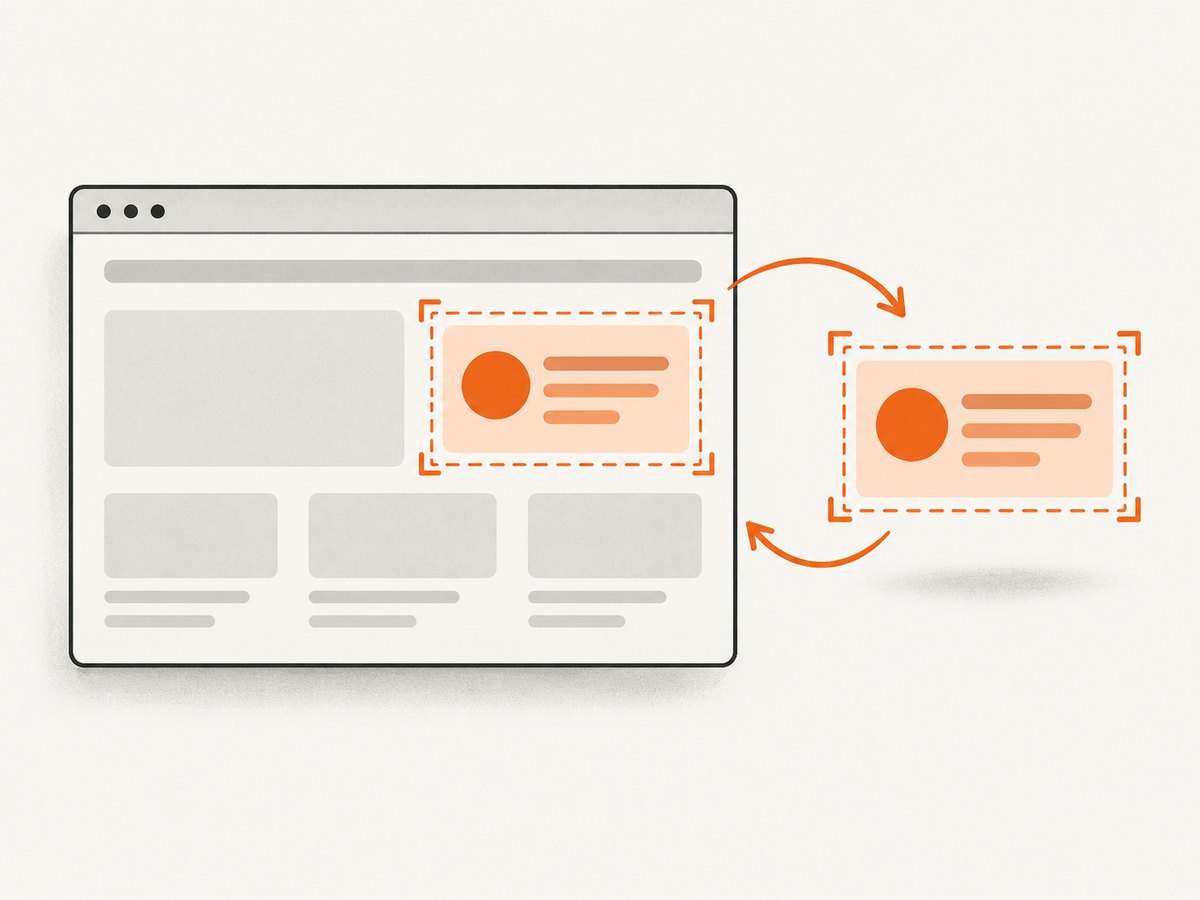
The resulting image can be smaller than the viewport because it contains the selected element. That is expected. Cypress is not resizing the browser window; it is cropping the screenshot to the element’s rendered bounds. If you need a page image, call cy.screenshot() without chaining from an element.
// Element image
cy.get('[data-cy="invoice"]').screenshot('invoice')

// Page image at the same current viewport
cy.screenshot('dashboard-page')
3. Padding and scaling options
For element captures, padding is the option that changes the captured area around the element. It accepts a number or a CSS-shorthand array.
cy.get('[data-cy="target"]')
  .should('be.visible')
  .screenshot('target-with-padding', { padding: 12 })
You can provide separate top, right, bottom, and left values with an array:
cy.get('[data-cy="target"]')
  .screenshot('target-with-asymmetric-padding', {
    padding: [8, 16, 12, 16],
  })
The capture option is ignored for element screenshots. It is intended for page-level capture behavior, so setting capture: 'fullPage' on an element command does not turn that element into a full-page image.
The scale option controls whether the application is scaled to fit the browser viewport. Leave it at its normal setting unless your output requirement specifically calls for scaling. Scaling changes pixels in the output; it does not provide a way to preserve a different viewport.
4. Wait for a deterministic visual state
A screenshot is an asynchronous action that takes around 100 ms according to Cypress documentation. During that interval, the application can change. Make the element visible and wait for data, fonts, transitions, and other state changes before calling screenshot().
it('captures the loaded order card', () => {
  cy.visit('/orders/123')

  cy.intercept('GET', '/api/orders/123').as('order')
  cy.wait('@order')

  cy.get('[data-cy="order-card"]')
    .should('be.visible')
    .and('contain', 'Paid')
    .screenshot('order-card')
})
The visibility assertion is a synchronization step. Cypress assertions before the screenshot can retry until the UI is ready; the screenshot command itself does not retry an assertion after it starts.
Freeze clocks, cursors, and animation
Animated spinners, blinking carets, rotating carousels, current-time labels, and hover effects can produce different pixels on each run. Add a test-only class or use the callbacks supported by the screenshot API to hide transient content immediately before capture and restore it afterward.
cy.get('[data-cy="target"]').screenshot('target', {
  onBeforeScreenshot($el) {
    $el.find('.clock').hide()
    $el.find('.loading-spinner').hide()
  },
  onAfterScreenshot($el) {
    $el.find('.clock').show()
    $el.find('.loading-spinner').show()
  },
})
Callbacks must make synchronous DOM changes. Keep the mutation narrow so the image represents the same component users see, apart from deliberately hidden nondeterministic details.
Disable CSS motion for a test
beforeEach(() => {
  cy.document().then((doc) => {
    const style = doc.createElement('style')
    style.dataset.cypressFreeze = 'true'
    style.textContent = `
      *, *::before, *::after {
        animation-duration: 0s !important;
        animation-delay: 0s !important;
        transition: none !important;
        caret-color: transparent !important;
      }
    `
    doc.head.appendChild(style)
  })
})
Remove or scope this style if your test is intended to verify animation itself.
5. Complete reusable examples
Element with a custom filename and padding
it('captures the shipping method', () => {
  cy.visit('/checkout')

  cy.get('[data-cy="shipping-method"]')
    .should('be.visible')
    .should('have.attr', 'aria-expanded', 'true')
    .screenshot('checkout/shipping-method-open', {
      padding: [10, 14, 10, 14],
    })
})
Capture after a user interaction
it('captures the expanded menu', () => {
  cy.visit('/settings')

  cy.get('[data-cy="advanced-toggle"]').click()
  cy.get('[data-cy="advanced-panel"]')
    .should('be.visible')
    .screenshot('advanced-panel')
})
Capture a specific element inside a list
cy.contains('[data-cy="product-row"]', 'Annual plan')
  .should('be.visible')
  .screenshot('annual-plan-row')
When text can change with localization, use a stable data attribute and assert the expected state separately.
6. Output location and post-processing
Set the screenshots folder in Cypress configuration when your build system expects artifacts in a particular directory:
// cypress.config.js
const { defineConfig } = require('cypress')

module.exports = defineConfig({
  screenshotsFolder: 'artifacts/cypress/screenshots',
  e2e: {
    setupNodeEvents(on, config) {
      on('after:screenshot', (details) => {
        console.log(`Saved ${details.path}`)
        console.log(`Size: ${details.dimensions.width}x${details.dimensions.height}`)
        console.log(`Pixel ratio: ${details.pixelRatio}`)
        return details
      })
    },
  },
})
The Node-level after:screenshot event exposes metadata such as path, dimensions, scaled, multipart, and pixelRatio. It runs outside the browser, so it cannot call cy or Cypress commands. Use it for filesystem processing, artifact naming, uploads, or logging.
7. Common errors and fixes
| Symptom | Likely cause | Fix |
|---|---|---|
| “ cy.screenshot() can only be chained off a single element ” | Your selector yielded zero or multiple elements. | Use a stable selector and assert have.length equals 1 before capture. |
| The image shows a spinner or skeleton | The screenshot started before data or rendering finished. | Wait on the relevant network alias and assert visible, final content. |
| The layout looks different | A prior command changed the viewport, or responsive CSS reacted to a different test setup. | Remove unintended cy.viewport() calls and record the viewport used by the test. |
| Padding is ignored | Padding was passed in the wrong shape or the command was page-level. | Use a number or CSS array on an element-chained screenshot. |
| Screenshot changes between runs | Animation, clocks, hover state, fonts, or random data are still changing. | Freeze motion, hide dynamic fields in callbacks, wait for fonts/data, and seed random content. |
| File is missing in CI | The configured folder is not uploaded as an artifact, or the test failed before writing. | Check screenshotsFolder, preserve the folder in CI, and inspect the command log. |
| Text is clipped | The element has overflow rules or the content was captured mid-layout. | Wait for layout completion, inspect computed overflow, and add padding only after the box is stable. |
8. Viewport, device pixel ratio, and CI reliability
Keep viewport setup explicit at the suite level when consistency matters, but do not change it in the screenshot step:
beforeEach(() => {
  cy.viewport(1280, 800)
})

it('captures without resizing during the test', () => {
  cy.visit('/reports')
  cy.get('[data-cy="report-table"]').screenshot('report-table')
})
This test intentionally chooses its viewport once, before visiting the page. The element screenshot then captures the element under those conditions. Browser zoom, operating-system scaling, and the browser’s device pixel ratio can affect physical pixel dimensions. Use the after:screenshot metadata to record what Cypress produced rather than assuming CSS pixels equal image pixels.
For CI, keep browser version, viewport setup, fonts, locale, timezone, and seeded test data stable. Upload screenshots on both pass and failure when you are diagnosing rendering issues. If the goal is visual comparison, remember that Cypress’s built-in command only captures an image; it does not compare images. Visual-testing integrations such as Percy are separate services, and their current capabilities and pricing should be verified before adoption.
9. Full-page versus element capture
Use an element screenshot when the review target is a component, row, card, dialog, or isolated state. Use page-level capture when the relationship between multiple regions matters.
// Component only; capture option is not relevant here.
cy.get('[data-cy="invoice-card"]').screenshot('invoice-card')

// Full document at the current viewport width.
cy.screenshot('invoice-page', { capture: 'fullPage' })
Do not expect capture: 'fullPage' to expand an element screenshot. For long components, ensure the component itself has the intended height and overflow behavior before capture.
10. Or skip the browser setup
If you need repeatable website images outside a Cypress test, ScreenshotNeo provides a single GET request for a PNG, JPEG, WebP, or PDF. Its element mode can target a CSS selector, while its other options cover full-page capture, dark mode, device presets, custom viewport and retina scale, custom CSS and JavaScript, clicks, waits, hidden selectors, blocked resources, headers, cookies, user agents, timezone, geolocation, resizing, caching, signed links, asynchronous jobs, bulk capture, and usage reporting. See the ScreenshotNeo API documentation for the current parameter names and response details.
cURL
curl -G "https://api.screenshotneo.com/v1/shot" \
  -d access_key=YOUR_API_KEY \
  --data-urlencode url=https://stripe.com \
  -o shot.webp
Python
import requests

r = requests.get(
    "https://api.screenshotneo.com/v1/shot",
    params={"access_key": "YOUR_API_KEY", "url": "https://stripe.com"},
    timeout=90,
)
r.raise_for_status()
open("shot.webp", "wb").write(r.content)
Node.js
const q = new URLSearchParams({ access_key: 'YOUR_API_KEY', url: 'https://stripe.com' });
const res = await fetch(`https://api.screenshotneo.com/v1/shot?${q}`);
if (!res.ok) throw new Error(`HTTP ${res.status}`);
const bytes = await res.arrayBuffer();
await Bun.write('shot.webp', bytes);
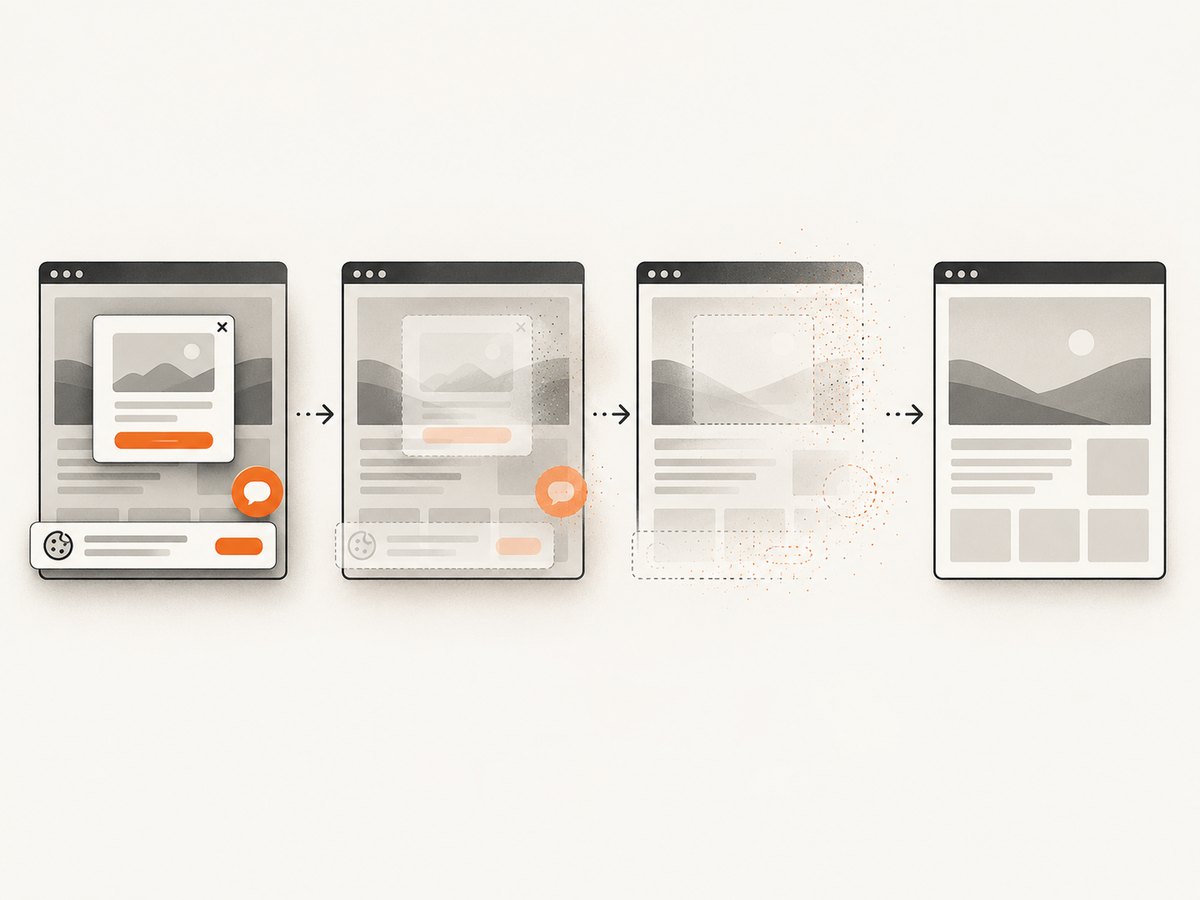
ScreenshotNeo removes cookie and consent banners, newsletter popups, and chat widgets before capture; each step can be turned off. Bot checks or CAPTCHAs, blank pages, timeouts, failed loads, and cache hits are not billed, and the response identifies the result with X-Page-Verdict and X-Billed headers. It also offers an MCP server with take_screenshot, get_page_info, and capture_pdf for Claude, Cursor, and other MCP clients.
The Free plan includes 1,000 screenshots per month with no card. Paid plans start at $5 for 3,000 screenshots, and every feature is available on every plan. Create a free ScreenshotNeo account.
11. Performance, reliability, and cost notes
- Cypress documents screenshot capture as an asynchronous action taking around 100 ms; page load, API calls, fonts, and animations usually dominate total test time.
- Element captures reduce image size and make component review easier, but they do not eliminate the need to wait for the page state.
- Use network aliases instead of arbitrary sleeps where possible. A short, targeted delay is useful only when the UI has a known animation or debounce that cannot be observed directly.
- Save only the screenshots needed for review. Excess artifacts increase CI storage and upload time.
- For ScreenshotNeo, choose caching with a TTL when the same URL can be reused, and use asynchronous jobs or bulk capture for large batches. Check verdict and billed headers when reconciling usage.
12. FAQ
Does an element screenshot change my viewport?
No. It uses the current viewport. Resizing occurs when your test calls cy.viewport().
Can I capture an element with extra space around it?
Yes. Pass padding as a number or CSS-shorthand array.
Can I use capture: 'fullPage' with an element?
No. Cypress ignores capture for element captures.
Why does Cypress produce different images on every run?
Usually because a clock, animation, hover state, network response, font, or random value changed during the asynchronous capture. Wait for final state and freeze transient content.
Does Cypress compare the screenshot automatically?
No. The command writes an image. Add a visual-testing integration if you need image comparison and review workflows.
Where are manual screenshots stored?
In the configured screenshotsFolder, which defaults to cypress/screenshots.


