How to Use Cypress with the Firestore Local Emulator
Connect your app to the Firestore Emulator, then use Cypress to test real user flows against repeatable local data.
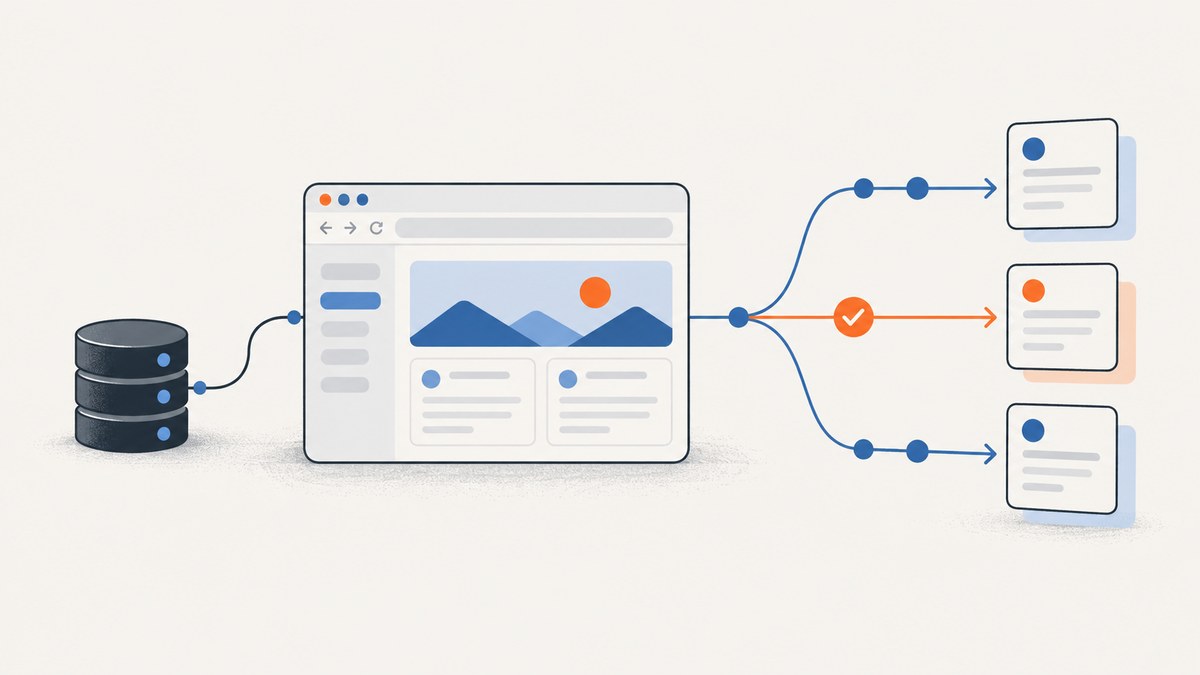
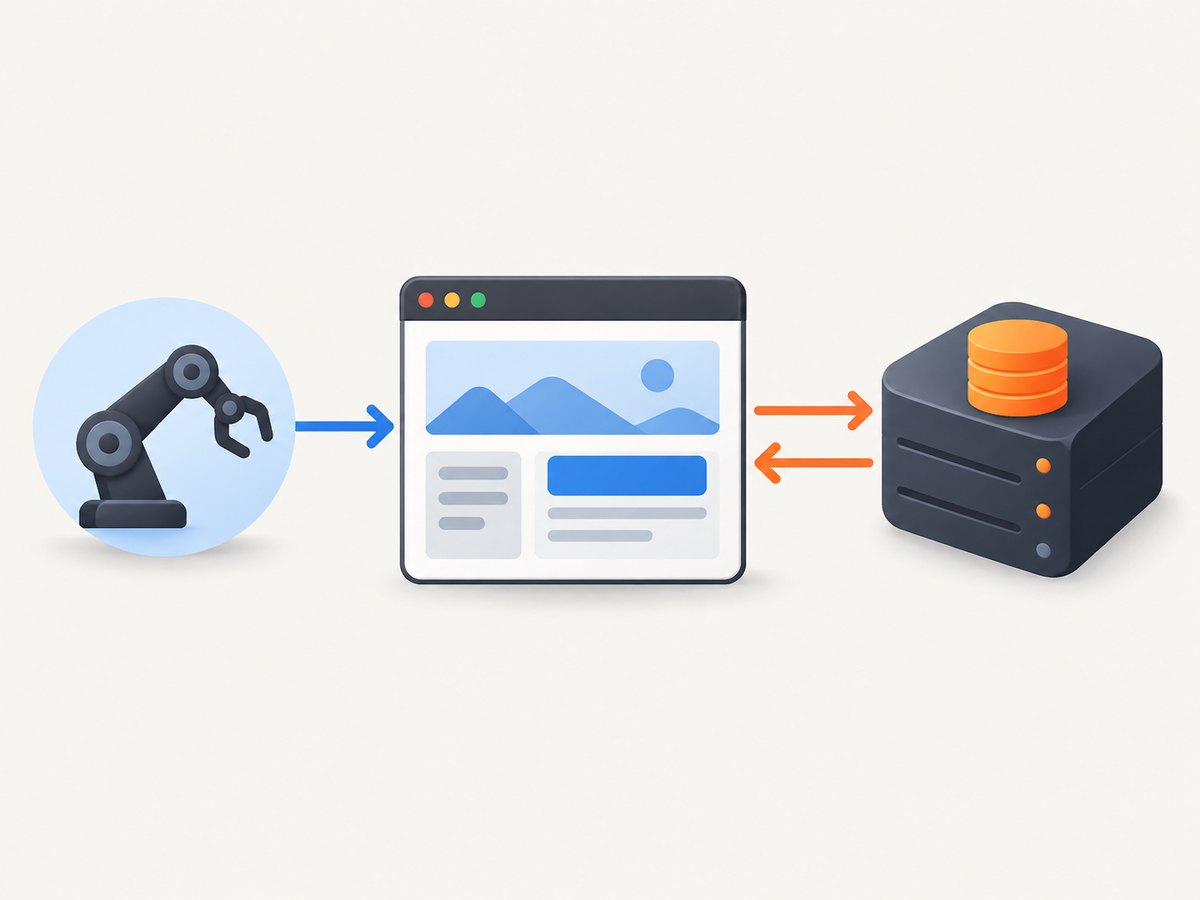
To use Cypress with the Firestore Local Emulator, point the application’s Firebase SDK at the emulator, start the app and emulator, then have Cypress visit the local app and exercise it like a user. Cypress drives the browser; it does not need to connect to Firestore directly for ordinary end-to-end tests.
This workflow combines the documented Firebase Emulator Suite and Cypress setup patterns. It is a practical integration recipe, not a dedicated Cypress/Firebase integration feature. The emulator’s documented default Firestore port is 8080; the Emulator Suite UI commonly uses 4000. See Firebase’s installation and configuration guide and Firestore connection guide.
1. Configure Firebase for local tests
Use one Firebase project ID consistently in the Firebase CLI configuration and the web app. For a workflow that should never reach live Firebase resources, Firebase recommends a demo project where practical: it has no live resources, so requests to services without a running emulator fail instead of reaching a production service. With a real project ID, any Firebase product you have not emulated could still connect to live resources.
Initialize or update the Emulator Suite configuration and select Firestore. A minimal firebase.json configuration can look like this:
{
  "firestore": {
    "rules": "firestore.rules"
  },
  "emulators": {
    "firestore": {
      "port": 8080
    },
    "ui": {
      "enabled": true,
      "port": 4000
    }
  }
}
Keep the rules file aligned with the rules the app is meant to use. Firebase warns that missing emulator configuration can leave Firestore, Realtime Database, or Storage emulators with open data security. Emulator access is not a substitute for validating production rules.
Choose the port in one place and keep the SDK connection and emulator configuration in sync. If port 8080 is occupied, choose another available port in firebase.json and use that same value in the SDK connection below.
2. Connect the web app’s Firestore SDK
For the modular Firebase Web SDK, connect the Firestore instance to the emulator as part of app initialization, before any code starts reading or writing through that instance:
import { initializeApp } from 'firebase/app';
import {
  connectFirestoreEmulator,
  getFirestore
} from 'firebase/firestore';

const firebaseConfig = {
  projectId: 'demo-cypress-firestore'
  // Add the other Firebase app configuration fields used by your app.
};

const app = initializeApp(firebaseConfig);
const db = getFirestore(app);

if (import.meta.env.MODE === 'development' || import.meta.env.MODE === 'test') {
  connectFirestoreEmulator(db, '127.0.0.1', 8080);
}

export { db };
Adjust the environment check for your build system. The key property is explicit environment configuration: do not select the emulator simply because a page happens to be served from a host whose name looks local. A production build should not silently switch destinations based on an incidental hostname.
For the namespaced/compat SDK, Firebase documents this corresponding pattern:
if (location.hostname === 'localhost') {
  firebase.firestore().useEmulator('127.0.0.1', 8080);
}
Treat that hostname condition as an example, not a universal environment policy. Make sure the emulator connection runs before the first Firestore operation. If the app initializes Firestore in multiple modules, centralize creation and emulator wiring so each part of the app uses the same configured instance.
3. Start the emulator and application
Run the Firestore emulator in one terminal:
firebase emulators:start --only firestoreThen start the application’s local development server in another terminal, using the same environment mode that enables emulator wiring. Cypress should visit the app only after both services are ready.
Cypress’s Testing Your App guide recommends starting the server first and says not to start a web server from within Cypress scripts. For repeatable local work, use separate terminals or a process manager. In CI, coordinate the server and emulator with the CI job or project scripts so startup, readiness, and shutdown are explicit.
Firebase also provides firebase emulators:exec, which starts configured emulators for a command and shuts them down when that command finishes. For example, if the app server is already running and reachable from the test process:
firebase emulators:exec --only firestore "npx cypress run"This wraps Cypress with the emulator lifecycle. It does not start your app server; start that independently before running the command, and ensure Cypress cannot race ahead of server startup.
4. Write Cypress tests around user-visible behavior
In an end-to-end test, Cypress visits the running app, performs user actions, and checks what the app renders after its Firebase SDK has talked to the emulator. This example assumes the app has a form with accessible labels and renders a saved note in a list:
describe('notes backed by local Firestore', () => {
  it('saves a note and shows it in the list', () => {
    cy.visit('http://localhost:5173/notes');

    cy.findByLabelText('Note title').type('Emulator test note');
    cy.findByRole('button', { name: 'Save note' }).click();

    cy.findByText('Emulator test note').should('be.visible');
  });
});
The example uses Cypress Testing Library queries; if that package is not installed, use Cypress’s built-in queries or the selectors already supported by your app. Prefer selectors that represent accessible names or stable test identifiers over selectors tied to fragile layout details.
Do not put emulator credentials or production data in a browser test. The emulator is local test infrastructure. If a test needs direct database setup or assertions, use a separate helper suited to your project. The official sources covered here do not prescribe a Cypress-specific Firestore helper, so keep that helper explicit and separate from assertions about the user experience.
5. Make data repeatable
A test that depends on whatever documents happen to be present is difficult to trust. Choose a reset or seed strategy and make it part of the test lifecycle.
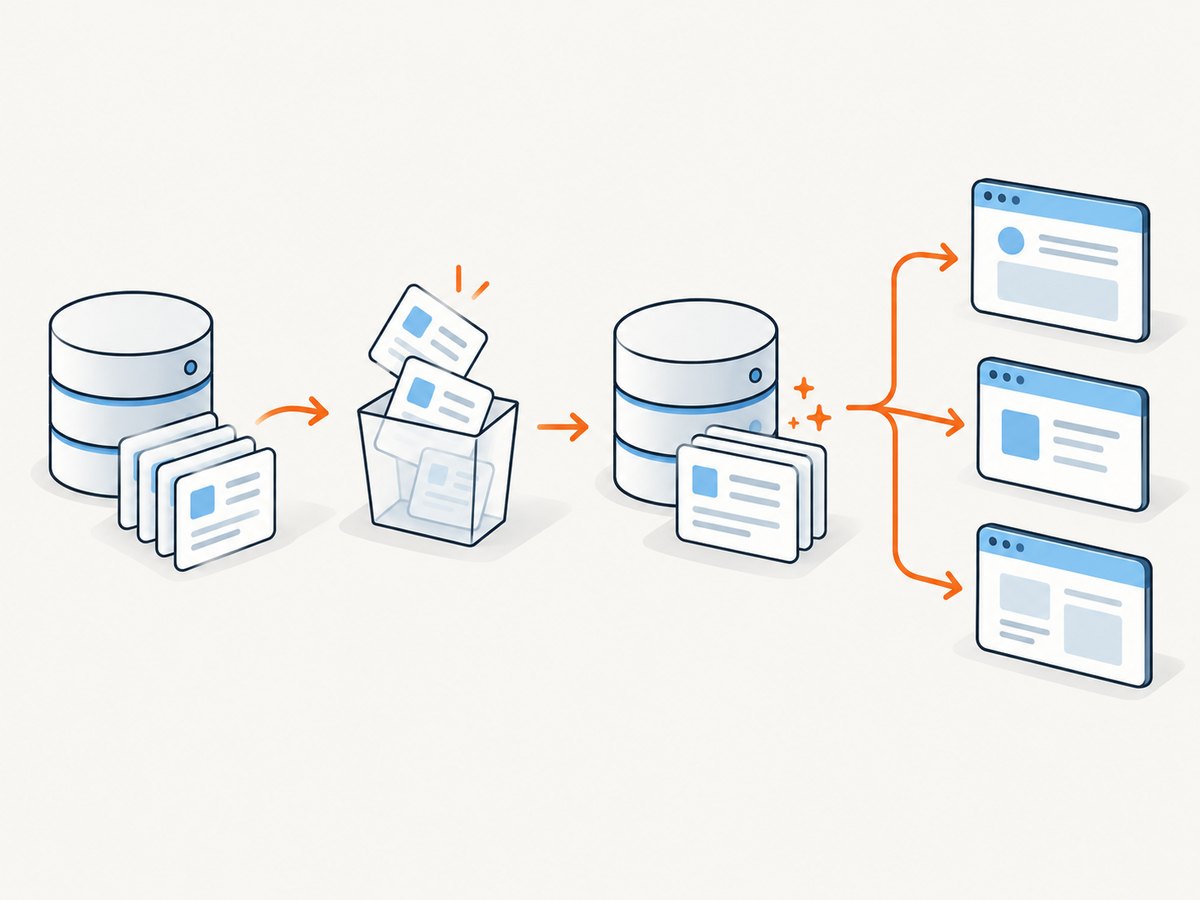
- Start empty: Firestore emulator data is cleared when the emulator shuts down. This can be enough when each run starts a fresh emulator.
- Import a known dataset: save emulator data and start with it using
firebase emulators:start --import=./data. - Preserve useful state: add
--export-on-exitwhen you want changes made during a run to be saved for the next startup. - Clear a database deliberately: Firebase documents a Firestore emulator REST deletion endpoint. Use it in setup or teardown when a known empty database is required; ensure the reset completes before Cypress starts dependent tests.
Import/export is useful for a shared baseline, while a reset is useful when tests must verify creation from an empty state. Avoid having multiple test workers reset or seed the same emulator at overlapping times. Parallel tests that share one database can overwrite one another’s assumptions; isolate their data or coordinate access.
6. Use the right test layer
Cypress end-to-end tests and Firebase Security Rules tests answer different questions. Use Cypress when the question is whether a person can complete a browser flow and see the expected result. Use Firebase’s Rules Unit Testing tools for focused validation of who can read and write which data under specified rules. Both can use the emulator; neither replaces the other.
A useful suite usually has a smaller set of browser journeys for important application flows and focused rules tests for access boundaries. Keep production-only checks separate: the emulator is designed for behavioral accuracy, not production performance or security. Validate indexes, production limits, and behaviors that depend on real Firestore in a controlled real environment.
Configuration choices and edge cases
| Choice | Recommended handling |
|---|---|
| Project ID | Use the same ID in CLI and app. Prefer a demo- ID when possible to prevent accidental calls to non-emulated live services. |
| Host and port | Use 127.0.0.1:8080 when the browser/app can reach the emulator on the same host network. Keep the SDK port aligned with firebase.json. |
| Containers or CI | Do not assume 127.0.0.1 points to the emulator from every container. Configure hostnames, published ports, and network aliases for the actual topology. |
| Other Firebase products | Start their emulators too if the app uses them, or ensure the chosen demo project makes accidental live access fail safely. |
| Multiple app instances | Wire each Firestore instance that the app uses before its first operation; avoid a mixture of emulator and live instances. |
| Persistence | Web SDK persistence is disabled by default per Firebase’s Firestore connection guidance. If your app enables persistence, account for client cache state separately from emulator database resets. |
Troubleshooting
| Symptom | Likely cause | Fix |
|---|---|---|
| Browser reports connection refused | Emulator is stopped, the port differs, or the app cannot reach the configured host. | Start the Firestore emulator, compare firebase.json with the SDK host/port, and check container port mappings. |
| Tests seem to use old or unexpected documents | Data was imported, preserved on exit, or shared across tests. | Choose an explicit seed/reset policy, wait for it to finish before visits, and avoid parallel resets against shared state. |
| Some Firebase requests still reach a live service | The app uses a product whose emulator is not running, often with a real project ID. | Use a demo project where practical; otherwise run the needed emulator and verify every SDK is pointed at it. |
| App connects to emulator but sees a different project | The project ID in app initialization and CLI differ. | Use one project ID throughout the Firebase configuration and test environment. |
| Emulator connection throws after app startup | A Firestore operation happened before emulator wiring, or the connection was configured more than once. | Move the connection into centralized initialization before reads/writes, and ensure it runs only once per instance. |
| Rule tests pass but a browser flow fails | Rules tests verify authorization behavior, not the full UI, app state, or browser wiring. | Inspect browser console/network errors and test the app journey with Cypress against the same emulator configuration. |
| Emulator tests pass but production behavior differs | The emulator does not reproduce every production index requirement, transaction behavior, concurrency characteristic, or limit. | Validate those behaviors separately against a controlled real Firestore environment. |
Performance, reliability, and cost
The local emulator is useful for repeatable integration checks without making every browser test depend on a remote database. It is not a production performance benchmark: Firebase says the emulators prioritize accurate behavior, and concurrent writes may be slow. Avoid treating local timing as a prediction of production latency.
Reliability comes mostly from predictable process and data management: start dependencies before Cypress, wait for readiness, use a stable project ID, and isolate test records. CI should fail clearly if the emulator or app server did not start instead of letting a browser timeout obscure the underlying issue.
The Firebase Local Emulator Suite avoids using a live Firestore instance for the local interaction itself, but engineering costs remain in CI runtime, maintenance of seeds and rules, and separate production validation. Keep the test set proportional: exercise critical user journeys in Cypress and use focused rules tests for the many access combinations that would be cumbersome to cover through the UI.
Or skip the browser setup
If the task is to capture a page screenshot as part of debugging or documentation, ScreenshotNeo is a website screenshot API and MCP server from Yorker Media. It does not replace Cypress or the Firestore Emulator in an end-to-end test; it handles screenshot capture without setting up a browser capture stack. See the ScreenshotNeo API documentation.
curl -G "https://api.screenshotneo.com/v1/shot" -d access_key=YOUR_API_KEY --data-urlencode url=https://stripe.com -o shot.webpimport requests
r = requests.get(
"https://api.screenshotneo.com/v1/shot",
params={"access_key": "YOUR_API_KEY", "url": "https://stripe.com"},
timeout=90,
)
open("shot.webp", "wb").write(r.content)const q = new URLSearchParams({ access_key: 'YOUR_API_KEY', url: 'https://stripe.com' });
const res = await fetch(`https://api.screenshotneo.com/v1/shot?${q}`);
if (!res.ok) throw new Error(`Screenshot request failed: ${res.status}`);
await import('node:fs/promises').then(fs => fs.writeFile('shot.webp', Buffer.from(await res.arrayBuffer())));ScreenshotNeo removes cookie banners, popups, and chat widgets before the shot. Bot checks, blank pages, and failed loads are never billed. Its MCP server lets AI agents take screenshots. The free plan includes 1,000 screenshots a month with no card; paid plans start at $5 for 3,000. Sign up for 1,000 free screenshots a month, with no card.
FAQ
Does Cypress connect directly to Firestore?
For the usual end-to-end flow, no. Cypress controls the browser; the app’s Firebase SDK makes Firestore requests to the emulator. Add a separate setup helper only if the tests need direct data preparation or inspection.
Can emulator tests prove my production rules and indexes are correct?
They can validate useful behavior, but not every production constraint. Run focused rules checks and separately validate index and limit behavior in a controlled real Firestore environment.
Should I use the Emulator Suite UI?
It is optional. It commonly runs on port 4000 and can help inspect emulator state, but Cypress and the app need the Firestore emulator endpoint, not the UI.
Can I run Cypress and the emulator in parallel?
Yes, once the app and emulator are ready. Parallelize independent test data where possible; shared database resets and writes need coordination.


