How to Capture a Full-Page Screenshot Including the URL in Cypress
Use Cypress fullPage screenshots for the page, cy.url() for verification, and a separate workflow when the browser address bar must appear.
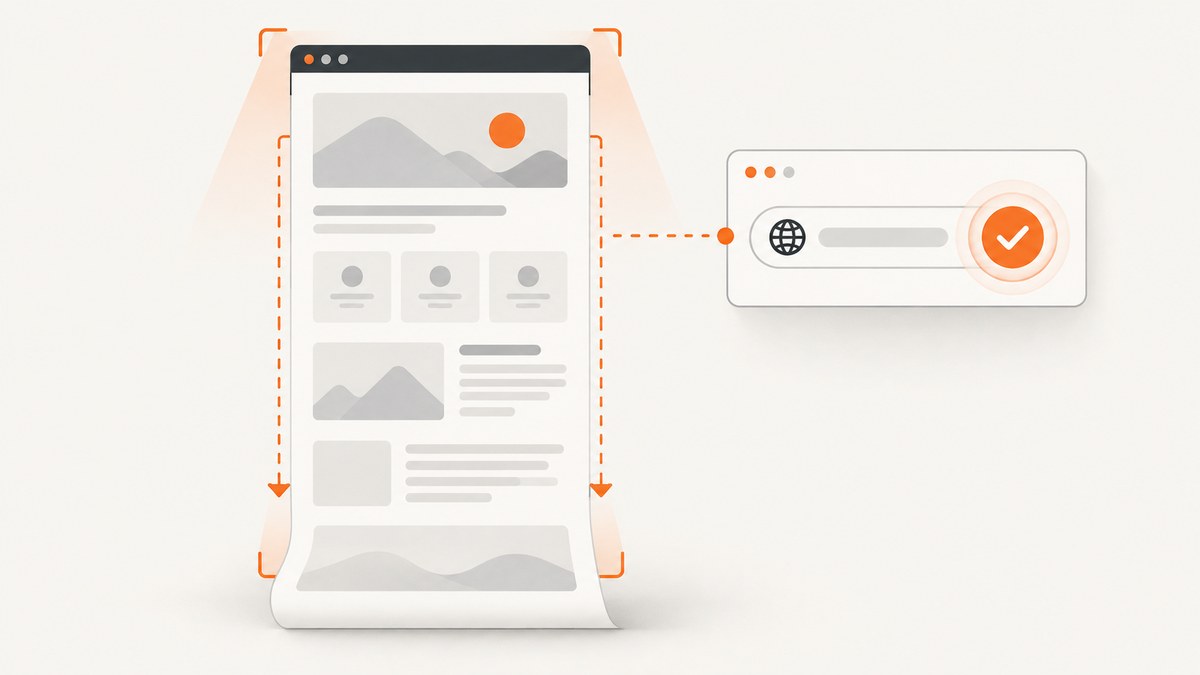
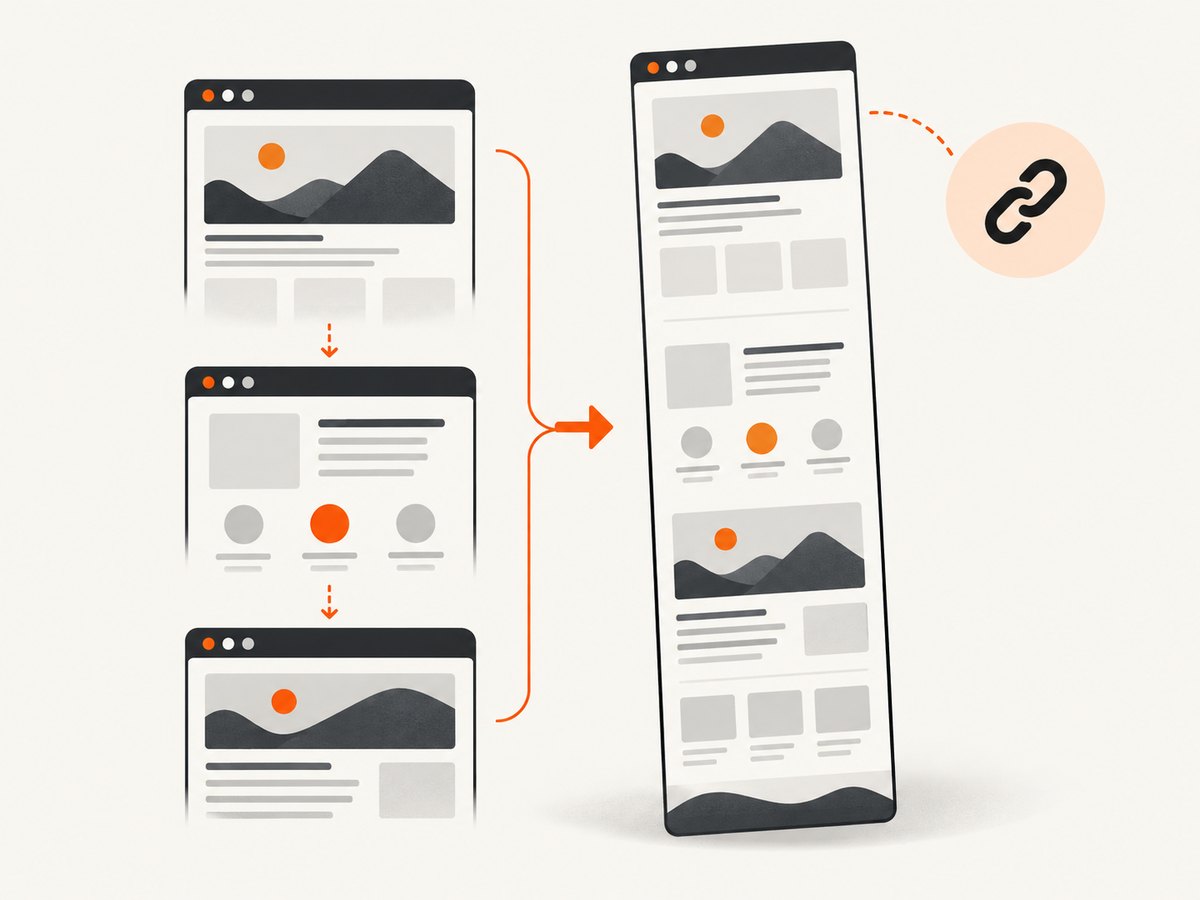
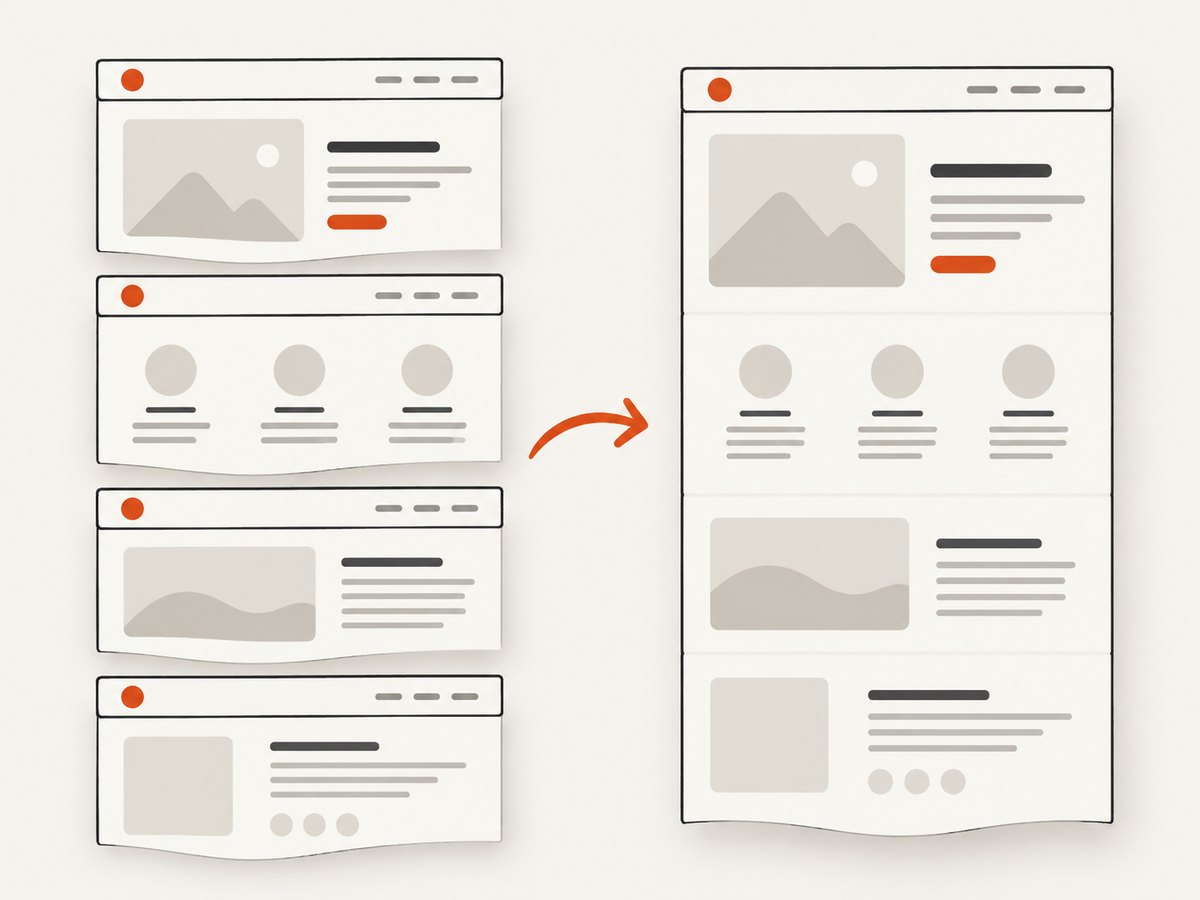
Use cy.screenshot({ capture: 'fullPage' }) to capture the application from top to bottom, and use cy.url() to verify the active URL. Cypress scrolls through the page, captures each viewport, and stitches the images together. The URL is not automatically printed into the image. If “including the URL” means the browser address bar, Cypress does not document its screenshot modes as including browser chrome. Render the URL in page content or use a browser-level capture workflow when the address bar must be visible.
1. The complete Cypress example
This test verifies the route and saves a full-page image:
describe('article screenshot', () => {
  it('captures the full page and verifies its URL', () => {
    cy.visit('/article?source=test')

    cy.url().should('include', '/article?source=test')
    cy.screenshot('article-full-page', { capture: 'fullPage' })
  })
})
The screenshot is written to Cypress’s configured screenshots folder. The assertion checks the browser location separately; it does not overlay the URL on the pixels.
2. Decide what “including the URL” means
| Requirement | Cypress approach | What appears in the image |
|---|---|---|
| Capture all application content | capture: 'fullPage' |
The page from top to bottom, stitched from multiple scroll positions |
| Prove the test visited the expected route | cy.url() with an assertion |
Nothing extra; the URL remains test data |
| Capture the current application viewport | capture: 'viewport' |
Only the visible application viewport |
| Include Cypress’s runner interface | capture: 'runner' |
The browser viewport with the Cypress Command Log |
| Show the browser address bar | Use a browser-level screen capture or render the URL in the page | Not guaranteed by Cypress screenshot modes |
Cypress documents fullPage, viewport, and runner as capture modes. The runner mode includes the Cypress Command Log; the documentation does not promise operating-system or browser address-bar chrome. See the Cypress screenshot API reference and the URL command reference.
3. Put the URL into the screenshot pixels
If a reviewer must read the URL in the image, make it part of the application under test. A test-only banner is one practical option:
it('captures a page with a visible URL label', () => {
  cy.visit('/article?source=test')
  cy.url().should('eq', `${Cypress.config('baseUrl')}/article?source=test`)

  cy.document().then((document) => {
    const label = document.createElement('div')
    label.id = 'screenshot-url-label'
    label.textContent = window.location.href
    Object.assign(label.style, {
      position: 'absolute',
      top: '0',
      left: '0',
      zIndex: '2147483647',
      padding: '8px 12px',
      color: '#111',
      background: '#fff',
      font: '14px monospace',
      border: '1px solid #ccc'
    })
    document.body.prepend(label)
  })

  cy.screenshot('article-with-url-label', { capture: 'fullPage' })
})
This labels the page content, not the browser chrome. Remove or guard the label if the same environment is used for visual regression baselines.
4. Handle sticky and fixed elements
Full-page capture scrolls repeatedly. A position: fixed or position: sticky element can therefore appear in multiple stitched sections. Temporarily changing it to absolute positioning often prevents repeated headers:
it('captures without a repeated sticky header', () => {
  cy.visit('/article')
  cy.get('.sticky-header').invoke('css', 'position', 'absolute')
  cy.screenshot('article-no-repeated-header', { capture: 'fullPage' })
  cy.get('.sticky-header').invoke('css', 'position', null)
})
Use a cleanup step if the test continues after the screenshot. Also review pages with animated banners, carousels, clocks, live feeds, or lazy-loaded content because the page can change while Cypress coordinates scrolling and stitching.
5. Choose viewport and browser dimensions
Cypress’s viewportWidth and viewportHeight control the application viewport. In headed or headless runs, browser launch dimensions and device scale can affect the final image as well. Keep these values stable for repeatable screenshots:
// cypress.config.js
const { defineConfig } = require('cypress')

module.exports = defineConfig({
  viewportWidth: 1440,
  viewportHeight: 900,
  e2e: {
    baseUrl: 'http://localhost:3000'
  }
})
Changing the host display size does not by itself change Cypress’s configured viewport. Compare screenshots produced with the same browser, viewport, scale factor, fonts, and application data.
6. Set a suite-wide capture default
Set the default to full-page when most manual screenshots should include the entire application:
// cypress/support/e2e.js
Cypress.Screenshot.defaults({ capture: 'fullPage' })
Pass an explicit mode for exceptions. Automatic failure screenshots made during cypress run use runner capture, even when your manual default is full-page. Failure screenshots can be disabled in Cypress configuration when they are not wanted.
7. A reliable screenshot checklist
- Visit the exact route, including query parameters.
- Assert the URL with
cy.url(). - Wait for the page’s meaningful content and fonts to be ready.
- Disable or freeze animations and rotating data.
- Resolve sticky and fixed-position elements.
- Set a known viewport and browser scale.
- Capture with
capture: 'fullPage'. - Inspect the output for lazy images, duplicated UI, and layout shifts.
8. Common errors and fixes
| Symptom | Cause | Fix |
|---|---|---|
| The URL is not visible | cy.url() only returns a value for assertions |
Render a test label in the page or use browser-level capture |
| Only the visible area was saved | The mode is viewport or no full-page option was supplied |
Use cy.screenshot(name, { capture: 'fullPage' }) |
| The header appears several times | Sticky or fixed positioning during stitching | Temporarily use position: absolute, then restore it |
| Images are missing below the fold | Lazy loading has not been triggered or content is still changing | Wait for the relevant selector, scroll it into view, and assert it is visible before capture |
| Different machines produce different dimensions | Viewport, browser launch size, device scale, or fonts differ | Pin those settings in CI and local runs |
| A failure image contains the Command Log instead | Automatic failure capture is coerced to runner mode | Use a manual full-page capture for the artifact you need |
| Capture contains transient overlays | Cookie dialogs, chat widgets, or animations are still active | Close or disable them in test setup and wait for a stable state |
9. Performance, reliability, and cost
A full-page screenshot takes longer than a viewport screenshot because Cypress scrolls through the document and stitches multiple captures. Very tall pages increase memory use and the chance of layout changes. Keep pages bounded for visual tests, remove unnecessary animations, and capture after the application reaches a stable state.
For repeatability, use deterministic fixtures, fixed viewport settings, stable fonts, and explicit waits for important selectors instead of arbitrary long delays. Treat the screenshot and the URL assertion as separate outputs: one is visual evidence and the other is route verification.
Cypress itself does not charge per screenshot in this workflow; your costs are the CI runtime, browser resources, artifact storage, and any external visual-testing service you add.
10. Or skip the browser setup
If you need a clean screenshot of a URL rather than a Cypress test artifact, ScreenshotNeo provides a single HTTP request. The API can return PNG, JPEG, or WebP; use full-page capture and other options through the documented parameters.
See the ScreenshotNeo API documentation for the complete option list.
curl -G "https://api.screenshotneo.com/v1/shot" \
  -d access_key=YOUR_API_KEY \
  --data-urlencode url=https://example.com/article \
  -o shot.webp
import requests
r = requests.get(
"https://api.screenshotneo.com/v1/shot",
params={"access_key": "YOUR_API_KEY", "url": "https://example.com/article"},
timeout=90,
)
open("shot.webp", "wb").write(r.content)const q = new URLSearchParams({
access_key: 'YOUR_API_KEY',
url: 'https://example.com/article'
})
const res = await fetch(`https://api.screenshotneo.com/v1/shot?${q}`)
if (!res.ok) throw new Error(`Screenshot request failed: ${res.status}`)
const buffer = Buffer.from(await res.arrayBuffer())
require('fs').writeFileSync('shot.webp', buffer)Cookie banners, newsletter popups, and chat widgets are removed before the shot. Bot checks, blank pages, failed loads, timeouts, and cache hits are not billed, and response headers report the page verdict and billing result. ScreenshotNeo also has an MCP server for AI agents, including Claude and Cursor, with take_screenshot, get_page_info, and capture_pdf tools. The Free plan includes 1,000 screenshots each month without a card; paid plans start at $5 for 3,000 screenshots. Create a free ScreenshotNeo account.
11. FAQ
Does cy.screenshot() include the address bar?
Not as a documented guarantee. Cypress captures the application or Cypress runner viewport. Use a browser-level capture if browser chrome is a hard requirement.
Can I use cy.url() inside the screenshot name?
Yes. Resolve the URL first, then pass a generated name, but remember that the name does not put URL text into the image.
Why is the page taller than the browser window?
That is expected for fullPage; Cypress stitches captures taken while scrolling through the application.
Should visual tests use full-page screenshots for every route?
Use them when below-the-fold layout matters. Use viewport captures when the test targets one interaction or a stable component and a smaller artifact is sufficient.


