How to Take Full-Page Screenshots with Cypress
Use Cypress’s built-in `cy.screenshot()` command to capture a full page. Learn the options, keep dynamic pages stable, and troubleshoot stitched screenshots.

To take a full-page screenshot in Cypress, call cy.screenshot() with capture: 'fullPage' after navigating to the page state you want to save:
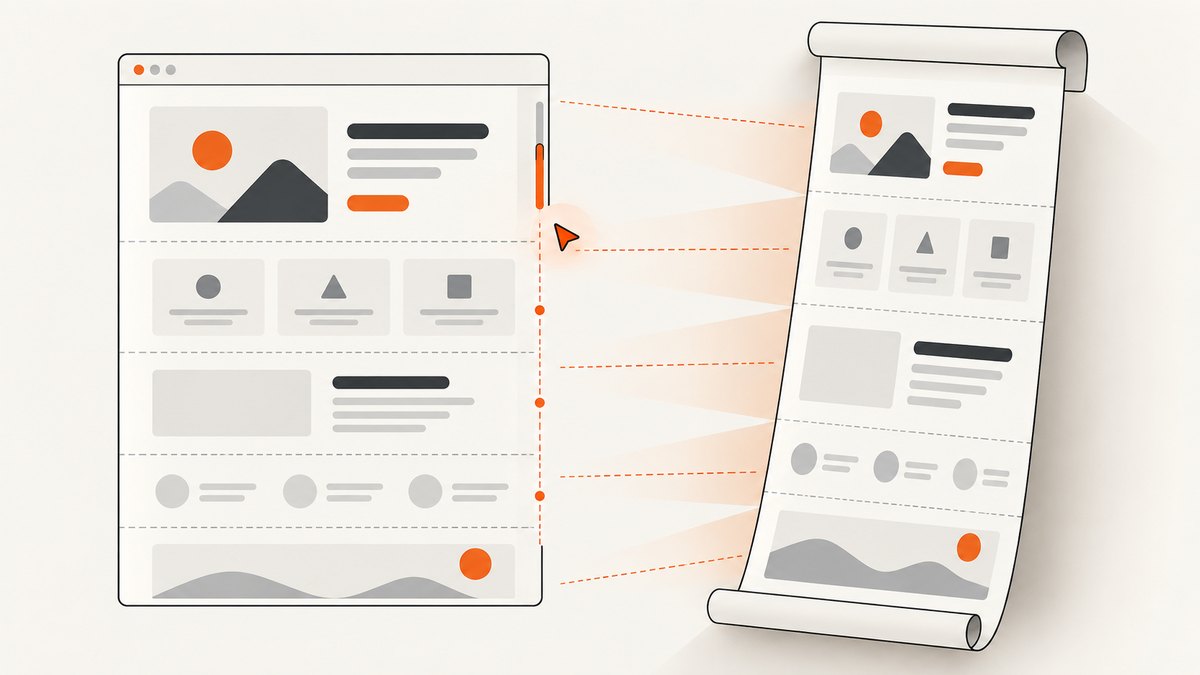
cy.screenshot('full-page', { capture: 'fullPage' })Cypress scrolls the application under test from top to bottom, captures the page at each point, and stitches the images together. The screenshot is saved under cypress/screenshots by default. You can also choose a viewport-only or Cypress-runner capture, set a filename, crop or scale the result, and use callbacks around capture. See the official Cypress screenshot API for the current command reference.
1. Capture a full page in a Cypress test
Put the screenshot command after the test has navigated to the route and made the page ready for capture. This example uses a placeholder URL; replace it with a route in your own application.
describe('product page screenshots', () => {
  it('captures the full product page', () => {
    cy.visit('/products/example')

    // Wait for an application-specific signal that the page is ready.
    cy.get('[data-testid="product-title"]').should('be.visible')

    cy.screenshot('product-page-full', {
      capture: 'fullPage',
    })
  })
})
The readiness assertion is optional, but useful for pages whose content renders after the initial document load. Choose a selector that represents the actual state you need; a visible heading does not necessarily mean every image, data request, or animation has settled.
You may omit the options object because fullPage is Cypress’s documented default capture type for application screenshots:
cy.screenshot('product-page-full')Being explicit makes intent clear and protects the test from confusion if a team changes screenshot defaults. Cypress screenshot capture is asynchronous, so a page can change between issuing the command and the capture. Stabilize the app before taking important artifacts, and inspect captures of dynamic pages.
2. Choose the right capture scope
The capture option controls what Cypress includes in the browser screenshot.
| Value | What it captures | Use it when |
|---|---|---|
fullPage |
The application from top to bottom, captured by scrolling and stitching. | You need a record of the whole page or a broad visual artifact. |
viewport |
The currently visible browser area. | You need a focused view of what a user sees at one scroll position. |
runner |
The browser with the Cypress Command Log. | You need debugging context alongside the application. |
For example, use viewport for a screenshot of a dialog after scrolling it into view:
cy.get('[role="dialog"]').should('be.visible')
cy.screenshot('dialog-viewport', { capture: 'viewport' })
During cypress run, screenshots Cypress takes automatically after a test failure are coerced to runner capture. The capture scope you request for an ordinary screenshot does not change that failure behavior.
3. Name and locate screenshot files
Cypress writes screenshots to cypress/screenshots by default. You can change the directory with the screenshotsFolder configuration setting. Unnamed screenshots are organized by spec and test; named screenshots use the name you supply. If a filename already exists, Cypress adds a suffix unless you enable overwrite: true.
cy.screenshot('checkout-full-page', {
  capture: 'fullPage',
  overwrite: true,
})
Use a stable, descriptive name when the artifact is consumed by CI or a review process. overwrite is useful when each run should leave one predictable file, but avoid it if you need to retain separate captures from multiple steps in the same test. Keep the screenshot path in sync with any CI artifact collection configuration.
To configure a custom directory, set the option in your Cypress configuration file:
const { defineConfig } = require('cypress')

module.exports = defineConfig({
  screenshotsFolder: 'artifacts/cypress-shots',
})
This is a CommonJS configuration example. If your project uses a different Cypress configuration format, add screenshotsFolder to that format’s exported configuration object.
4. Relevant screenshot options
These options cover common capture adjustments documented for cy.screenshot(). Confirm option details against the Cypress API version installed in your project.
clip: crops the final image to a specified rectangle. Use it when you need a region of the capture, and verify the coordinates against the resulting image dimensions.scale: scales the application to fit. This can make a large capture easier to view, though the resulting content is smaller.disableTimersAndAnimations: suppresses timers and CSS animations during capture. This can reduce visual variation, but it does not guarantee that application data or network activity has stopped changing.onBeforeScreenshotandonAfterScreenshot: callbacks that run around screenshot capture. They can be used for capture-related setup or cleanup supported by the API.
For example, options can be combined with a full-page capture:
cy.screenshot('catalog-full-page', {
  capture: 'fullPage',
  scale: true,
  disableTimersAndAnimations: true,
})
Scaling and animation suppression address presentation, not correctness. If your page fetches data late or updates from timers, first wait for a meaningful application condition. Avoid relying on arbitrary delays unless the app has no observable readiness signal.
5. Make the page stable before capture
A screenshot records the page state Cypress encounters during its asynchronous capture. If the page is still loading or changing, the image may show incomplete content or a mix of states. A reliable setup is to establish the route, wait for a user-relevant readiness signal, and then capture.

it('captures the loaded report', () => {
  cy.visit('/reports/monthly')
  cy.get('[data-testid="report-heading"]').should('be.visible')
  cy.get('[data-testid="loading-indicator"]').should('not.exist')

  cy.screenshot('monthly-report', { capture: 'fullPage' })
})
Selectors here are examples; use signals your app exposes. For content loaded by an API request, a test can wait for that request or assert on the rendered result. The assertion is often more informative because it checks what the screenshot needs to show rather than only that a request ended.
- Set the application to a known state before capture.
- Wait for important page content and loading indicators to reach the expected state.
- For animated or timer-driven content, decide whether to suppress animation or assert a stable state.
- Review the generated image when the page contains sticky navigation, fixed buttons, or lazy-loaded sections.
- Keep unrelated data and content stable if screenshots are used for visual review.
6. Understand scroll-and-stitch behavior
A full-page capture is not a single image of an infinitely tall browser viewport. Cypress scrolls from top to bottom, takes screenshots at points along the way, and stitches the images together. This captures off-screen content, but the page may react to scrolling.
Fixed and sticky elements deserve special attention. A fixed header can appear in multiple captured segments, or its position and appearance can affect the stitched result. Lazy loading can also change what is present lower down as Cypress scrolls. Inspect the output for repeated interface elements, missing images, abrupt section boundaries, and content that shifted during capture.
If the purpose is to check a specific component, a full-page image may include unrelated content and create noise. Cypress’s visual-testing guidance discusses selecting deliberate snapshots and notes that element-level comparisons can reduce unrelated failures. Cypress captures screenshots; image comparison against approved baselines requires an additional visual-testing workflow. See the Cypress visual testing guide.
7. Automatic failure screenshots
When running Cypress in cypress run, Cypress takes screenshots on test failure by default. It does not automatically take these failure screenshots during cypress open. Set screenshotOnRunFailure: false in the Cypress configuration to disable failure screenshots.
const { defineConfig } = require('cypress')

module.exports = defineConfig({
  screenshotOnRunFailure: false,
})
Failure screenshots are useful artifacts for CI debugging. If you disable them, make sure your team has another way to inspect failures. Cypress’s documented failure capture behavior uses runner capture, which includes the Command Log.
8. Troubleshooting Cypress screenshots
| Symptom | Likely cause | What to try |
|---|---|---|
| The screenshot contains only the visible viewport. | The command used capture: 'viewport', or the intended option was not passed. |
Use cy.screenshot('name', { capture: 'fullPage' }) and check that the generated file is the one you are inspecting. |
| The image looks stitched incorrectly around a header. | Full-page capture scrolls and stitches; fixed or sticky UI can behave unexpectedly across segments. | Inspect the page at each scroll position, simplify or stabilize the fixed UI for the test if appropriate, and consider a viewport or focused capture if the whole page is not required. |
| Images or lower sections are blank. | The app may load content lazily or asynchronously, and capture can occur before it is ready. | Wait for relevant content to render and inspect whether scrolling triggers additional loading. Add app-specific assertions before the screenshot. |
| The same test produces different images. | Timers, animations, changing data, or asynchronous page updates can alter the captured state. | Use stable test data, wait for an observable ready state, and consider disableTimersAndAnimations where animation is the source of variation. |
| The expected artifact is missing from CI. | The output directory may differ from the CI artifact path, or the test ran in a mode where automatic failure screenshots are not taken. | Check screenshotsFolder, the test runner mode, and the CI artifact collection path. Failure screenshots are automatic in cypress run, not cypress open. |
| Repeated test runs overwrite or rename artifacts unexpectedly. | Named screenshots receive a suffix on collision unless overwrite: true is set. |
Choose a unique name per capture, or set overwrite when a single stable output is intended. |
| A failure screenshot shows the runner instead of only the app. | Cypress coerces screenshots taken on failure during cypress run to runner capture. |
Treat this as failure-artifact behavior and use an ordinary explicit screenshot command when you need a particular application capture scope. |
9. Performance, reliability, and cost
Full-page capture involves scrolling, multiple captures, and stitching, so it has more work to do than a viewport screenshot. A long page, large images, and app behavior triggered by scrolling can make capture slower or more variable. Cypress documentation does not publish a universal timing benchmark; measure it in your own test environment if screenshot time matters to the suite.
For reliability, capture only the scope needed, make the state deterministic, and avoid treating the screenshot command as a page-readiness check. The command creates an image artifact; it does not compare that image to a baseline. Visual regression checks need a separate comparison and review workflow. Also account for artifact storage and upload time in CI, particularly when retaining many full-page images.
There is no separate per-screenshot Cypress API charge described in the cited Cypress screenshot documentation. Project costs depend on the infrastructure and any additional visual testing or artifact storage services you choose. ScreenshotNeo has its own API plans, described in the product section below.
10. Or skip the browser setup
If you need a screenshot of a public URL without running a Cypress test, ScreenshotNeo provides a website screenshot API and MCP server. It can return PNG, JPEG, WebP, or PDF from one GET request. See the ScreenshotNeo API docs for request options.
curl -G "https://api.screenshotneo.com/v1/shot" \
  -d access_key=YOUR_API_KEY \
  --data-urlencode url=https://stripe.com \
  -o shot.webp
The same request from Python:
import requests

r = requests.get(
    "https://api.screenshotneo.com/v1/shot",
    params={"access_key": "YOUR_API_KEY", "url": "https://stripe.com"},
    timeout=90,
)
open("shot.webp", "wb").write(r.content)
And Node.js:
const q = new URLSearchParams({
  access_key: 'YOUR_API_KEY',
  url: 'https://stripe.com',
})
const res = await fetch(`https://api.screenshotneo.com/v1/shot?${q}`)
if (!res.ok) throw new Error(`Screenshot request failed: ${res.status}`)
await Bun.write('shot.webp', new Uint8Array(await res.arrayBuffer()))
ScreenshotNeo accepts cookie or consent banners like a visitor and removes more than 60 known consent platforms, newsletter popups, and chat widgets before capture; each step can be turned off. Bot checks or CAPTCHAs, blank pages, timeouts, failed loads, and cache hits cost nothing, and response headers identify the page verdict and whether it was billed. Its MCP server offers take_screenshot, get_page_info, and capture_pdf tools for Claude, Cursor, and other MCP clients. The Free plan includes 1,000 shots per month with no card; paid plans start at $5 for 3,000 shots. All features are on every plan.
Sign up for ScreenshotNeo and get 1,000 screenshots a month free, with no card.
11. Frequently asked questions
Does Cypress compare screenshots automatically?
No. Cypress’s screenshot command captures an image. Comparing it with a baseline requires a separate visual-testing workflow.
Can I capture only the current viewport?
Yes. Pass { capture: 'viewport' } to cy.screenshot().
Where does Cypress save a screenshot?
By default it saves to cypress/screenshots. Configure screenshotsFolder to use a different directory.
Why does Cypress take a screenshot after a failed test?
Failure screenshots are enabled by default during cypress run. Set screenshotOnRunFailure: false to disable them.
12. Quick checklist
- Navigate to the page state you want to preserve.
- Wait for app-specific content and loading state to settle.
- Use
cy.screenshot('name', { capture: 'fullPage' })for the complete page. - Check the result for fixed or sticky elements, lazy content, and changes caused by scrolling.
- Confirm the output path and artifact handling in CI.
- Add a visual comparison workflow if you need regression checks against a baseline.


