Cypress Screenshot Configuration Guide
Configure Cypress screenshots confidently: folders, failure captures, full-page modes, privacy controls, cleanup, CI artifacts, and troubleshooting.
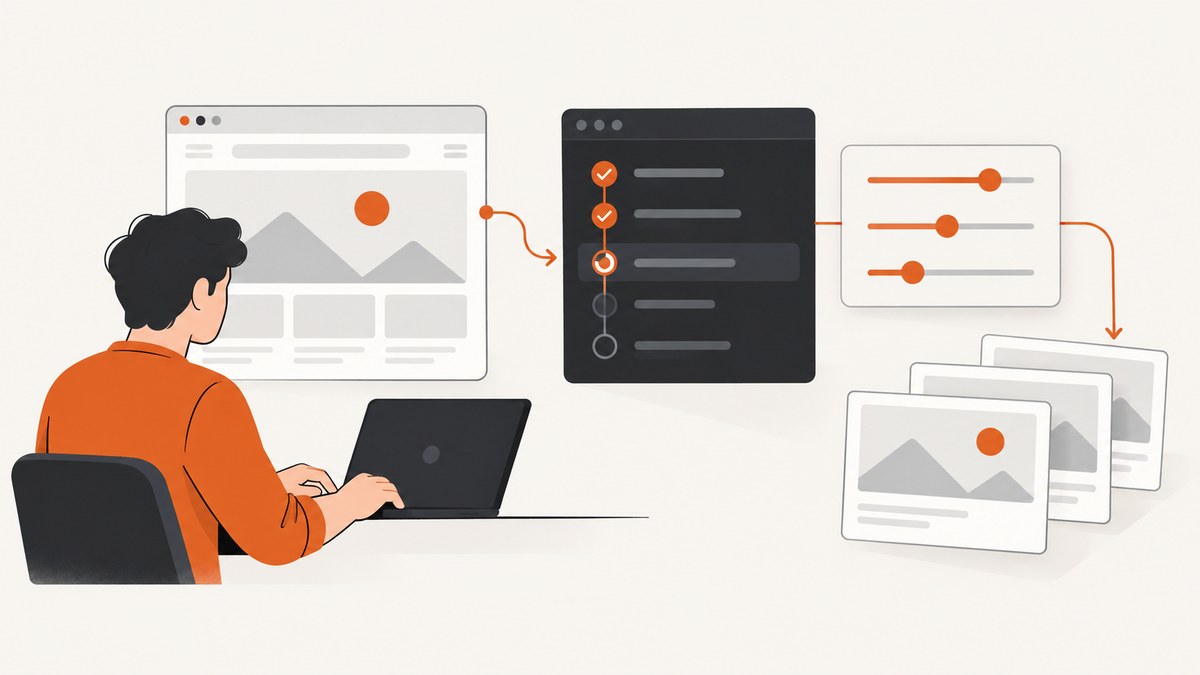
Cypress screenshot configuration has three layers: project settings in cypress.config.js, reusable defaults through Cypress.Screenshot.defaults(), and options on an individual cy.screenshot() call. Configure the first two once, then override them only where a test needs different behavior.
The most useful baseline is:
const { defineConfig } = require('cypress')

module.exports = defineConfig({
  screenshotsFolder: 'artifacts/screenshots',
  screenshotOnRunFailure: true,
  trashAssetsBeforeRuns: false,
})
screenshotsFolder changes where Cypress writes images. screenshotOnRunFailure keeps automatic failure captures enabled during cypress run. trashAssetsBeforeRuns controls whether Cypress clears screenshots, videos, and downloads before a run. The documented default is true; use false only when your CI artifact strategy intentionally preserves prior files. See the Cypress configuration reference for the current defaults.
1. Understand Cypress screenshot capture modes
Cypress supports three capture values:
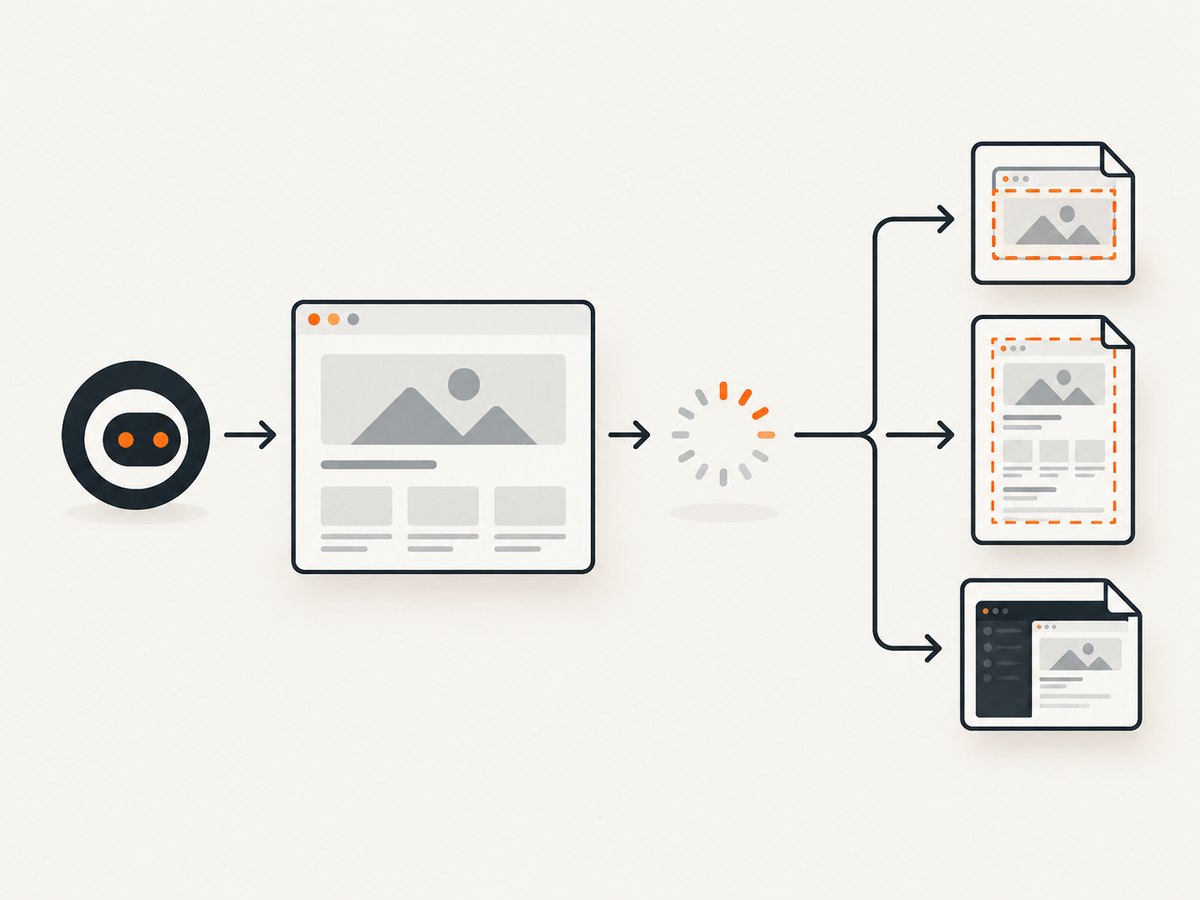
| Mode | What it captures | Best use |
|---|---|---|
viewport |
The application inside the current browser viewport. | Stable visual checks and focused debugging. |
fullPage |
The application from top to bottom, scrolling and stitching the result. | Long pages, documentation, receipts, and reports. |
runner |
The browser viewport including the Cypress Command Log. | Failure diagnostics and command-level context. |
Failure screenshots are coerced to runner. A runner image therefore has different privacy behavior from an application image: blackout selectors do not apply to runner captures. If the Command Log contains sensitive values, use the data controls described in Cypress Cloud’s masking documentation, and inspect an actual artifact before publishing it.
For application captures, Cypress disables timers and CSS animations by default. This reduces visual differences between runs. Set disableTimersAndAnimations: false when the animation itself is what you need to document. Application captures default scale to false; runner capture coerces it to true.
2. Set project-level folder, cleanup, and failure behavior
Choose an artifact directory
The default directory is cypress/screenshots. A custom path is useful when your CI system collects a single artifacts tree:
const { defineConfig } = require('cypress')

module.exports = defineConfig({
  screenshotsFolder: 'artifacts/cypress/screenshots',
  videosFolder: 'artifacts/cypress/videos',
  downloadsFolder: 'artifacts/cypress/downloads',
})
Cypress organizes output by spec path and test name. It removes common ancestor directories among the specs in a run, so paths can change when you run a different set of specs. A filename supplied to cy.screenshot() replaces the test name, can contain nested directories, and receives a .png extension. Duplicate names are numbered unless overwrite: true is passed. Default failure names append (failed).
Decide whether old artifacts survive
With trashAssetsBeforeRuns: true, Cypress clears the entire contents of the screenshots, videos, and downloads folders before cypress run. On Linux, files are emptied directly; on macOS and Windows, items are moved to the system trash or Recycle Bin. Cleanup does not run for cypress open. The official guide explains that the cleanup covers every file and nested subfolder, not just image files.
Set it to false only if you have a naming and retention plan. Otherwise, stale images can be mistaken for current failures. In CI, a safer pattern is to create a run-specific parent directory, pass that directory through your build configuration, and upload only the run’s contents.
Control automatic failure screenshots
Automatic failure screenshots happen in cypress run, including CI, and are enabled by default. They do not happen in cypress open. Disable them project-wide when another diagnostic system captures failures:
const { defineConfig } = require('cypress')

module.exports = defineConfig({
  screenshotOnRunFailure: false,
})
You can also set the value through Cypress.Screenshot.defaults(), but keeping run behavior in the project configuration makes it visible to CI maintainers.
3. Set reusable Screenshot API defaults
The Screenshot API defaults belong in the support file, which loads before test files are evaluated. This is separate from screenshotsFolder and cleanup settings:
// cypress/support/e2e.js
Cypress.Screenshot.defaults({
  capture: 'viewport',
  disableTimersAndAnimations: true,
  blackout: ['[data-sensitive]'],
})
Every manual screenshot inherits these values. A command-level option overrides the default for that invocation. The complete API reference is in Cypress.Screenshot.
4. Capture screenshots in tests
Viewport, full page, and runner examples
describe('account page screenshots', () => {
  it('captures the viewport', () => {
    cy.visit('/account')
    cy.screenshot('account-viewport')
  })

  it('captures the full page', () => {
    cy.visit('/account')
    cy.screenshot('account-full-page', { capture: 'fullPage' })
  })

  it('captures the Cypress runner', () => {
    cy.visit('/account')
    cy.screenshot('account-runner', { capture: 'runner' })
  })
})
The cy.screenshot() documentation lists command options and current behavior. Use a stable filename when an external process expects a known path; leave the name out when you want Cypress to include the test name and avoid collisions.
Mask and hide sensitive content
blackout accepts CSS selectors and masks matching elements for viewport application screenshots. It does not redact runner captures. Prefer purpose-built selectors such as [data-sensitive] rather than broad selectors that could hide layout needed for debugging:
cy.screenshot('billing', {
  capture: 'viewport',
  blackout: ['[data-sensitive]', '.credit-card-number'],
})
Verify the resulting file. Blackout is a capture setting, not a guarantee that secrets cannot appear elsewhere in the page or in the Command Log.
Stabilize dynamic pages with callbacks
onBeforeScreenshot and onAfterScreenshot let you make synchronous DOM changes around non-failure captures. A typical use is hiding a clock that would otherwise create visual diffs:
cy.screenshot('dashboard', {
  onBeforeScreenshot($el) {
    $el.find('[data-live-clock]').css('visibility', 'hidden')
  },
  onAfterScreenshot($el) {
    $el.find('[data-live-clock]').css('visibility', 'visible')
  },
})
The after callback receives screenshot details such as path and dimensions. For file-system work after a manual or failure screenshot, use the Node after:screenshot event. Cypress commands cannot be called from that event handler.
// cypress.config.js
const { defineConfig } = require('cypress')

module.exports = defineConfig({
  e2e: {
    setupNodeEvents(on) {
      on('after:screenshot', (details) => {
        console.log(`saved ${details.path} (${details.dimensions.width}x${details.dimensions.height})`)
      })
    },
  },
})
See the after:screenshot event API for the current details object.
5. A complete configuration you can adapt
const { defineConfig } = require('cypress')

module.exports = defineConfig({
  screenshotsFolder: 'artifacts/screenshots',
  screenshotOnRunFailure: true,
  trashAssetsBeforeRuns: true,
  e2e: {
    setupNodeEvents(on) {
      on('after:screenshot', (details) => {
        console.log(details.path)
      })
    },
  },
})
// cypress/support/e2e.js
Cypress.Screenshot.defaults({
capture: 'viewport',
disableTimersAndAnimations: true,
blackout: ['[data-sensitive]'],
})describe('visual artifacts', () => {
it('captures a stable report', () => {
cy.visit('/reports')
cy.get('[data-report-ready]').should('be.visible')
cy.screenshot('reports/summary', {
capture: 'fullPage',
overwrite: true,
})
})
})Keep cleanup enabled for ordinary CI runs. If you preserve artifacts, include the commit SHA, browser, viewport, and run identifier in the surrounding directory or upload metadata so duplicate filenames remain understandable.
6. Troubleshooting common failures
| Symptom | Likely cause | Fix |
|---|---|---|
| No failure image appears. | You used cypress open, or failure capture is disabled. |
Run cypress run and check screenshotOnRunFailure. |
| Previous screenshots disappeared. | trashAssetsBeforeRuns is true. |
Set it to false only with an explicit retention plan, or upload artifacts before the next run. |
| Blackout did not hide a value. | The screenshot is a runner capture, or the selector did not match. | Use an application capture for blackout, verify the selector, and inspect the file. |
| Images have different paths in CI. | Common ancestor trimming depends on the specs selected for the run. | Use an explicit filename or normalize paths during artifact collection. |
| Two tests overwrite or number files. | They share a screenshot name. | Give each test a unique nested name, or pass overwrite: true when replacement is intentional. |
| Full-page output looks inconsistent. | Lazy content, timers, or animations changed while Cypress scrolled. | Wait for a ready selector, retain the default animation suppression, and use callbacks to hide volatile elements. |
| Secrets appear in an artifact. | Blackout covered only selected application nodes, not runner logs or other text. | Use narrow, deliberate selectors, hide sensitive Command Log content, and review artifacts before sharing. |

7. Performance, reliability, and cost considerations
Viewport captures are usually the smallest and simplest artifacts. Full-page capture requires scrolling and stitching, so pages with long feeds, sticky headers, or lazy images need a readiness check before capture. Waiting for a selector is more reliable than adding an arbitrary delay because it ties the screenshot to application state. Keep screenshots focused: capture full pages when the complete document is the requirement, and use viewport or element-oriented application structure for routine diagnostics.
Disable timers and animations for repeatability. Use deterministic test data, stable selectors, and unique names. Treat screenshot directories as build artifacts: clean them deliberately, upload them with run metadata, and avoid mixing local exploratory images with CI evidence.
Cypress itself does not charge per screenshot; your costs are compute time, storage, and CI retention. Large full-page PNGs can increase upload and storage usage. If you need a hosted capture service instead of running a browser in each CI job, compare billing semantics carefully: a failed navigation should not become an unexpected paid artifact.
Or skip the browser setup
ScreenshotNeo provides a website screenshot API and MCP server. One GET request returns PNG, JPEG, WebP, or PDF. The equivalent capture is:
curl -G 'https://api.screenshotneo.com/v1/shot' -d access_key=YOUR_API_KEY --data-urlencode 'url=https://stripe.com' -o shot.webpimport requests
r = requests.get('https://api.screenshotneo.com/v1/shot', params={'access_key': 'YOUR_API_KEY', 'url': 'https://stripe.com'}, timeout=90)
open('shot.webp', 'wb').write(r.content)const q = new URLSearchParams({ access_key: 'YOUR_API_KEY', url: 'https://stripe.com' });
const res = await fetch(`https://api.screenshotneo.com/v1/shot?${q}`);See the ScreenshotNeo API documentation for request options. It removes cookie and consent banners, newsletter popups, and chat widgets before capture; bot checks, blank pages, timeouts, failed loads, and cache hits are not billed. Each response includes X-Page-Verdict and X-Billed headers. An MCP server exposes take_screenshot, get_page_info, and capture_pdf to Claude, Cursor, and other MCP clients. The free plan includes 1,000 screenshots a month with no card; paid plans start at $5 for 3,000.
Start with 1,000 free screenshots a month, no card required.
Frequently asked questions
Does Cypress save screenshots during interactive development?
Manual screenshots can be created while using cypress open. Automatic failure screenshots are documented for cypress run, not interactive mode.
Can I change the format from PNG?
The Cypress screenshot APIs described here write PNG files. If you need JPEG, WebP, or PDF output from a hosted URL capture, use a service such as ScreenshotNeo.
Why does a failure screenshot include the Command Log?
Failure captures are forced to runner mode, which includes the runner viewport and its diagnostic context.
Where should shared screenshot defaults live?
Put Cypress.Screenshot.defaults() in the support file so it loads before test files. Keep folder and run-cleanup settings in the project configuration.
How do I keep artifacts from different CI runs separate?
Use a run-specific artifact directory or upload immediately with commit and run metadata. Changing only screenshotsFolder does not disable pre-run cleanup.


