Cypress Screenshot Options
Choose Cypress screenshot options by capture area, scope, and artifact handling. Get runnable examples for viewport, full-page, element, and failure screenshots.

cy.screenshot() captures an image of the application under test. Choose capture: 'viewport' for the visible browser area, capture: 'fullPage' for the page from top to bottom, or capture: 'runner' to include the Cypress Command Log. Set options on one call, use Cypress.Screenshot.defaults() for shared screenshot defaults, and use project configuration for failure behavior and artifact folders.
Here is a runnable example for a Cypress spec:
describe('product page', () => {
  it('captures the rendered page', () => {
    cy.visit('/products/example')
    cy.get('[data-cy=product-title]').should('be.visible')

    cy.screenshot('product-page', {
      capture: 'fullPage',
      blackout: ['[data-cy=private-account-number]'],
      disableTimersAndAnimations: true,
      overwrite: true,
    })
  })
})
The filename is written under Cypress’s screenshots folder, in a path based on the spec. The exact defaults can vary by Cypress version, so check the documentation for the version installed in your project. The official references are the cy.screenshot() command, the Screenshot API, and the screenshots and videos guide.
1. Choose the right screenshot scope
The first decision is what the image should show. Cypress documents three capture modes. The mode applies to application screenshots; for an element screenshot, the capture option is ignored.
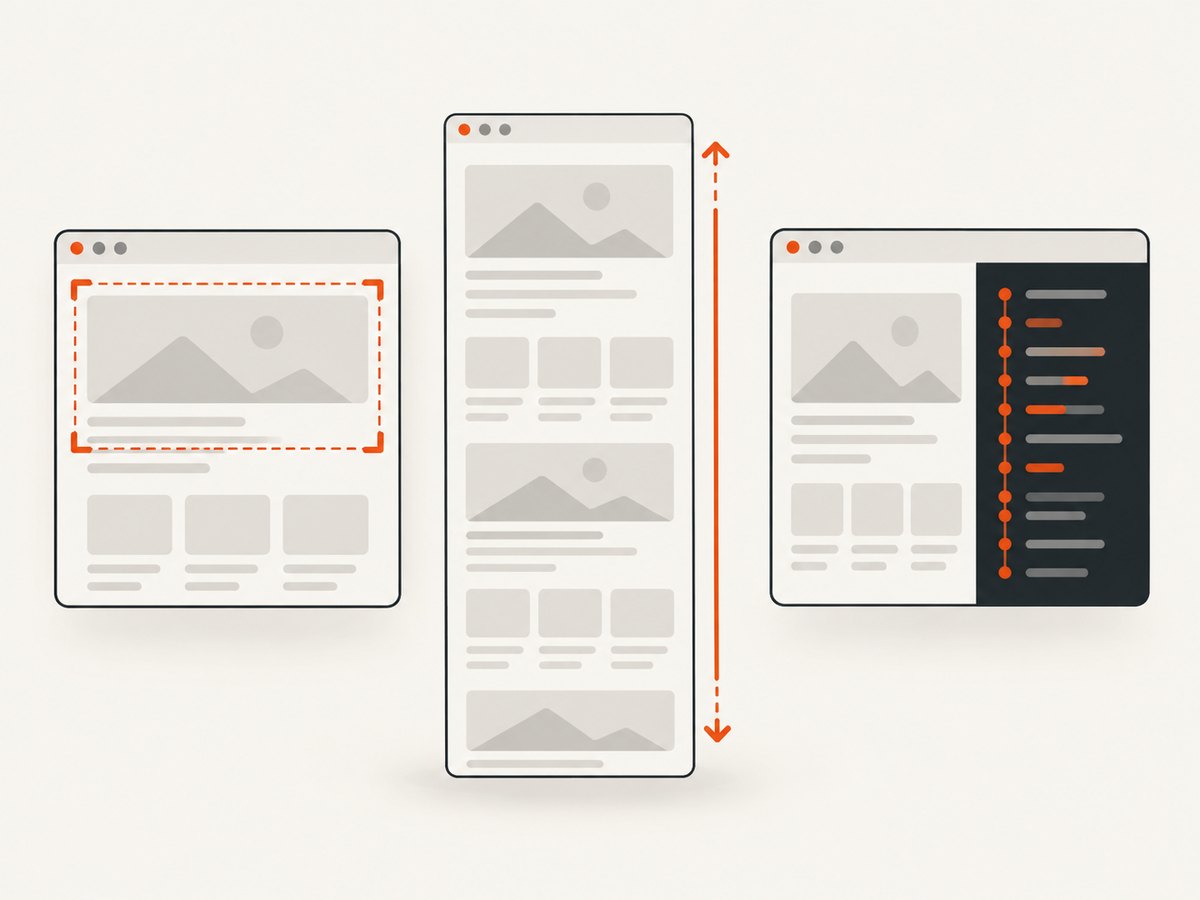
| Mode | What it captures | Use it for |
|---|---|---|
viewport |
The application as it appears in the current browser viewport. | Checking a visible state, a modal, a responsive layout, or a specific interaction. |
fullPage |
The application from the top of the page to the bottom. | Saving a whole-page artifact or reviewing content outside the initial viewport. |
runner |
The browser viewport together with the Cypress Command Log. | Debugging evidence where the test commands are useful context. |
A normal cy.screenshot() call uses fullPage according to the command reference. Set the mode explicitly when the intended image area matters to reviewers or downstream tooling. Automatic screenshots on test failure are coerced to runner. If Test Replay is enabled and the Runner UI is hidden, a runner capture instead includes only the application in the current viewport.
Capture the current viewport
cy.screenshot('checkout-current-view', {
  capture: 'viewport',
})
This records the current viewport after preceding commands have completed. If the test has scrolled, the screenshot reflects that state; scroll to the intended location before capture. For consistent images across runs, use the same viewport dimensions in the project’s Cypress configuration or set them in the test setup used by your project.
Capture the full page
cy.screenshot('article-full-page', {
  capture: 'fullPage',
})
Full-page capture is useful when the content below the fold is part of the result. It can produce much taller files than viewport capture, so consider whether the entire page is necessary. A long page can also make visual review cumbersome; capture a meaningful section or a specific element if that better matches the check.
Capture a Cypress runner view
cy.screenshot('debug-checkout', {
  capture: 'runner',
})
The runner mode includes Cypress’s Command Log in ordinary manual capture. It is useful for debugging artifacts, but it is not the right choice for a clean application-only image. The blackout option does not apply to runner captures.
2. Capture an element or a clipped region
To capture a particular element, call screenshot() on the element yielded by a Cypress query. This is useful for a card, chart, dialog, or other component that has a clear boundary.
cy.get('[data-cy=order-summary]').screenshot('order-summary', {
  padding: 12,
  disableTimersAndAnimations: true,
})
padding changes the dimensions around an element screenshot. It does not change the dimensions of an application screenshot. Cypress documents capture as ignored for element screenshots, so do not expect capture: 'fullPage' to expand an element capture to the whole page.
For an application screenshot, clip crops the final image using pixel coordinates and dimensions:
cy.screenshot('header-crop', {
  capture: 'viewport',
  clip: { x: 0, y: 0, width: 1280, height: 240 },
})
Use clip coordinates that fit the rendered image and the viewport you configured. A crop is a fixed rectangle: it does not locate an element for you, and layout changes can make a previously useful crop miss the content.
3. Use the per-call options
These are the options listed in Cypress’s command reference. They affect the individual call unless otherwise noted. Review the reference for details that match the version in your package.
| Option | Documented default | Effect and practical use |
|---|---|---|
log |
true |
Controls whether the command is shown in the Command Log. |
blackout |
[] |
Accepts CSS selectors for elements to black out in applicable captures. It does not apply to runner captures. |
capture |
'fullPage' |
Selects viewport, fullPage, or runner for application screenshots. Ignored for element screenshots. |
clip |
null |
Crops the final image using pixel position and dimensions. |
disableTimersAndAnimations |
true |
Disables timers and animations during capture to reduce visual changes. Set to false when the animated state itself is what you need to capture. |
padding |
null |
Changes dimensions for element screenshots only. |
scale |
false |
Controls whether the application is scaled to fit the browser viewport. Runner capture always uses scaling. |
timeout |
responseTimeout |
Sets the screenshot command timeout. Increase it only if capture legitimately needs more time. |
overwrite |
false |
Allows an existing file at the same path to be replaced. |
onBeforeScreenshot |
Callback | Runs before a screenshot is taken. |
onAfterScreenshot |
Callback | Runs after a screenshot is taken. |
The command forms are cy.screenshot(), cy.screenshot(fileName), cy.screenshot(options), and cy.screenshot(fileName, options). A filename is relative to the screenshots folder and spec path; paths can create nested folders. For example:
cy.screenshot('checkout/confirmation', {
  capture: 'viewport',
  overwrite: true,
})
The command yields the same subject it received. Cypress warns that it is unsafe to chain further commands that rely on that subject after .screenshot(). Keep the capture as the end of that chain or start a new Cypress command afterward.
4. Set defaults for multiple screenshots
Use Cypress.Screenshot.defaults() when a behavior should apply to screenshot calls more broadly, including automatic failure screenshots. This is the screenshot API defaults layer; it is different from options passed to one command and from project-level settings.
// cypress/support/e2e.js
Cypress.Screenshot.defaults({
  blackout: ['[data-cy=private-account-number]'],
  capture: 'runner',
  disableTimersAndAnimations: true,
  overwrite: true,
  scale: true,
})
Place shared setup in the support file that the project loads for its specs. Set only the defaults the suite needs: a global capture: 'runner', for example, changes the expected shape of manual application screenshots throughout the suite. A per-call option can express an intentional exception for an individual capture.
The Screenshot API also demonstrates setting screenshotOnRunFailure: false through Cypress.Screenshot.defaults(). For a run-wide policy, project configuration is often easier for a maintainer to find and reason about.
5. Configure failure screenshots and artifact paths
Cypress automatically captures screenshots when tests fail in cypress run. It does not automatically capture test failures in cypress open, although manual cy.screenshot() calls work in both modes. By default, screenshot files go to cypress/screenshots.

For a current E2E configuration using cypress.config.js, the relevant settings can look like this:
const { defineConfig } = require('cypress')

module.exports = defineConfig({
  e2e: {
    screenshotsFolder: 'cypress/screenshots',
    screenshotOnRunFailure: true,
    trashAssetsBeforeRuns: true,
  },
})
To disable automatic failure screenshots, set screenshotOnRunFailure: false. Manual screenshots remain available where your tests call cy.screenshot(). If your project uses a different configuration format or Cypress mode, use the matching configuration reference.
const { defineConfig } = require('cypress')

module.exports = defineConfig({
  e2e: {
    screenshotOnRunFailure: false,
  },
})
trashAssetsBeforeRuns defaults to true. Before a cypress run, Cypress clears the contents of its downloads, screenshots, and videos folders; this includes nested screenshot folders. Set it to false if those files must be preserved between runs:
const { defineConfig } = require('cypress')

module.exports = defineConfig({
  e2e: {
    screenshotsFolder: 'artifacts/cypress-shots',
    screenshotOnRunFailure: true,
    trashAssetsBeforeRuns: false,
  },
})
Decide how CI will collect artifacts when changing the folder or cleanup behavior. Preserving old screenshots can mix files from different runs, while cleanup prevents stale files from being mistaken for current results. Cypress’s configuration reference documents the project settings. Video recording is separate: it is off by default, can be enabled with video: true for cypress run, and stores videos under cypress/videos by default.
6. Keep screenshot output reliable
A screenshot records the state Cypress has reached; it does not make a flaky page deterministic by itself. Before capturing, wait for a visible, meaningful condition rather than relying on an arbitrary short pause.
cy.visit('/dashboard')
cy.get('[data-cy=dashboard-ready]').should('be.visible')
cy.get('[data-cy=loading-spinner]').should('not.exist')
cy.screenshot('dashboard', { capture: 'viewport' })
For stable artifacts, make these checks part of the test design:
- Wait for the state that matters, such as a loaded component or a completed navigation.
- Keep viewport dimensions and test data consistent where screenshot comparisons depend on them.
- Use
disableTimersAndAnimations: truefor ordinary captures when moving content would make the image inconsistent. - Black out sensitive values with selectors where appropriate; check that selectors match the intended elements.
- Use viewport capture for focused states and full-page capture only when below-the-fold content is part of the artifact.
- Make overwrite and run cleanup choices explicit if CI uploads screenshots or uses stable artifact names.
Callbacks can support custom work before or after a capture. Their exact callback arguments and behavior are version-specific; consult the command reference before relying on them in shared utilities. Avoid putting essential test assertions only inside screenshot callbacks: ordinary Cypress commands before the capture are clearer and easier to debug.
7. Troubleshoot common screenshot problems
| Symptom | Likely cause | Fix |
|---|---|---|
| No automatic screenshot appears after a failure. | The test ran in cypress open, or screenshotOnRunFailure is disabled. |
Run with cypress run to get automatic failure screenshots, or add a manual cy.screenshot() call for a state you want in either mode. Check the setting in project config and screenshot defaults. |
| Manual captures appear, then disappear on the next run. | trashAssetsBeforeRuns is true, so Cypress clears screenshot assets before a run. |
Collect artifacts after the run, or set trashAssetsBeforeRuns: false if retaining prior files is required. |
| The screenshot is larger or smaller than expected. | The capture mode, viewport, element padding, clip rectangle, or scaling differs from the intended output. | Set capture explicitly, inspect the configured viewport, and verify padding, clip, and scale for that call. |
| Blackout selectors do not hide content. | The selector does not match the rendered element, or the capture is runner. |
Confirm the selector against the page state and use an application capture mode. Cypress documents that blackout does not apply to runner captures. |
| An element capture includes unexpected dimensions. | padding affects element screenshots; capture does not turn an element screenshot into a page capture. |
Adjust or remove padding, or call cy.screenshot() on the application when you need viewport or full-page capture. |
| A command after screenshot behaves unexpectedly. | The screenshot command yields its prior subject, but Cypress warns that chaining commands that depend on that subject is unsafe. | End the chain at .screenshot() and start a fresh command for subsequent work. |
| The saved file collides with an earlier name. | The filename resolves to an existing path and overwrite is false. |
Use a unique filename or set overwrite: true when replacing that artifact is intended. |
| Images differ because of animation or changing content. | Timers, animations, asynchronously loaded content, or changing test data alter the page state. | Wait for a stable page condition, use deterministic test data, and keep the default timer and animation handling unless the moving state is being tested. |
8. Decide whether capture alone is enough
Cypress screenshots are capture artifacts; the built-in command does not compare images. If the goal is visual regression review, a separate visual-testing workflow is needed. Cypress’s visual-testing guide identifies integrations including Happo, Percy, and Sauce Labs Visual. Choose one based on the review and comparison workflow your team needs, and confirm its current Cypress integration details in its own documentation.
9. Or skip the browser setup
If you need a screenshot of a public URL rather than an artifact from a Cypress test, ScreenshotNeo is a website screenshot API and MCP server from Yorker Media. One GET request returns an image or PDF. See the ScreenshotNeo API docs for request parameters and options.
curl -G "https://api.screenshotneo.com/v1/shot" -d access_key=YOUR_API_KEY --data-urlencode url=https://stripe.com -o shot.webpimport requests
r = requests.get(
"https://api.screenshotneo.com/v1/shot",
params={"access_key": "YOUR_API_KEY", "url": "https://stripe.com"},
timeout=90,
)
open("shot.webp", "wb").write(r.content)const q = new URLSearchParams({ access_key: 'YOUR_API_KEY', url: 'https://stripe.com' });
const res = await fetch(`https://api.screenshotneo.com/v1/shot?${q}`);
if (!res.ok) throw new Error(`Screenshot request failed: ${res.status}`);
await Bun.write('shot.webp', res);ScreenshotNeo removes cookie banners, newsletter popups, and chat widgets before the shot; each step can be turned off. Bot checks, blank pages, and failed loads are never billed. Its response headers include page verdict and billing information. An MCP server lets AI agents use take_screenshot, get_page_info, and capture_pdf. The free plan includes 1,000 screenshots a month with no card; paid plans start at $5 for 3,000. Sign up for 1,000 free screenshots a month, with no card.
FAQ
Can Cypress take a screenshot without failing the test?
Yes. Call cy.screenshot() at the point in the test where you want the image. Automatic failure screenshots are a separate behavior.
Does a Cypress screenshot assert that the page looks correct?
No. Capture saves an image; it does not compare that image to a baseline. Use a visual-testing integration if you need image comparison.
Can I keep screenshots from earlier CI runs?
Set trashAssetsBeforeRuns: false to prevent Cypress’s pre-run cleanup. Plan your artifact naming and collection so old files are not mistaken for the current run.
Which capture mode should I start with?
Use viewport for a focused visible state, fullPage for the page from top to bottom, and runner when the Cypress Command Log is useful debugging context.
Do screenshot options have identical defaults in every Cypress version?
The documentation used here does not identify one Cypress release. Verify option defaults and behavior against the version installed in your project.


