How to Capture Cypress Screenshots in CLI Mode
Run Cypress screenshots from the CLI, capture failures automatically, configure output and CI artifacts, and troubleshoot common screenshot issues.
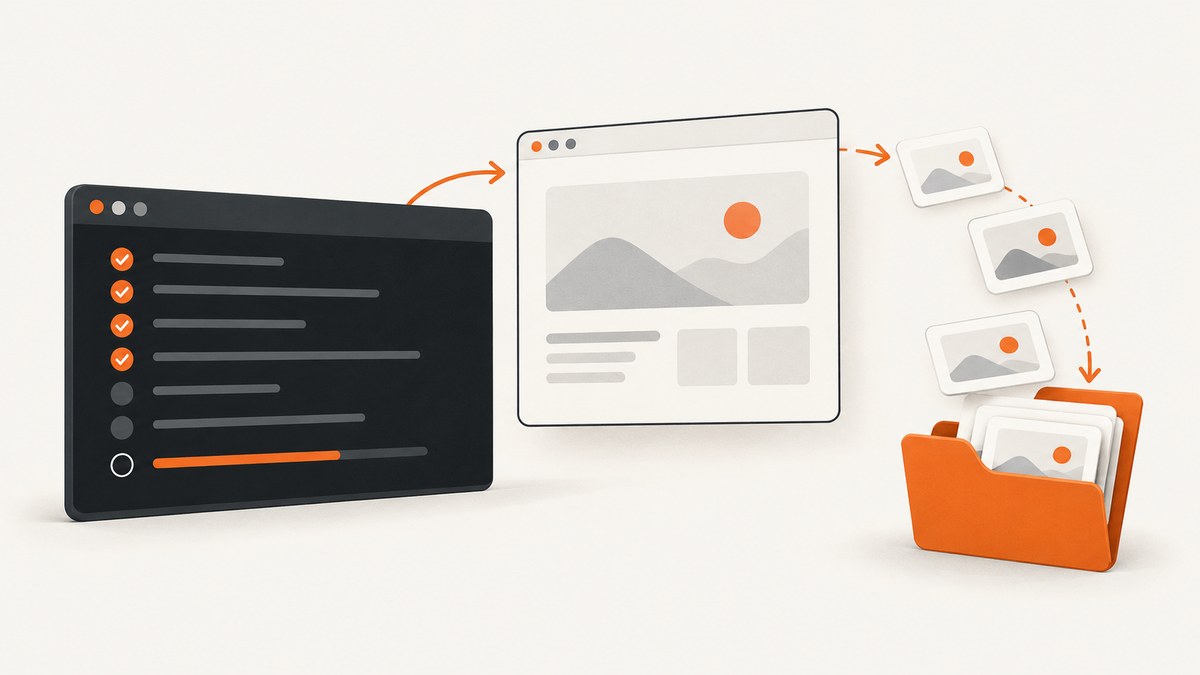
Run npx cypress run from your project root. Add cy.screenshot() inside a test when you need an intentional image. During cypress run, Cypress also captures a screenshot automatically when a test fails unless screenshotOnRunFailure is disabled. By default, files are written to cypress/screenshots.
This guide covers intentional captures, failure screenshots, CLI flags, configuration, naming, cleanup, masking, CI artifacts and common errors.
1. Install Cypress and run it from the CLI
Install Cypress in the project that contains your tests:
npm install --save-dev cypress
npx cypress open
The interactive command creates the standard folder structure. Once a spec exists, run tests headlessly from the project root:
npx cypress runEquivalent package-manager commands are:
yarn cypress run
pnpm cypress run
bunx cypress run
cypress run uses a headless browser by default. Add --headed when you need to watch the browser while diagnosing a problem.
2. Capture an intentional screenshot
Place cy.screenshot() after the page has reached the state you want to document. Assertions and explicit waits make the capture repeatable:
describe('checkout', () => {
  it('captures the ready checkout state', () => {
    cy.visit('/checkout')
    cy.get('[data-testid="checkout-form"]').should('be.visible')
    cy.screenshot('checkout-ready')
  })
})
The command is asynchronous and takes roughly 100 ms. The page can change during that interval, so issue it only after the relevant state is asserted and stable. See the official cy.screenshot() reference.
Run only the spec you are working on
npx cypress run --spec cypress/e2e/checkout.cy.jsYou can pass more than one spec with a comma-separated list or a glob supported by your shell. Use --config-file to select a different Cypress configuration:
npx cypress run --config-file cypress.config.js
npx cypress run --headed --spec cypress/e2e/checkout.cy.js
3. Understand automatic screenshots on failure
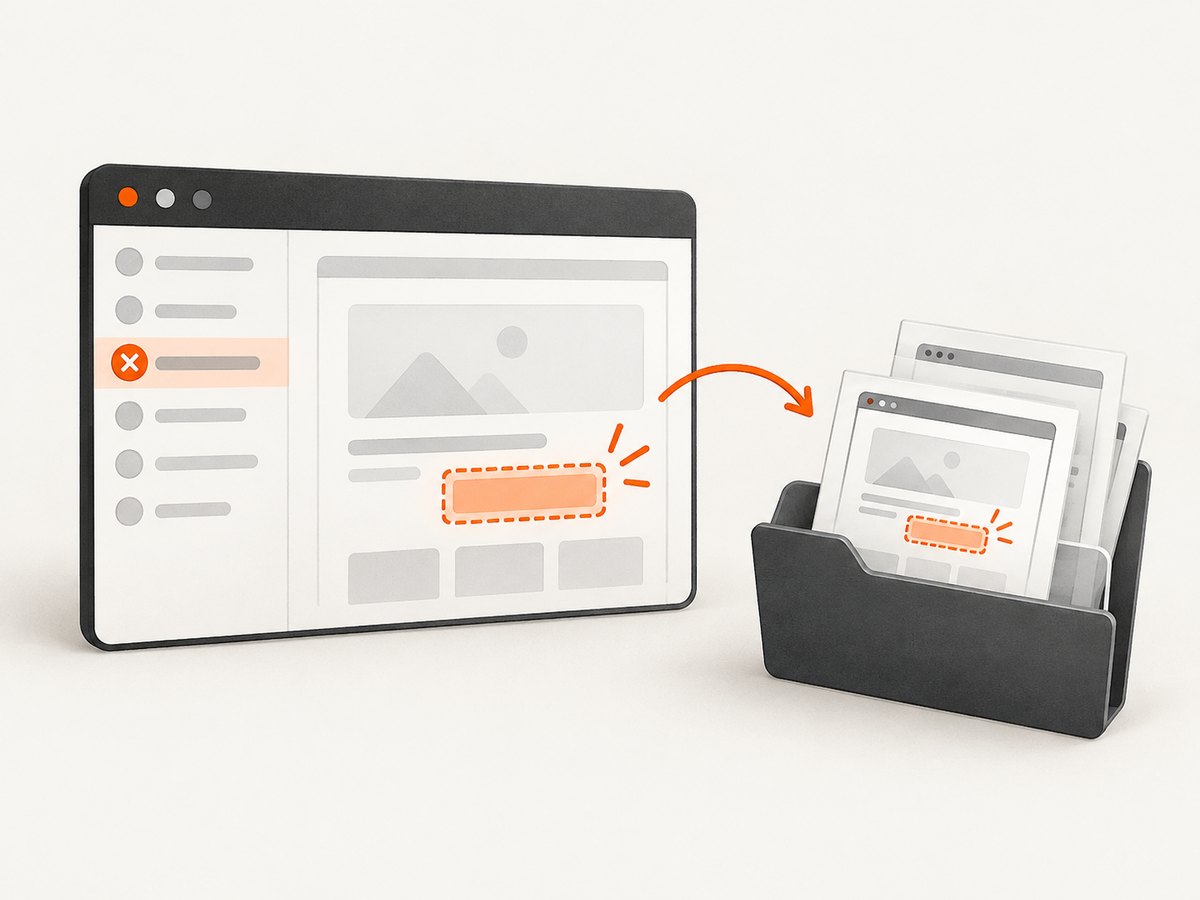
When a test fails during cypress run, Cypress automatically captures a screenshot. Failure screenshots are not automatically taken during cypress open. The default configuration value for screenshotOnRunFailure is true.
const { defineConfig } = require('cypress')

module.exports = defineConfig({
  e2e: {
    screenshotOnRunFailure: true
  }
})
Disable failure images when they are too large for a particular pipeline:
const { defineConfig } = require('cypress')

module.exports = defineConfig({
  e2e: {
    screenshotOnRunFailure: false
  }
})
You can also set the default through Cypress’s screenshot API:
Cypress.Screenshot.defaults({ screenshotOnRunFailure: false })Automatic failure files include a (failed) suffix, which makes them easy to identify in an artifact directory.
4. Find, name and preserve the files
The default location is cypress/screenshots. A name passed to cy.screenshot() is relative to that directory and the spec path:
cy.screenshot('actions/login/clicking-login')This creates nested folders beneath the screenshots directory. Use stable names that describe the state rather than timestamps when the files will be compared or uploaded by CI.
Before a cypress run, Cypress clears the screenshots folder by default. Set trashAssetsBeforeRuns: false if a run must retain images from an earlier run:
const { defineConfig } = require('cypress')

module.exports = defineConfig({
  trashAssetsBeforeRuns: false,
  e2e: {
    screenshotsFolder: 'artifacts/cypress-screenshots'
  }
})
The same cleanup setting affects videos and downloads. Confirm the configured folder in the run log before writing a CI upload step.
5. Select the capture scope and options
Cypress captures the application under test by default. Configure the scope per call:
cy.screenshot('viewport-only', { capture: 'viewport' })
cy.screenshot('full-page', { capture: 'fullPage' })
cy.screenshot('runner-view', { capture: 'runner' })viewportcaptures the visible application viewport.fullPagecaptures the complete scrollable page.runnercaptures the complete Cypress browser view, including the Command Log.
Useful options include:
| Option | Use |
|---|---|
blackout |
Hide matching selectors, such as account numbers or email addresses. |
overwrite |
Allow a later capture to replace an existing file with the same name. |
scale |
Scale the resulting image for smaller artifacts. |
disableTimersAndAnimations |
Keep Cypress’s default animation and timer suppression, or set it to false when the animated state itself matters. |
onBeforeScreenshot |
Run preparation code immediately before capture. |
onAfterScreenshot |
Run cleanup or reporting code after the image is written. |
cy.screenshot('account-page', {
  capture: 'fullPage',
  blackout: ['[data-sensitive]', '.private-email'],
  scale: true,
  overwrite: true
})
Cypress disables JavaScript timers and CSS animations by default while taking screenshots to reduce movement. If a transition must be visible, use disableTimersAndAnimations: false and wait for a deterministic point in that transition.
6. Make captures deterministic
Most inconsistent screenshots come from capturing too early. Build the test state in a predictable order:
- Visit the route.
- Set the viewport and any required cookies or local storage.
- Wait for a meaningful selector, not an arbitrary long delay.
- Assert text, data or visibility.
- Hide volatile content or mask secrets.
- Capture the screenshot.
it('captures the dashboard', () => {
  cy.viewport(1440, 900)
  cy.visit('/dashboard')
  cy.get('[data-testid="dashboard"]', { timeout: 15000 }).should('be.visible')
  cy.get('[data-testid="loading"]').should('not.exist')
  cy.screenshot('dashboard-ready', {
    blackout: ['[data-testid="current-time"]']
  })
})
Prefer application-level readiness signals over cy.wait(5000). A fixed delay can be too short on a busy CI runner and unnecessarily slow on a fast one.
7. Publish screenshots from CI
Upload the screenshots directory as a build artifact after the Cypress command, even when tests fail. The exact YAML differs by CI provider, but the path is the same:
npx cypress run
# artifact path: cypress/screenshots
If you configured screenshotsFolder, upload that path instead. Keep the upload step configured to run after failures so automatic failure images remain available. Cypress Cloud can also display screenshots produced by cy.screenshot() and failure captures; provider-specific artifact instructions belong in your CI system’s documentation.
8. Common problems and fixes
| Symptom | Cause | Fix |
|---|---|---|
| No screenshot appears | The test never reached cy.screenshot(), or it was run with cypress open and you expected an automatic failure image. |
Run npx cypress run, inspect the command log, and add an intentional capture. |
| Images disappear before each run | Cypress clears screenshot assets before a run. | Set trashAssetsBeforeRuns: false or copy artifacts elsewhere before the next run. |
| Wrong directory is uploaded | screenshotsFolder was overridden. |
Check cypress.config.js and upload the configured path. |
| Capture shows a spinner or blank panel | The command ran before the application was ready. | Assert a ready selector and the absence of loading UI before taking the screenshot. |
| Secret data is visible | Sensitive elements were not masked. | Use blackout selectors or render test-safe data. |
| Duplicate names overwrite files | The same name was reused with overwrite enabled. | Use nested, state-based names or remove overwrite. |
| Full-page image is unexpectedly tall | capture: 'fullPage' includes the entire scrollable document. |
Use viewport for a fold-only image, or design the page and artifact limits around full-page output. |
| Animation differs between runs | The page changes during the asynchronous capture window. | Wait for a stable state and keep animation suppression enabled unless animation is the subject of the test. |
9. Performance, reliability and storage
- Run a focused spec with
--specwhile iterating; run the complete suite in CI. - Use viewport captures when a full document is unnecessary. Full-page images consume more disk space and take longer to inspect and upload.
- Capture intentional checkpoints only where the image answers a debugging or review question. Failure screenshots already provide evidence for unexpected states.
- Use stable selectors and readiness assertions to reduce retries caused by timing races.
- Keep screenshots as CI artifacts with an appropriate retention period. Since Cypress clears them before a new run by default, retention is controlled by your artifact system after upload.
- Mask personal or secret data before uploading artifacts.
10. Or skip the browser setup
If you need a screenshot of a URL rather than a screenshot tied to a Cypress test, ScreenshotNeo provides a single HTTP request. Its capture service removes cookie and consent banners, newsletter popups and chat widgets before the shot. Bot checks, blank pages and failed loads are not billed, and response headers identify the page verdict and billing result. The service also offers an MCP server with take_screenshot, get_page_info and capture_pdf tools for Claude, Cursor and other MCP clients.
See the ScreenshotNeo API documentation for all options.
curl -G "https://api.screenshotneo.com/v1/shot" -d access_key=YOUR_API_KEY --data-urlencode url=https://stripe.com -o shot.webpimport requests
r = requests.get("https://api.screenshotneo.com/v1/shot", params={"access_key": "YOUR_API_KEY", "url": "https://stripe.com"}, timeout=90)
open("shot.webp", "wb").write(r.content)const q = new URLSearchParams({ access_key: 'YOUR_API_KEY', url: 'https://stripe.com' }); const res = await fetch(`https://api.screenshotneo.com/v1/shot?${q}`);There are 1,000 screenshots per month on the free plan with no card required. Paid plans start at $5 for 3,000 screenshots. Create a free ScreenshotNeo account.
FAQ
Does Cypress take screenshots when I run cypress open?
Not automatically on failure. Automatic failure screenshots apply to cypress run; add cy.screenshot() for an intentional capture.
Can I capture the Cypress Command Log?
Yes. Use capture: 'runner' instead of the default application capture.
What is the default screenshot format?
Cypress writes PNG screenshot files in the configured screenshots folder.
How do I keep screenshots from previous runs?
Set trashAssetsBeforeRuns: false, or copy and upload the directory before starting another run.
Should I use a fixed wait before taking a screenshot?
Use a readiness selector and assertions whenever possible. Fixed waits are less reliable across machines.
Primary references: Cypress screenshot command, Cypress configuration, and Cypress CI and Cloud guidance.


